SMS Gateway
You can send alerts via SMS using SMS servers and SMS gateways. Configuring an SMS Gateway enables a computer to send and receive SMS text messages to a mobile device over a telecommunications network. Before configuring the Send SMS action for alarms, ensure that the SMS gateway is properly configured.
Prerequisites
Before adding an SMS gateway, ensure the following prerequisites are met:
- A valid account in the SMS gateway provider portal.
- The SMS gateway API URL must be reachable from the Applications Manager server.
- Sufficient SMS credits must be available to send messages.
Note: Please refer your respective SMS gateway's HTTP API documents for more details.
Setting up an SMS Gateway
To set up an SMS Gateway, follow the steps given below:
- Go to Settings → Product Settings → Mail and SMS server Settings → SMS Gateway.
Choose the required vendor from the SMS Provider dropdown and provide respective credentials given by the vendor. Following are the details to be provided for respective SMS Provider vendors:
- Clickatell: Specify the Account Type, User Name, Password or API Key of the Clickatell account.
- SMSEagle: Enter the Server Name/IP Address, Username, and Password of the SMSEagle account.
- Twilio: Specify the Account SID, Auth Token, and Phone Number of the Twilio account.
- Sinch (Not supported in Plugin):
- Geographical APIs - Provide the URL of gateway server, App ID, Password and Sender ID generated.
- General APIs - Select the Region. Provide the Service Plan ID, API Token for that service plan, and Sender ID generated. Check the documentation here for Sinch SMS API.
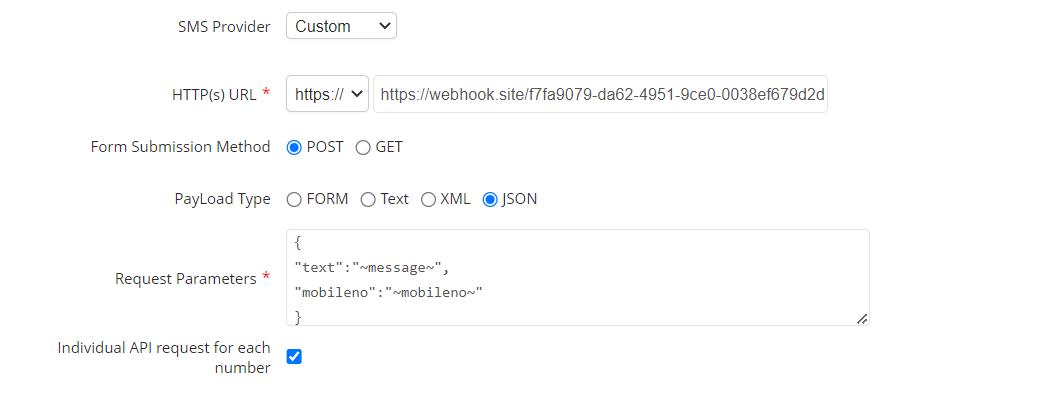
Choose 'Custom' if you wish to provide custom network credentials to configure SMS Gateway. After selecting this option, follow the steps given below (from Step 3 onwards).- Enter the HTTP(S) URL of your SMS gateway provider. You can choose between HTTP and HTTPS from the drop down menu, depending on the URL of your provider. This field does not include URL parameters. (Example:www.smsserver.com/sendsms; api.clickatell.com/http/sendmsg)
- Select whether you want to use POST or GET form submission method for sending SMS and enter the request parameters.
- If you select POST method, you will be asked to choose the PayLoad Typefrom the following options:
- FORM: If you select this, enter the Request Parameter in a line-by-line format
- Text: If you select this, enter the Request Parameter in text format
- XML: If you select this, enter the Request Parameter in XML format
- JSON: If you select this, enter the Request Parameter in JSON format
Enable the Individual API request for each numbercheckbox to send individual API request for each number during the action execution.
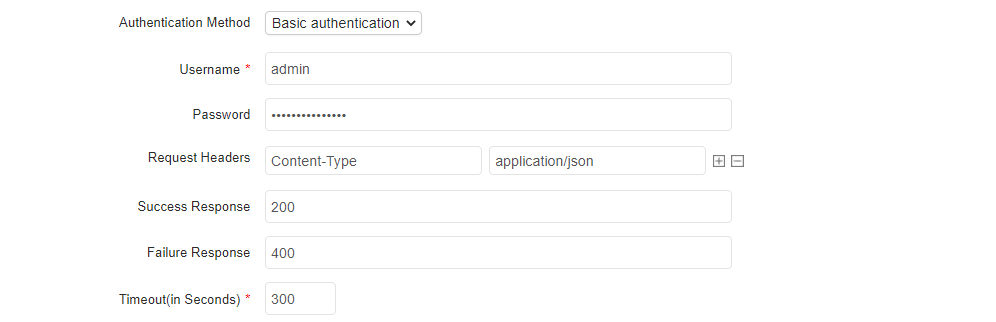
- Choose the Authentication Method required, if any, by choosing any one of the following authentication methods:
- No Auth: This option lets you access the HTTP URL without any authentication.
- Basic Authentication: Allows access to the HTTP URL using basic authentication (NTLM protocol). Provide the required username and password to authenticate.
- OAuth: Allows access to the HTTP URL using OAuth (Open Authorization). Select an existing OAuth provider from the dropdown list or create a new one using the Add OAuth Provider link. Refer to OAuth Provider for more details.
- Enter the URL’s Request Headers. This is optional, based on the gateway providers. You can add or delete headers using the [
 ] and [
  ] icons given at the side.
 - Provide message to be displayed for Success and Failure Response, if required.
- Specify the Timeout value, in seconds.
- Click Save to complete the configuration.
Format for Request Parameters:apiKey=xxx&toNumber=~mobileno~&content=~message~
The connectivity status of the SMS Gateway is displayed through in-app notifications (product bell icon).
Mail Notification for Connectivity Failure
Enable this option to receive email notifications when the configured SMS Gateway encounters connectivity failures and when the connection is restored.
Configuration Options
- Email ID — Select the source from which the To address will be derived.
- Available Email Actions — Select the email action used to send connectivity failure and recovery notifications (applicable when Email ID is set to Select Email Actions).
- Append Custom Message — Add an optional user-defined message to be appended to the notification email.
- Repeat Mails Until Successful Connection — When enabled, repeated failure notifications will be sent at the configured interval until the SMS Gateway connection is successfully restored.
- Repeat Interval (Minutes) — Specifies the interval, in minutes, between consecutive failure notification emails.
Prerequisites
- The SMTP server must be configured to enable email notifications.
Note:
- If a configured email action is later deleted, notifications will automatically be sent using Admin Mail or SMTP Mail.
- When an email action is selected, both the From and To addresses will be derived from the selected email action configuration.
- For Admin Mail and SMTP Mail, the From address will be the configured SMTP address, and the To address will be the configured Admin or SMTP recipient.
Configuring the SMS gateway settings in the APM Plugin
In APM Plugin, you can create a new SMS gateway configuration from OPM. This configuration will automatically sync to the APM Plugin. However, if an existing SMS gateway is configured in APM Plugin already, the new configuration from OPM will not be synced until the existing configuration in APM Plugin is deleted. Once deleted, reconfiguration can only be done through OPM.
Note: Support for Multiple SMS gateway configuration is also available.