Agent installation
After creating either a domain or a workgroup and defining the scope of management, the next step is to install Endpoint Central agents on all the machines that you want to manage. Use any of the methods below to automate agent installation:
- Log in to the web console and navigate to the Agent tab .
- Choose Agent installation under Scope of Management from the left pane.
- Select Other methods and choose the Download option under Command Line tab .
- From the downloaded zip file, extract the UEMSAgent.msi, UEMSAgent.mst, and DCAgentServerInfo.json files , and paste them in a shared path accessible by all the computers you want to install the agent on. To verify the digital signature of UEMSAgent.msi, refer to the Digital Signature of Installer file tampered section in Agent Install Issues & Fixes .
- From the extracted location, compress the following files using 7-zip:
- UEMSAgent.msi
- UEMSAgent.mst
- DCAgentServerInfo.json
- Setup.bat
- Once the download/installation is completed, you can right-click setup.bat and run as administrator to execute it.
- You will be prompted to choose from the following options displayed in the Command Prompt:
- Install Distribution Server in the computer
- Install Agent in this computer
- Install Distribution Server in this computer and agents in multiple computers
- Install Agents in multiple computers
- If you want to install agents on multiple computers, you should add the computer names or IP addresses in a text file, i.e., computernames.txt, and keep this ready.
- Choose option 3 from the options displayed in the Command Prompt.
- Upon providing the administrator credentials, agent installation will begin.
- The agents will be installed in the target computers, but in case you have enabled "Waiting for Approval", the further communication with the server occurs only if these target computers are approved from the Computer(s) for Approval tab that is present at Agent > Computers > Computer(s) for Approval .
Note:
- The Waiting for Approval feature is provided to ensure security and prevent the misuse of the product without the administrator's knowledge. Even if the agent has been installed on a computer, it can be declined by the administrator from this console, thereby preventing further communication with the server.
- The computers added directly from the Managed Computers tab, are not applicable for this feature.
- If the installer displays Installation Not Approved ("This device has not been approved for management by your IT administrator... Installation cannot continue until approval is granted."), the computer is pending approval and must be approved from Agent > Computers > Computer(s) for Approval . If the Agent Troubleshooting Tool shows Approval Status: Pending for a computer, check the Computer(s) for Approval tab for that computer. For more details, refer to Approve Computers & DS .
- Log in to the web console, and navigate to the Agent tab .
- Choose Remote Offices under Scope of Management from the left pane.
- Select a remote office and click Download WAN Agent under the Download Agent column .
- Follow the on-screen installation instructions to complete the installation.
- The agents will be installed in the target computers, but in case you have enabled "Waiting for Approval", further communication with the server occurs only if these target computers are approved from the Computer(s) for Approval tab that is present at Agent > Computers > Computer(s) for Approval .
Note:
- The Waiting for Approval feature is provided to ensure security and prevent the misuse of the product without the administrator's knowledge. Even if the agent has been installed on a computer, it can be declined by the administrator from this console, thereby preventing further communication with the server.
- The computers added directly from the Managed Computers tab, are not applicable for this feature.
- If the installer displays Installation Not Approved ("This device has not been approved for management by your IT administrator... Installation cannot continue until approval is granted."), the computer is pending approval and must be approved from Agent > Computers > Computer(s) for Approval . If the Agent Troubleshooting Tool shows Approval Status: Pending for a computer, check the Computer(s) for Approval tab for that computer. For more details, refer to Approve Computers & DS .
When an enterprise has an Active Directory Domain based setup with numerous endpoints to be managed, the agent can be installed using the Group Policy Object.
- Using GPO light-weight tool: Simplest method to install agent in an Active Directory based network
- Using GPO scheduler: Fastest method to install the agent. Agents will be installed in the next refresh cycle
- Using GPO start-up script: Most common method of agent installation using GPO
Endpoint Central agent can be downloaded from a copied link. The copied link can be shared to end users who could then download and install the agents in their machines. This option is available on clicking Download Agent from Remote Offices or Computers tab. On clicking copy option, the URL for the selected Remote Office will be created. The default expiry time of the URL is 14 days. Using the copied link, agent can be installed:
- Directly from the browser
- From the terminal
Directly from the browser:
On visiting the copied URL from the browser, the user will be presented with an option to download the agent. The user has to select the OS and the agent download will be initiated. If the user visits the URL from an unsupported browser, an error page will be displayed. If the user visits the copied URL from a supported browser post the expiry time, the error page will be displayed.
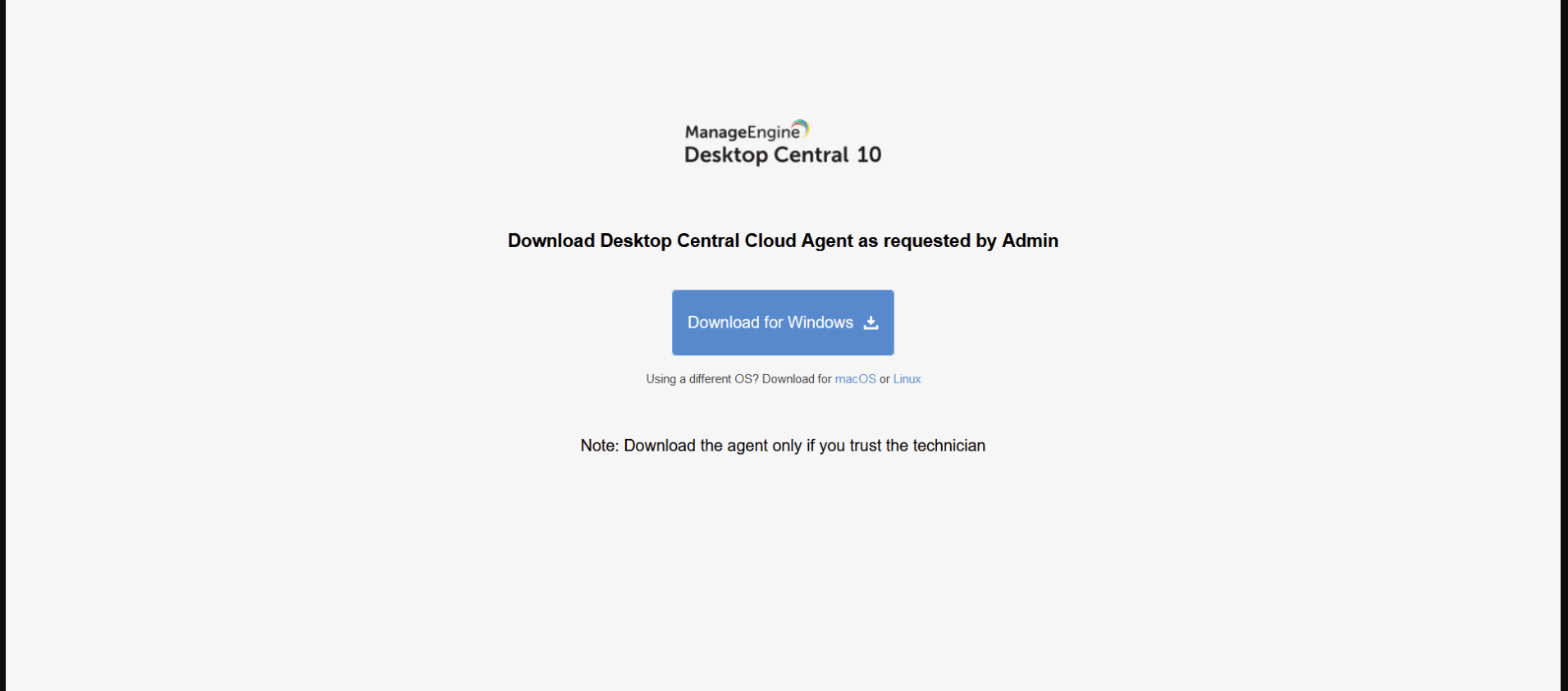
From the terminal:
In case the user wishes to download the agent via terminal, he/she can do so, by modifying the copied URL. The format of the copied URL from the console (for US Data Center) is:
https://desktopcentral.manageengine.com/link.do?actionToCall=download&encapiKey=<encapiKey>
For terminal based download, an extra OS parameter is required:
https://desktopcentral.manageengine.com/link.do?actionToCall=download&encapiKey=<encapiKey>&os=<supported-os>
Valid OS parameters are:
- windows
- macos
- Linux
Note: OS must be supported for the product for which agent is downloaded.
Agent can be downloaded using CURL. The CURL download command is:
- curl "paste_copied_url_with_os_param" --output DCAgent.exe - (Windows)
- curl "paste_copied_url_with_os_param" --output DCAgent.zip - (macOS or Linux)
Alternatively, the agent can be downloaded using wget. The wget download command is:
- wget -O DCAgent.zip "paste_copied_url_with_os_param" - (macOS or Linux)

Silent Installation of Agent EXE (Windows):
Once the URL is downloaded, the agent can be installed silently using .exe itself for Windows machines by adding "/silent" argument. The command to install agent is:
DCAgent.exe /silent
Alternatively, the installation process can be automated using a powershell script.
- Replace the url in the below script with the copied url
- Save the script as .ps1 filetype
- Run the powershell script
If the build version is below [build number] Run this powershell script
Downloaded User:
For additional security, on enabling waiting for approval option, we can get to know from which technician's shared link, the agent was installed. Based on this, we can approve the computers to be managed.
- Navigate to the Agent tab > Computers > Add Computers . Select an AD Connector , and add a domain or workgroup.
- Click Select Computers .This opens the Select Computers dialog box, which lists all the available computers of the domain or workgroup.
- Select the computers that need to be managed, and click Ok. You can also manually specify the computer names instead of choosing them from the list. The selected computers get added to the Selected Computers table in the Add Computers view.
- Repeat steps 2 and 3 for adding computers from multiple domains or workgroups. Check the box next to Install Agent immediately to install Endpoint Central agents in the selected computers immediately. When this option is not selected, the computers are only added, and the agents need to be installed later via the Agent tab > Computers > Install Agent .
- Click Done to add the selected computers. All the selected computers get added to the Scope of Management.
- The Computers page will list all the computers that are being managed along with the status of the agent installation and the agent version. Agents can also be installed later via the Agent tab > Computers > Install Agent .
- Navigate to Agent -> Computers -> Download Agent and download the respective remote office agent installer file.
- Paste the exe in a share path accessible by all the computers on which the agent is to be installed.
Download the script given below and update the shared path with your network share path.
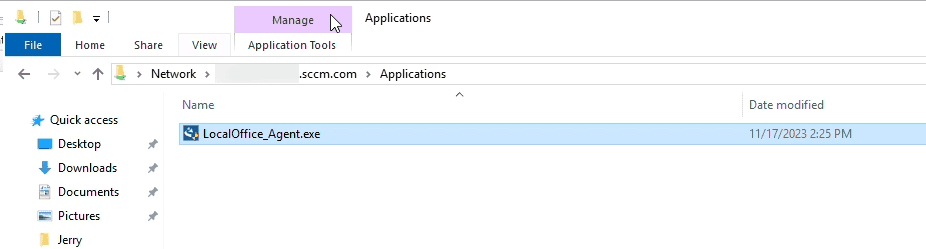
- Now, open System Center Configuration Manager (SCCM) and navigate to Software Library -> Overview -> Application Management ->Packages .
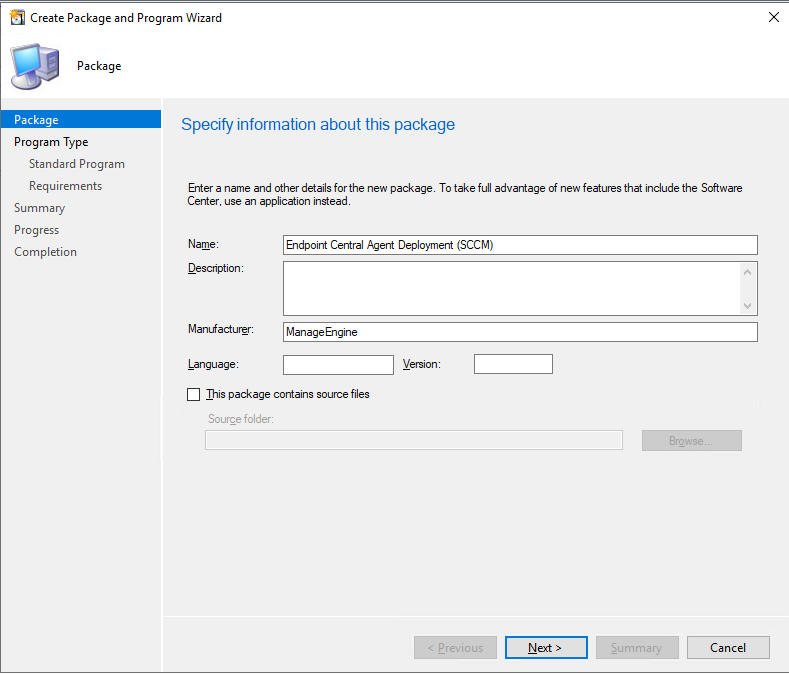
- This will launch Create Package and Program Wizard window, in which you will be asked to fill in the necessary information like Name, Description, Manufacturer, etc.
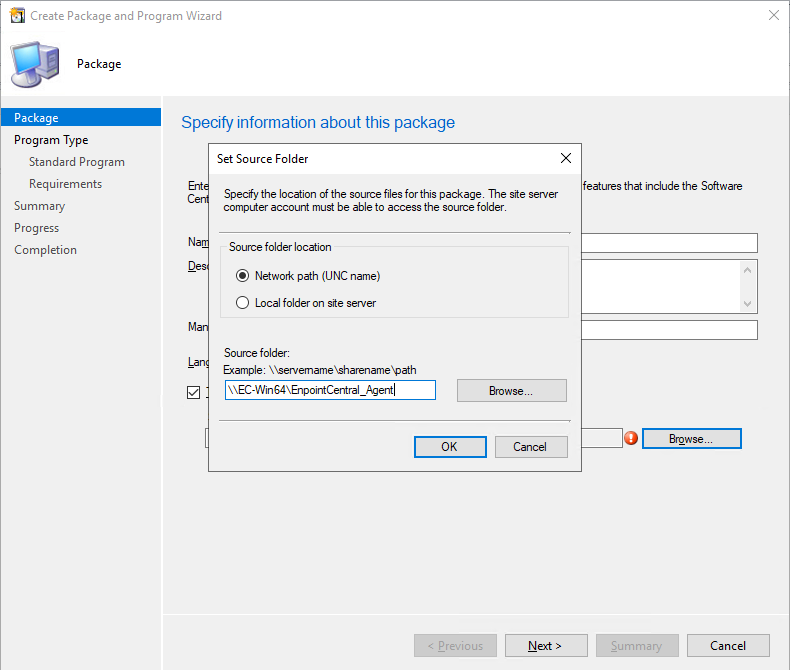
- Enable the checkbox This package contains source files . Select Network path and enter the path of the shared folder as shown below.
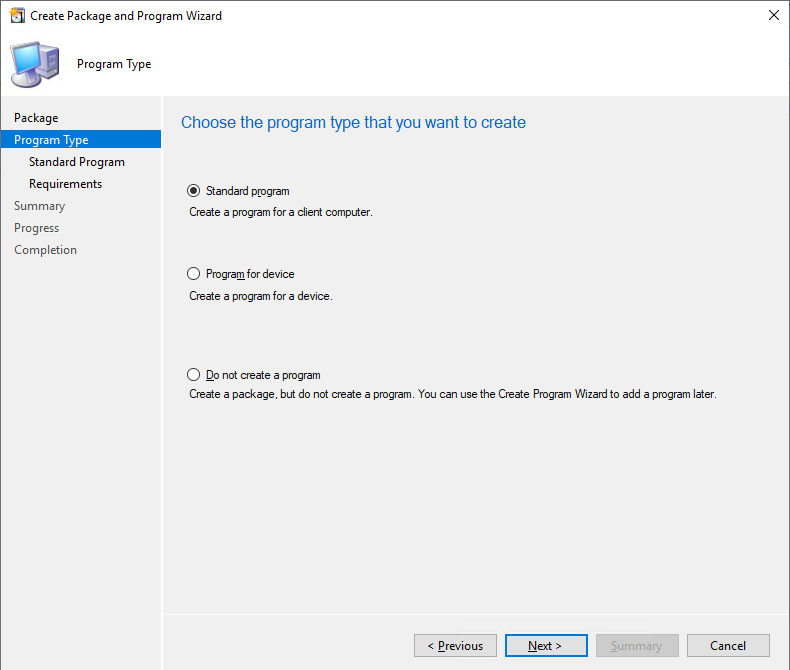
- Select Architecture as x86 (if available) and the program type as Standard and click Next .
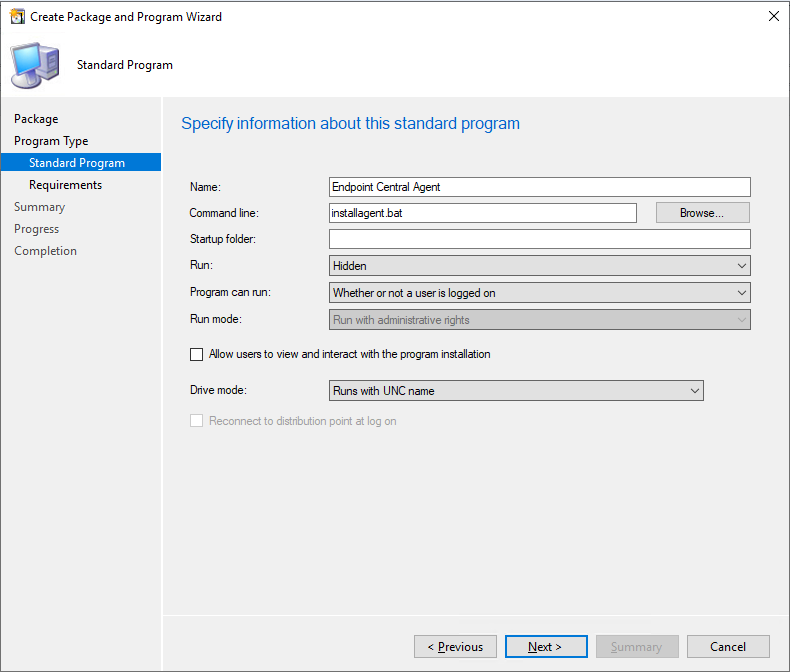
- Fill in the necessary information, as shown in the image below and click Next .
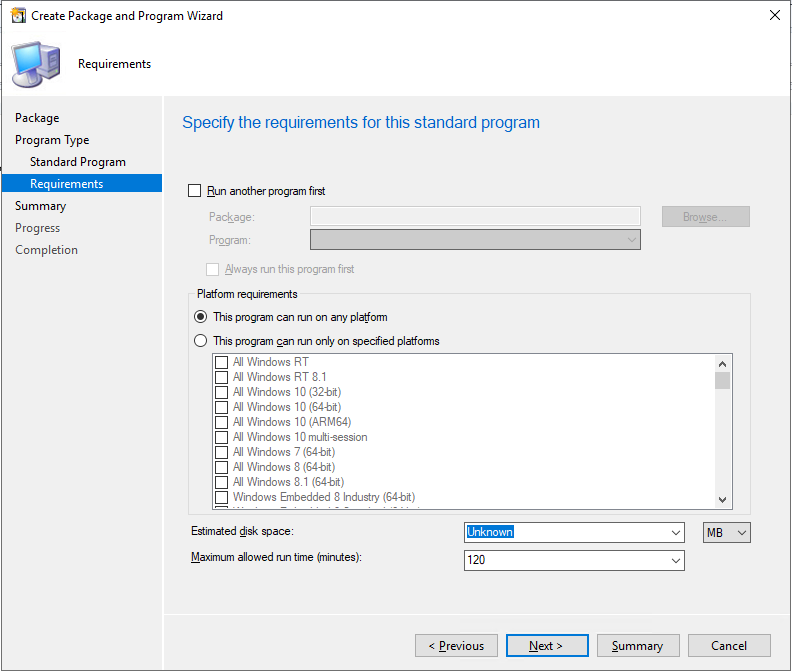
- Review the requirements and ensure they are like as shown in the image below and click Next .
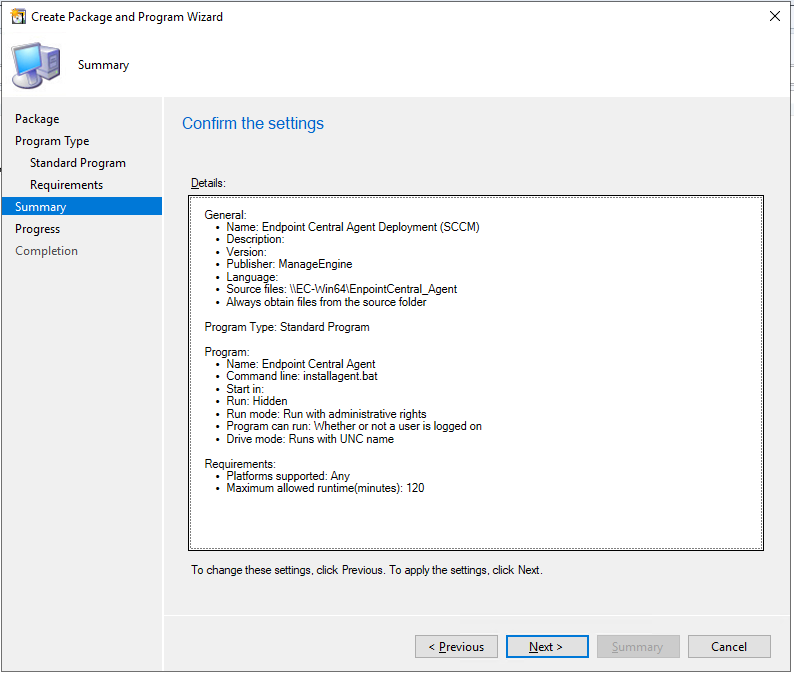
- After reviewing, confirm the settings to proceed to create the package
- The package has been created successfully.
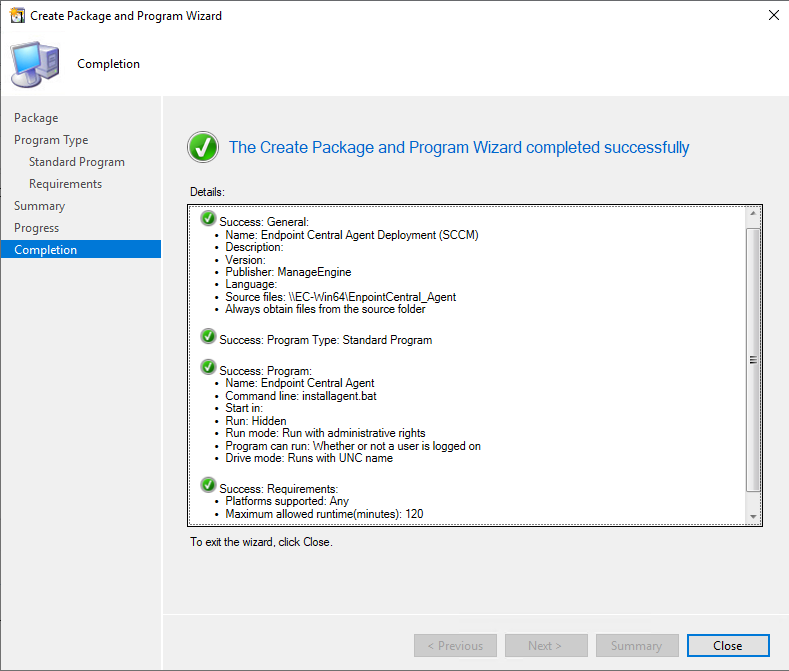
- The package can now be deployed to the end user's computers.
You have now successfully installed agents in target endpoints using SCCM.
The product server can be hosted in cloud using Microsoft Azure or AWS. The agents can be deployed in Azure AD and AWS instances.
- In Azure AD environment: Agents can be installed with Intune or Azure automation Service
- In AWS instances: Agents can be deployed in bulk in AWS
Deploying an operating system is the first step in configuring a computer for business use. You can choose to image the agent and deploy the imaged OS to computers, wherein the agent is bundled with the OS.
Every agent has a unique ID that represents the machine and contains its name and system details. When an agent communicates with the server, the specific machine details are updated on the server. When you choose to image an agent and deploy the image, all the deployed images will have the same details instead of unique IDs.
In order to avoid this issue, follow the steps below:
- Note: These steps are meant for Windows machines. For instructions on imaging Linux computers, refer here .
- Install the agent on the computer that will be imaged.
- Download this script and store it in the system that will be imaged. (Note: execution of this script will temporarily prevent the agent from communicating with the server.)
- Rename the .txt file to a .vbs file.
- Open the Command Prompt as an administrator, and navigate to the folder where the above script is stored.
- Execute the script as: cscript.exe dcagentPreImage.vbs (Example : E:\Downloads>cscript.exe dcagentPreImage.vbs)
- Now your computer is ready to be imaged and deployed with the agent.
- The agent installed in the newly imaged computers will contact the server only if they are renamed.
- If you want to manage those computers, download this script and run it as an administrator on the imaged computer after being used for deployment (rename the .txt file to a .vbs file).
- This will restore the agent - server communication.