Software Deployment Integration in OS Deployment
Software Deployment Integration with OS Deployment lets users attach software packages directly to OS deployment templates. When a deployment runs, all attached applications install automatically — silently, in order — the moment the OS comes online, with no manual follow-up. A single OS Deployment template now drives both OS provisioning and the full application stack end to end.
Software Deployment Integration with OS Deployment helps IT teams with the following :
- Automate post-deployment software deployment’s package installs as part of every OS deployment run.
- Ensure consistent application sets across managed endpoints and os deployment machines by attaching packages to os deployment templates.
- Control installation order so dependencies always install before the apps that need them.
Adding Software to Deployment Template
Follow the below steps to add software packages to OS deployment template:
Step 1. Create or Modify a Deployment Template
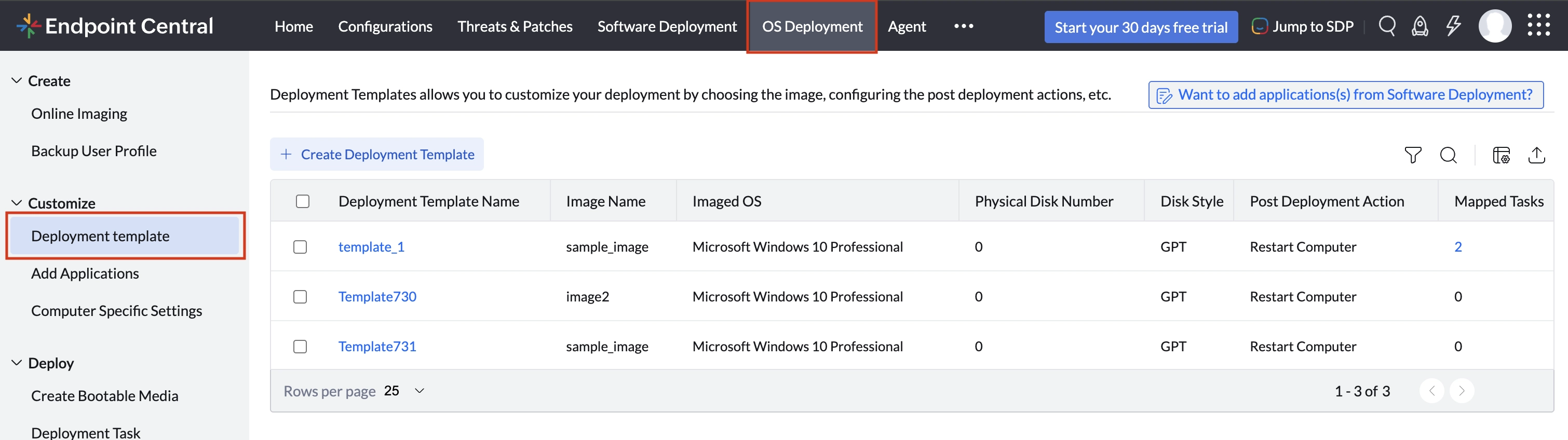
Navigate to OS Deployment > Customize > Deployment > Templates. Click Create Deployment Template to start a new one, or click an existing template name to edit it.
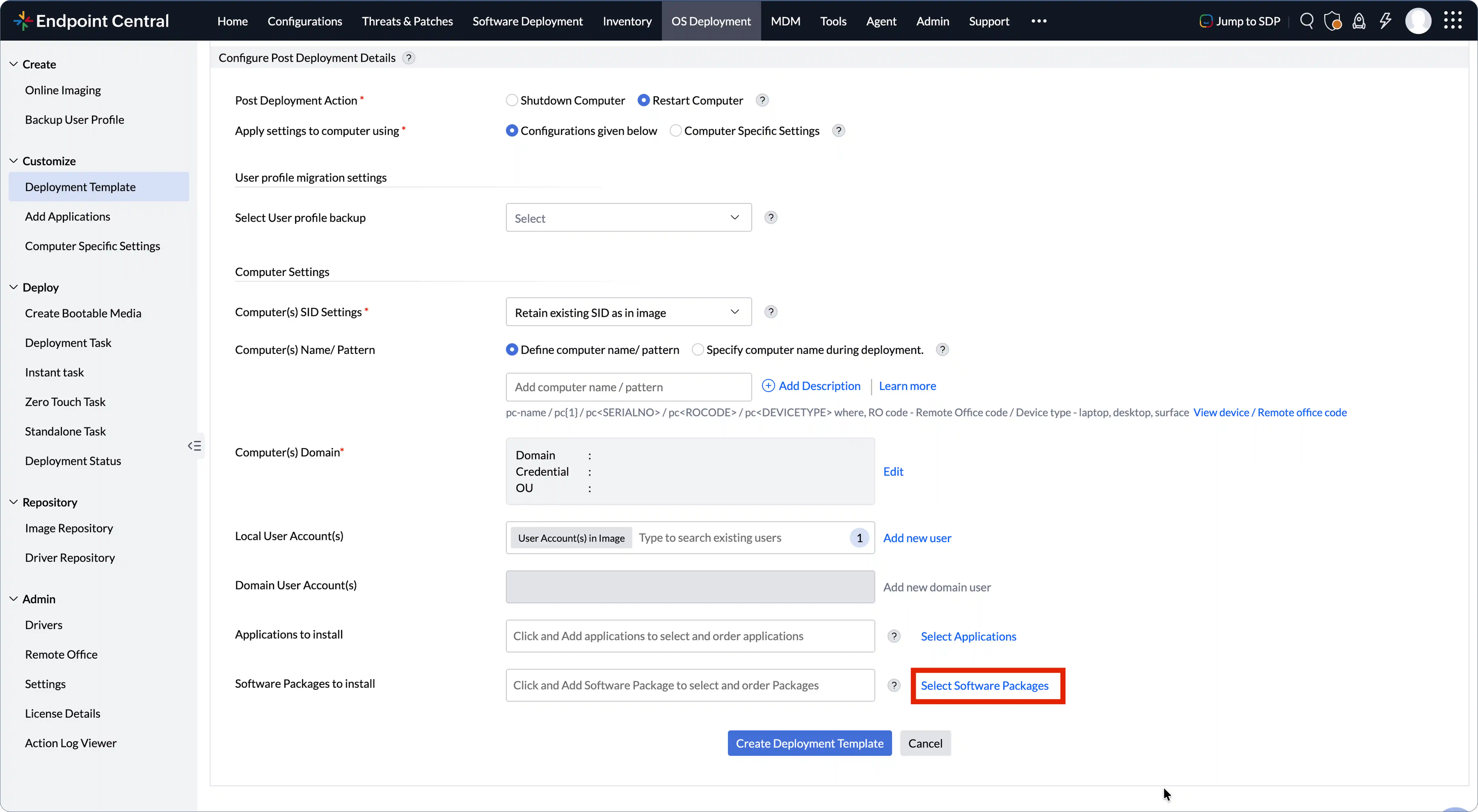
In the template editor, scroll to Configure Post-Deployment Details and locate the Software Packages to Install field. Click Select Software Packages to open the package selector dialog.
Step 2: Select the Packages to deploy
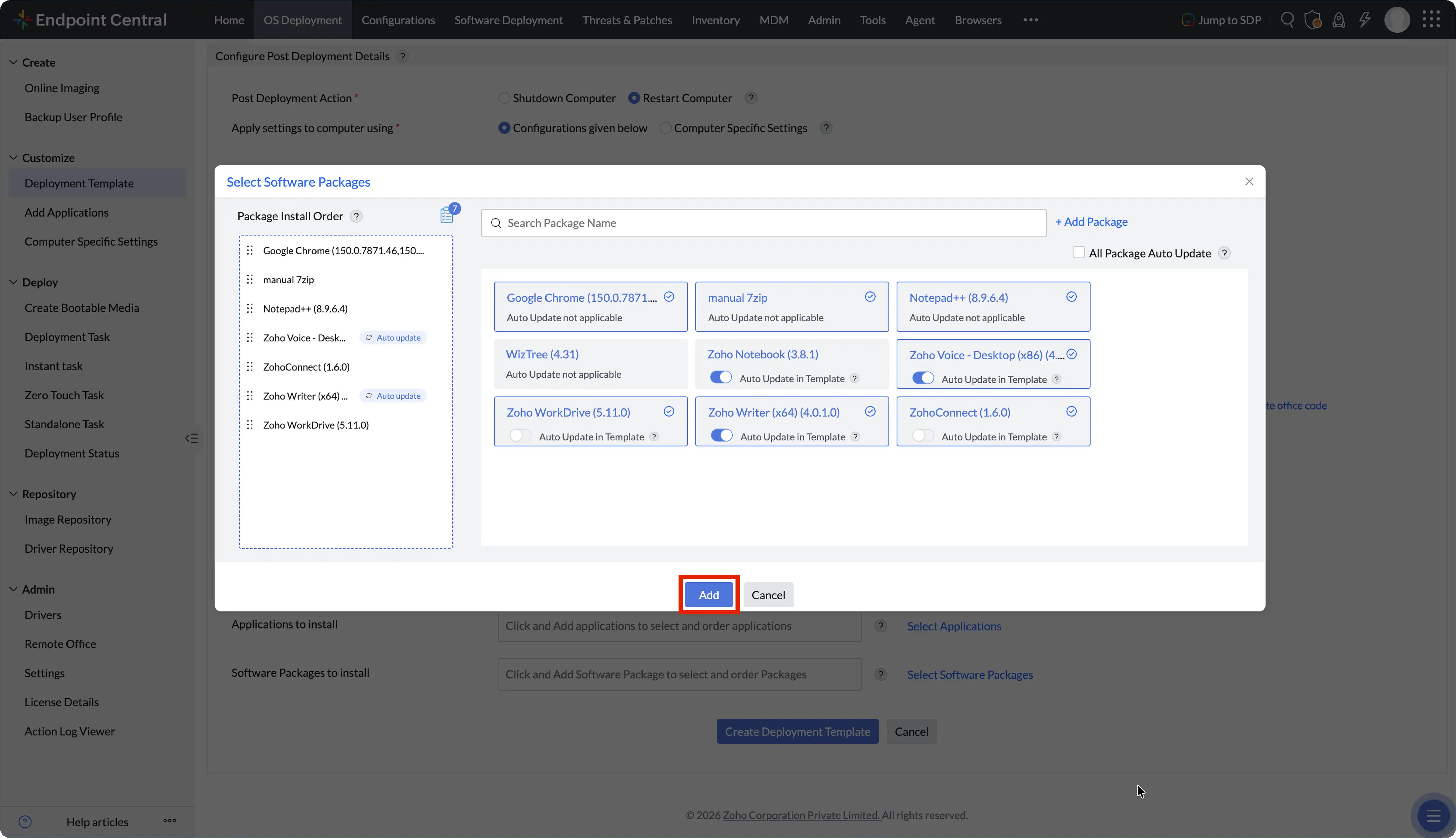
Click any software package to select it, and it appears in the Package Install Order list on the left. Use the search bar to locate packages quickly.
To create a new software package refer to this document
We support Installation Sequence and Auto Update for software packages.
The Auto-Update toggle controls whether the deployment uses the package version saved in the template, or pulls the latest published version at deploy time. Use All Package Auto Update at the top of the list to apply the setting to all selected packages simultaneously.
The Package Install Order list controls the sequence in which software packages are installed — packages at the top install first. Drag the Package Name handle next to any package name to reorder it.
Always place dependency packages above the applications that require them. For example, position .NET Runtime above any business application that depends on it.
Step 3: Review and Save the Deployment Template
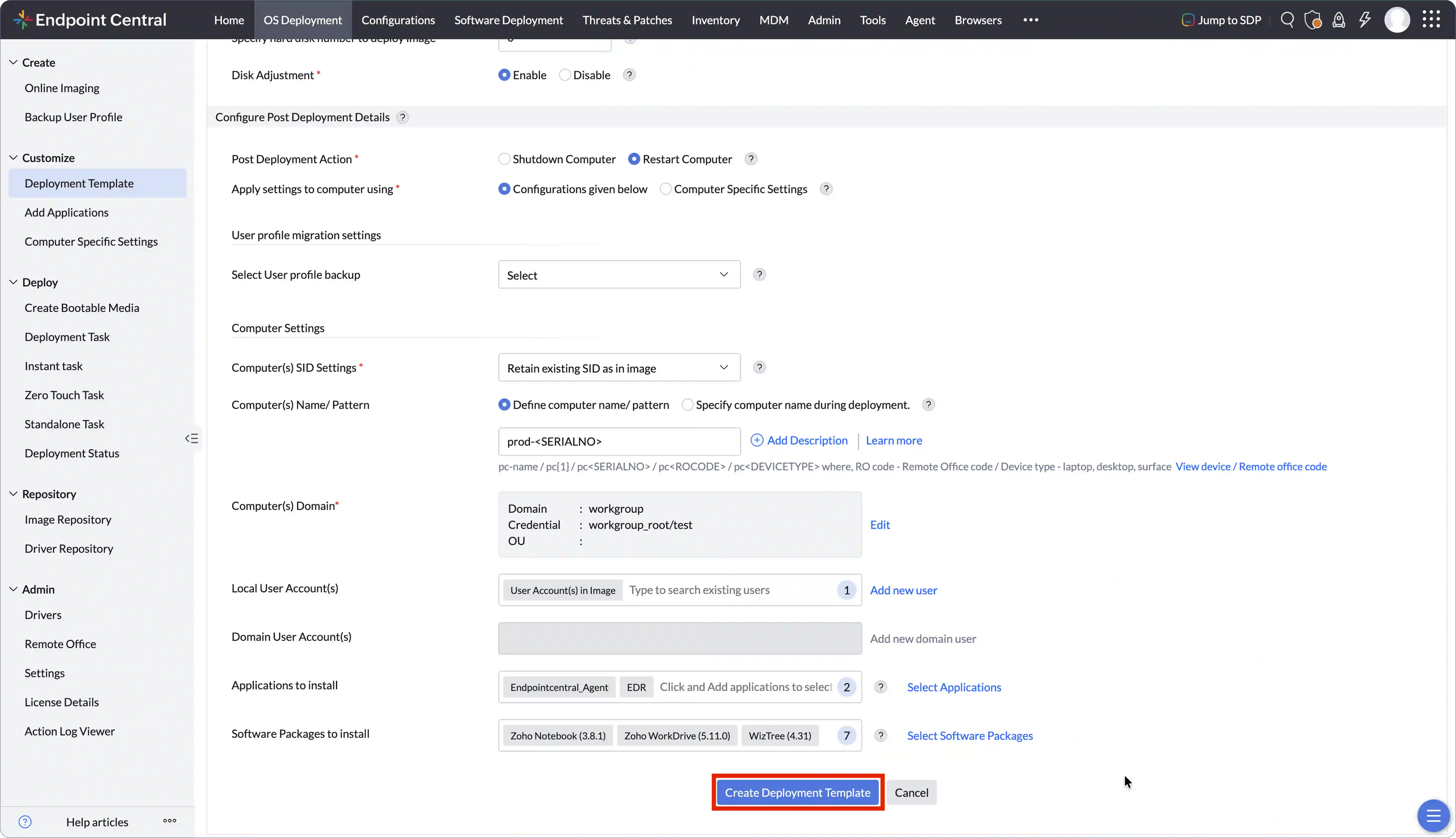
Review the selected packages and all template settings. Click Create Deployment Template to save.
The template is now configured to deploy the OS image and install all attached packages in a single automated run.
After customizing the image for deployment, the next step is to deploy the image on target computers. Refer this document to know about how to deploy images.
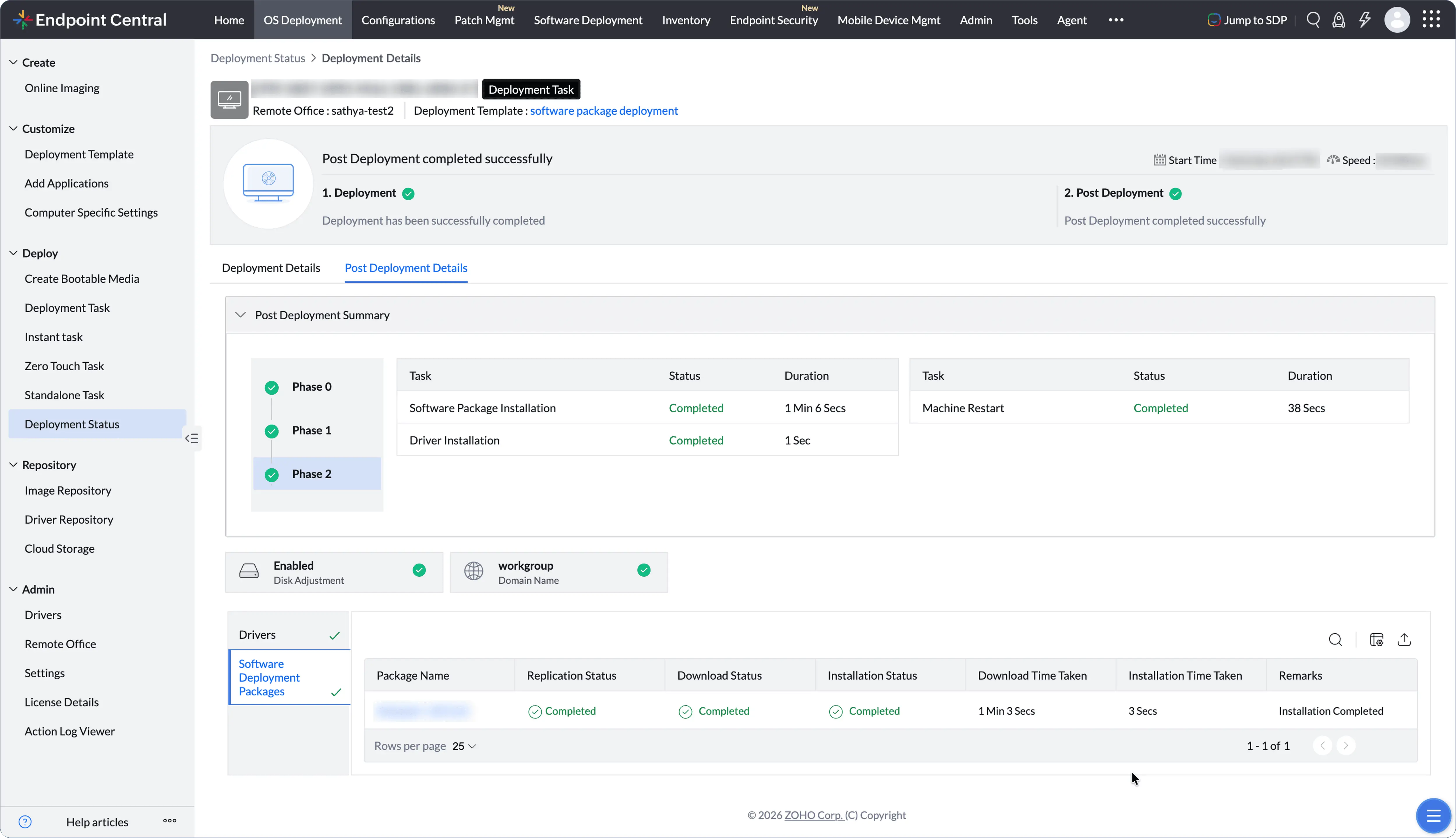
Step 4: Track status of Software Package installation status
Once a deployment is running, navigate to OS Deployment → Deploy→ Deployment Status. Select the deployment and open the Post Deployment Details → Software Deployment Packages tab.