Browser Reports
See which plugins, extensions, and browsers across the network need attention, and audit every policy violation.
Overview
Accessing Browser Reports
Keeping browsers safe against web-based threats starts with clear visibility into what's actually running on them.
Where to find them
IT admins need to ensure employee productivity by keeping browsers safe against web-based threats. Administrators can exercise control and get clear visibility over the various browsers used across the network.
- Click the Reports tab to open the Reports page.
- Click the desired report from the Browser Reports section.
Reports
What each report shows
From risky plugins to policy violations, each report covers a different angle on browser security.
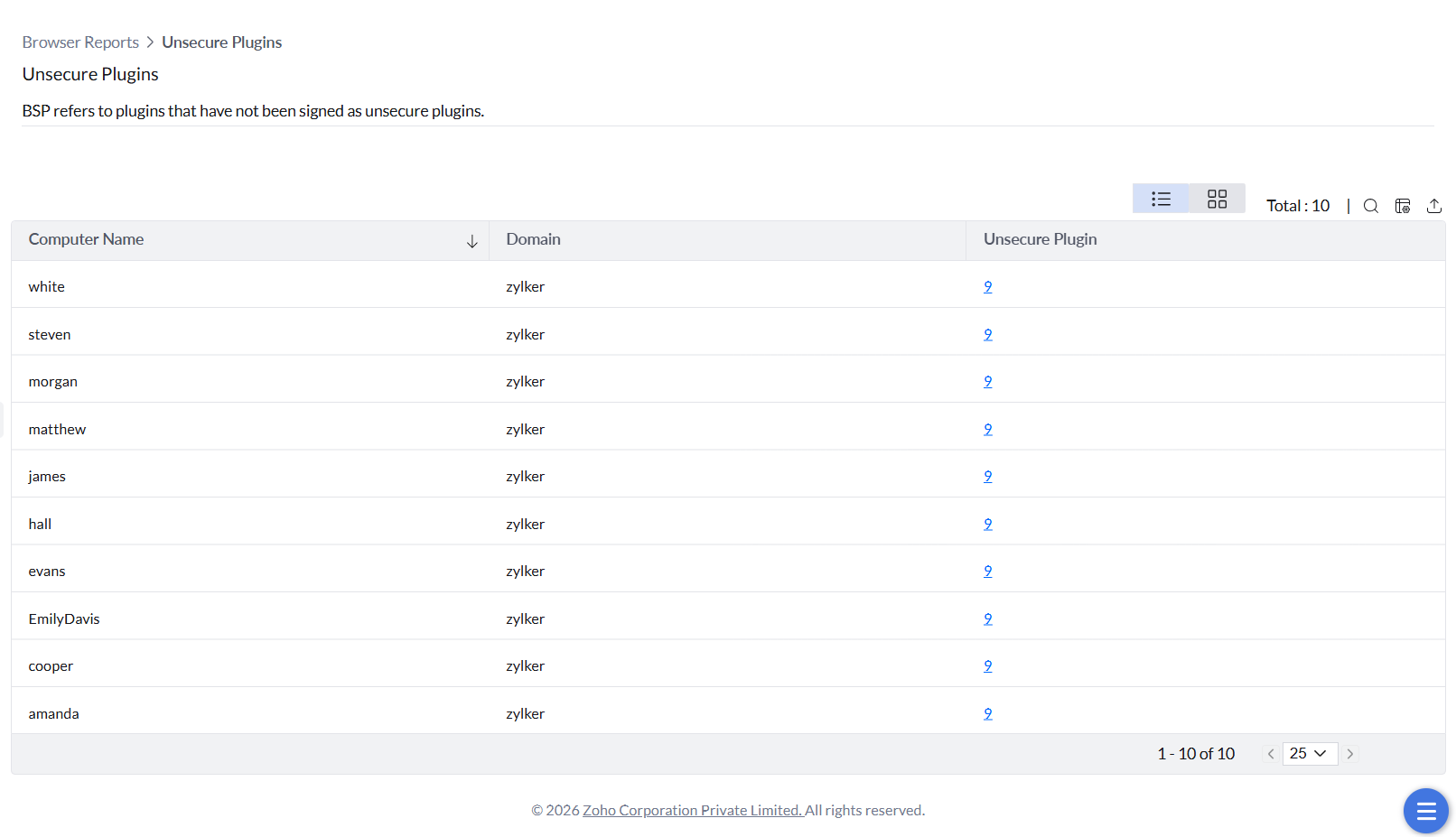
Unsecure Plugins
Details of unsecure plugins that aren't signed by their developers — a way to keep tabs on potentially harmful plugins that might lead to security breaches.
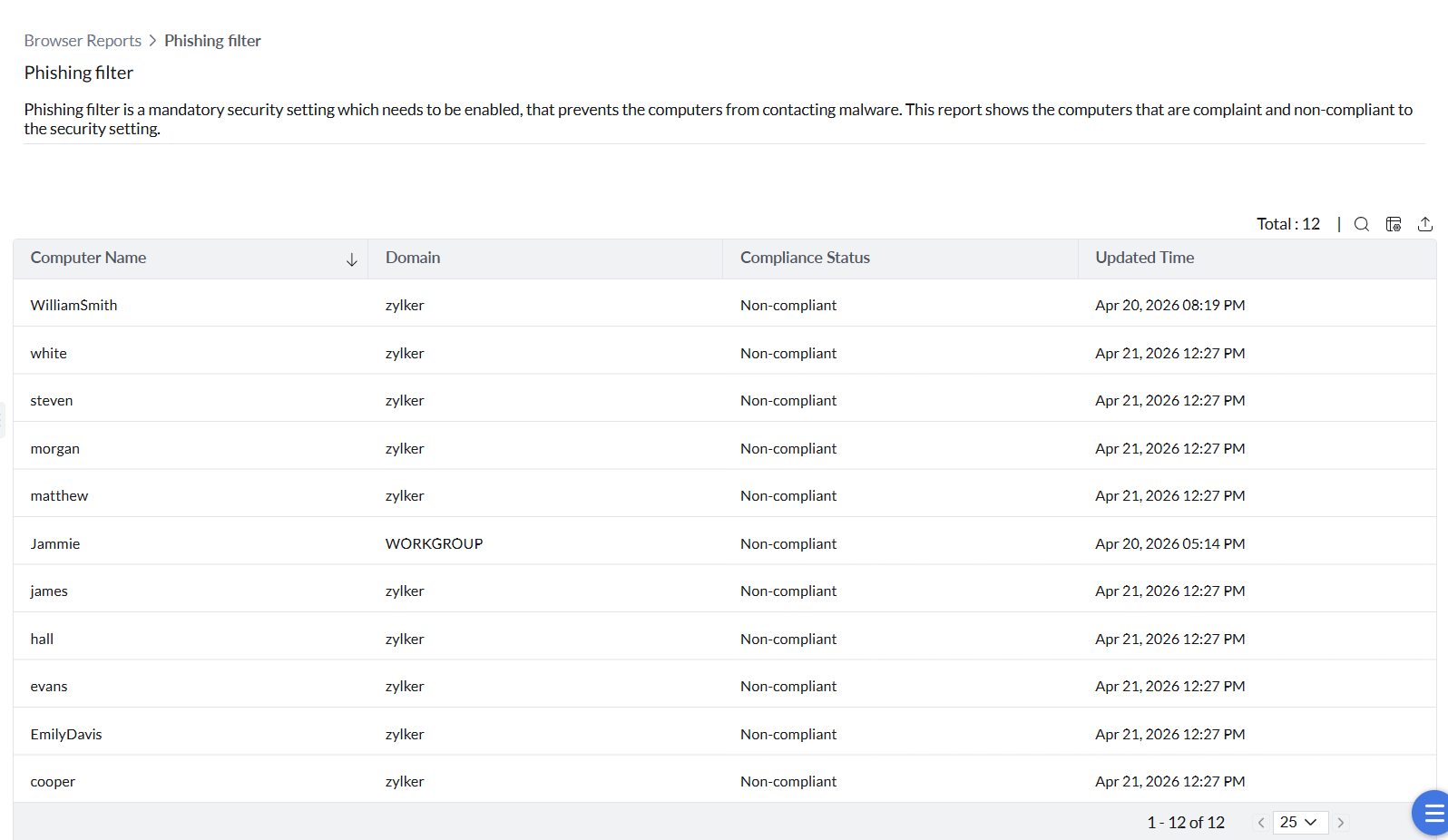
Phishing Filter
Shows which computers are compliant or non-compliant with the phishing filter security setting, which prevents computers from contacting malware.
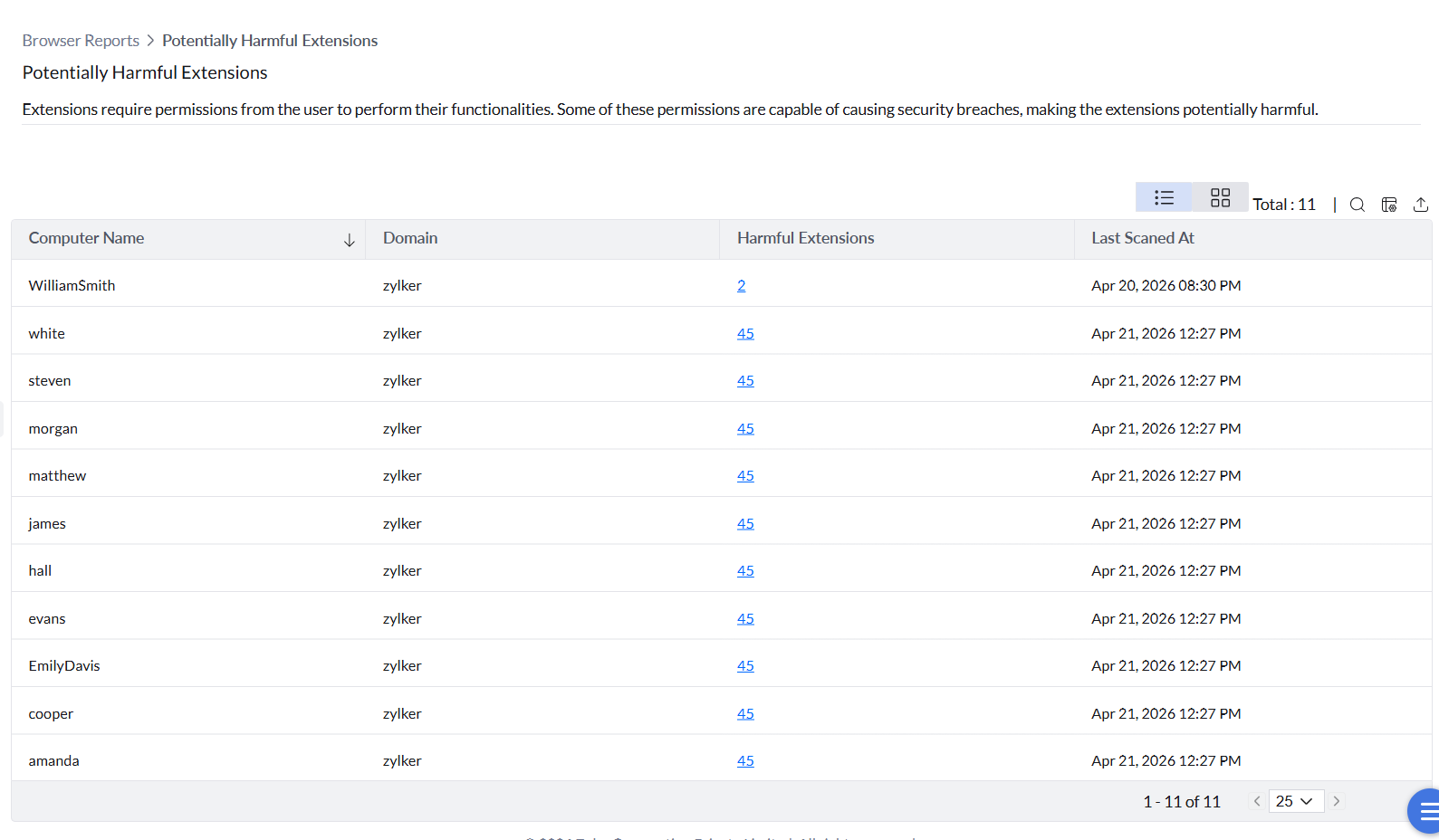
Potentially Harmful Extensions
Details of vulnerable extensions that users have permitted, which might lead to a security breach.
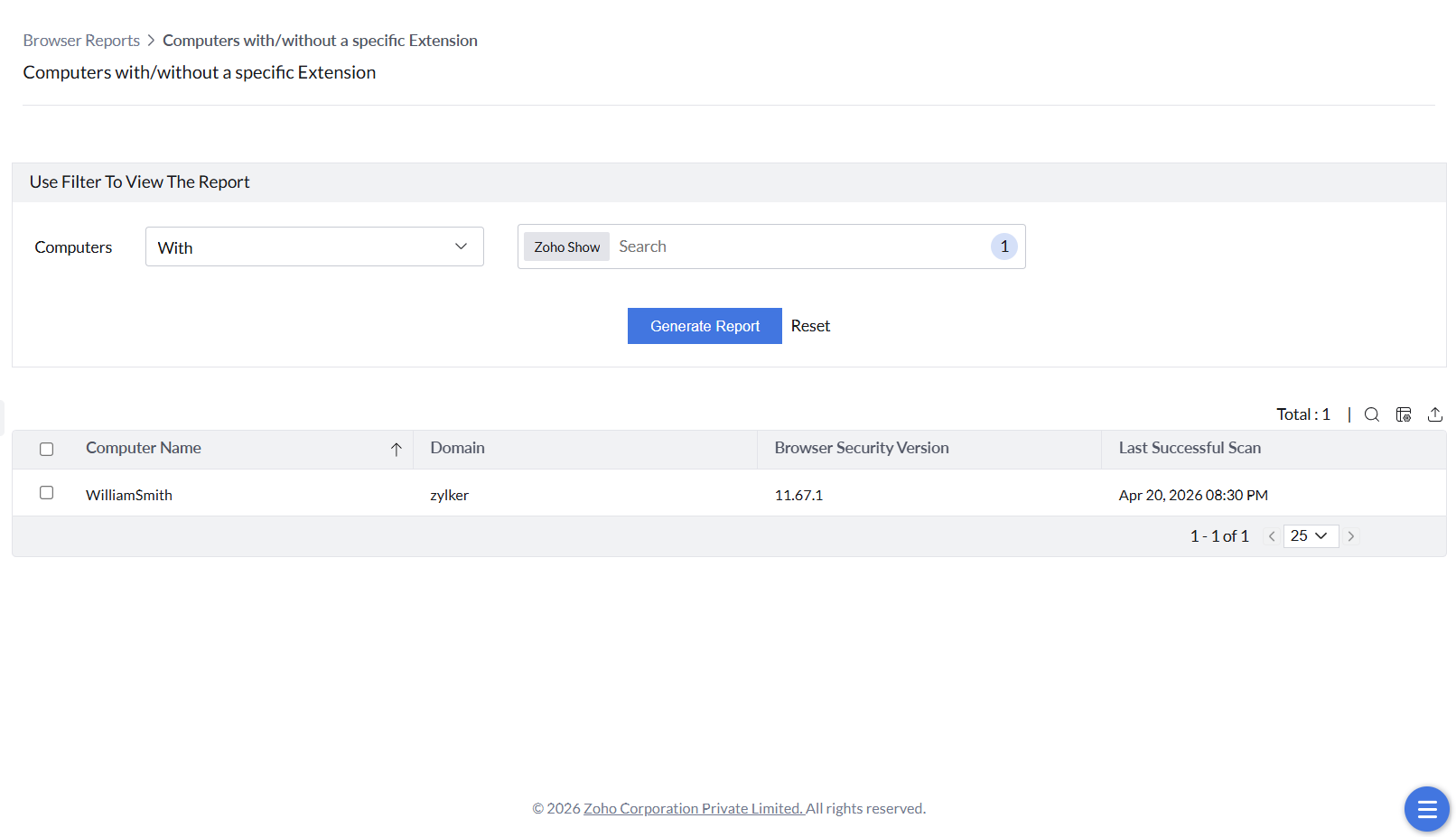
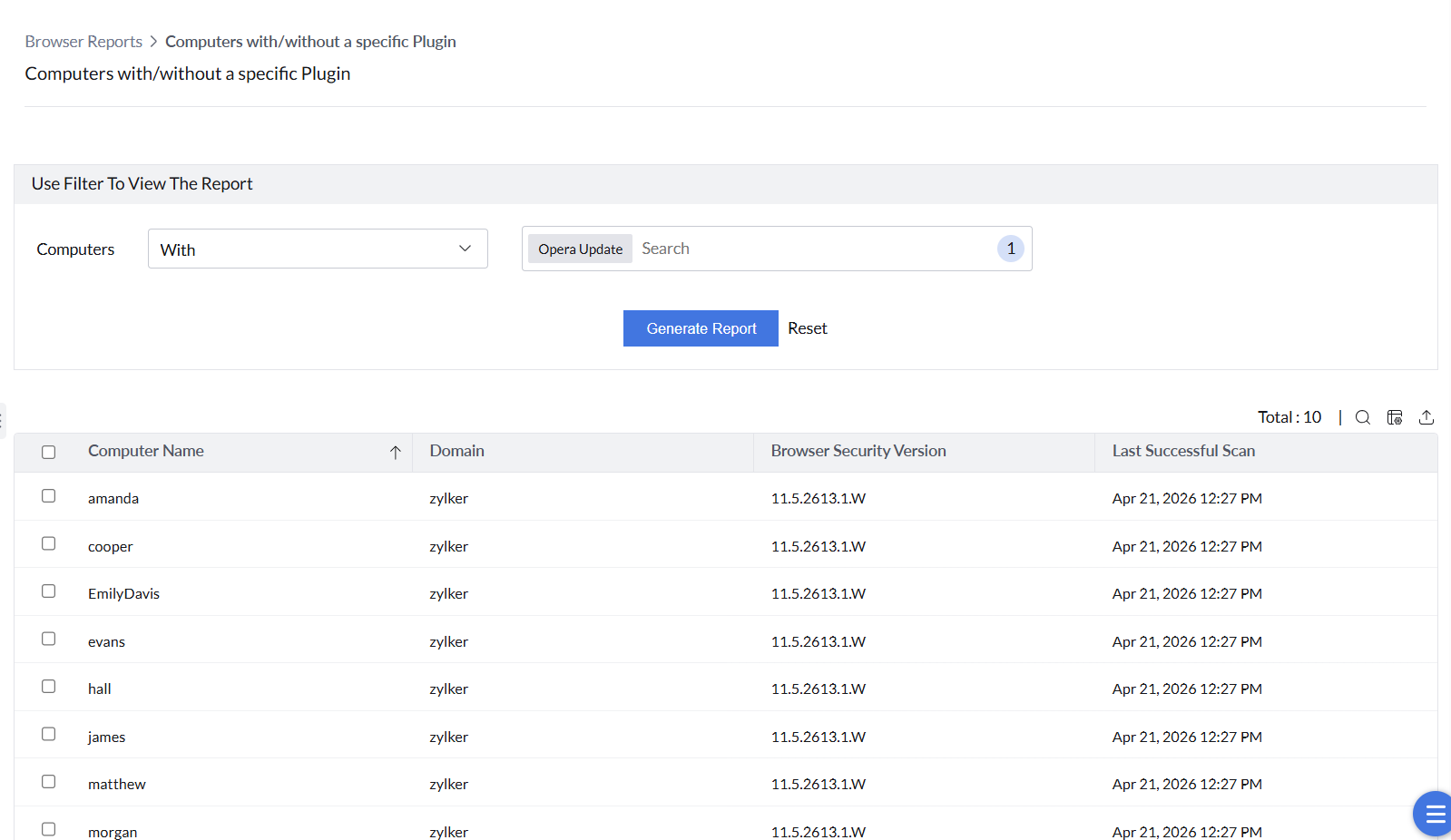
Computers with/without a specific Extension or Plugin
Reports can be filtered to show computers with or without a specific extension, or with or without a specific plugin, with a detailed view available for either.
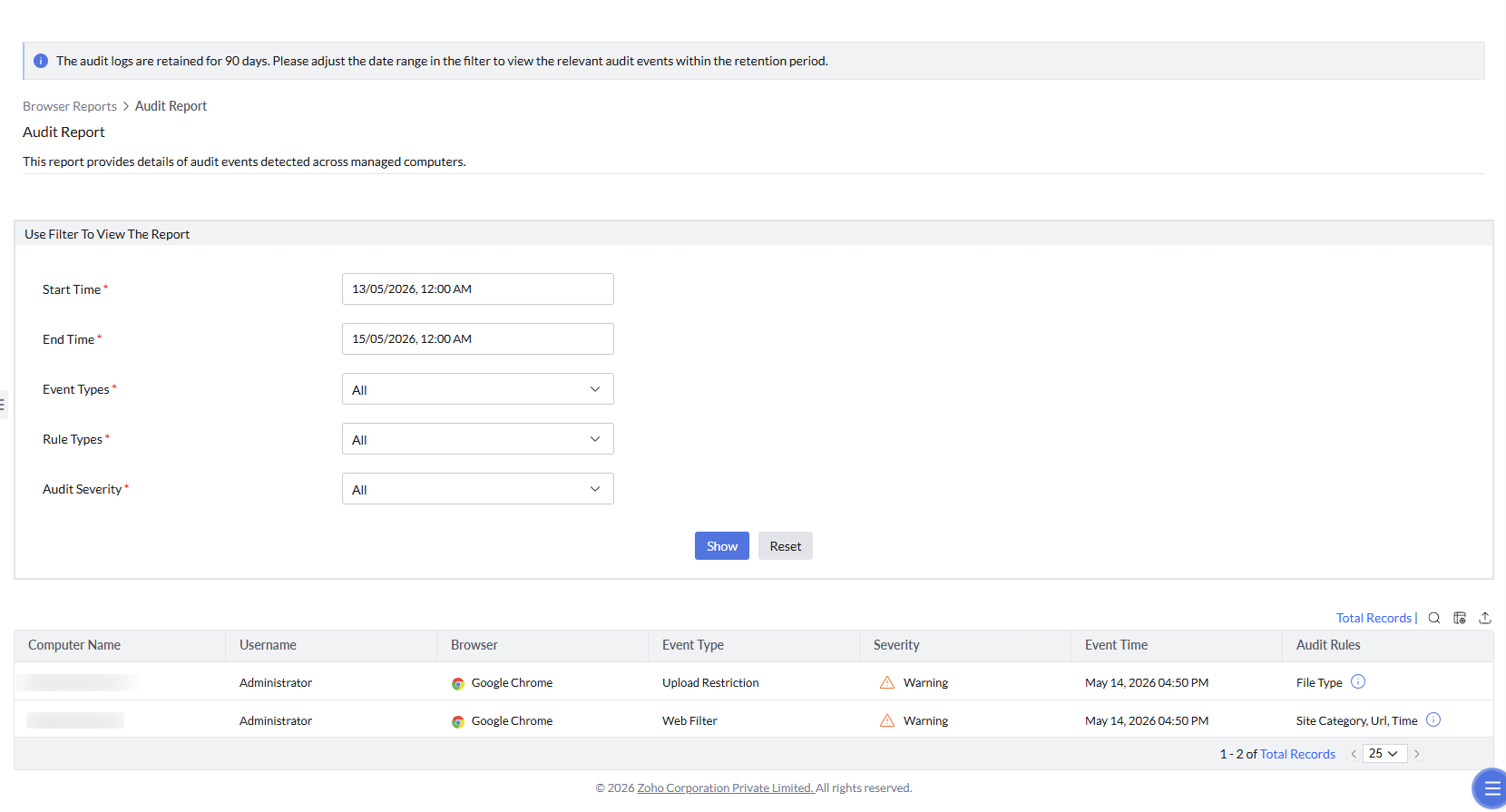
Audit Report
Details of audit violations detected across managed browsers and endpoints — capturing download, upload, web filter, and GenAI policy violations, along with the computer name, username, browser, event type, severity, event time, violated policy, URL, and enforcement action for each.
The report also tracks sensitive data exposure attempts on AI websites, including PII or confidential data entered into GenAI applications. It can be filtered by time range, event type, rule type, and severity for auditing and compliance analysis.