How to Update Secure Boot Certificate 2023 on Windows Using Endpoint Central?
This document provides steps to update Secure Boot Certificate 2023 on Windows computers using Endpoint Central.
Microsoft’s existing Secure Boot signing certificates, including Microsoft Windows Production PCA 2011 and Microsoft UEFI CA 2011, are nearing expiration, and systems using these certificates may encounter boot validation issues and compatibility problems with newer Windows updates. Updating to Secure Boot Certificate 2023 ensures continued system security and compatibility. This procedure applies to Windows devices configured with UEFI firmware and Secure Boot enabled.
Table of Contents
- Prerequisites
- Script Arguements
- Generating a Report to Check Certificate Status
- Deploying Configuration to Update Secure Boot Certificate
Prerequisites
Before you begin, confirm that the target devices and your Endpoint Central setup meet the requirements below.
Device requirements
- Secure Boot must be enabled. The device must use UEFI firmware with Secure Boot turned on. The script cannot enable Secure Boot for you — it is a manufacturer-specific BIOS setting. If it is off, enable it in the BIOS/UEFI setup first.
- Firmware/BIOS should be current. The script will not run the update on firmware older than roughly 365 days, because applying the 2023 certificates on outdated firmware can cause boot failure. Update the OEM BIOS to the latest version before proceeding.
- Back up BitLocker recovery keys. Back up the recovery keys (to Microsoft Entra ID / Active Directory) before updating. The transition changes the boot measurements; the script automatically suspends BitLocker for the required reboots, but a one-time recovery prompt is still possible.
Validate all three requirements against a representative pilot group before initiating a broad rollout. Early-stage testing surfaces boot and recovery failures while they're still isolated, preventing remediation at scale and reducing the risk of widespread downtime.
Downloading the Script
Download the Secure Boot certificate management script.
Upload Script to Script Repository
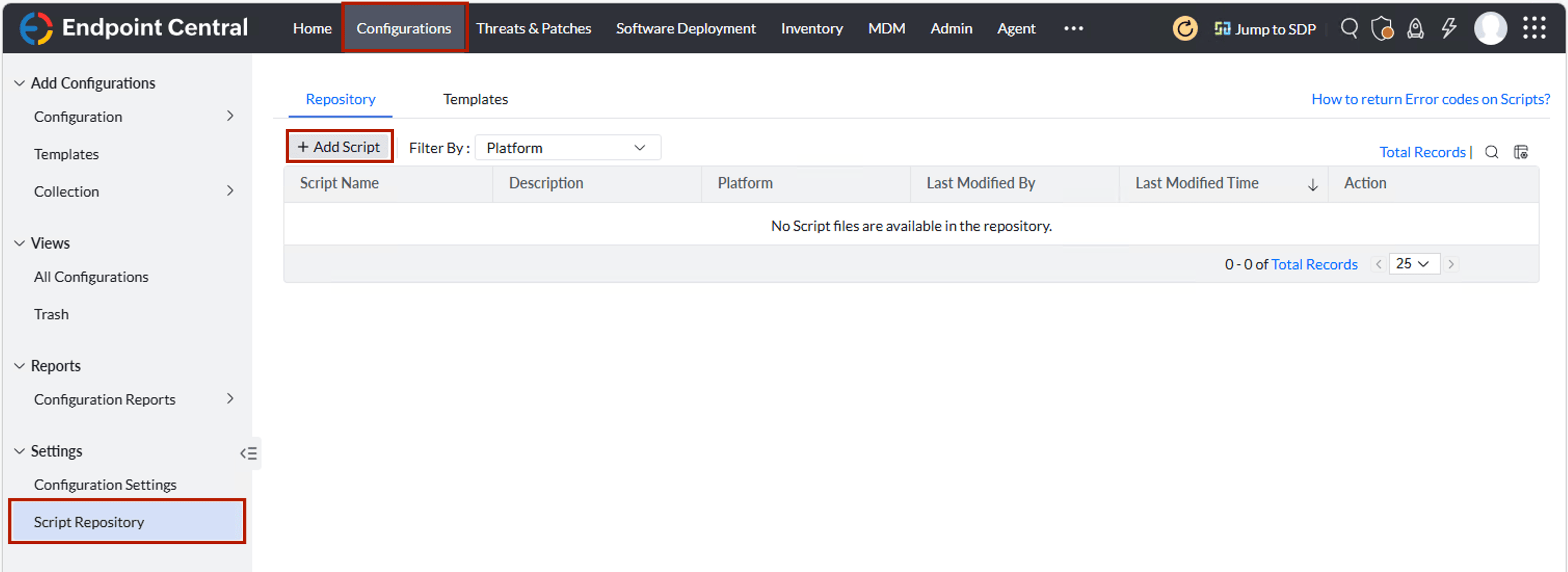
- Navigate to Configurations → Script Repository.
- Click Add Script.
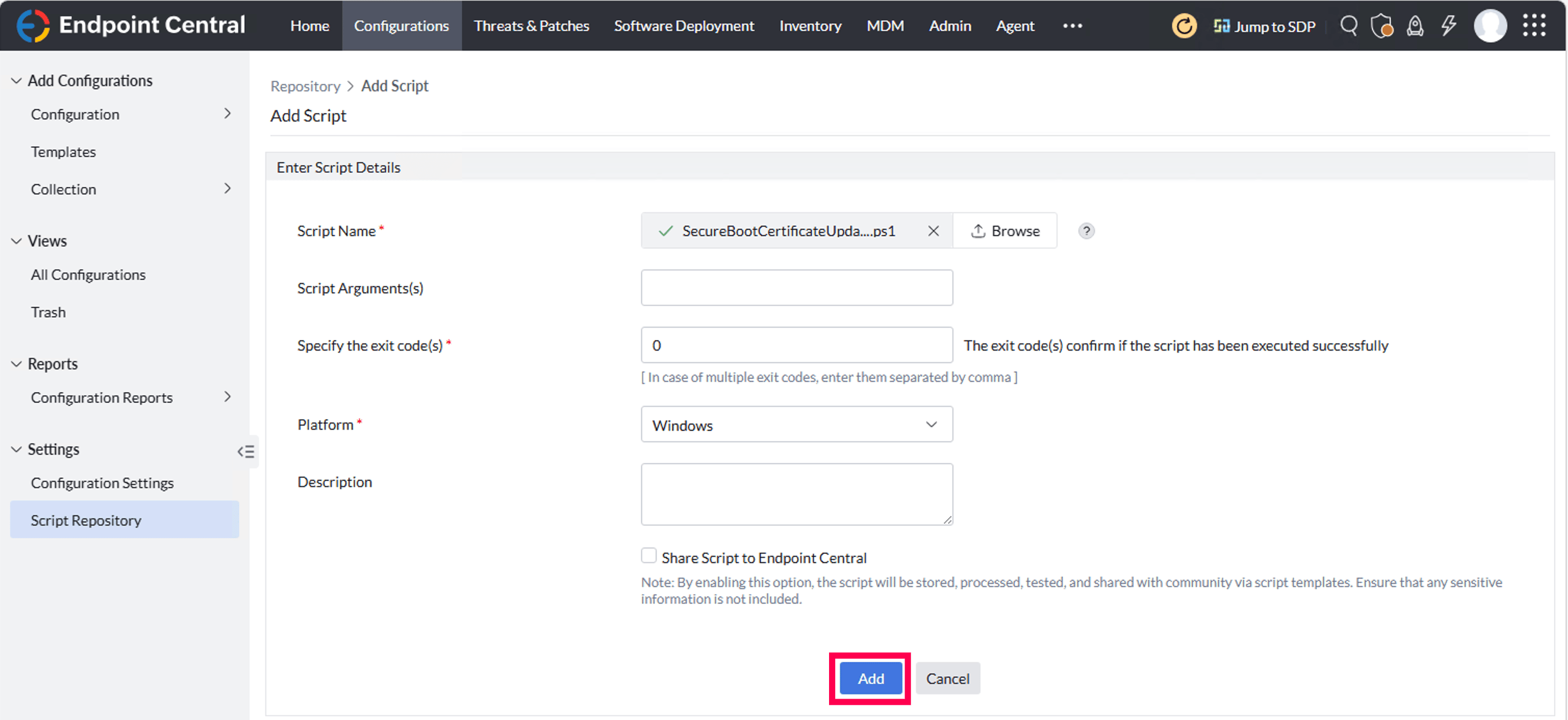
- Provide the following details:
- Script Name: Secure Boot Certificate Management
- Platform: Windows
- Click Add.
Script Arguments
The same script handles both reporting and updating — the behavior is controlled entirely by the arguments you pass in the configuration’s Script Arguments field. Use this table as a quick reference before choosing a scenario.
| Argument | What it does |
|---|---|
| -CheckStatus | Full Secure Boot status with detailed diagnostics (verbose). |
| -Report | Brief compliance report — hostname, verdict, OEM, and servicing status. Recommended for reporting. |
| -CheckStatus -Report | Same brief report as -Report. |
| -UpdateCertificates | Updates the certificates; no automatic restart. |
| -UpdateCertificates -NoRestart | Updates without restarting; applies on the next reboot. |
| -UpdateCertificates -Restart | Updates and restarts the system immediately. |
| -UpdateCertificates -RestartAt "yyyy-MM-dd HH:mm" | Updates and restarts at a scheduled date/time (24-hour clock). |
| -UpdateCertificates -ForceUpdate | Advanced / opt-in. Applies even if Microsoft’s device-readiness check is still pending (sets HighConfidenceOptOut=0). Use only on current firmware with BitLocker keys backed up. See Microsoft reference. |
Generating a Report to Check Certificate Status
Follow the steps below to generate a report using the report parameters to identify the Secure Boot certificate status across machines.
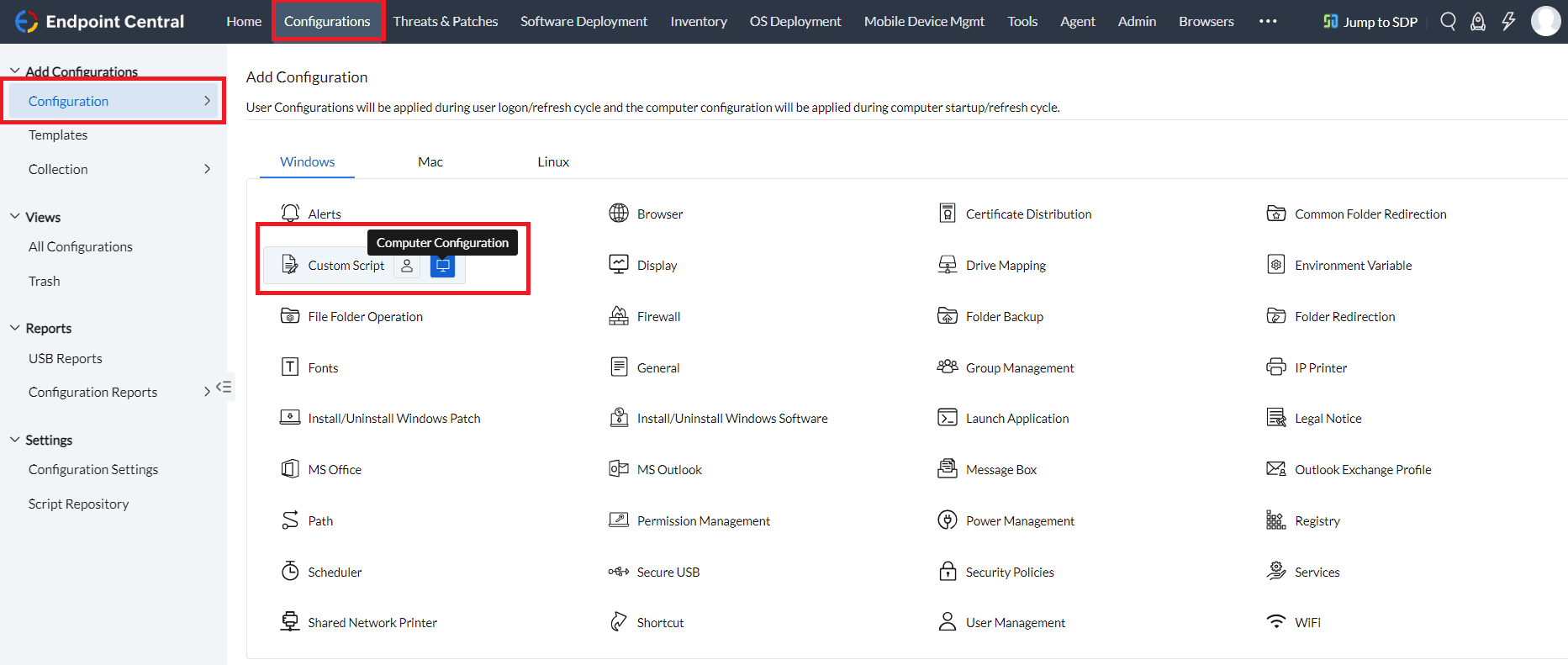
- Navigate to Configurations → Computer Configuration → Custom Script.
- Specify the Name and Description for the configuration as:
- Configuration Name: Secure Boot Certificate Status Report
- Select Execute Script from / Run as Repository.
- In the Script Name, provide the script uploaded in the Script Repository.
- In Script Arguments, enter: -Report.
- Configure the Frequency as Once.
- Select Enable Logging for Troubleshooting.
- Configure the Run As as System User.
- Define the targets for the deployment.
- Click on Deploy or Deploy Immediately to deploy the configuration in the target machines.
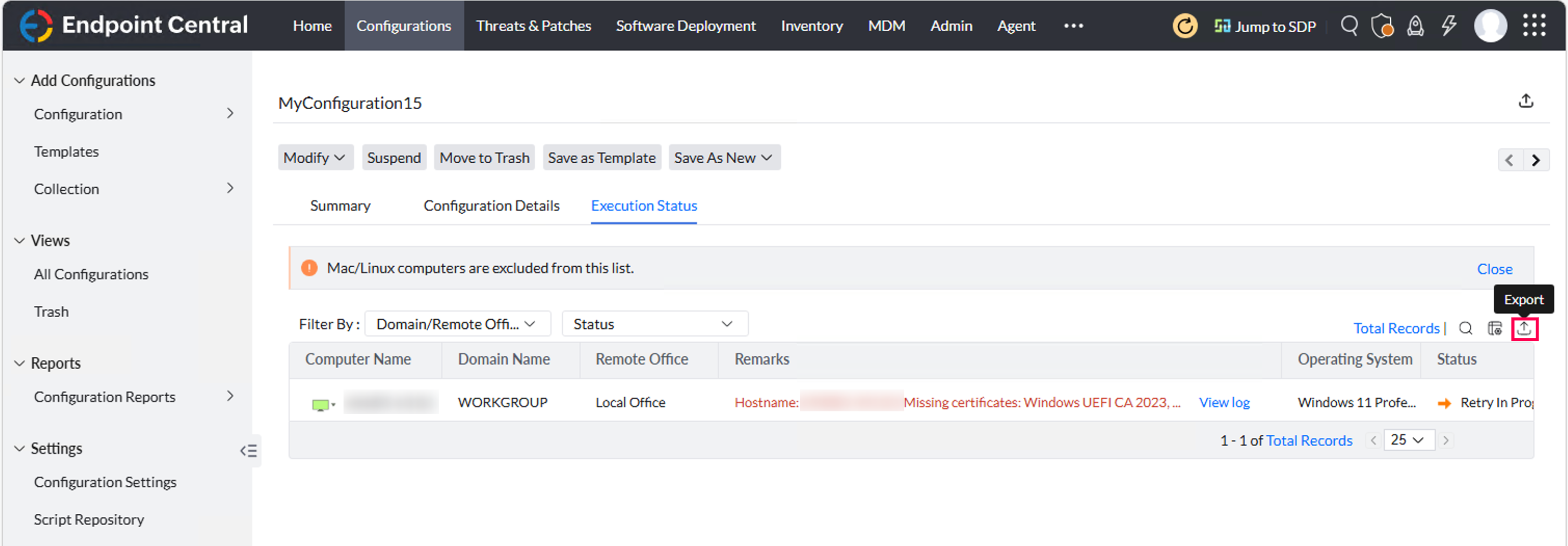
Once the Configuration is executed in all the target machines, follow the steps below to generate the Report:
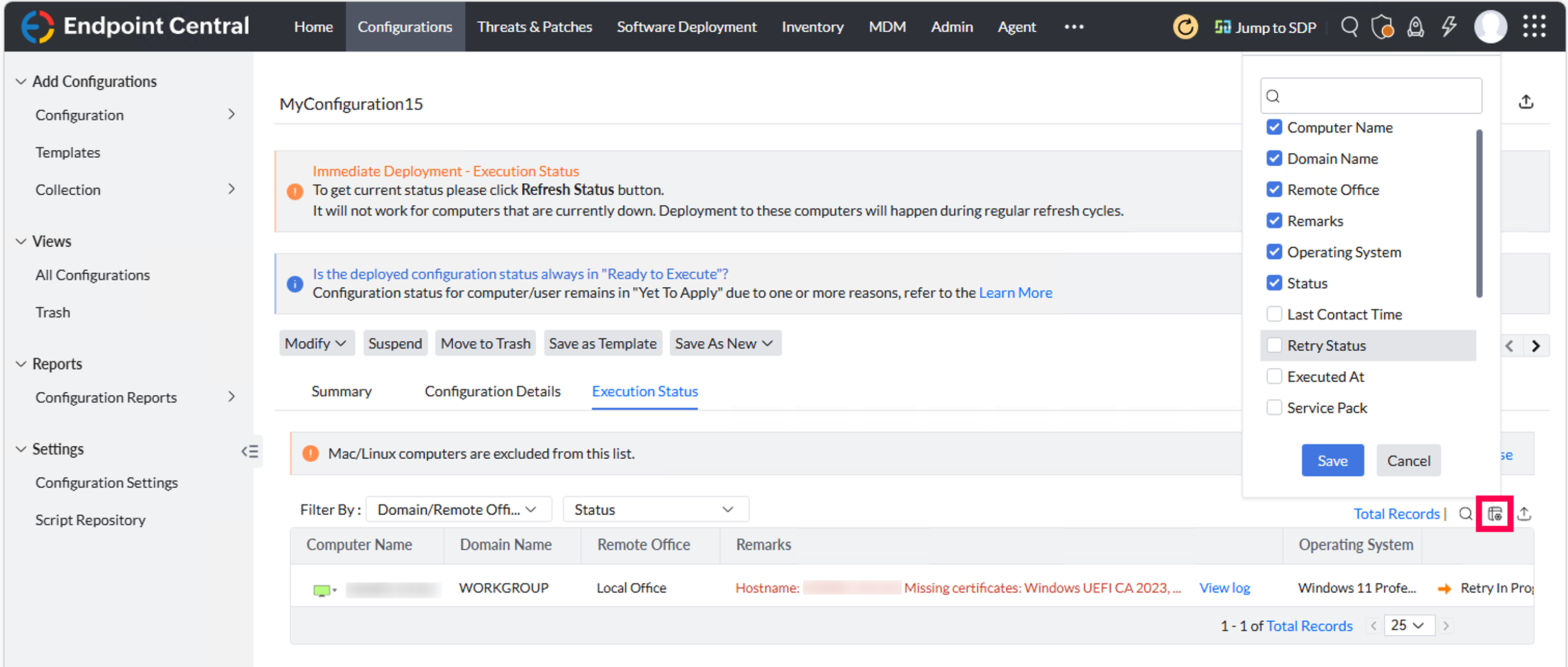
- Navigate to the configuration's Execution Status.
- In the column chooser, choose the below columns and click Save:
- Computer Name
- Domain Name
- Remote Office
- Remarks
- Operating System
- Status
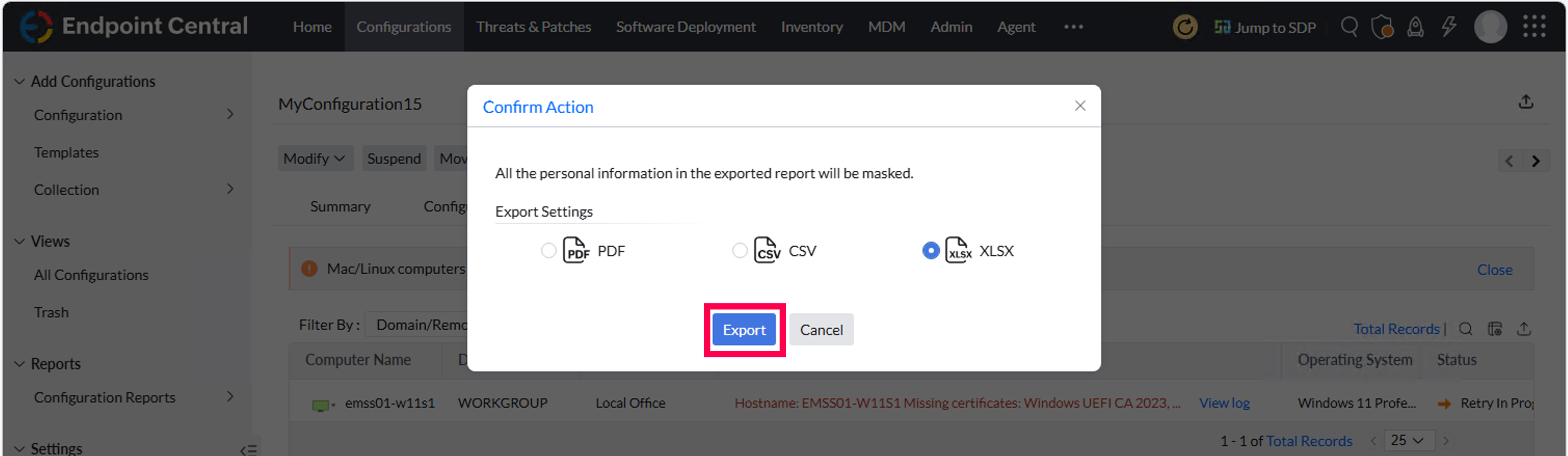
- Click on the Export icon to export the report.
Deploying Configuration to Update Secure Boot Certificate
Follow the steps below with the update parameters to update the Secure Boot Certificates.
- Navigate to Configurations → Computer Configuration → Custom Script.
- Specify the Name and Description for the configuration as:
- Configuration Name: Secure Boot Certificate Update
- Select the uploaded script.
- Provide the required script arguments based on the preferred execution scenario below:
Scenario 1: Immediate Update with Restart
Use this option if you want the certificate update to take effect immediately.
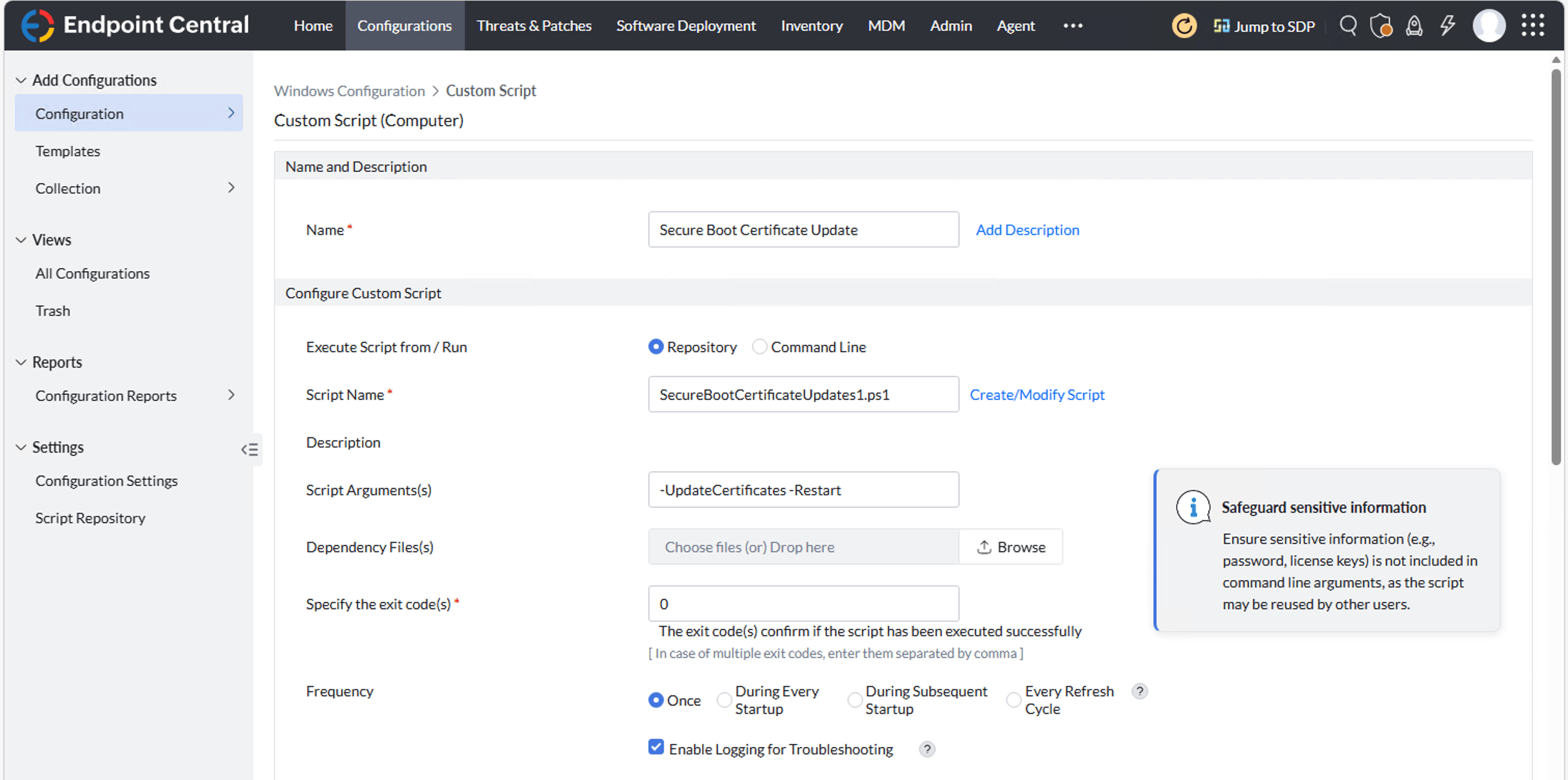
Script Arguments: -UpdateCertificates -Restart
- The system will automatically restart after deployment.
- The Secure Boot certificate update will be applied immediately after restart.
Scenario 2: Update Without Immediate Restart
Use this option if you want to avoid an immediate restart.
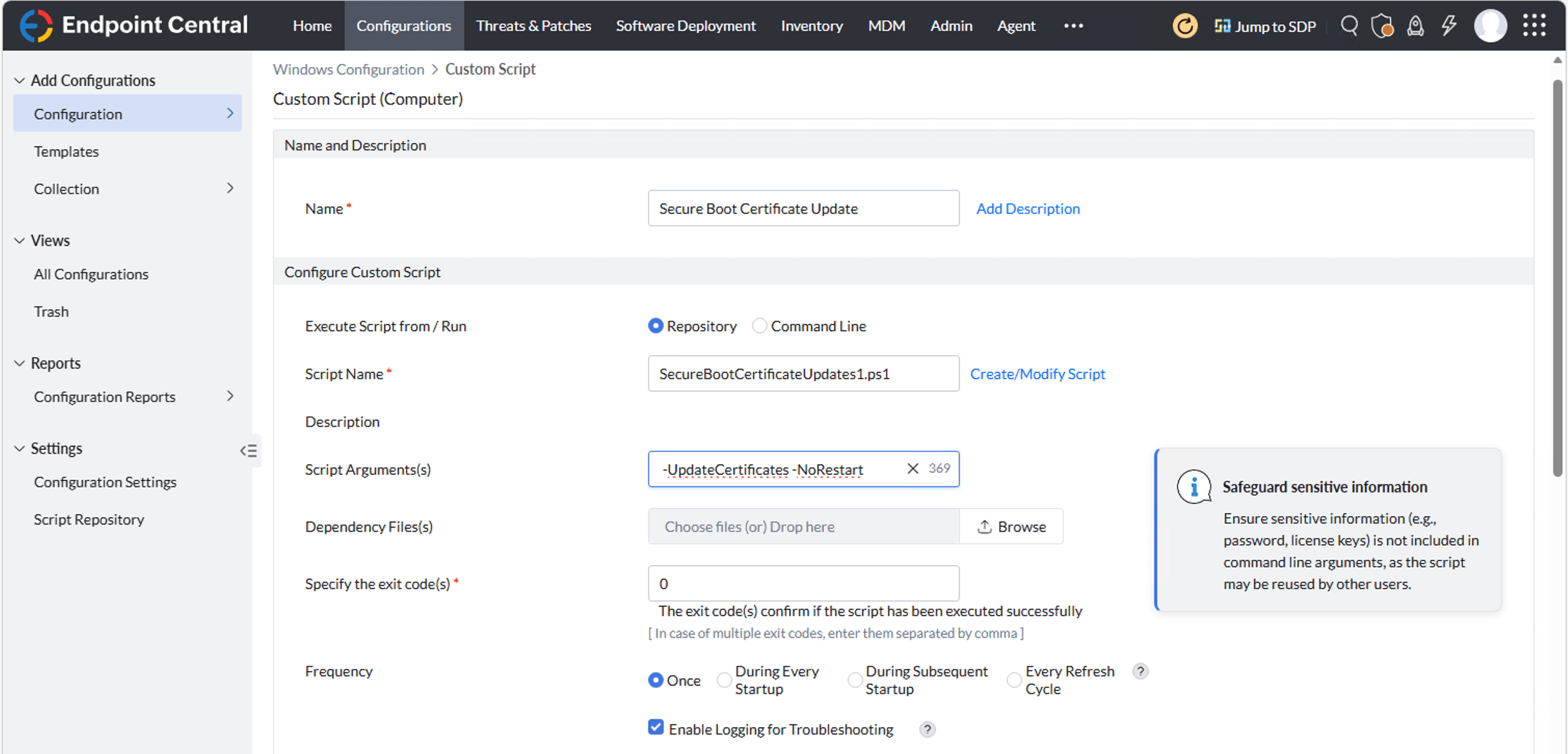
Script Arguments: -UpdateCertificates -NoRestart
- The configuration will be deployed without restarting the system.
- The update will take effect only after the machine is restarted manually or during the next reboot.
Use this option to deploy now but restart the device at a specific time — ideal for after-hours maintenance windows.
-UpdateCertificates -RestartAt "2026-06-15 02:30"
- Provide the date and time in 24-hour format (yyyy-MM-dd HH:mm).
- A pending restart can be cancelled on the device with shutdown /a.
Use this only for devices stuck at “Under Observation / More Data Needed” where the update must be forced.
-UpdateCertificates -ForceUpdate
Caution: Apply this only when the firmware is current and the BitLocker keys are backed up. Read Microsoft’s guidance before using -ForceUpdate.
- Configure the Frequency as Once.
- Select Enable Logging for Troubleshooting.
- Configure the Run As as System User.
- Define the targets for the deployment.
- Click on Deploy or Deploy Immediately to deploy the configuration in the target machines.
It is recommended to test the configuration on a limited set of machines before full deployment.