Troubleshooting Agent Installation Issues
Agent Installation Pre-requisites:
1. Account
- A domain account is an admin or service account with limited administrative privilege.
- The account used for installation should have access to the agent machine Admin$\temp folder with read and write permissions.
Note: The account would be added to the local administrator group.
Note: Active Directory is required only for push installation and is not mandatory overall. For more information, refer to Scope of Management.
2. Admin$/temp accessibility
To confirm the Admin$/temp accessibility:
- Login to the Endpoint Central server installed machine with the domain account being used.
- Open the "run" window.
- Type in "remote machine share". For example,\\computer-name\Admin$\temp
Note: If an agent is managed under a distribution server, accessibility should be verified from the corresponding distribution server installed machine.
3. Logon batch job
Logon as a batch job needs to enabled only on the Endpoint central server installed machine and distribution server installed Machines in local GPO. This is not required to be enabled on all endpoints.
Steps to enable logon batch job:
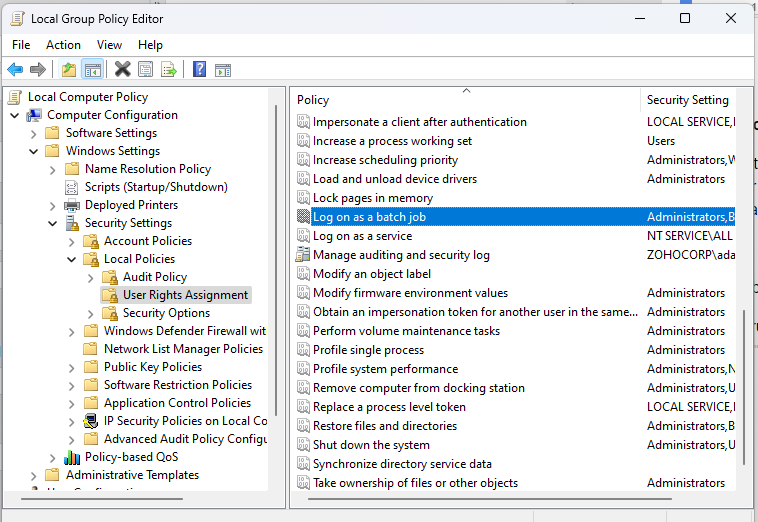
- Open run and enter gpedit.msc
- Go to Computer Configuration -> Policies -> Windows Settings -> Security settings ->Local policies -> User rights assignment
- Click Logon as batch job and if the account used for push installation doesn't appear, add the account here
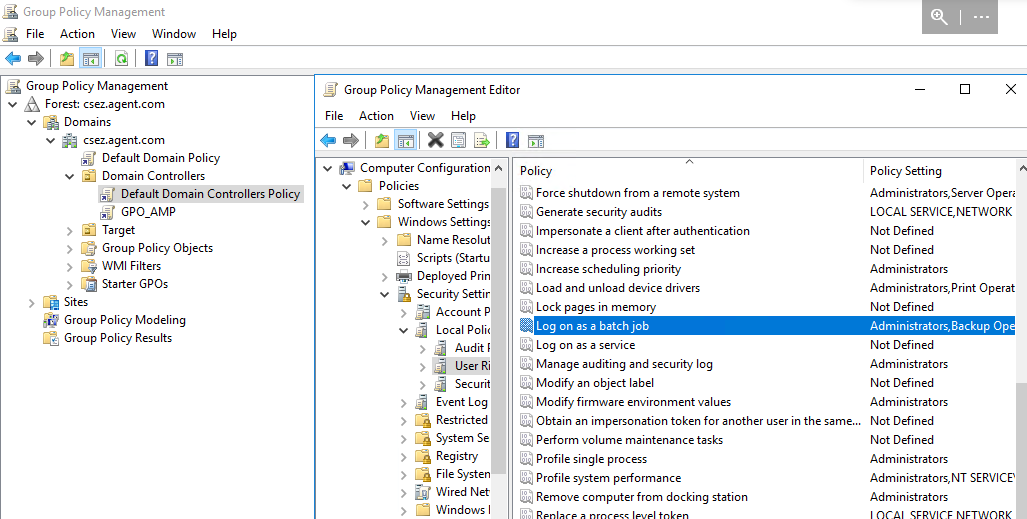
- If the machine is a domain controller, change the settings of the default domain controller policy.
To verify whether the "Log on as a batch job" is enabled, follow the steps below:
Download
on the Endpoint Central server installed machine.
Note: If the agent is managed under a distribution. server, download the exe on the distribution server machine.
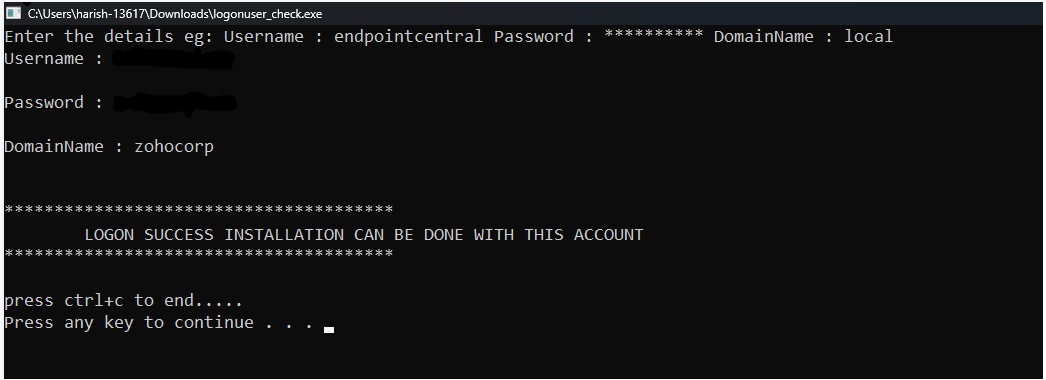
- Run the exe with admin privileges
- Provide the user name and password to check the logon.
- If the logon is successful, the message below will be displayed on the screen.
4. Network accessibility
- The agent computer must be on the LAN, connected through VPN over WAN, or be part of a remote office with a distribution server.
- Ports 135, 139 and 445 must be open inbound between the Endpoint Central server (or the distribution server) and the agent computers.
- The C$ admin share, in addition to Admin$, must be accessible from the server.
- File and Printer Sharing must be enabled on the agent computers.
- To test the push installation, temporarily disable the Windows Firewall and the antivirus on the agent computer.
5. Name resolution
The name of the agent computer must resolve through NSLOOKUP from the distribution server (or the Endpoint Central server) before the push installation.
Agent Installation Issues and Solutions
Agent machine Admin$\temp not accessible
Note: This error could also occur as Network path not found.
Note: The Remarks column of the Computers view can also display this error as The specified network name is no longer available or Cannot push agent...
Problem: The Agent machine Admin$\temp is not accessible from the server installed machine with the given domain credentials.
Resolution:
If the agent machine admin$\temp is not accessible with the given domain credential then follow the steps mentioned below:
- Ensure that the prerequisites have been fulfilled.
- Steps to enable the administrative share is explained in the document below: https://www.manageengine.com/products/desktop-central/agent_installation_failure_path.html
Based on the cause, check the following:
- Credential or permission problem: verify that the account is a local administrator on the agent machine, with read and write access to the Admin$\temp folder.
- Network or reachability problem: verify that the agent machine is up, File and Printer Sharing is enabled, the Admin$ share is enabled (set the AutoShareServer or AutoShareWks registry value to 1), and ports 135, 139 and 445 are not blocked. The steps are explained in the document above. If the problem persists, you can install the agent manually. For the steps, refer to Agent installation methods.
- For the related error "No Network Provider For Path", refer to No Network Provider For Path.
Note: If an agent is managed under a distribution server, accessibility should be verified from the corresponding distribution server installed machine.
Unable to locate Remcom.exe
Problem: The Remcom.exe file does not exist on the end-user machine.
Resolution:
- Verify if RemCom.exe exists in the server_installed_dir\bin\
- Contact Endpoint Central support for the resolution steps.
Note: RemCom.exe is a legitimate ManageEngine utility available in the server_installed_dir\bin\ folder. Endpoint Central uses it, through the RemComSVC service, to install the agent on the target computers during push installation. Antivirus software might detect RemCom or RemComSVC as malware. RemComSVC is not required once the agent installation is complete. The RemComSVC.exe file is not deleted automatically, and you can delete it manually after confirming that the installation is complete.
Access denied while copying agent binaries
Problem: Access has been denied while copying Agent binaries to the end user's machine share.
Resolution: Ensure that all the pre-requisites are fulfilled in-order to resolve this issue.
Verify that the account used for installation is a local administrator on the agent machine and that it can access the Admin$\temp share. For the steps, refer to Agent Installation Pre-requisites. For more troubleshooting steps, refer to https://www.manageengine.com/products/desktop-central/agent_installation_access_denied.html
Logon As Batch job not enabled for domain account.
Problem: The screen displays the message "Logon As Batch job not enabled for domain account".
Resolution: Please refer to the pre-requisites to resolve this issue.
Target Account Name Incorrect
Problem: When you try to install an agent using the Scope of Management and the installation fails, this error message is displayed.
Resolution: Please refer to the document below in-order to resolve this issue. https://www.manageengine.com/products/desktop-central/agent-installation-failure-target-account-name-incorrect.html
Unknown Username or Password
Problem: Endpoint Central Agent or the Distribution server installation, fails with the error message "unknown username or password."
Resolution: Please refer to the document below to resolve this issue. https://www.manageengine.com/products/desktop-central/agent_installation_logon_failure.html
Credential is not available
Problem: The Remarks column of the Computers view displays "Credential is not available".
Resolution: The credential configured for the domain does not have the privilege to install the agent on the target machine. Add the correct Domain Administrator account, or the Local/Workgroup administrator account, under Admin > Global Settings > Domains.
License limit reached
Problem: The agent installation fails and the Remarks column displays "License limit reached".
Resolution: The purchased license count is exhausted. Additional agents cannot be installed until more licenses are purchased.
Unable to unzip agent binaries
Problem: The agent installation fails with the error "Unable to unzip agent binaries" under Reason for Failure. The installation fails at the file extraction stage, after the files are copied to the target machine.
Resolution:
- Retry the agent installation, as the issue might be temporary.
- If the issue persists, restart the target machine (a restart, not a shutdown followed by a power-on) and re-initiate the agent installation.
- If the issue still persists, navigate to C:\Windows\Temp on the target machine and clear the contents of the Temp folder, without deleting the files that are in use or disrupting the running applications. Then, retry the agent deployment.
Invalid installation package detected. Terminating the installation.
Problem: When you reinstall the agent on a machine from which the previous agent was removed using Control Panel (and not the AgentCleanupTool), the EXE installer displays "Invalid installation package detected. Terminating the installation." The MSI displays "Installation Incomplete. Double Click Setup.bat to install the Desktop Central agent."
Resolution:
- Navigate to Agent > Agent Installation > Other methods > Command Line and click Download Agent.
- Extract the downloaded package and restart the machine.
- Run setup.bat and choose the matching installation option, for example, Install WAN Agent in this computer.
Windows protected your PC
Problem: When you run the downloaded agent EXE, Windows displays "Windows protected your PC. Microsoft Defender SmartScreen prevented an unrecognized app from starting."
Resolution: This is a reputation-based warning and does not mean that the file is corrupted or unsafe. Click More info and then click Run anyway. The digital signature verification explained below applies only to the MSI package and not to the EXE.
Digital Signature of Installer file tampered
Problem: The agent installation or upgradation fails.
The "Installation Incomplete" dialog followed by the error "This advertised application will not be installed because it might be unsafe. Contact your administrator to change the installation user interface option of the package to basic." might be displayed.
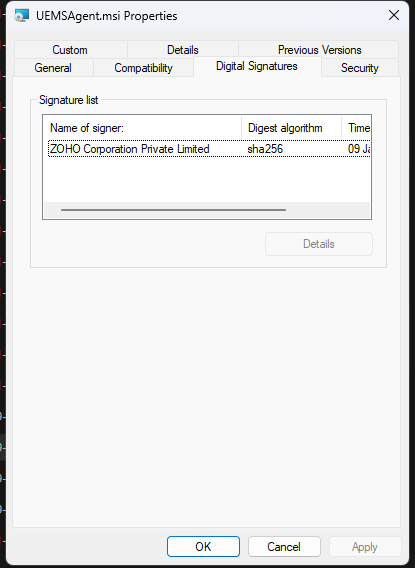
Resolution: Verify if the UEMSAgent.msi file is signed by ZOHO. Please contact support with the necessary details along with the Server, Agent and Distribution Server logs. The server path and distribution server path is given below.
Server path: server-installed-dir\webapps\DesktopCentral\agent\UEMSAgent.msi
Distribution Server path: DS-installed-dir\replication\agent\UEMSAgent.msi
Note: If you are using a distribution server, use the distribution server path to navigate to the file. Else, use the server path.
Steps to verify the Digital Signature:
- Navigate to the UEMSAgent.msi file by using the applicable path mentioned above.
- Right click on the UEMSAgent.msi file and open properties.
- Click the Digital signature Tab and check if a valid ZOHO signature is present just as mentioned in the image below.