Troubleshooting
Essential Data Gathering, Distribution List Membership Gathering, or Basic Mailbox Permission Gathering Tasks
-
1. Unable to bind root DSE
- Cause:
- Not able to Ping the configured GC from the installation machine.
- Firewall has been enabled, and port 389 is closed.
- Unknown Username or Bad Password entered in the organization settings page.
- Global Catalog Server(GC) configured in the organization settings page might be down.
- Resolution:
- Confirm if you are able to ping the Global Catalog Server from the machine where Exchange Reporter is installed.
- Exchange Reporter Plus uses port 389 for LDAP connection. If firewall is enabled, ensure that the port 389 is added to the exception list.
- Verify the correctness of Username and Password entered in the organization settings page.
- Cause:
-
1. Please set 'Microsoft Outlook' as default mail client
- Cause: When 'Microsoft Outlook' is used as a MAPI provider, it must also be set as the default mail client.
- Resolution: Set 'Microsoft Outlook' as the default mail client. To set Microsoft Outlook as the default mail client, Open Internet Explorer → Click on Tools → Internet Options → Click 'Programs' tab in the Email list, Click 'Microsoft Office Outlook' → Click 'OK'
-
2. Unknown User name or bad password provided for the user in 'Organization Settings' page. Please enter valid credentials
- Cause: User Credentials provided in the 'Organization Settings / Task scheduling' page or while configuring 'Exchange Reporter Plus Service' might be wrong.
- Resolution: Verify the correctness of the user name and password entered in the above locations. The username should be provided as <DomainName\UserName>
-
3. The user is not a member of Exchange Organization Administrators group
- Cause: The User provided in the 'Organization Settings / Task scheduling' page or while configuring 'Exchange Reporter Plus Service' is not a member of a desired privileged group.
- Resolution:
Verify if the user provided in the 'Organization Settings' page is a member of one of the following Groups
- 'Exchange View only Administrator Group', if Exchange Server 2003 User (or)
- 'Exchange Organizational Administrator Group', if Exchange Server 2007 User (or)
- 'Organizational management Group', if Exchange Server 2010, 2013 or 2016 User
When the Product is installed as a Service, the configured Service Account must abide by the defined criteria. The configured service account must be a local system administrator.
The user credential should have "Send As" and "Receive As" permissions on Organization Mailboxes.
-
4. The mailbox user provided is hidden from the Global Address List
- Cause: User Credentials provided in the 'Organization Settings / Task scheduling' page or while configuring 'Exchange Reporter Plus Service' might be wrong. The mailbox user provided in the 'Organization Settings/Task Scheduling' page or while configuring the 'Exchange Reporter Plus Service' is hidden from the Global Address List.
- Resolution:
Verify if the user whose credentials entered in the 'Organization Settings' page, has a valid MAILBOX which is not hidden from the GAL (Global Address List).
To unhide the user from Global Address List,
- Open user properties from 'Active Directory Users and Computers', navigate to 'Exchange Advanced' Tab and uncheck 'Hide from Exchange Address List'.
-
5. 'Access denied' to Organization mailboxes for the user credentials provided.
- Cause: Insufficient Privileges to access Organization Mailbox for the user credentials provided. (The user credentials could be provided under the 'Organization Settings / Task scheduling' page or while configuring 'Exchange Reporter Plus Service').
- Resolution:
Verify if the user whose credentials entered in the 'Organization Settings' page
- Has a valid MAILBOX which is not hidden from the GAL (Global Address List).
- Has logged-on to his/her designated Mailbox at least once.
- Has "Send As" and "Receive As" permissions on the Organization Mailboxes.
- Is a member of one of the following Groups
- 'Exchange View only Administrator Group' if Exchange Server 2003 User (or)
- 'Exchange Organizational Administrator Group' if Exchange Server 2007 User (or)
- 'Organizational management Group' if Exchange Server 2010, 2013 or 2016 User
- Verify if the 'Exchange Server' under consideration is accessible from the machine where Exchange Reporter Plus is installed.
-
6. Unable to create MAPI profile. The User does not have a valid mailbox.
- Cause: User credential provided in the does not have a valid mailbox. The user credentials could be provided under the 'Organization Settings / Task scheduling' page or while configuring 'Exchange Reporter Plus Service'.
- Resolution:
Verify if the user whose credentials entered 'Organization Settings' page,
- Has a valid MAILBOX that is not hidden from the GAL (Global Address List) and
- Has logged-on to his/her designated Mailbox at least once.
- Has "Send As" and "Receive As" permissions on Organization Mailboxes.
-
7. Unable to collect Mailbox Information using the credentials provided.
- Cause: Unable to logon to MAPI Client required for collecting Mailbox Information with the credentials provided in any of the folowing locations - 'Organization Settings / Task Scheduling' page or while configuring 'Exchange Reporter Plus Service'.
- Resolution:
- Verify the correctness of Username and Password entered in the organization settings page.
- Verify if the User credentials provided,
- Has a live accessible mailbox and
- Has Send As" and "Receive As" permissions on the Organization mailboxes.
- Is a member of one of the following Groups
- 'Exchange View only Administrator Group' if Exchange Server 2003 User (or)
- 'Exchange Organizational Administrator Group' if Exchange Server 2007 User (or)
- 'Organizational management Group' if Exchange Server 2010, 2013 or 2016 User
-
8. Mailbox store is unavailable or the user has no access to the store
- Cause: Exchange Reporter Plus is unable to communicate with the Mailbox Information Store of the specified Exchange Server for the credentials provided. The user credentials could be provided under the 'Organization Settings / Task scheduling' page or while configuring 'Exchange Reporter Plus Service'.
- Resolution: Ensure that the Mailbox Private Store of the specified Exchange Server is mounted. Also ensure that a privileged user credentials are provided in the Organization Settings page.
-
9. 'Exchange Reporter Plus' cannot fetch data using MS Outlook. Install in another machine with MAPI CDO.
- Cause: An unexpected problem might have occurred while MAPI Installation.
- Resolution: Sometimes MAPI installation might unexpectedly fail. Please uninstall and reinstall MAPI and restart Exchange Reporter Plus for the changes to take effect.
-
11. Schedule run Successful! Unmanaged Servers exempted from Data Gathering
- Cause: The Scheduled Task includes one or more servers that are "unmanaged".
- Resolution: Remove Unmaged Servers from Scheduled Task Data Sources or ensure that the server has atleast one managed mailbox.
Note Exchange Reporter Plus is licensed based on number of mailboxes, for a Server to be managed it should include atleast one licensed mailbox in it. You can manage mailbox license from Admin → License Management option.
-
12. Schedule run Successful! Unmanaged Mailboxes exempted from Data Gathering
- Cause: The Scheduled Task includes one or more mailboxes that are "unmanaged".
- Resolution: Ensure that only the managed mailboxes are considered for the scheduled task.
Note Exchange Reporter Plus is licensed based on number of mailboxes. You can manage mailbox license from Admin → License Management option.
-
13. Remote Powershell Network error
- Cause: Unable to establish a connection to remote powershell.
- Resolution:
- Make sure that the Exchange server and the machine on which Exchange Reporter Plus is installed are on the same domain. If they are on different domains, make sure a trust has been established between the two.
- Make sure that the Exchange Server and the machine on which Exchange Reporter Plus is installed are on the same subnet.
- Make sure that the credentials provided in the organization settings page is correct and that they have sufficient privileges.
- Make sure that the machine on which Exchange Reporter Plus is installed is connected to the network.
-
14. Remote Powershell is not installed
- Cause: Windows Remote Management Framework is not installed.
- Resolution: Download and install WinRm from the link: http://support.microsoft.com/kb/968929
Message Tracking Logs [or] OWA Logs Gathering Tasks
-
1. Network Path not found
- The given network path is no longer accessible
- The specified network name is no longer available
- No network provider accepted the given network path
- Cause: Exchange Reporter Plus is not able to access the Log Path configured under 'Log/Store Path' settings page.
- Resolution:
- Check if the 'Log/Store Path' configured under 'Log/Store Path' settings page is correct.
- Ensure that you are able to access the admin$ of the specified Server.
- From the Server, select 'Start' → 'Run' and type 'gpedit.msc' and hit 'enter'
- Expand the Administrative Templates -> Network Connections -> Windows Firewall
- Click the Domain Profile and double click the Windows Firewall : Allow remote administration exception
- Select Enabled and click OK
From the installation machine, select Start → Run and type \\<Server Name>\admin$.
If you get the same error, enable Remote Administration Exception for the Server as below:
Example: From the installation machine Click on Start → Run → Type '\\<Servername>\c$'
- Check if the Log Path entered under 'Log / Store Path' in Exchange Reporter Plus is of the following format.
The Traffic Log Path Format for Windows 2003 Server would be like : 'C:\Program Files\Exchsrvr\<servename.log>' and for Windows 2007 / 2010 would be like 'C:\Program Files\Microsoft\Exchange Server\V14\TransportRoles\Logs\MessageTracking'. For 2013 / 2016 would be like '\\\C$Program Files\Microsoft\ExchangeServer\V15\TransportRoles\Logs\MessageTracking'
The OWA Log Path Format for Windows 2003 / 2007 Server would be like : 'C:\WINDOWS\system32\LogFiles\W3SVC1' and for Windows 2010 & above would be like 'C:\inetpub\logs\LogFiles\W3SVC1'
-
2. Given user has been denied to use the admin share
- Cause: Unable to access the configured Exchange Server log files location with user credentials provided in the Organization Settings page.
- Resolution:
- Check if you are able to 'ping' the admin share of the Specified Server from the installation machine using the user credentials provided in Organization Settings page.
Example: From the installation machine Click on Start → Run → Type '\\<Servername>\c$'
- Check if the Log Path entered under 'Log / Store Path' in Exchange Reporter Plus is of the following format.
The Traffic Log Path Format for Windows 2003 Server would be like : 'C:\Program Files\Exchsrvr\<servename.log>' and for Windows 2007 / 2010 would be like 'C:\Program Files\Microsoft\Exchange Server\V14\TransportRoles\Logs\MessageTracking'. For 2013 / 2016 would be like '\\\C$Program Files\Microsoft\ExchangeServer\V15\TransportRoles\Logs\MessageTracking'
The OWA Log Path Format for Windows 2003 / 2007 Server would be like : 'C:\WINDOWS\system32\LogFiles\W3SVC1' and for Windows 2010 & above would be like 'C:\inetpub\logs\LogFiles\W3SVC1'
-
3. Invalid Log Path
- Cause: Exchange Reporter Plus collects log path info from the Active Directory. A log path change made by a user in MS Exchange is not automatically reflected in the Active Directory.
- Resolution: Verify the log path configured in Exchange Reporter Plus (Admin → Log / Store path). If any of the Servers log path is not correct, update them manually.
To modify the 'Log Path' for the Specified Server:
- Go to the 'Admin' tab in the product
- Click on 'Log / Store Path'
- Modify the 'Traffic Log Path'
- Modify the 'OWA (IIS) Log Path'
- Modify the 'Failed Request (IIS) Log Path'
- Click on 'Save'.
-
4. No log files found
- Cause: Message Tracking Logging or Outlook Web Access logs might not have been enabled in Exchange Server.
- Resolution: Remove Unmaged Servers from Scheduled Task Data Sources or ensure that the server has atleast one managed mailbox.
- Click on Start →All Programs →> Microsoft Exchange →>System Manager
- From the 'Exchange System Manager' → Right click against the Server and Click on 'properties'
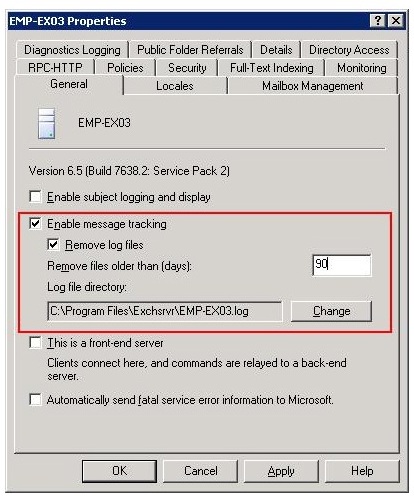
- From the 'Properties' dialog, Click on 'General' Tab, provide a check against 'Enable Message Tracking' and click on 'OK' button.
- Click on Start →All Programs →> Microsoft Exchange Server 2007→>Exchange Management Console
- From the 'Exchange Management Console'→Click on 'Hub Transport'→ Right click against the Server and Click on 'properties'
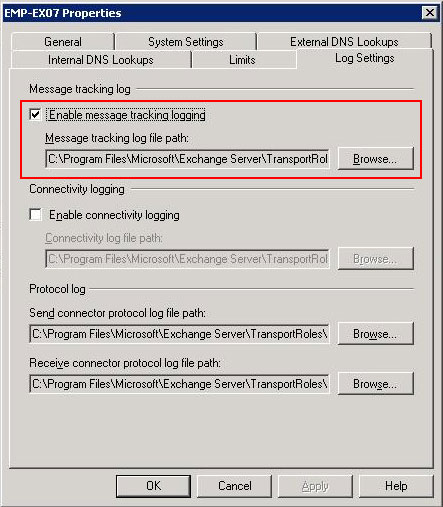
- From the 'Properties' dialog, Click on 'Log Settings' Tab, provide a check against 'Enable Message Tracking' and click on 'OK' button.
- On the Taskbar, click Start → Control Panel→ Administrative Tools→ Internet Information Services (IIS) Manager.
- Right Click on Websites→ Default Web Site and select Properties.
- Click Properties button under Enable Logging section
- On the Taskbar, click Start → Control Panel → Administrative Tools → Internet Information Services (IIS) Manager.
- Right Click on Sites → Default Web Site and select Properties
- On the Logging page, in the Actions pane, click Enable to enable logging or click Disable to disable logging.
- In Features View, double-click Logging.
Enable 'Message Tracking logs' in Exchange Server.
To enable Message Tracking Logs for Exchange Server 2003
Follow the below steps to enable 'Message Tracking Logs' for Exchange Server 2003
To Enable Message Tracking Logs for Exchange Server 2007/ 2010
'Message Tracking Logs' for Exchange Server 2007/2010 must be enabled from the Management Console of the respective servers.
Enable Outlook Web Access Logs in Exchange Server
To enable Outlook Web Access Logs for IIS 6.0
Follow the below steps to enable logging for IIS 6.0
To Enable Outlook Web Access Logs for IIS 7.0
For IIS 7 follow the steps below to enable Cookie.
-
5. OWA Requirements needs to be configured.
- Cause: csCookie field might not have been enabled in OWA.
- Resolution: Enable csCookie with the following steps.
Follow the below steps to enable csCookie logging for IIS 6.0
- Go to Run → Type 'inetmgr' → Expand Server name.
- Expand "Web Site" → Go to Properties of "Default Web Site".
- Enable Logging
- Click on Properties → Go to "Advanced" tab → Provide a check against "Cookie ( cs(Cookie)) and click on OK.
For IIS 7 follow the steps below to enable csCookie logging.
- Go to Run → Type 'inetmgr' →Expand Server name
- Expand 'Sites' → Click on 'Default Web Site'
- Open 'Logging'.
- Enable logging by clicking on 'Enable' from Actions column.
- Click on "Select Fields" under Log file and Enable Cookie ( cs(Cookie)).
-
6. Schedule run Successful! Unmanaged Servers exempted from Data Gathering
- Cause: The Scheduled Task includes one or more servers that are "unmanaged".
- Resolution: Remove Unmaged Servers from Scheduled Task Data Sources or ensure that the server has atleast one managed mailbox.
Note Exchange Reporter Plus is licensed based on number of mailboxes, for a Server to be managed it should include atleast one licensed mailbox in it. You can manage mailbox license from Admin → License Management option.
-
7. Failed Request Tracing is not configured.
- Cause: Failed Request Tracing definition might not have been configured.
- Resolution: Pre-requisite: IIS 7 and above should be installed on the server. After the default installation of IIS 7 or above, install the tracing role service to use failed request tracing. After you install the role service, you still must enable failed request tracing at the site level, application level, or directory level.
- On the taskbar, click Server Manager.
- In Server Manager, click the Manage menu, and then click Add Roles and Features.
- In the Add Roles and Features wizard, click Next. Select the installation type and click Next. Select the destination server and click Next.
- On the Server Roles page, expand Web Server (IIS), expand Web Server, expand Health and Diagnostics, and then select Tracing. Click Next.
- On the Select features page, click Next.
- On the Confirm installation selections page, click Install.
- On the Results page, click Close.
- On the taskbar, click Start, point to Administrative Tools, and then click Server Manager.
- In the Server Manager hierarchy pane, expand Roles, and then click Web Server (IIS).
- In the Web Server (IIS) pane, scroll to the Role Services section, and then click Add Role Services.
- On the Select Role Services page of the Add Role Services Wizard, select Tracing, and then click Next.
- On the Confirm Installation Selections page, click Install.
- On the Results page, click Close.
- Open Internet Information Services (IIS) Manager.
- In the Connections pane, select the server connection, site, application, or directory for which you want to configure failed request tracing.
- In the Actions pane, click Failed Request Tracing.
- In the Edit Web Site Failed Request Tracing Settings dialog box, select the Enable check box to enable tracing, leave the default value or type a new directory where you want to store failed request log files in the Directory box, type the number of failed request trace files you want to store in the Maximum number of trace files box, and then click OK.
- Open Internet Information Services (IIS) Manager.
- In the Connections pane, select the server connection, site, application, or directory for which you want to configure failed request tracing.
- In the Home pane, double-click Failed Request Tracing Rules.
- In the Actions pane, click Add.
- On the Specify Content to Trace page of the Add Failed Request Tracing Rule Wizard, select the content type you want to trace, and then click Next.
- On the Define Trace Conditions page, select the conditions you want to trace, and then click Next. Trace conditions can include any combination of status codes, a time limit that a request should take, or the event severity.
- Status codes for Access Denied/Logon Failure: 401.1,401.2,401.3,401.4,401.5.
- If you specify all conditions, the first condition that is met generates the failed request trace log file.
- On the Select Trace Providers page, select one or more of the trace providers under Providers or Select "All".
- On the Select Trace Providers page, select one or more of the verbosity levels under Verbosity.
- If you have selected the ASPNET or WWW Server trace provider in step 7, select one or more functional areas for the provider to trace under Areas of the Select Trace Providers page.
- Click Finish.
Steps to Install Tracing Role Service
FOR WINDOWS SERVER 2012 OR WINDOWS SERVER 2012 R2
FOR WINDOWS SERVER 2008 OR WINDOWS SERVER 2008 R2
Steps to Enable Tracing
Steps to Configure Failure Definitions
-
8. User Name is Empty in Logon Failure Report
- Cause: Certain parameters are missing from the IIS 8 logs as mentioned in https://support.microsoft.com/en-us/kb/2829173
- Resolution: Upgrade to IIS 8.5 to fix issue
-
9. Can't generate Logon Failure report despite configuring failed request tracing
- Cause: OWA failed logons are usually recorded under apppoolId MSExchangeOWAAppPool. The default trace file limit is 50, after which the logs are overwritten with newly generated ones. If the current logs do not include details about failed logons, the report will not have data.
- Resolution:
Steps to Enable Tracing
- Open Internet Information Services (IIS) Manager.
- In the Connections pane, select the server connection, site, application, or directory for which you want to configure failed request tracing.
- In the Actions pane, click Failed Request Tracing.
- In the Edit Web Site Failed Request Tracing Settings dialog box, edit the number of failed request trace files you want to store to 10,000 in the Maximum number of trace files box, and then click OK.
Exchange Web services
-
1. Network Error
- Cause: Unable to establish connection with Exchange Web Services.
- Resolution:
- Ensure that the machine on which Exchange Reporter Plus is installed is connected to the network.
- Ensure that the URL 'https://<servername>/EWS/Exchange.asmx' is reachable from the machine on which ERP is installed.
-
2. EWS Managed API not installed
- Cause: EWS Managed API is required to generate this report.
- Resolution:
- Ensure that the EWS Managed API is installed on the same machine as Exchange Reporter Plus.
- If not, navigate to '<producthome directory>\lib\native' and run EwsManagedAPI.msi
-
3. At least one Exchange 2007 Server or above is required to generate this report
- Cause: EWS is supported only on Microsoft Exchange Server 2007 and above.
- Resolution: Ensure that you have at least one Exchange 2007 server or above in the environment.
-
4. Successful! Room Mailboxes without Calendar access permission exempted
- Cause: Insufficient permissions to access room mailbox calendar.
- Resolution:
- Ensure that the user provided in Organization Settings page has Calendar access permission on required room mailboxes.
- If not, run the following commandlet in Exchange Management Shell:
Get-Mailbox -RecipientTypeDetails 'RoomMailbox' | Foreach-Object {Add-MailboxFolderPermission $_":\Calendar" -User <user in Organization settings page> -AccessRights Reviewer}
-
5. Successful! Mailboxes without FullAccess permission exempted
- Cause: Insufficient permissions to gather mailbox content.
- Resolution:
- Ensure that the user provided in Organization Settings page has Full access permission on required mailboxes.
- If not, run the following commandlet in Exchange Management Shell:
Add-MailboxPermission -Identity <mailbox name> -User <user in Organization settings page> -AccessRights FullAccess
-
6. Logon Failure
- Cause: User Credentials provided in the 'Organization Settings / Task scheduling' page or while configuring 'Exchange Reporter Plus Service' might be wrong.
- Resolution: Verify the user name and password entered in the above locations. The username format should be <DomainName\UserName>
-
7. .NET not installed
- Cause: .NET framework is required.
- Resolution: Download and install .NET from
http://www.microsoft.com/en-in/download/details.aspx?id=21
-
8. Some emails were skipped due to the limitations in handling complex search patterns.
- Cause: The RegEx pattern used in the search input is highly complex, which can lead to excessive processing time. To ensure optimal performance, certain emails may be skipped when such patterns are detected.
- Resolution: Simplify your RegEx pattern to reduce nested quantifiers, overlapping groups, or excessive backtracking.
-
9. The attachment couldn't be downloaded.
- Cause: The necessary permissions to access the Exchange Reporter Plus installation directory may be missing.
- Resolution:
- Ensure that the account configured under the Log On tab of the Exchange Reporter Plus service in the Windows Services console has full access permissions to the installation directory and its subfolders. Please contact your administrator if permission changes are required.
- If you have verified the above step and are still facing issues, please contact our support team at support@exchangereporterplus.com for further assistance.
URL Settings
-
1. Network Error
- Cause: Unable to establish connection with Exchange Web Services.
- Resolution:
- Ensure that the URL 'https://<servername>/EWS/Exchange.asmx' is reachable from the machine on which Exchange Reporter Plus is installed.
- If the URL is reachable, please check your user credentials.
-
2. Logon Failure
- Cause:
- User Credentials provided on the Organization Settings page or user credentials provided while configuring the Exchange Reporter Plus service might be wrong or not updated.
- This EWS URL is not part of this organization.
- Resolution:
- Update the selected organization's EWS URL.
- If the issue persists, please update the password on the Organization Settings page.
- Cause:
-
3. Ensure that the user has a valid mailbox
- Cause: Service account does not have a valid mailbox.
- Resolution:
- Please create a mailbox for the service account.
- Please wait for essential data gathering to take place.
- If the issue persists, please provide alternative credentials for a user with a mailbox who is a member of the Organization Management group in the admin page of your Exchange server.
-
4. EWS Managed API not installed
- Cause: EWS Managed API is required to be added in the URL Settings.
- Resolution:
- Ensure that the EWS Managed API is installed in the same machine that houses Exchange Reporter Plus.
- If not, navigate to '<product home directory>\lib\native' and run EwsManagedAPI.msi.
-
5. .NET not installed
- Cause: .NET not installed
- Resolution:
- Click here to download and install .NET framework.
- .NET version 3.5 or above is required.
-
6. User does not have sufficient permission
- Cause: The account does not have the required permission to impersonate the requested user.
- Resolution:
- Ensure that the user is given the ApplicationImpersonation role in Exchange admin center.
- If not, run the following cmdlet in Exchange Management Shell:
New-ManagementRoleAssignment -Name "impersonationAssignmentName" -Role "ApplicationImpersonation" -User {user in Error Message}
-
7. TLS Issue
- Cause: TLS 1.2 is required to be added in the URL Settings.
- Resolution:
- Ensure that TLS 1.2 is enabled in the same machine that houses Exchange Reporter Plus.
- Use the following PowerShell cmdlet to check:
- [Net.ServicePointManager]::SecurityProtocol
- If not, enable TLS 1.2, and restart the product for the changes to take effect.
Others
-
1. O365 Connection Failure
- Please verify the entered user name and password.
- In case of proxy configuration on your network, please allow URLs, IPs and ports listed in 'O365 Proxy Support' page.
- Please ensure network connectivity on your machine.
- If you are using Windows update KB3176934,refer to this document 'PowerShell Team Blog'page.
-
2. Steps to Create Test User Mailbox
- Login as a Domain Administrator in Exchange Server
- Go to C:/Program Files/Microsoft/Exchange Server/V14/Scripts
- Open Exchange Management Shell and run new-TestCasConnectivityUser.ps1
- Follow the instructions on shell
- Wait for next schedule to gather data