# Upgrade Manager
The upgrade process for OpManager - installed servers across your network is simplified using the Upgrade Manager. It offers a centralised platform to manage and perform upgrades for **OpManager** Standalone servers and their Failover servers. The enhanced smart upgrade feature helps to overcome the bottlenecks faced during the upgrade process.
> **Note:**
>
> - For service pack versions **12.8.344 and above**, manual backup prerequisites are optional as the Upgrade Manager takes the backup automatically.
> - The **QPM**, designed to deliver targeted patches, can be seamlessly applied across services using **Upgrade Manager**, following the same steps as a service pack.
> - If you are encountering issues caused by AV/EDR interactions during the upgrade process, please follow this [exclusion guide](https://www.manageengine.com/products/netflow/pgsql-av-edr-exclusion.html#upgrade-manager).
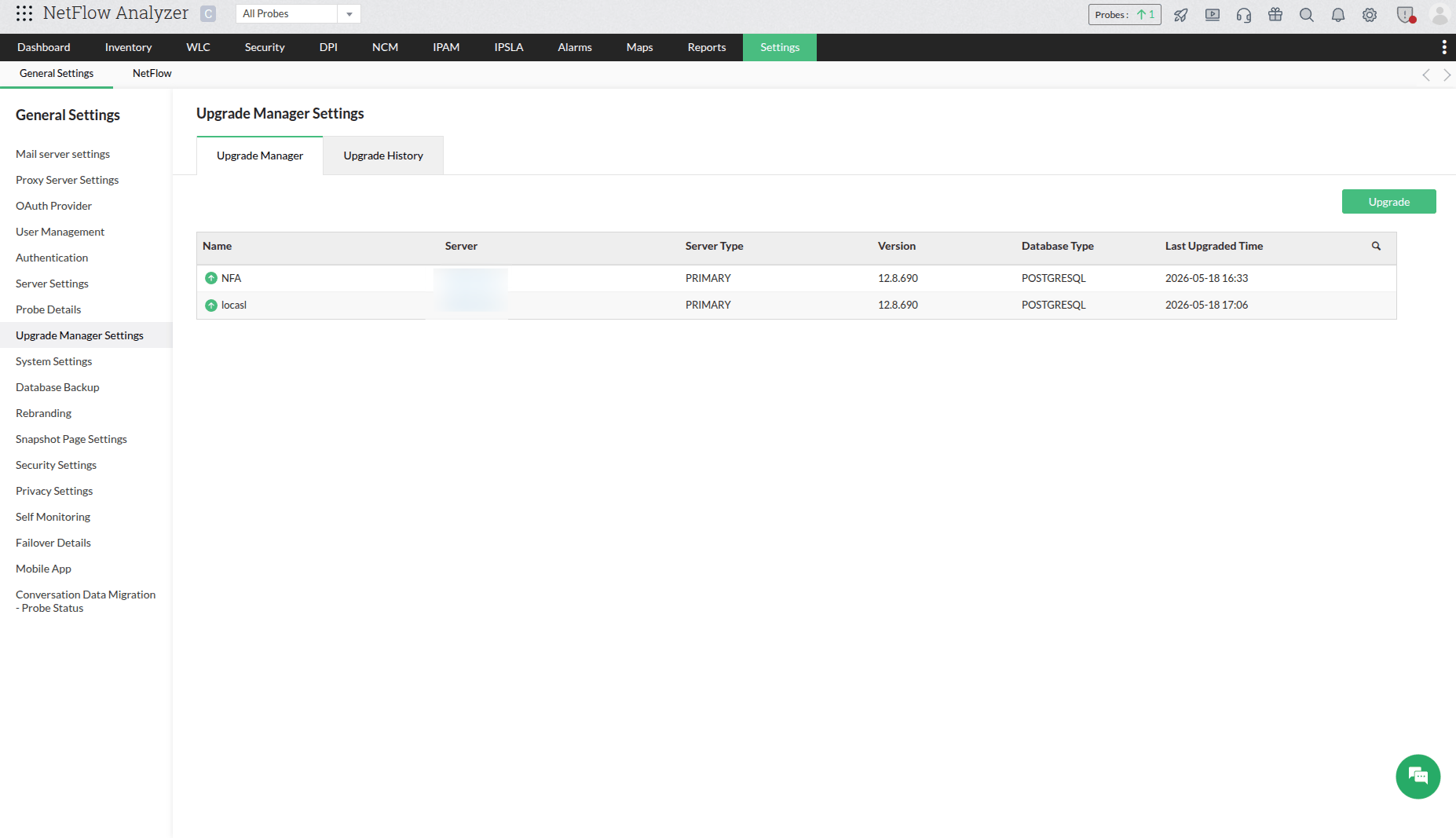
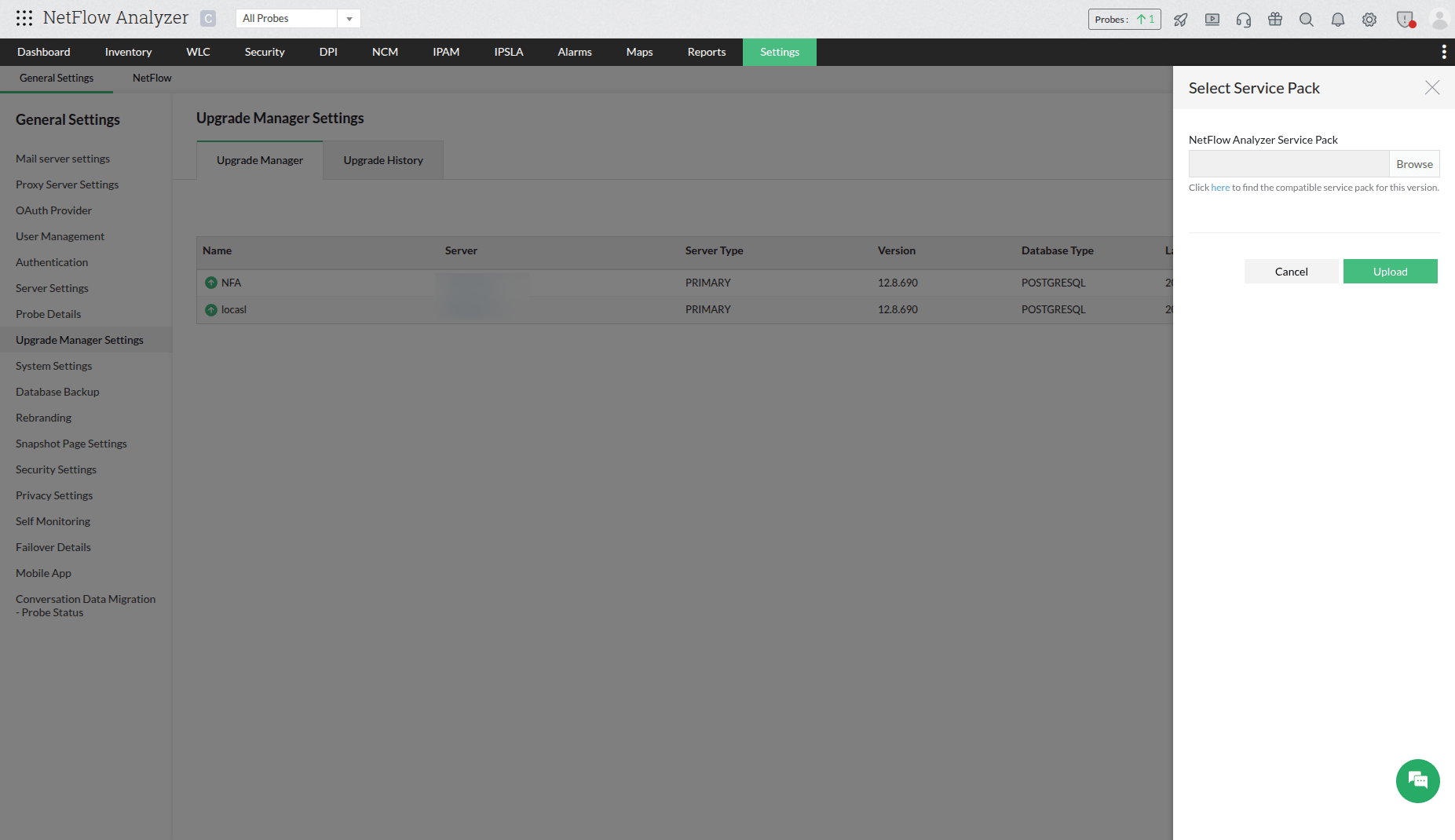
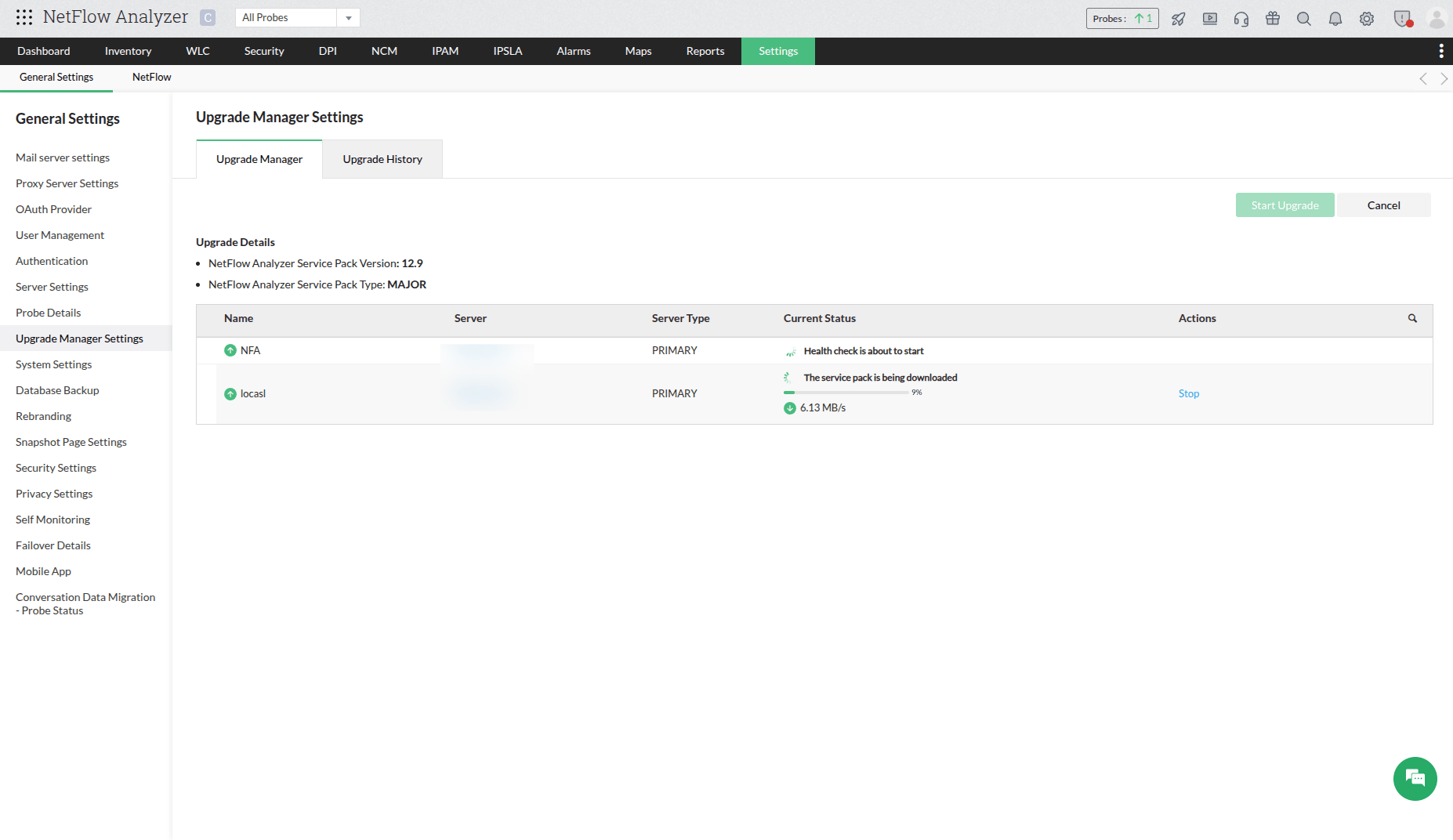
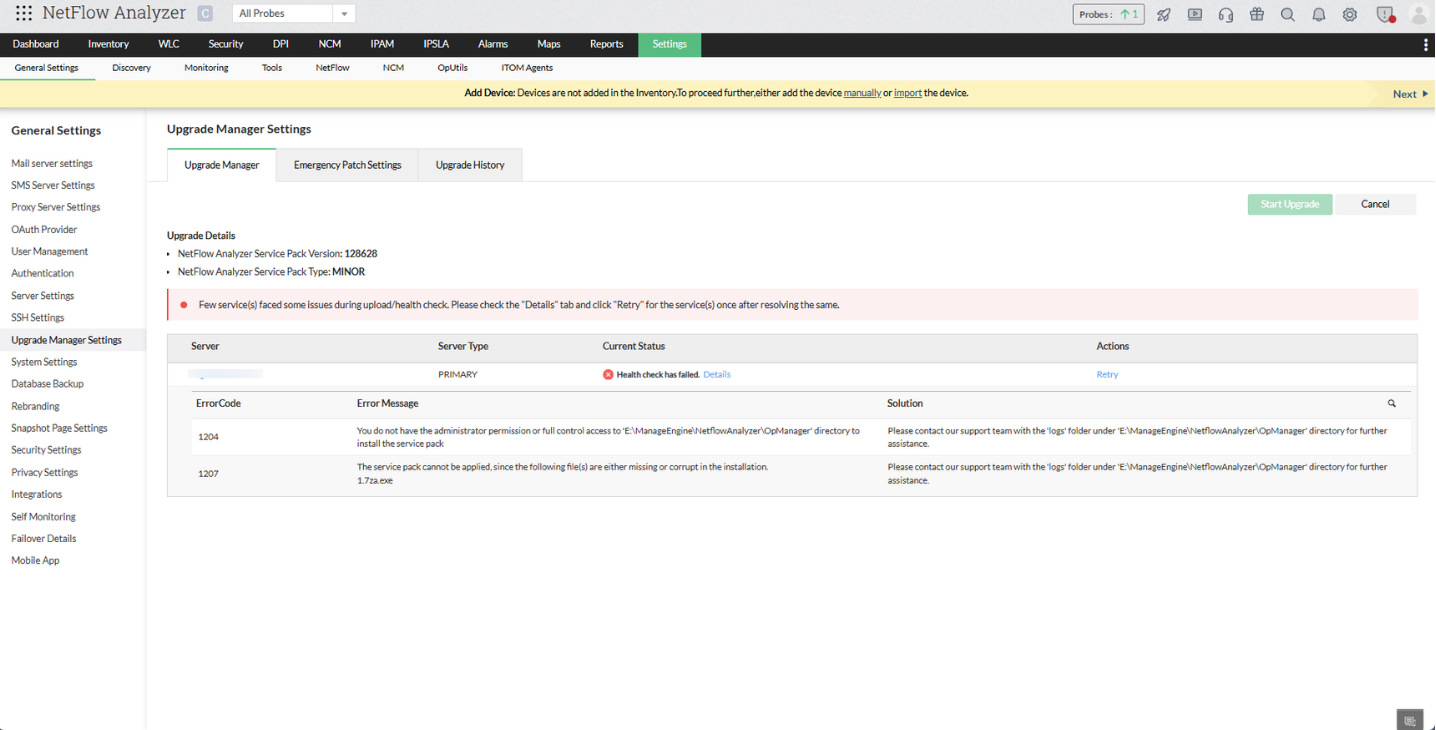
- With a successful health check, the product will now be ready for the upgrade.
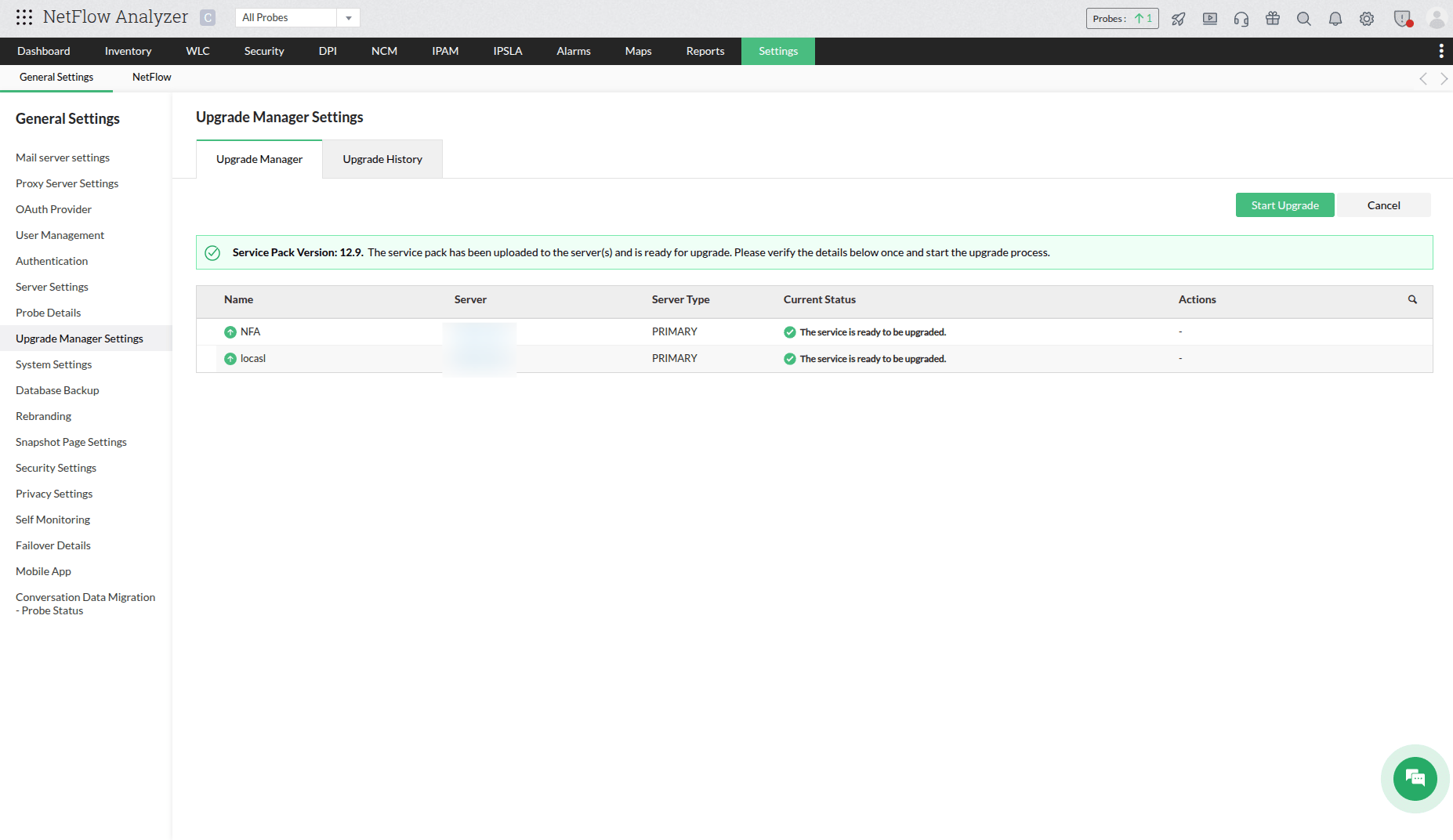
- For **Failover servers,** the upgrade will start automatically for both the active and the standby server.
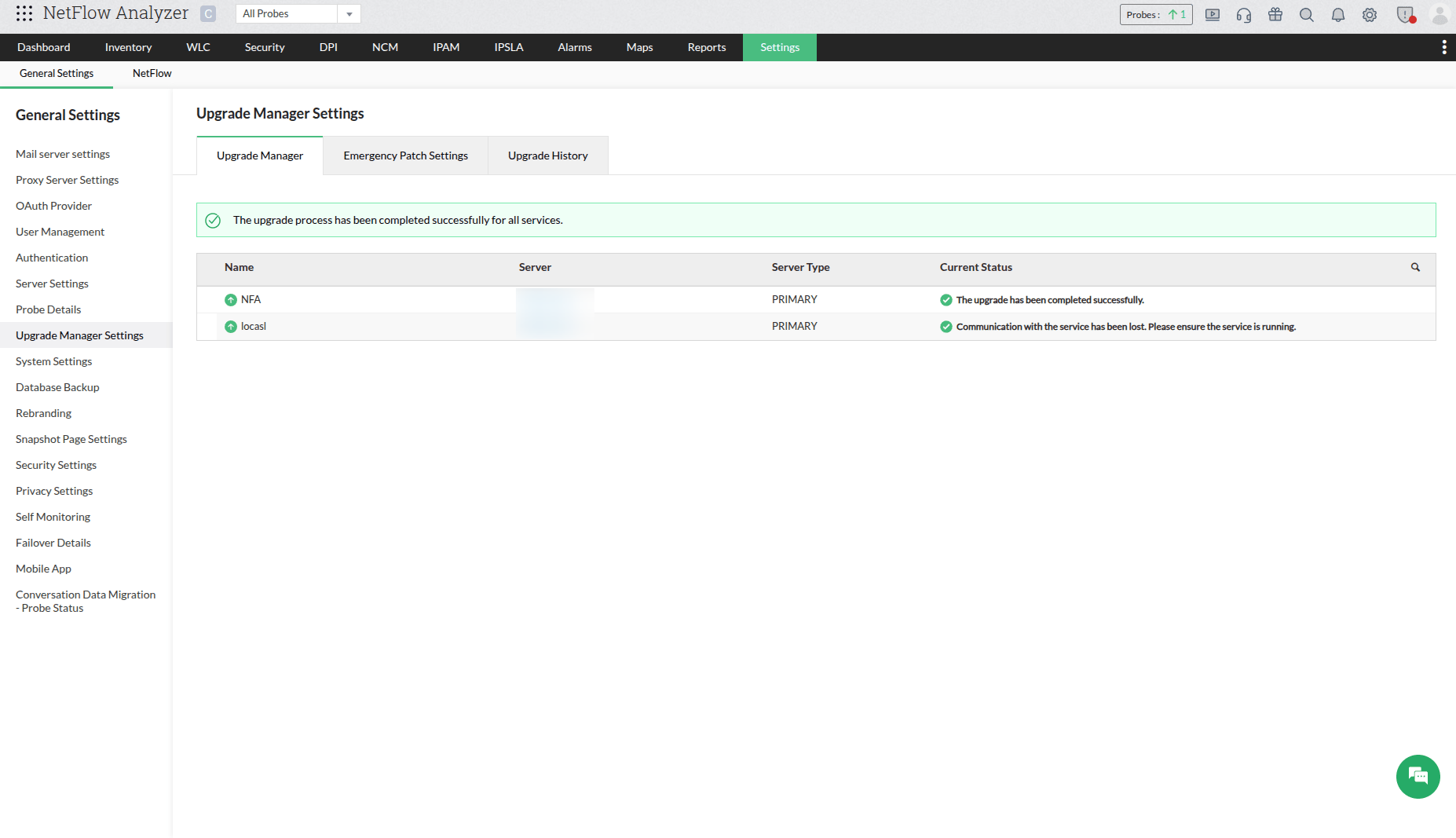
- Upgrade details for individual servers will be automatically updated under the **Current Status** column.
- [Upgrade Backup Pre-requisites](https://www.manageengine.com/network-monitoring/help/upgrade-manager.html#backup)
- [Upgrade Pre-requisites](https://www.manageengine.com/network-monitoring/help/upgrade-manager.html#pre)
- [Edition-specific Upgrade](https://www.manageengine.com/network-monitoring/help/upgrade-manager.html#edition)
- [Upgrade OpManager using UpdateManager.bat and .sh file](https://www.manageengine.com/network-monitoring/help/upgrade-manager.html#bat)
- If you are encountering issues caused by AV/EDR interactions during the upgrade process, please follow this [exclusion guide](https://www.manageengine.com/products/netflow/pgsql-av-edr-exclusion.html#upgrade-manager).
- Ensure that the user performing the upgrade has the required permissions for the OpManager folder.
## Edition-specific Upgrade
| Edition | Without Failover | New Failover |
|---|---|---|
| **Standard / Professional** | Upgrade the service using the [UpdateManager.bat /.sh file](https://www.manageengine.com/network-monitoring/help/upgrade-manager.html#bat) and once the upgrade is completed start the service to continue monitoring. | - Stop both primary and secondary failover service.
- Follow the steps provided under [UpdateManager.bat /.sh file](https://www.manageengine.com/network-monitoring/help/upgrade-manager.html#bat) to upgrade the service.
- Then, start the secondary service once as master and stop the service.
- Now start the primary service followed by secondary service. |
| **Enterprise Edition** | - Stop the Firewall Analyzer Central and all the Probe services.
- Upgrade using [UpdateManager.bat /.sh file](https://www.manageengine.com/network-monitoring/help/upgrade-manager.html#bat).
- Once the upgrade is completed, start the Central service.
- Then, the Probes will detect the upgrade, perform it in all the Probes and start the services on its own. | - Stop both primary and secondary service in Firewall Analyzer Central.
- Stop the secondary service and ensure only the primary service is running in all Probes.
- Follow the steps provided under [UpdateManager.bat /.sh file](https://www.manageengine.com/network-monitoring/help/upgrade-manager.html#bat) to perform upgrade in Central.
- Once upgrade is completed start the Firewall Analyzer Central service.
- Then, the Probes will detect the upgrade and perform it automatically in all the Probe services.
- Start and stop the Standby service once as master across Central and Probe, then start the primary followed by the Standby service. |