Unable to mount WIM file - ADK version 10
Problem
The error message “Unable to mount WIM file in the WinPE path” may appear in the following scenario:
- When creating USB, ISO, or PXE media using WinPE Tool version 10
Cause
- Windows firewall or Antivirus might block the WinPE (DISM) process.
- Required privilege is not held by the user (Group Policy restriction).
- Using a ReFS file system.
Resolution
To identify if the Windows firewall is blocking the WinPE (DISM) process, follow the steps given below in the machine where the Central server (for on-premises) or Distribution Server (for cloud) is installed:
- Exclude the Central Server (for on-premises) or Distribution Server (for cloud) installed location from firewall.
To ensure that the required privileges are held by the client, follow the steps given below:
- Run gpedit.msc to open the group policy editor.
- Navigate to Computer Configuration > Windows Settings > Security Settings > Local Policies > User Rights Assignment > Manage auditing and security log.
- Ensure that the user account used to run the Central Server is added to this list.
To check the user account currently running the Central Server:
1. Run services.msc to open services and go to the properties of ManageEngine Endpoint Central Server (for on-premises) or ManageEngine UEMS Distribution Server(for cloud).
2. Click the Log On tab.
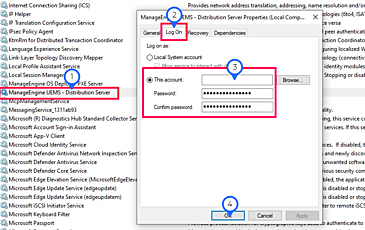
3. Enter the username and password of the currently logged-in Windows user.
4. Click OK.
5. Restart the Central Server (for on-premises) or Distribution Server (for cloud).
6. Go to the Deploy tab and click Create bootable media to create bootable media.
To check the manual mount process, follow the steps given below in your Central Server-installed machine (for on-premises) / Distribution Server-installed machine (for cloud):
1. Search for Deployment and Imaging Tools in the Start menu.
2. Run Deployment and Imaging Tools as an administrator.
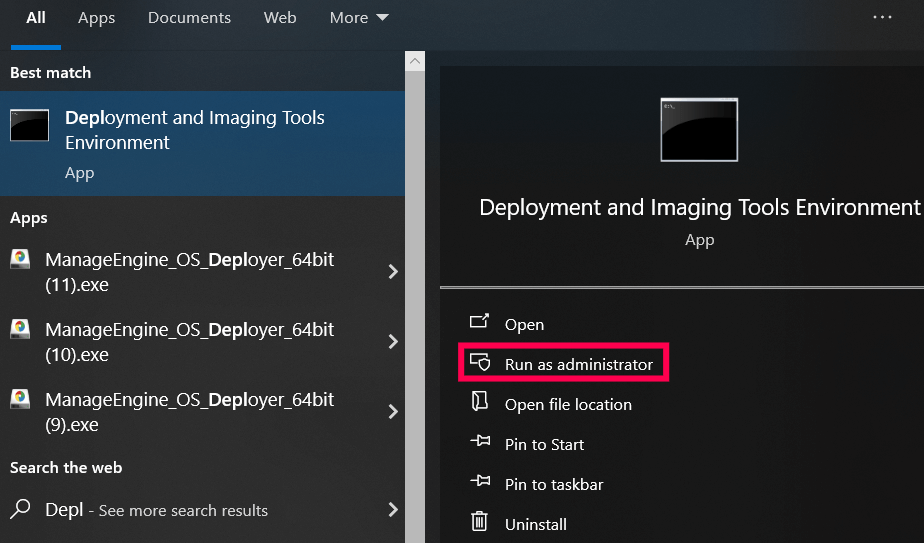
3. Run copype amd64 "path\mount_check" where path indicates the location to which the WinPE files should be copied.
- For the on-premises solution, the path should be the server installed location.
- For the cloud solution, the path should be C:\Program Files (x86)\ZOHOCORP
4. The mount_check folder will now be created on your computer.

- 5. Download thisbat file (SHA 256 Checksum: Loading...).
6. Navigate to mount_check -> media -> sources and copy the bat file to that folder.
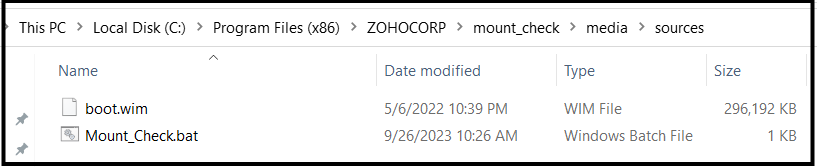
7. Open Deployment and Imaging Tools environment in admin mode and then use the cd command to navigate to the path "C:\Program Files (x86)\ZOHOCORP\mount_check\media\sources" for cloud. For OP, navigate to the path "<server_installed_path>\mount_check\media\sources"
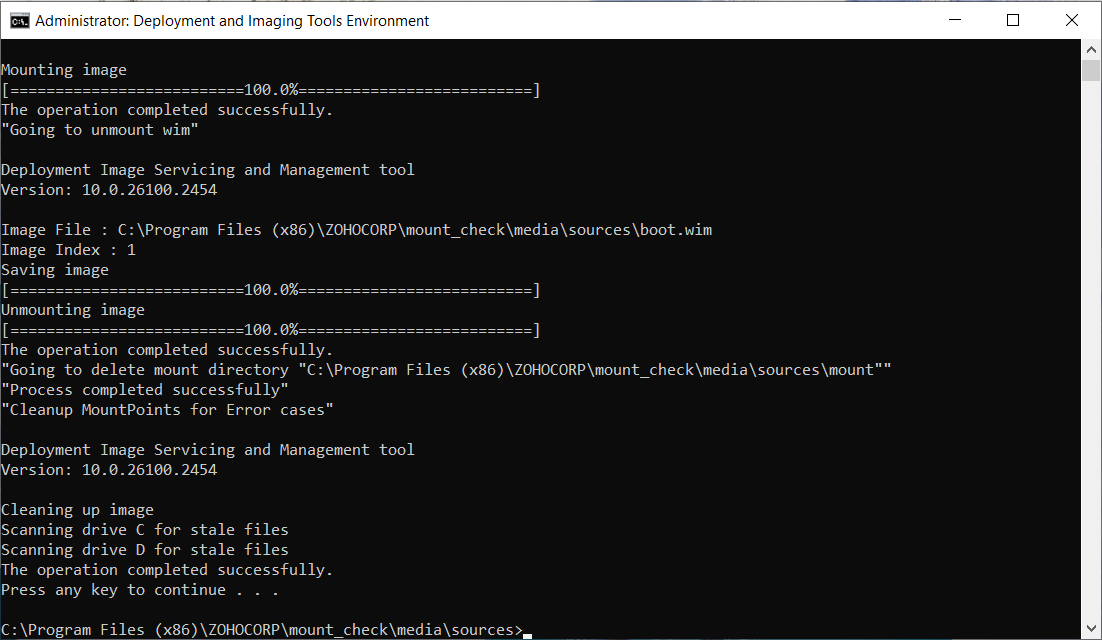
8. Next, run the bat file by typing Mount_Check.bat in console
Note: If the mount/unmount fails, check your local environment for any issues.
Please contact osdeployer-support@manageengine.com if the issue persists.
Keywords: WinPE mount failed, digital signature error
 Yes No