Service Account Configuration for Remote Password Resets of Google Workspace Accounts
Password Manager Pro supports remote password resets for Google Workspace accounts within your domain using a service account. To enable this functionality, you need to set up a service account within a project in your Google Workspace domain and configure it to perform password resets. When a password reset operation is triggered for a Google Workspace user account in Password Manager Pro, the service account performs the password reset for the selected accounts. Therefore, before configuring the remote password reset operation for a Google Workspace account in Password Manager Pro, you must set up and configure a service account on the Google Cloud Platform (GCP) Console.
This document details the necessary steps to be followed on the GCP console for the successful execution of remote password reset operations for Google Workspace user accounts in your domain.
- Service Account Configuration
- Managing Domain-Wide Delegation for Service Account
- Enabling Admin SDK API
1. Service Account Configuration
This process involves creating a new project if required, setting up a service account within the project, assigning the necessary roles and permissions for the service account to access the project, and generating a service account key file. Follow these steps meticulously to ensure proper implementation of the intended functionality.
- Go to the Google Cloud Console and log in as Google Workspace administrator.
- Select or create a project
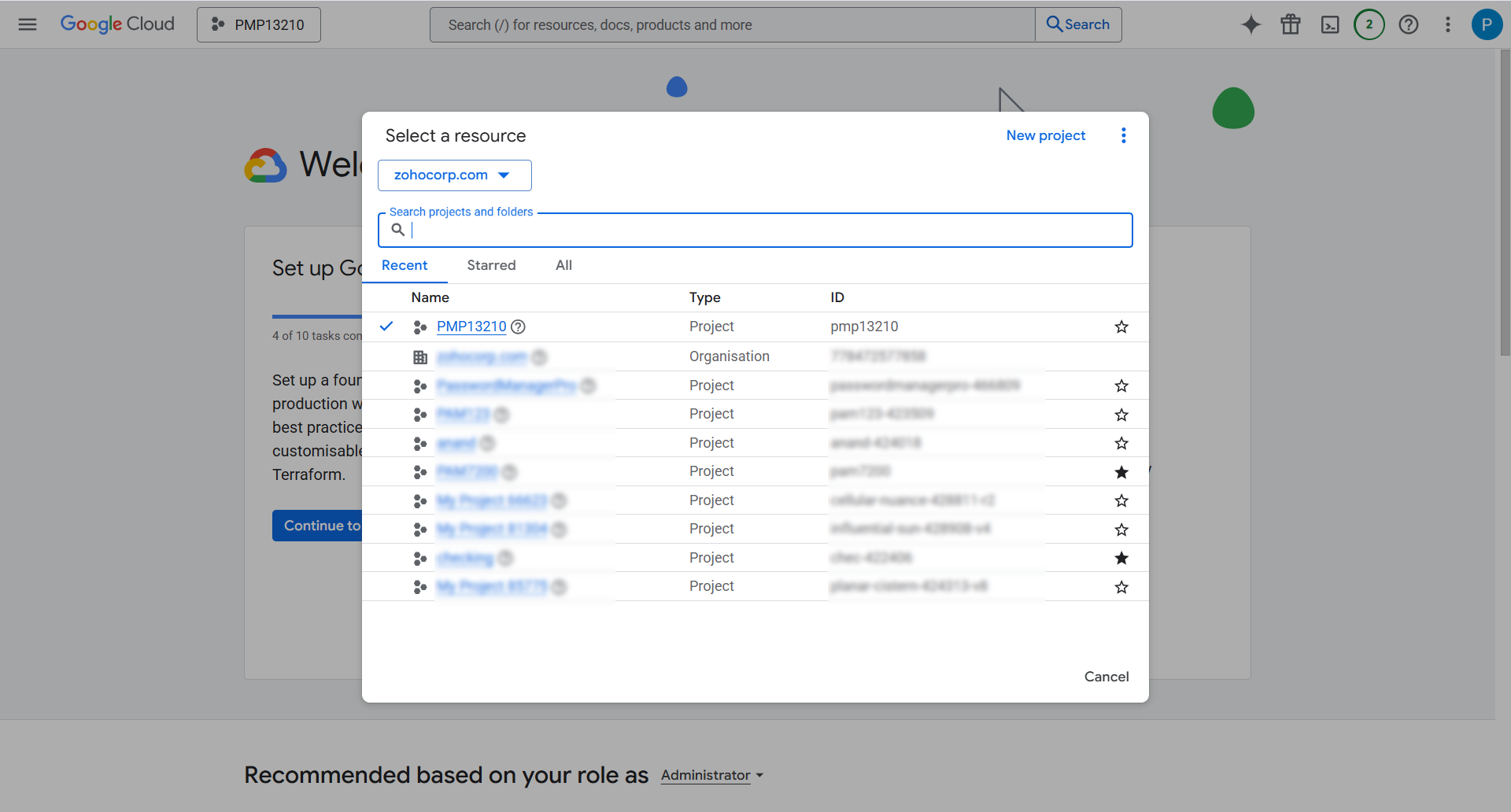
- On the Google Cloud Console home page, click the project dropdown in the navigation bar.
- In the Select a resource window, choose the desired project where you want to create the service account.
- If you do not have an existing project, click the New Project option in the top-right corner of the window to create a new project.
- Create a service account
- Click the menu icon to open the Navigation menu.
- Navigate to IAM & Admin >> Service Accounts and click the + Create Service Account option.
- On the Create service account page, enter a name and description for the service account. The service account ID and email address will be auto-generated based on the provided service account name.
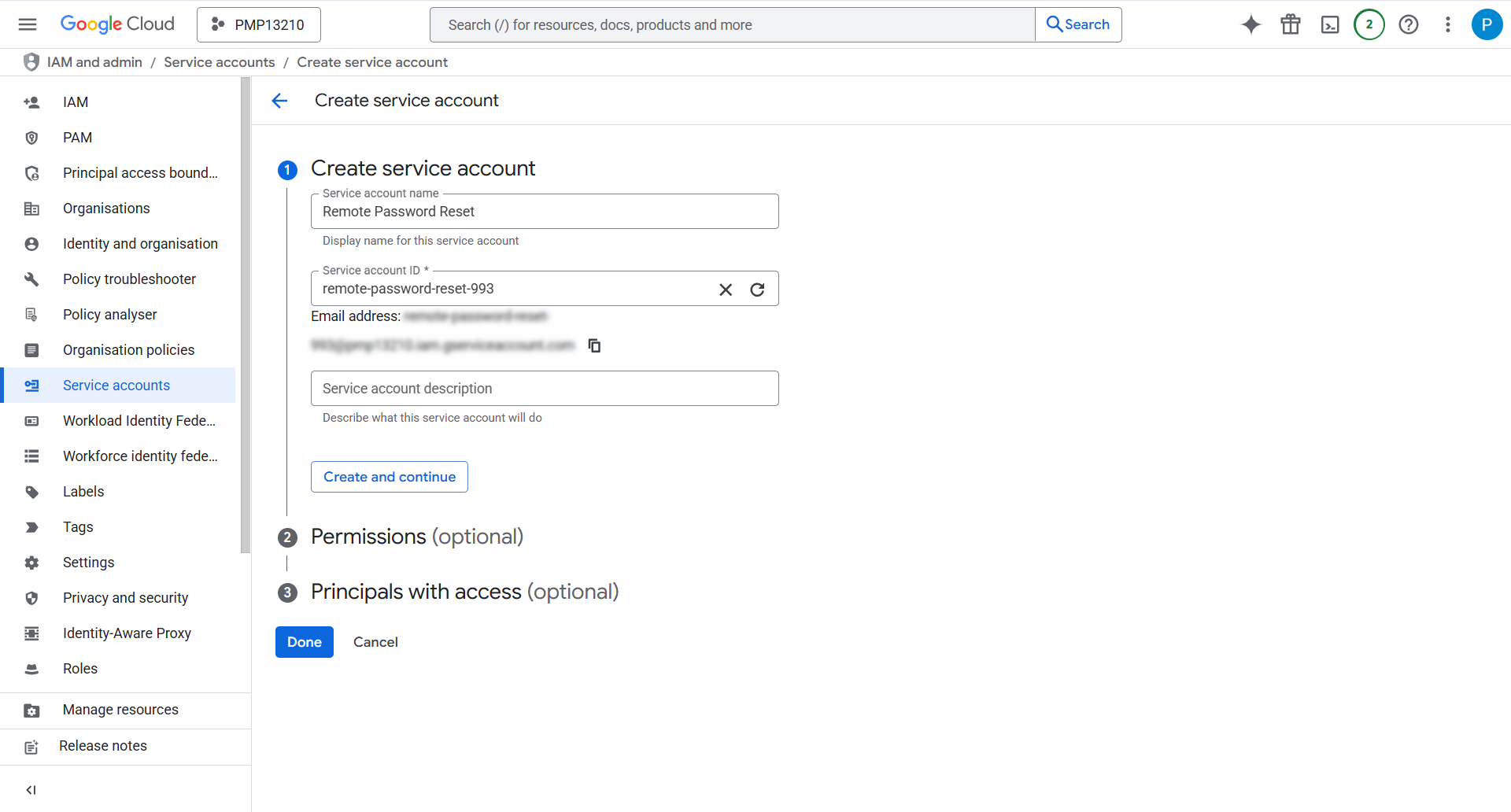
- Click Create and Continue to proceed to the next step.
- To grant this service account access to the project, click the Select a role drop-down menu, select Basic >> Editor, and click Continue.
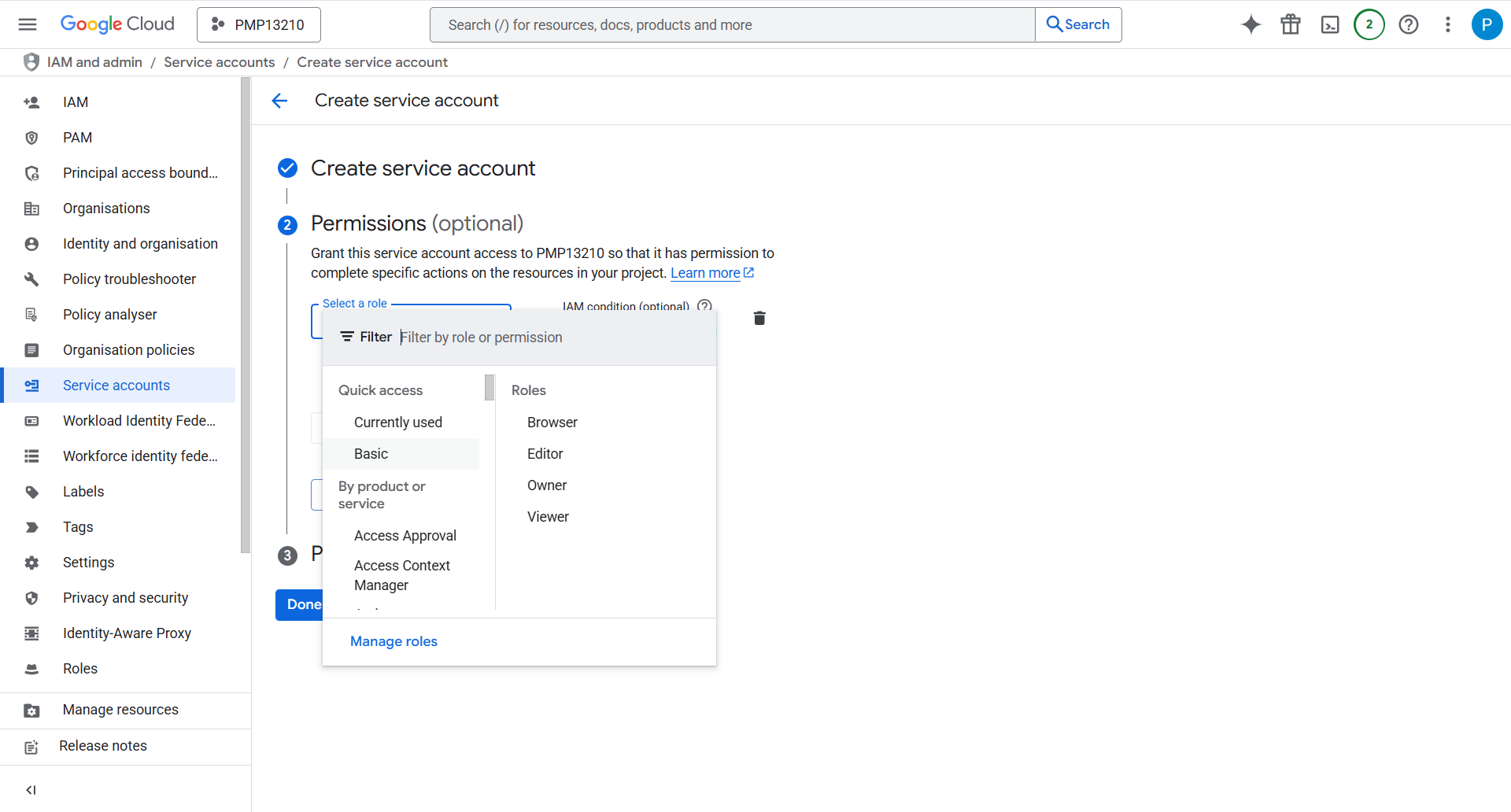
- Once the policy is updated, click Done to complete the service account creation procedure.
- Generate the service account key file
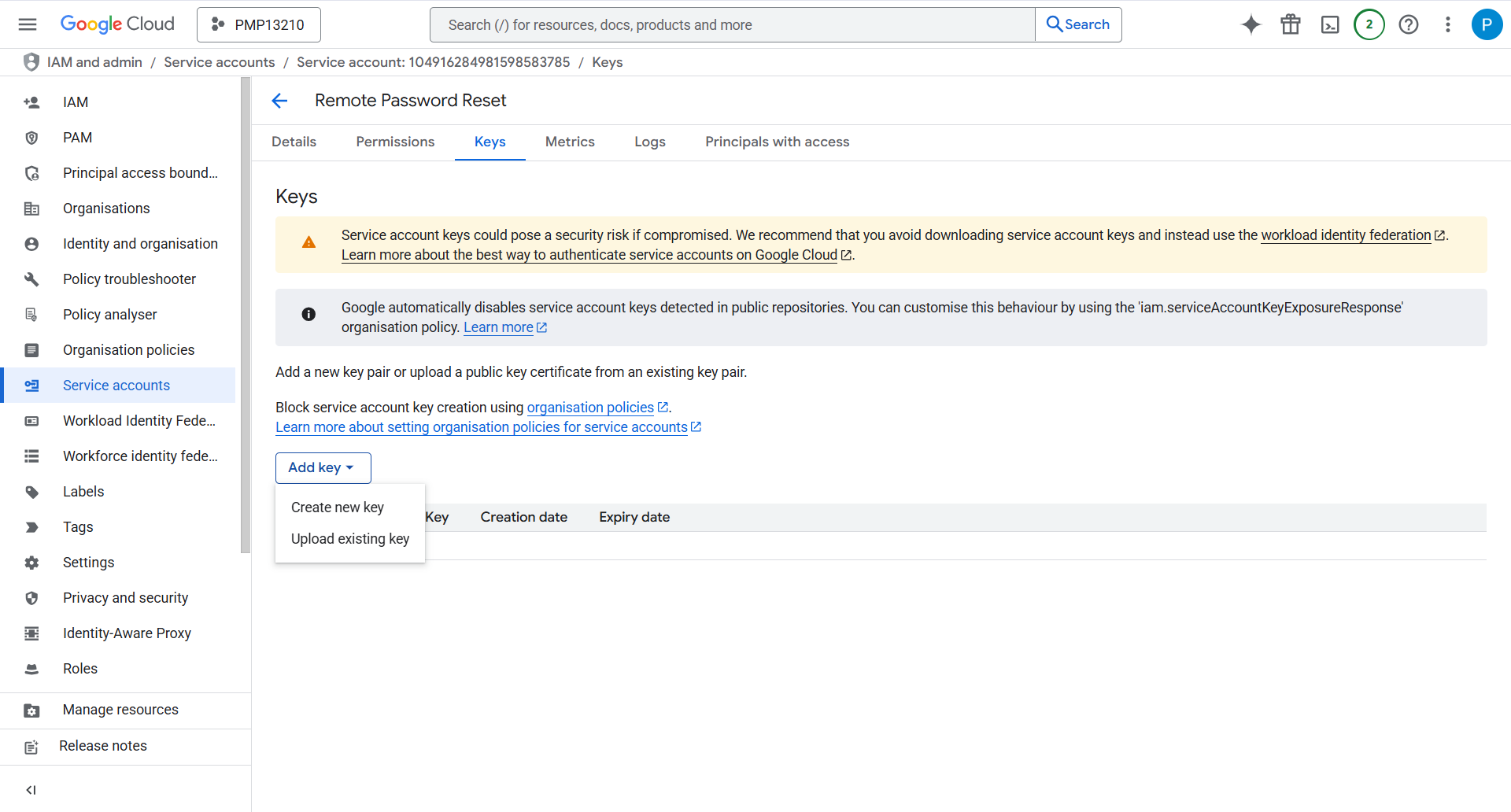
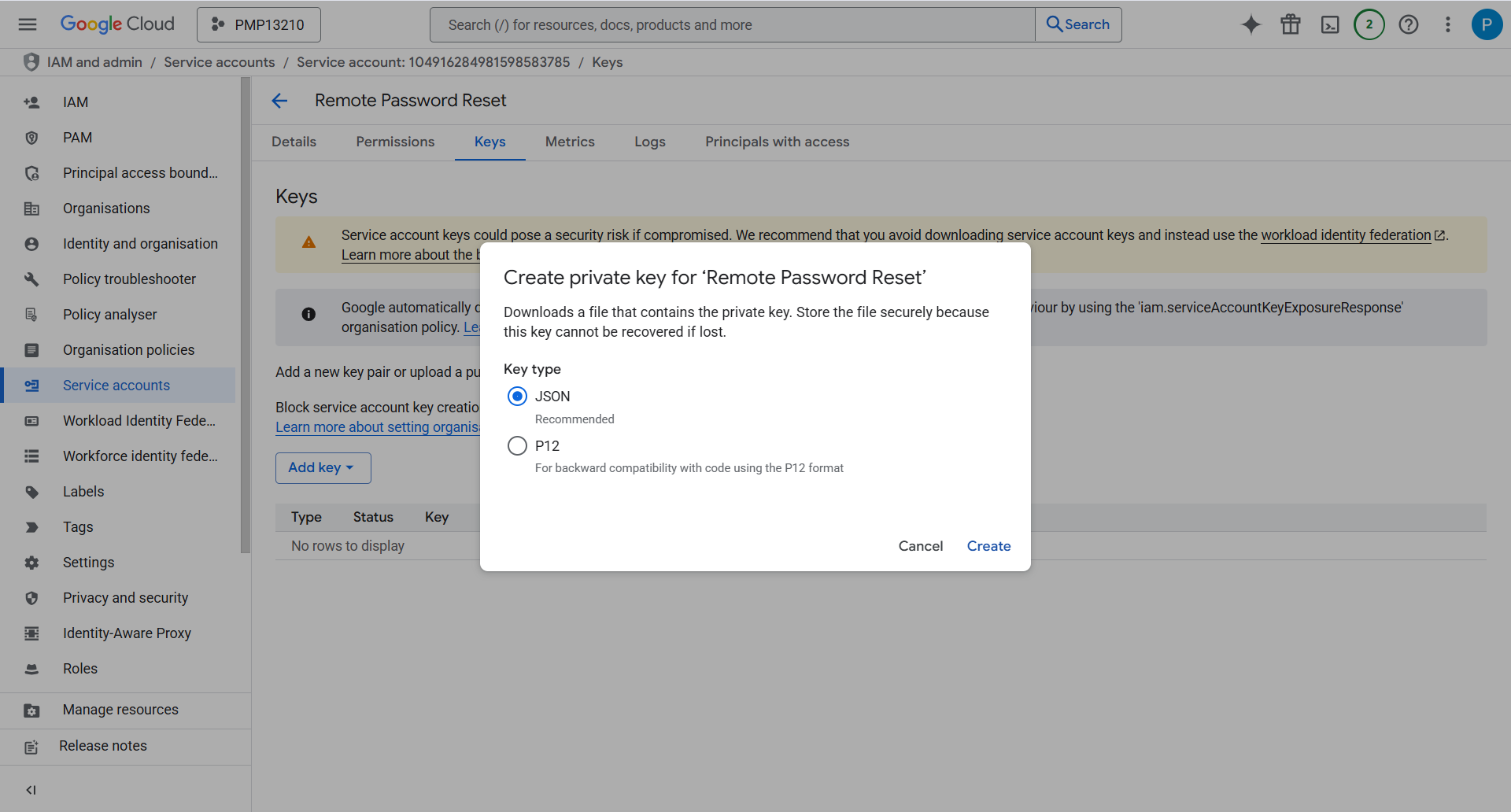
You have successfully created and configured a service account in your Google Workspace domain and downloaded the service account key file from the Google Cloud Console. This service account key file should be imported into Password Manager Pro as a resource of resource type Filestore while configuring remote password reset for the Google Workspace accounts.
2. Managing Domain-Wide Delegation for Service Account
To access or modify user data within your Google Workspace domain, you need to grant necessary-scopes and privileges to the service account. This involves delegating domain-wide authority to the service account to execute password reset operations successfully. Follow the steps detailed below to delegate domain-wide authority to the service account:
- Go to the Google Workspace Admin Console and log in as Google Workspace administrator.
- Click the menu icon on the top-left corner of the screen to open the Main menu.
- From the main menu, navigate to Security >> Access and data control >> API controls.
- On the API controls page, click the MANAGE DOMAIN-WIDE DELEGATION option under the settings pane.
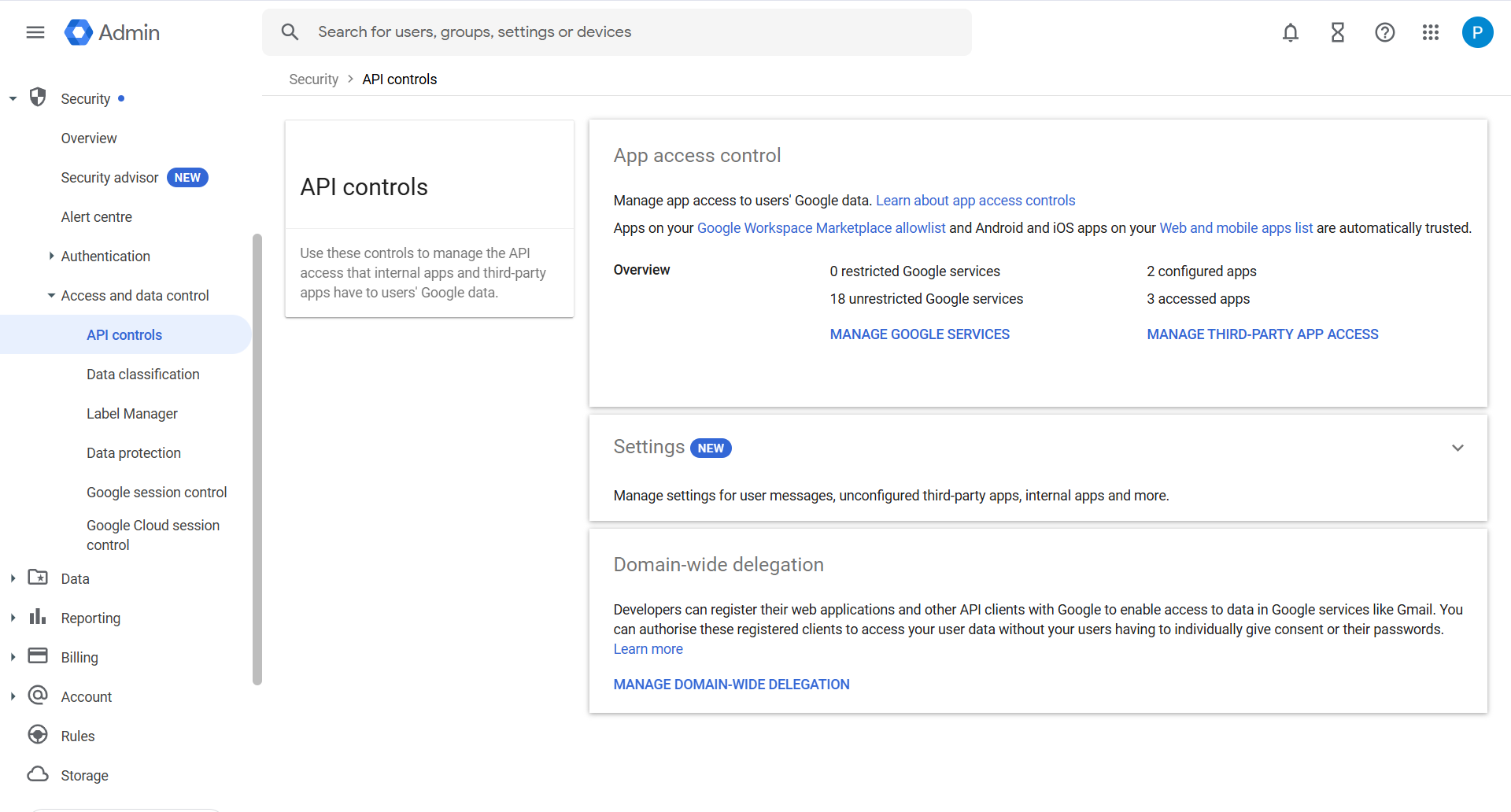
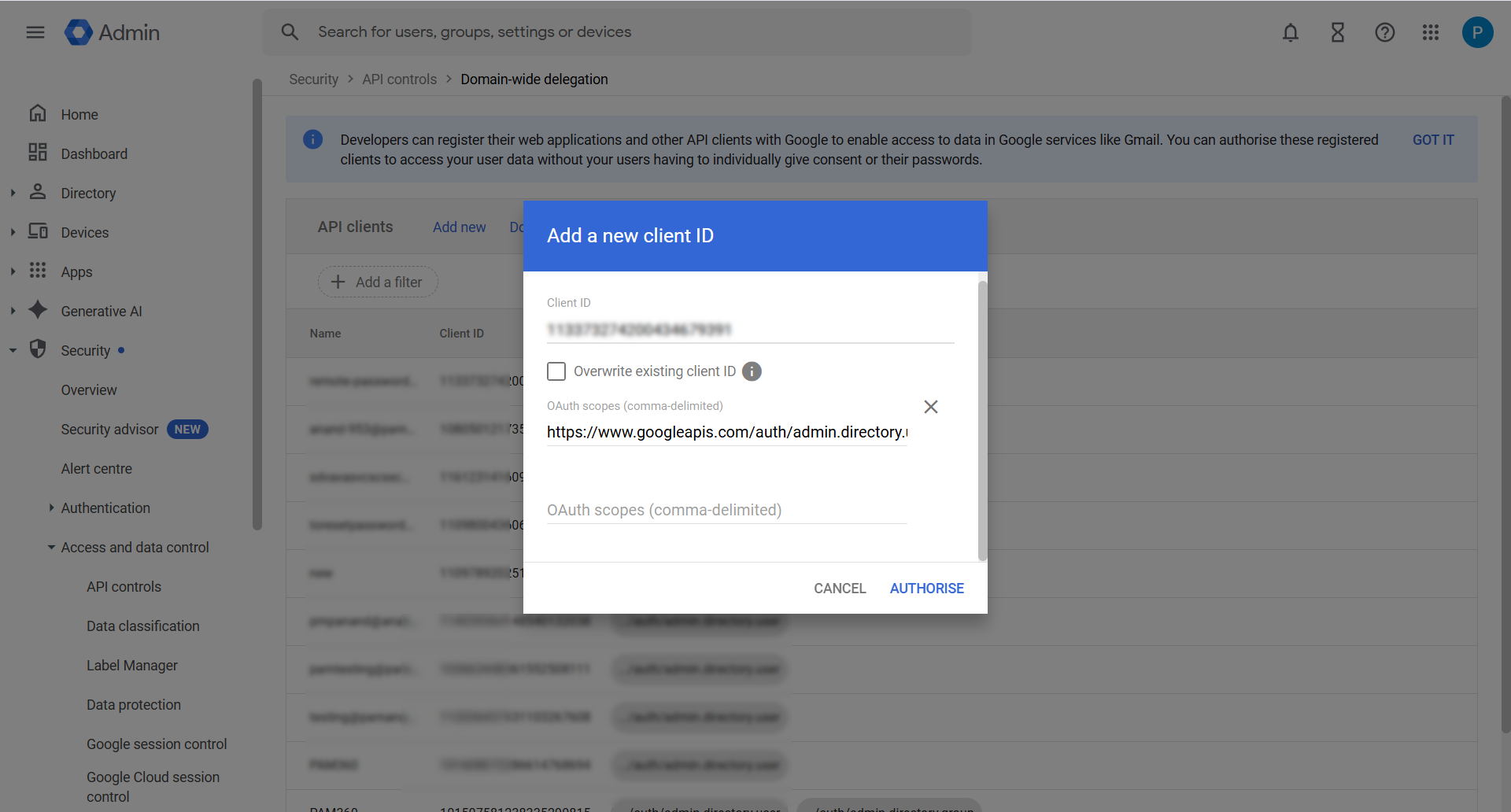
You have successfully delegated domain-wide authority to the service account, allowing it to access and modify user data within your Google Workspace domain.
3. Enabling Admin SDK API
Password Manager Pro uses a set of APIs provided by Google to perform remote password resets for selected Google Workspace accounts. When a user initiates a password reset from the Password Manager Pro interface, the application makes an API call to trigger the operation. This functionality requires the Admin SDK API to be enabled on the Google Cloud Console. Follow the steps below to enable the Admin SDK API for the selected project:
- Go to the Google Cloud Console and ensure you are logged in as the Google Workplace administrator.
- Click the menu icon to open the Navigation Menu.
- From the Navigation menu, go to APIs and Services >> Library.
- In the API Library page, select the desired project and use the search function to find the Admin SDK API.
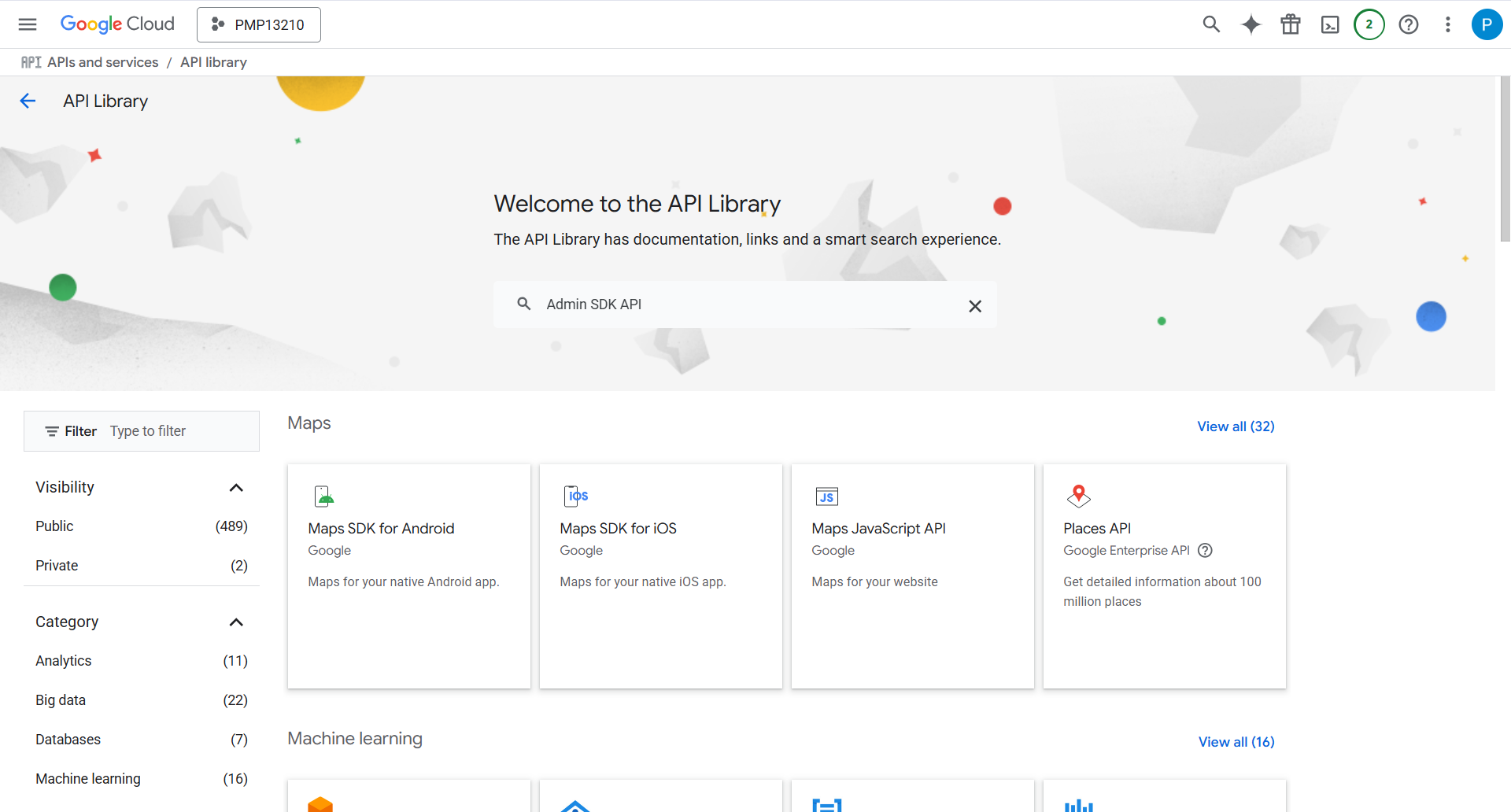
- On the Admin SDK API page, click the Enable button to enable the Admin SDK API.
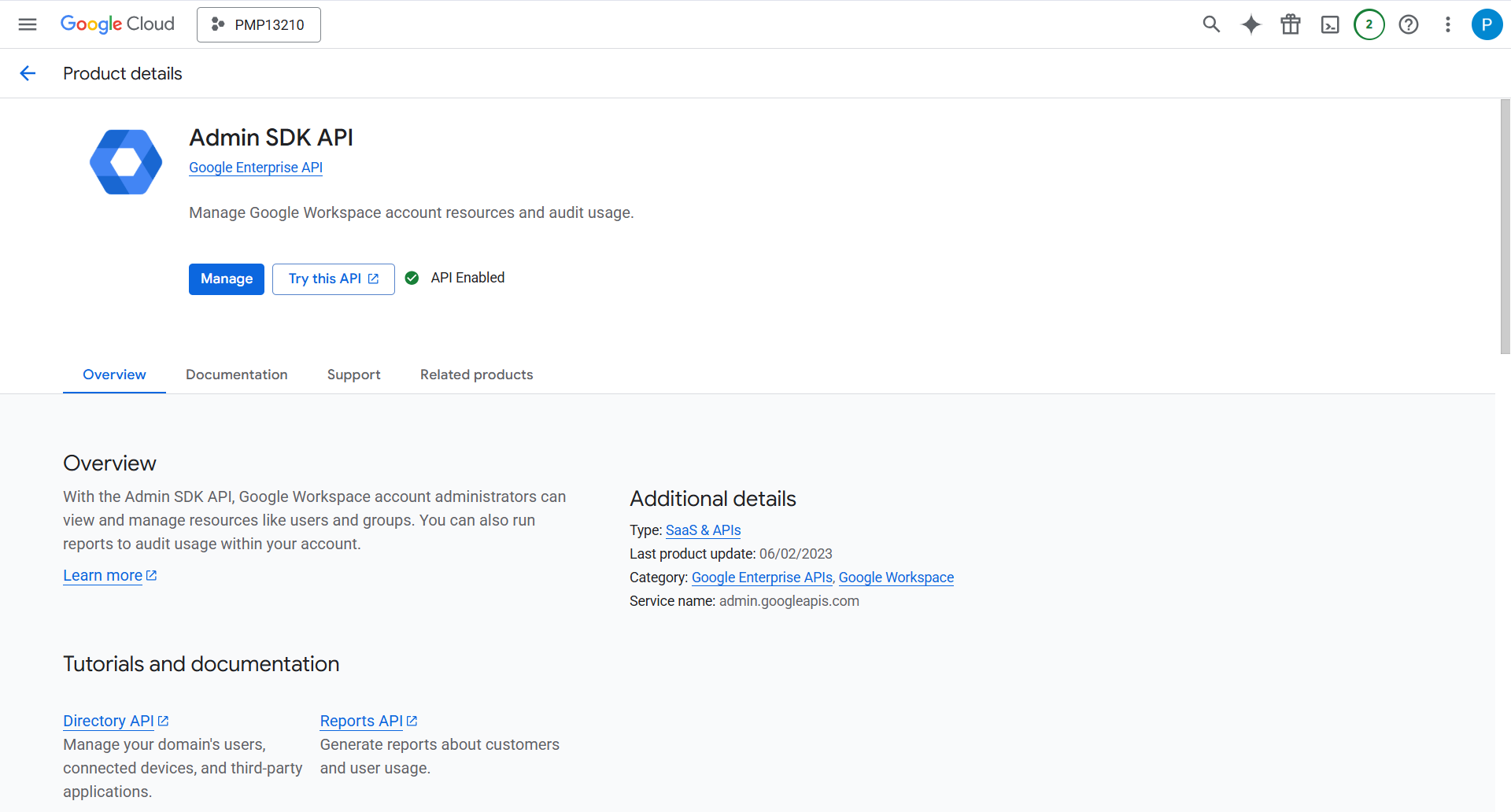
You have successfully enabled the Admin SDK API for your Google Workspace account.
Note: Password Manager Pro will no longer support the Verify Password option for the Google Workspace resources.