JIT Provisioning Audit Report
The JIT Provisioning Audit Report lists user accounts created in target applications via Just-in-Time (JIT) provisioning. Each entry includes the username, time of the provisioning attempt, hostname, policy the user belongs to, name of the target application, number of attempts, and provisioning status.
Prerequisites
- You must have administrator or operator credentials to access the ADSelfService Plus portal.
- At least one AD domain must be configured in ADSelfService Plus.
Generating the report

To generate the JIT Provisioning Audit Report:
- Log in to the ADSelfService Plus portal with administrator or operator credentials.
- Go to Reports > Other Reports > JIT Provisioning Audit Report.
- Select the domain using the Select Domain drop-down.
- Optionally, select specific OUs within the chosen domain.
- Use the Period drop-down to set the time range for the report. Available options are: Today, Yesterday, Last 7 days, Last 30 days, This month, Last month, and Custom Period.
- Click Generate.
Report customization
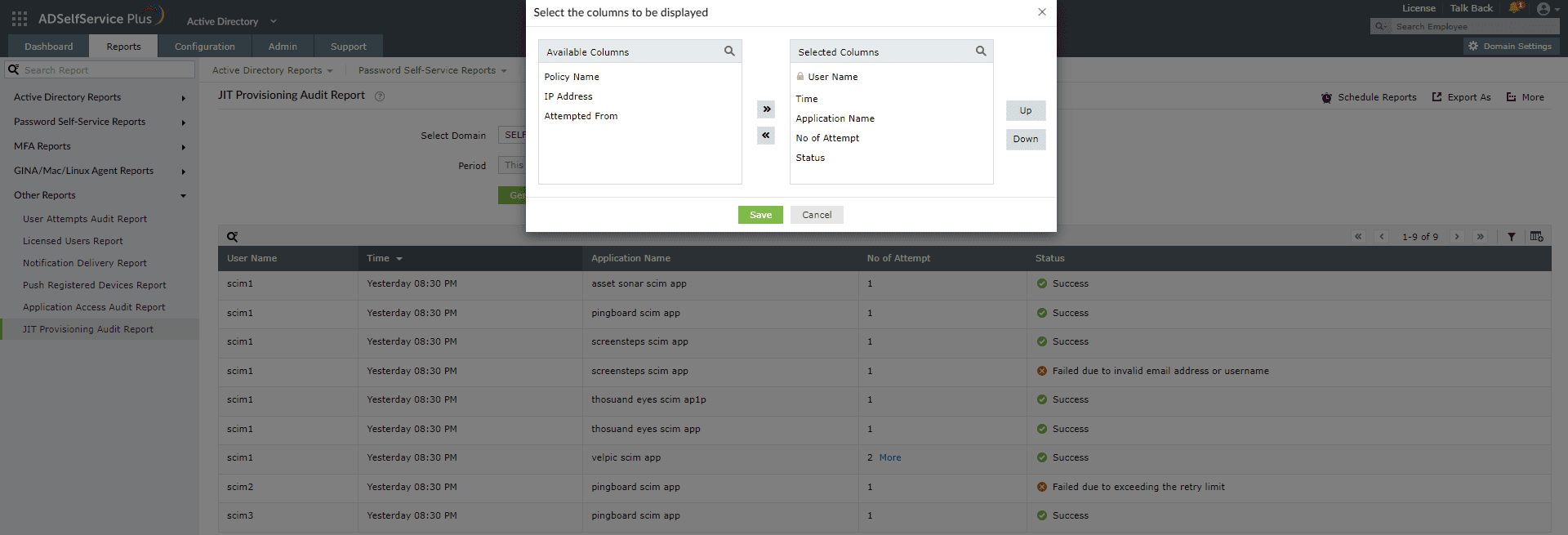
Adding or removing columns
Click the Add/Remove Columns icon at the far right of the report. In the Select the columns to be displayed pop-up:
- To add a column: select the field under Available Columns and click the right arrow (>>) to move it to Selected Columns.
- To remove a column: select the field under Selected Columns and click the left arrow (<<) to move it back to Available Columns.
Reordering columns
Select a value under Selected Columns and use the Up and Down buttons to change its position in the report.
Advanced filtering
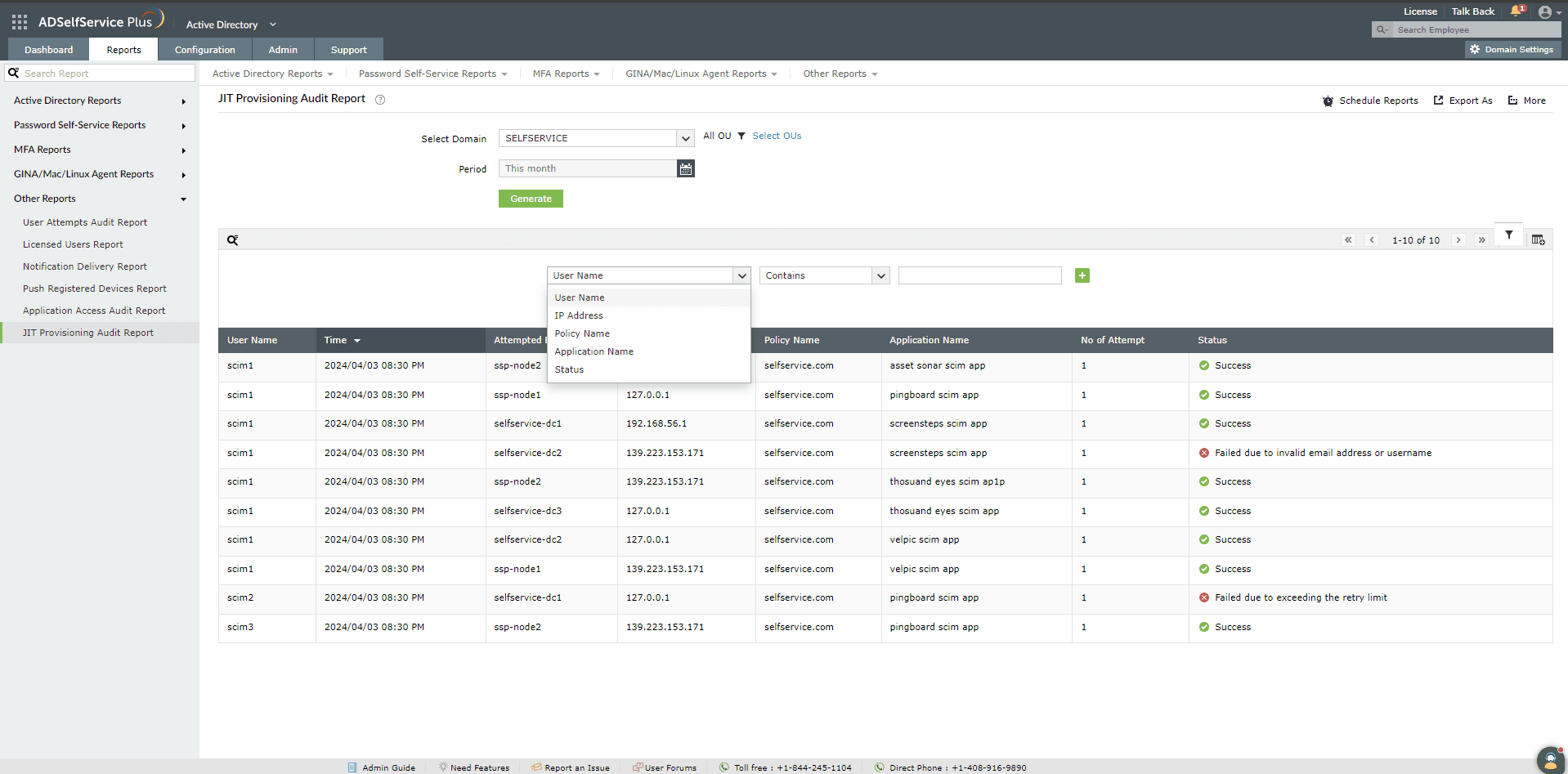
After generating the report, click the Advanced Filter icon at the far right to narrow entries by the following parameters:
- User Name: Filter by username. Available conditions: Contains, Does Not Contain, Is, Is Not, Starts With, and Ends With.
- Policy Name: Filter by the policy assigned to the user. Available conditions: Contains, Does Not Contain, Is, Is Not, Starts With, and Ends With.
- Application Name: Filter by the name of the target application. Available conditions: Contains, Does Not Contain, Is, Is Not, Starts With, and Ends With.
- Status: Filter by provisioning outcome — Success or Failure.
Sorting
Click any column header — except the Status column — to sort report entries in ascending or descending order.
Searching
Click the search icon to search for specific entries within the report. You can search by:
- Username
- Accessed From
- Policy Name
- Application Name
Searches use a contains match. For example, searching for jack in the Username column returns all usernames that contain the sequence jack.
Schedule Reports, Export As, and More
- Schedule Reports — Schedule automatic report generation at set intervals, and email results to administrators or specified addresses. See [LINK: "Schedule reports"] for instructions.
- Export As — Export the report in CSV, CSVDE, HTML, PDF, XLS, or XLSX format using the option in the top-right corner.
- More — The More menu in the top-right corner provides the following options:
- Printable View: Preview and print the report.
- Send Mail: Email the report to specified addresses.
- Export Settings: Configure a custom report title and header logo to display on each exported page.
Tips
- Use the Status filter set to Failure to identify applications where JIT provisioning is consistently failing — this often points to a misconfigured attribute mapping or an application-side permission issue that needs attention.
- Use the Application Name filter alongside a custom Period range when onboarding a new application integration, to confirm that JIT provisioning is working correctly for all users accessing it for the first time.
- Schedule this report to run weekly and email it to your identity administrators, so that provisioning failures are caught promptly rather than discovered only when a user reports an access issue.
The Schedule Reports option at the top-right corner of the page can be used to schedule the generation of reports at specified intervals to set up an automated scheduler. Learn to schedule reports here.