How to: Managing fine-grained password policies via PowerShell

Password policies are crucial for enforcing the creation of strong passwords and protecting users from credential-based attacks. The PowerShell scripts given below can be used to manage the fine-grained password policy and default domain policy for an Active Directory domain. ADSelfService Plus, the identity security solution with multi-factor authentication, single sign-on, and self-service password management capabilities, provides advanced password policy settings that can be applied for both on-premises and cloud applications. The following is a comparison between the PowerShell scripts used to manage fine-grained password policy settings and ADSelfService Plus.

With PowerShell

Run the following scripts in PowerShell:

  • Create a new Active Directory fine-grained password policy
    New-ADFineGrainedPasswordPolicy
    [-WhatIf]
    [-Confirm]
    [-AuthType <ADAuthType>]
    [-ComplexityEnabled <Boolean>]
    [-Credential <PSCredential>]
    [-Description <String>]
    [-DisplayName <String>]
    [-Instance <ADFineGrainedPasswordPolicy>]
    [-LockoutDuration <TimeSpan>]
    [-LockoutObservationWindow <TimeSpan>]
    [-LockoutThreshold <Int32>]
    [-MaxPasswordAge <TimeSpan>]
    [-MinPasswordAge <TimeSpan>]
    [-MinPasswordLength <Int32>]
    [-Name] <String>
    [-OtherAttributes <Hashtable>]
    [-PassThru]
    [-PasswordHistoryCount <Int32>]
    [-Precedence] <Int32>
    [-ProtectedFromAccidentalDeletion <Boolean>]
    [-ReversibleEncryptionEnabled <Boolean>]
    [-Server <String>]
    [<CommonParameters>]
  • Perform a search to retrieve one or multiple fine-grained password policies
    Get-ADFineGrainedPasswordPolicy
    [-AuthType <ADAuthType>]
    [-Credential <PSCredential>]
    [-Identity] <ADFineGrainedPasswordPolicy>
    [-Properties <String[]>]
    [-Server <String>]
    [<CommonParameters>]
  • Perform a search to retrieve one or multiple default domain password policies
    Get-ADDefaultDomainPasswordPolicy
    [-AuthType <ADAuthType>]
    [-Credential <PSCredential>]
    [-Current <ADCurrentDomainType>]
    [-Server <String>]
    [<CommonParameters>]
With ADSelfService Plus
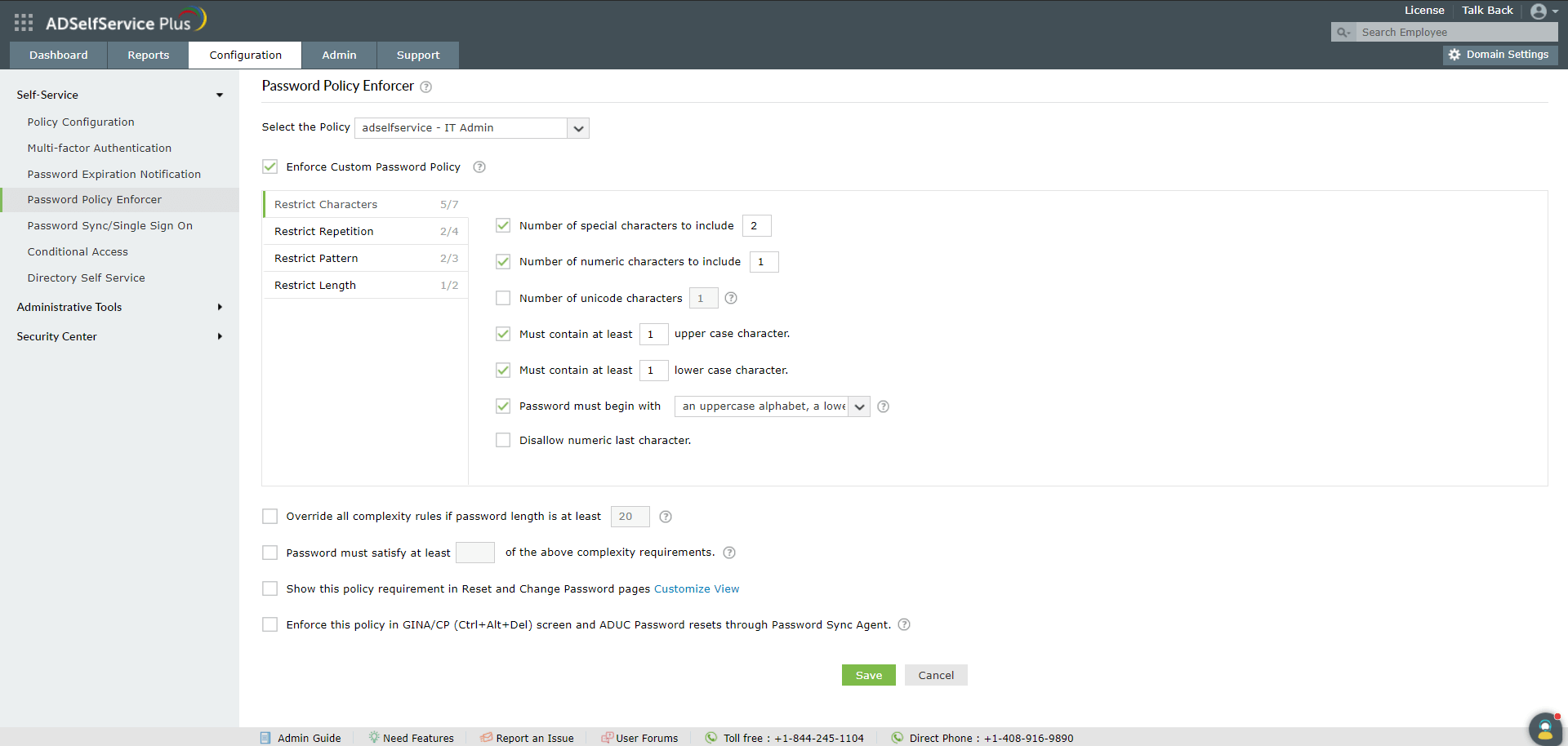
  • Configure a custom password policy via the Password Policy Enforcer feature
    • Log into the ADSelfService Plus admin portal.
    • Navigate to Configuration > Self-Service > Password Policy Enforcer.
    • Enable Enforce Custom Password Policy.
    • From the Restrict Characters tab:
      • Set the number of special and numeric characters that must be used.
      • Allow inclusion of unicode characters.
      • Mandate a minimum number of lowercase and uppercase alphabets.
      • Disallow numeric last characters.
    • In the Restrict Repetition tab, restrict use of strings from the username or old passwords, as well as consecutive repetition of the same character.
    • In the Restrict Pattern tab, ban dictionary words or weak passwords, keyboard patterns, and palindromes.
    • In the Restrict Length tab, specify the minimum and maximum password length.
    • Use the Password must satisfy at least _ of the above complexity requirements setting to enable users to choose the rules they want to adhere to without compromising on password security.
    • Use the Override all complexity rules if password length is at least _ setting to enforce passphrases instead of password complexity rules if the password length is above a set number.
    • Click Save.

Advantages of ADSelfService Plus over PowerShell:

  • ADSelfService Plus' advanced password policy settings bans dictionary and weak passwords, palindromes, keyboard patterns, and more.
  • ADSelfService Plus integrates with Have I Been Pwned? service to ensure that users don't use breached passwords during password change and password reset.
  • Display the password requirements to end users during password change or reset operations on the Ctrl+Alt+Del screen.
  • Enforce custom password policy settings even for password changes through the Windows logon (Ctrl+Alt+Del) screen and during ADUC password resets.

Salient features of ADSelfService Plus

  • Defence against cyberattacks: Ensures users don't use easily exploitable passwords like pass@123.
  • Improves IT security: Provides advanced multi-factor authentication techniques including biometrics and YubiKey.
  • Universal enforcement: Admins can enforce the custom password policies for both Active Directory and cloud applications.
  • OU and group-based enforcement: Admins can choose to enforce different password policies for users based on their OU and group memberships.

Using PowerShell to get fine-grained password policy

Step 1: View all password policies in AD

Run the script below to list existing policies. This displays all defined fine-grained password policies.

Get-ADFineGrainedPasswordPolicy -Filter *

Step 2: Retrieve details of a specific policy

Check the settings for a specific policy. This script displays the password length, complexity, and lockout settings.

Get-ADFineGrainedPasswordPolicy -Identity "AdminsPolicy"

Step 3: Find users assigned to a policy

Check which users are following a specific policy. This script lists users and groups affected by the policy.

Get-ADFineGrainedPasswordPolicySubject -Identity "AdminsPolicy"

Step 4: Assign or remove a user from a policy

To apply a policy to a new user, run the script below.

Add-ADFineGrainedPasswordPolicySubject -Identity "AdminsPolicy" -Subjects "JohnDoe"

To remove a user from a policy, run the script below.

Remove-ADFineGrainedPasswordPolicySubject -Identity "AdminsPolicy" -Subjects "JohnDoe"

FAQs

1. How do I check if fine-grained password policies (FGPP) are enabled?

Check if fine-grained password policies (FGPP) are enabled by running the script below.

Get-ADFineGrainedPasswordPolicy -Filter *

2. How do I apply FGPP to a specific user?

Apply FGPP to a specific user by running the script below.

Add-ADFineGrainedPasswordPolicySubject -Identity "StrictPolicy" -Subjects "username"

3. Can FGPP override the domain’s default password policy?

Yes, FGPP takes priority for assigned users or groups.

Defense against cyber-terrorism with custom password policy controls.

ADSelfService Plus trusted by

A single pane of glass for complete self service password management
Email Download Link