# Remote Desktop Management Software & Tools - ManageEngine Remote Access Plus
## Remote Access Plus build upgrades

**TAA-compliant**
[Click here](https://www.manageengine.com/remote-desktop-management/service-packs-taa.html#steps-to-upgrade) for steps to install the downloaded PPM upgrade.
| If your build number is | Upgrade to build number | SHA256 Checksum hash value |
|---|---|---|
| 11.5.2600.01 to - | - (Latest) [Readme](https://www.manageengine.com/remote-desktop-management/hotfix-readme-taa.html) | - |
| 11.4.2500.01 to - | - [Readme](https://www.manageengine.com/remote-desktop-management/hotfix-readme-taa.html) | - |
| 11.3.2400.01 to 11.3.2450.01 | 11.4.2500.03 [Readme](https://www.manageengine.com/remote-desktop-management/hotfix-readme-taa.html)
[Download](https://downloads.zohocorp.com/dnd/Remote_Access_Plus/jJbE06d9u03cntz/ManageEngine_Remote_Access_Plus_TAA_11_4_0_SP-2500_03.ppm) | 1b1ee25706485141ba823c336caeecc51730b93ecef301dbde2138e4bb98a390 |
## Top Remote Desktop Manager for Enterprises!
Welcome! If you are looking for a best **remote desktop manager**, you're in the right place. Reduce troubleshooting time from days to minutes with our HIPAA-compliant [remote access software](https://www.manageengine.com/remote-desktop-management/remote-access-software.html?home). IT admins and help desk technicians can now manage remote workforce from a single unified dashboard.
### A perfect tailor-made solution!
We have hand-picked the most essential tools and made them available in one place. Experience hassle-free troubleshooting with our comprehensive **remote desktop management software**. It includes powerful tools like [unattended remote access](https://www.manageengine.com/remote-desktop-management/unattended-remote-access.html), [file transfer](https://www.manageengine.com/remote-desktop-management/remote-file-transfer.html?home), screen recording, advanced control over power options, and more. Start for free and empower your IT admins to handle any scenario like a pro!
## Steps to upgrade
### Without Failover Server
#### Step 1
Stop the service of the Remote Access Plus server.
- Open services.msc
- Find ManageEngine UEMS Server.
- Stop the service.
#### Step 2
Open the Remote Access Plus server directory by navigating to **\UEMS_CentralServer\bin** and double click on **UpdateManager.bat** file.
If you have installed Remote Access Plus Server on Windows Vista, Windows 7, Windows 2008, Windows 8, or Windows 2012, you should login as a default administrator before running the Update Manager tool.
To find EndpointCentralServer_Directory:
- Open services.msc
- Find and double click on ManageEngine UEMS - Server
- There you can find the location where the service is installed.
#### Step 3
1. Click **“Browse”** and select the **.ppm** file that you just downloaded.
2. Click **“install”**. The installation may take a few minutes to complete.
3. Close and exit the Update Manager tool.
**Note:** If the upgrade fails to get installed, it will revert back to the previous version automatically.
#### Step 4
1. Start the service of the Remote Access Plus server.
### With Failover Server
**Note:** When you upgrade the primary server, the secondary server is automatically upgraded to the same build as well.
#### Step 1
1. Stop the service of the Remote Access Plus's secondary server.
- Open services.msc
- Find and double click on ManageEngine UEMS - Server
- Stop the service.
2. Once the secondary server is stopped, navigate to /bin of the secondary server and execute the "SecondaryServerPPMHandler.bat" file. If the server version is below 10.1.2137.03 then skip this step and proceed further.
3. Now, similar to the secondary server, stop the service of Remote Access Plus's primary server.
#### Step 2
Open **\UEMS_CentralServer\bin** and double click on **UpdateManager.bat** file.
To find EndpointCentralServer_Directory:
- Open services.msc
- Find and double click on ManageEngine UEMS - Server
- There you can find the location where the service is installed.
#### Step 3
1. Click **“Browse”** and select the **.ppm** file that you just downloaded.
2. Click **“install”**. The installation may take a few minutes to complete.
3. Once complete, close and exit the Update Manager tool.
**Note:** If the upgrade fails to get installed, it will revert back to the previous version automatically.
#### Step 4
1. Start the service of the Remote Access Plus primary server.
2. When the primary server is up and running, start the Remote Access Plus secondary server.
## Help is always at hand

If you still have trouble in updating Remote Access Plus, please write to us at [/remotedesktopmanagement-support@manageengine.com](https://www.manageengine.com/remote-desktop-management/free-trial-taa.html)
## Where do I find my build number?
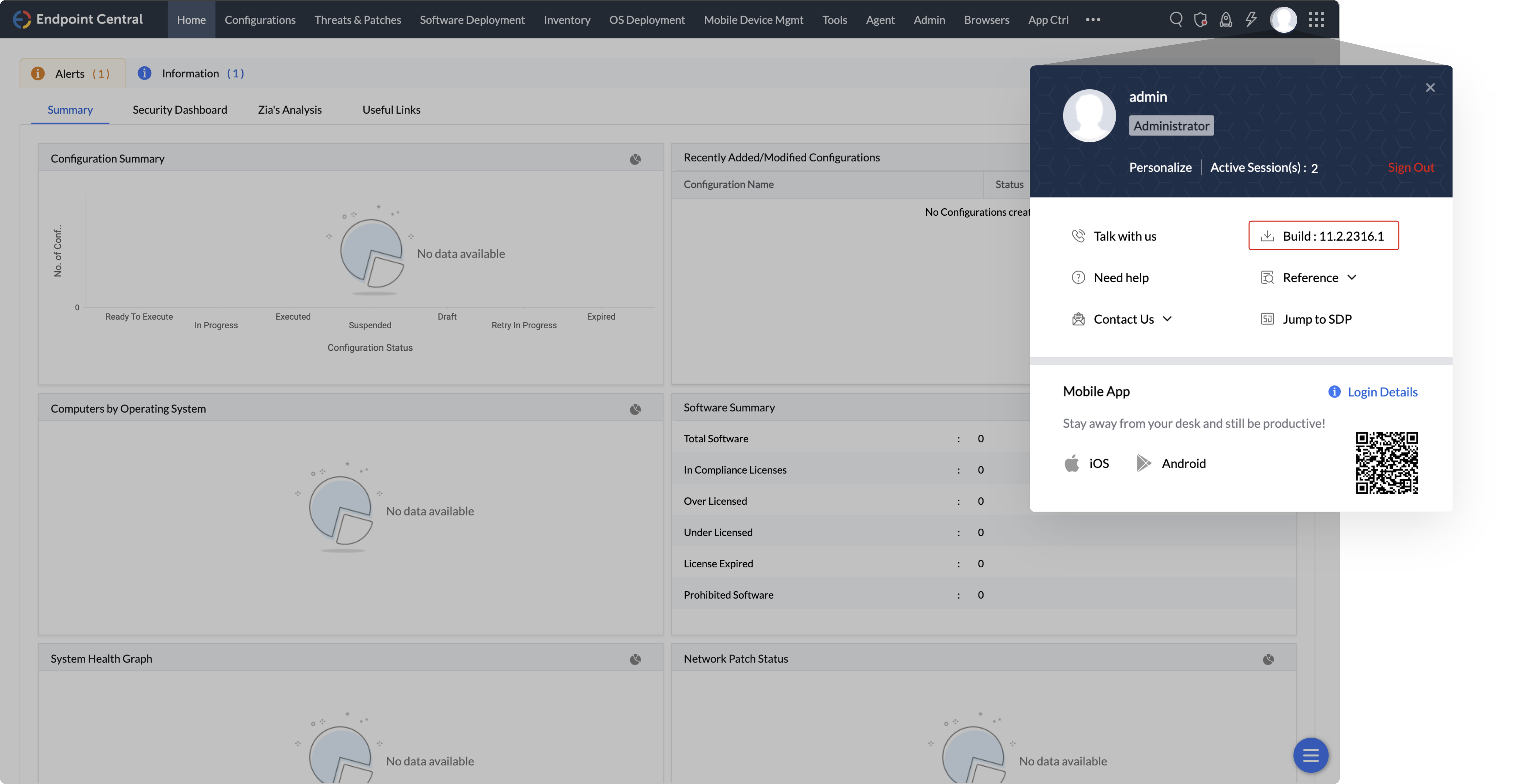
- Login to your Remote Access Plus console. In the top right corner, click on the profile icon.
- Here, you will find the build number you are currently running on, as shown below.