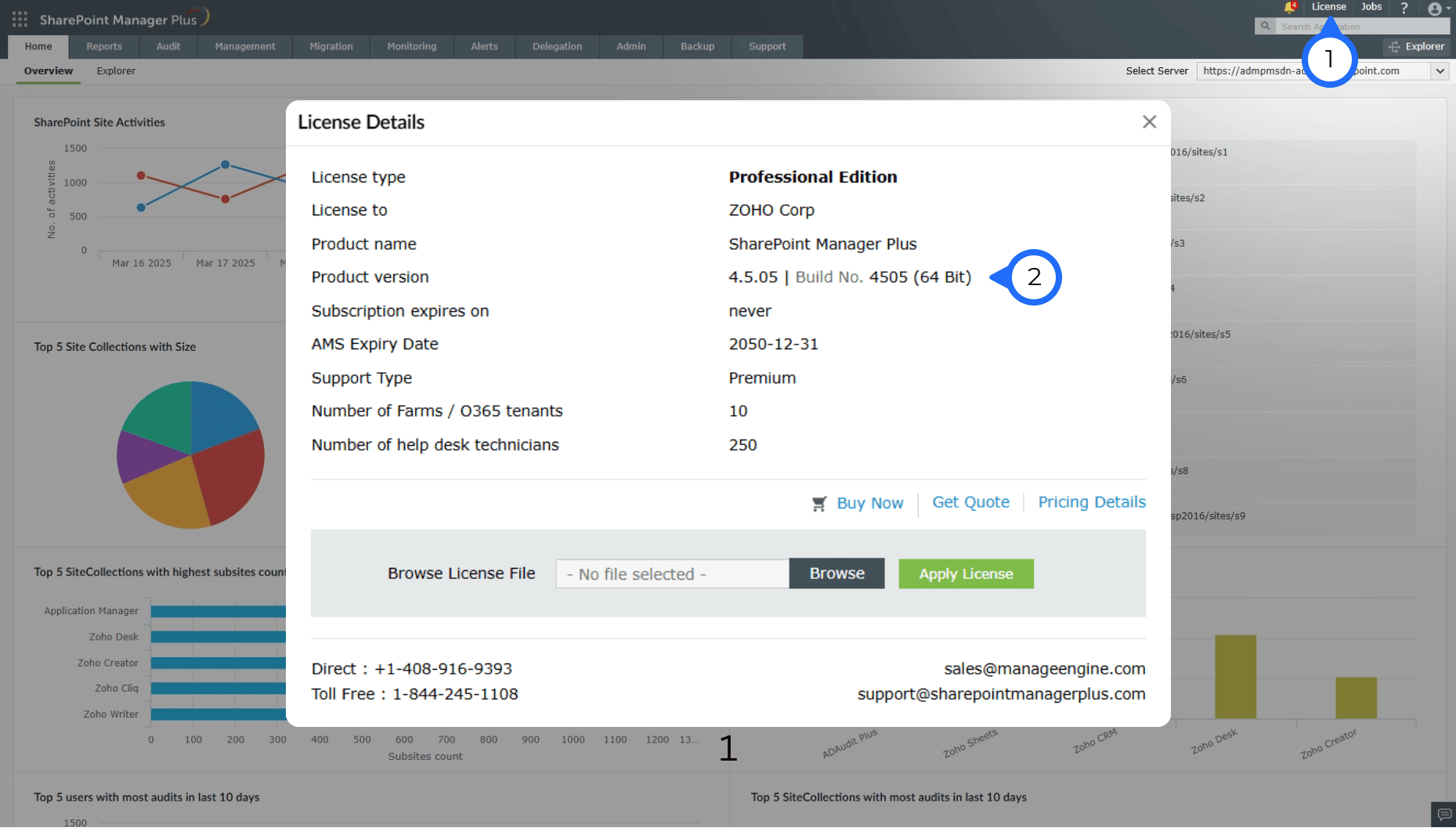
- Steps to find the build number
- 1 Log in to the SharePoint Manager Plus and click License at the top right corner.
- 2 In the License Details window, view the build number in the Product version field.
SharePoint Manager Plus Service Pack
- Update Path Finder
- Service Pack path to the latest version
- How can I find the build number?
| If your Build Number is | Upgrade to Build Number |
| 4507 to 4600 | Download and upgrade to latest 4601 |

Note: We strongly recommend you to take backups before migrating. This helps you prevent accidental loss of data.
- If your build number isUpgrade to Build NumberSHA256 Checksum hash value
- 4507 to 4600Download and upgrade to 46014f4e3c6f66cb2cc8bef6b83a45056ef67210a6a61afee33d2cc93c28d3703b66
Instructions to apply Service Pack
- 1Shut down SharePoint Manager Plus.
- If the product runs as an application, click Start → All Programs → SharePoint Manager Plus → Stop SharePoint Manager Plus.
- If the product runs as a Windows service, click Start → Run → Type "services.msc" → Stop "SharePoint Manager Plus".
- 2Execute the stopDB.bat file as administrator under <SharePointManagerPlusHome> → bin directory.
- 3Back up SharePoint Manager Plus by zipping the contents of <SharePointManagerPlusHome> directory.
- 4If you use Microsoft SQL as the Database Server for SharePoint Manager Plus, backup the database as well.
- 5Ensure that the logged on user has "Write" permission for the <SharePointManagerPlusHome> directory.
- If you're not sure about the access provided, provide "Full control" for "Everyone", which can be removed after applying the service pack.
- Right click on <SharePointManagerPlusHome> directory → Properties → Security tab → Add "Everyone" with "Full control" → Apply.
- 6Open Command Prompt as Administrator and execute the UpdateManager.bat file under <SharePointManagerPlusHome> → bin directory.
- 7Click Browse and select the .ppm file that you have downloaded.
- 8Click Install for the service pack. Depending on the amount of data to be migrated, the installation procedure may take a few minutes. Please do not terminate prematurely.
- 9Click Close and then Exit to quit the Update Manager tool.
- 10Start SharePoint Manager Plus.
- If the product runs as an application, click on Start → All Programs → SharePoint Manager Plus → Start SharePoint Manager Plus.
- If the product runs as a windows service, click on Start → Run → type "services.msc" → Right-click "SharePoint Manager Plus" → Start.
Note: If you need to apply more than one service pack, follow the same instructions for each installation.
How do I find my current build number? (Refer screenshot)
- Log in to the SharePoint Manager Plus and click License at the top right corner.
- In the License Details window, view the build number in the Product version field.
Need Help?
You can contact SharePoint Manager Plus Support at any time for assistance in upgrading SharePoint Manager Plus to the latest version.