Configuration Status Yet to Apply
Problem
A deployed configuration can remain in Yet to Apply/Ready to Execute even when the computer appears online. Online status does not confirm that the agent received or applied the configuration.
Ready to Execute is a configuration-level status. It does not confirm that installation has started on a target computer. Check the computer's execution status, agent contact and deployment window.
Investigating Problem Causes
If the patch has already installed but its installation date is much later than approval, compare the approval record with the computer's Deployed Time and Deployed Using fields. Follow installation-source audit checks to identify the task, including retained references to deleted configurations, and review configuration deletion and history for Trash details. Approval time alone does not identify which task installed the patch.
Navigate to Threats & Patches------> Deployment------> Manual Deployment.
Open the affected manual deployment configuration. Go to Execution Status and find the affected computer. Under Remarks, click View Details. Check the expected deployment day.
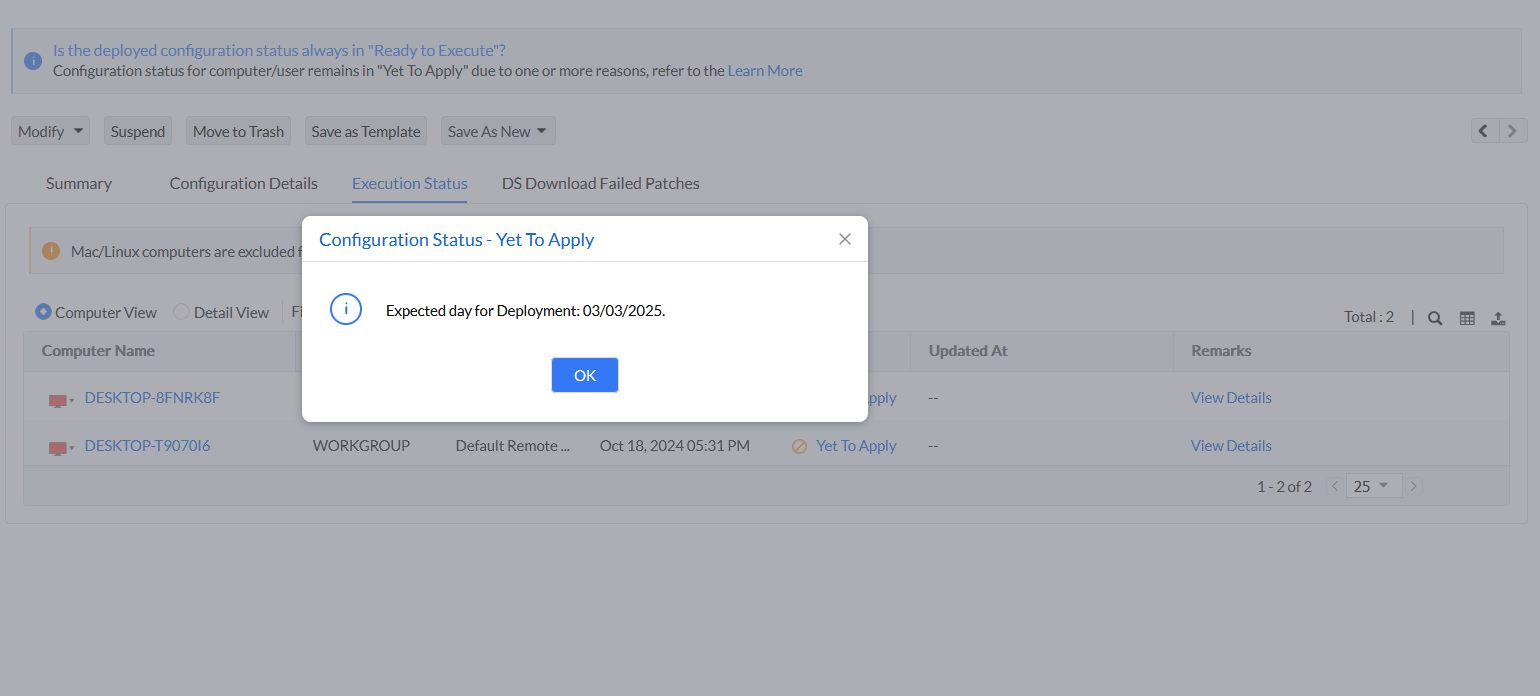
The configuration can remain in Yet to Apply/Ready to Execute because of one or more of these causes:
- Configuration is applied to remote office and Distribution Server is not reachable
- Distribution Server disk space is near its limit
- Agent communication is outdated
- An earlier configuration is blocking deployment
- Deployment Schedule
- Active Directory is not reachable
- Awaiting "Install After Time"
- Computers are moved out of specified target during deployment
- Another configuration is already in progress
- Modified Time after a task edit
Configuration is applied to a remote office and the Distribution Server is not reachable
If a remote-office computer cannot reach its configured Distribution Server, the configuration remains in Yet to Apply status. This generally affects roaming users' computers outside the office.
Resolution:
- Confirm the affected computer's assigned Remote Office. Where available, go to Agent → Scope of Management → Remote Offices. Review DS Sync Status and Remarks for that office.
- Before troubleshooting the agent, confirm that the required patch binaries have replicated to the Distribution Server. Check the last successful replication time. If replication is pending, wait for the next scheduled replication and check the deployment status again. Replication policy and last-replication details may be available only to a Super Admin.
- Open Execution Status and use Column Chooser to display Last Contacted Time with DS. The computer needs recent Agent-DS contact to receive the deployment. Stale contact, for example for more than one day, can leave the patch in Yet to Apply status.
- On the affected computer, run the Agent Troubleshooting Tool, even if the console shows the computer as online. Run
C:\Program Files (x86)\ManageEngine\UEMS_Agent\bin\agent_troubleshooting_tool.exeon a computer that remains in Yet to Apply or Ready to Execute status. The tool opens in GUI mode and checks communication with the Vulnerability Manager Plus server and, for a Distribution Server remote office, the Distribution Server. For instructions, see Agent Troubleshooting Tool. - Review the Distribution Server result using the DS name, protocol, and port configured for that computer. Compare the result with DS Sync Status, Remarks, Last Contacted Time with DS, and the failed request. If communication fails, check the inbound rule on the Distribution Server and the network firewall rules between it and the computer. Retest after correcting the reported issue.
- If the status remains Yet to Apply or Ready to Execute after the scheduled replication, collect the agent logs and Distribution Server logs for further investigation.
In the task's Replication Details, where available, check the Distribution Server status, full remark, and last successful replication time. Yet to Replicate means that replication for the specified task and Distribution Server is pending. This status is separate from endpoint deployment status.
For a replication failure, sign in to the Windows Distribution Server identified by the task. Open its installation folder and run bin\ds_troubleshooting_tool.exe. Complete the diagnostics and select Export to save the results. Follow the guidance for the reported issue. An endpoint connectivity check does not verify the DS replication process. Similarly, an online status or a successful connectivity summary does not confirm that every required patch has replicated or downloaded successfully.
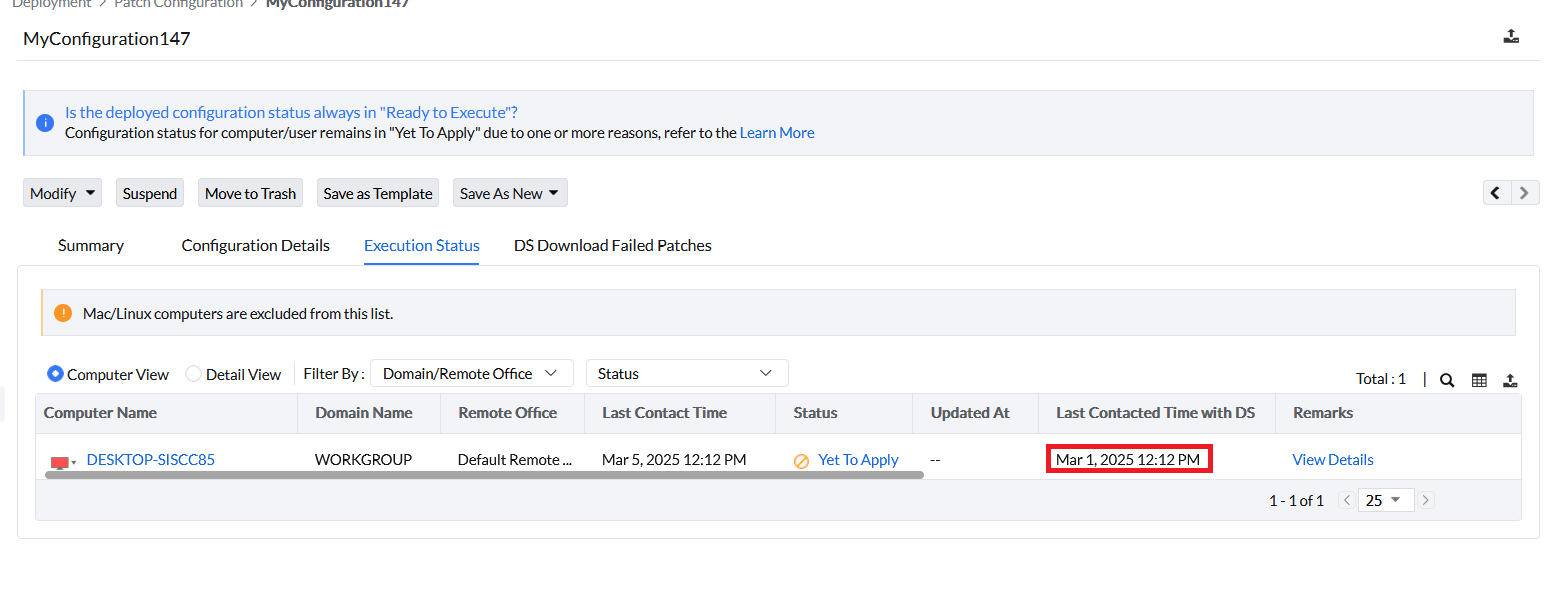
Distribution Server disk space
If replication reports low disk space, check the drive identified by the remark. The DS installation drive and patch-store drive can differ. Replication can be skipped while free space is below the configured threshold. Free disk space or expand the drive, then check the next replication result and the pending deployment.
Agent communication is outdated
If the endpoint is shut down, asleep, disconnected or unable to reach its assigned server, the task can remain pending. Restore connectivity and confirm a new agent contact during an eligible deployment window. Use the host and ports configured for that environment; an online indicator alone does not prove that task delivery succeeded.
If the computer's Last Contact Time is stale or it runs an older agent version, the agent may not receive the deployment even when the computer appears online. Update or reinstall the agent using a supported agent-deployment method, confirm that the computer contacts the server, and then redeploy the configuration.
An earlier configuration is blocking deployment
The message Yet to Apply - Deployment of this configuration will complete after the former is completed indicates that the endpoint is waiting for an earlier configuration to finish.
- Note the name of the affected computer.
- Navigate to Configurations → Configuration Reports → Configuration by Computer.
- Search for the computer and click the number under Total Configurations.
- Select Created by All and review the configurations in Yet to Apply, Ready to Execute, and In Progress status.
- If the earlier in-progress configuration was deleted and no active blocking configuration appears, restart the affected computer. The pending configuration resumes automatically after the restart.
Deployment Schedule
Patches can remain Yet to Apply because of the Deployment Schedule settings in the deployment policy. Check the following settings:
Preferred Day for Deployment
In Configuration Details, click the deployment policy name under Deployment Settings to open Policy Summary. In this window, under Policy Details----> Deployment Schedule, check the Preferred Week(s) and Day(s) for deployment.
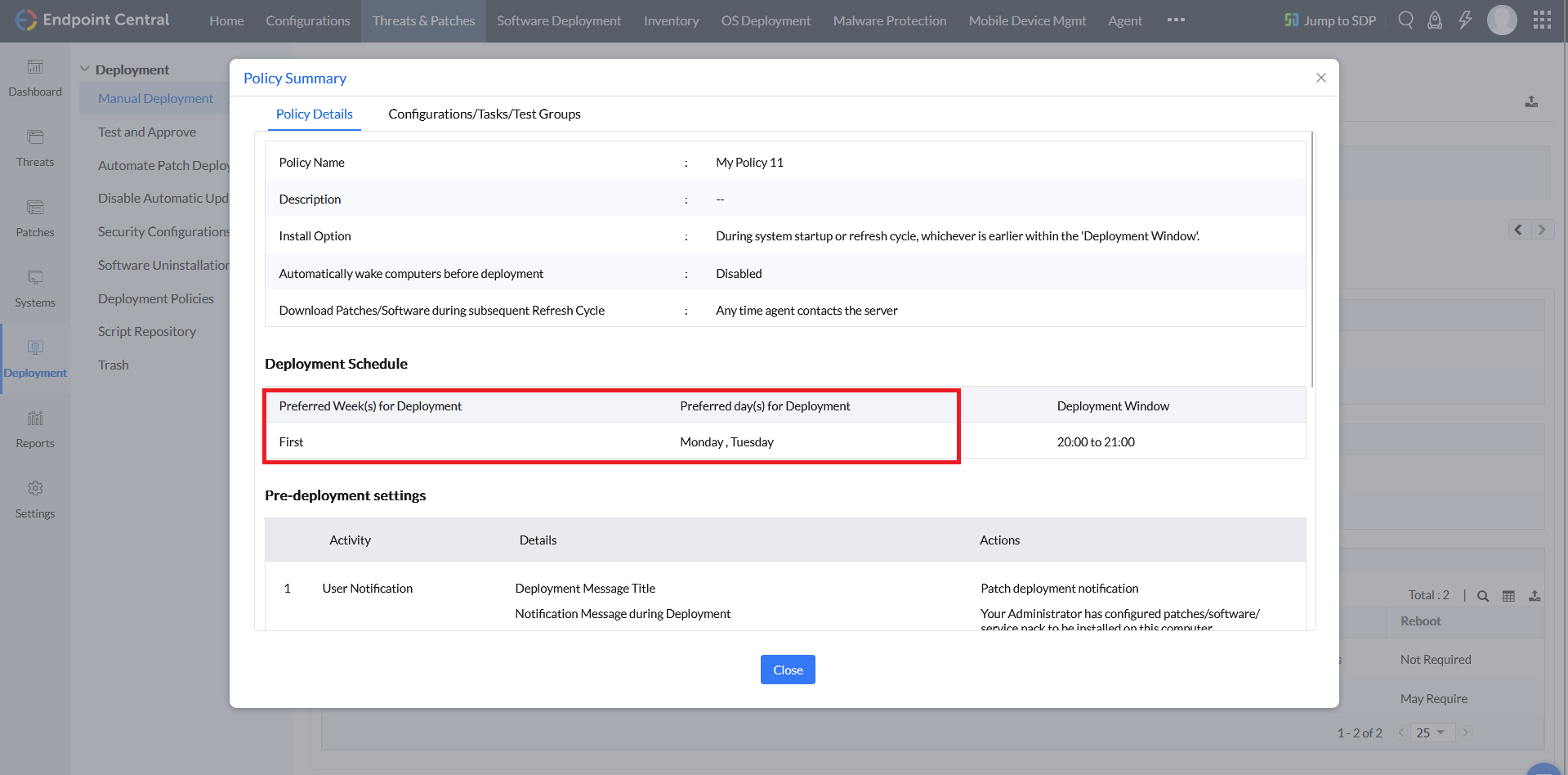
If you select the first Monday and Tuesday of the month as the preferred deployment days, patches scheduled on a different day, such as the second Wednesday, are not deployed on that day. They remain in Yet to Apply status until the first Monday or Tuesday of the following month, when the next eligible deployment window occurs.
Deployment Window has not reached
Under Deployment Schedule, check the configured deployment window.
If you request patch deployment outside this window and the option to patch outside the deployment window is not enabled, the patches remain in Yet to Apply status until the next eligible deployment window opens.
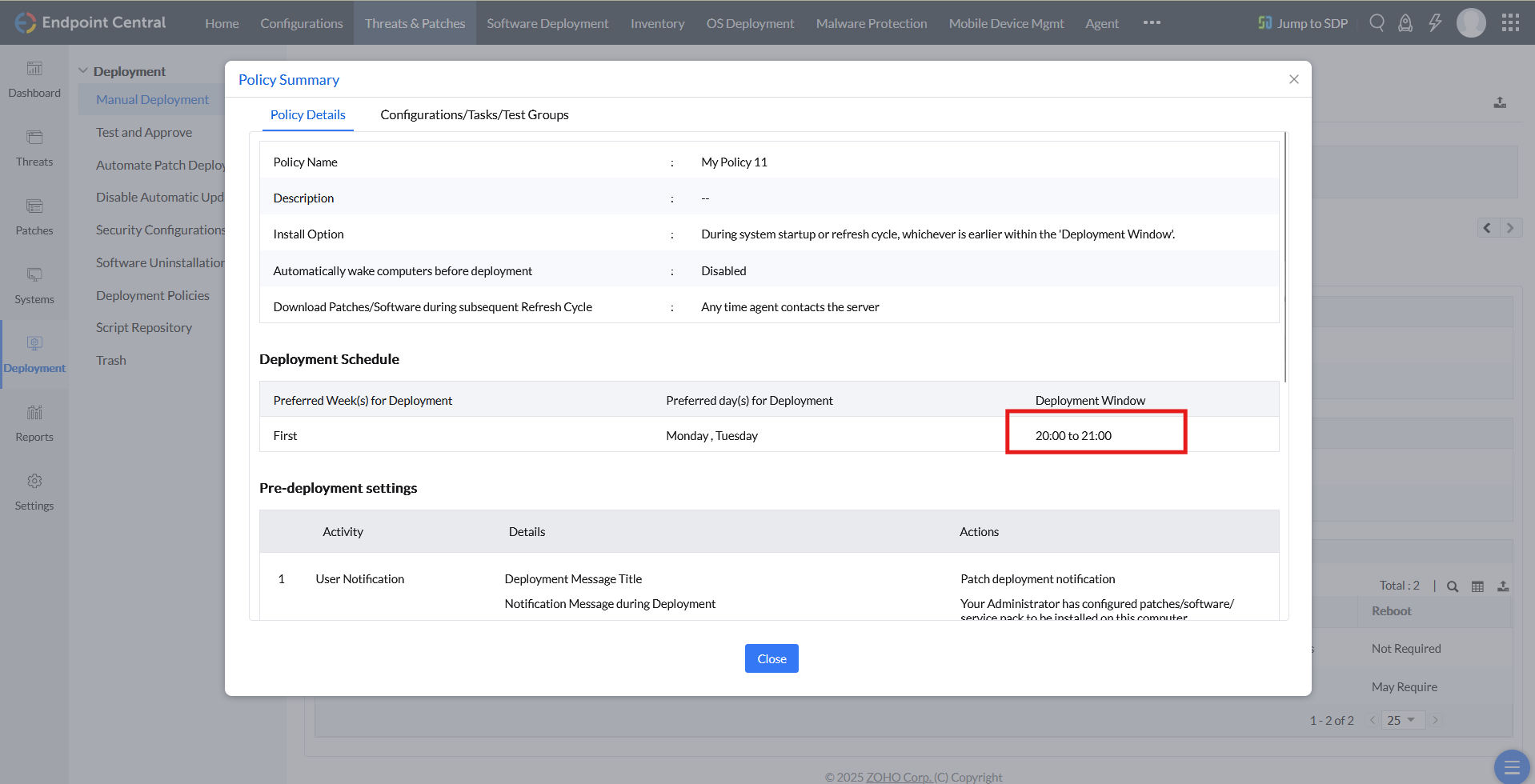
For example, if the Deployment Window is 20:00 to 21:00, patches remain Yet to Apply when you check at 19:30. The window opens at 20:00.
Deploy during Startup
Startup is a deployment trigger; it does not by itself exempt a normal patch deployment from the policy window. See Deployment window behavior. If the observed time differs from the policy, compare the task, effective policy, timezone and deadline settings with the execution log.
In Policy Summary, check Install Option under Policy Details.
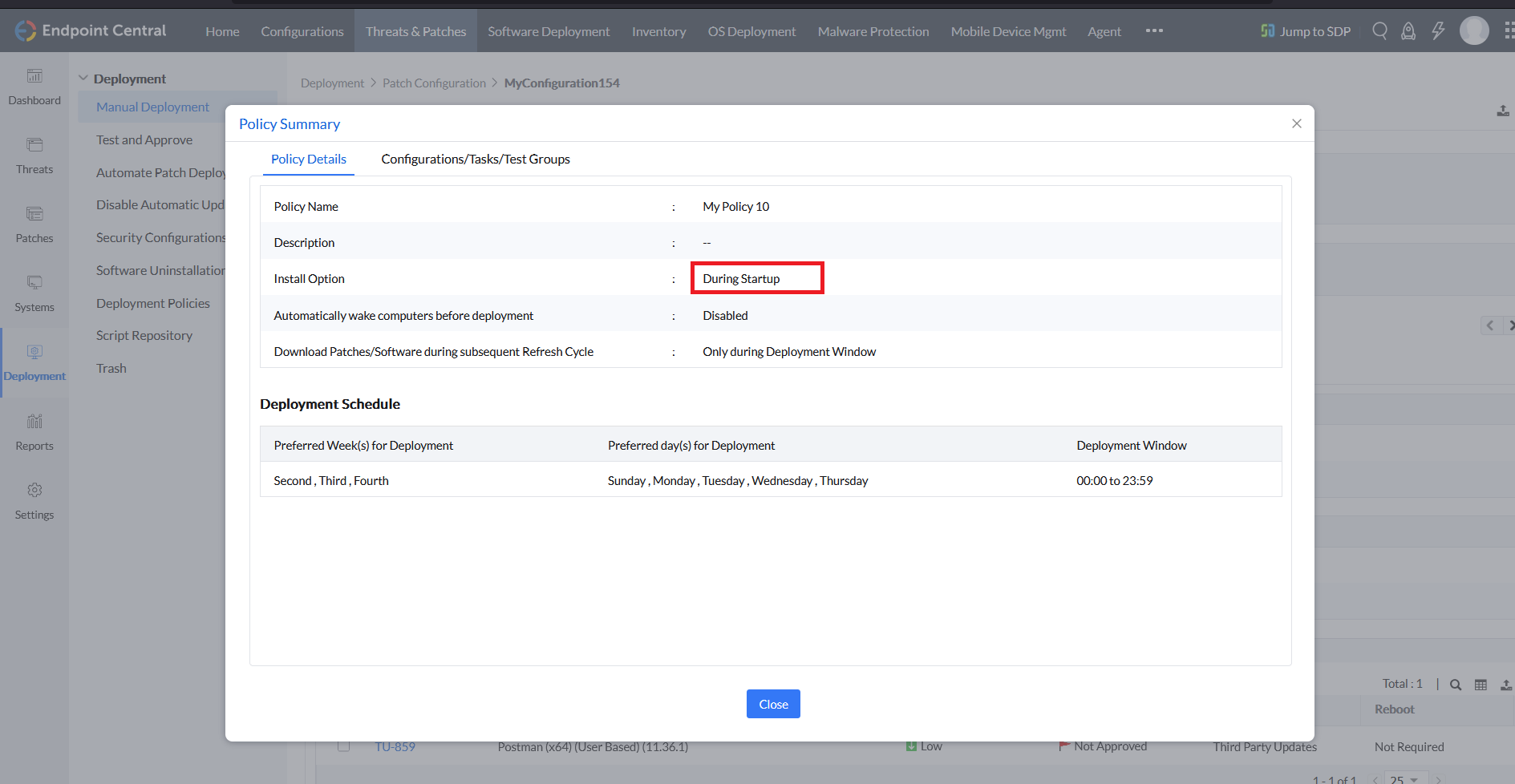
If you have chosen to deploy during Startup and the computer has not been restarted yet, the patches will remain in the Yet to Apply status until the system is restarted.
Pre-deployment reboot reboots the computer only after the deployment task has been initiated. When Install Option is During Startup, that first restart is what initiates the task. A force pre-reboot in the deployment policy does not replace this first restart.
In this configuration the sequence is:
- Restart the computer so the task is initiated.
- The computer is then auto-rebooted as configured for pre-deployment.
- The patch is deployed.
- The computer is rebooted as configured for post-deployment.
Active Directory is not reachable
If a target belongs to an Active Directory Group/Organization Unit and cannot reach the Domain Controller, the configuration remains in Yet to Apply status. Confirm that the client computer can reach Active Directory. To avoid dependence on AD group membership, target the computers through Static/Dynamic Custom Groups without Membership in AD Groups, a Remote Office, or individual computer selection.
Awaiting "Install After Time"
If the patch status remains Yet to Apply after you confirm the preferred deployment days or weeks, deployment window, and install option, review the Scheduler Settings.
Open Configuration Details. Under Scheduler Settings, check the start time in Install After and the end time in Expiry. If the Install After time is in the future, the configuration remains in Yet to Apply status until the scheduled start time.
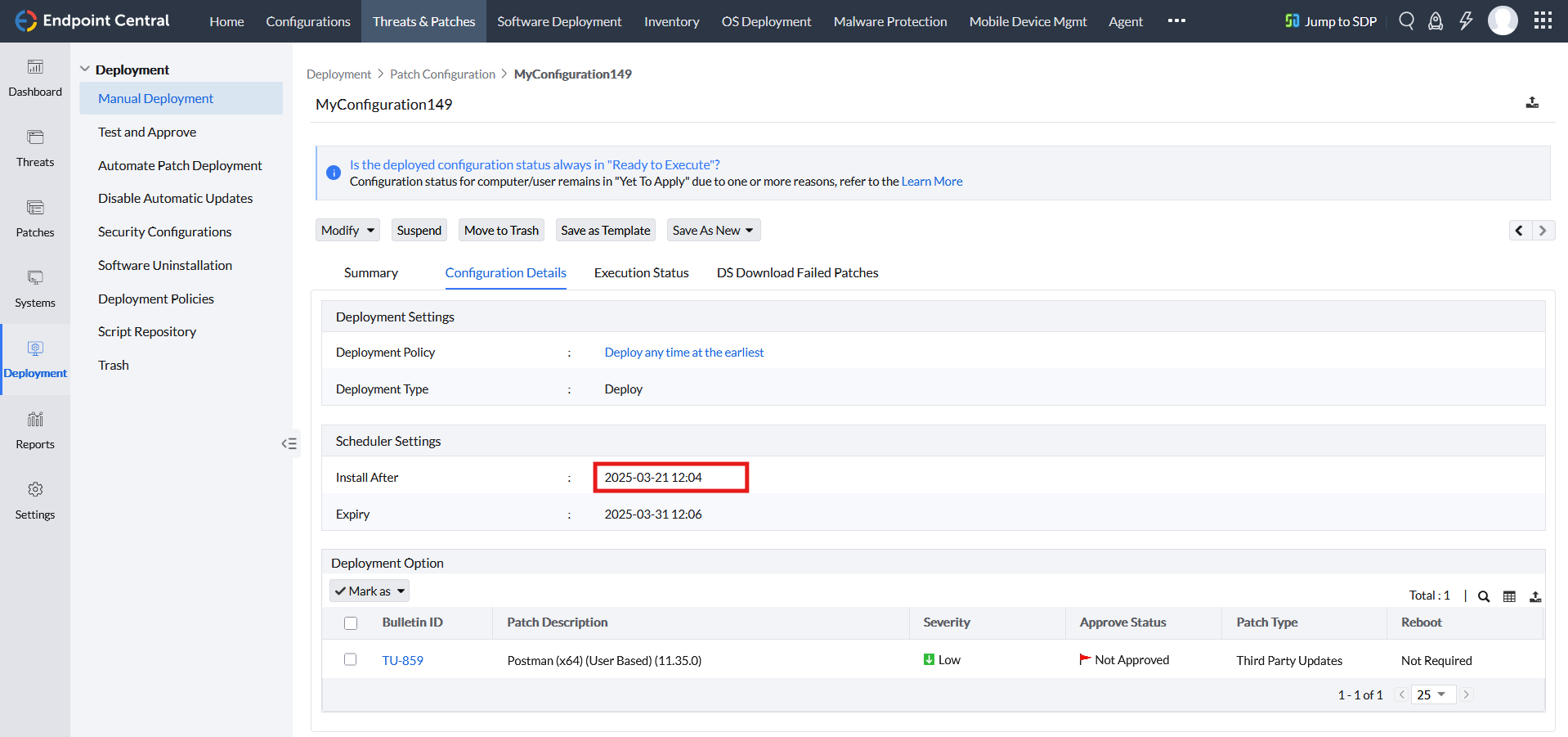
If the end time in Scheduler Settings has passed and patches are still not deployed, contact support.
Computers are moved out of the specified target during deployment
If a configuration is deployed to a Custom Group/Active Directory Group/Organization Unit, computers that belong to the target group when deployment starts but are removed afterward remain in Yet to Apply status.
Another configuration is already in progress
The following Remarks indicate deferred execution on the affected computer:
- Deployment of <configuration> is in progress. Deployment of this configuration will be initiated after the former is completed
- Another Configuration is in progress. The Configuration you deployed now will be executed in the subsequent refresh cycle.
Check other tasks targeting that computer, including overlapping custom groups. The queue is specific to the affected computer. Recheck after the earlier configuration completes, during an eligible processing cycle and deployment window. To suspend a manual deployment task, see Delete or Suspend Manual Patch Deployment.
Do not deploy multiple configurations to the same computer at the same time. After the agent has downloaded the XML, suspending the configuration does not stop it on that client.
Modified Time after a task edit
If a Deploy Immediately task stays Ready to Execute or Yet to Apply, check Modified Time on the configuration's Configuration Details page. Saving changes updates the task's effective time. The endpoint must contact the server after that modification to receive the updated configuration.
To redeploy a manual patch task, modify the affected task and submit it for deployment. This saves the changes and starts deployment processing again. Saving a draft does not start deployment. Check the new Modified Time and the computer's subsequent contact and execution result.
If the task remains pending after these checks, follow diagnostic result and log collection, even if the tool reports No Errors.