DB Sync Failure - Proxy/Open Network
Patch Database synchronization can fail when the Endpoint Central server cannot download update files or validate the repository’s certificate. Common causes include incorrect proxy settings, an unstable internet connection, certificate validation errors, and DNS resolution failures.
If a scheduled sync fails, go to Threats & Patches → Update Now and wait for the manual sync to complete. If it succeeds without a configuration change, the scheduled sync may have been interrupted by a temporary network issue.
Troubleshooting Steps
Check whether the sync reports a failure or stays at the same stage. Record the last successful update time, the current stage, the full error, and the server build. See synchronization status details.
Check the Repository Certificate
- From the Endpoint Central server or a machine using the same proxy path, open https://patchdb.manageengine.com in a browser.
- Open the site information menu in the address bar, then view the certificate issuer and certification path.
- If the issuer differs from the expected public certificate chain, such as Sectigo or Let’s Encrypt, check whether a proxy or firewall is inspecting TLS traffic and presenting a replacement certificate.
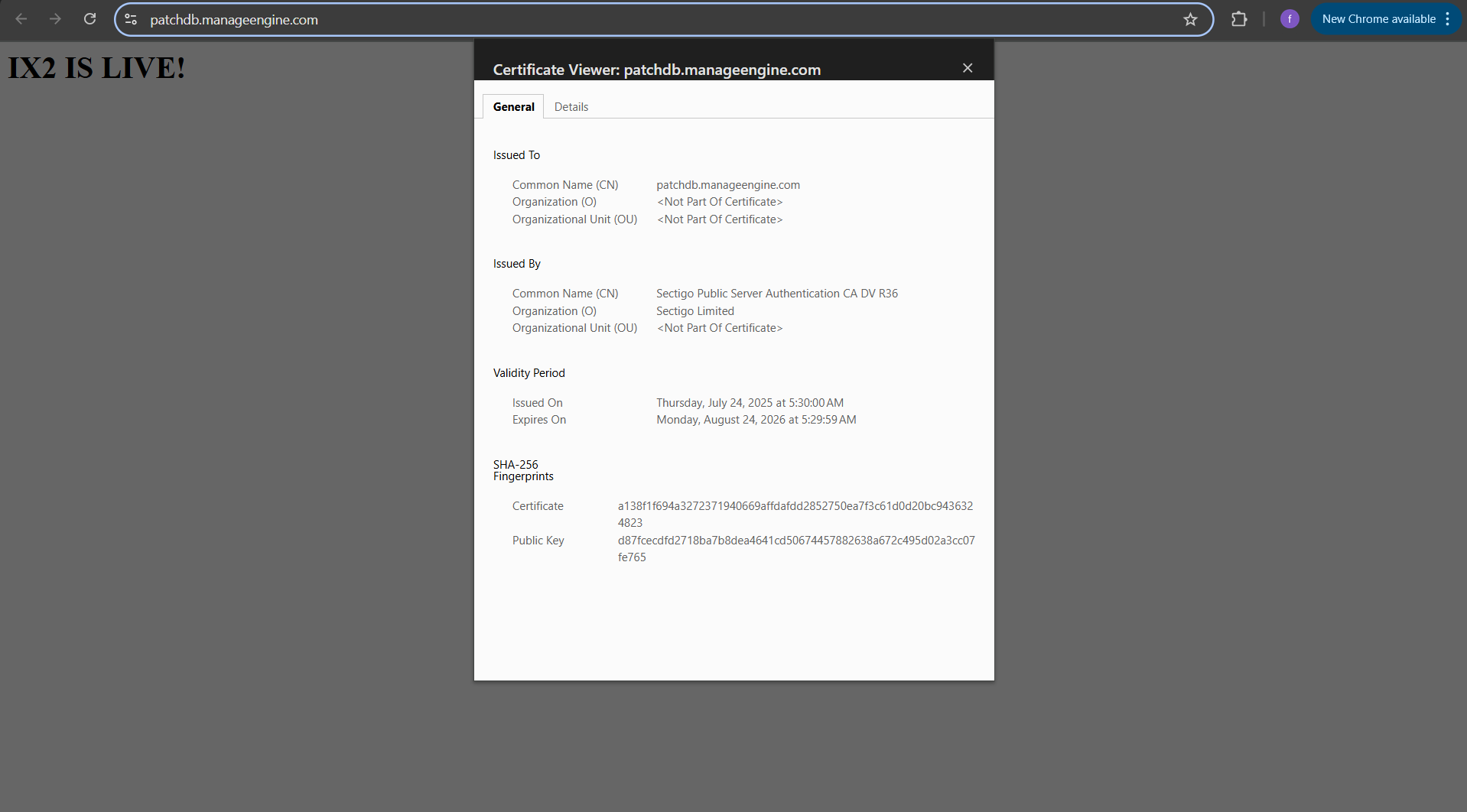
Check the Network Connection
- Check for intermittent connectivity, packet loss, or high latency.
- Verify the proxy hostname, port, and authentication settings. Check DNS resolution for the repository and, if applicable, the proxy.
Check Proxy and Firewall Rules
Verify that the Endpoint Central server can reach patchdb.manageengine.com over the configured network path. If an outbound proxy or firewall rule blocks the connection, ask your network team to allow the required traffic.
Troubleshoot Using Server Logs
- Open
crslogin thelogsfolder under the Endpoint Central installation directory. - Use the sync timestamp to look for Failure in Download entries for XML or SQL files. Error code
10008typically indicates a download failure. - Copy the URL of the failed download and search for it in the
DownloadManagerlogs. - Match the timestamp and server thread to find the associated exception, then follow the steps below.
If the sync remains stalled or fails again, collect the server logs and contact Support.
Exceptions
The connection slowed down or dropped while downloading a file.
Retry the download from the Endpoint Central server. Check for packet loss or high latency with
pingortracert.If the logs instead show
connect timed out, a firewall may be silently dropping outbound traffic.Check for recent firewall policy changes or a move to a different network segment. Ask your network team to verify that outbound traffic from the Endpoint Central server to
patchdb.manageengine.comis allowed on the ports required by your configuration.The server may have no usable route to the repository.
On the server, run
ipconfig /alland verify the default gateway. Test gateway reachability and runtracert patchdb.manageengine.comto help locate a routing issue. Correlate the results with firewall or proxy logs.
The connection was interrupted during or immediately after the transfer.
Check network stability, bandwidth usage, firewall session limits, and the server and proxy logs for disconnects.
A firewall or intrusion prevention system (IPS) may have reset the connection during the download.
Ask your network security team to review IPS, gateway antivirus, and application control events at the failure time, filtered by the Endpoint Central server’s source IP. If a policy blocks a required download, ask the team to review a narrowly scoped exception for
patchdb.manageengine.com.A slow or paused download may have exceeded the NAT session idle timeout.
Ask the network team to review the outbound HTTPS session timeout and adjust it if the logs confirm expiry. Retry the sync during off-peak hours if bandwidth is constrained.
The connection could not be established in time.
Check DNS, gateway reachability, and whether the firewall or proxy drops the connection. Test TCP connectivity to the repository or configured proxy on the port used by the server.
Windows Firewall may be blocking outbound connections from Endpoint Central.
Under Windows Defender Firewall with Advanced Security → Outbound Rules, look for a rule blocking
java.exein the Endpoint Central installation directory. If confirmed, work with your security team to allow the required outbound HTTPS connection.The server may have an incorrect or missing default gateway.
Verify the IPv4 gateway in the active network adapter’s settings. Use
tracert patchdb.manageengine.comand the network logs to investigate the route.
The destination or a network device actively refused the connection.
Verify the configured destination or proxy hostname and port, confirm the service is listening, and check firewall or proxy rules for an explicit rejection. Allow the required destination if your network team confirms a policy block.
The server could not resolve the repository hostname.
Check the DNS settings on the Endpoint Central server and run
nslookup patchdb.manageengine.comor usedigif available. If you need to test another resolver, use one approved by your network team.Endpoint Central may be configured with an incorrect or retired proxy hostname.
Go to Admin → Proxy Settings. From the Endpoint Central server, run
nslookup <proxy-hostname>. Correct the hostname if needed, save the settings, and retry the sync.
The certificate is invalid, does not match the hostname, or is untrusted by Java.
Verify the hostname and certificate chain. If the Java truststore lacks a required certificate authority, import the verified CA certificate into the truststore used by Endpoint Central.
The Endpoint Central server’s clock may be outside the certificate validity period.
Check the date, time, and time zone. With the Windows Time service running, run
w32tm /resync /forceas an administrator. If the problem recurs, check the time source, domain controller connectivity where applicable, and NTP access over UDP port 123.A TLS-inspecting proxy may be negotiating a TLS version or cipher that the bundled Java runtime cannot use.
Ask your network security team to check the negotiated TLS settings and confirm whether a scoped TLS inspection exception for
patchdb.manageengine.comis appropriate.
The proxy or destination rejected repeated authentication attempts.
Verify the credentials, confirm the proxy authentication method is supported, and check authentication policies or rate limits.
The proxy may be redirecting the server to an interactive sign-in page or captive portal.
Check the proxy logs for redirects. Ask the proxy administrator to configure access for the Endpoint Central server without an interactive sign-in prompt, then retry the sync.
The connection between Endpoint Central and SQL Server was interrupted.
Check the SQL Server service and error logs. Review connection pooling and timeout settings, and correlate database errors with interruptions on the network path.
Java could not validate the certificate chain against its truststore.
Check the certificate chain presented to the Endpoint Central server and confirm that the bundled Java runtime uses the intended truststore. Check whether a proxy or firewall is presenting a different chain. Work with your network security team to restore the correct chain or add a verified CA certificate to the truststore if required.
A TLS-inspecting proxy may interfere with Application-Layer Protocol Negotiation (ALPN).
Ask the proxy administrator to confirm whether ALPN is negotiated successfully on the repository connection. If the proxy causes the failure, review a domain-specific TLS inspection exception or an approved direct route for
patchdb.manageengine.com.An older proxy may lack support for the required protocol negotiation.
Check the proxy version and its ALPN support. Upgrade the proxy or use an approved route that supports the connection.
A proxy auto-configuration (PAC) script may select an incompatible proxy.
Review the rule for
patchdb.manageengine.com. If your network team approves direct access, have the proxy administrator configure the PAC rule to returnDIRECTfor that domain.
Endpoint Central could not save the file locally.
Confirm that
<installation_directory>\conf\CRSData\PatchDBUpdate\exists. If it does, verify that the Endpoint Central service account has write access to the directory.
A TLS-inspecting appliance may present a certificate issued by your organization’s CA.
From the Endpoint Central server or a machine using the same proxy path, open
https://patchdb.manageengine.comand inspect the certificate path. If you see an unexpected enterprise issuer, ask your network security team to verify TLS inspection and review a scoped exception if needed.The certificate chain may be missing an intermediate certificate.
Check whether the proxy blocks the CA’s Authority Information Access (AIA) URL. If it does, work with your network security team to make the verified intermediate certificate available to the Java runtime.
A proxy may close the connection when a session reaches its time or transfer-size limit.
If the download repeatedly stops at the same point, give your proxy administrator the source IP, destination, failure timestamp, and approximate transfer size. Ask them to review the matching session duration or transfer-size limit.
A firewall may close the connection during content inspection.
Ask the firewall team to check gateway antivirus and content-inspection logs, including file-size limits. If a policy caused the disconnect, work with the team to adjust the applicable policy for traffic from the Endpoint Central server to
patchdb.manageengine.com.
The proxy or firewall may block a required file type such as
.zip,.7z,.gz, or.sql.Identify the blocked file in the proxy or firewall logs. Ask your network security team to allow the required file type for downloads from
patchdb.manageengine.comto the Endpoint Central server.Proxy credentials may be missing, incorrect, or expired.
In Admin → Proxy Settings, confirm proxy authentication is enabled where required and verify the username and password. Check the domain field if your authentication method requires it. Save the settings and retry the Patch DB Sync.