Bookmark Management
Deploy pre-approved, IT-managed bookmarks straight to users' browsers so critical web apps are always one click away.
Overview
About bookmark management
How the Bookmark Manager centralizes and protects access to essential web applications.
Centralized, protected bookmarks
The Bookmark Manager lets IT admins push pre-approved web applications and websites to users as bookmarks in a SaaS-centric work environment. This removes the need for users to search for the tools they need and streamlines access to essential resources.
Because bookmarks are centrally managed, IT-managed entries take priority and stay consistent across users. Organizing bookmarks this way also improves navigation, and IT-managed bookmarks are protected from unauthorized changes, keeping the work environment secure.
Benefits
Why use Bookmark Manager
How it compares to traditional, on-premises-only deployment methods.
Built for remote and distributed teams
Traditional bookmark deployment methods, such as GPOs and Chrome's ADMX templates, only work on on-premises networks. As remote work grows, that's a limitation IT teams increasingly need to work around.
Browser Security Plus deploys bookmark policies to many devices at once, regardless of network, removing manual overhead and keeping access to critical web resources consistent across diverse work environments.
Setup
Implementing bookmark management
Deploy bookmarks silently to the bookmarks bar of users' browsers.
Add a bookmark policy
IT admins can use the bookmarks bar to give users quick access to mission-critical web applications and websites. Browser Security Plus's Bookmark Manager deploys these silently, with no action needed from the user.
- In the Browser Security Plus console, go to Browsers → Policies → Browser Customization.
- Click Create Policy and select the OS platform.
- Give the policy a name and description.
- Choose Google Chrome, Microsoft Edge, or Other Chromium-based from the drop-down.
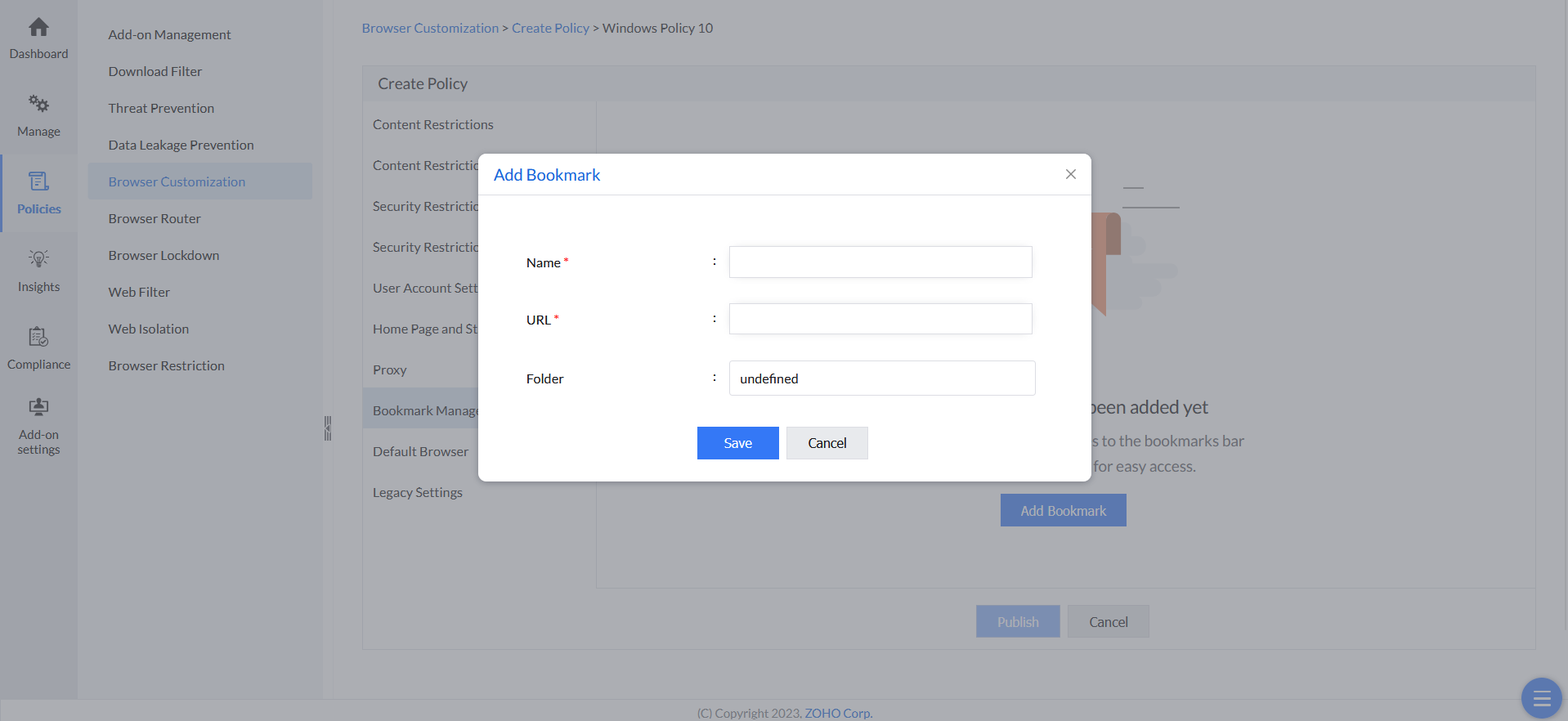
- Click Bookmark Manager, then click Add Bookmark.
- Enter a name for the bookmark and the website to bookmark, and choose the folder to add it into.
- Click Save, then click Publish to save the policy.
- Deploy the policy with the computers or groups of computers you want it applied to.