Browser Lockdown
Understanding Browser Lockdown
Internet Explorer, due to its outdated plugins, is susceptible to security risks. Many businesses still rely on it for legacy applications. To mitigate these risks, restricting Internet Explorer's access to trusted websites is essential. Browser Lockdown in Browser Security Plus enables kiosk mode in Internet Explorer and Microsoft Edge, restricting users to a predefined list of websites. Administrators can use this feature to control and limit online access, ensuring that users only visit authorized sites.
Implementing Browser Lockdown
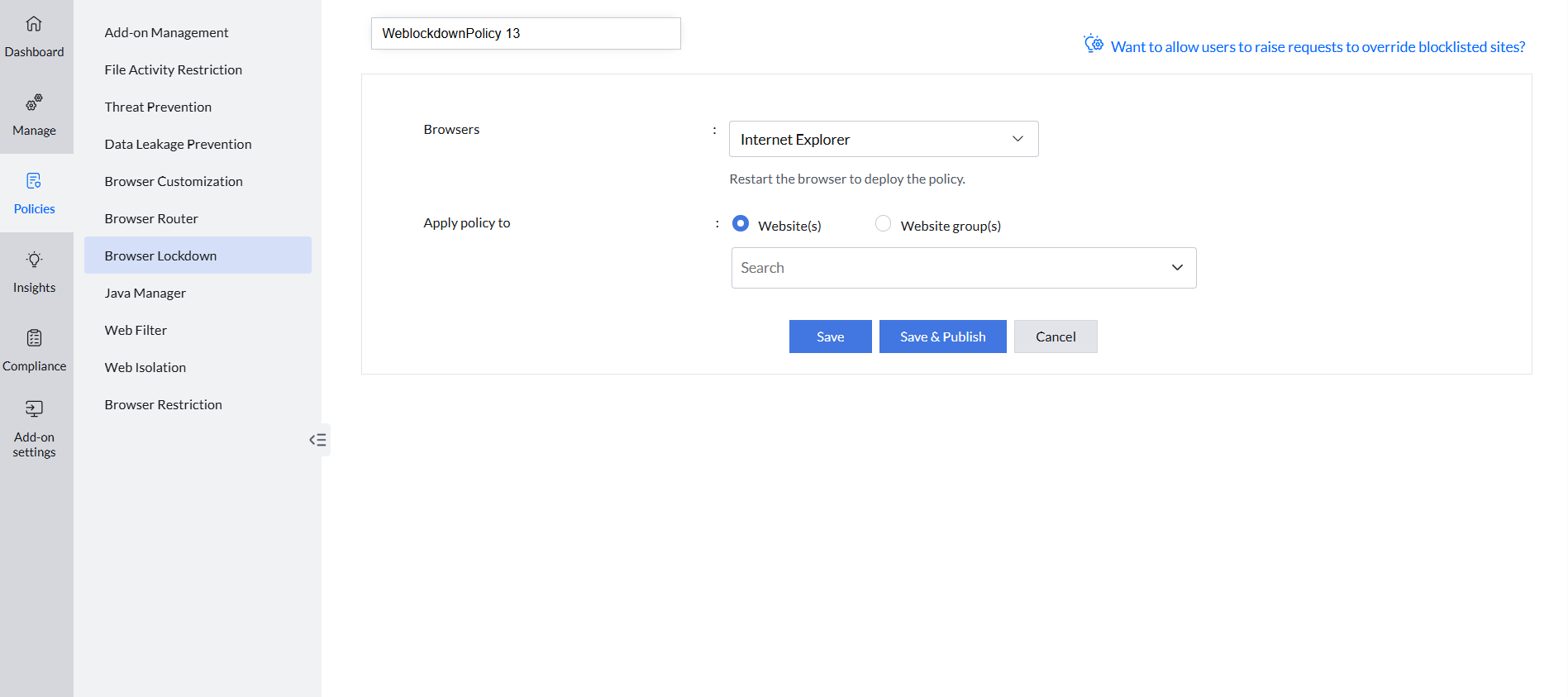
Browser Security Plus helps to exercise stringent access restrictions to Internet Explorer and Microsoft Edge, and allow users to access only the trusted websites. Follow the steps given below to configure the browser lockdown settings:
- Open Browser Security Plus console and navigate to Browsers -> Policies -> Browser Lockdown.
- Click Create Policy.
- Select the browser to be enabled in kiosk mode.
- Enter the websites or the website groups that you want to provide access to the end users.
- Click on Save to save the policy as a draft, or click on Save & Publish to publish the policy.
Associate the policy to computers/groups of computers in which you want to restrict access to web-applications.