 Free Edition
Once you deploy on-premises Exchange, free disk space will decrease quickly due to the to the increase in logs generated by the mailboxes. This problem of large log sizes is predominant in Exchange versions 2013 and above.
When you install RecoveryManager Plus to back up your on-premises Exchange mailboxes, the product uses the Exchange Web Services (EWS) API to access mailboxes located on the Exchange Server. Every time the product accesses these APIs for any action like taking a backup or performing a restoration, Microsoft Exchange creates a log. If your environment has a large number of mailboxes and you have scheduled daily incremental backups, the available disk space will reduce quickly.
In addition to logs generated by the server when a backup operation is run, there are plenty of logs that are generated on a daily basis by the Exchange server. Unless you regularly clean up old log files, it is very common for mailbox databases to automatically unmount and cause disruptions to your users with the error 452 4.3.1 Insufficient system resources error.
The most efficient way in which this problem can be solved is by periodically clearing old logs created by the Exchange server due to backups and other normal activity. Since these logs are created by the Microsoft Exchange server, these cannot be deleted by RecoveryManager Plus.
This article will elucidate how you can automate clearing any transaction log files.
Disclaimer: Please be aware that RecoveryManager Plus does not directly create any logs in your Exchange server nor does it delete existing logs. This article explains how you can automatically clear logs that have been and will be created by your Exchange server.
                # Set execution policy if not set
                $ExecutionPolicy = Get-ExecutionPolicy
                if ($ExecutionPolicy -ne "RemoteSigned") {
                    Set-ExecutionPolicy RemoteSigned -Force
                }
                # Cleanup logs older than the set of days in numbers
                $days = 2

                # Path of the logs that you like to cleanup
                $LogPaths = "C:\Program Files\Microsoft\Exchange Server\V15\Logging\Ews\"

                # Clean the logs
                Function CleanLogfiles($TargetFolders) {
                 foreach ($TargetFolder in $TargetFolders) {
                    Write-Host -Debug -ForegroundColor Yellow -BackgroundColor Cyan $TargetFolder

                    if (Test-Path $TargetFolder) {
                        $Now = Get-Date
                        $LastWrite = $Now.AddDays(-$days)
                        $Files = Get-ChildItem $TargetFolder -Recurse | Where-Object { $_.Name -like "*.log" }
| Where-Object { $_.lastWriteTime -ge "$lastwrite" } | Select-Object FullName
                        foreach ($File in $Files) {
                            $FullFileName = $File.FullName
                            Write-Host "Deleting file $FullFileName" -ForegroundColor "yellow";
                            Remove-Item $FullFileName -ErrorAction SilentlyContinue | out-null
                        }
                    }
                    Else {
                        Write-Host "The folder $TargetFolder doesn't exist! Check the folder path!"
-ForegroundColor "red"
                    }
                 }
                }
                CleanLogfiles($LogPaths)
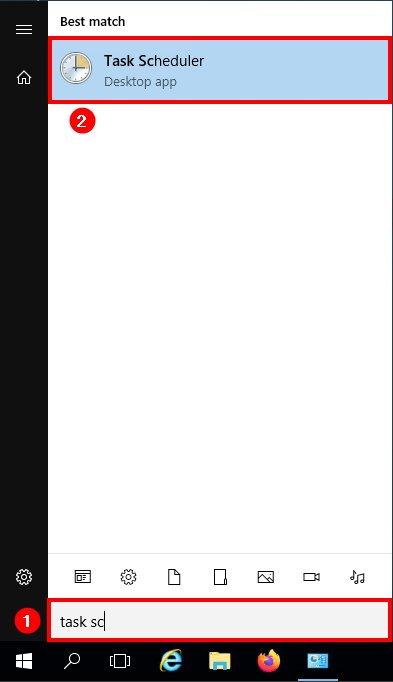
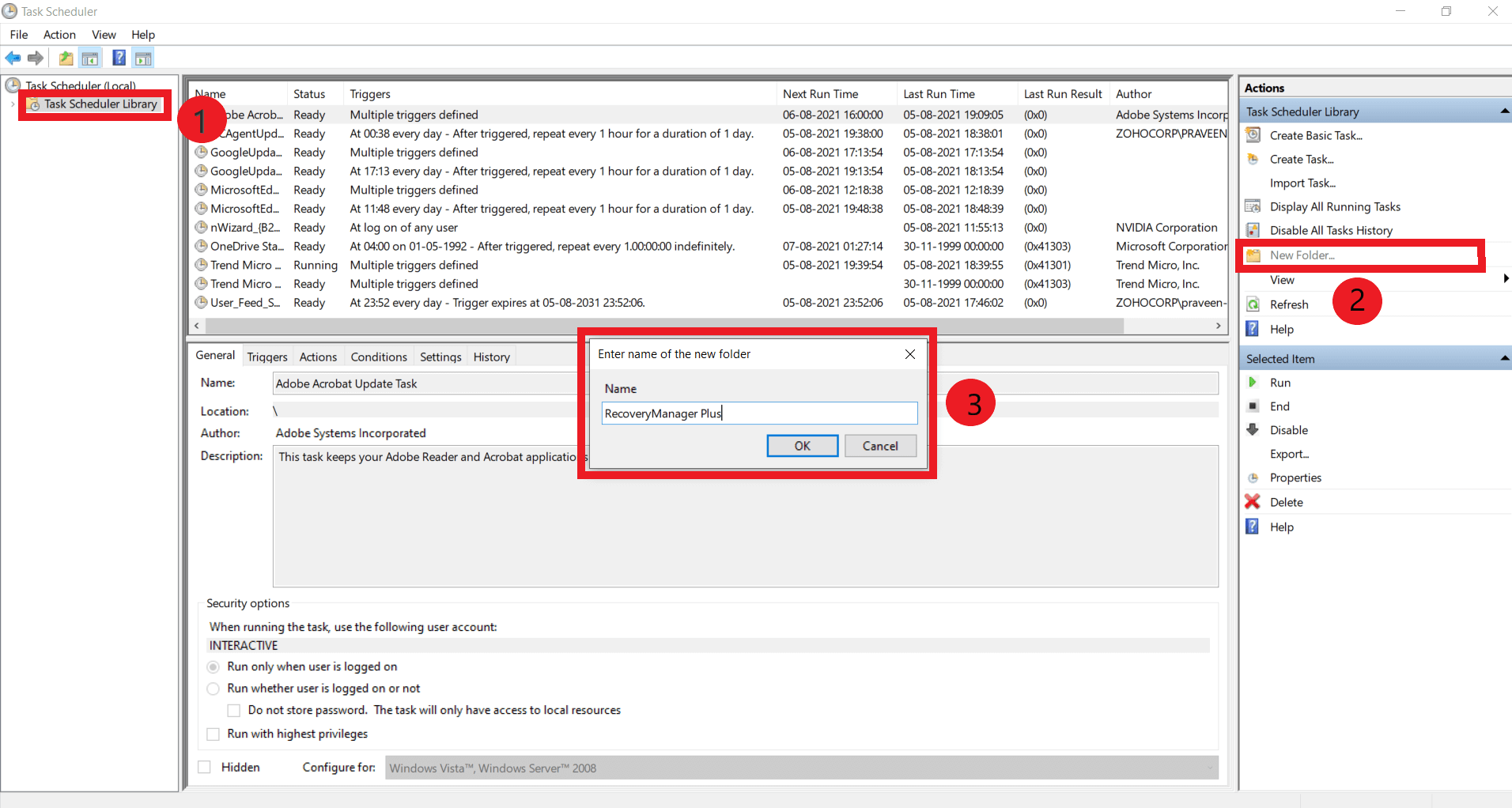
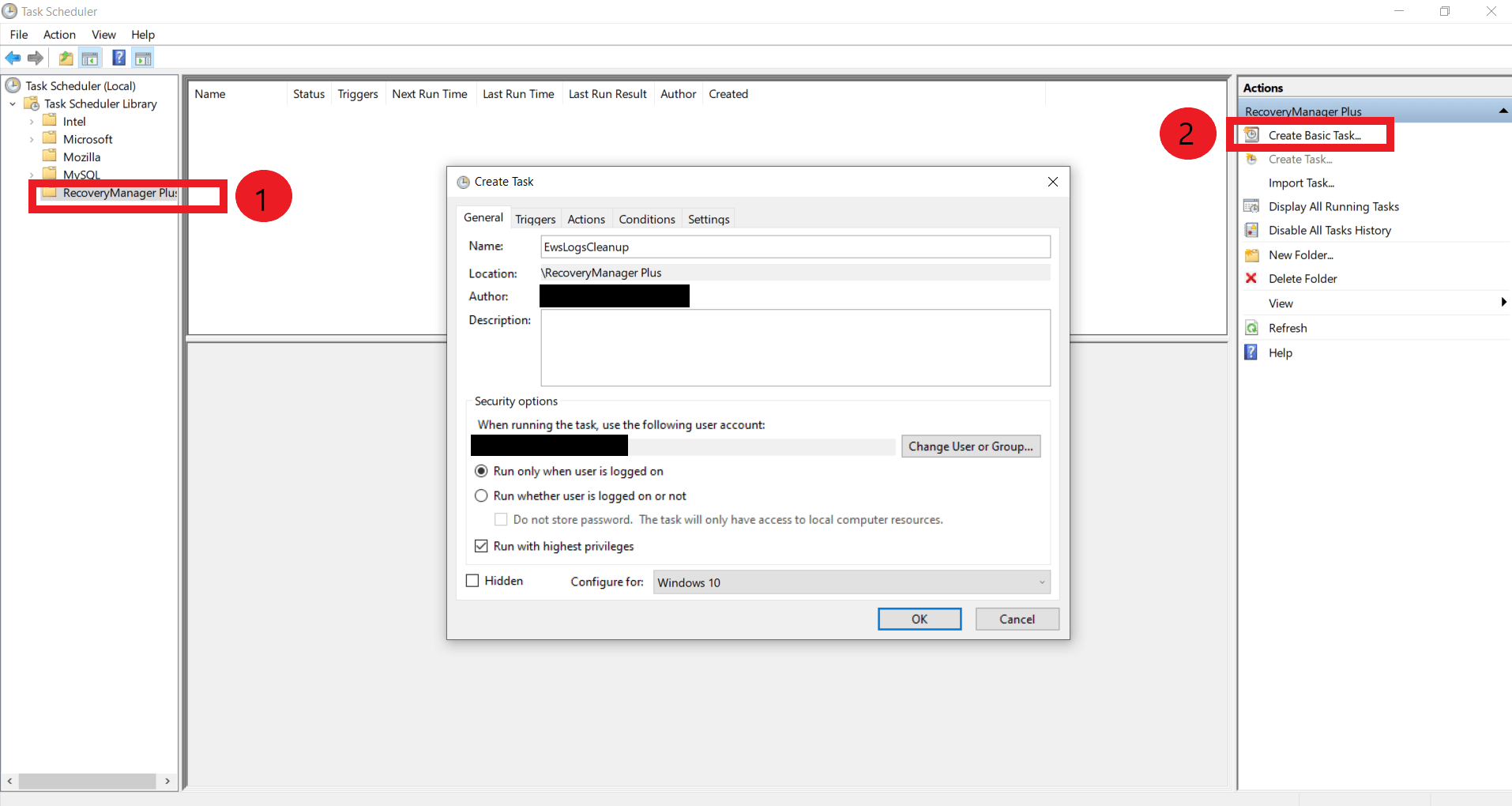
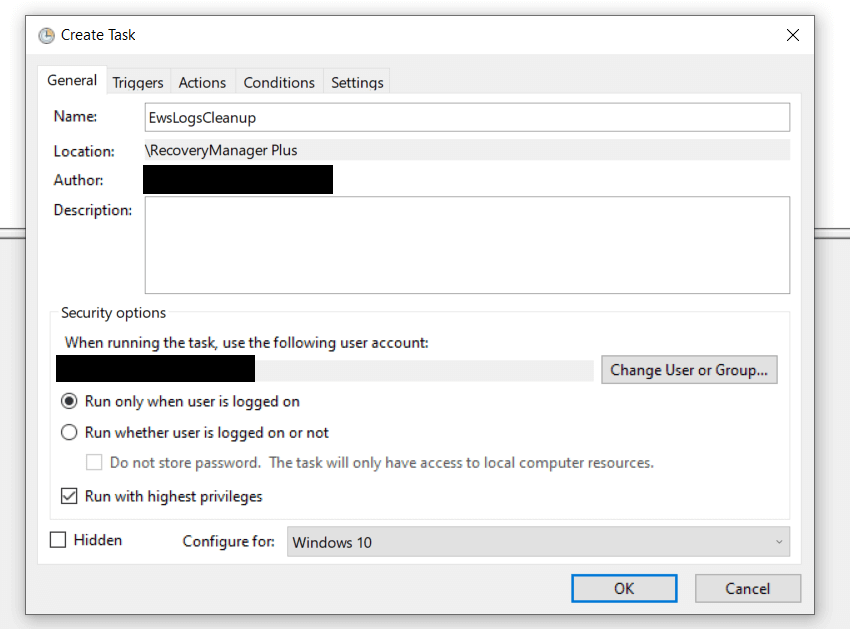
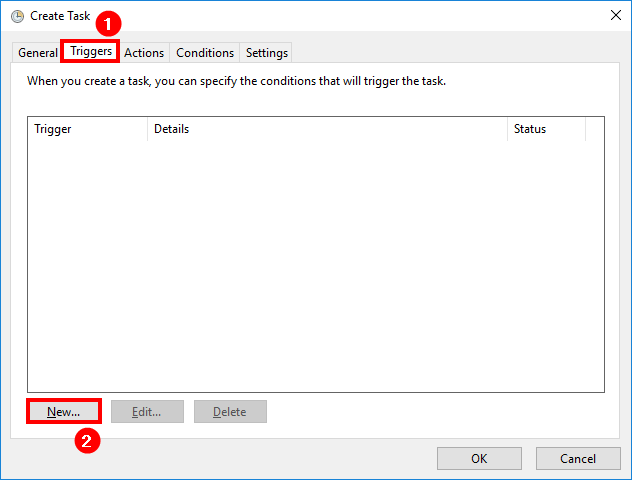
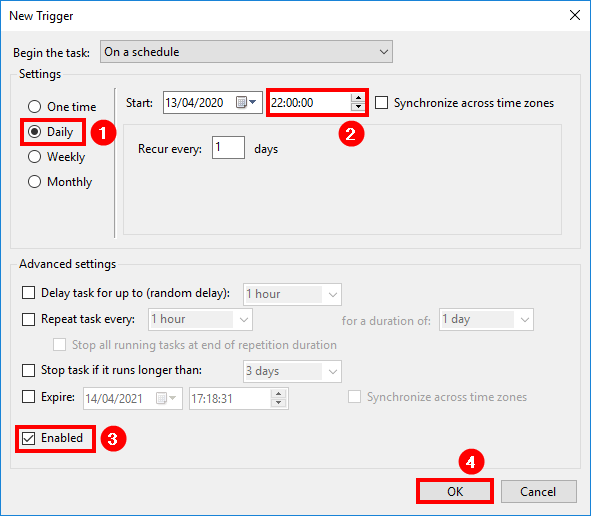
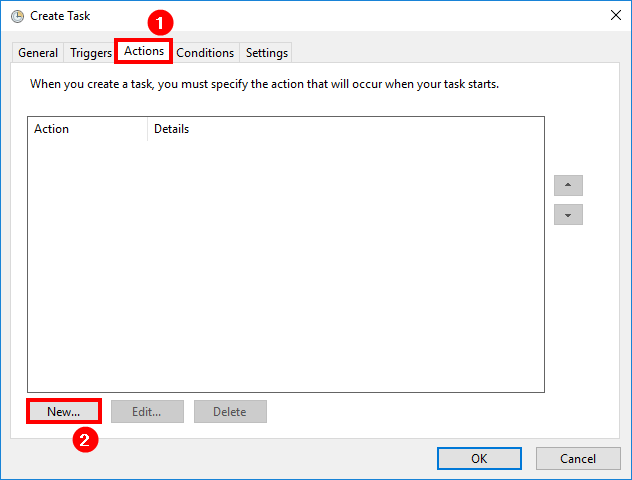
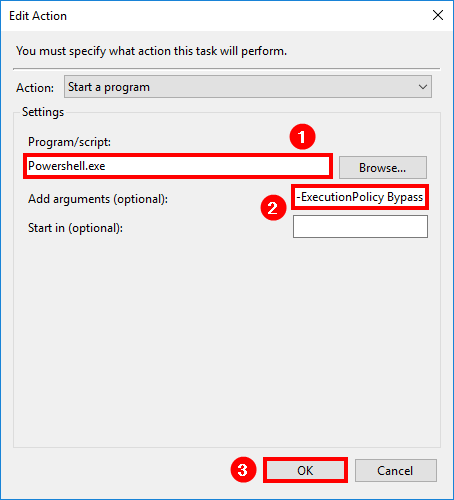
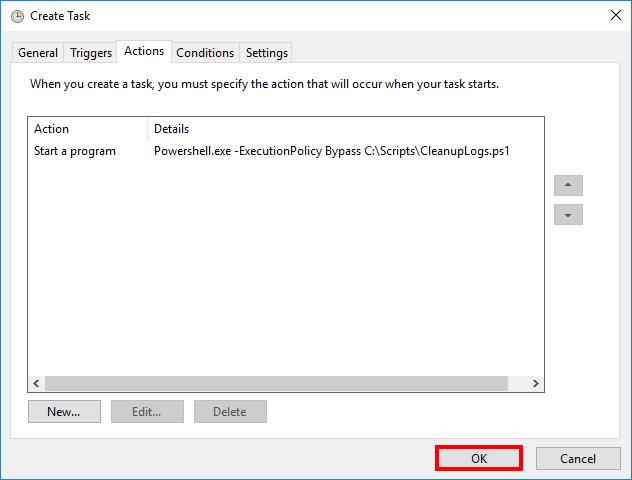
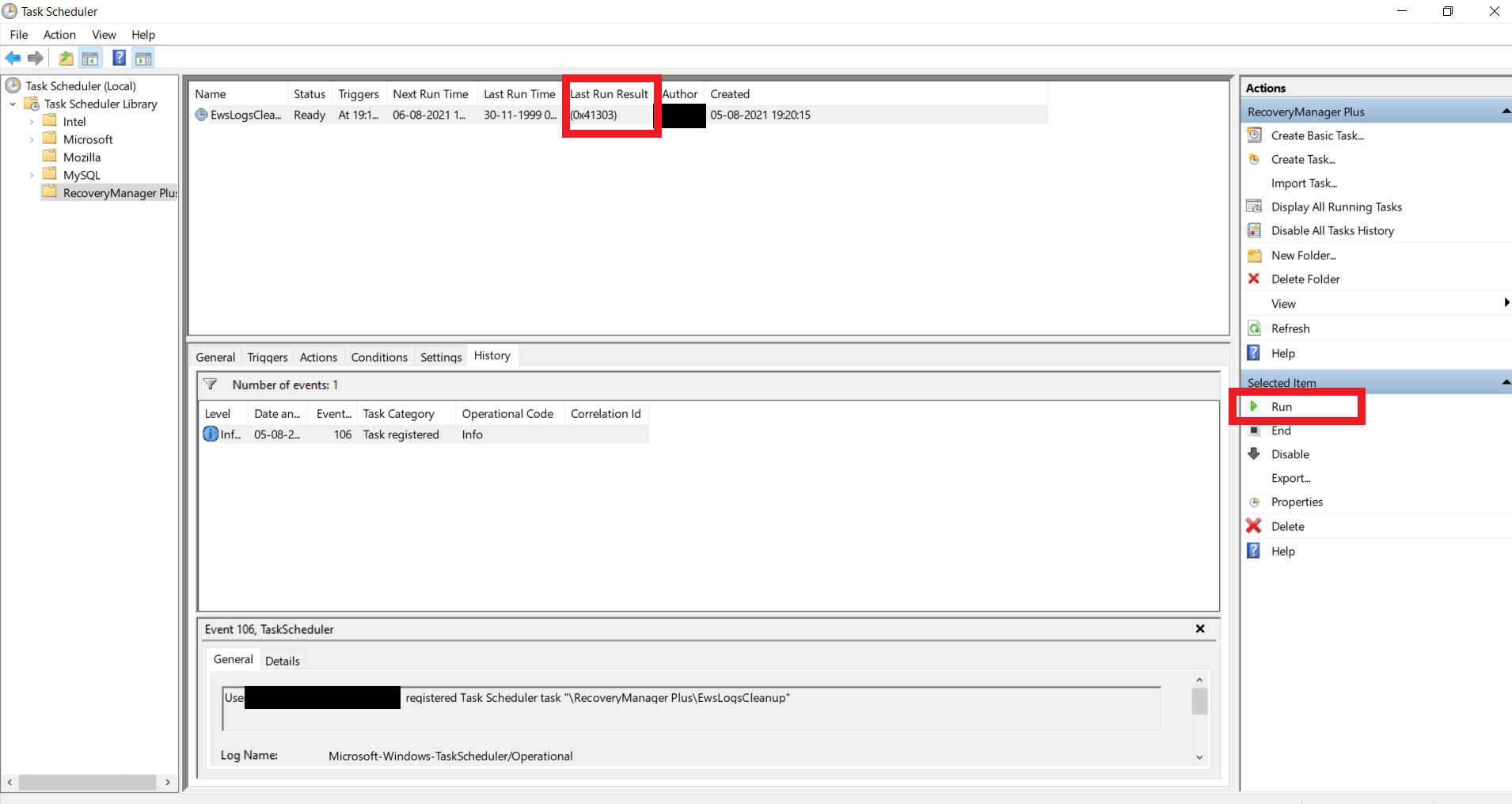
The task has now been scheduled and your Exchange EWS logs will now be cleared at the specified time and frequency.
Fill this form, and we'll contact you rightaway.
Our technical support team will get in touch with you at the earliest."

