


How to restore deleted Active Directory Group Policy Objects
Last updated on:In this page
In Active Directory (AD), Group Policy Objects (GPOs) enforce security settings, user configurations, and system behavior across the domain. Each GPO includes a Group Policy Container (GPC) that holds metadata, ACL permissions, and link information within AD and a Group Policy Template (GPT) stored in the System Volume (SYSVOL) folder, containing scripts, Administrative Template Files (ADMX), and configuration files.
When a GPO is deleted, the GPC is moved to the Deleted Objects container, where it remains for the Deleted Object Lifetime. After this period, the object transitions to a tombstone state, retaining minimal attributes for the Tombstone Lifetime, which is typically 180 days, before being permanently deleted. Meanwhile, the GPT folder in SYSVOL may remain orphaned, and all GPO links to domains, sites, or OUs are removed, which can create immediate configuration gaps.
This guide explains how to restore a deleted AD GPO using the Active Directory Administrative Center (ADAC), PowerShell, and ManageEngine RecoveryManager Plus, the comprehensive AD backup and recovery tool.
- ADAC
- PowerShell
- RecoveryManager Plus
Method 1: Restore deleted GPOs using the ADAC
The ADAC provides a graphical interface for locating and restoring a deleted GPO. Administrators can use this method if the Recycle Bin was enabled before the deletion.
Prerequisites
- The Recycle Bin must have been enabled prior to the deletion.
- You must have sufficient permissions to view and restore objects from the Deleted Objects container, such as Domain Admin, Enterprise Admin, or equivalent delegated permissions.
- If you're running ADAC on a client machine, Remote Server Administration Tools (RSAT) must be installed. To install RSAT on Windows 10 or Windows 11, use the script below:
Add-WindowsCapability -Online -Name Rsat.ActiveDirectory.DS-LDS.Tools~~~~0.0.1.0
Ensure the module is loaded using the script below:
Import-Module ActiveDirectory
- This method applies to AD domains with a forest and domain functional level of Windows Server 2008 R2 or higher.
- ADAC only restores the AD container portion of the GPO. It does not automatically restore the files in the SYSVOL folder, which are part of the GPO’s template. This will cause errors in the Group Policy Management Console (GPMC) until those files are manually recovered from a backup.
Steps
- Launch ADAC.
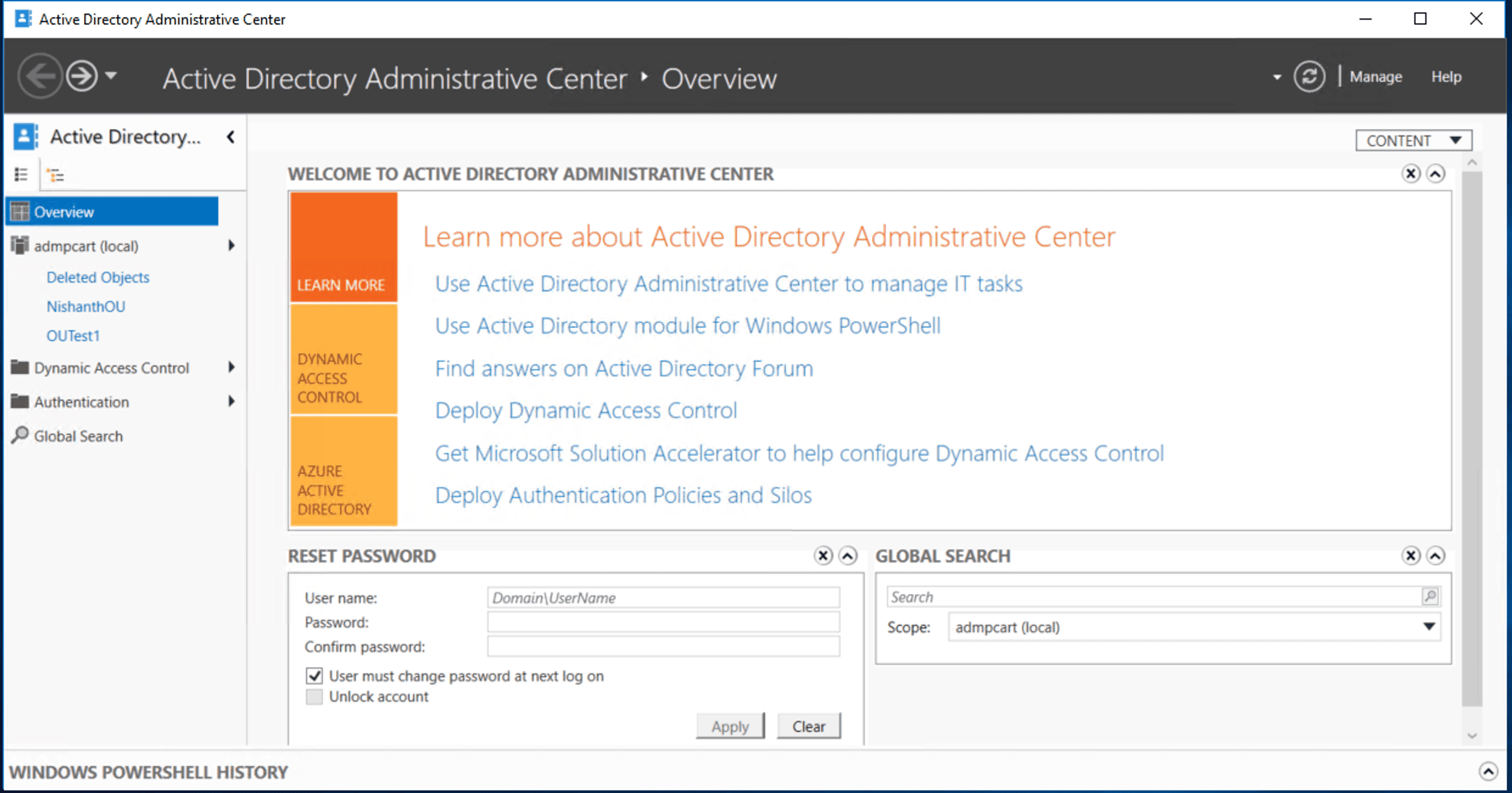
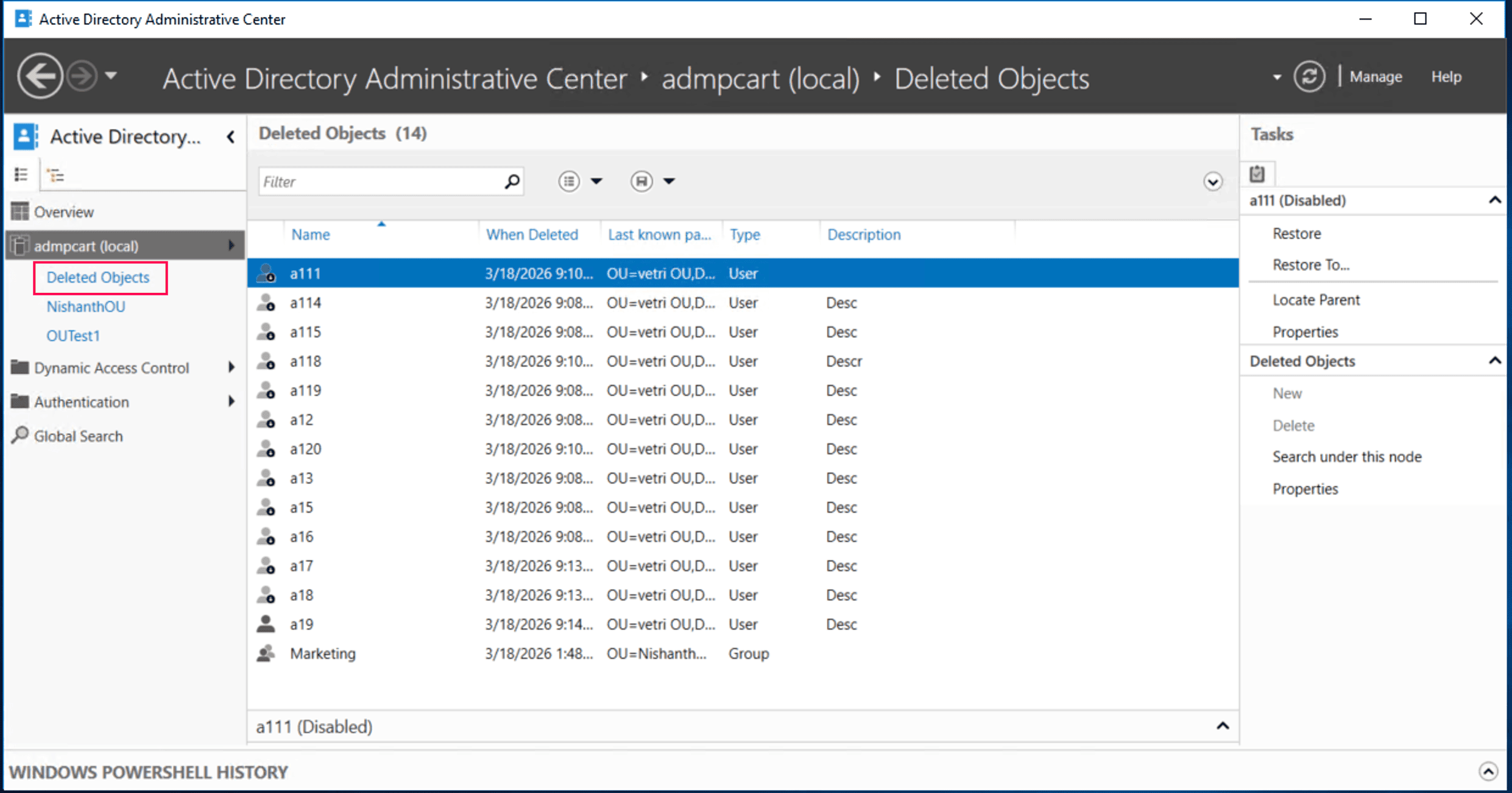
- On the left pane, select your domain and click the Deleted Objects container.
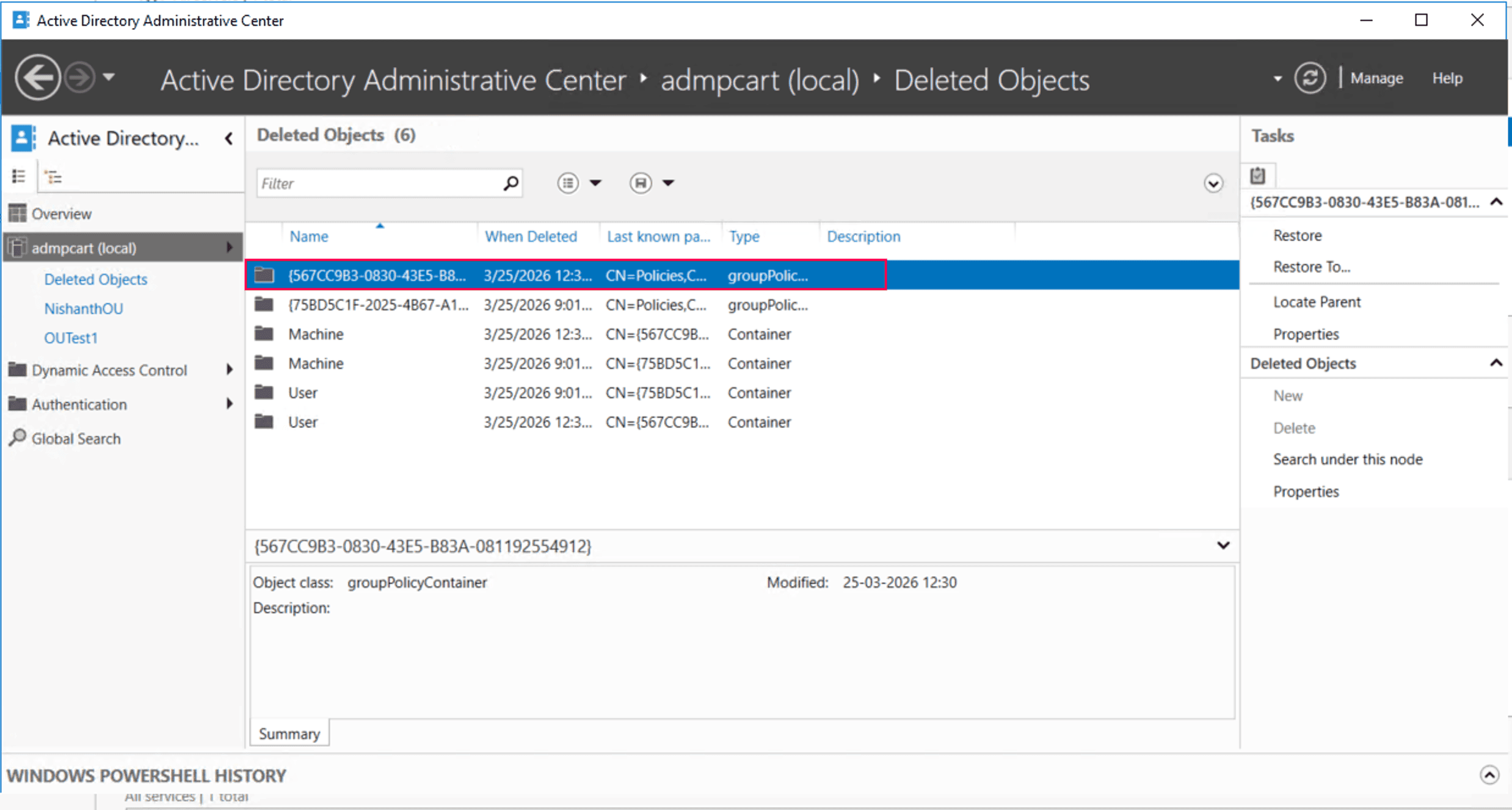
- Browse the list or use the search bar to locate the deleted GPO.
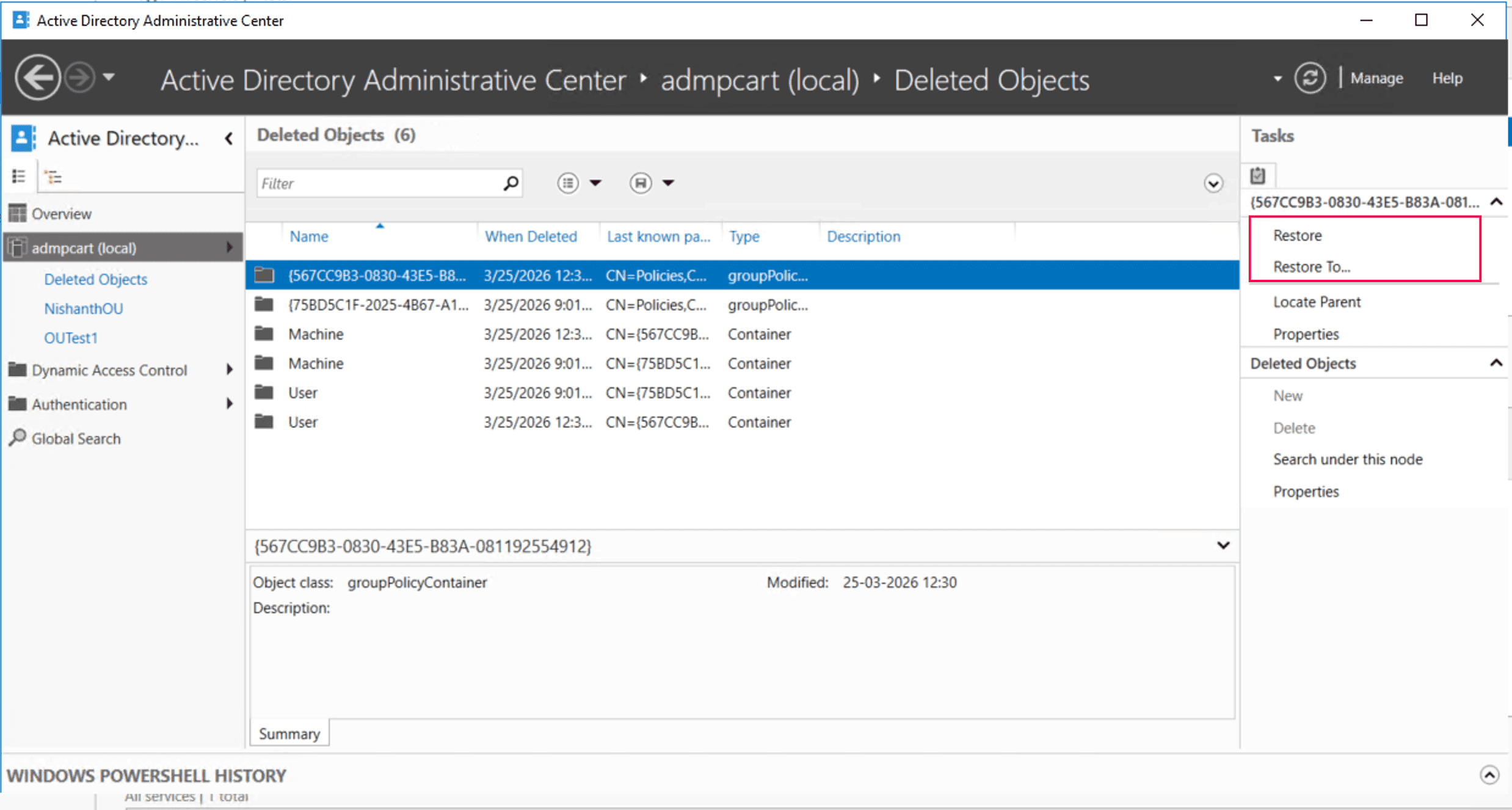
- Click Restore to return the GPO to its original location, or click Restore To to specify a new location.


For GPO link restoration, open the GPMC and manually relink the GPO to its respective OUs, as links are not restored automatically.
Limitations
- Requires AD Recycle Bin to be enabled.
- Cannot restore objects after tombstone lifetime expires.
- No visibility into previous GPO settings.
- Restoring the object does not always reestablish GPO links to various OUs or the domain.
- It only restores the GPC. SYSVOL files must be recovered separately from a file-level backup.
- Must manually verify ACL permissions and settings after restoration.
Method 2: Restore deleted GPOs using PowerShell
You can use PowerShell to restore deleted GPOs directly from the Deleted Objects container.
Prerequisites
- You must run PowerShell as an administrator with Domain Admin or delegated permissions.
- The AD PowerShell module must be installed. To install it on Windows 10 or Windows 11, run the script below:
Add-WindowsCapability -Online -Name Rsat.ActiveDirectory.DS-LDS.Tools~~~~0.0.1.0Ensure the module is loaded using the script below:
Import-Module ActiveDirectory
- Verify the Recycle Bin is enabled using the script below:
Get-ADOptionalFeature -Filter 'name -like "Recycle Bin Feature"' | Select-Object Name, EnabledScopes
If the EnabledScopes property is empty, the AD Recycle Bin is not enabled. If it is not enabled, deleted objects cannot be restored using this method and must be recovered using tombstone reanimation or authoritative restore approaches.
Restore deleted GPO object with Recycle Bin
This method restores only the GPC from AD. The GPT in SYSVOL is not restored and must be recovered separately if needed.
Restore by GPO GUID
If you know the GPO GUID, use the below script:
Get-ADObject -Filter 'objectGUID -eq "a1b2c3d4-e5f6-7890-ab12-cd34ef567890"' -IncludeDeletedObjects | Restore-ADObject
Restore deleted GPO from backup
This method requires a backup folder that contains both GPC metadata and GPT files. The following scripts restore both the GPC metadata and GPT files from the specified backup folder.
- Restore by GPO name
Restore-GPO -Name "MarketingGPO" -Path "C:\GPOBackups" -Domain "zylker.com"
- Restore by GPO GUID
Restore-GPO -Guid "a1b2c3d4-e5f6-7890-ab12-cd34ef567890" -Path "C:\GPOBackups" -Domain "zylker.com"
- Import backup to a new GPO
Import-GPO -BackupId "a1b2c3d4-e5f6-7890-ab12-cd34ef567890" -Path "C:\GPOBackups" -TargetName "MarketingGPORestored" -CreateIfNeeded
- Replace an existing GPO with the backup
Import-GPO -BackupId "a1b2c3d4-e5f6-7890-ab12-cd34ef567890" -Path "C:\GPOBackups" -TargetName "MarketingGPO"
Supported parameters
| Parameter | Description |
|---|---|
| -Filter | Specifies a query string to identify the specific object to retrieve |
| -IncludeDeletedObjects | Searches the Deleted Objects container, which is hidden by default |
| -SearchBase | Specifies the Distinguished Name of the container to search within |
| ObjectGUID | The unique 128-bit identifier assigned to an AD object that never changes |
| isDeleted | A Boolean attribute that marks whether an object has been moved to the Deleted Objects container |
| -Path | Specifies the path to the folder containing the GPO backup files |
| -TargetName | Specifies a new name for the restored GPO, allowing the original GPO to remain unchanged |
| -CreateIfNeeded | Automatically creates an object if it does not already exist when a command runs |
Limitations
- Requires scripting knowledge.
- No full recovery of SYSVOL data when Recycle Bin is used.
- No automatic GPO link restoration.
- High risk of incomplete configuration recovery.
- Cannot restore if the parent container is missing.
Method 3: Restore deleted GPOs using RecoveryManager Plus
Native tools and PowerShell scripts often fail to provide a complete recovery because they do not synchronize the AD database and SYSVOL folder components.
ManageEngine RecoveryManager Plus provides a centralized, web-based console that streamlines AD GPO recovery by enabling point-in-time restoration and providing complete visibility into changes. It automates the restoration of GPO settings, ACL permissions, and GPO links in just a few clicks, addressing the limitations of ADAC and PowerShell.
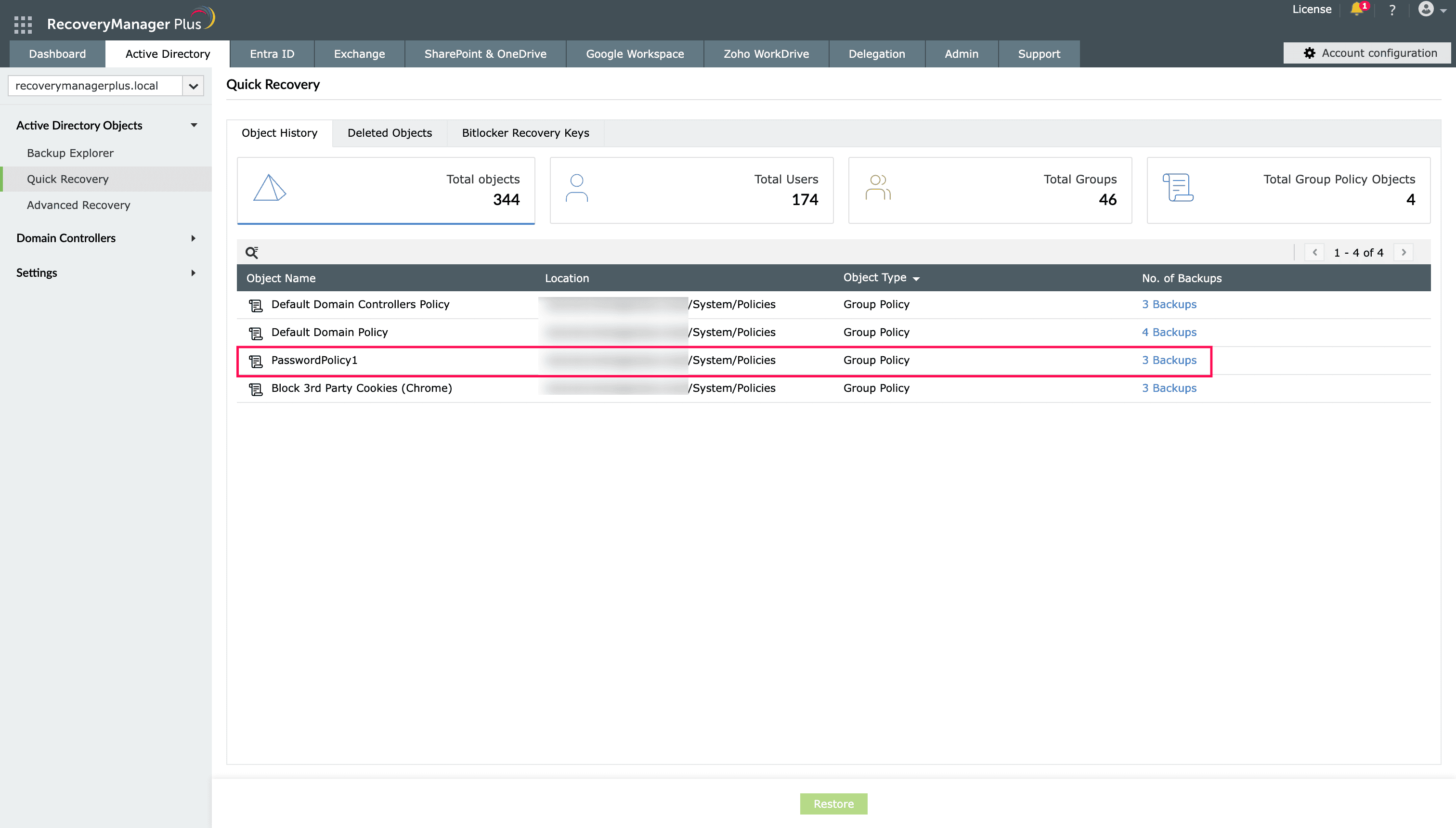
- Navigate to Active Directory > Active Directory Objects > Quick Recovery > Deleted Objects.
- Select the GPO you wish to restore and click Restore.

Complete GPO recovery with RecoveryManager Plus
While native AD tools can handle basic recovery of GPO metadata, they often fall short when it comes to restoring a fully functional GPO with all its settings, links, and dependencies intact. To ensure complete, point-in-time recovery without losing critical configurations or access links, a more reliable solution is required.
AD GPO backup and recovery with ManageEngine RecoveryManager Plus provides a robust approach that overcomes these limitations. It enables full restoration of GPOs, ensuring both policy data and associated links are preserved and reinstated seamlessly.
Key recovery capabilities include:
Domain controller backup
Back up domain controllers and restore them instantly in the event of a disaster.
Automated backups
Automatically back up all GPO changes, including settings and links, eliminating manual effort.
Granular restoration
Restore the entire domain, specific objects, or only the modified attributes.
Seamless GPO restoration
Restores both the GPC and GPT together and automatically reestablishes links to domains, sites, and organizational units.
Change tracking
Monitor changes made to AD objects and undo them instantly from a single dashboard.
Rollback
Roll back GPO to any previous backed-up version, ensuring all attributes are intact.
AD GPO best practices
Follow these best practices to strengthen your AD GPO recovery strategy and ensure deleted GPOs can be restored efficiently when needed.
Perform regular backups: Schedule frequent AD backups based on your organization's Recovery Point Objective to ensure GPOs can be restored to their latest versions when required.
Implement 3-2-1 backup: Maintain three backup copies, store them on two different storage types, and keep one copy off-site or isolated.
Implement least privilege access: Limit the number of administrators with permissions to delete or link GPOs to prevent accidental changes.
Monitor ACLs: Regularly audit ACL permissions on GPOs to ensure they have not been tampered with before or after a restoration.
Monitor critical OUs: Enable Protect object from accidental deletion on all high-privilege GPOs to prevent unauthorized deletion.
Perform testing regularly: Periodically test your backup and recovery processes to ensure they work as expected.
Frequently asked questions
If you restore a GPO that contains password policies, those settings will only take effect after the next Group Policy refresh cycle or by running gpupdate /force on the target machines.
If the GPO is restored using the AD Recycle Bin or backup, the original GPO GUID is preserved. If recreated manually, a new GUID is generated.
No, native tools cannot restore a GPO across domains or forests. Restoration is limited to the original domain unless a backup-based migration approach is used.