


How to restore deleted Active Directory groups
Last updated on:In this page
- Method 1: Restore deleted AD groups using Active Directory Administrative Center
- Method 2: Restore deleted AD groups using PowerShell
- Method 3: Restore deleted AD groups using RecoveryManager Plus
- Why choose RecoveryManager Plus for group restoration?
- Best practices for AD recovery
- Frequently asked questions
Active Directory (AD) groups play a critical role in managing permissions and access to resources. Deleting an AD group can immediately disrupt access, especially when it is used for authorization purposes. Restoring a deleted group involves more than recreating it. The original security identifier (SID) and group membership attributes must also be recovered to maintain access continuity.
When the AD Recycle Bin is enabled, a deleted group is not immediately removed from AD. It is instead transitioned through two critical life cycle stages. In the deleted object state, the group retains all attributes, including group membership and SID history for the deleted object lifetime, typically 180 days. This allows for a seamless, single-click restoration.
After this period, the object becomes a recycled object. It loses critical attributes such as memberOf and managedBy and functions only as a tombstone. At this point, the group can no longer be recovered using the Recycle Bin.
This guide explains how to restore a deleted AD group and recover AD group membership using Active Directory Administrative Center (ADAC), PowerShell, and RecoveryManager Plus, a comprehensive Active Directory backup and recovery tool.
- ADAC
- PowerShell
- RecoveryManager Plus
Method 1: Restore deleted AD groups using ADAC
ADAC provides a graphical interface for locating and restoring a deleted group. Administrators can use this method if the Recycle Bin was enabled before the deletion.
Prerequisites
- The Recycle Bin must have been enabled prior to the deletion.
- You must have sufficient permissions to view and restore objects from the Deleted Objects container, such as Domain Admin or equivalent delegated permissions.
- If you're running ADAC on a client machine, Remote Server Administration Tools (RSAT) must be installed. To install RSAT on Windows 10 or Windows 11, use the script below:
Add-WindowsCapability -Online -Name Rsat.ActiveDirectory.DS-LDS.Tools~~~~0.0.1.0Ensure the module is loaded using the script below:
Import-Module ActiveDirectory
This method applies to AD domains with a forest and domain functional level of Windows Server 2008 R2 or higher.
Steps to follow
- Launch ADAC.
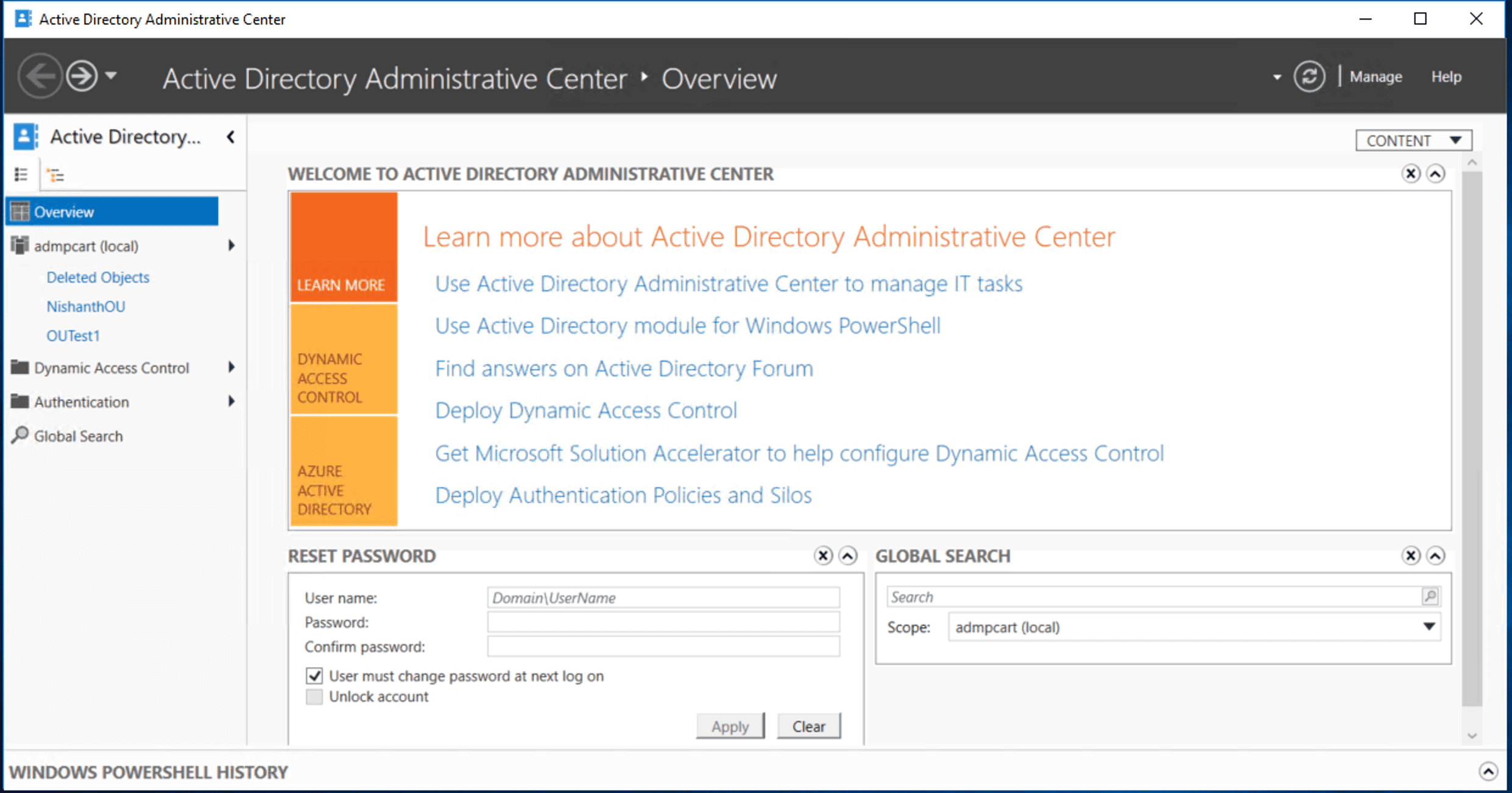
- On the left pane, select your domain and click the Deleted Objects container.
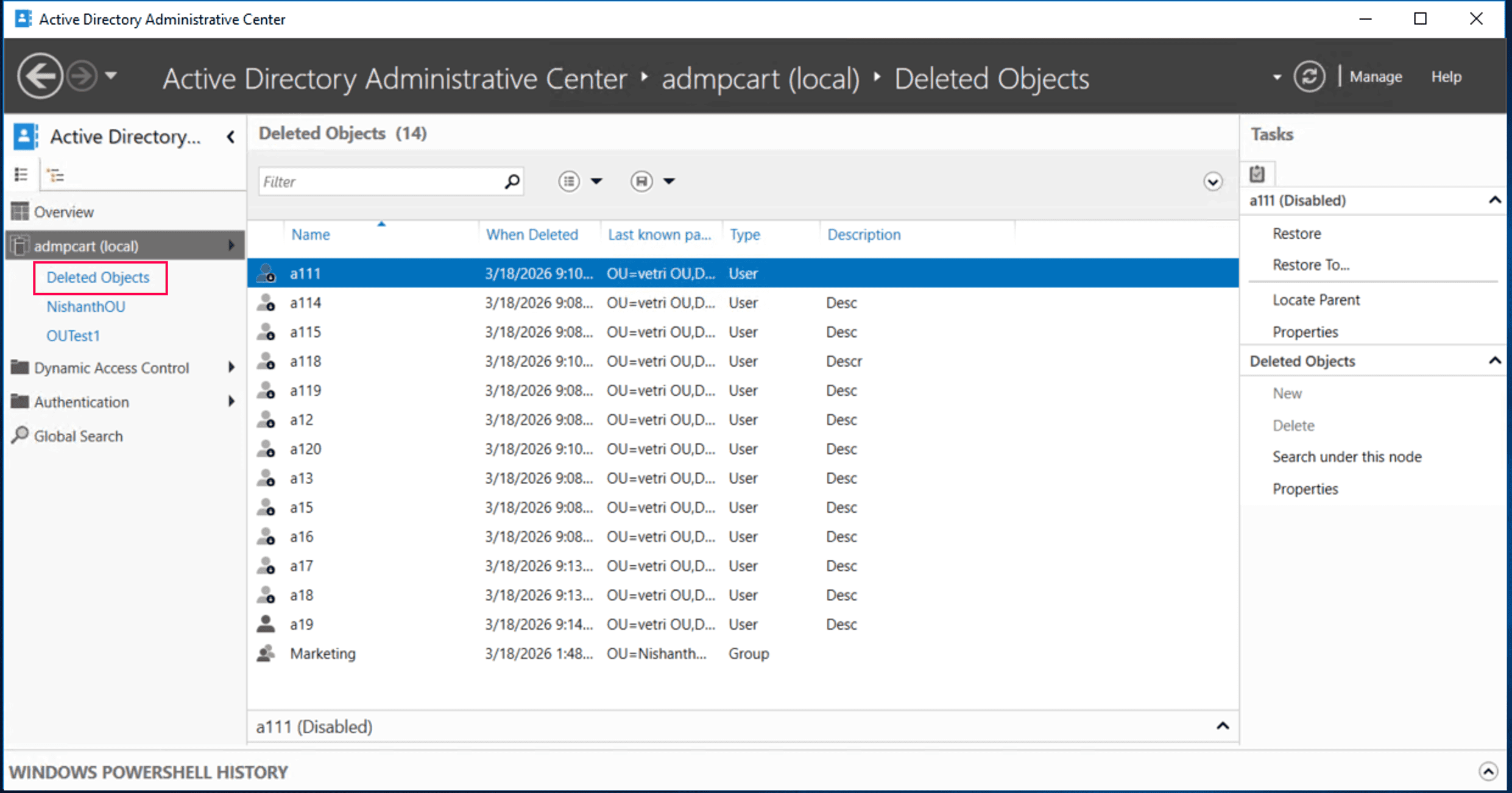
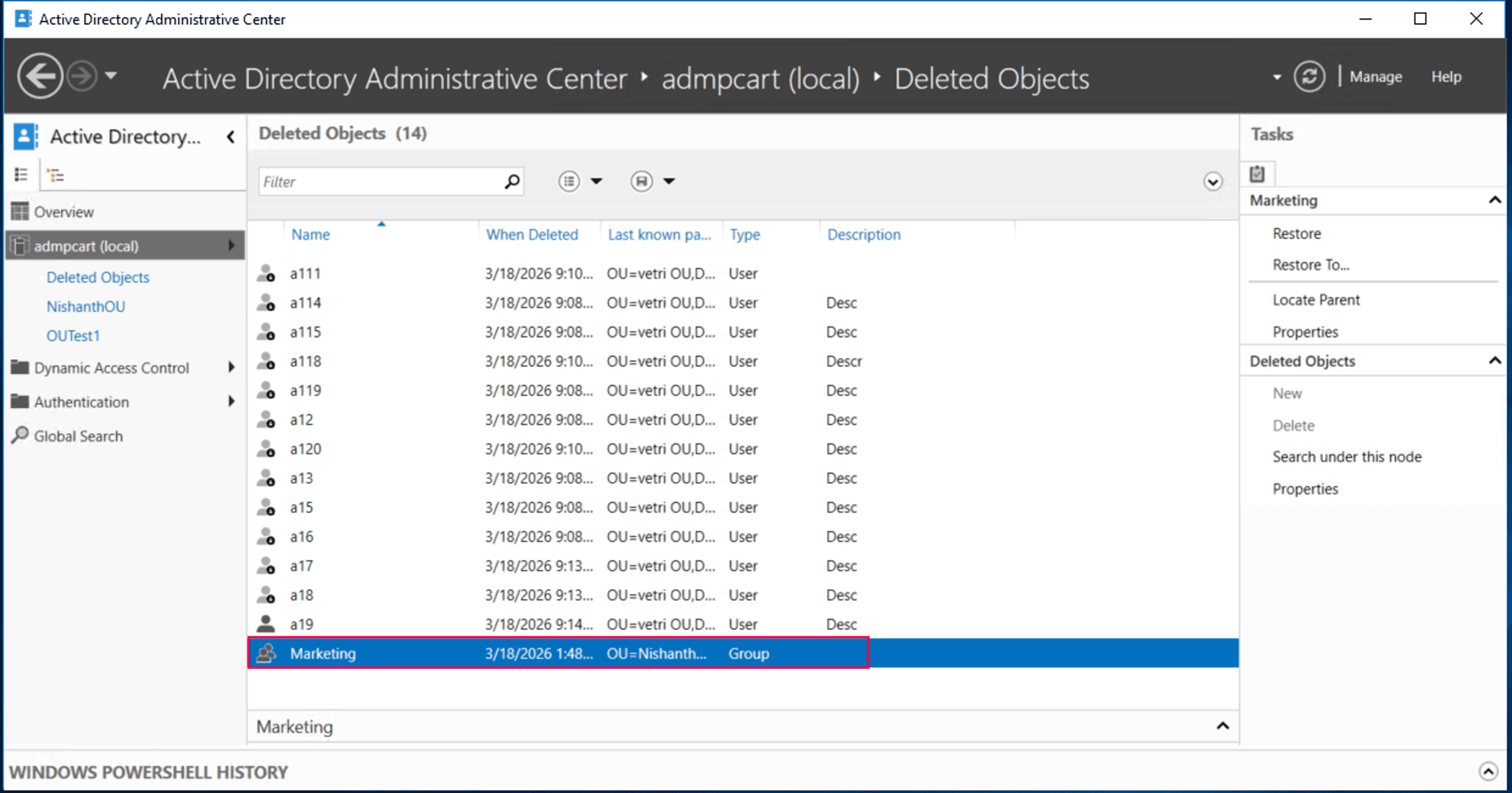
- Browse the list or use the search bar to locate the deleted group.
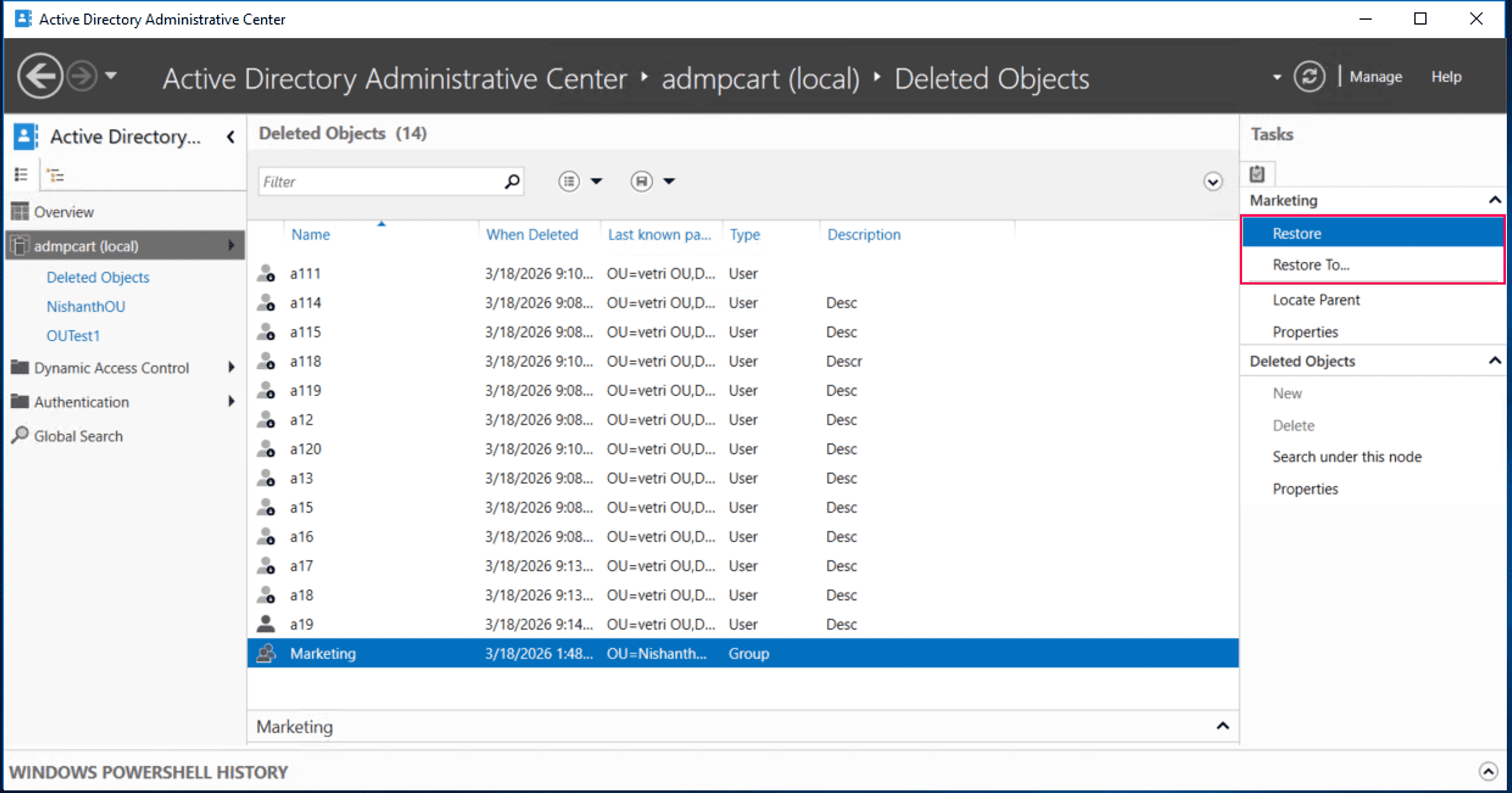
- Click Restore to return the group to its original OU, or click Restore To to specify a new location.
- Verify that the group has regained its membership and access permissions.


Limitations
- Requires the AD Recycle Bin to be enabled.
- You cannot restore objects after tombstone lifetime expires.
- There is no preview of object attributes before restoration.
- This method is inefficient for bulk restoration of multiple nested groups.
Method 2: Restore deleted AD groups using PowerShell
You can use PowerShell to restore deleted AD groups directly from the Deleted Objects container.
Prerequisites
- You must run PowerShell as an administrator with Domain Admin or delegated permissions.
- The AD PowerShell module must be installed. To install it on Windows 10 or Windows 11, run the script below:
Add-WindowsCapability -Online -Name Rsat.ActiveDirectory.DS-LDS.Tools~~~~0.0.1.0Ensure the module is loaded using the script below:
Import-Module ActiveDirectory - Verify the Recycle Bin is enabled using the script below:
Get-ADOptionalFeature -Filter 'name -like "Recycle Bin Feature"' | Select-Object Name, EnabledScopes
If the EnabledScopes property is empty, the AD Recycle Bin is not enabled. If it is not enabled, deleted objects cannot be restored using this method and must be recovered using tombstone reanimation or authoritative restore approaches.
When the Recycle Bin is enabled
Restore the group using the group name
If you know the name of the deleted group, run the following script:
Get-ADObject -Filter 'ObjectClass -eq "group" -and Name -eq "Marketing"' -IncludeDeletedObjects | Restore-ADObject
Restore the group using the GUID
To avoid errors with duplicate names, use the unique ObjectGUID:
Get-ADObject -Identity "a1b2c3d4-e5f6-7890-abcd-1234567890ef" -IncludeDeletedObjects | Restore-ADObject
Restore the group using an LDAP filter
Use an LDAP filter if you need to restore one or more deleted groups based on specific attributes.
Get-ADObject -LDAPFilter "(cn=Marketing)" -IncludeDeletedObjects | Restore-ADObject
Where (cn=Marketing) finds objects where the common name is Marketing.
You can filter by any attribute (e.g., objectClass, sAMAccountName, etc.).
Restore groups in bulk
Restore by name pattern:
If you accidentally deleted several groups starting with Marketing_, you can restore them all at once using the following command:
Get-ADObject -Filter 'ObjectClass -eq "group" -and Name -like "Marketing_*"' -IncludeDeletedObjects | Restore-ADObject
Restore by deletion time:
For example, if you want to restore all groups deleted from a specific OU within the last 24 hours, use the following script:
                                $When = (Get-Date).AddDays(-1)
                                Get-ADObject -Filter 'ObjectClass -eq "group" -and isDeleted -eq $true -and whenChanged -gt $When' -IncludeDeletedObjects | Restore-ADObject
Verify AD group memberships to ensure access is restored correctly using the script below.
Get-ADGroupMember "Marketing"; Get-ADGroupMember "Marketing" -Recursive
When the Recycle Bin is not enabled
Microsoft recommends an authoritative restore from a system state backup as the primary recovery method when the Recycle Bin is unavailable. This ensures group backlinks are preserved and they replicate correctly across domain controllers.
Tombstone reanimation using PowerShell only restores the object. All memberships and non-linked attributes are lost and must be rebuilt manually. Therefore, it should be used only when an authoritative restore is not feasible.
Use this command to reanimate the group:
Get-ADObject -SearchBase "CN=Deleted Objects,DC=zylker,DC=com" -Filter 'Name -like "*Marketing*"' -IncludeDeletedObjects | Restore-ADObject
After restoring the group, group memberships and nested relationships must be added manually.
Supported parameters
| Parameter | Description |
|---|---|
| -Filter | Specifies a query string to identify the specific object to retrieve. |
| -IncludeDeletedObjects | Searches the Deleted Objects container, which is hidden by default. |
| -SearchBase | Specifies the distinguished name of the container to search within. |
| -eq | Represents a logical operator standing for equal to. |
| -gt | Represents a logical operator standing for greater than, often used for timestamps. |
| ObjectGUID | Represents the unique 128-bit identifier assigned to an AD object that never changes. |
| isDeleted | This is a Boolean attribute that marks whether an object has been moved to the Deleted Objects container. |
Limitations
- Requires scripting knowledge.
- Group memberships must be manually rebuilt if the Recycle Bin is disabled.
- You cannot perform a restore if the parent container is missing.
- There is a risk of restoring the wrong objects due to filter errors or typos.
- Bulk restore operations can lead to performance lags.
Method 3: Restore deleted AD groups using RecoveryManager Plus
Native tools and PowerShell scripts can restore deleted groups but lack visibility and flexibility when handling complex group structures.
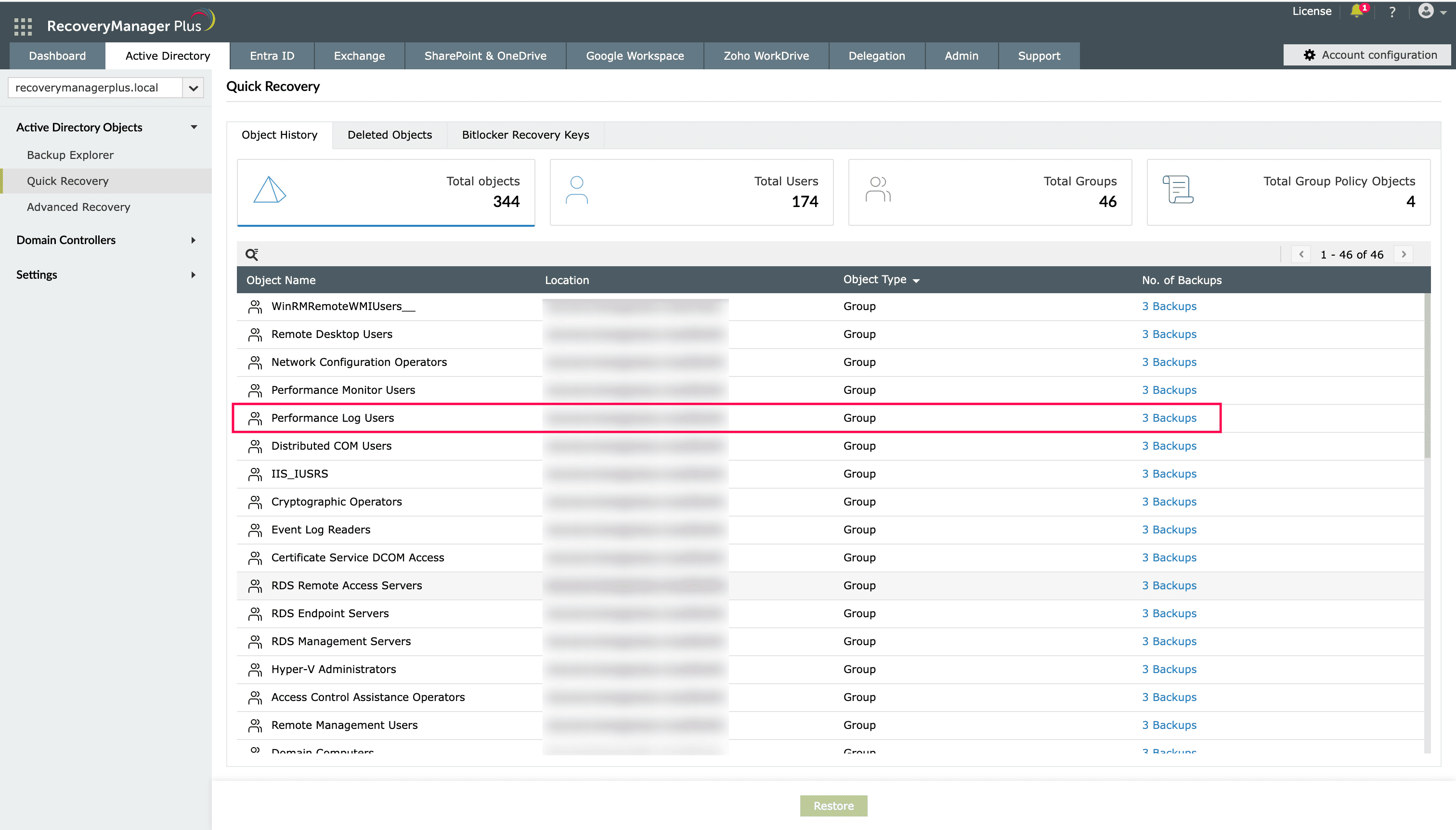
ManageEngine RecoveryManager Plus simplifies AD group recovery with a centralized, web-based console that enables point-in-time restoration, attribute-level recovery, and complete visibility into changes. It ensures that even if the native Recycle Bin fails or the tombstone lifetime expires, your data remains recoverable.
- In RecoveryManager Plus, navigate to Active Directory > Active Directory Objects > Quick Recovery > Deleted Objects.
- Select the group you wish to restore and click Restore.

Why choose RecoveryManager Plus for group restoration?
While native tools suffice for simple scenarios, they often fall short when dealing with complex AD group membership interdependencies. For a more robust, point-in-time recovery strategy that ensures no critical access links are permanently lost, Active Directory group backup and recovery with RecoveryManager Plus is the preferred choice.
It addresses these challenges with advanced features:
Domain controller backups
Back up domain controllers and restore them instantly in the event of a disaster.
Automated backups
Eliminate manual effort with scheduled backups that capture every change in your AD environment.
Nested group support
Seamlessly restores complex hierarchies of groups within groups.
Granular restoration
Restore the entire domain, specific objects, or only modified attributes.
Change tracking
Monitor changes made to AD objects and undo them instantly from a single dashboard.
Rollbacks
Roll back a group to any previous backed-up version, ensuring all attributes are intact.
Best practices for AD recovery
Follow these best practices to strengthen your AD recovery strategy and ensure deleted objects can be restored efficiently when needed.
Perform regular backups: Schedule frequent AD backups based on your organization's recovery point objective to ensure groups can be restored to their latest versions when required.
Implement 3-2-1 backup: Maintain three backup copies, store them in two different storage types, and keep one copy off-site or isolated.
Implement least privilege access: Ensure that only a limited number of administrators have the permissions required to delete objects.
Monitor critical OUs: Enable Protect object from accidental deletion on all high-privilege AD groups to prevent unauthorized deletion.
Perform testing regularly: Periodically test your backup and recovery processes to ensure they work as expected.
Frequently asked questions
If restored using the Recycle Bin, the original SID is preserved. If recreated manually, a new SID is generated, and all existing permissions linked to the old group will remain broken.
If the group is restored using AD Recycle Bin, its membership links are restored. If the group is recovered through tombstone reanimation, memberships must be rebuilt manually.
If the Recycle Bin is enabled, all group memberships are restored automatically. If the Recycle Bin is disabled and you are performing tombstone reanimation, group memberships are lost and must be added back manually.
The member attribute shows the users or objects in a group, while memberOf shows the groups a user or object belongs to.