


How to restore deleted Active Directory users
Last updated on:In this page
Active Directory (AD) stores users, computers, and groups in a structured hierarchy of organizational units (OUs). When you delete an object in AD, it is not removed immediately. Instead, it is moved to the Deleted Objects container and goes through multiple stages before being permanently deleted.
If the AD Recycle Bin is enabled, the object first enters the Deleted Object state. This period is known as the Deleted Object Lifetime and typically lasts 180 days. During this time, the object retains all attributes, allowing it to be fully restored.
After this period, the object transitions to the Recycled Object state where most attributes are removed, and it can no longer be restored using the Recycle Bin. The object remains in this state for the Tombstone Lifetime (typically 180 days), allowing the deletion to replicate across all domain controllers. Once the period expires, the garbage collection process permanently removes the object from AD.
This article explains how to restore deleted AD users using the Active Directory Administrative Center (ADAC), PowerShell, and RecoveryManager Plus, the comprehensive AD backup and recovery tool.
- ADAC
- PowerShell
- RecoveryManager Plus
Method 1: Restore deleted users in AD using ADAC
ADAC provides a graphical interface for restoring a deleted user in AD. Administrators can use this method if the Recycle Bin was enabled before the deletion.
Prerequisites
- The Recycle Bin must have been enabled prior to the deletion.
- You must be a member of the Domain Admins group or have delegated permissions to access the Deleted Objects container.
- If running ADAC on a client machine, Remote Server Administration Tools (RSAT) must be installed. To install RSAT on Windows 10 or Windows 11, use the script below:
Add-WindowsCapability -Online -Name Rsat.ActiveDirectory.DS-LDS.Tools~~~~0.0.1.0
Ensure the module is loaded using the script below:
Import-Module ActiveDirectory
Note: This method applies to AD domains with a forest and domain functional level of Windows Server 2008 R2 or higher.
Steps
- Launch ADAC.
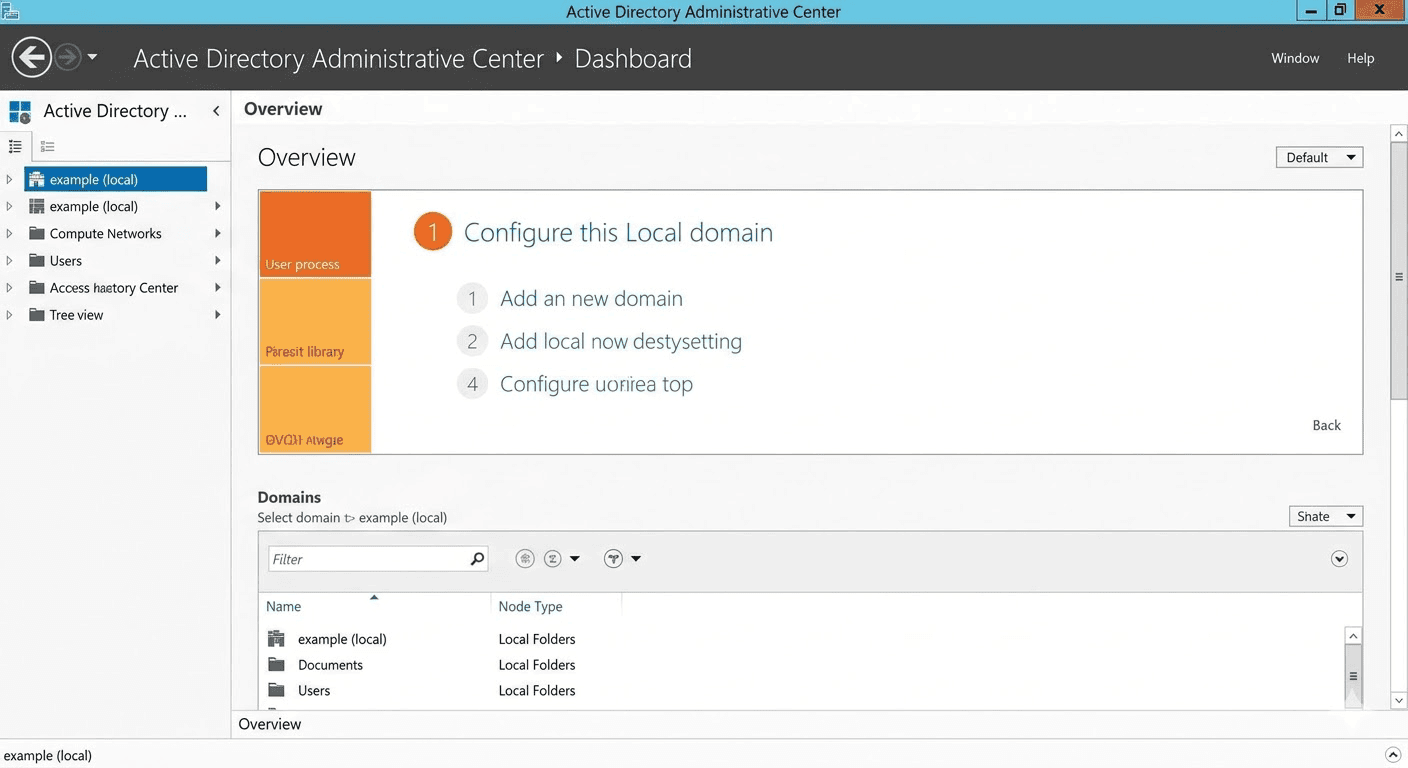
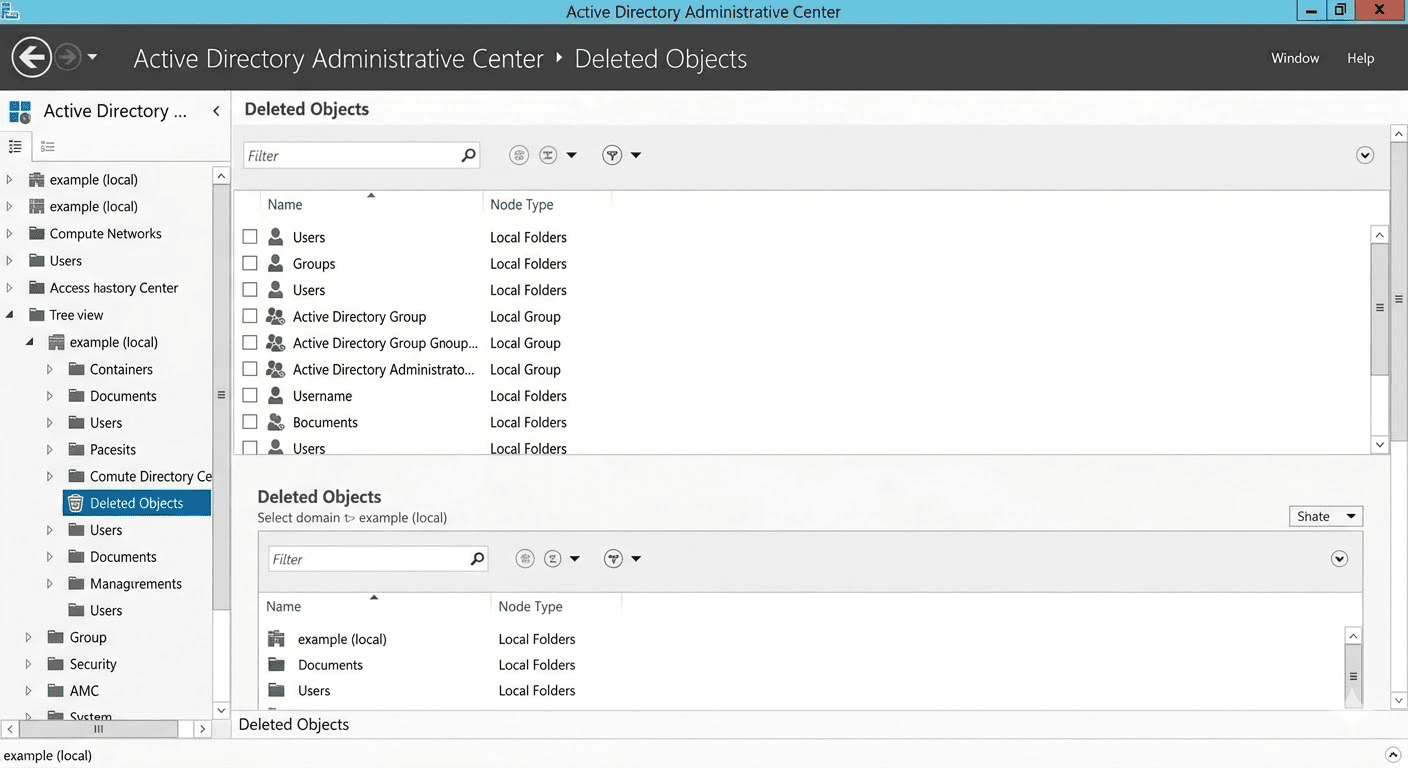
- On the left pane, select your domain and click the Deleted Objects container.
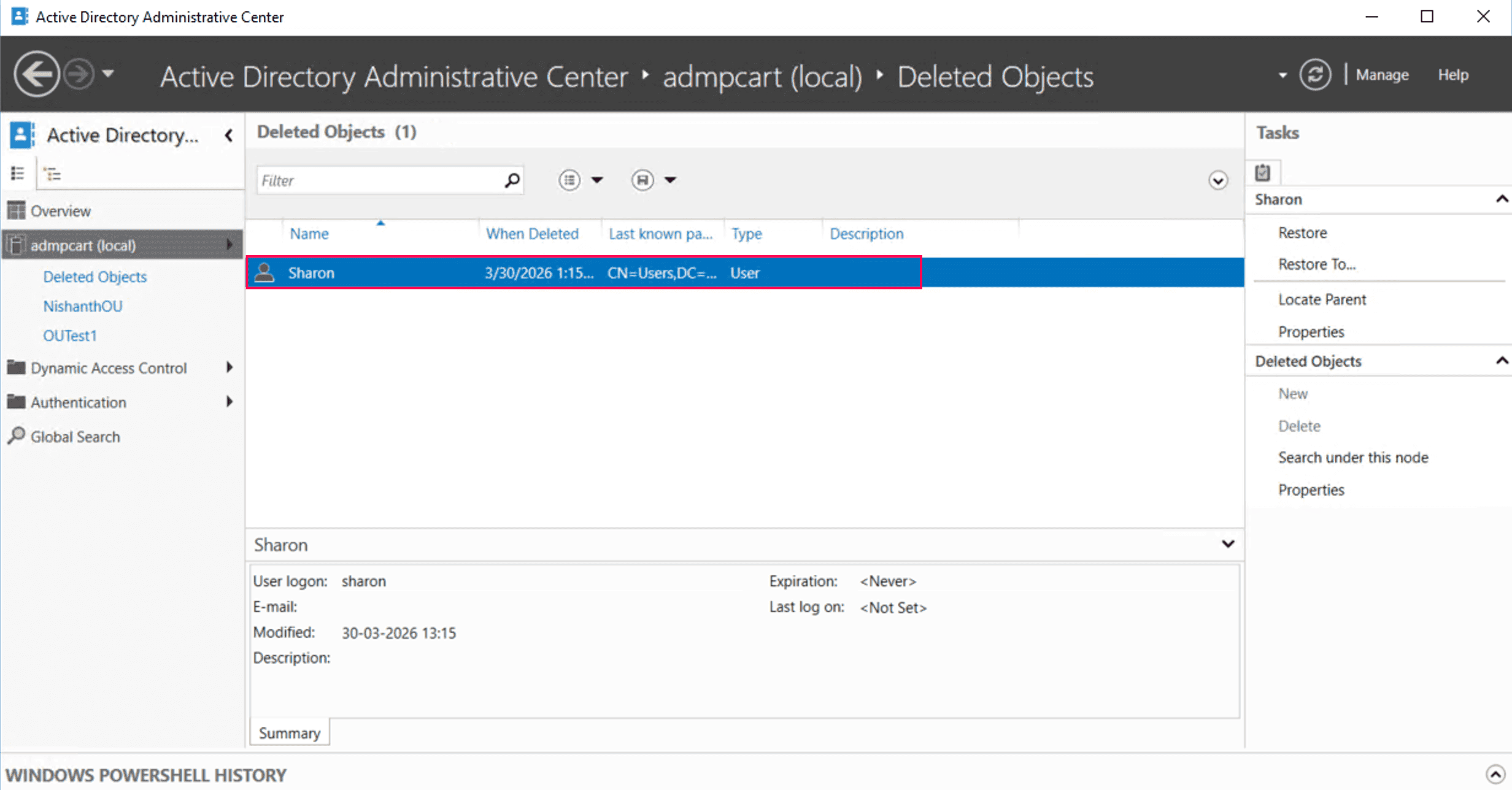
- Browse the list or use the search bar to locate the deleted user.
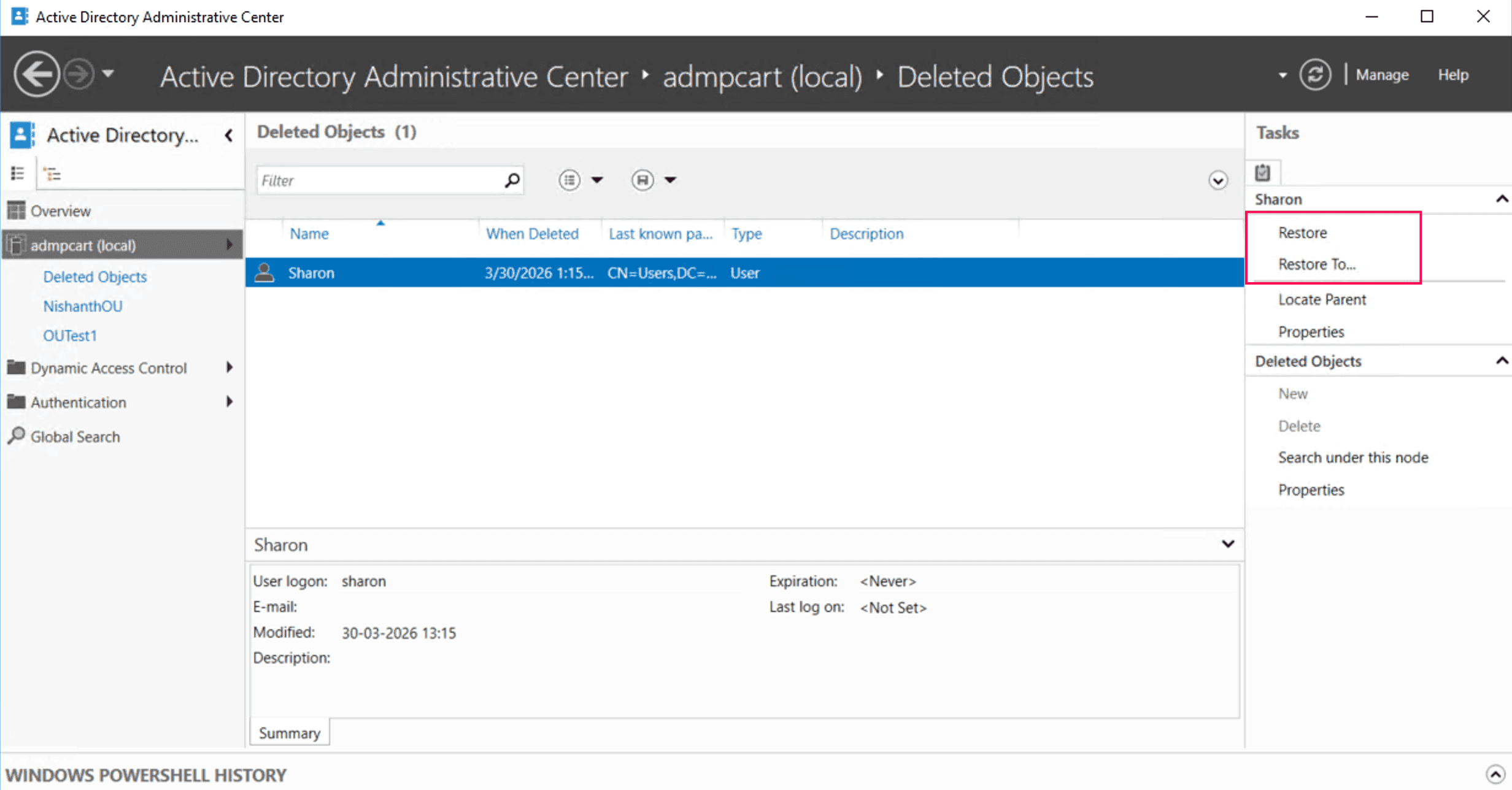
- Click Restore to return the user object to its original OU, or click Restore To to specify a new location.


Limitations
- This requires the AD Recycle Bin to be enabled.
- You cannot restore objects after the Tombstone Lifetime expires.
- There is no preview of object attributes before restoration.
Method 2: Restore deleted AD users using PowerShell
You can use PowerShell to restore deleted user objects directly from the Deleted Objects container.
Prerequisites
- You must run PowerShell as an administrator with Domain Admin or delegated permissions.
- The AD PowerShell module must be installed. To install it on Windows 10 or Windows 11, run the script below:
Add-WindowsCapability -Online -Name Rsat.ActiveDirectory.DS-LDS.Tools~~~~0.0.1.0
Ensure the module is loaded using the script below:
Import-Module ActiveDirectory
- Verify the Recycle Bin is enabled using the script below:
Get-ADOptionalFeature -Filter 'name -like "Recycle Bin Feature"' | Select-Object Name, EnabledScopes
Note: If the EnabledScopes property is empty, the AD Recycle Bin is not enabled. If it's not enabled, deleted objects cannot be restored using this method and must be recovered using the tombstone reanimation or authoritative restore approaches.
When the Recycle Bin is enabled
Restore the user using the display name
If you know the display name of the deleted user, run the following script:
Get-ADObject -Filter 'DisplayName -eq "Sharon"' -IncludeDeletedObjects | Restore-ADObject
Restore the user using the GUID
If multiple user objects share a similar name, using the ObjectGUID is the safest way to ensure you are restoring the correct record:
Get-ADObject -Filter 'ObjectGUID -eq "12345678-1234-1234-1234-1234567890ab"' -IncludeDeletedObjects | Restore-ADObject
Restore users in bulk
For example, if you want to restore all users deleted from a specific OU within the last 24 hours, use the following script:
$When = (Get-Date).AddDays(-1)

Get-ADObject -Filter 'isDeleted -eq $true -and whenChanged -gt $When' -IncludeDeletedObjects | Restore-ADObject
When the Recycle Bin is not enabled
When the Recycle Bin is not enabled, deleted objects become tombstones and lose most of their attributes. Based on Microsoft recommendations, the preferred recovery method in AD is the authoritative restore, which uses system state backups to recover objects and ensure they replicate correctly across domain controllers.
Tombstone reanimation using PowerShell provides only partial recovery as non-linked attributes and group memberships are permanently removed and must be manually rebuilt. Therefore, it should be used only when the authoritative restore method is not feasible.
Use the following PowerShell command to restore a tombstone object:
Get-ADObject -SearchBase "CN=Deleted Objects,DC=zylker,DC=com" -Filter 'Name -like "*Sharon*"' -IncludeDeletedObjects | Restore-ADObject
Supported parameters
| Parameter | Description |
|---|---|
| -Filter | Specifies a query string to identify the specific object to retrieve |
| -IncludeDeletedObjects | Searches the Deleted Objects container, which is hidden by default |
| -SearchBase | Specifies the Distinguished Name of the container to search within |
| -eq | A logical operator standing for equal to |
| -gt | A logical operator standing for greater than, often used for timestamps |
| ObjectGUID | The unique, never-changing 128-bit identifier assigned to an AD object |
| isDeleted | A Boolean attribute that marks whether an object has been moved to the Deleted Objects container |
Limitations
- This requires scripting knowledge.
- You cannot restore users if the parent OU is deleted.
- There's a risk of restoring the wrong objects due to filter errors or typos.
- Bulk restore operations can lead to performance lags.
Method 3: Restore deleted AD users using RecoveryManager Plus
Restoring deleted AD users using native tools like ADAC or PowerShell can be complex and time-consuming. These methods require manual validation and scripting and do not allow you to preview objects before restoration.
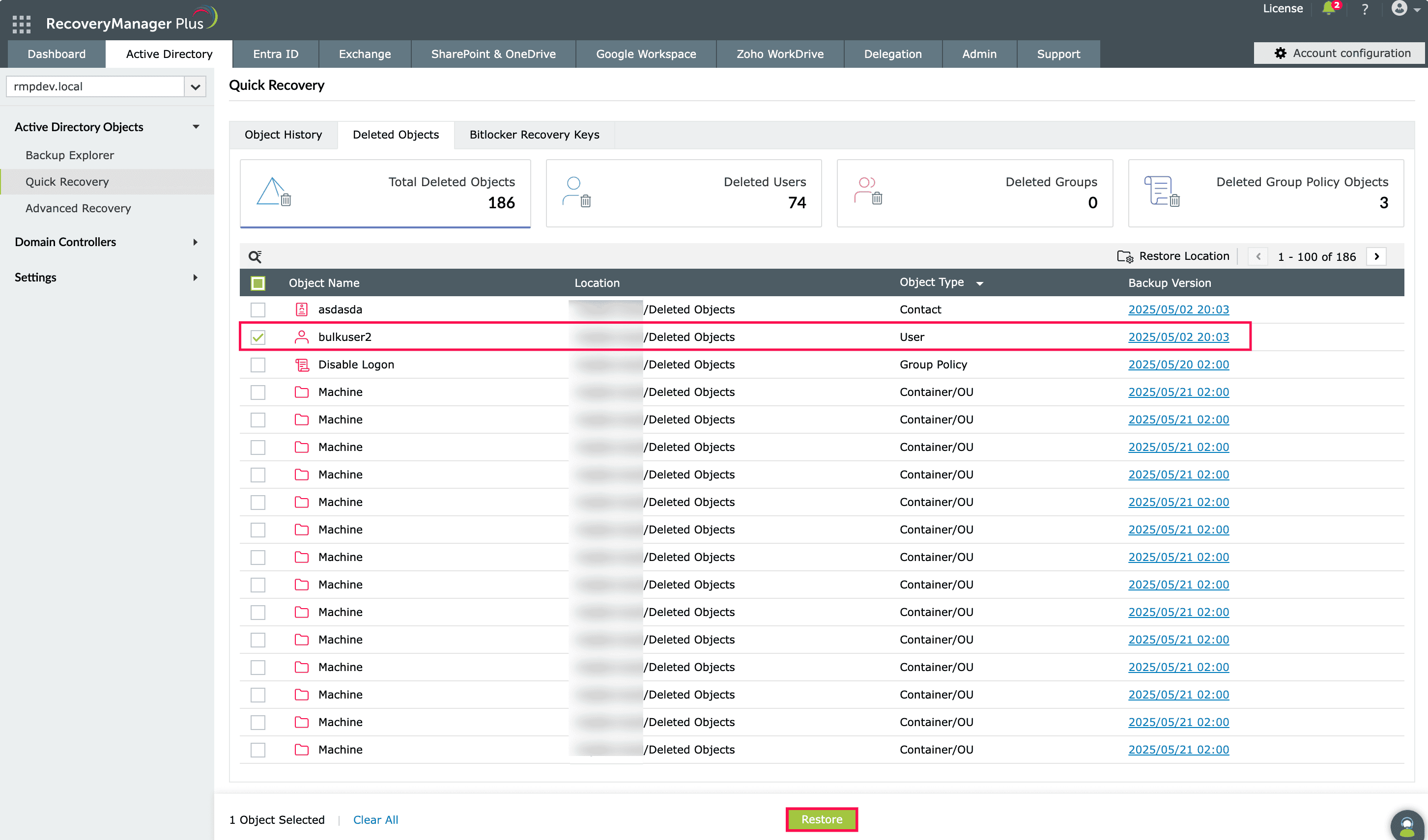
ManageEngine RecoveryManager Plus is a comprehensive AD backup and recovery solution designed to eliminate these complexities. It provides an easy-to-use, web-based interface where administrators can view, compare, and recover deleted AD objects from a dedicated Recycle Bin, ensuring that even if the native Recycle Bin fails or the Tombstone Lifetime expires, your data remains recoverable.
- Navigate to Active Directory > Active Directory Objects > Quick Recovery > Deleted Objects.
- Select the user object you wish to restore and click Restore.

Manage your AD recovery effectively
ManageEngine RecoveryManager Plus simplifies AD recovery by providing a centralized, web-based interface to backup and restore deleted AD users quickly and reliably. With built-in backup, granular restoration, and rollback capabilities, administrators can recover AD users and attributes in just a few clicks without relying on complex scripts or native tool limitations.
Domain controller backups
Back up domain controllers and restore them instantly in the event of a disaster.
Automated backups
Eliminate manual effort with scheduled backups that capture every change in your AD environment.
Granular restoration
Restore the entire domain, specific objects, or only the modified attributes.
Change tracking
Monitor changes made to AD objects and undo them instantly from a single dashboard.
Rollbacks
Roll back user objects to any previous backed-up version, ensuring all attributes are intact.
Best practices for AD recovery
Follow these best practices to strengthen your AD recovery strategy and ensure deleted objects can be restored efficiently when needed.
Perform regular backups
Schedule frequent AD backups based on your organization's recovery point objective to ensure objects can be restored to their latest versions when required.
Implement the 3-2-1 backup rule
Maintain three backup copies, store them on two different storage types, and keep one copy off-site or isolated.
Implement least privilege access
Ensure that only a limited number of administrators have the permissions required to delete objects.
Monitor critical OUs
Enable Protect object from accidental deletion on all critical OUs to prevent unintended administrative actions.
Perform testing regularly
Periodically test your backup and recovery processes to ensure they work as expected.
Frequently asked questions
No, native tools cannot recover objects once they are physically deleted (garbage-collected) after the Tombstone Lifetime expires. To restore these objects, you will require a third-party backup and recovery solution.
If the Recycle Bin is enabled, all group memberships are restored automatically. If the Recycle Bin is disabled and you are performing tombstone reanimation, group memberships are lost and must be added back manually.
No. All methods described in this guide (ADAC, PowerShell, and RecoveryManager Plus) allow for online restoration without downtime.