Connect your CloudSpend account to AI assistants with Zoho MCP
The Zoho MCP Server is a central place where you connect different services and make them available to AI tools through a single setup. It acts as a bridge between your apps and MCP clients like Claude, Cursor, Windsurf, and VS Code.Once a service is added to the MCP Server, any connected MCP client can access the service’s tools and run actions through natural language.
Overview
CloudSpend uses the MCP setup to help you explore your cloud cost data using AI assistants. Instead of opening CloudSpend and navigating through dashboards, you can ask questions directly from an MCP client.
The MCP Server connects these clients to CloudSpend’s existing APIs, so you can fetch cost data, run account level queries, review spend patterns, check anomalies, and examine tagging details through simple conversation prompts.
All modules in CloudSpend are supported. This means you can pull account wide information such as cost trends, resource details, breakdowns, hierarchy data, anomaly details, and more.
How is CloudSpend connected into Zoho MCP and why?
CloudSpend is integrated as a configured service in the Zoho MCP console. Once added, it provides a curated set of CloudSpend APIs, focused initially on the Accounts module to your authorized MCP-connected AI assistants. This connection pattern lets AI assistants access cloud cost data without direct API scripting. Queries about cost allocations, anomalies, or resource breakdowns are handled by intuitive AI prompts, with MCP translating them into CloudSpend API calls.
Available regions
Zoho MCP is available in the following data regions:
- US
- EU
- IN
- AU
- CA
- SA
- JP
- UAE
Supported MCP clients
Benefits of integrating CloudSpend with Zoho MCP
You can leverage the following benefits by using the Zoho MCP server:
- Explore CloudSpend data from the tools your teams already use.
- Save time by avoiding manual navigation through dashboards.
- Ask questions in natural language to make cost analysis easier.
- Maintain secure and controlled access through MCP authorization.
Managing authorization
The MCP Server controls how each connected user gets authorization to run CloudSpend. You can choose whether each user needs to authenticate individually or whether a single shared connection handles all calls.
Authorization in Zoho MCP can be set up using the following methods:
Authorization on Demand
This is the default authorization type. With Authorization on Demand, you must individually authorize your access to Zoho services via OAuth when using MCP tools. For example, if a CloudSpend analyst wants to run a cost report from their AI assistant (like Claude or Cursor), they need to log in and approve the access request through a secure OAuth authentication flow before the tool can perform actions or fetch data on their behalf. This method is ideal for cases where organizations require granular user authentication, ensuring every action is linked to a verified individual.
Use case
A finance team member asks Claude to show last month's AWS spending. Claude prompts the user to authenticate via OAuth. Once the user completes authentication, the AI agent accesses only the authorized CloudSpend data. An admin configures the MCP server so that each auditor must separately enable MCP tool access, maintaining clear audit trails linked to specific user identities.
Authorization via Connection
In Authorization via Connection, the MCP server is pre-authorized with a single, secure connection for all Zoho services. All users run tools with shared, centralized credentials, and individual OAuth steps are not needed for every session. This method works well for teams that want streamlined access for repetitive or automated workflows.
Use case
An operations analyst uses Claude to schedule weekly cost optimization reports. Because Authorization via Connection is active, Claude runs these reports without asking each user for authentication. Agents can fetch data and generate dashboards using server-level credentials.
During a periodic cost anomaly check, the MCP server automatically executes cost analyses and alerts for multiple users. Everyone in the approved group benefits from seamless access without repeated logins, as the connection remains continuously authorized.
Configuring the authorization type
You can configure the authorization type to securely use the tools of various Zoho services in your MCP server.
Use Authorization on Demand for sensitive data scenarios and high-compliance environments needing strict user-level controls and auditability. Use Authorization via Connection for trusted internal groups, high-volume automation, or when team-wide access is needed for consistency or efficiency. Both approaches leverage enterprise-grade security and OAuth for identity management.
MCP Tool configuration and grouping behavior
MCP integration lets you work with different CloudSpend components such as Accounts, Anomaly, Budget, Cost Allocation, Governance, Reports, and more.
In the Tools section, click Add Tools to add tools for the selected product. By default, tools are organized using a grouping model so each component appears as a group. Groups act as a logical way to organize tools and help you select related tools quickly.
Use Group view to select the required group and then choose the applicable tools. Switch to All Tools to view and search all available tools in the selected product.
When Group view is enabled, the number of available tools is shown next to each group. Selecting a group displays all tools related to that component, helping you choose tools based on the type of data or action required.
Groups can also have overlapping tools. When you select one group, tools that are shared with other groups are also automatically selected in those groups. In such cases, the other group shows a partially selected state with a minus symbol (−) along with the count of selected tools.
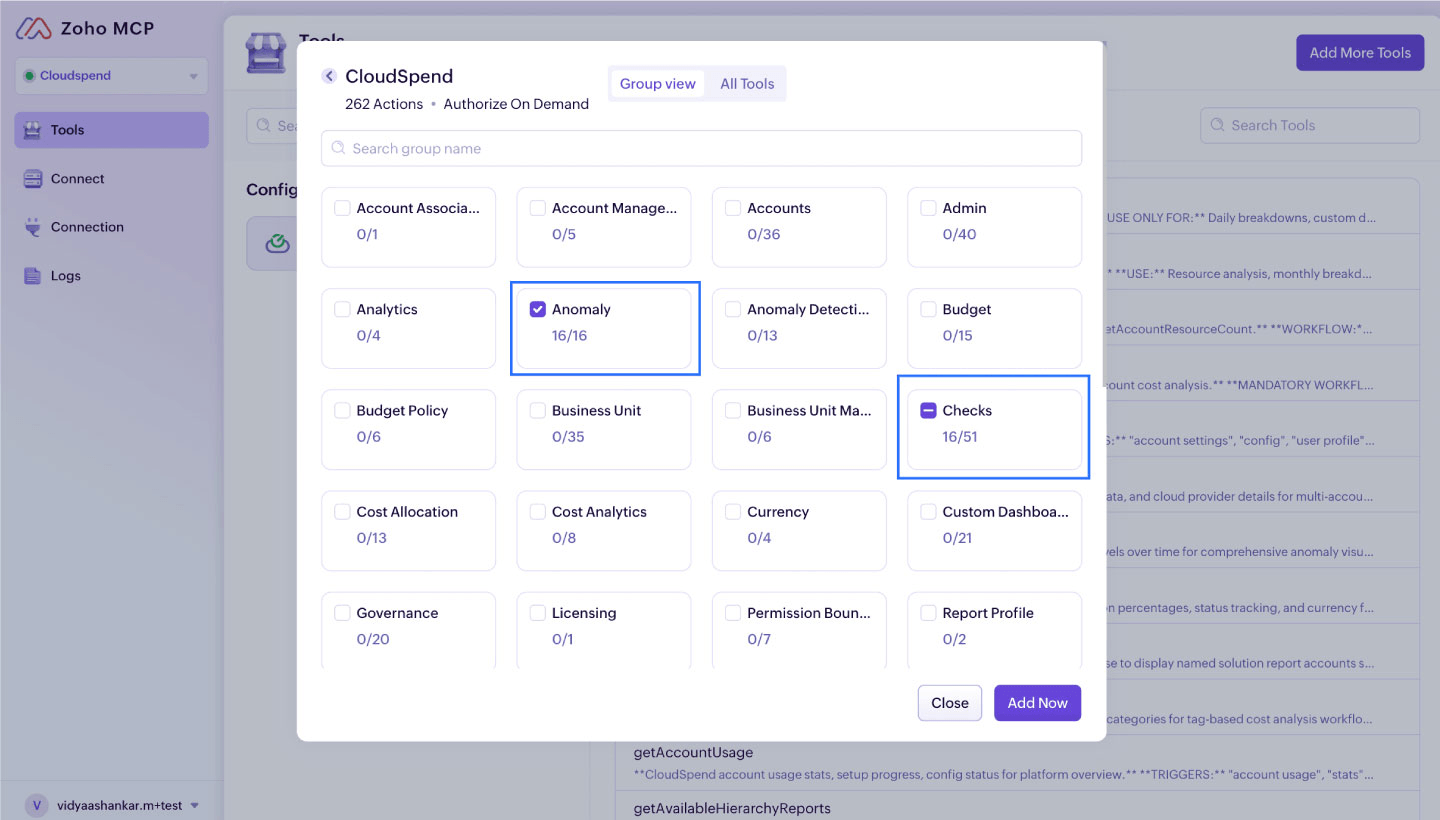
For example, the Anomaly group contains 16 tools. When you select it, all 16 tools are enabled and the group shows 16/16. The Checks group contains 51 tools, out of which 16 are shared with Anomaly. Since those shared tools are already selected, the Checks group shows "16/51", indicating that only a subset of tools in that group is selected.
When you switch to All Tools, all available tools for the product are listed in a single view. You can search and select tools directly without navigating through groups. MCP processes queries based on the tools that are enabled, regardless of their group association.
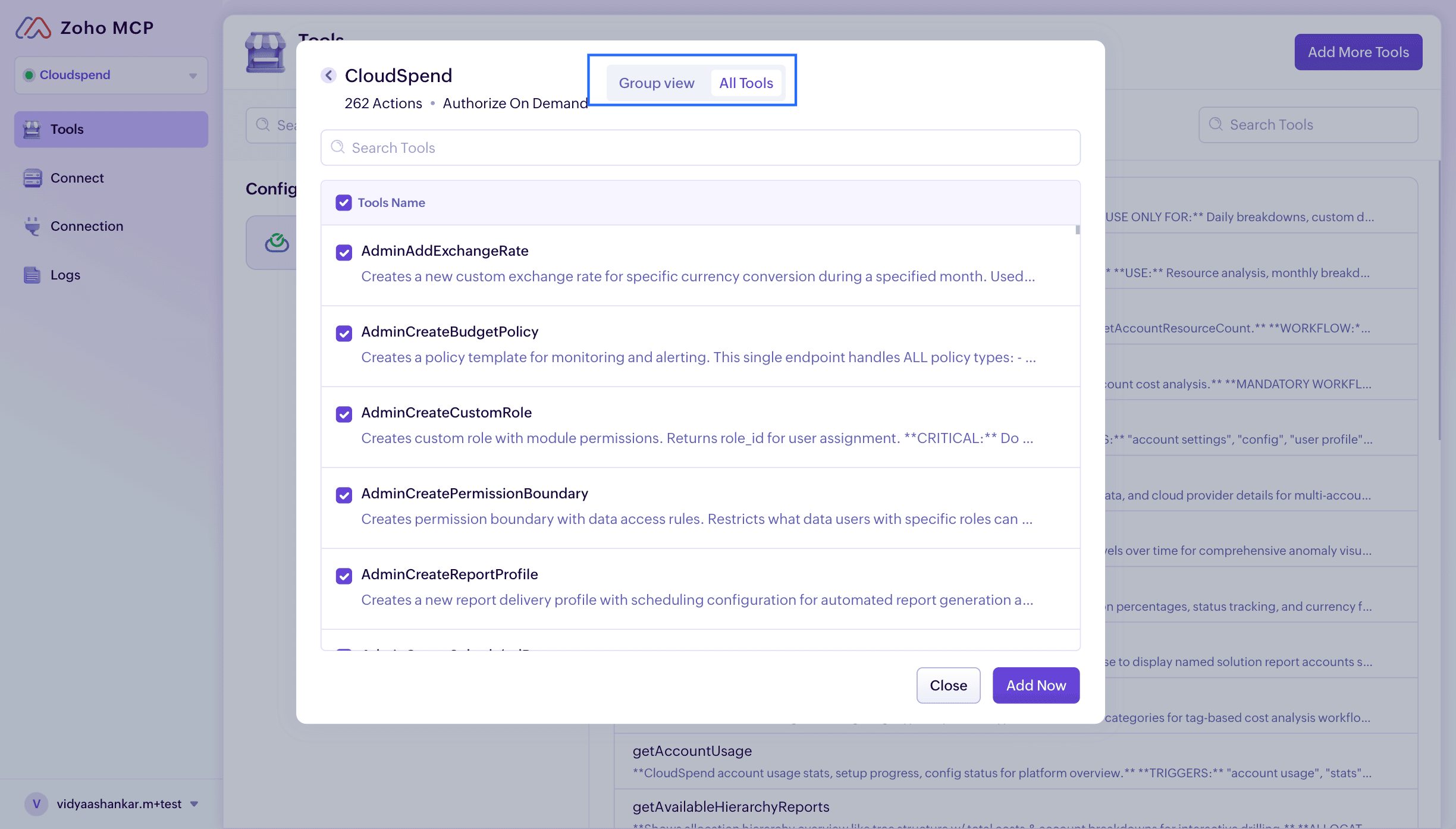
The behavior of MCP is determined by the selected tools. Groups only help organize and select tools, while the enabled tools define what data MCP can access and use to generate responses.
When you enter a prompt in an MCP client, MCP uses the enabled tools to collect data and return insights based on that context. If tools from multiple groups are selected, MCP can process queries across those areas.
The scope of MCP responses depends on the tools that are enabled.
For example, if tools from the Anomaly group are enabled, MCP considers anomaly data across the configured accounts and generates responses based on that data. If tools from the Budget group are enabled, MCP processes queries related to budget limits, utilization, and variance. If tools from the Cost Allocation group are enabled, MCP provides cost distribution insights based on dimensions such as cost centers or tags.
Configuring Zoho MCP with CloudSpend
To connect your Zoho MCP with CloudSpend follow the below steps:
- Create your Zoho MCP account.
- Set up a new MCP server in Zoho MCP.
- Go to the Tools section, search for CloudSpend, and add the tools you want. The accounts module currently provides 39 tools.
- Select your Authorization Method . You can use Authorization on Demand or Authorization via Connection.
- Open the Connect page and copy the MCP server URL.
- Add this URL to your MCP clients such as Claude, Cursor, Windsurf, or VS Code.
Example scenarios
Let’s look at a few examples to understand how the MCP workflow operates and how you can use it effectively.
Scenario 1: Unexpected cost surge investigation through AI
User prompt to the AI assistant (via an MCP client):
What caused the cost spike on November 1 in my cloud account?
How the request moves through Zoho MCP
- The AI assistant (for example, Claude) receives the question.
- It understands that the user wants the cause of a daily cost spike.
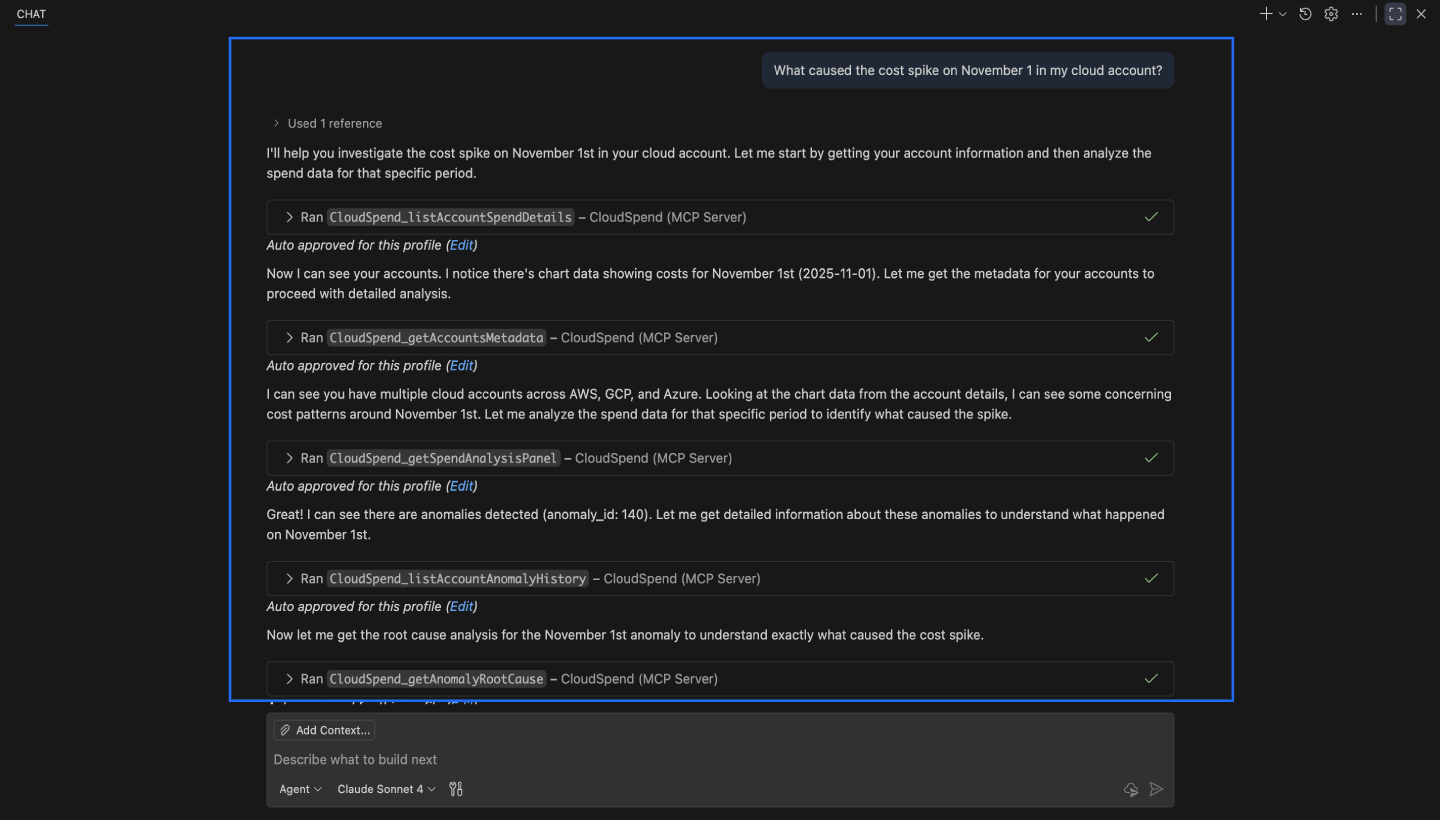
- The assistant identifies which CloudSpend tools, exposed through Zoho MCP, can answer this. It may call tools such as
- listAccountSpendDetails to identify the account with the cost spike.
- getAccountsMetadata to get account structure and billing IDs.
- getSpendAnalysisPanel to detect anomalies and get anomaly identifiers.
- listAccountAnomalyHistory to get the timeline of anomaly incidents for that specific date.
- getAnomalyRootCause to perform detailed root cause analysis identifying the specific resources and services that caused the spike.
- getAccountSpendAnomalyDetailsMeta to get comprehensive anomaly metadata including financial impact and deviation analysis.
- The MCP server takes the tool request and passes it to CloudSpend through CloudSpend’s existing APIs.
CloudSpend is not running an MCP. It is simply using Zoho MCP as the connector between AI assistants and CloudSpend’s API layer.
- The MCP Server returns structured data back to the assistant.
- The assistant interprets the results and produces a clear summary for the user.
The AI assistant, responds to the user prompt as given below:
Scenario 2: Scattered cost data - Combined compute cost view across accounts
User prompt to the AI assistant (via an MCP client):
Give me a combined view of compute costs across all my cloud accounts for last month.
How the request moves through Zoho MCP
- The AI assistant receives the request and interprets the intent:
- The user wants last month’s compute spend, aggregated across all CloudSpend accounts they have access to.
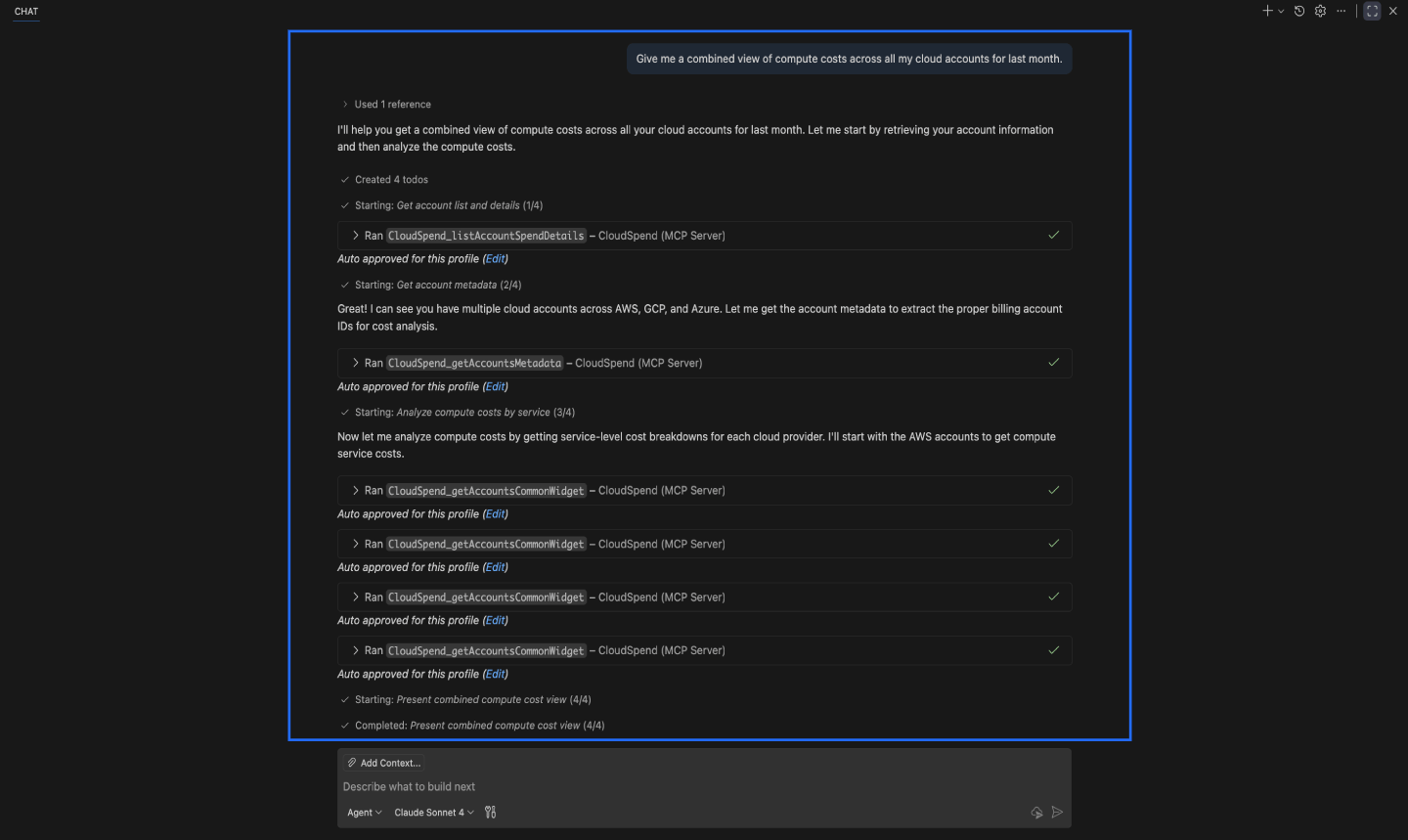
- The assistant identifies which CloudSpend tools, exposed through Zoho MCP, can fulfill this. It may call tools such as
- listAccountSpendDetails to gather all accounts available to the user with their cost data.
- getAccountsMetadata to get the account hierarchy structure and billing account IDs.
- getAccountsCommonWidget to get cost breakdown by services (including compute services).
- getAccountResourceCount and getAccountResourcePagination if deeper breakdown by compute resource type is needed.
- The MCP Server forwards each tool request to CloudSpend by calling the appropriate CloudSpend APIs.CloudSpend returns structured responses for each account.
- The MCP Server passes these results back to the assistant.
- The assistant then merges the data, interprets totals, and formats a clear summary.
The AI assistant, responds to the user prompt as given below:
Scenario 3: Verifying account coverage, budgets, and governance readiness
User prompt to the AI assistant (via an MCP client):
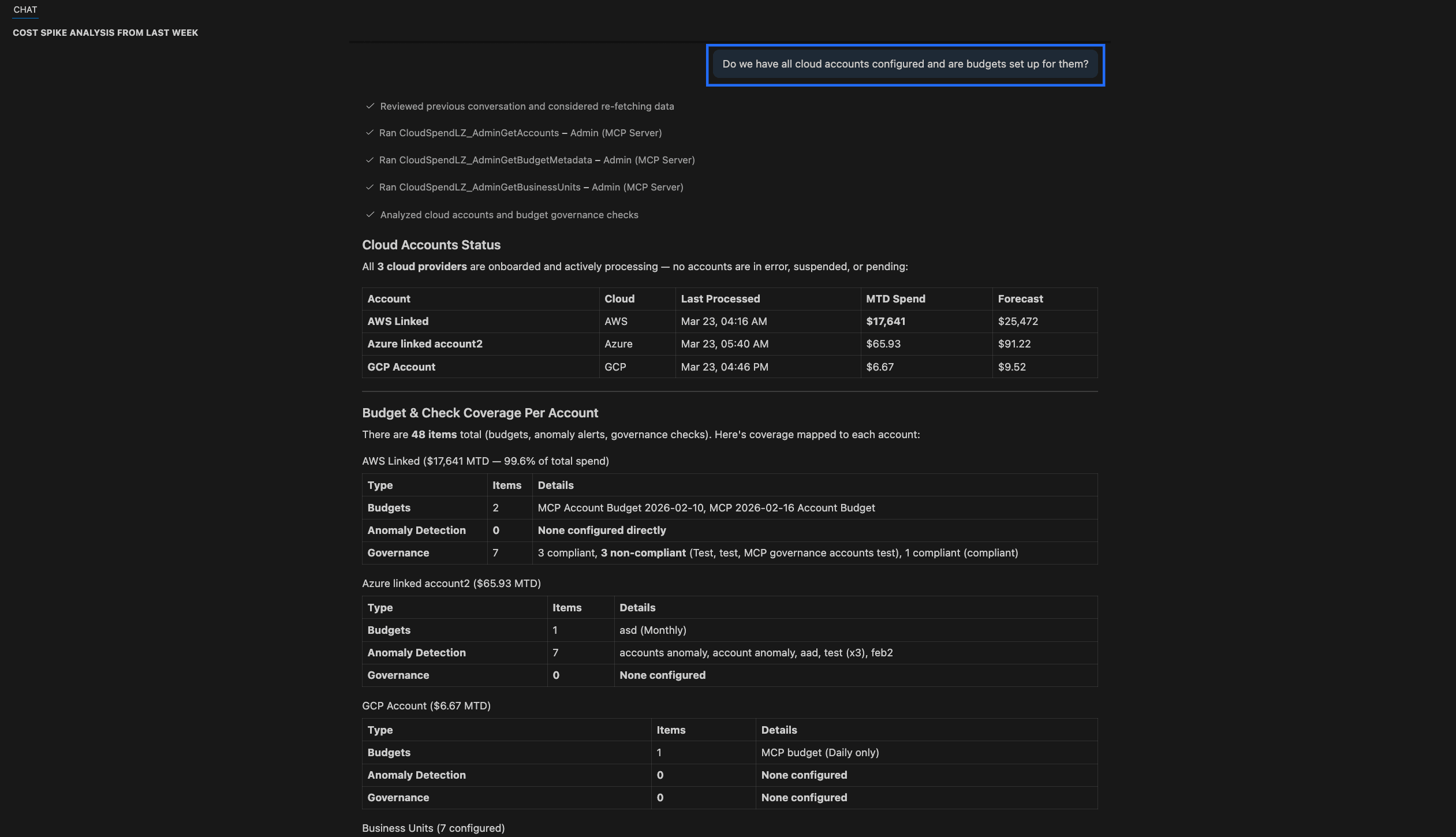
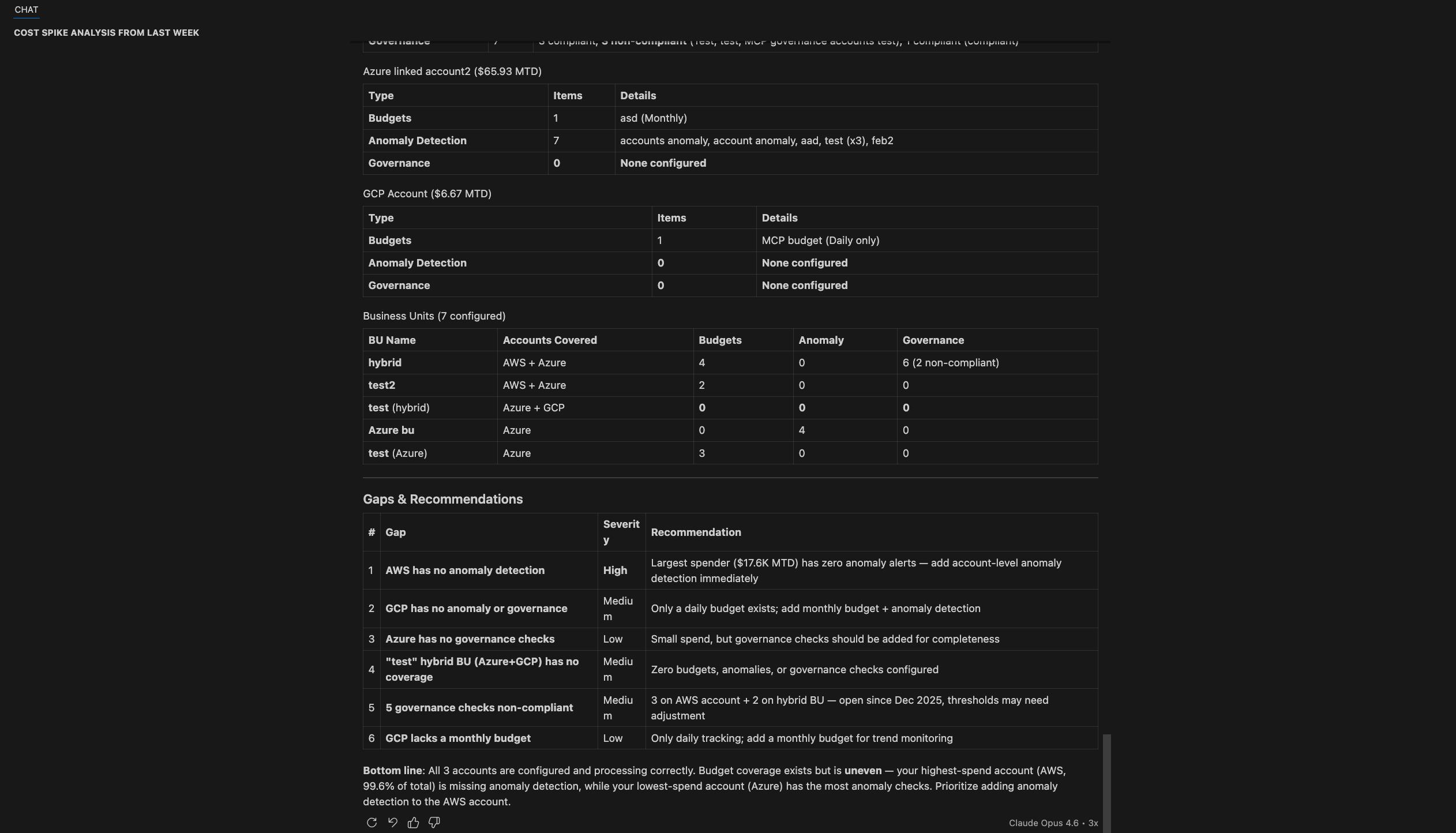
Do we have all cloud accounts configured and are budgets set up for them?
How the request moves through Zoho MCP
- The AI assistant receives the question. It understands that the user wants a consolidated view of account onboarding status, budget coverage, anomaly detection, and governance readiness.
- The assistant identifies which CloudSpend tools, exposed through Zoho MCP, can answer this. It may call tools such as:
- AdminGetAccounts to retrieve all configured cloud accounts and their status.
- AdminGetBudgetMetadata to fetch budget configurations across accounts.
- AdminGetBusinessUnits to map accounts to business units and understand organizational coverage.
- getAccountSpendDetails to analyze current spend and identify high spend accounts.
- getGovernanceChecksSummary to evaluate compliance and policy coverage.
- getAnomalyConfigurationDetails to verify whether anomaly detection is enabled.
- The MCP server takes the tool requests and passes them to CloudSpend through its APIs.
- CloudSpend processes the requests and returns structured data including:
- Account status and spend details
- Budget coverage per account
- Anomaly detection configuration
- Governance checks and compliance status
- Cost center level mapping
- The MCP server returns this structured data back to the assistant.
The assistant interprets the results, correlates data across accounts, budgets, anomalies, and governance, and identifies gaps and risks.
Connect your Site24x7 account to AI assistants with Zoho MCP
You can link your Site24x7 account to AI assistants through Zoho MCP and access monitoring information using simple conversational prompts. This connection lets you work with Site24x7 data from tools like Claude, Cursor, Windsurf, and VS Code without switching between consoles.
Through Zoho MCP, AI assistants can fetch alerts, performance details, status information, and other Site24x7 data using secure, authorized tool calls. This makes it easier for teams to review issues, check resource health, and work through operational tasks directly from their preferred MCP client.