Role-Based Access Controls for BitLocker Management
Separate who can configure BitLocker encryption from who can retrieve recovery keys.
Introduction
Why split access for BitLocker
Large organizations need to delegate encryption work without opening up every permission at once.
What RBAC gives you
Managing BitLocker encryption in large organizations requires strict access controls, to prevent unauthorized changes while keeping day-to-day operations smooth. Role-based access control (RBAC) lets IT teams delegate encryption management securely, so only designated technicians handle BitLocker configuration and recovery key management.
Endpoint Central MSP's granular access control separates BitLocker encryption configuration from recovery key access, so encryption policies are managed securely while recovery keys stay accessible only to authorized personnel.
Users
Assigning technician access
Grant a user the BitLocker Manager role, then restrict recovery key access separately.
Add a user with BitLocker access
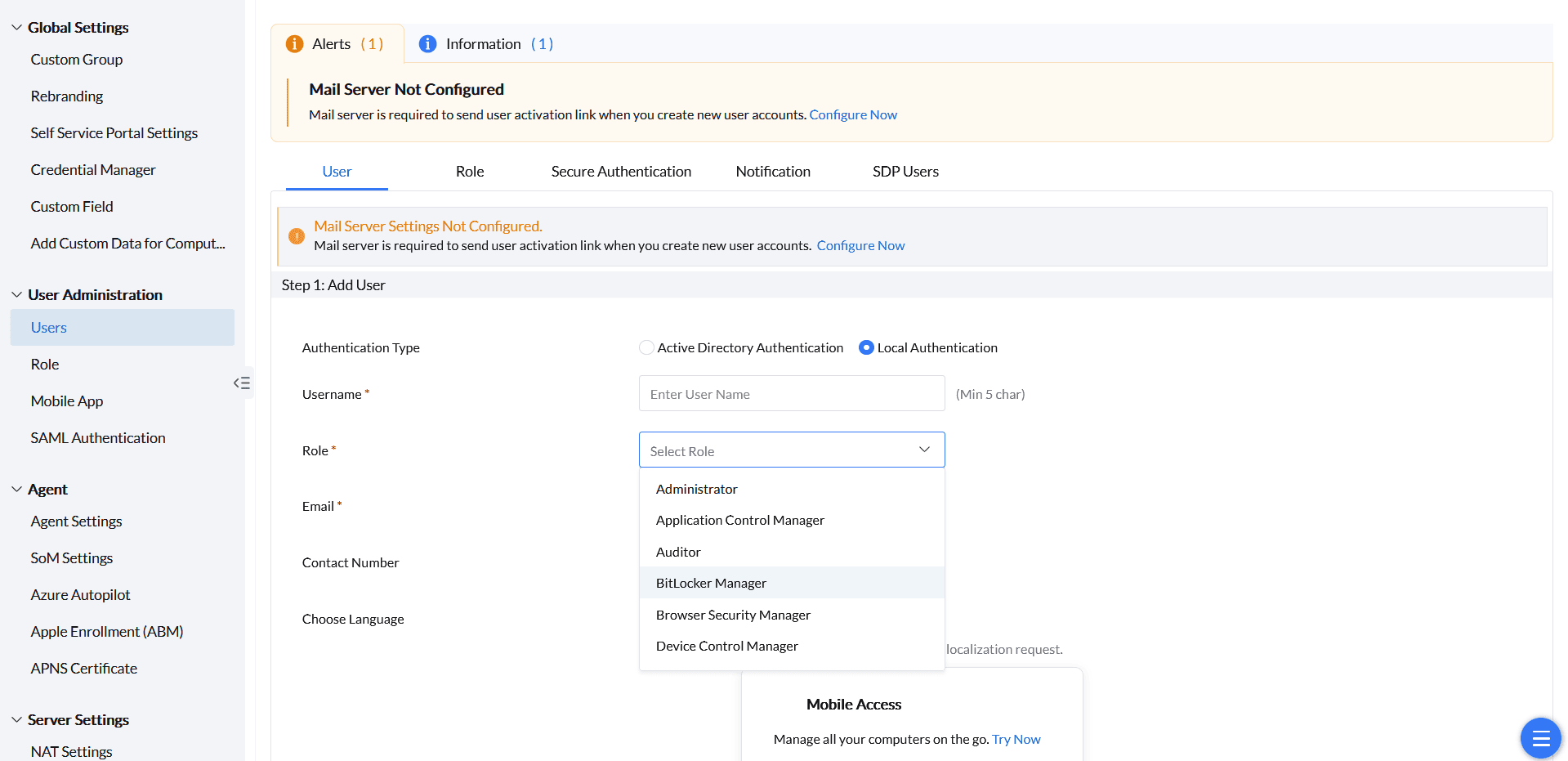
- Go to Admin → Users under User Administration in the web console.
- Click Add User and assign the BitLocker Manager role to grant access to BitLocker encryption settings.
- Restrict recovery key access under the Role tab so only specific users can retrieve recovery keys — see Assigning Technician Role below.
Roles
Assigning technician roles
Build a custom role scoped to exactly one of the two BitLocker permission areas.
Create a custom BitLocker role
- Go to Admin → Role under User Administration in the web console.
- Click Add Role and customize the access permissions for the role.
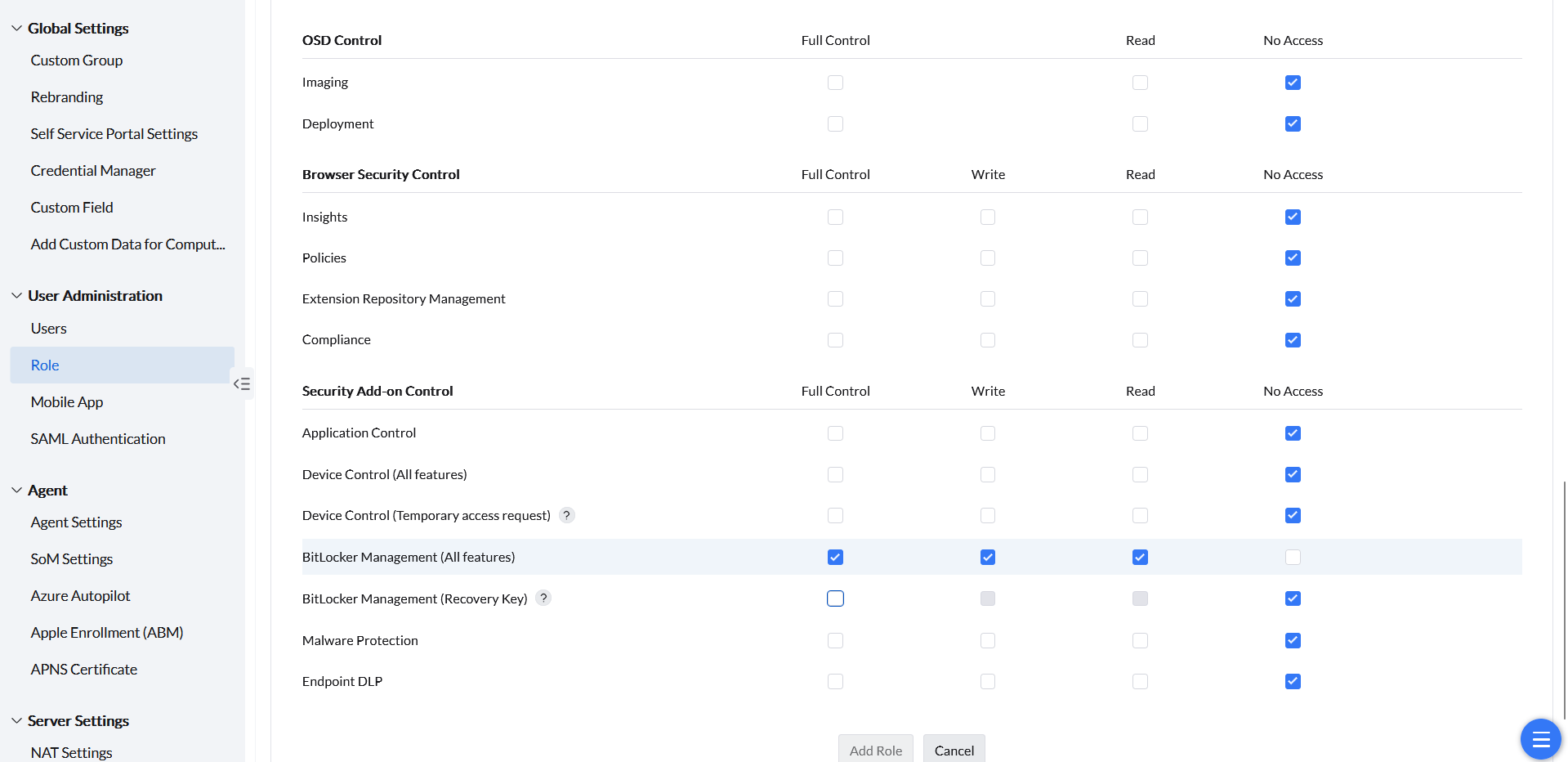
The two BitLocker permission areas are configured independently:
- Configuration access only — select Full Control for BitLocker Management (All features) and unselect Full Control for BitLocker Management (Recovery Key).
Configuration-only role permissions. - Recovery key access only — select Full Control exclusively for BitLocker Management (Recovery Key), leaving all other BitLocker permissions unchecked.
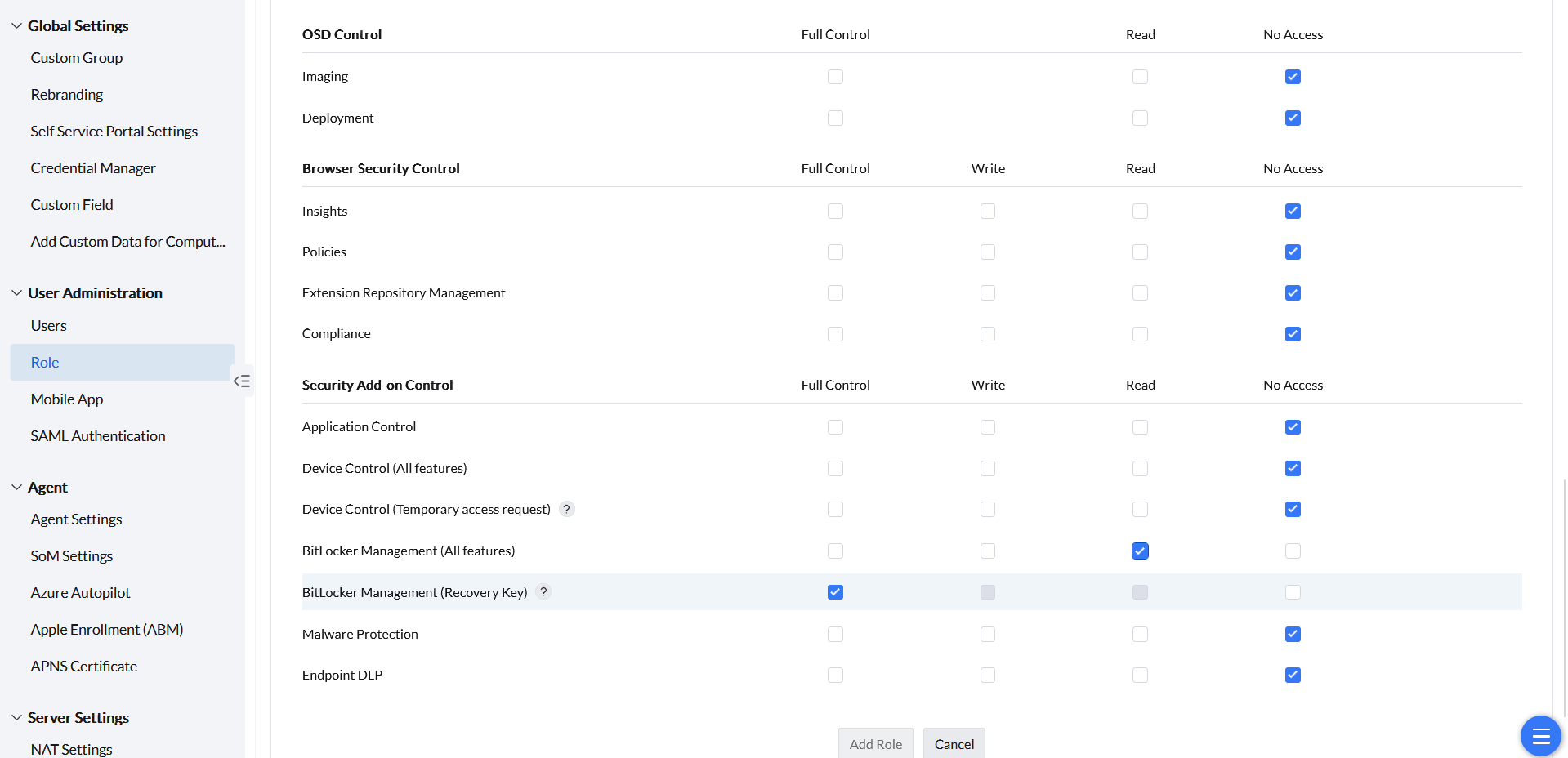
Recovery-key-only role permissions.