Slow Boot Time
The Slow Boot Time insight identifies devices where the time to complete the boot process exceeds the configured threshold. Boot time is a direct indicator of hardware health, software overhead, and storage performance — and a common source of user frustration, particularly at the start of the workday or after a forced restart.
Unlike the Slow User Logon insight which measures post-authentication delays, this insight captures the time from power-on to a ready operating system — before any user profile or application loads.
This insight helps administrators:
- Identify devices with degraded startup performance before users raise support tickets
- Determine whether slow boot is driven by storage type (HDD vs SSD), hardware model, or software overhead
- Identify devices that have pending reboots after software or update installations — a reboot pending state can cause misleadingly long boot times
- Prioritize hardware upgrades (HDD to SSD) for the devices where they will have the greatest impact
Trigger Conditions
The Slow Boot Time insight is generated when:
- Boot time exceeds 30 seconds. This is measured from the start of the OS boot process to the point at which the device becomes operational.
- Threshold values can be customized based on organizational performance expectations and device profiles.
Accessing the Insight
- In DEX Manager Plus, click DEX in the top navigation bar.
- Select Insights from the left sidebar.
- Locate the insight: Devices experiencing slow boot time.
- Click the insight name to open the detail view.
Interpreting the Insight Metrics
The insight details page shows four summary cards identifying scale, hardware model, vendor distribution, and the dominant storage technology across affected devices.
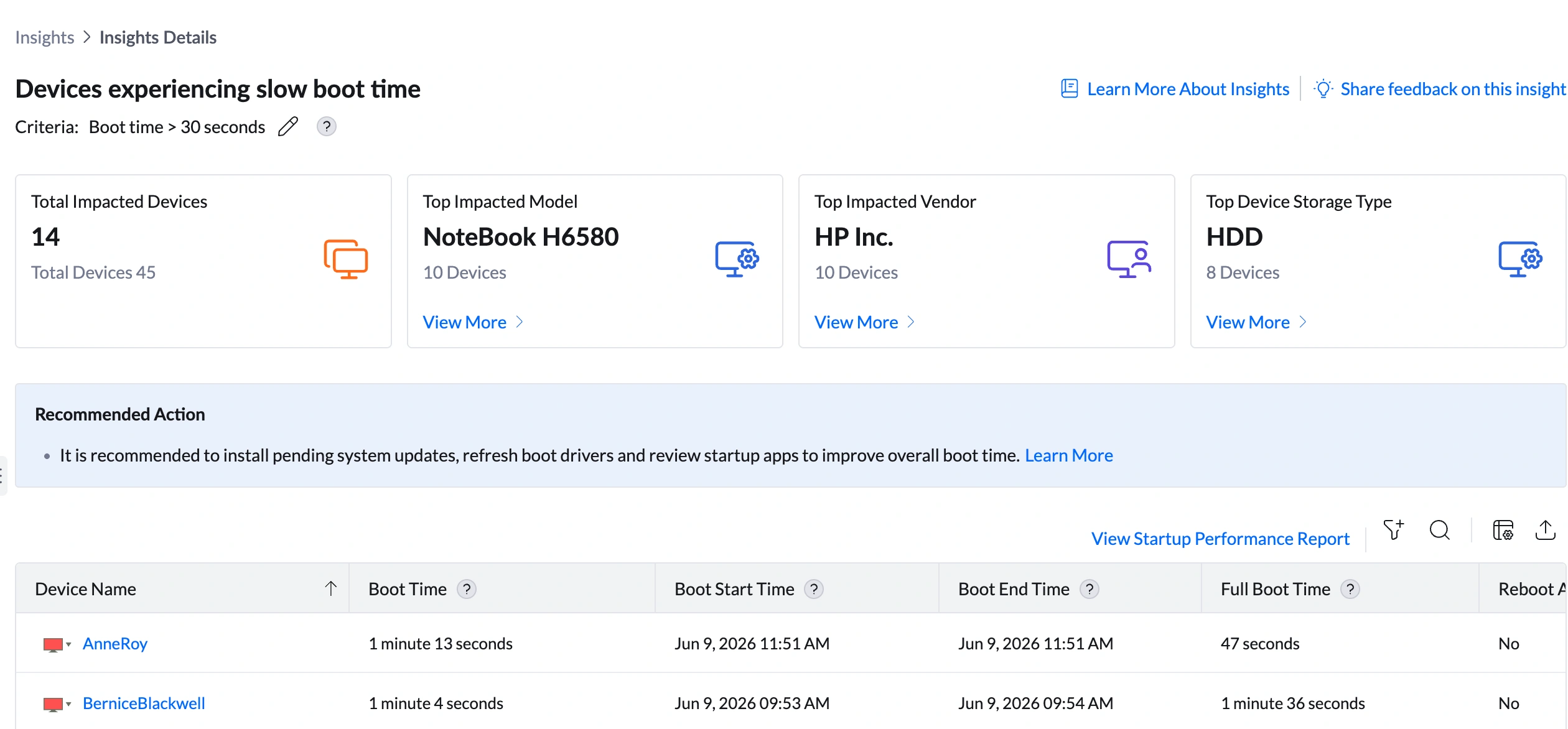
| Metric | What it shows | How to use it |
|---|---|---|
| Total Impacted Devices | Number of devices currently exceeding the boot time threshold (e.g., 14 out of 45 total) | Assess scale. A sudden increase after a Windows Update or driver deployment may indicate the update introduced a boot-time regression. A gradual increase over months points to aging hardware or accumulating software overhead. |
| Top Impacted Model | The device model most commonly associated with slow boot (e.g., NoteBook H6580 — 10 devices) | Click View More to open the Impacted Models Summary showing Model Name, Total Devices, Affected Devices, % of Devices Affected, and Insight Contribution %. NoteBook H6580 at 71% contribution with 100% devices affected indicates this model is systematically slow to boot. Check whether the model ships with HDD storage by default — this is the most common reason a specific model dominates this insight. |
| Top Impacted Vendor | The hardware manufacturer most frequently associated with slow boot (e.g., HP Inc. — 10 devices, 71%) | Click View More to see vendor-level breakdown. HP Inc. at 71% combined with NoteBook H6580 at 71% confirms this is a model-specific issue within the HP fleet. If all affected HP devices share the same hardware model, the remediation is targeted: upgrade that model's boot drive from HDD to SSD. |
| Top Device Storage Type | The storage technology most commonly associated with slow boot (e.g., HDD — 8 devices, 57%) | Click View More to open the Impacted Disk Storage Types Summary. HDD at 57%, NVMe at 21%, SSD at 21% tells a clear story: HDDs are the primary driver of slow boot in this fleet. When HDD devices dominate this insight, the single most impactful remediation is an HDD-to-SSD upgrade. Software changes alone will not close the performance gap. |
Analyzing Affected Devices
The device table shows detailed boot timing data for every impacted device. This insight has a uniquely rich column set — including two different boot time measurements and a flag for pending reboots.
Understanding the columns
| Column | What to look for | What it means for remediation |
|---|---|---|
| Boot Time | The time from boot process start to OS ready state — the primary metric that triggers this insight (e.g., AnneRoy: 1 min 13 sec, BerniceBlackwell: 1 min 4 sec, FrancisOmersa: 1 min 42 sec) | Primary triage column. Sort descending to prioritize the worst affected devices. Devices over 2 minutes are severely impacted. |
| Boot Start Time / Boot End Time | The exact timestamps when the boot process started and ended (e.g., BerniceBlackwell: 09:53 AM start, 09:54 AM end) | Use Boot Start Time to identify if boots are occurring at unusual times (e.g., overnight restarts triggered by update installations). The gap between start and end timestamps independently confirms Boot Time accuracy. |
| Full Boot Time | The total time from boot start through post-logon background initialization — includes startup services and background processes completing after the desktop appears (e.g., AnneRoy: 47 sec, BerniceBlackwell: 1 min 36 sec, FrancisOmersa: 1 min 10 sec) | Critical for diagnosis. Boot Time and Full Boot Time can differ significantly. AnneRoy: Boot Time 1:13 but Full Boot Time only 47 sec — the OS reached the logon screen slowly, but post-logon initialization is fast; the pre-logon OS boot process is the bottleneck. BerniceBlackwell: Boot Time 1:04 but Full Boot Time 1:36 — the device keeps loading processes well after the desktop appears, delaying true usability. A Full Boot Time significantly longer than Boot Time indicates background services and startup apps are the bottleneck, not the OS boot process itself. |
| Reboot After Install | Whether the device has a pending reboot from a software or update installation (e.g., all visible devices show No) | A device with Reboot After Install: Yes may show an inflated Boot Time because the previous boot included update finalization steps. Always check this column before concluding that boot time is genuinely slow — a pending reboot state can add significant time to a single boot event. |
| OS Disk Type | The storage technology of the OS boot drive (e.g., AnneRoy: NVMe, BerniceBlackwell: HDD, FrancisOmersa: SSD) | Cross-reference with Boot Time. AnneRoy (NVMe) at 1:13 is unusually slow for NVMe — software or configuration is likely the cause. BerniceBlackwell (HDD) at 1:04 is expected for HDD — hardware upgrade is the fix. FrancisOmersa (SSD) at 1:42 is unexpectedly slow for SSD — driver, firmware, or startup app investigation needed. |
Sorting and filtering the table
- Sort by Boot Time descending — surfaces the worst affected devices first.
- Sort by Full Boot Time descending — identifies devices where background initialization is extending the usability window beyond the displayed boot time.
- Filter by OS Disk Type — isolate HDD devices to prioritize hardware upgrade candidates, or NVMe/SSD devices to focus on software-driven slowdowns.
- Use the search icon to find a specific device by name.
Root Cause Investigation
Step 1 — Determine whether the cause is hardware or software
OS Disk Type is the fastest diagnostic signal in this insight. Use it to split devices into two investigation tracks before doing anything else.
| OS Disk Type | Expected boot time | If boot time exceeds expected | Investigation track |
|---|---|---|---|
| HDD | 60—120 seconds is typical for a healthy HDD | Boot time above 2—3 minutes may indicate a degrading drive, excessive fragmentation, or a failing sector | Hardware track — HDD-to-SSD upgrade is the most effective fix. Software tuning will help marginally. |
| SSD | 15—30 seconds is expected for a healthy SSD | Boot time above 30 seconds on an SSD is unexpected and warrants software investigation | Software track — investigate startup apps, drivers, and pending updates. An SSD should not be slow to boot under normal conditions. |
| NVMe | Under 15 seconds is expected for a healthy NVMe drive | Boot time above 30 seconds on NVMe is a clear signal of a software, driver, or firmware issue | Software track — check for driver conflicts, firmware updates, or a startup process holding the boot sequence. |
Step 2 — Check Boot Time vs Full Boot Time
Compare Boot Time and Full Boot Time for each device to identify where the delay is occurring:
| Pattern | What it means | What to do |
|---|---|---|
| Full Boot Time < Boot Time (e.g., AnneRoy: Boot 1:13, Full 0:47) | The OS boot itself is slow but background initialization completes quickly after logon. The boot process — driver loading, OS initialization — is the bottleneck. | Focus on driver updates, firmware updates, and OS updates. The startup app sequence is not the primary issue here. |
| Full Boot Time > Boot Time (e.g., BerniceBlackwell: Boot 1:04, Full 1:36) | The OS boots reasonably but continues loading processes long after the desktop appears. Background services and startup apps are extending usability time. | Focus on reducing startup apps and setting services to Delayed Start. Cross-reference the Slow User Logon insight for the same devices — it surfaces per-app degradation time. |
| Full Boot Time ≈ Boot Time | Both the OS boot phase and the startup phase are contributing roughly equally. | Address both: check driver health for the boot phase and review startup apps for the post-boot phase. |
Step 3 — Check Reboot After Install status
Review the Reboot After Install column. If a device shows Yes, its most recent boot included finalizing a software installation or Windows update — which adds significant time to that boot event and may not represent the device's typical boot performance. Do not escalate a device for hardware investigation based solely on a boot time recorded during a post-install reboot.
Step 4 — Check storage type drill-down
Click View More under Top Device Storage Type to open the Impacted Disk Storage Types Summary:
- HDD: 8 devices, 100% affected, 57% contribution — the majority of slow-boot devices have HDD storage
- NVMe: 3 devices, 100% affected, 21% contribution — all NVMe devices are affected, which is unexpected and warrants driver/firmware investigation
- SSD: 3 devices, 100% affected, 21% contribution — similarly unexpected; software investigation needed
The HDD dominance (57%) confirms that hardware is the primary fleet-wide driver. However, the NVMe and SSD devices being 100% affected is a separate signal — those should not be slow and require individual investigation.
Step 5 — Validate with the Startup Performance Report
Click View Startup Performance Report at the top right of the device table for historical context:
- Boot Time trend over time — confirms whether performance is stable, worsening, or improved after a change
- Boot Start Time history — identifies whether devices are rebooting unexpectedly at unusual times
- Reboot After Install history — shows whether update-related reboots are inflating reported boot times
Remediation
Use OS Disk Type and Boot Time vs Full Boot Time to select the right remediation path per device.
| If you see this... | Do this |
|---|---|
| OS Disk Type is HDD and Boot Time is 60—120 seconds | Expected for HDD hardware. Short-term: reduce startup apps via Configurations > Windows > Startup Programs, and set non-critical services to Delayed Start. Long-term: plan an HDD-to-SSD upgrade for these devices. An SSD upgrade typically reduces HDD boot times from 60—120 seconds to under 20 seconds — the most impactful single change available. |
| OS Disk Type is SSD or NVMe and Boot Time exceeds 30 seconds | This is unexpected and requires investigation. First check for pending Windows updates via Threats & Patches — an unfinished update can slow boot. Then connect via Remote Actions > Remote Desktop and open Event Viewer > Windows Logs > System. Filter for critical errors during the boot window (Boot Start Time to Boot End Time) to identify failing drivers or services. |
| Full Boot Time is significantly longer than Boot Time | Startup apps and background services are extending usability time after the desktop appears. Review startup apps for this device using the Slow User Logon insight, which surfaces per-app degradation time. Set non-critical services to Delayed Start via Configurations > Windows > Services. |
| NoteBook H6580 accounts for 71% of model contribution | This model is systematically slow across all its devices. Verify whether it ships with HDD storage by default. If yes, create a hardware upgrade plan to replace the HDD with an SSD across all NoteBook H6580 devices in the fleet. Prioritize by current Boot Time severity. |
| Reboot After Install shows Yes on a device with high Boot Time | The slow boot may be a one-time event caused by update finalization. Do not escalate immediately. Wait for the next clean boot (without a pending install) and check whether boot time returns to normal. If it remains high after a clean boot, proceed with standard investigation. |
| Boot time increased suddenly across multiple devices at the same time | A recent Windows Update, driver deployment, or software installation may have introduced a boot regression. Navigate to Software Deployment > Deployment History and filter by the date the increase was observed. Check whether a driver update for a storage controller or chipset was deployed around that time. |
| A single device has persistently high boot time while similar devices do not | The device may have a failing or degraded storage drive. Connect via Remote Actions > Remote Desktop and run: wmic diskdrive get status,model in Command Prompt. A status other than 'OK' indicates drive health issues. Also check Event Viewer for disk errors during the boot window. If the drive is failing, replace it before data loss occurs. |
Post-Remediation Monitoring
- Return to DEX > Insights. The device count on the Slow Boot Time insight should have decreased. If it has not, the remediation has not taken effect — verify that any configuration policy was applied and that the device has rebooted since.
- Open DEX > Reports > Startup Performance Report and filter by the previously impacted devices. Confirm Boot Time has dropped below the configured threshold.
- For devices where HDD-to-SSD upgrades were performed, verify OS Disk Type now shows SSD in the device table and confirm Boot Time has reduced accordingly.
- Set up an Alert (DEX > Alerts) targeting these devices for boot time threshold notifications so you are informed if performance degrades again after future updates.
Configuring the Boot Time Threshold
- Navigate to DEX > Insights.
- Locate the Slow Boot Time insight row.
- Click the edit icon (pencil) next to the criteria description.
- Update the boot time threshold and save.
Frequently Asked Questions
Boot Time measures the duration from the start of the Windows boot process to the logon screen being displayed. Full Boot Time extends this measurement through post-logon background initialization — the period after the desktop appears during which services, startup apps, and background agents continue loading. A device may reach the desktop quickly (low Boot Time) but remain sluggish for several minutes while background processes complete (high Full Boot Time). Both metrics together give a complete picture of startup performance.
Reboot After Install indicates whether the most recent boot included finalizing a software installation or Windows update. When a device reboots after an install, Windows performs additional initialization steps — applying patches, updating registry entries, completing file operations — which can significantly increase that boot's recorded time. A high Boot Time on a device with Reboot After Install: Yes may be a one-time event. Verify by checking the next clean boot before escalating to hardware investigation.
SSDs and NVMe drives should boot well under 30 seconds under normal conditions. If they are appearing in this insight, the bottleneck is almost never the storage hardware — it is typically a software issue: a failing or outdated driver, a pending Windows update introducing a boot regression, excessive startup apps, or a background service holding the boot sequence. Use Event Viewer on the affected device to check for errors during the boot window.
Yes — significantly. An HDD typically takes 45—120 seconds to boot Windows. An SSD typically takes 15—30 seconds. An NVMe drive typically boots in under 15 seconds. The difference is not marginal — it is 3 to 8 times faster. For any device where slow boot time is primarily caused by HDD storage, a hardware upgrade will deliver a larger improvement than any software optimization.
Slow Boot Time measures the OS initialization phase — from power-on to logon screen. Slow User Logon measures the authentication and profile-loading phase — from entering credentials to a usable desktop. They are sequential steps in the startup journey. A device can be slow at one and fast at the other. Both insights together cover the full startup experience: if a device appears in both, the user faces a compounded delay from power-on all the way to a ready desktop.
Yes. Slow Boot Time, Slow User Logon, Disk Contention, and High CPU Utilization are frequently connected on the same devices. A device with a slow HDD that triggers Slow Boot Time will often also appear in Disk Contention (due to high queue at startup) and High CPU Utilization (due to CPU spikes as startup apps all initialize simultaneously). Reviewing all four together for the same devices gives the most complete picture before deciding on remediation.