Configure life cycle management for Freshservice

About Freshservice

Freshservice is a cloud-hosted IT service management (ITSM) solution designed to help businesses streamline their IT processes and IT service delivery. Freshservice offers a variety of features, including incident management, problem management, change management, asset management, service catalog capabilities, and reporting tools for IT performance analysis.

By integrating Freshservice with ManageEngine Identity360, you can enable the following life cycle management capabilities:

  • Identity synchronization  

    Import and synchronize user accounts, departments, agent groups, and roles from Freshservice into Identity360, manage their identities in Universal Directory, and sync them to other directories and applications. This enables admins to oversee all user-related actions from a single console.

  • Provisioning  

    Provision and modify users' access and account attributes across enterprise applications based on their role changes in Freshservice. Provisioning and orchestration eases onboarding and life cycle management, boosting productivity and efficiency.

  • Access management  

    Manage the roles and permissions of users in Freshservice from the Identity360 portal. Enforce least privilege and reduce security risks by granting users only the permissions they need to perform their jobs.

Provisioning features supported

  • Creation: Automatically set up a new user account in Freshservice via provisioning when a user is created in Identity360.
  • Modification: Modify user attributes in Freshservice as and when their profiles get modified in Identity360.
  • Deletion: When a user is deprovisioned through Identity360, the user account will be automatically deleted in Freshservice.
    Note: Once you enable provisioning for Freshservice, user creation, modification or deletion will automatically happen as and when users are created, modified, and deleted in Identity360.

The following steps will help you configure the supported life cycle management capabilities for Freshservice from Identity360.
Prerequisites

  1. Log in to Freshservice as an admin or as a user with admin privileges.
  2. Copy the Sub domain name from the URL. For instance, if the URL is mars.freshservice.com, then mars is the subdomain name.
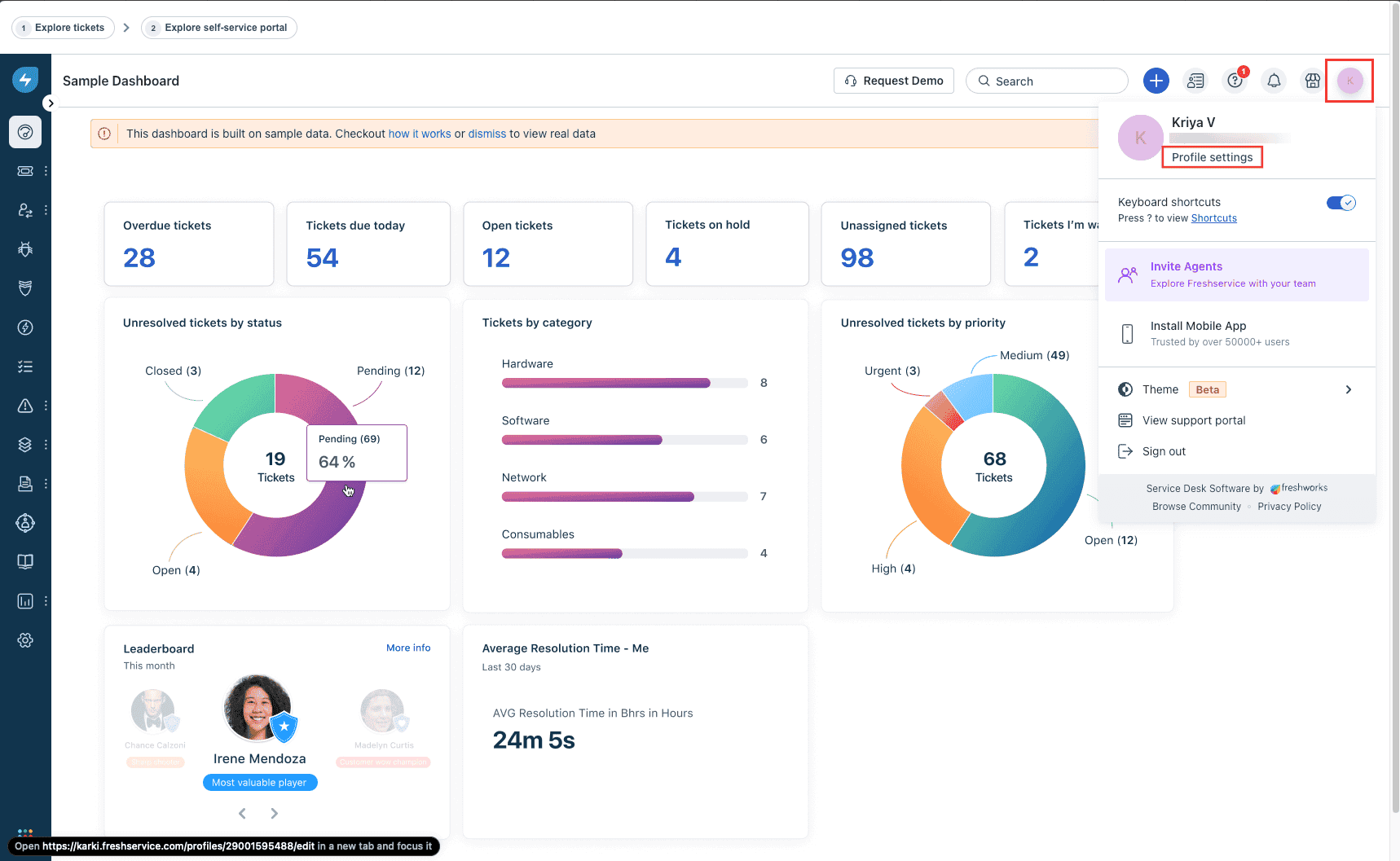
  3. Click the Profile icon and select Profile settings.
    Freshservice portal viewThe portal view of Freshservice.
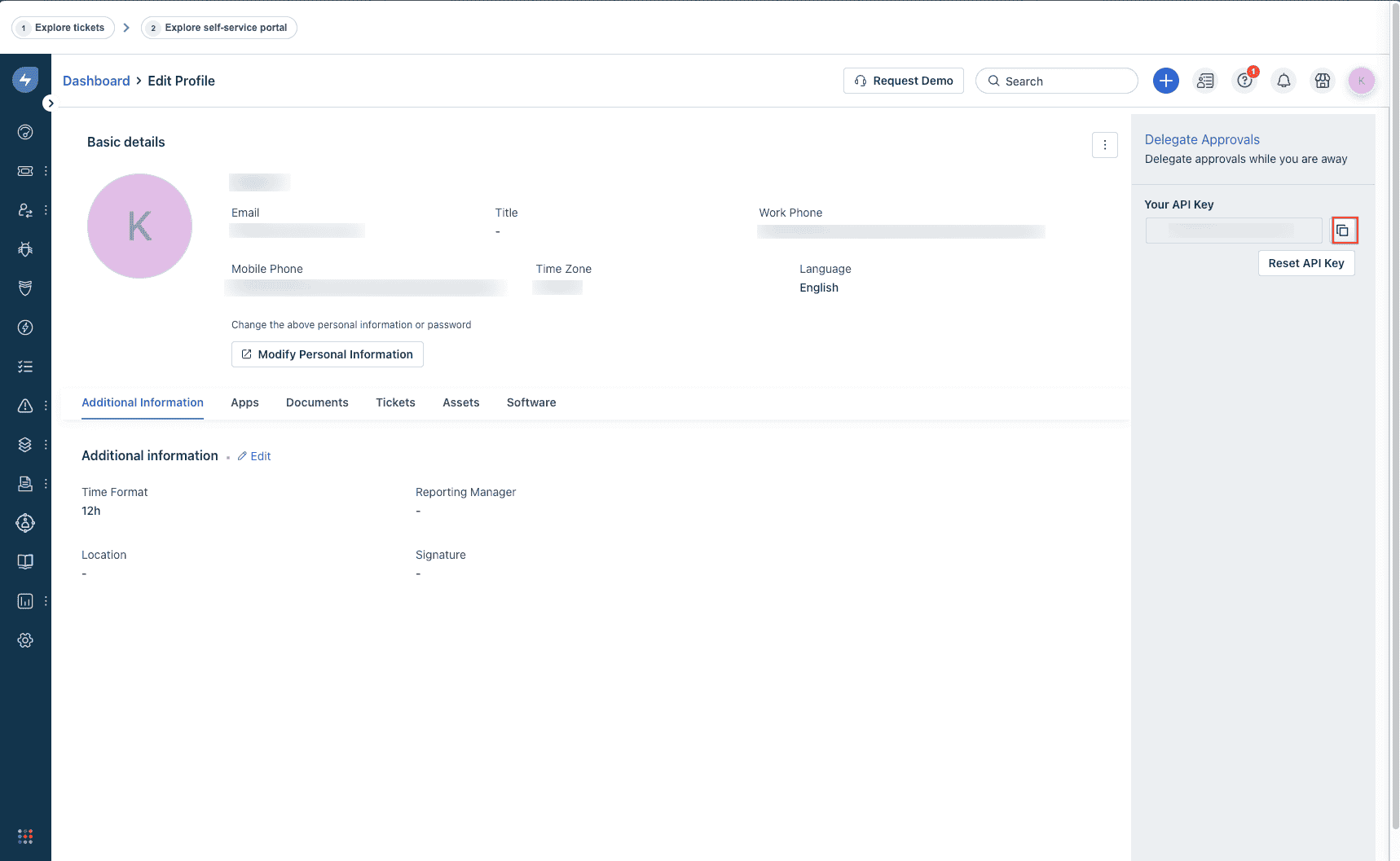
  4. In the Delegate Approvals side panel, copy the API Key.
    Freshservice profile settingsThe profile settings of Freshservice.

Identity360 configuration steps

  1. Log in to Identity360 as an Admin or Super Admin, or Technician with a role that has Application Integration permission.
  2. Navigate to Applications > Application Integration and click Create New Application.
  3. Select Freshservice from the applications displayed.
    Note: You can also find Freshservice from the search bar located at the top.
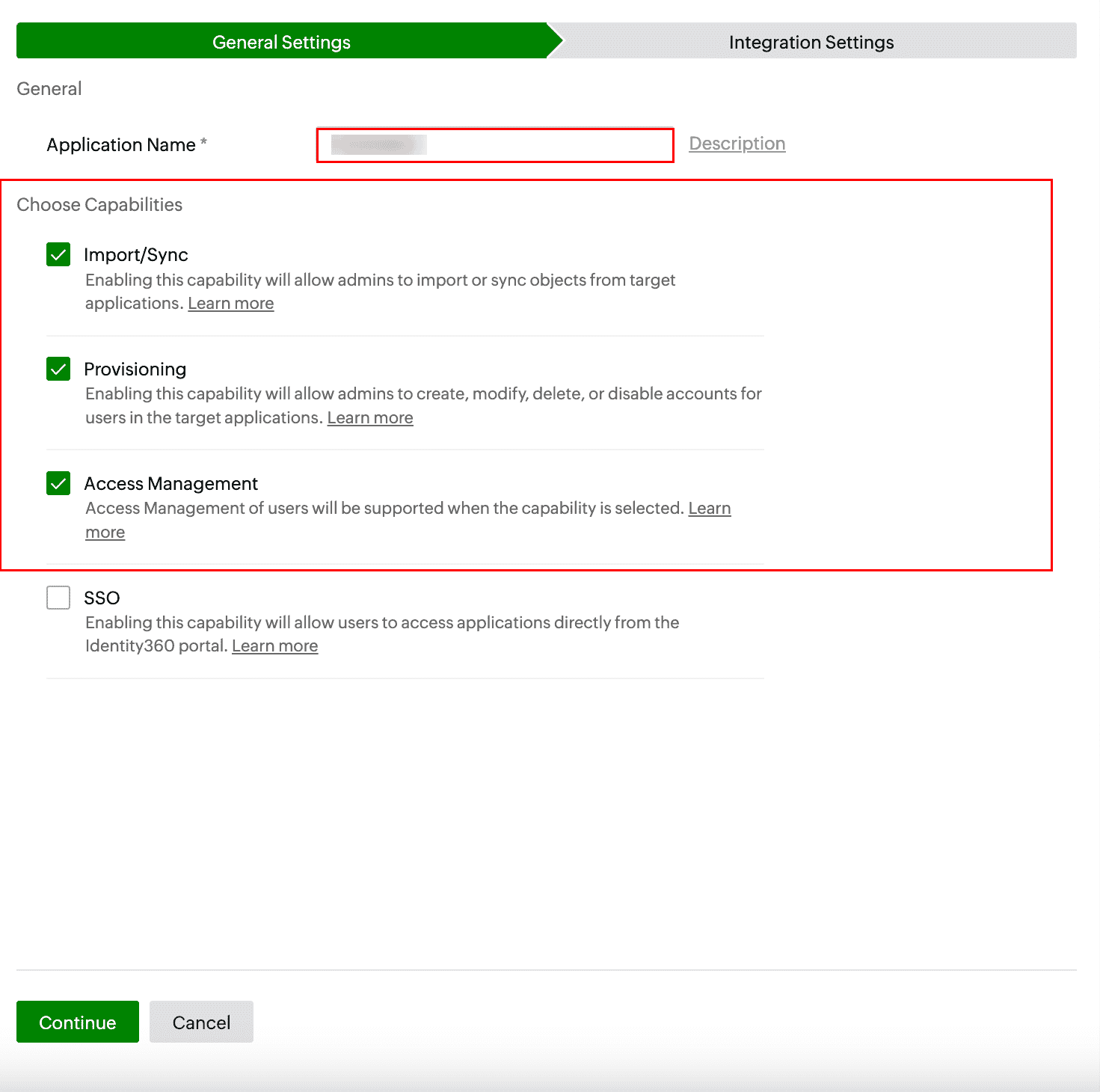
  4. Under the General Settings tab, enter the Application Name and Description, if necessary.
  5. Under the Choose Capabilities section, select the capabilities you wish to enable, and click Continue.
    Identity360 application configuration general settingsThe general settings of LCM configuration for Freshservice.
    Note: If you select Provisioning or Access Management, the Import/Sync option will automatically be enabled. This is because the data imported or synchronized from an application is used for provisioning and access management capabilities.
  6. Under the Integration Settings tab, select a suitable Connection from the drop-down under the Application Connection section. If there are no preconfigured connections, click Create New Connection to set up a new connection.
  7. Click Save to complete configuring Import/Sync, Provisioning, or Access Management for the application.

Application connection

An application connection is a link established between Identity360 and Freshservice to automate the process of syncing, creating, updating, and deleting user accounts in Freshservice. This ensures that user accounts and roles are consistently managed and synchronized between Identity360 and Freshservice.
Steps to create a connection with Freshservice

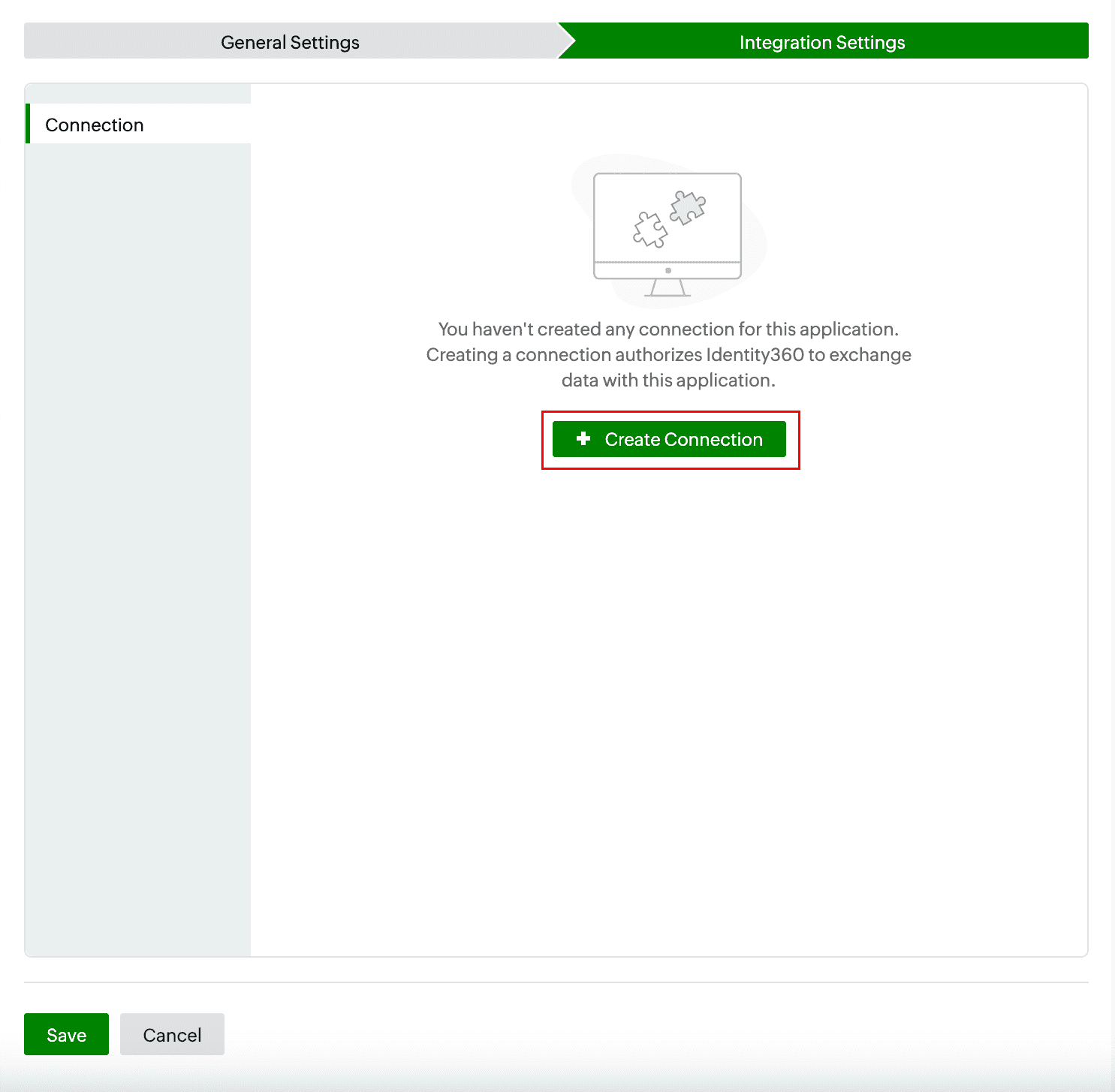
  1. After giving application-specific details, navigate to the Integration Settings tab and click Create Connection.
    Note: Alternatively, you can create and manage application connections by navigating to Applications > Application Connection > Create New Connection > Choose Freshservice from the Application drop-down.
    New application connection creation for FreshserviceCreating a new application connection for Freshservice
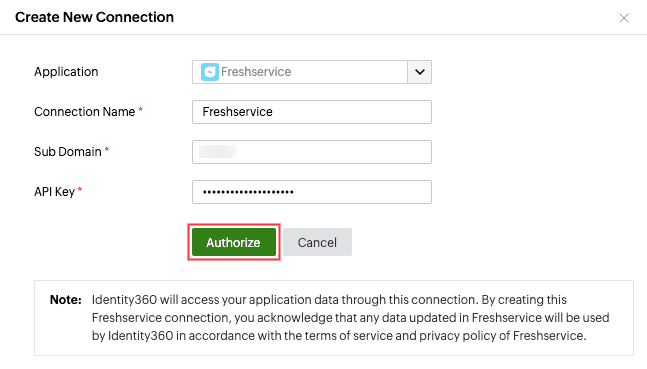
  2. In the configuration pane, enter the Connection Name.
  3. Paste the Sub Domain value copied during step 2 of the prerequisites.
  4. Enter the API Key value copied during step 4 of the prerequisites.
  5. Click Authorize. In case of any issues with establishing the connection, follow the steps for resolution here.
    Connection configuration for FreshserviceConfiguring the connection for Freshservice
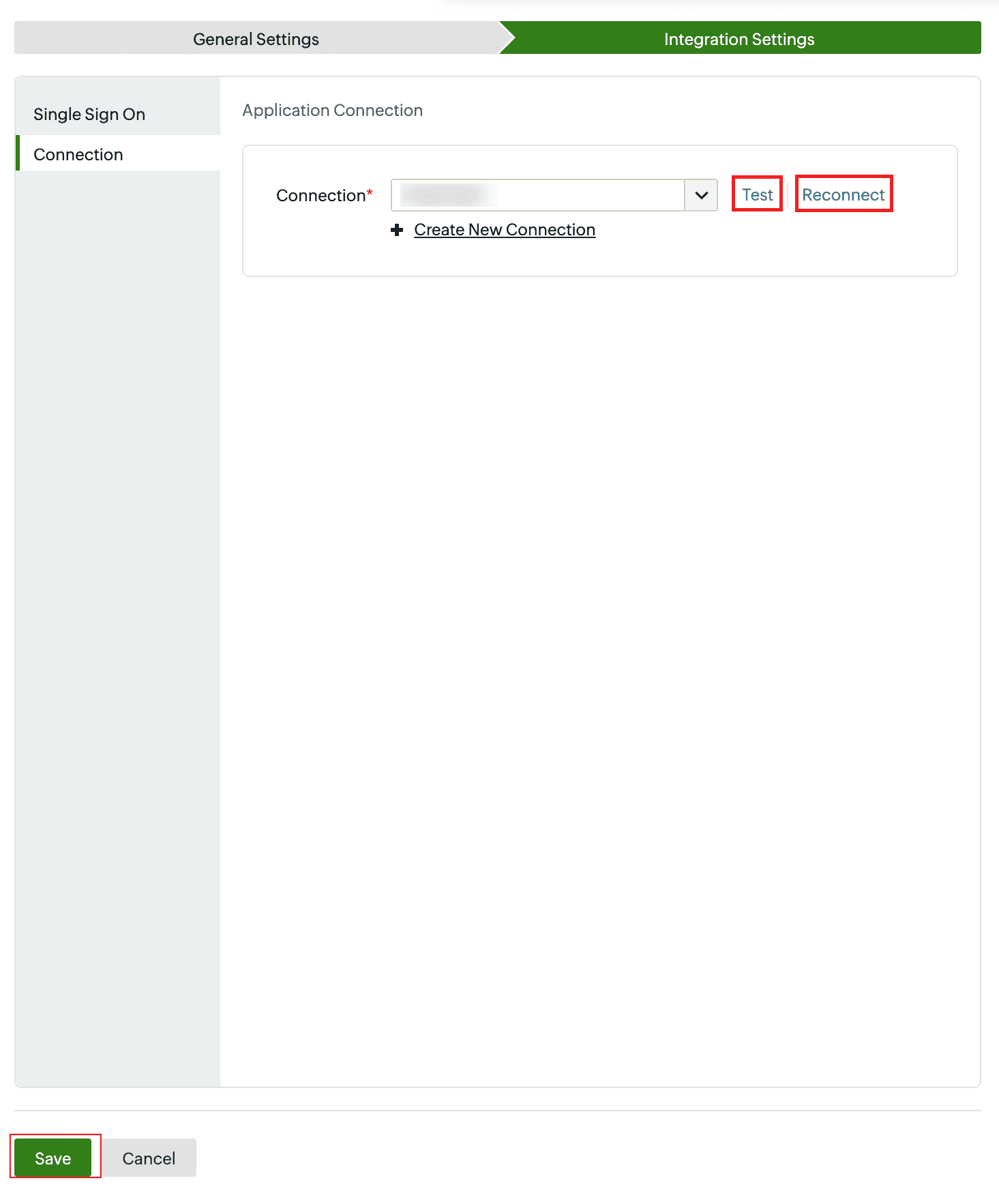
  6. You can test if the connection is active by clicking Test or reestablish the connection by clicking Reconnect.
    Connection test for FreshserviceTesting the connection to Freshservice
  7. Click Save to complete the application configuration.

Don't see what you're looking for?

  •  

    Visit our community  

    Post your questions in the forum.

     
  •  

    Request additional resources  

    Send us your requirements.