Integrating Slack with OpManager Nexus
Slack is like a chatroom for your whole team. Slack can help your team collaborate and coordinate their work no matter where they are — in the field office, at home, or out knocking doors. By integrating Slack with OpManager Nexus, you can receive real time notification of the alarms raised in OpManager Nexus, even if the administrator is not able to access OpManager Nexus.
- Integrating Slack with OpManager Nexus
- Configuring channels (for OpManager Nexus version 125340 and above)
- Configuring notification profiles
- Configuring workflows
Integrating Slack with OpManager Nexus
- In OpManager Nexus, go to Settings → General Settings → Third Party Integrations, and click on the "Configure" option found at the bottom-right corner of the Slack section.
- Now, click on the 'Get Auth-Code from Slack' option, or click here to generate the auth code.
- An authorization prompt will be displayed, which will lists all the permissions required for OpManager Nexus app to integrate with your workspace.
- Click on "Authorize" button after reviewing all the permissions.
- You will be redirected to another site where the Auth-Code will be provided. Copy this Auth-Code.
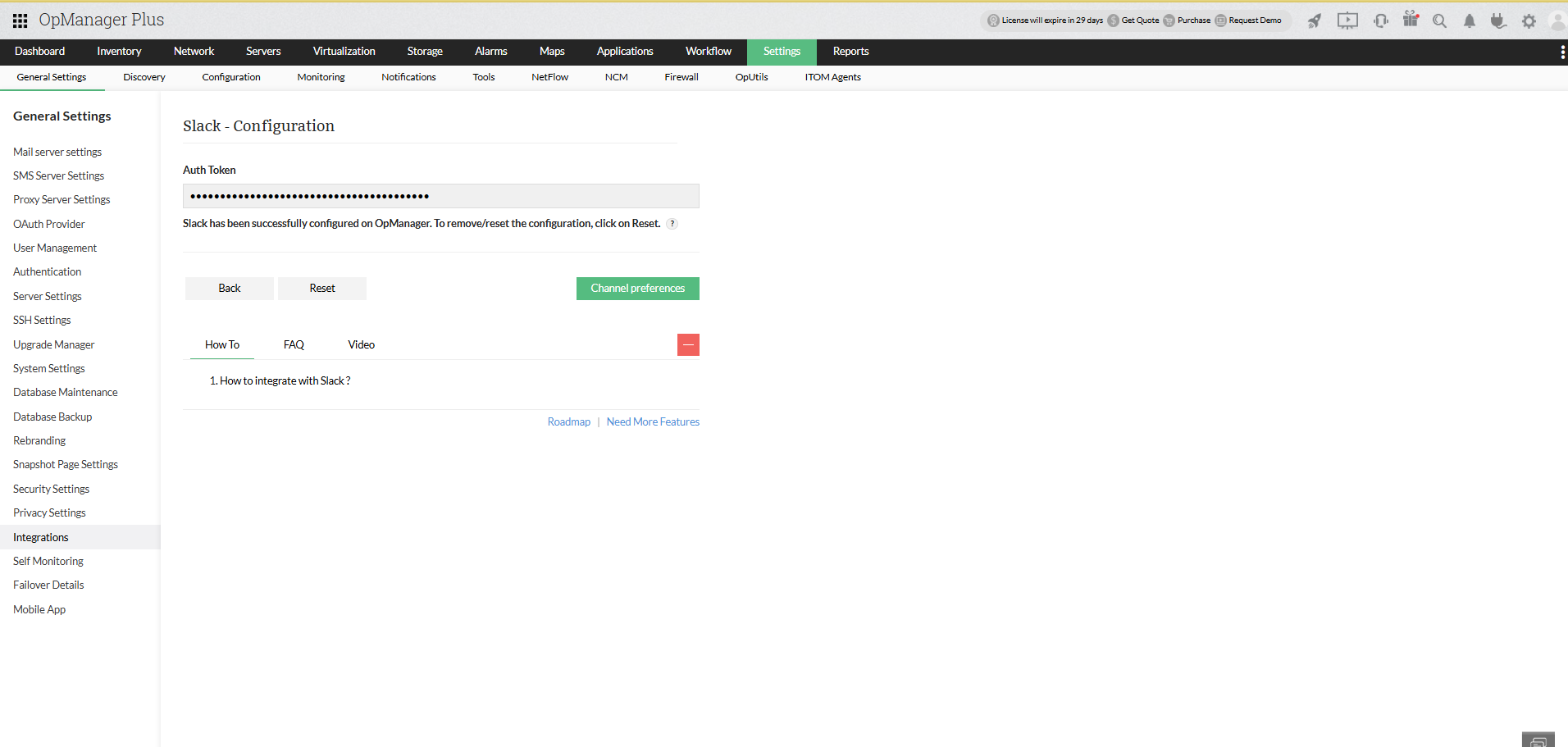
- After logging into OpManager Nexus, click on 'Settings → General Settings → Third Party Integrations' and select the 'Configure' option provided at the bottom-right corner of the Slack section. Paste the 'Auth-Code' in the space provided and click on 'Save'.
- After clicking on Save, a success message "Slack details updated successfully" will be displayed stating the successful integration of Slack with OpManager Nexus.
Configuring channels (for OpManager Nexus version 125340 and above)
Once you have integrated Slack with OpManager Nexus, you need to configure which channels from your Slack workspace should be listed inside OpManager Nexus. To do this:
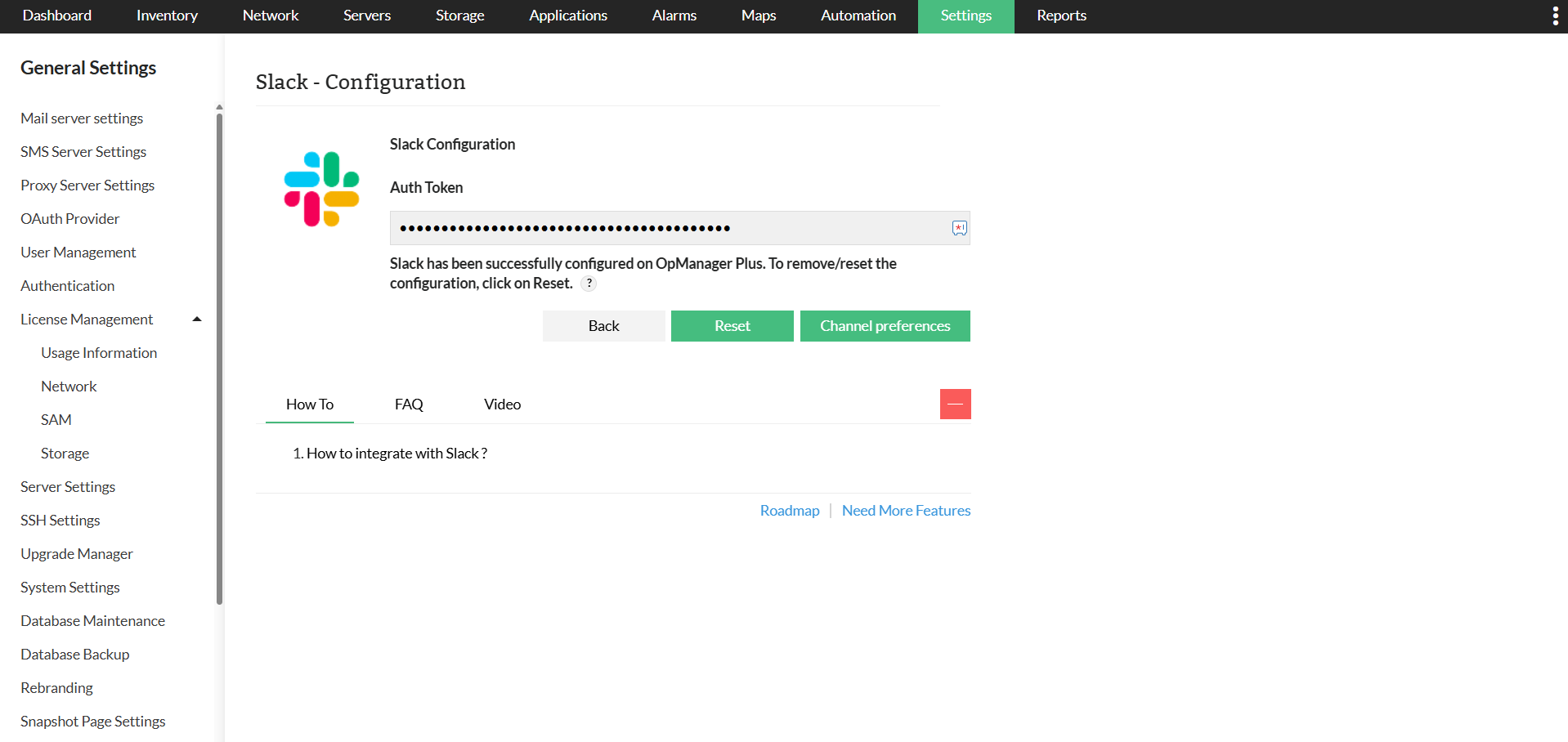
- Navigate to Settings → General Settings → Third-Party Integrations, and click 'Configure' at the bottom right corner of the slack section.
- Click the 'Channel preferences' button, and all the channels from the integrated Slack workspace will be listed. Note that while all public channels will be listed by default, not all private channels might be listed. Only channels that have invited the OpManager Nexus-Slack integration will be listed here.
- Choose the channels that you wish to display inside OpManager Nexus, and click 'Save'.
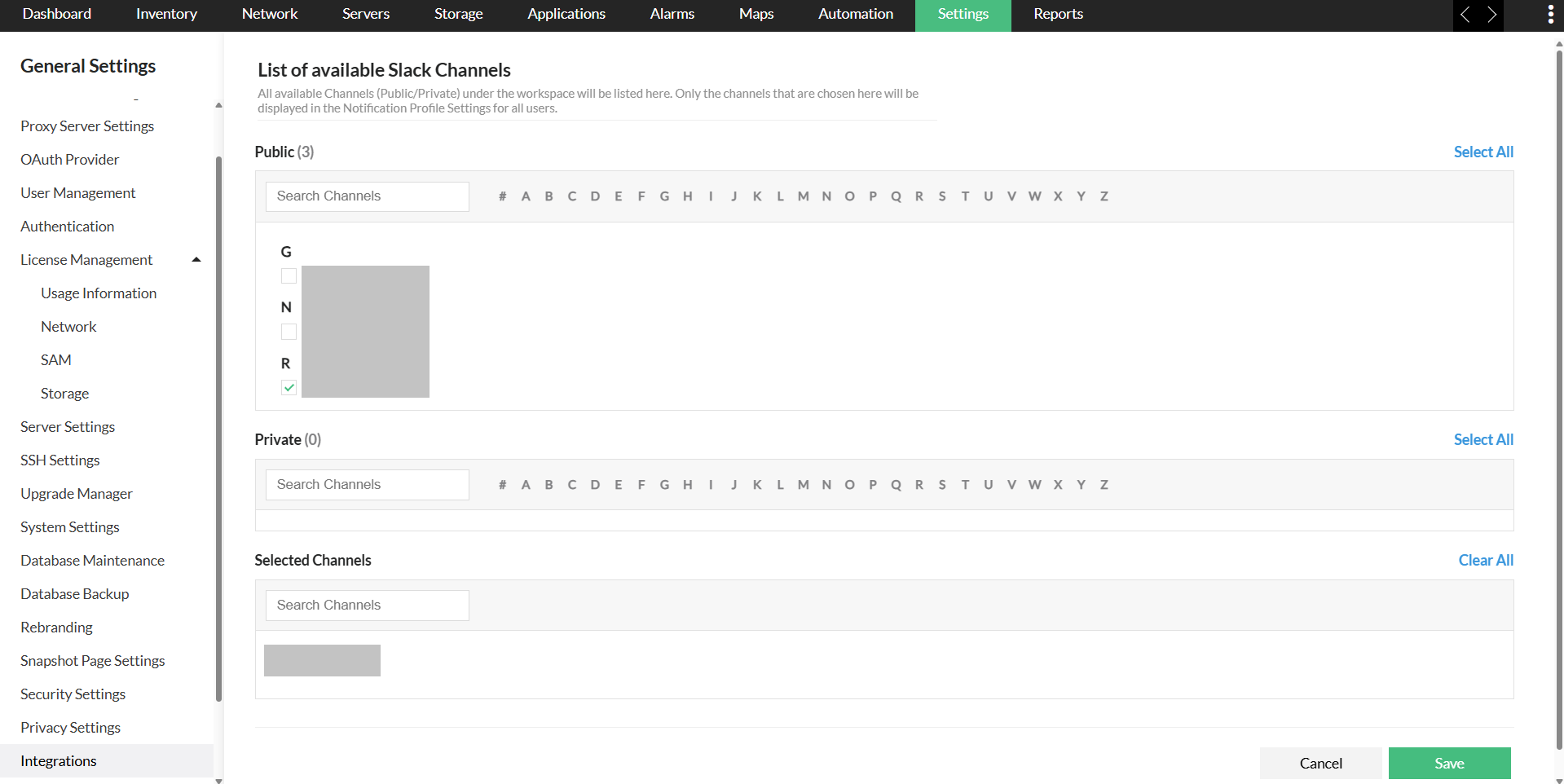
- The channels you have selected will now be available to use under the Notification Profile → Chat window and also under Workflow → External Actions → Send Slack Message.
Note that the 'Channel preferences' action can only be performed by an Administrator user in OpManager Nexus.
Configuring 'Notification profile
You can create individual notification profiles for easier access to Work groups.
- After confirming that you have configured the necessary channels as mentioned above, navigate to 'Settings → Notifications → Notification Profile → Add → Chat'.
- Specify the recipient of the Slack message from the options provided.
- Choose the channel or a member to which the message has to be sent to. All the channels and the members present in your workspace will be listed in the drop downs.
- Specify the required fields of the Slack message and click on 'Save' after the notification profile has been configured based on your requirements.
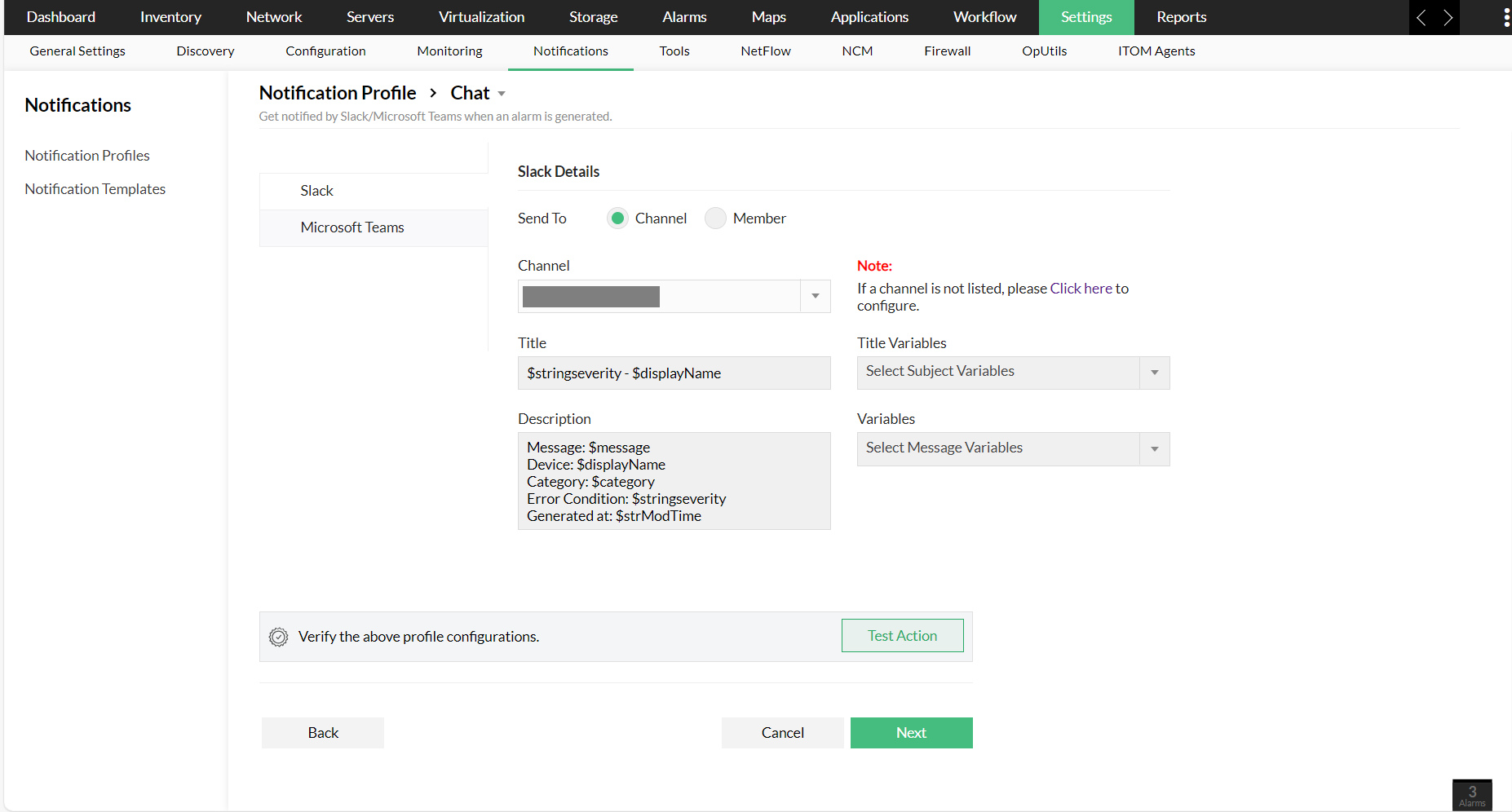
All the alerts raised, which satisfy the "Chat Notification Profile" criteria will be sent to Slack. You can configure different notification profiles based on your requirements.
Configuring workflow
You can automate alerts to be sent to the Slack app by configuring Workflows in OpManager Nexus.
- Ensure that you have configured the necessary channels from your workspace in OpManager Nexus as mentioned above.
- Click on Workflow → New workflow. Slack will be present under "External actions" in the left pane of the workflow configuration window.
- Drag and drop Slack in order to redirect alerts to Slack workspace after designing the workflow.
- Specify the channel/user, title and the content of the message which should be sent to Slack in the next window.
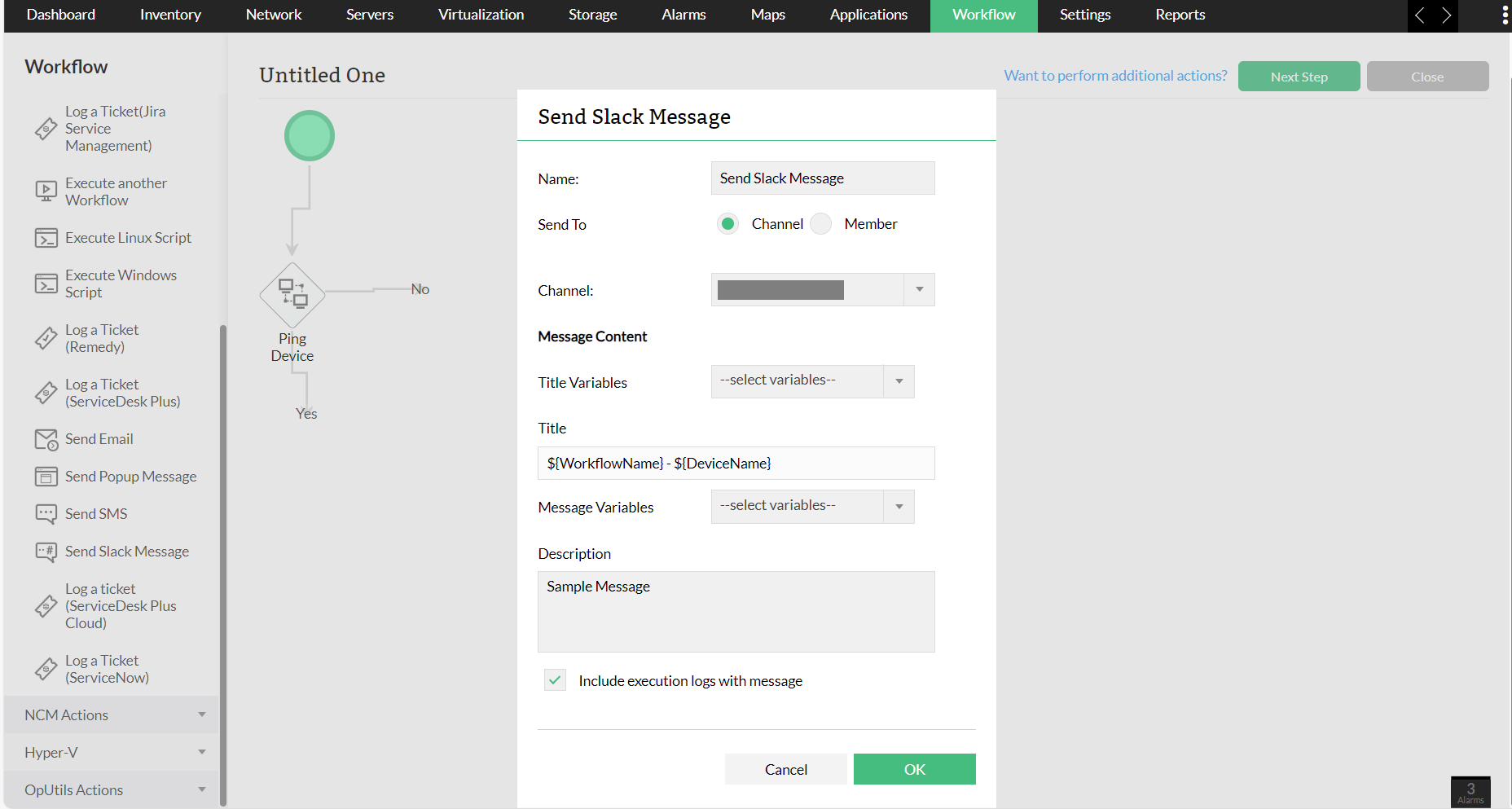
- Messages can be sent to both individual users or a channel using Workflow.
- All the channels and members present in your workspace will be listed in the drop downs. Select the required channel/user and specify the title and description. Click on 'OK'.
- Set the required criteria and schedule the workflow by clicking on 'Trigger' and save the configuration.
- Alerts will be redirected to Slack based on the workflow execution.