
Managing agents
Last updated on:
In this page
Overview
This page explains how to manage agents, which includes updating agent configurations, uninstalling agents, force restarting them, associating devices, and stopping agents.
Updating an agent
To update an existing agent, follow the steps given below.
- Open Log360 Cloud and select the Settings tab. Then navigate to
- Then navigate to Admin > Management > Manage Agents.
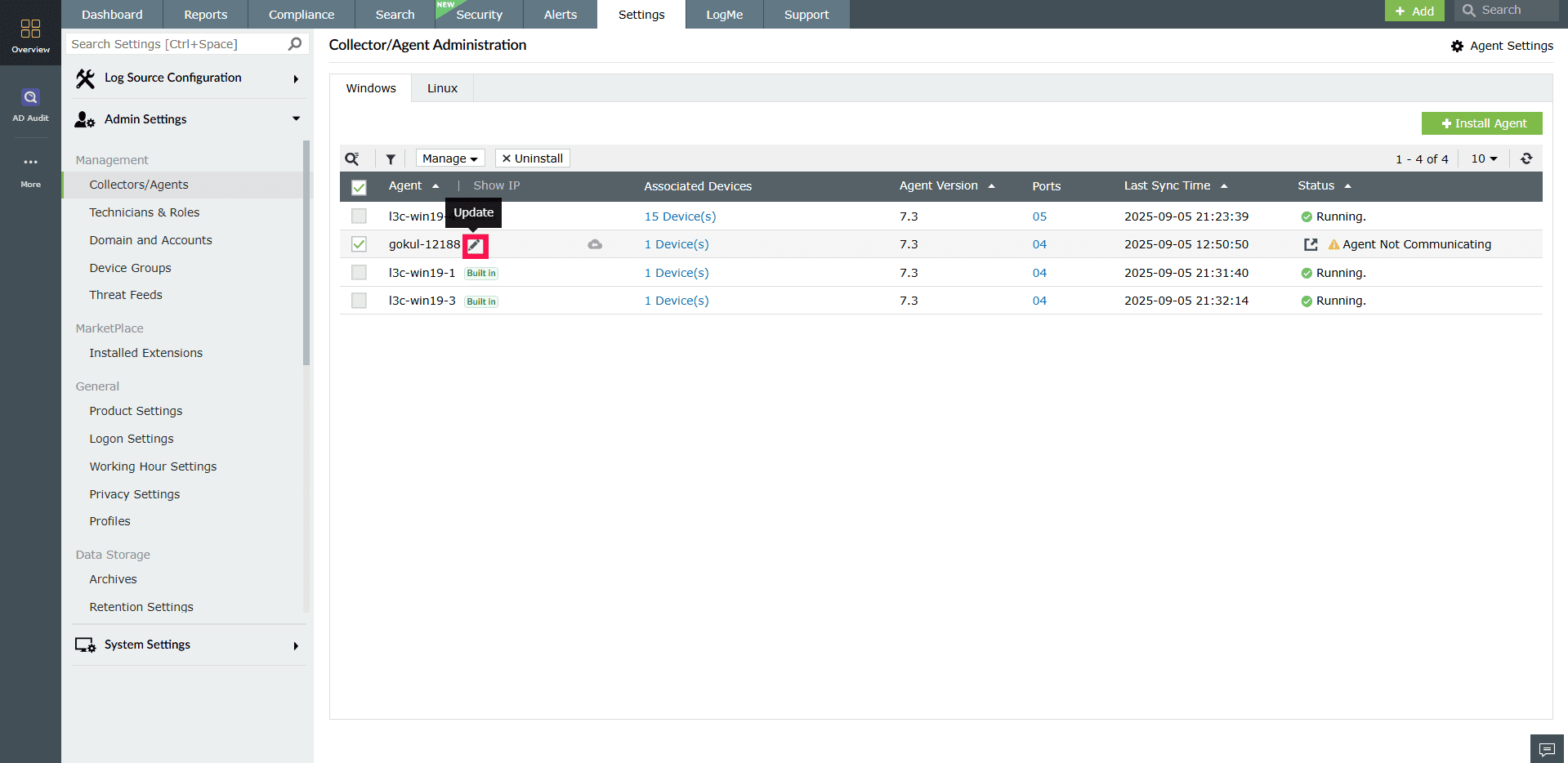
- Click the
 icon corresponding to the desired agent to be updated. The icon will appear when you hover over the name of the agent.
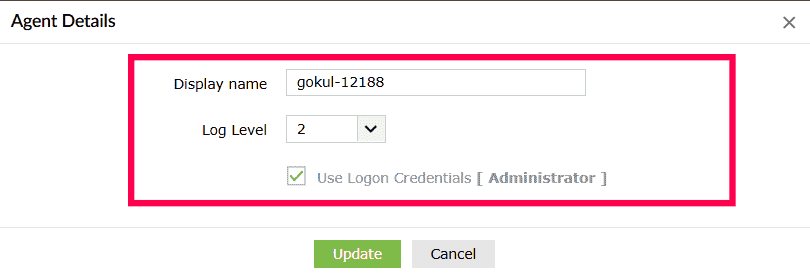
- In the window that pops-up, make the necessary changes.
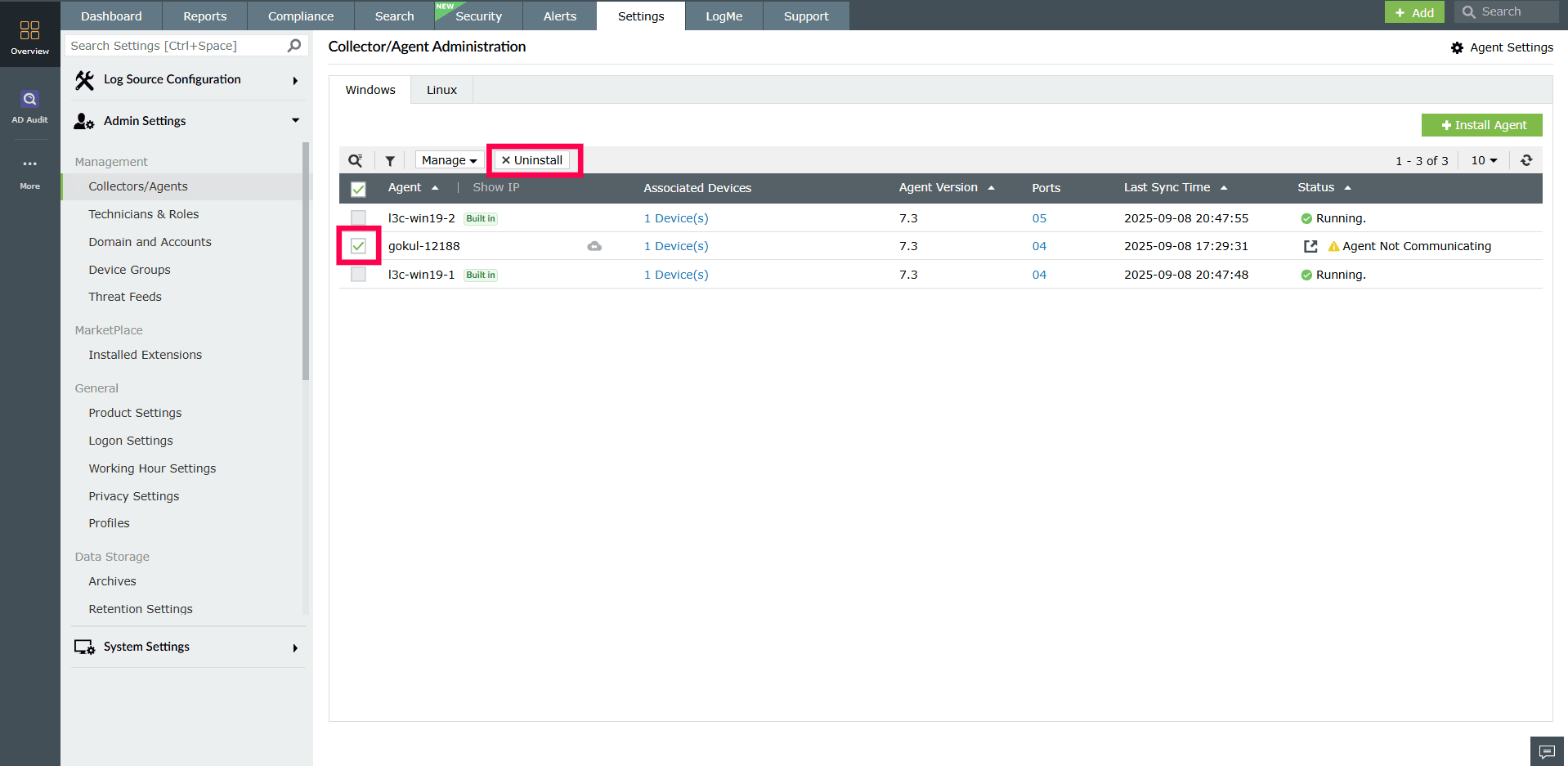
- After making the desired changes, click Update.
Uninstalling an agent
To uninstall an existing agent, follow the steps given below.
- Open Log360 Cloud and select the Settings tab.
- Navigate to Admin > Management > Manage Agents.
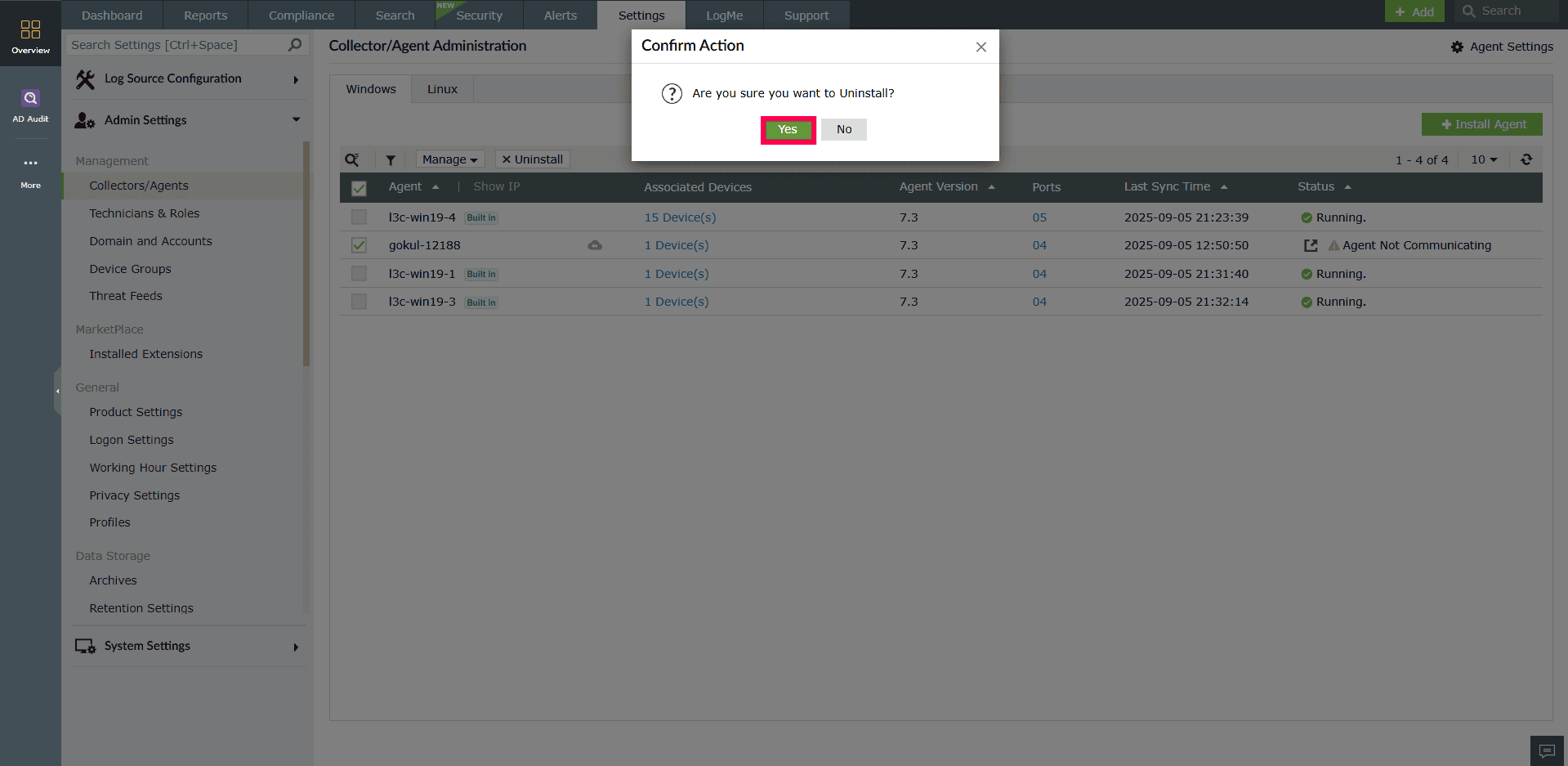
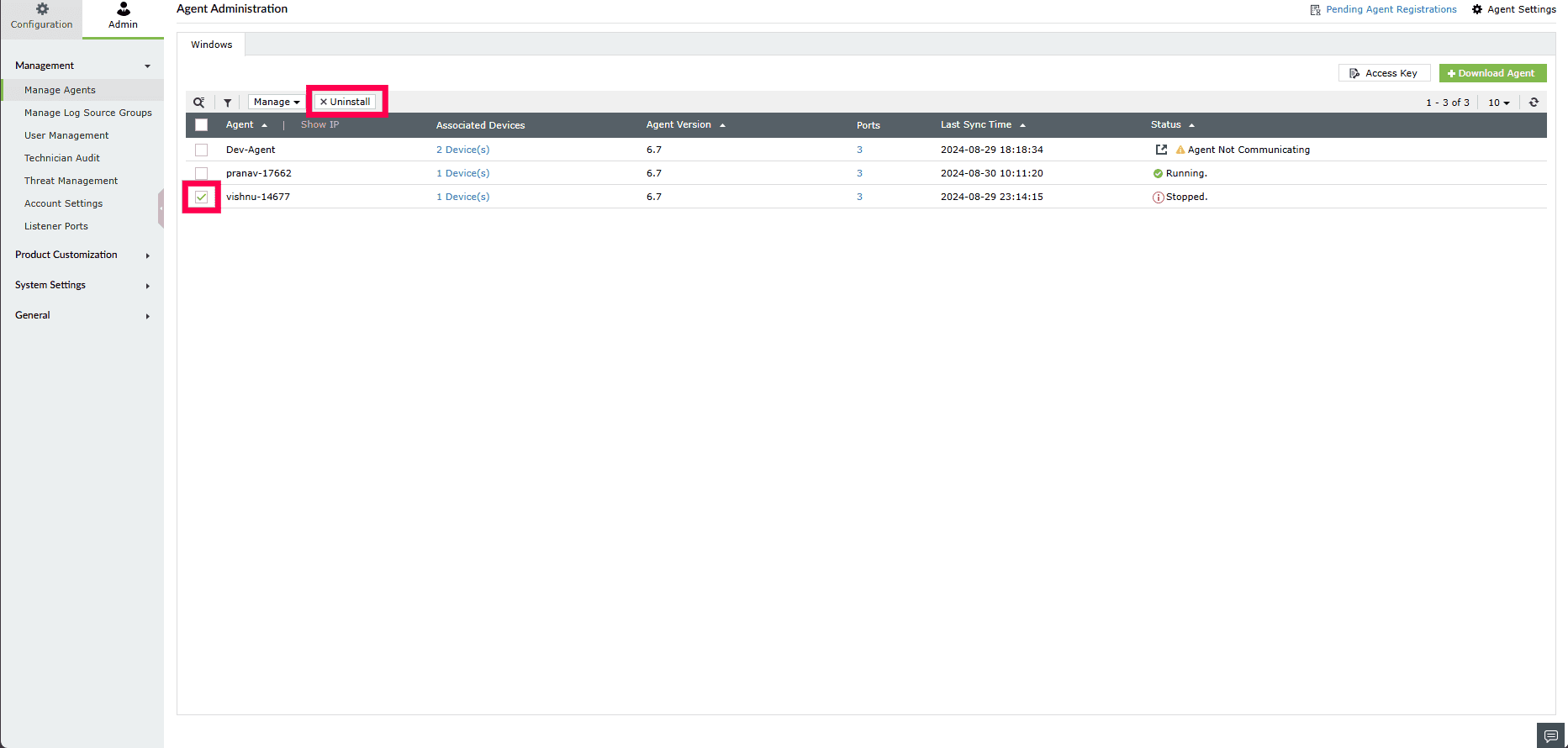
- Tick the box corresponding to the desired agent and click the x Uninstall button.
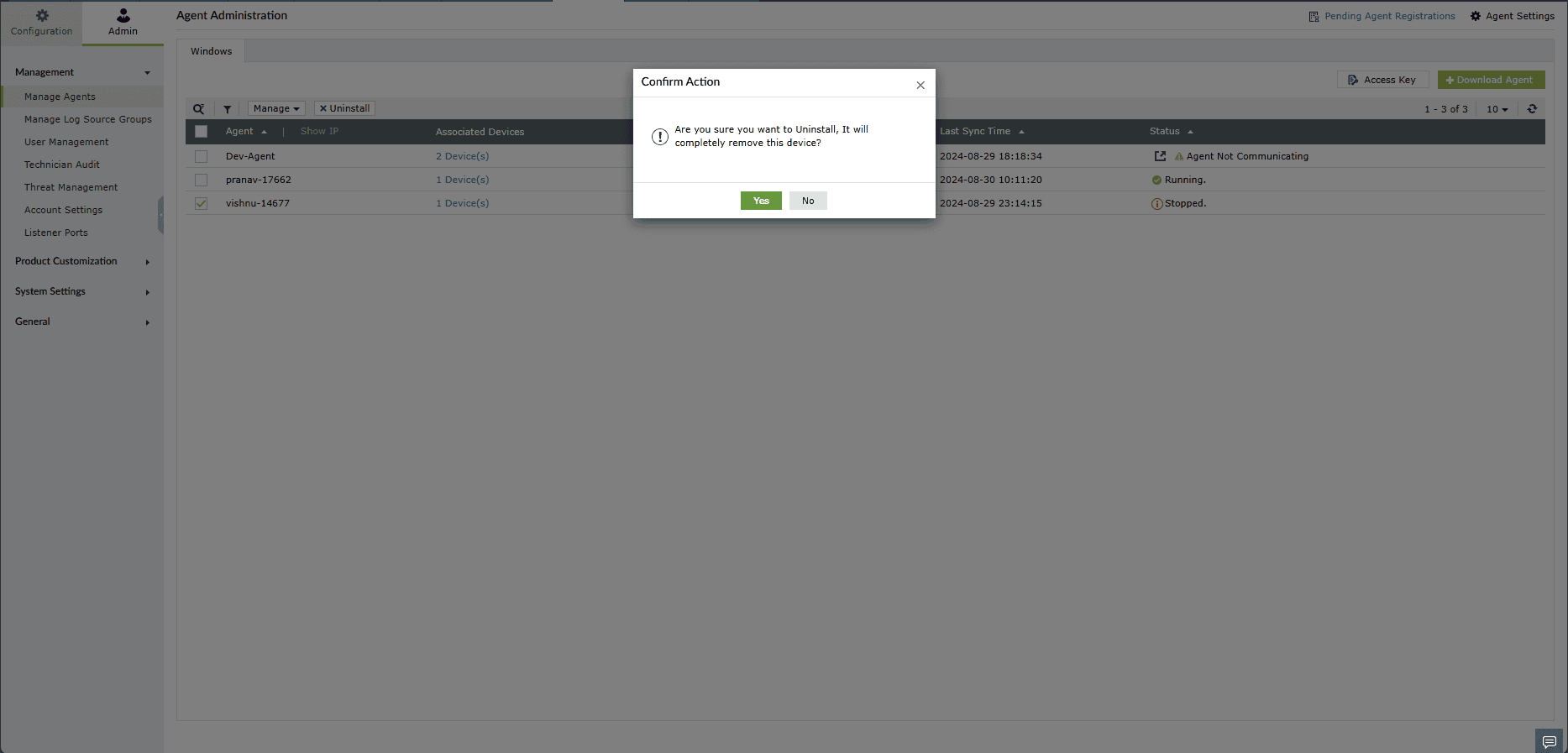
- Click Yes to confirm the action.
- Now, the agent is uninstalled successfully.
Force restart an agent
- On the Collection/Agent Administration page, select the agent(s) you want to restart by ticking the checkbox next to the agent name.
- Click Manage and choose Force Restart from the drop-down menu.
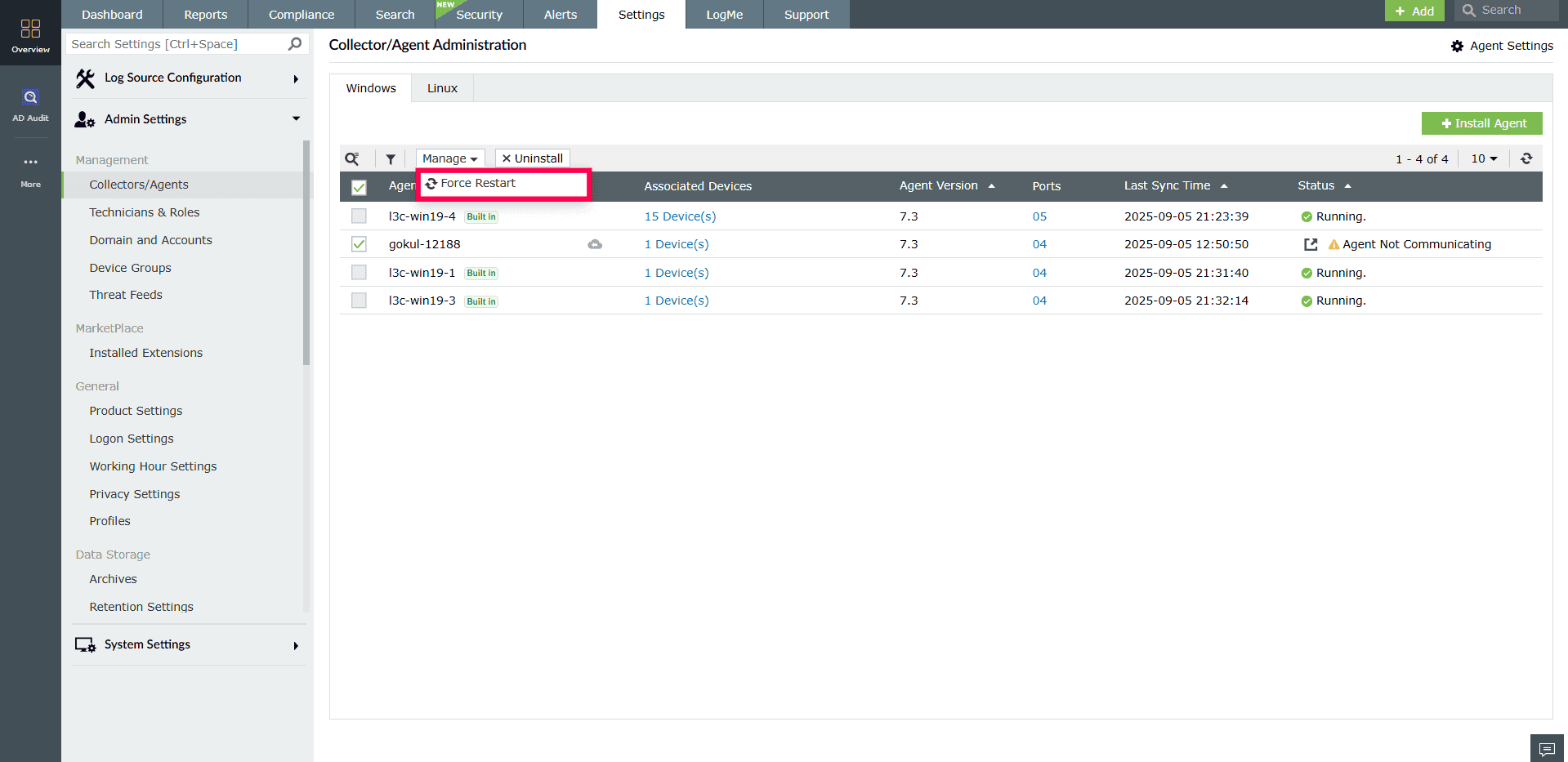
Figure 5: Force restarting an agent - Confirm the action by clicking Yes. The selected agent(s) will now be force restarted.
Associate devices to an agent
- On the Collection/Agent Administration page, click the Associated Device(s) column for the desired agent.
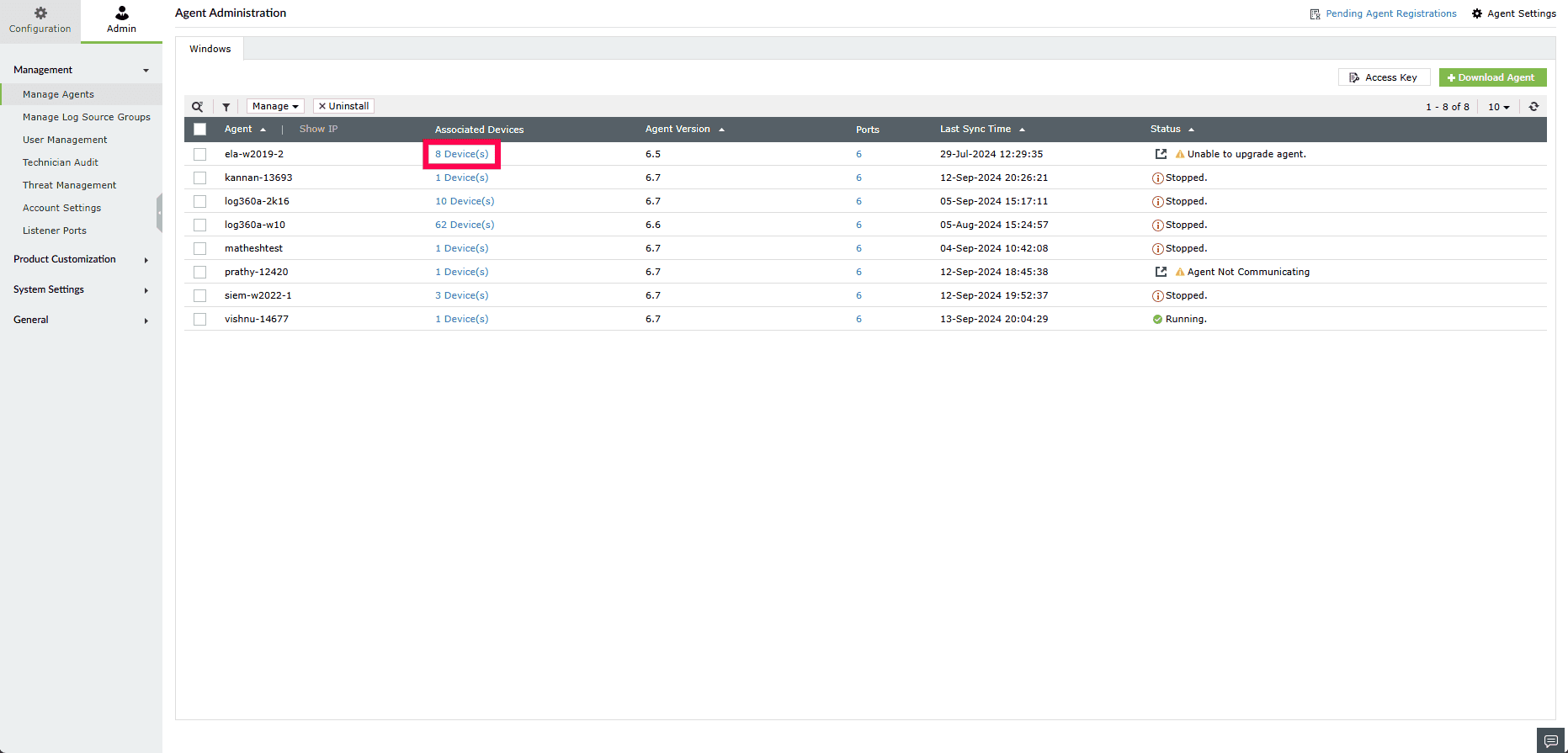
Figure 6: Selecting a device - In the pop-up window:
- To remove a device, hover over it, click the delete icon, and confirm by selecting Yes.
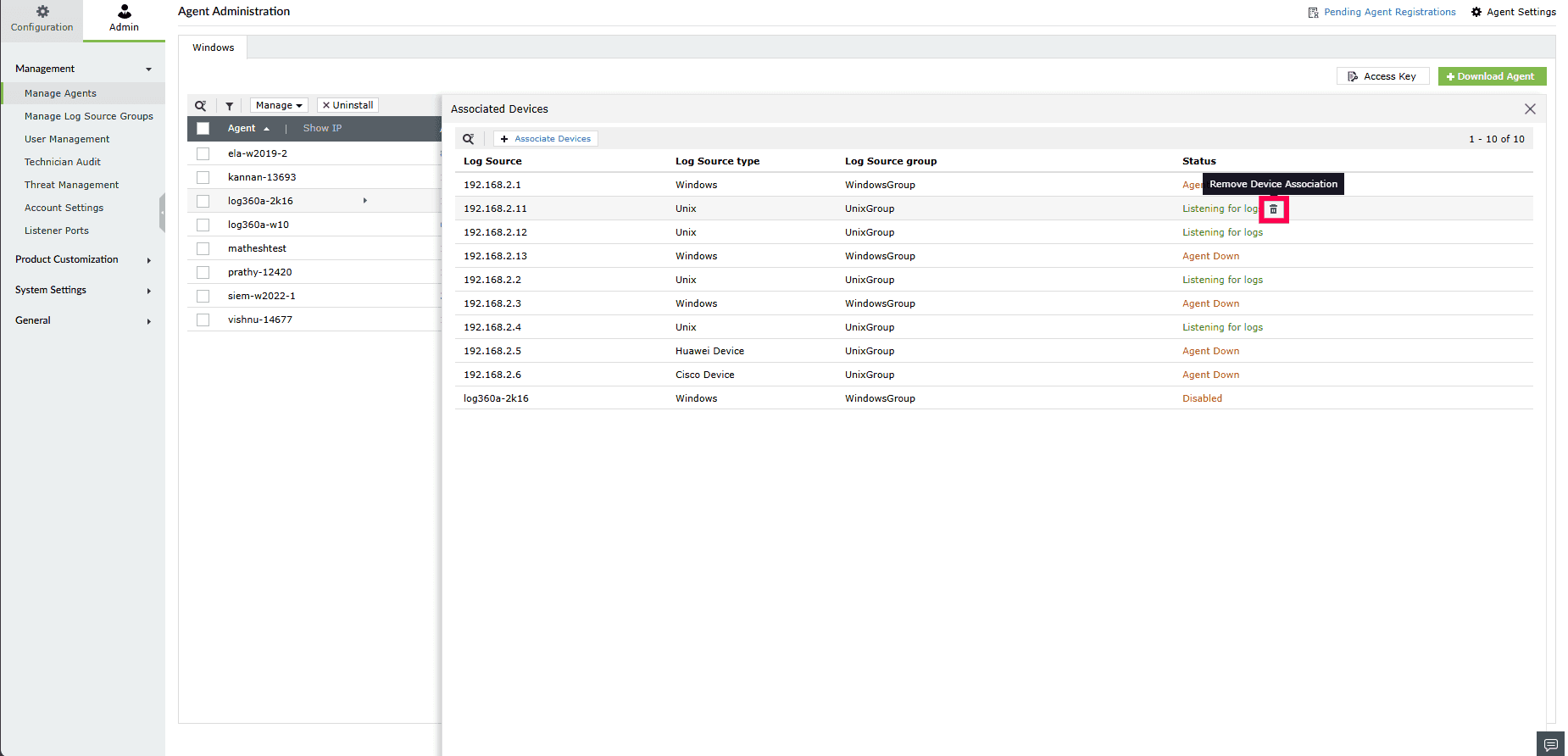
Figure 7: Deleting a device - To add devices, click + Associate Device(s), select the desired devices, and click Add.
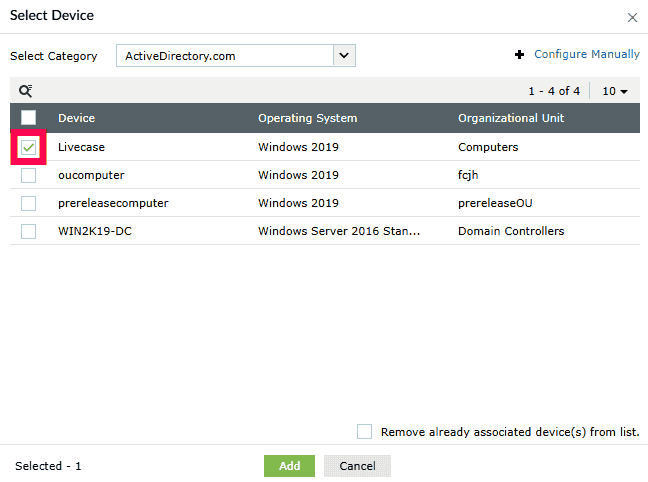
Figure 8: Associating a device
- To remove a device, hover over it, click the delete icon, and confirm by selecting Yes.
Stop an agent
To stop agent in On-Premise version:
- On the Collection/Agent Administration page, hover over the agent's Status column and click Stop.
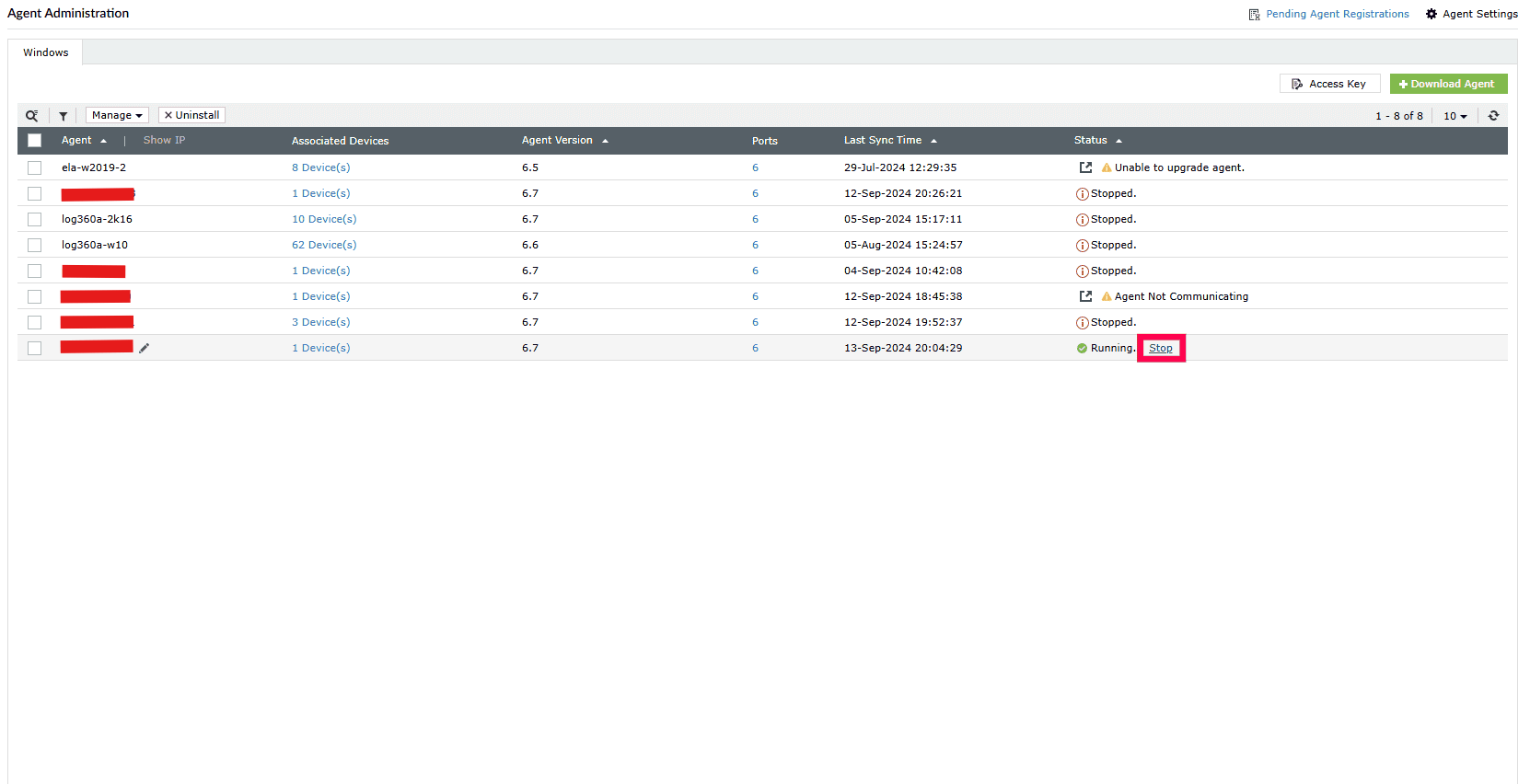
Figure 9: Stopping an agent
Read also
This page explained how to manage agents in Log360, including updating, uninstalling, force restarting, associating devices, and stopping agents. To learn how to install agents and configure agent settings, refer to the following document: