
Technician management in Log360 MSSP
Last updated on:
In this page
Overview
Log360 MSSP supports authorization and authentication at a local level and is compatible with third-party applications like Active Directory. It allows adding users in three realms (user groups) via., Admin, Operator, and Guest. The Admin user role has the highest order of privilege in both Log360 MSSP and Customer server and UI. The Operator has limited privileges that enables access to perform create and delete operations on the allotted resources. The Guest has read-only privilege on the allotted security resources (device groups).
When a customer gets assigned to a technician, the technician will be synced to that customer. Synced MSSP technician will have "Authentication type" as "Central Authentication" in the customer end. These technicians will be disabled in the customer if the customer instance gets dis-integrated from MSSP instance.Need for efficient technician management
Technician management helps to manage users with specific privileges, which enables them to perform certain actions. Managing technicians helps to assign specific roles and privileges to perform tasks, without granting unnecessary widespread access to critical functions.
This document applies to both Log360 MSSP and EventLog Analyzer Distributed environments. Existing EventLog Analyzer Distributed customers who have upgraded to the latest version will experience the same features, configuration options, and User-Interface behavior described in this page. Terminology may vary between products, but the function remains identical.
If Log360 MSSP technician is delegated with a customer Log360, that technician will be synced from Log360 MSSP to Log360
Technician Roles and Privileges
There are primarily three roles available that can be assigned to various users as listed below:
- Admin
- Role with the highest privileges.
- Has access to all configurations and operations.
- Operator
- Role with limited privileges.
- Can perform management actions (create/edit/delete) on allotted resources .
- Guest
- Role with least privileges.
- Has only 'Read only' privilege on allotted resources.
Managing technicians
Adding a new Log360 MSSP technician
You can either add a user from AD or add a local technician in Log360 MSSP
To add a local technician,
- Navigate to the Settings tab and click on Technicians & Roles in the Management section under Admin Settings.
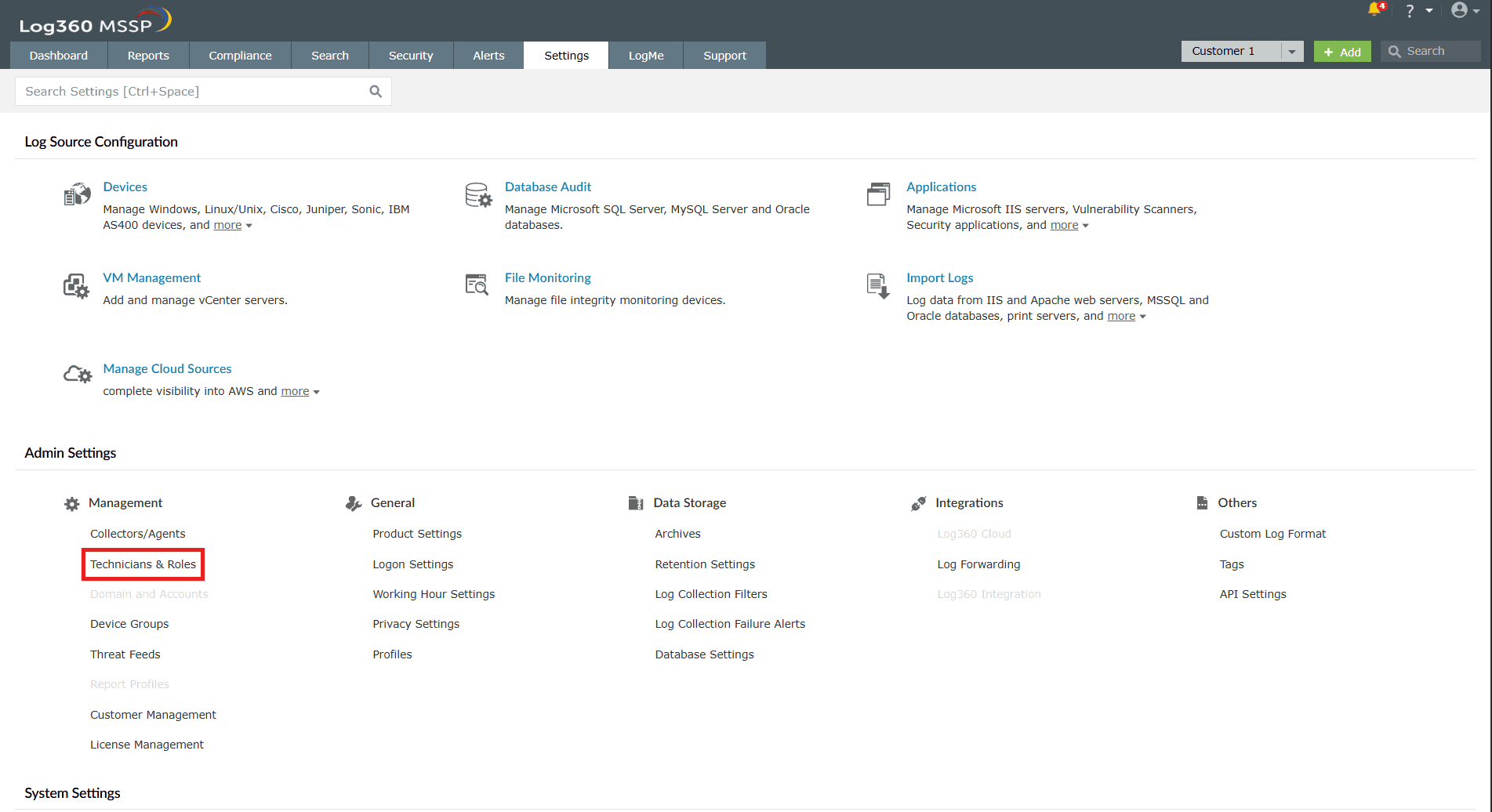
Image 1: Technicians & Roles via the Settings tab in Log360 MSSP - Click on the Add Technician button on the top-right corner.
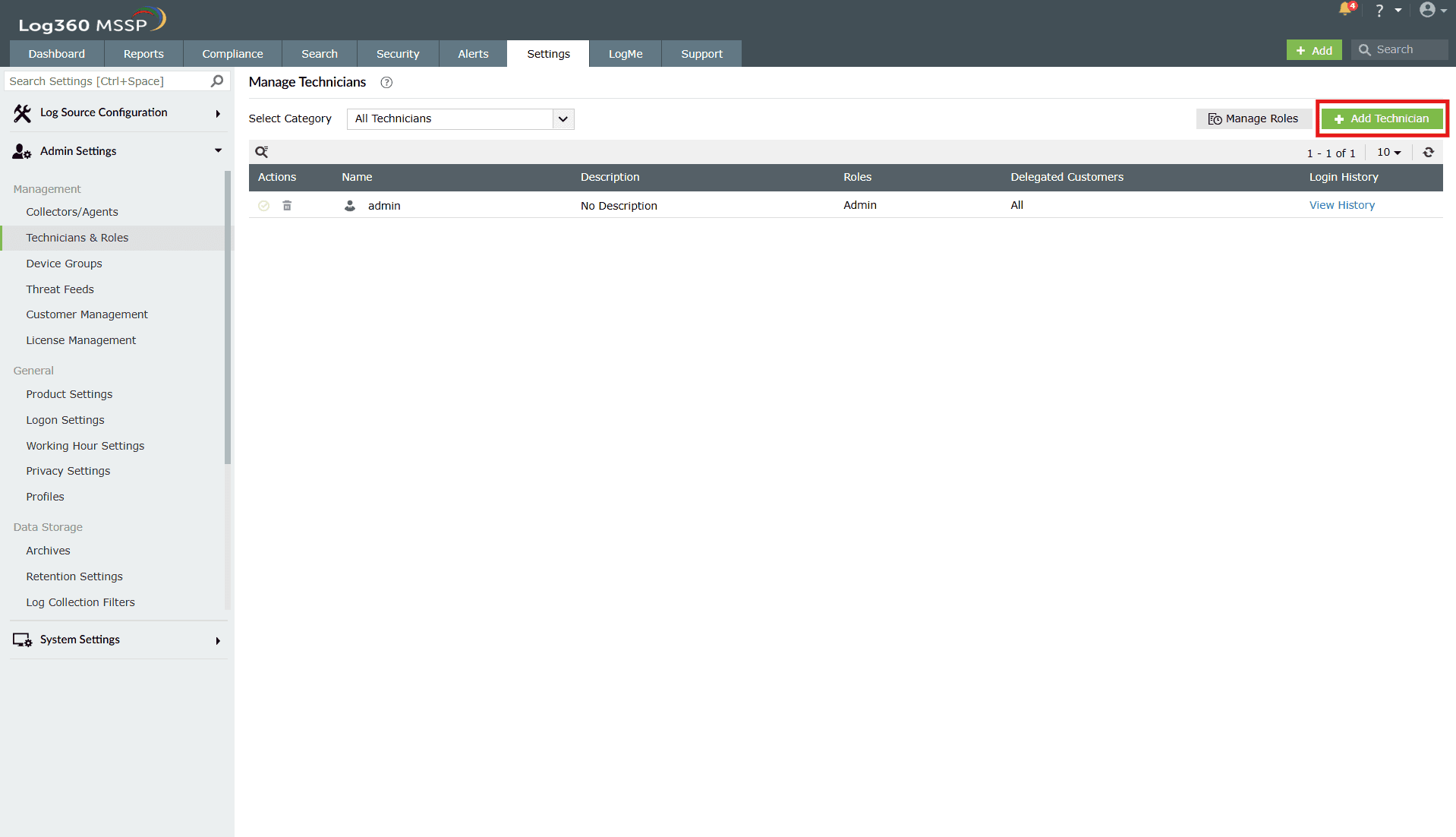
Image 2: Add technicians in Log360 MSSP - The Add Technician page expands, providing the necessary fields to be filled to add a technician as shown below.
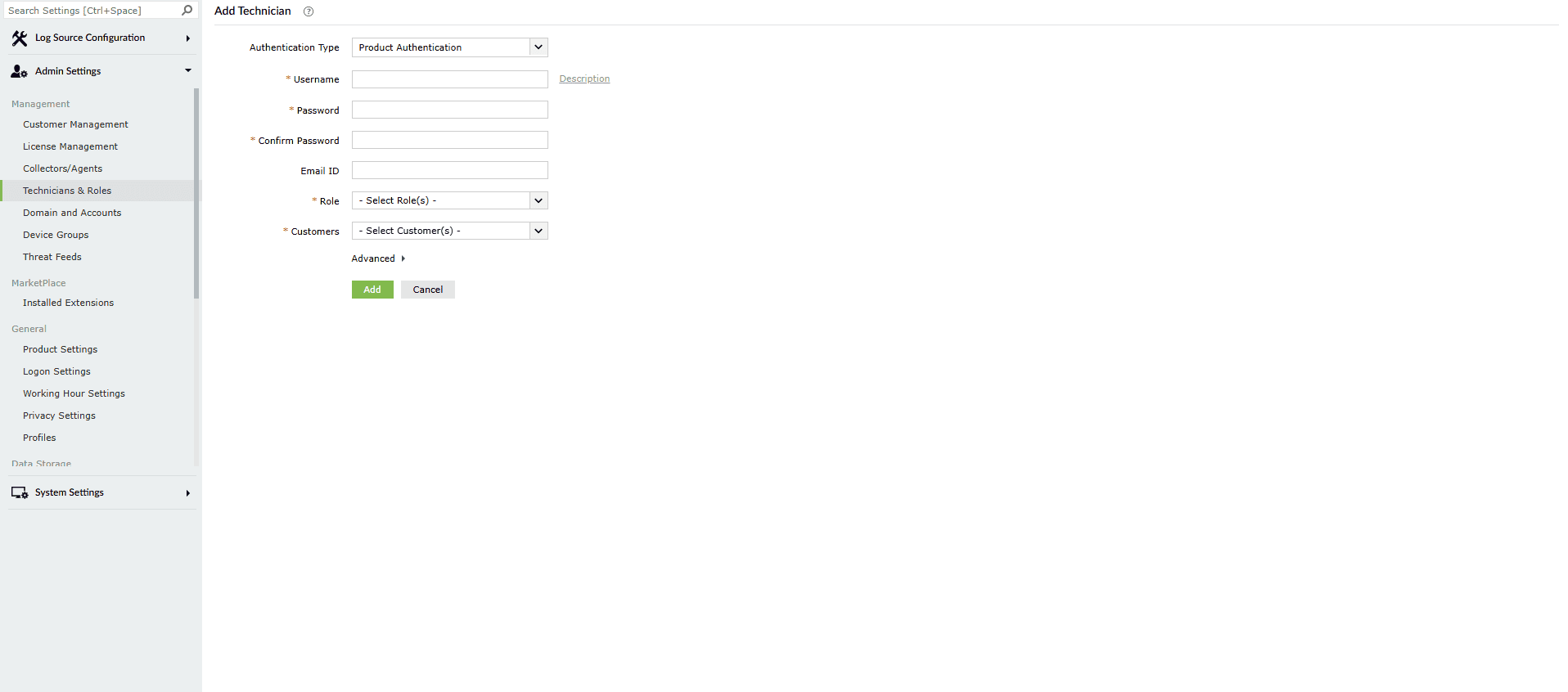
Image 3: Adding a local technician in Log360 MSSP - Fill in the required fields:
- Authentication type: Choose "Product Authentication"
- Username: Enter a name for the technician in the Username field. You can additionally add a description by clicking on the Description button.
- Password and Confirm Password: Enter a new password and confirm it in the respective fields.
- Email ID: Enter the email address of the respective technician in the provided field.
- Role: In the drop-down box, choose the role(s) you want to assign to the technician- Admin, Operator, Guest. You can assign more than one role to the technician, and the permissions of all the selected roles will be assigned to the technician.
- Customers: Assign customer(s) to provide specific access only to that customers for that technician after clicking on the provided drop-down. Selecting All Customers will add provide access to any newly added customers for that technician.
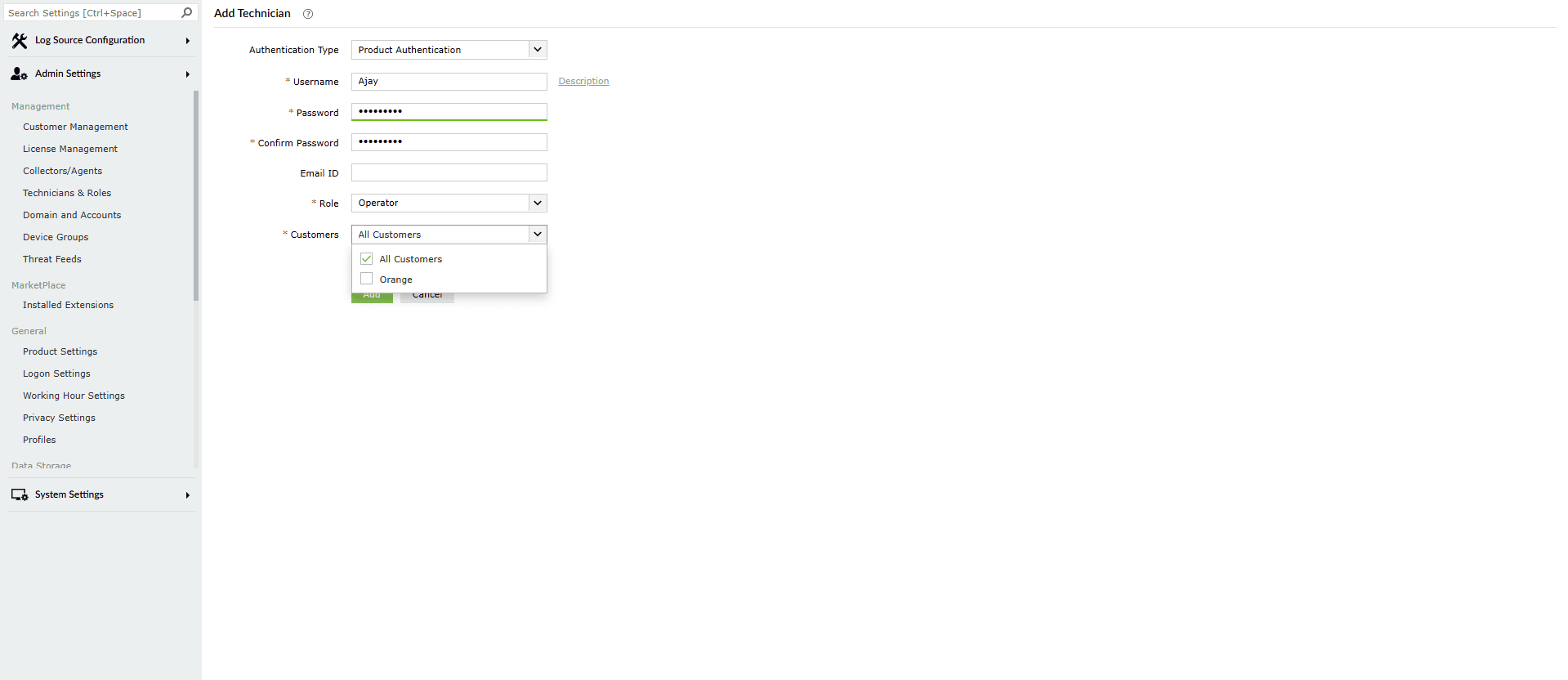
Image 4: Adding a technician in Log360 MSSP NOTE By default, All log source groups will be selected for the technicians.This means the technician will be provided access to all groups that will be added in the future as well.
- Advanced options: You can assign specific log source groups to a user to provide a segmented view to the user and limit the privilege on security resources by toggling the "Delegate Log Source Groups" checkbox under the advanced section
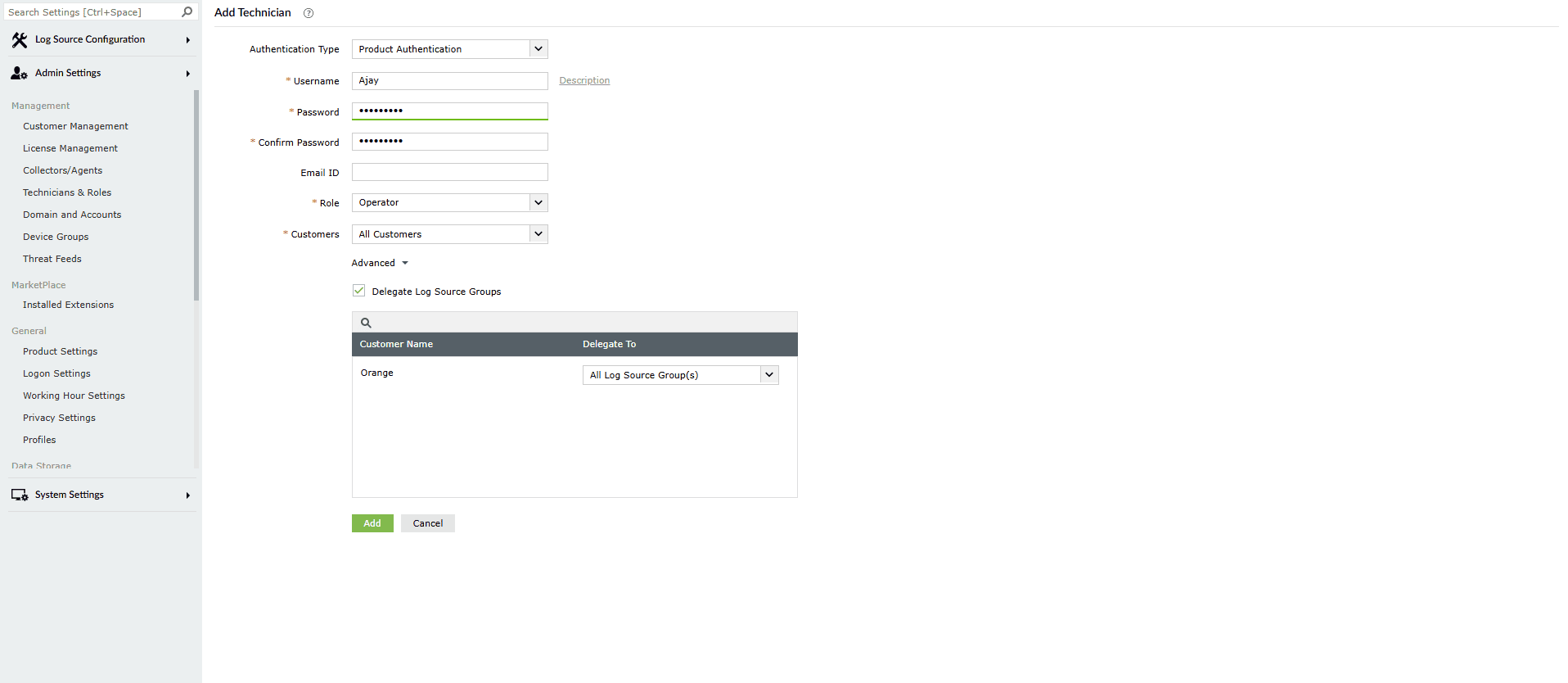
Image 5: Adding technicians in Log360 MSSP - After filling all the required fields, click on the Add button.
- Upon successful completion of the action, the below pop-up appears.

To add an AD technician:
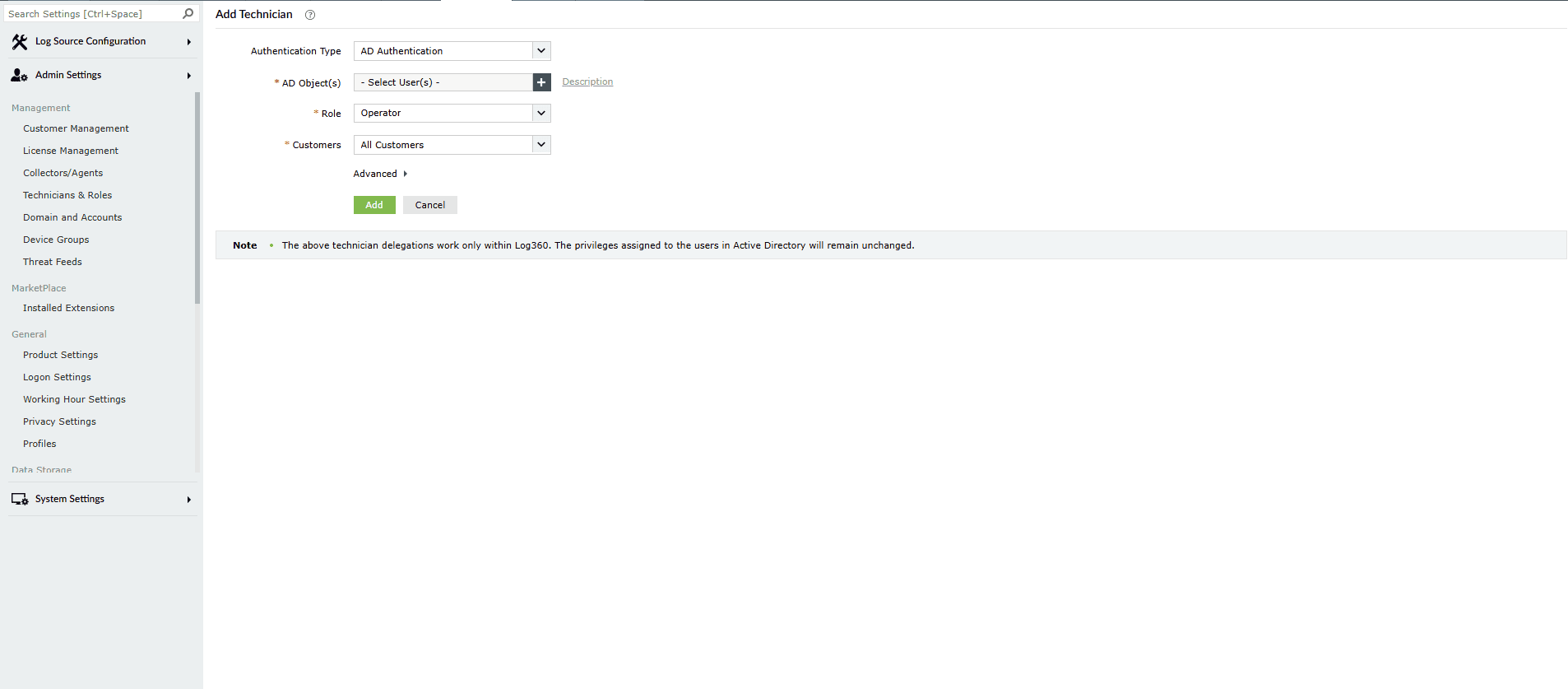
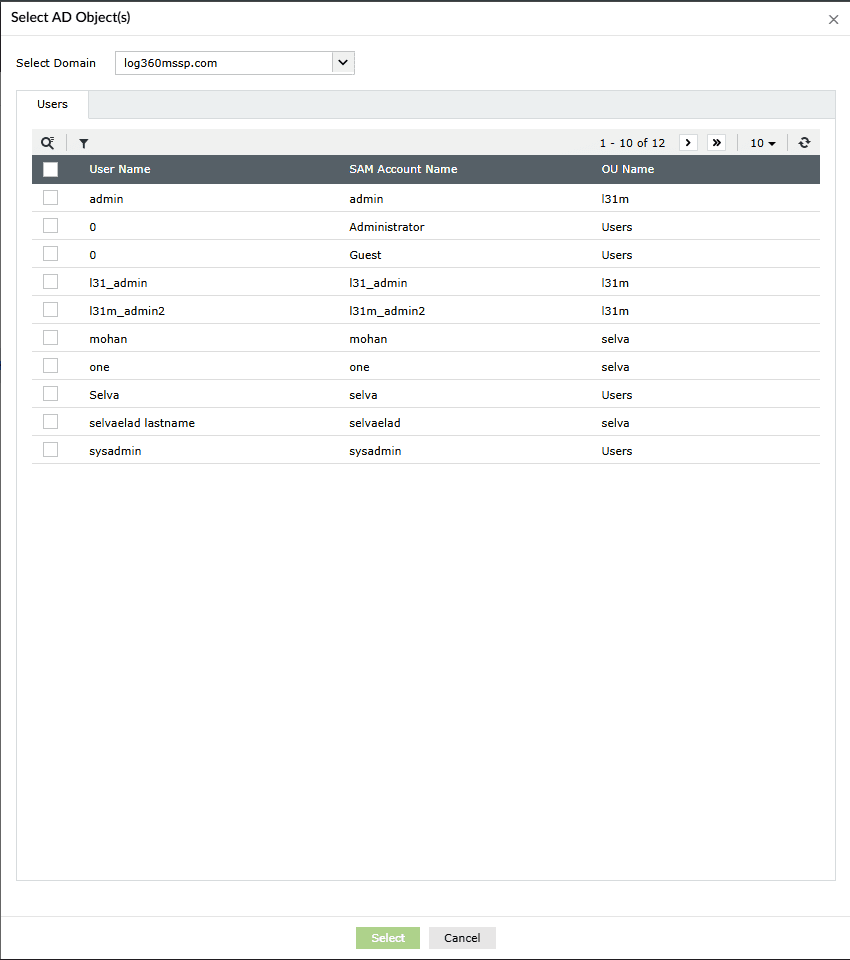
- Choose Authentication type as "AD Authentication"
- Click the "+" icon in AD Objects field. MSSP will automatically discover and display Active Directory users from the selected domain.
- Select one or more users from list displayed and Click "Select".
- Role: In the drop-down box, choose the role(s) you want to assign to the technician- Admin, Operator, Guest. You can assign more than one role to the technician, and the permissions of all the selected roles will be assigned to the technician.
- Customers: Assign customer(s) to provide specific access only to that customers for that technician after clicking on the provided drop-down. Selecting All Customers will add provide access to any newly added customers for that technician.
Enable/disable an existing technician
To enable/disable a technician, follow the steps given below.
Navigate to the Technicians & Roles in the Management section under Admin Settings via the Settings tab.
To Enable:
- Click on the currently disabled icon
 under the Actions column to enable the respective technician.
 - As soon as you perform this action, the icon indicates that the technician is now enabled
 and the below pop-up message appears briefly.

To Disable:
- Click on the currently enabled icon under the Actions column to disable the respective technician.
- As soon as you perform this action, the icon indicates that the technician is now disabled and the below pop-up message appears briefly.

Edit an existing technician
To edit the information of an existing technician, follow the steps given below.
NOTE A technician with the role of default admin user cannot be modified.
- Navigate to the Technicians & Roles in the Management section under Admin Settings via the Settings tab, and click on the edit
 icon next to the name of the technician that you want to edit as shown below. The icon will appear when the cursor is hovered over the technician name.
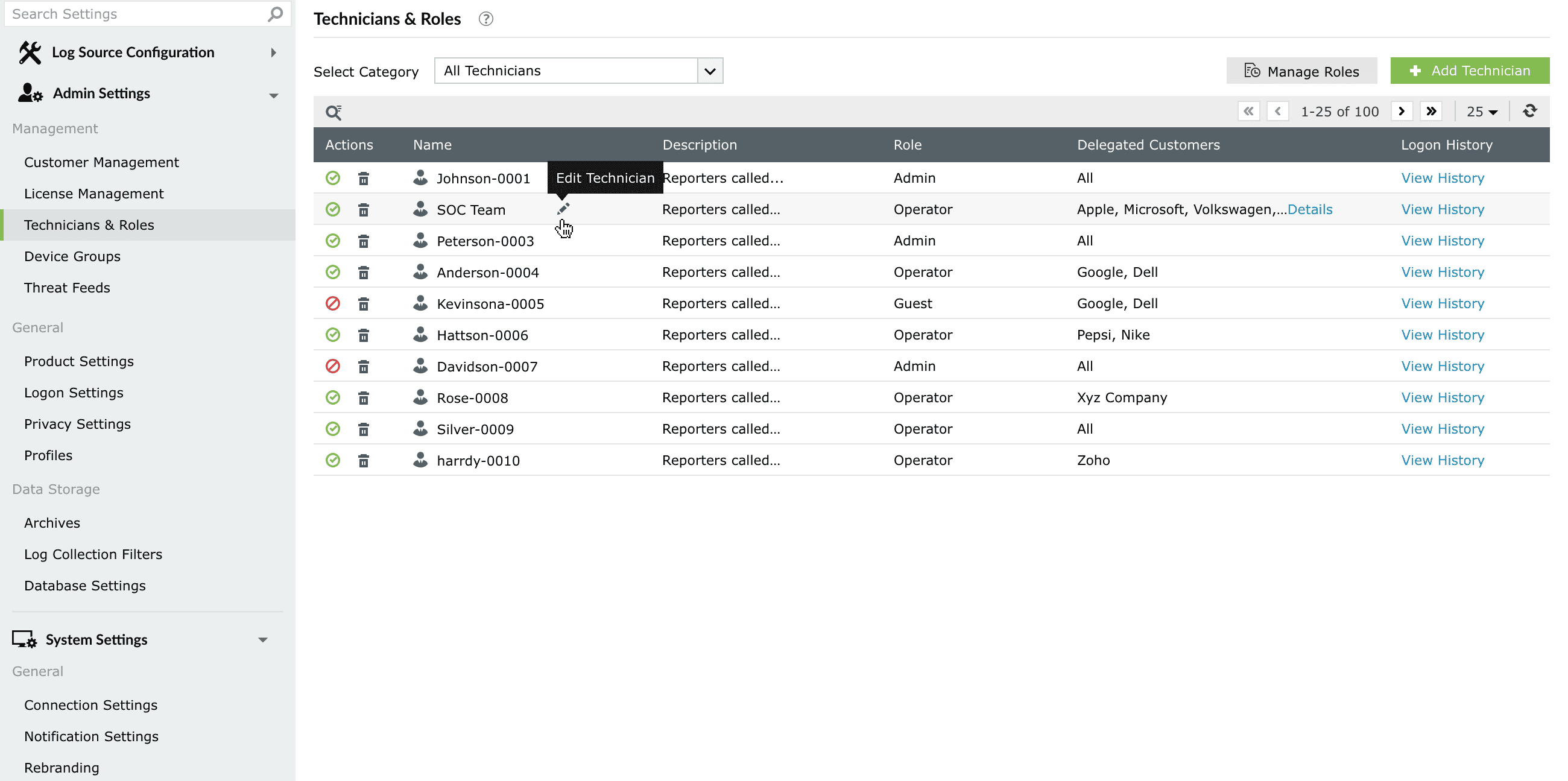
Image 8: Editing technicians in Log360 MSSP - Upon clicking on the edit icon, the Edit Technician page appears, similar to the Add Technician page.
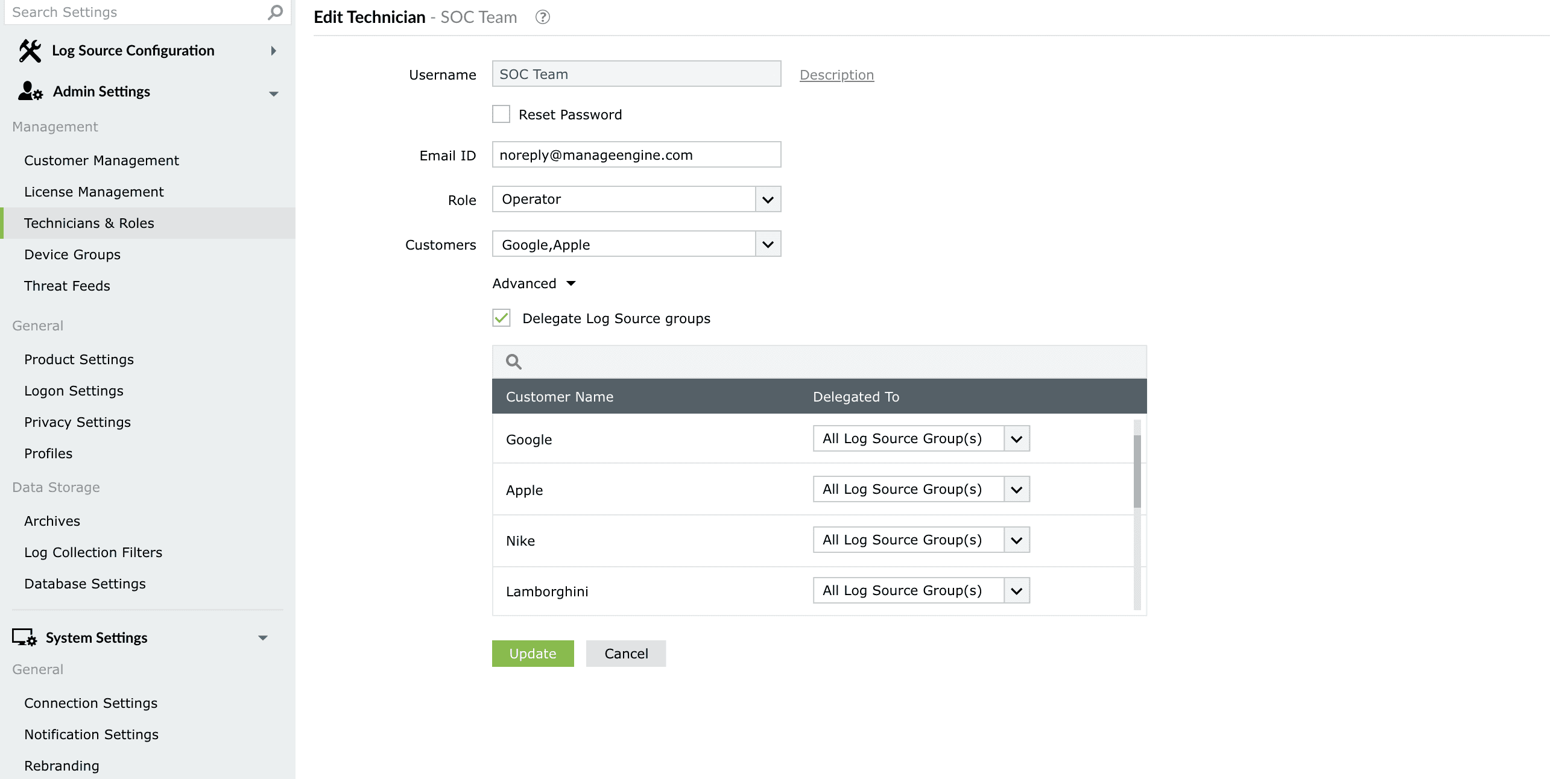
Image 9: Editing technicians in Log360 MSSP - Edit the fields as per your requirement and then click on the Update button.
- Upon successful completion of the action, the below pop-up appears.

Delete an existing technician
To delete an existing technician, follow the steps given below.
- Navigate to the Technicians & Roles in the Management section under Admin Settings via the Settings tab, and click on the delete
 icon in the Action column of the respective technician.
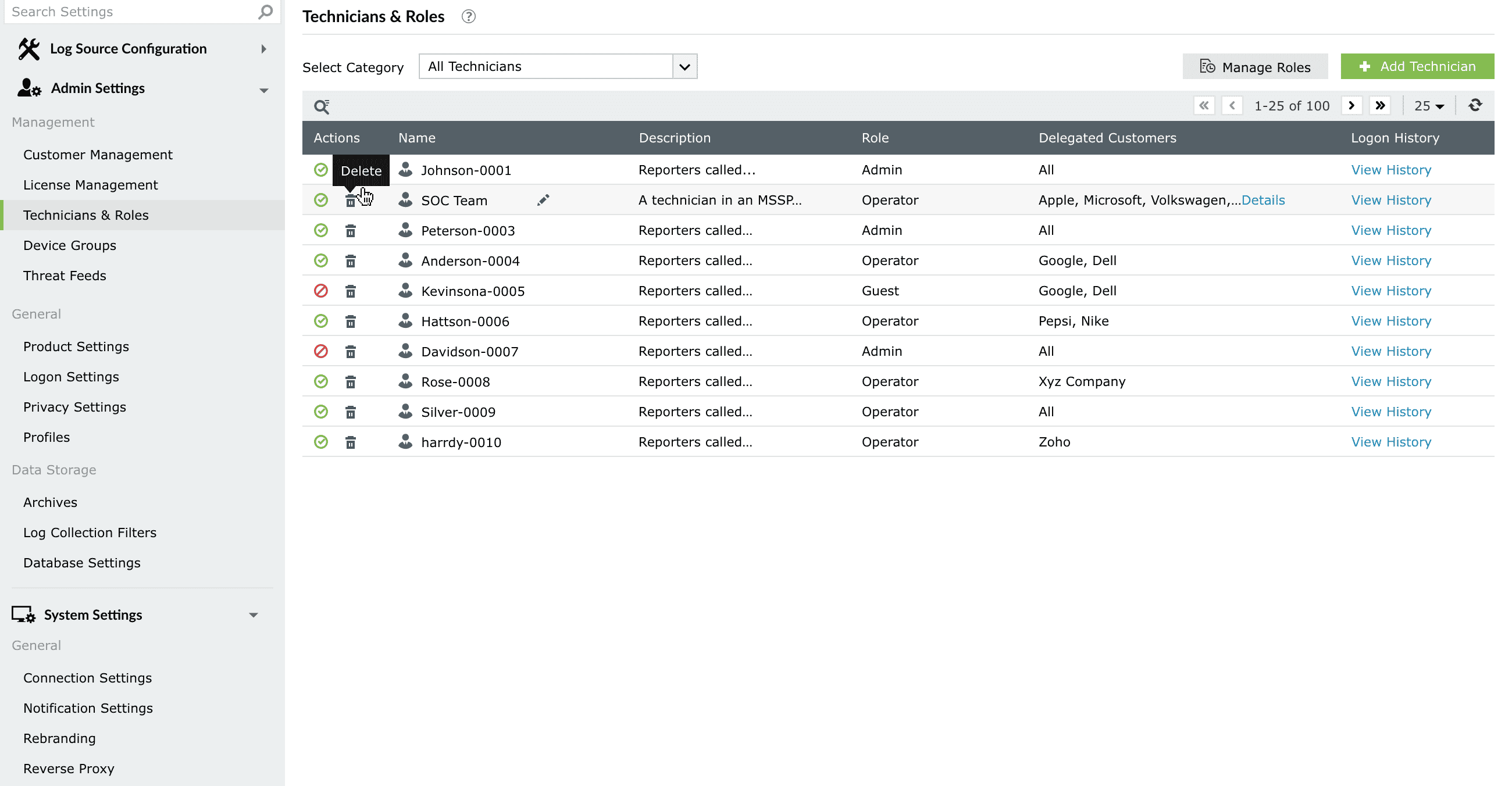
Image 10: Deleting technicians in Log360 MSSP - You can also delete a technician for an individual customer by opening the details drop-down in the Delegated Customers column of that specific technician.
NOTE You cannot delete a technician for an individual customer if you have provided All Customers access for that technician.
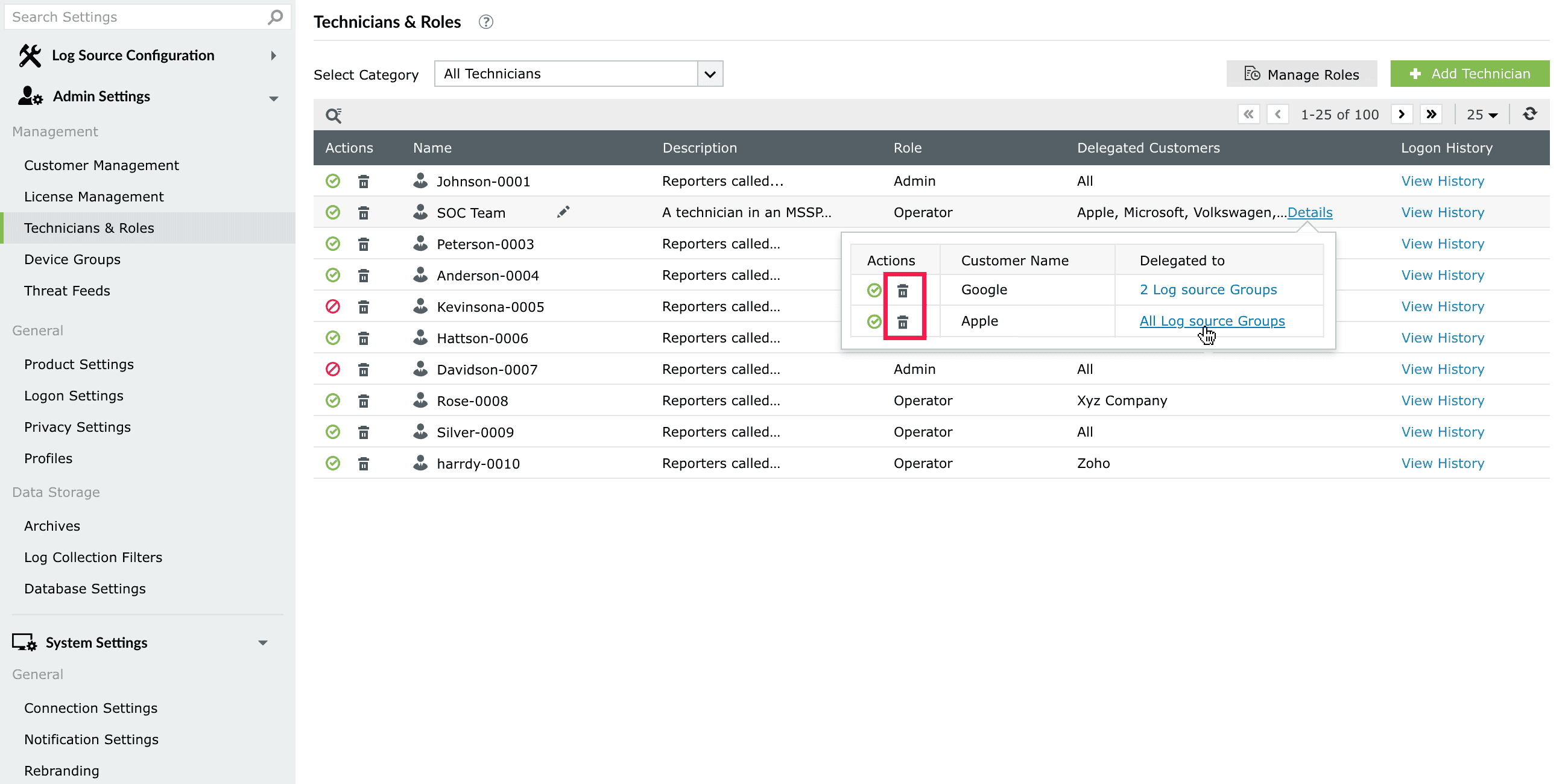
Image 11: Deleting technicians in Log360 MSSP - As soon as you click on delete, a Confirm Action pop-up box appears. Click on Yes.
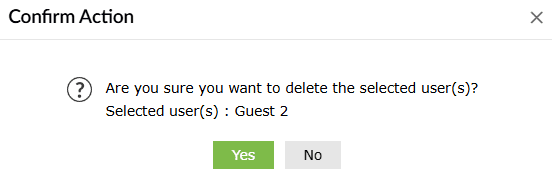
- Upon successful completion of the action, the below pop-up appears.

Read also
This document covered how to manage technician accounts in Log360 MSSP, including their roles, privileges, and customer-level access. For related multi-tenant administrative tasks, refer to: