
Starting and stopping the product
Last updated on:
In this page
Overview
ManageEngine Log360 can be run either as an application or as a service on both Windows and Linux environments. Depending on your installation choice, you can start, stop, or restart the product using shortcuts, service management tools, or command-line utilities.
- Start Log360: Launch the product from desktop shortcuts, the Services console, or shell scripts. Once started, all core modules initialize and the web client is made available on the configured port.
- Stop Log360: Shut down Log360 using the shutdown utilities or service stop options. This closes all active sessions, database connections, and frees the ports used by the product.
- Restart Log360: Stop the running instance and start it again, typically after applying configuration changes.
This section outlines the steps to start, stop, and restart ManageEngine Log360 across supported operating systems.
How to start the product server/service
Windows application
- Click the Start menu, search for Log360 and click Open to launch the server.
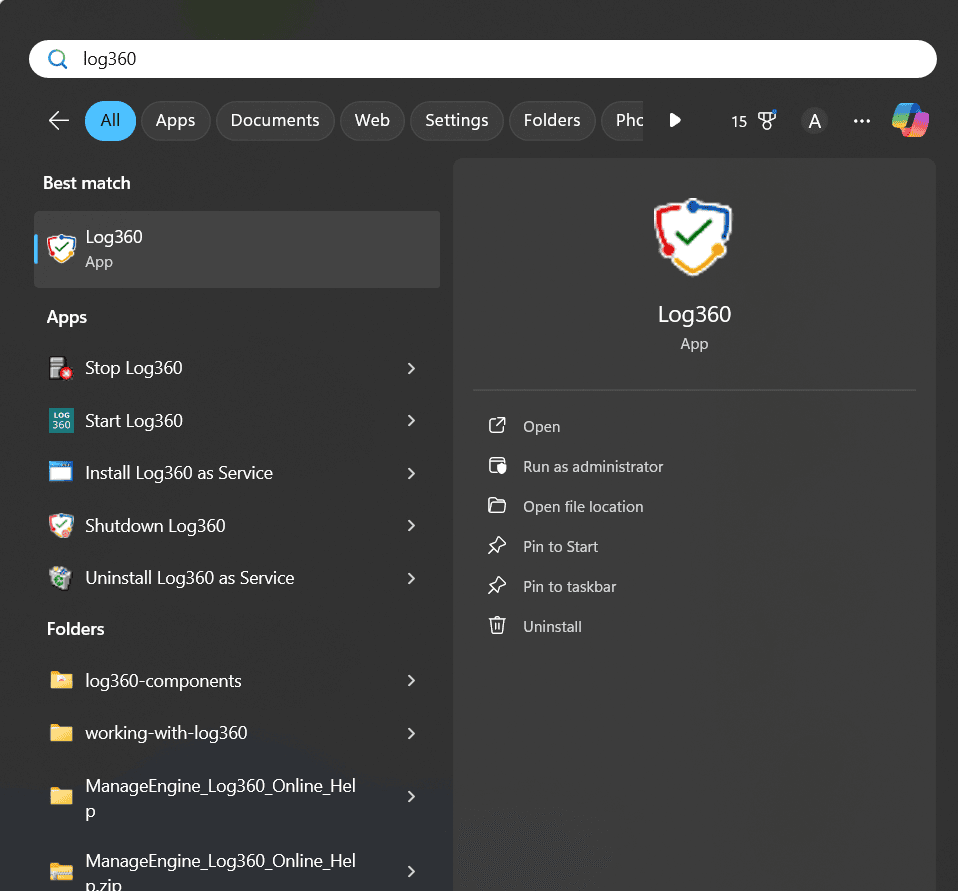
Figure 1: Opening the application - If the server is already running, click the icon in the taskbar to check the server status and connect to the client specified in the Client field.
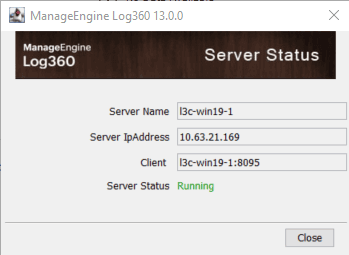
Figure 2: Checking server status - Alternatively, open File Explorer, locate <Log360 Home>\bin folder and execute the run.bat file.
Windows service
Once installed as a service, follow these steps to start the product console as a Windows Service:
- Click the Start menu, and search for Services.
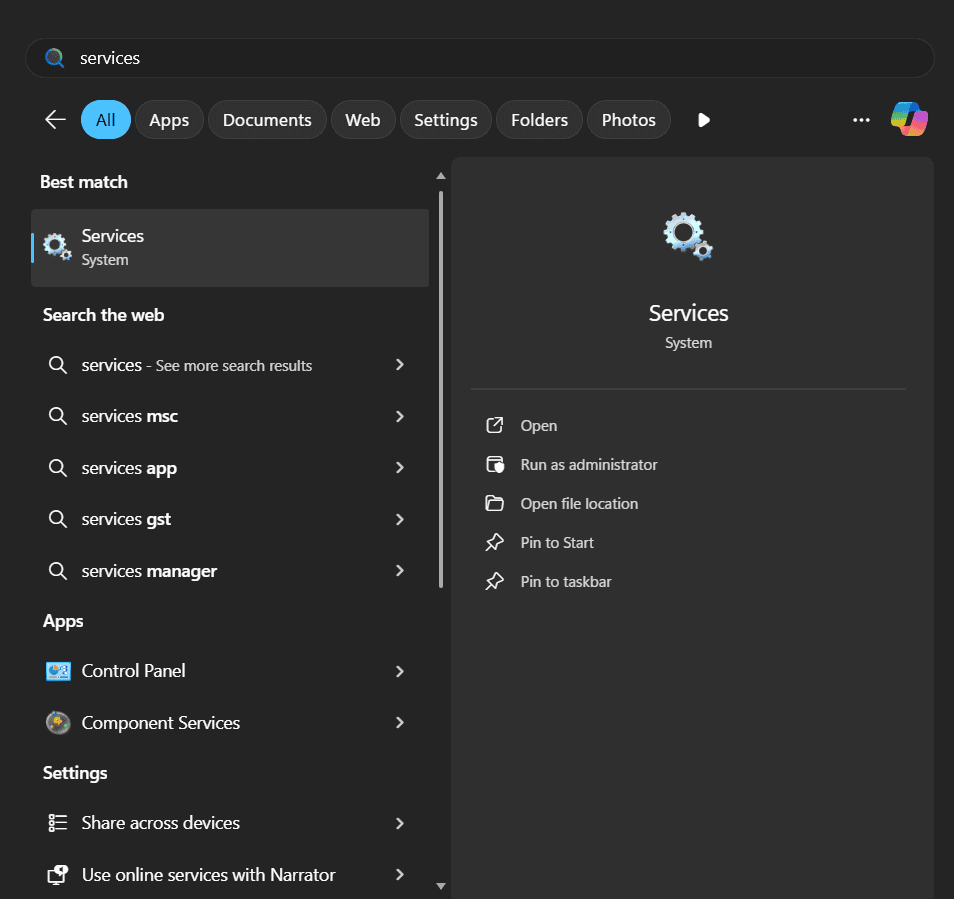
Figure 3: Navigating to services - In the Services window, l ocate ManageEngine SIEM in the list.
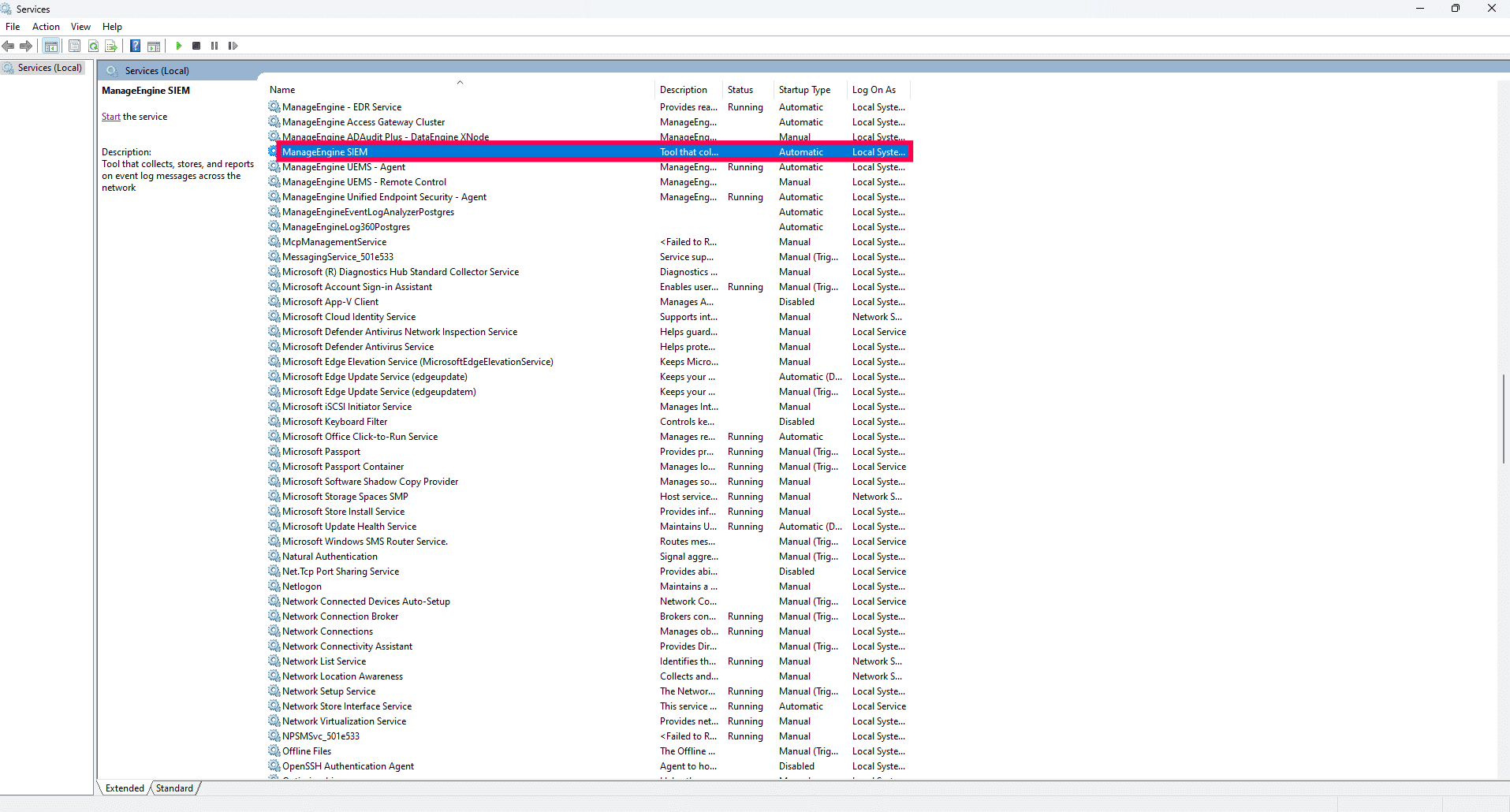
Figure 4: Locating the service - Select Start in the menu.
NOTE Set the service startup type to Automatic to ensure the application starts automatically.
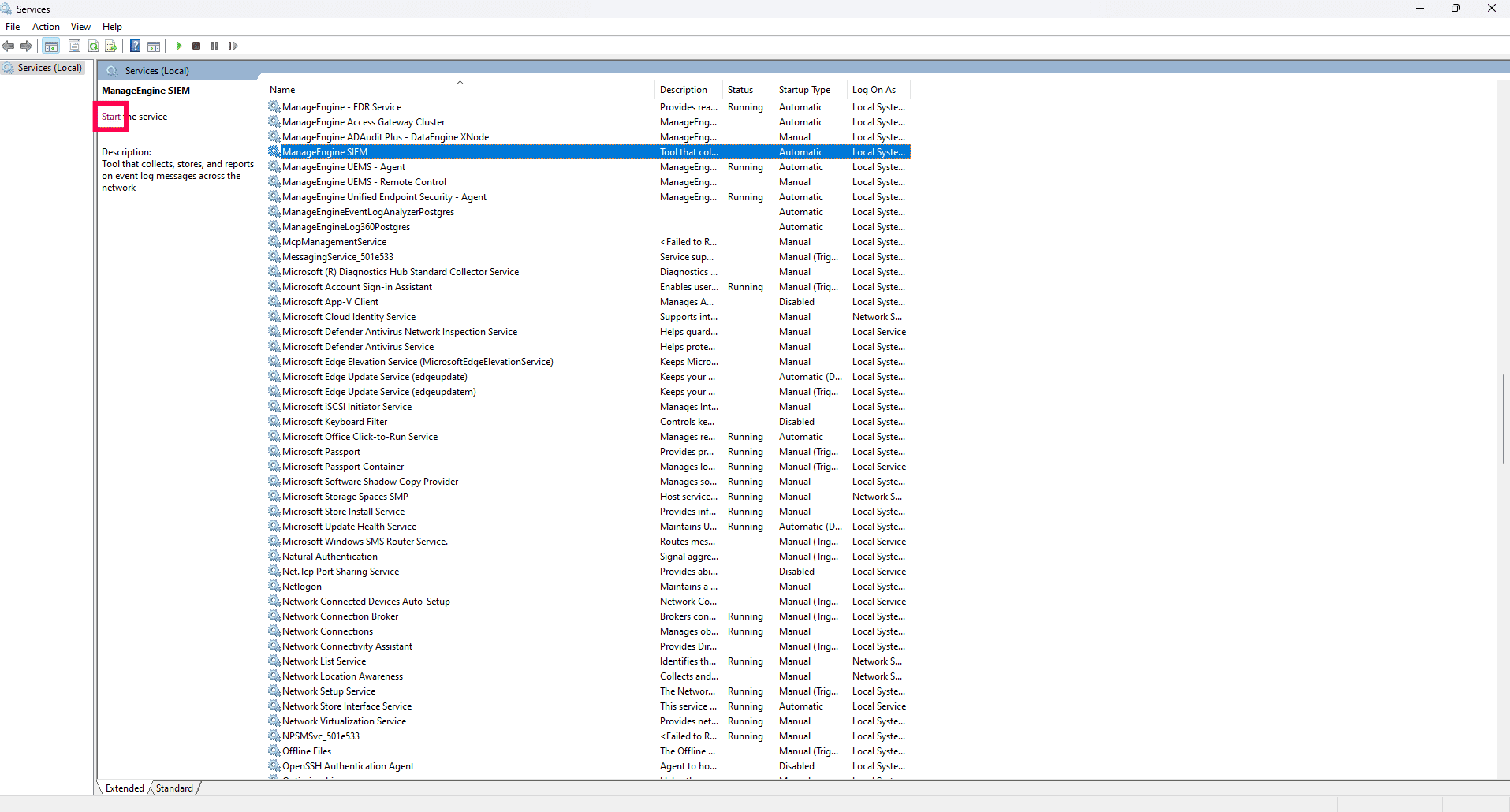
Figure 5: Starting the service - Alternatively, right-click and select Properties.
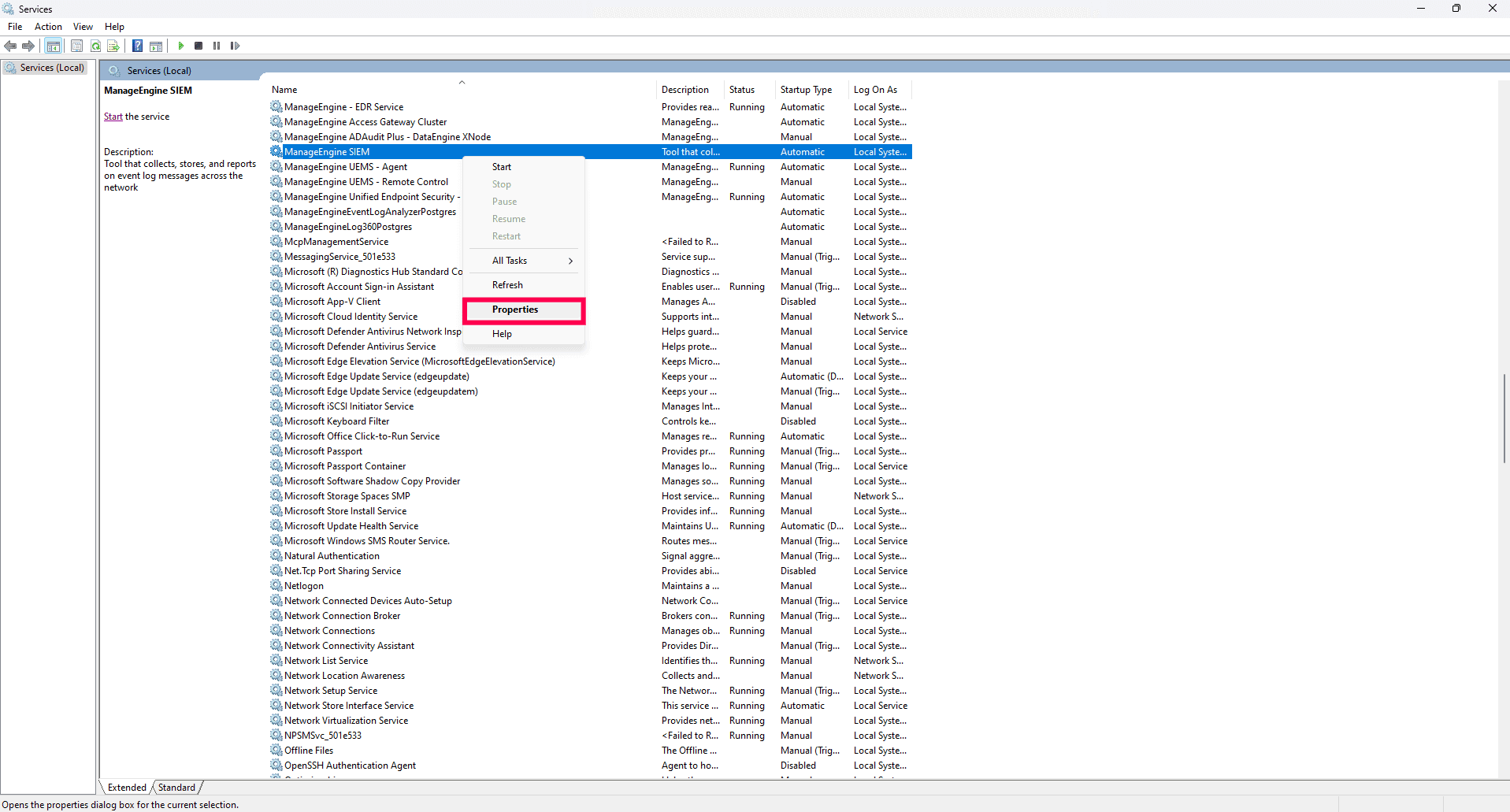
Figure 6: Configuring properties - In the General tab, verify that the Service status is Stopped and Start is enabled.
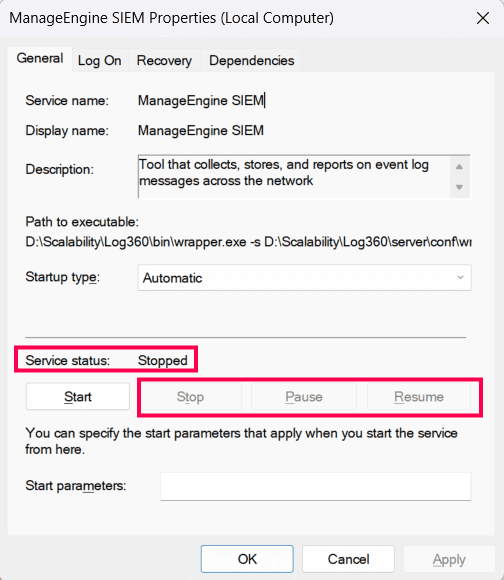
Figure 7: Checking service status - Click Start to run the server as a Windows service.
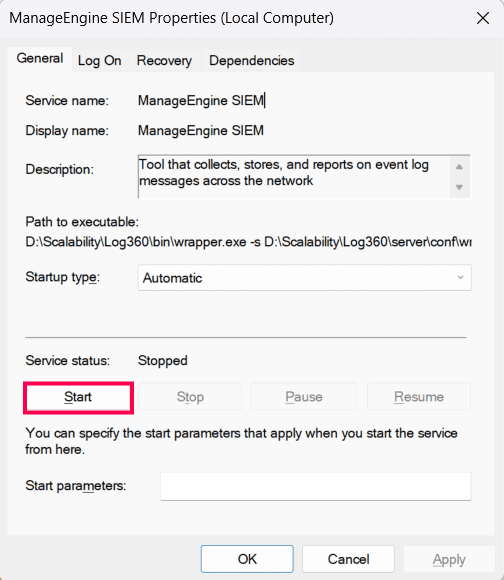
Figure 8: Starting the product as windows service
Linux application
The startup process varies depending on the installation directory and user permissions.
| Installed in | Users who can start | How to Start |
|---|---|---|
| Top level directories like /opt/, /home , /, and others | Root: Yes
Other users: Yes |
Root user: Navigate to the <Eventlog Analyzer>/bin directory and execute the configureAsService.sh file with root user privileges. Then restart the server using the shutdown.sh and service start commands to start using service.
Other users: * Open a terminal.* Navigate to the <Eventlog Analyzer>/ES/bin directory, run sudo initES.sh. Alternatively, you can also run initES.sh using root.* Navigate to the <Eventlog Analyzer>/bin directory and execute the run.sh file or start using service. |
| Home of a user For example, /home/testuser/Log360 or /home/Admin/Log360 or any other directory that comes under a user's home directory | User who owns the home directory: Yes
Root user: No (Because in Red Hat and CentOS, a user cannot access another user's files. When the application is run as the root user, an elasticsearch user is created. This user cannot access its home directory since it is part of another user's home directory.) |
Root user: Should not runOther users: * Open a terminal.* Navigate to the <Eventlog Analyzer>/ES/bin</Eventlog> directory, run sudo initES.sh. Alternatively, you can also run initES.sh using root. |
- When the respective run.sh file is executed, a command window opens up and displays the startup information of several product console's modules. Once all the modules are started, the following message is displayed:
Server started.
Please connect your client at http://localdevice:8095
- The 8095 port (default port) is replaced by the port you have specified as the web server port during installation. This can be further updated in the Connection Settings page.
Linux service
During installation, you can choose to install the product console as a service. If you have installed it as an application, follow the steps below to convert it into a Linux service.
- Navigate to the bin folder and execute the following command:
/bin$ ./configureAsService.sh -i
- Once the software is installed as a service, execute the following command to start the Linux service:
service eventloganalyzer start
- To verify the service status, run the following command:
service eventloganalyzer status
How to shut down the product server/service
Follow the steps below to shut down the product server. Once the server is successfully shut down, the PostgreSQL/MySQL database connection is automatically closed, and all the ports used by the product are made available.
Windows application
- To shut down the product console, click the Start menu, search for Log360, and then select Shutdown Log360 from the options that appear.
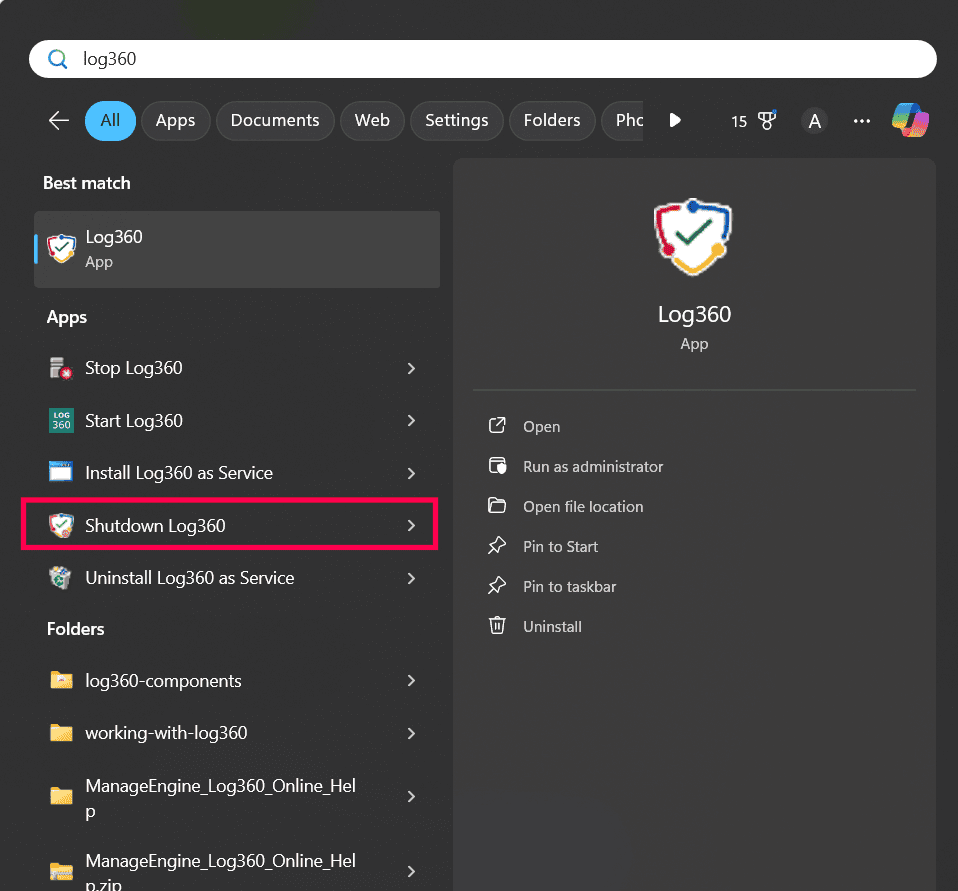
Figure 9: Shutting down the application - Alternatively, open File Explorer, locate <Log360 Home>\bin folder and execute the shutdown.bat file.
Windows service
To stop the product console when it is running as a Windows service, follow these steps:
- Click the Start menu, and search for Services.
- In the Services window, locate ManageEngine SIEM in the list, right-click it, and select Stop.
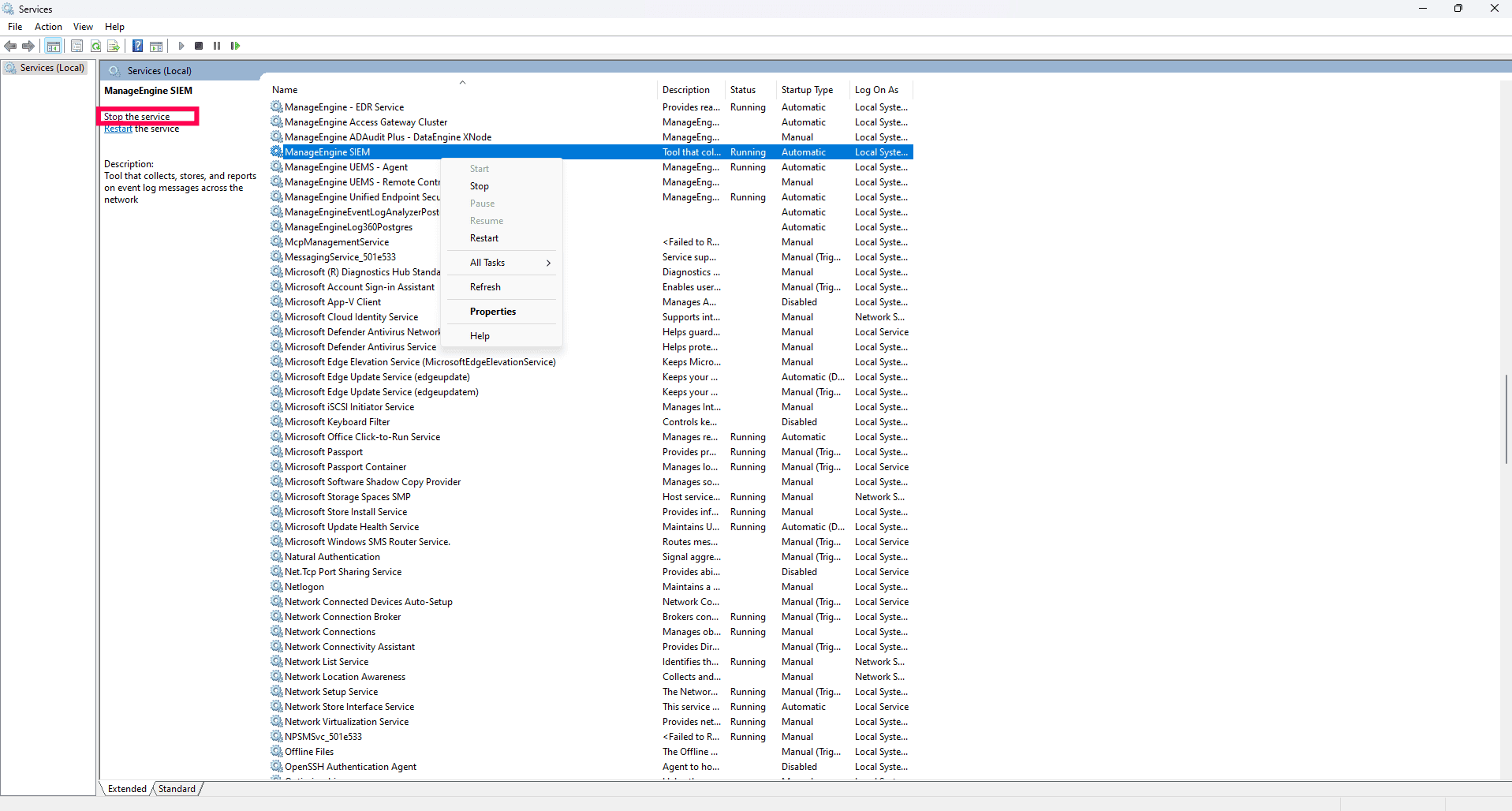
Figure 10: Stopping the service - Alternatively, right-click and select Properties.
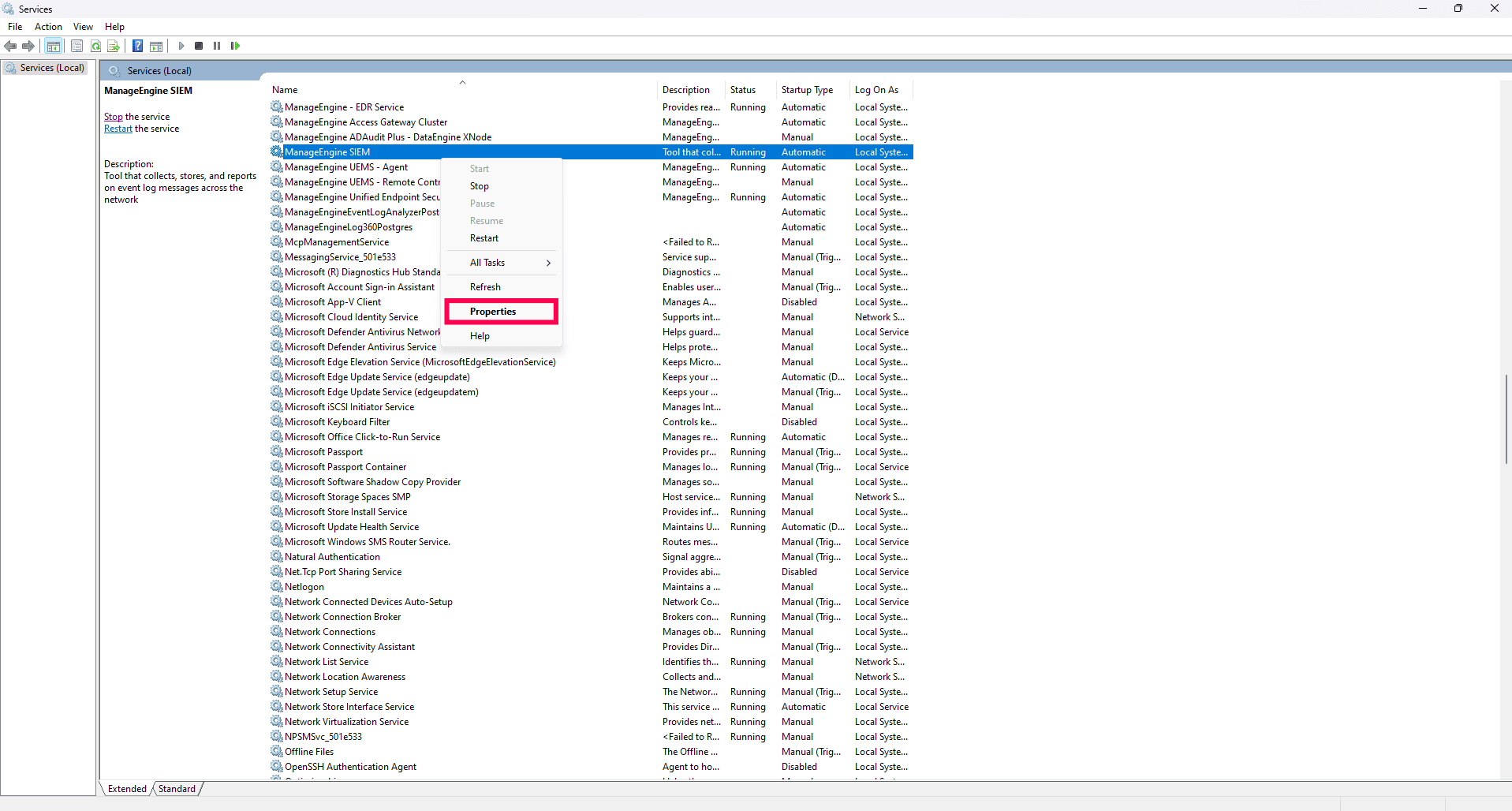
Figure 11: Configuring properties - In the General tab, verify that the Service status is Started and Stop is enabled.
- Click Stop to shut down the Windows service.
Linux application
- Navigate to the EventLog Analyzer Home>\bin directory.
- Execute the shutdown.sh file.
- You will be prompted to confirm your choice, after which the server will shut down.
Linux service
To stop the product console when it is running as a Linux service, execute the following commands:
- Stop the service:
service eventloganalyzer stop
- Check the service status:
service eventloganalyzer status
How to restart the server/service
Stopping the product
For the console application:
- Windows:
- Navigate to <Log360 Home>/bin.
- Execute the shutdown.bat file.
- Wait until the process completes.
- Linux:
NOTE This is applicable only for EventLog Analyzer.
- Navigate to <EventLog Analyzer Home>\bin.
- Execute the shutdown.sh file.
For the service mode:
- Open the Services console.
- Locate ManageEngine Log360 service.
- Click Stop.
Starting the product
For the console application:
Direct Call:
- Click on the shortcut icon to start the product.
- You can also go to <EventLog Analyzer Home>\bin.
- Execute wrapper.exe ..\server\conf\wrapper.conf
For the service mode:
- Go to the service console.
- Find the ManageEngine EventLog Analyzer service.
- Click on Start
Read also:
This page explains how to start, stop, and restart product console as an application or service on Windows and Linux.