
Manage alert profiles
Last updated on:
In this page
Overview
The manage alerts section provides an overview of all configured alert profiles along with their severity, associated log sources, and notification settings. Based on the Created By type, alert profiles can be edited, deleted, copied, or toggled on/off. Similarly, few alert profiles, however, can only be enabled, disabled, or duplicated and cannot be edited or deleted.
There are three types of alert profiles based on the “Created by” column:
- Log360
- These are the default, built-in alert profiles.
- They are not fully modifiable.
- Users can only do limited actions such as: enable/disable, clone, and update specific configurations (like log sources and notification settings).
- But users cannot delete or fully edit them.
- Users
- These are the custom alert profiles created manually by technicians/users.
- They are fully modifiable.
- Meaning: you can perform all actions — enable/disable, delete, update completely, and clone.
- Exception: If it’s a rule-based alert under “Users,” then it behaves like Log360/Extension ones (i.e., only partially modifiable).
- Extension
- These are alert profiles that come from extensions installed through the Marketplace.
- Same as Log360 profiles, they are not fully modifiable.
- Users can only enable/disable, clone, and update specific configurations (log sources & notifications).
Managing alert profiles
- In the console, navigate to the Alerts tab.
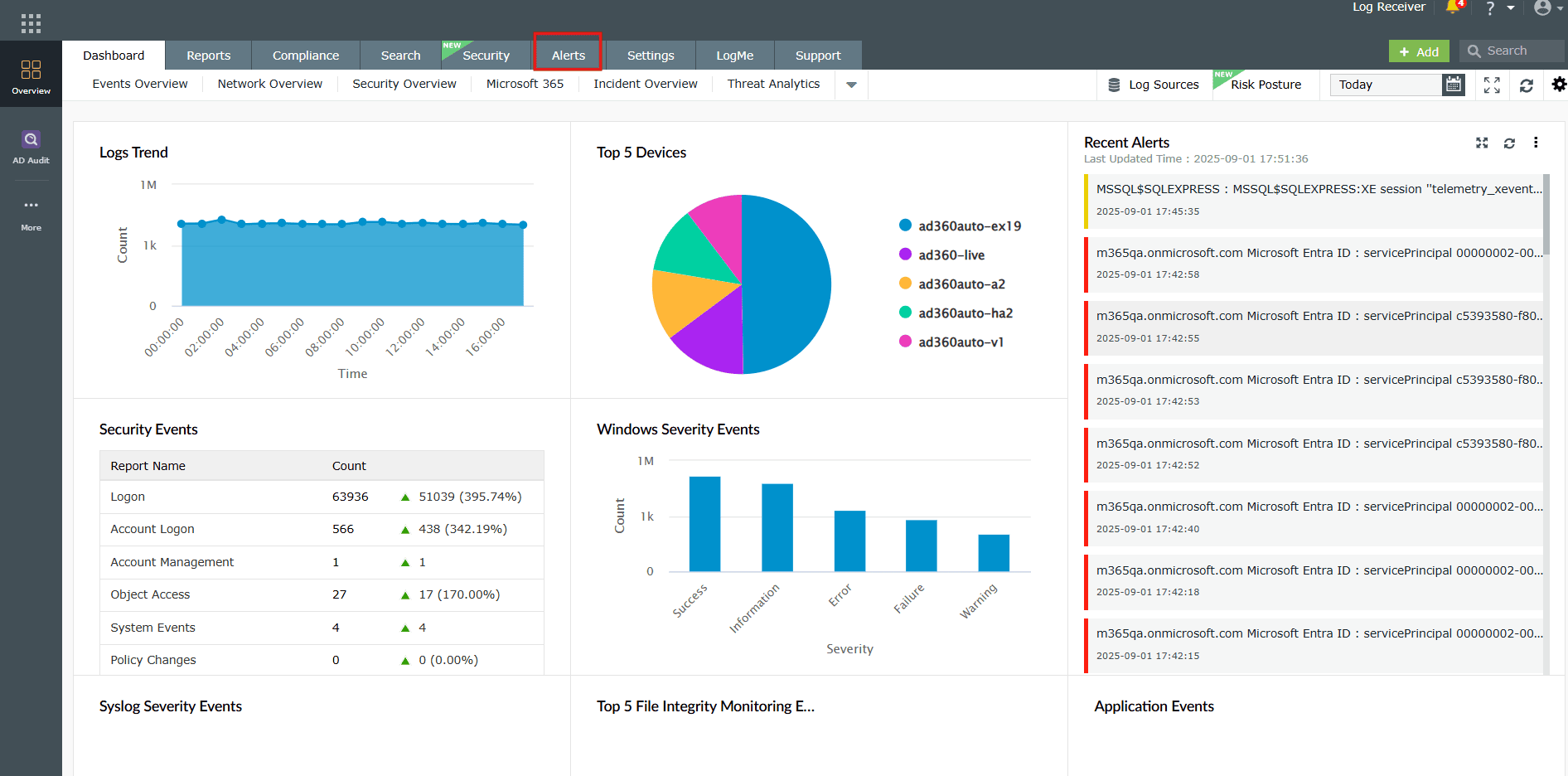
Image 1: Alerts tab in the dashboard - You will be taken to the Alerts module. Click on Manage Alert Profiles as highlighted in the below image.
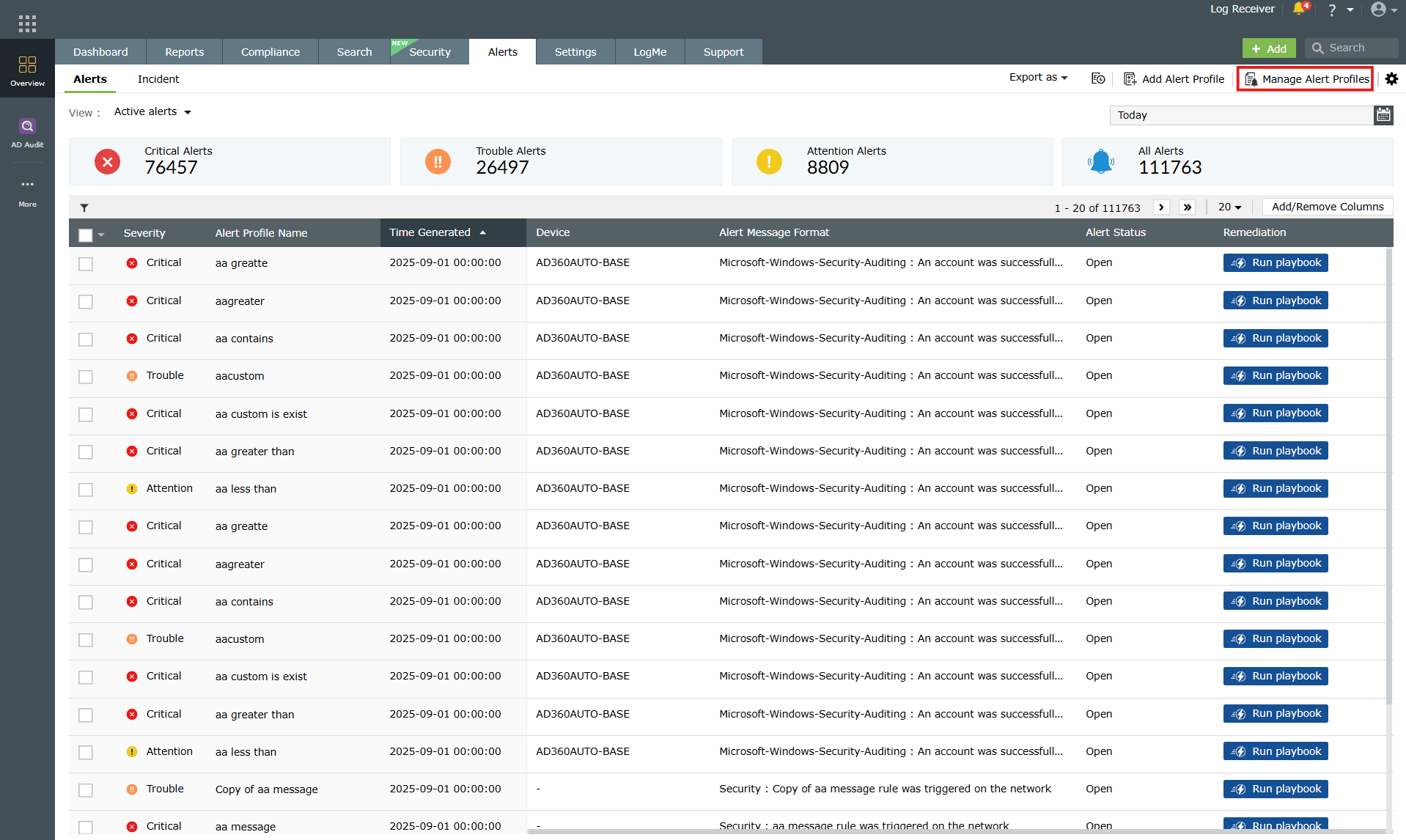
Image 2: Alerts module via the dashboard - The Manage Profiles page displays the list of all alerts, their profile types, creators, and log sources.
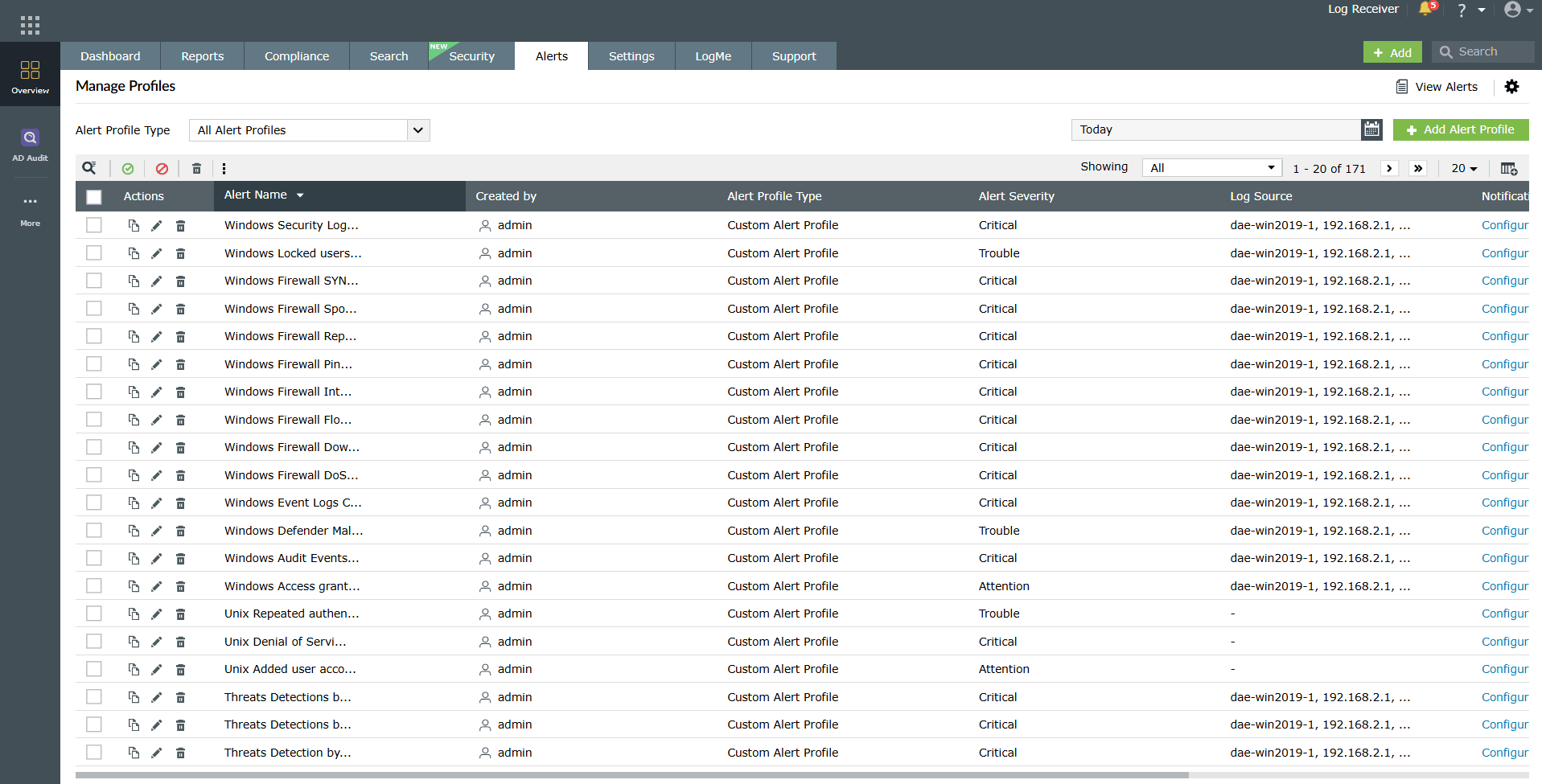
Image 3: Manage alert profiles module You can:
- Enable/disable
- Delete
- Edit
- Copy an alert profile
- Perform bulk actions
- Filter and sort alerts
- You can also add a new alert profile by clicking on the Add Alert Profile button as highlighted below. To learn more about creating new alert profiles, refer to the Create Alert Profiles help document.
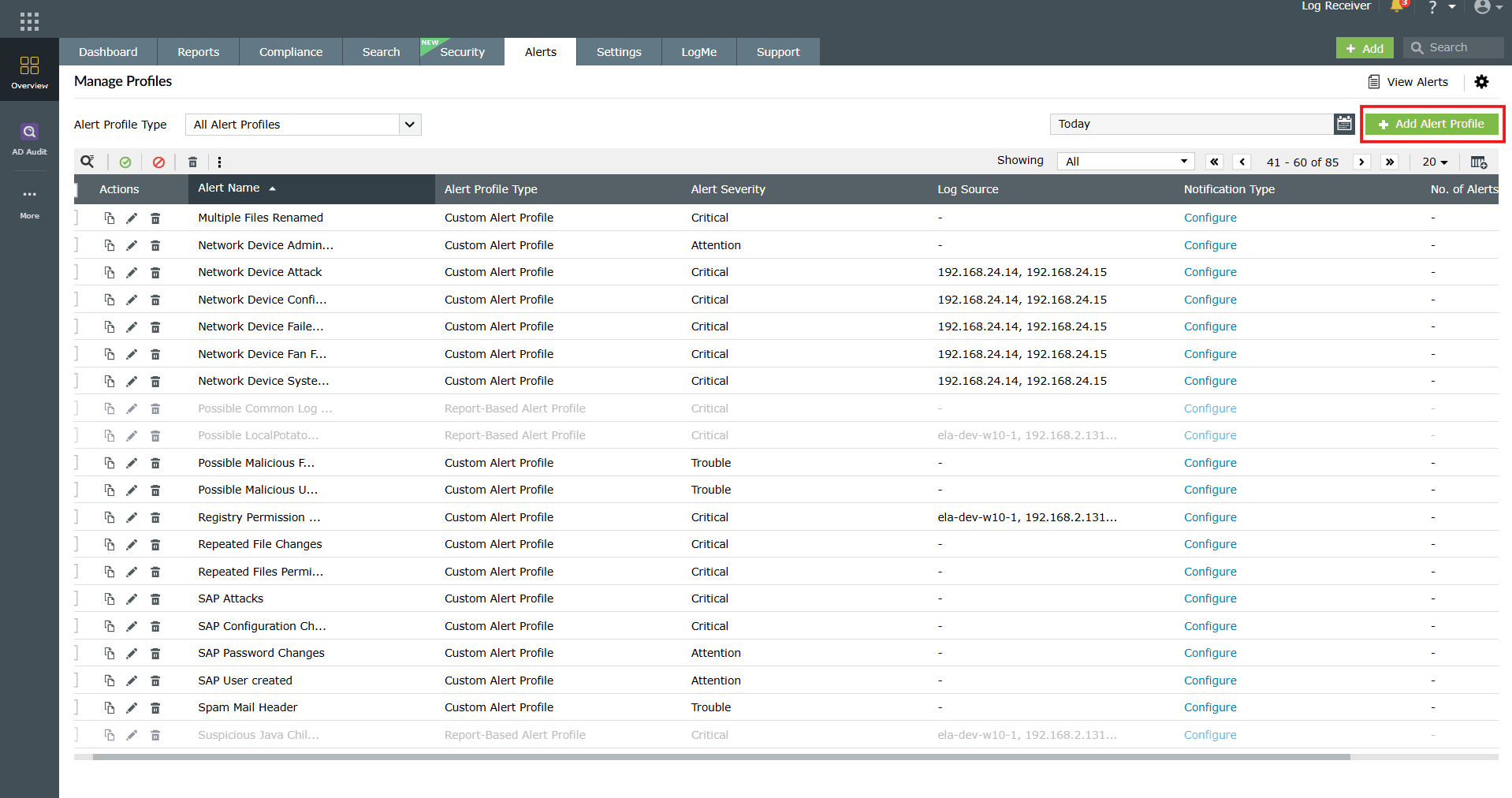
Image 4: Add alert profile option via manage alert profiles module
Enable/disable an alert profile
Enabling an alert profile
- Click on the enable
 icon present in the ribbon to enable the alert.
 - The alert is now enabled, and a confirmation pop-up briefly appears.

Disabling an alert profile
- Click on the disable
 icon present in the ribbon to disable the alert.
 - The alert is now disabled, and a confirmation pop-up briefly appears.

Delete an alert profile
- Click on the Delete icon
 under the Actions column to delete the alert.
 - A Delete Action pop-up appears for confirmation. Click on the checkbox and Yes to proceed.
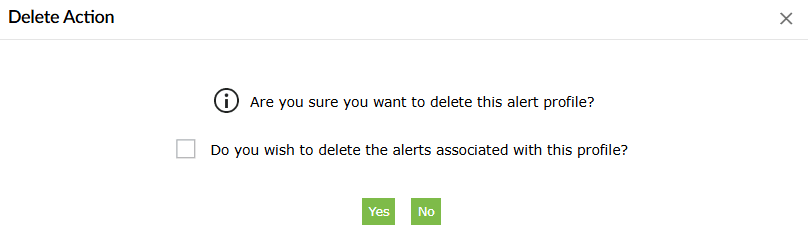
- Once completed, a success confirmation pop-up appears.

Edit an alert profile
- Click on the Edit icon
 under the Actions column to modify the respective alert profile.
 - You will be taken to the Edit Alert Profile module. Make the necessary changes to the criteria, severity, or notification settings, and click on Update.
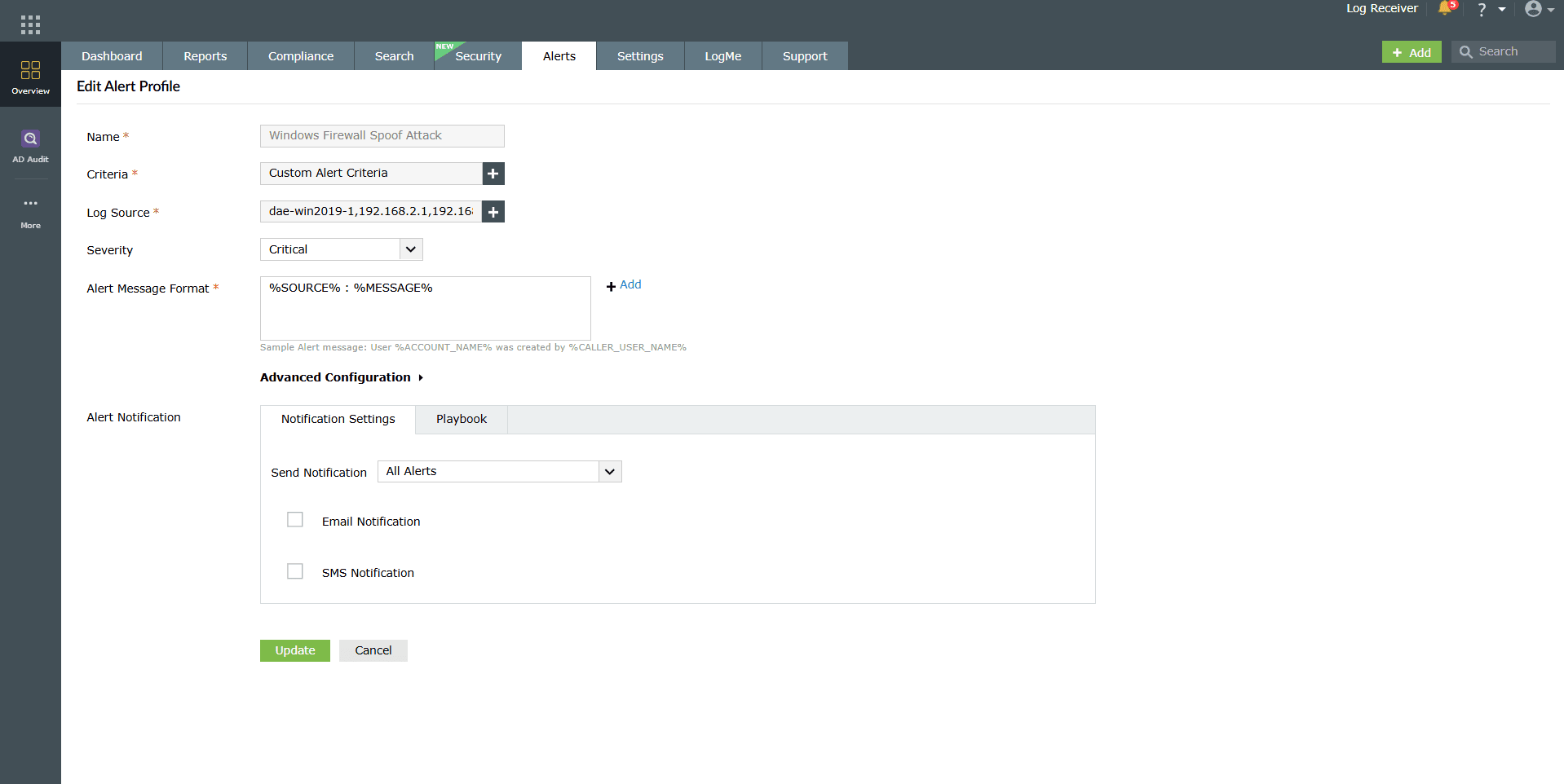
Image 5: Edit alert profile via manage alert profiles module - Upon successful completion of the action, the below pop-up appears, and the alert is saved instantly, and you are redirected back to the Manage Alerts module with the updated alert listed.

Clone an alert profile
- Click on the Clone icon
 under the Actions column to duplicate the respective alert profile.
 - The alert is instantly duplicated, and you will be instantly taken to the Add Alert Profile module where you can edit the cloned alert profile based on your requirements and save that version on the cloned alert profile.
Bulk actions
- Select the checkboxes next to the alerts you want to manage.
- Use the toolbar at the top of the alert list to perform actions in bulk, such as clicking on the Enable, Disable, or Delete icons to perform the desired bulk action.
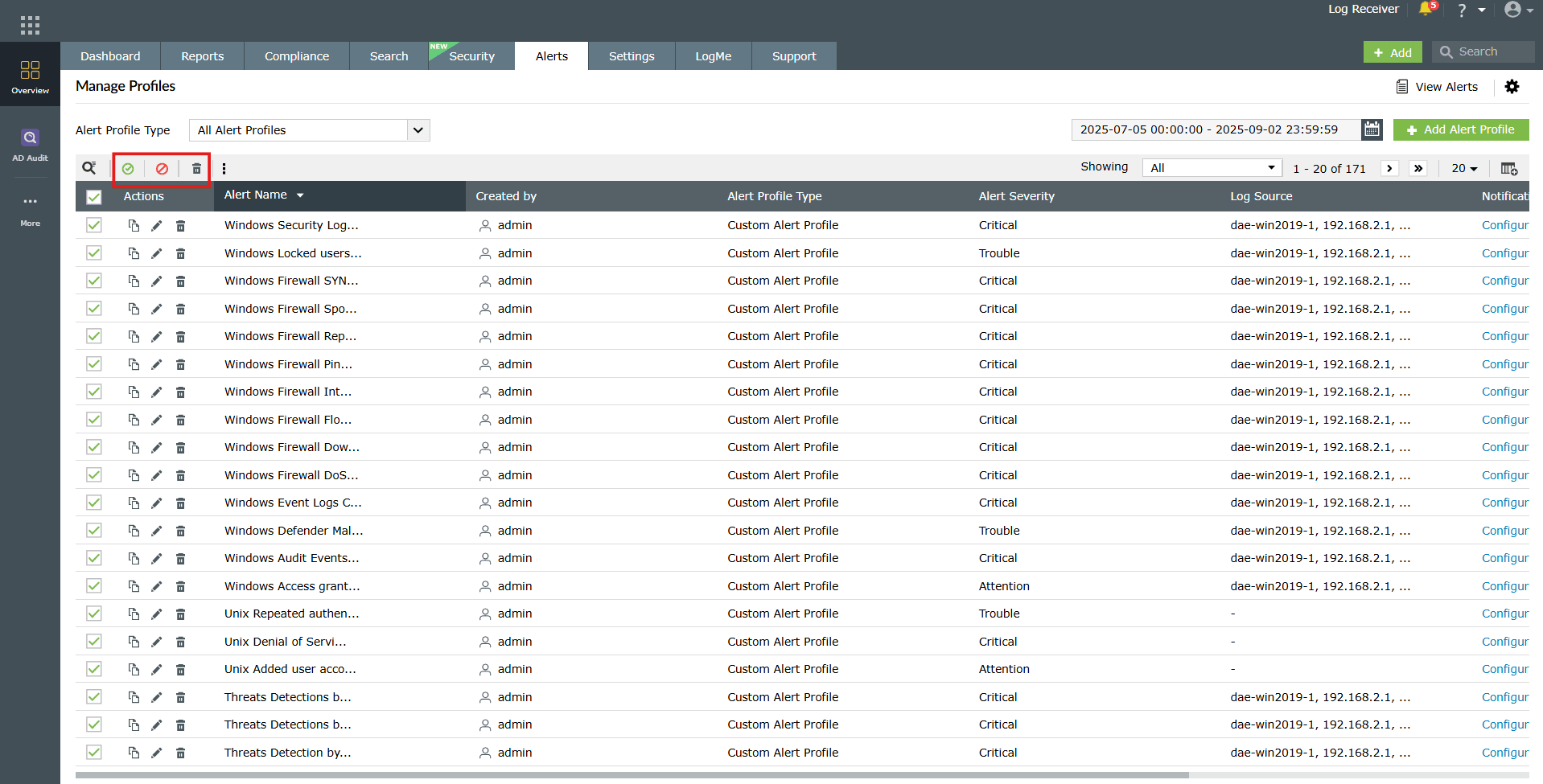
Image 6: Bulk enable/disable or delete alerts - Upon successful completion of the action, the following confirmation pop-up appears:
- When enabled successfully:

- When disabled successfully:

- When deleted successfully:

- When enabled successfully:
Filtering alert profiles
You can filter alert profiles in the following ways:
- Based on status (enabled/disabled)
- Use the filter option above the alerts list to view only enabled or only disabled alert profiles.
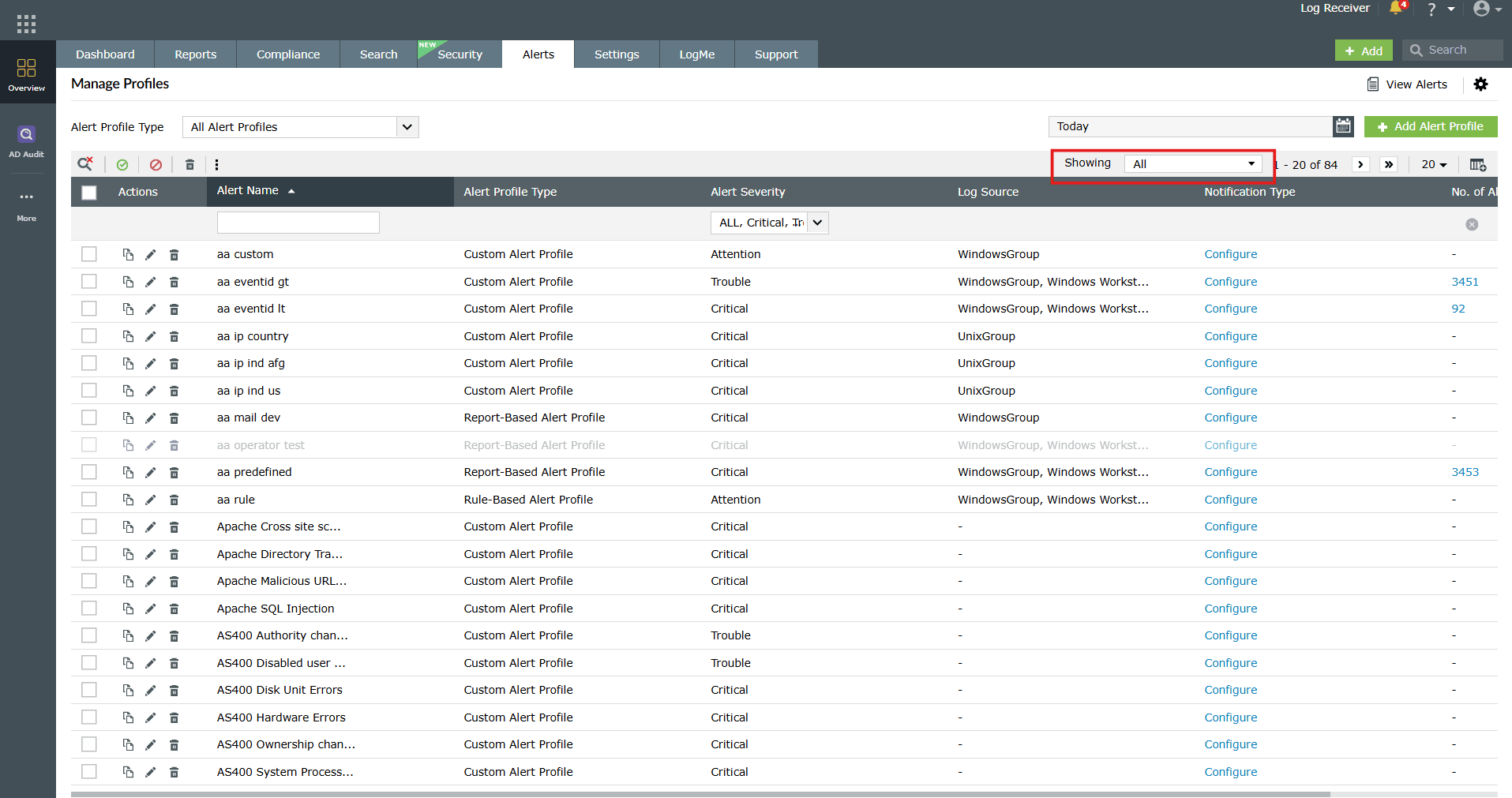
Image 7: Filtering alert profiles via manage alert profiles module - This helps you quickly identify active alerts versus those that are turned off.
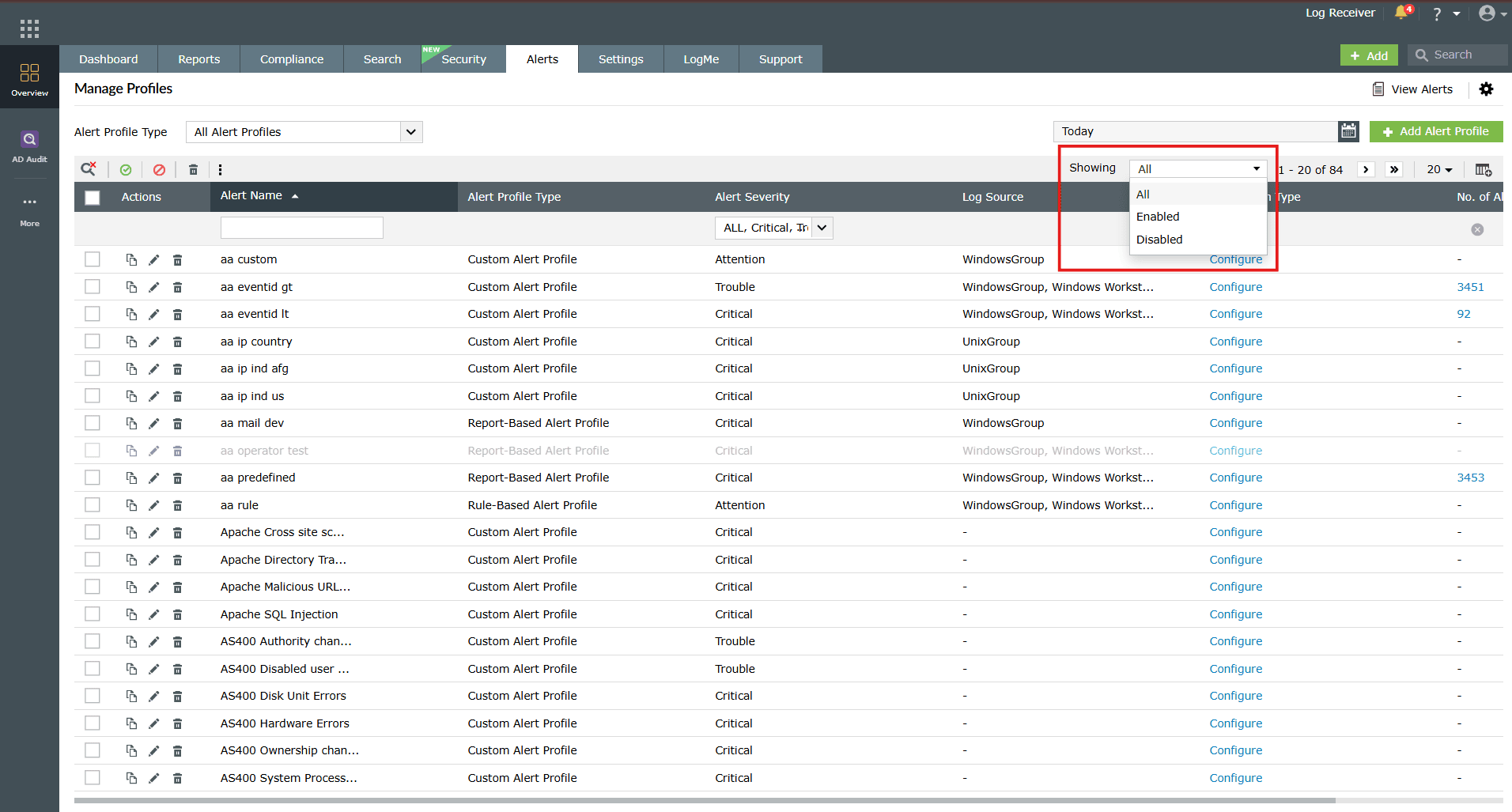
Image 8: Filtering alert profiles via manage alert profiles module
- Use the filter option above the alerts list to view only enabled or only disabled alert profiles.
- Calendar-based filtering
- Click on the calendar icon in the filter options.
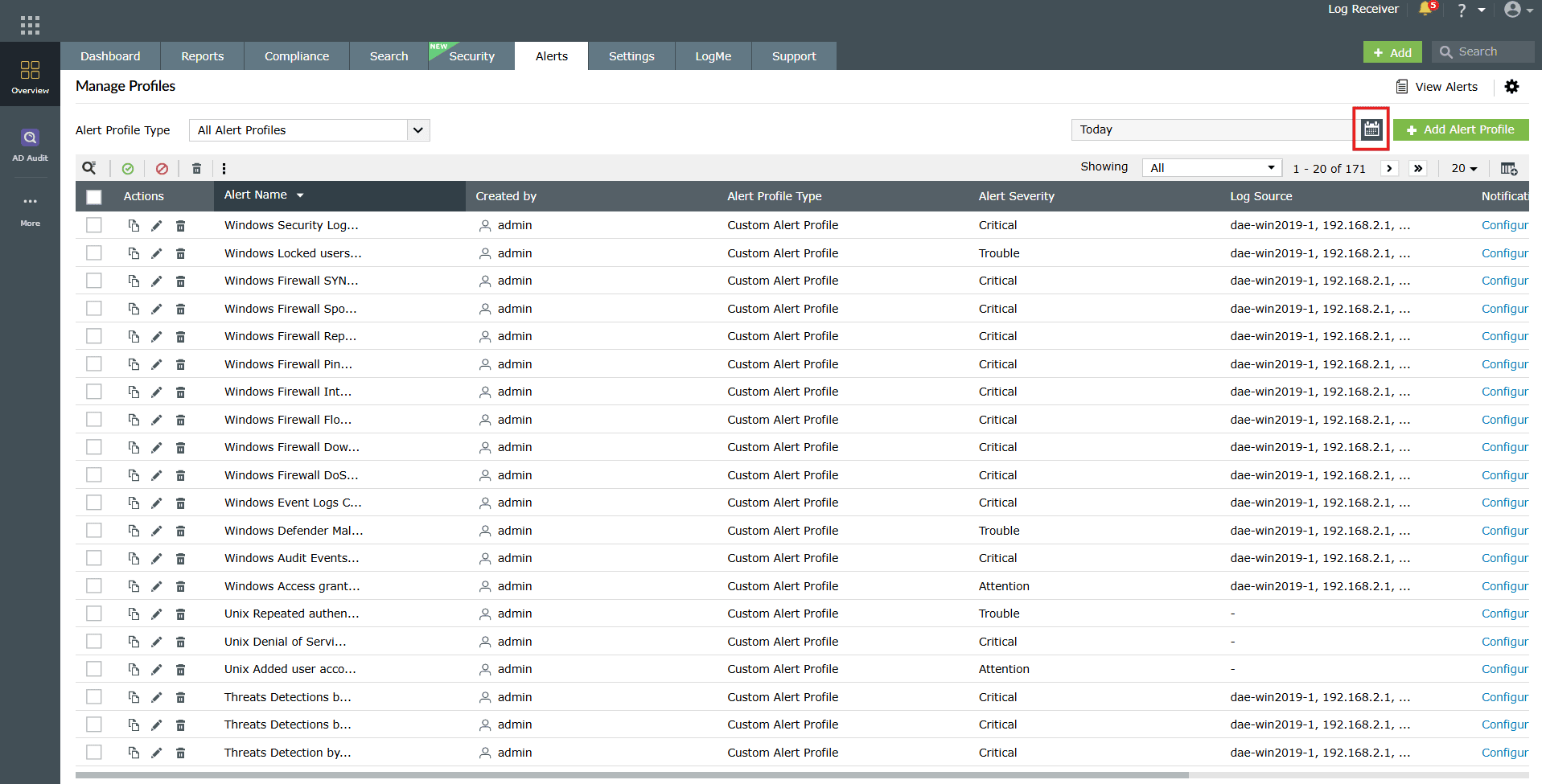
Image 9: Filtering alert profiles for a time range - The action opens a calendar view along with predefined time ranges for you to choose from. You can also view the count of all triggered alerts based on the time range.
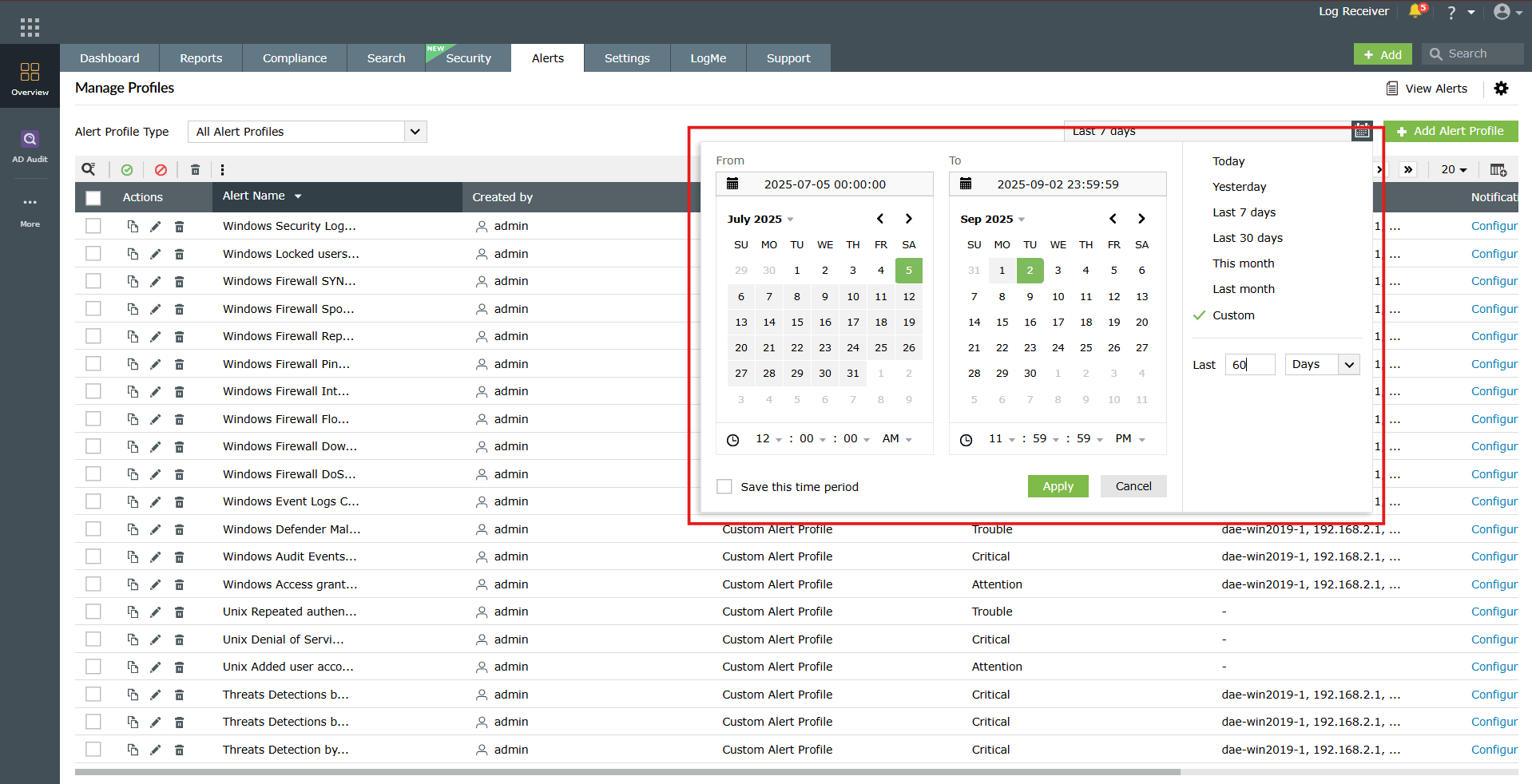
Image 10: Filtering alert profiles for a time range - Click on any of the predefined time ranges available that best suits your requirement.
- Click on Custom range and enter a number in the box provided to represent the past number of days’ worth of alerts you wish to view.
- Click on Apply.
- Upon completion, the alerts list will continue to display all available profiles. However, the alert counts will be filtered and updated based on the selected time range.
- Click on the calendar icon in the filter options.
More Options
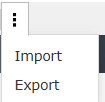
Click on the More Options icon as highlighted below to view the Import and Export actions.
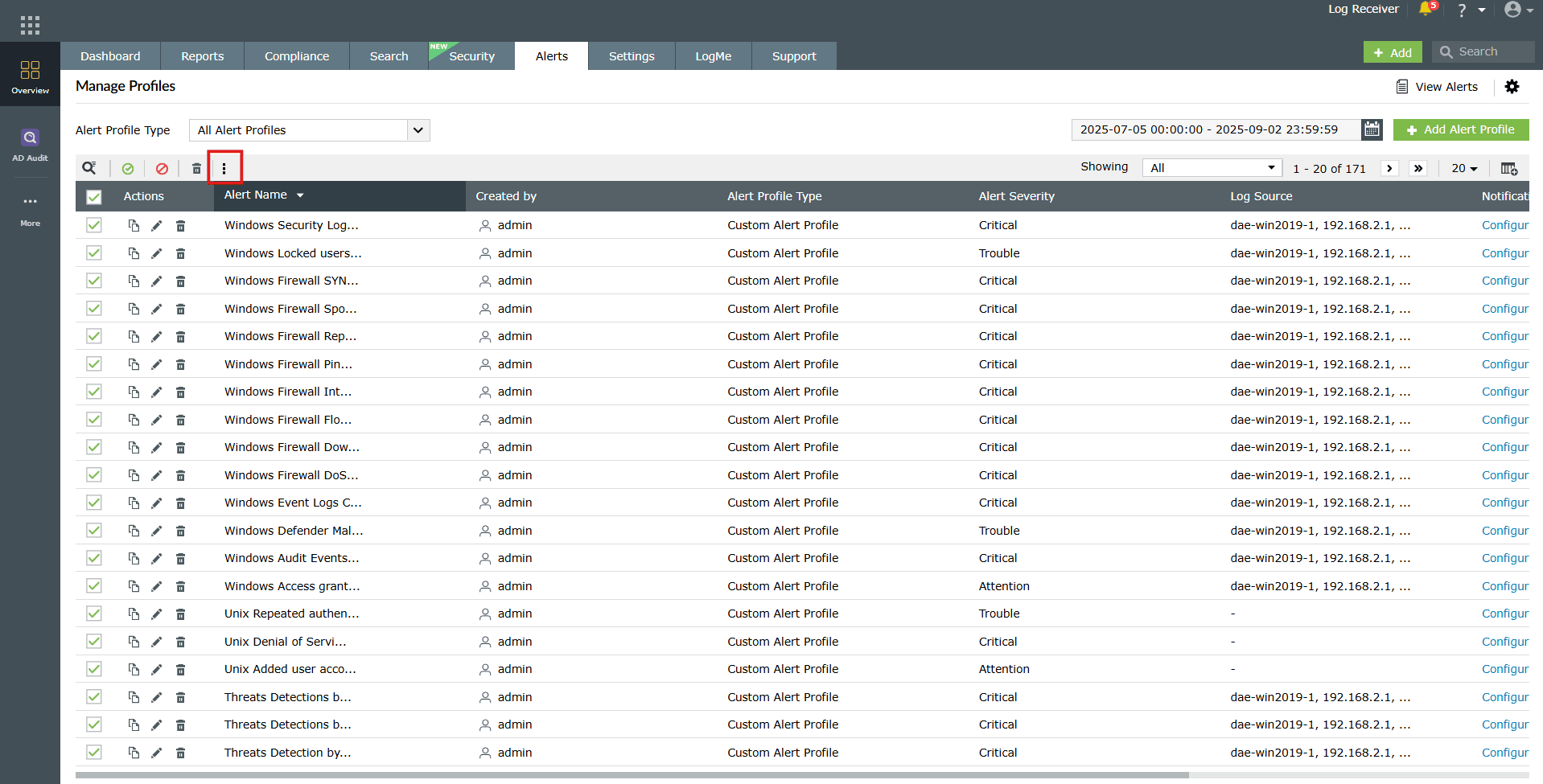
Import alert profiles
- Click on the Import option in the options list.
- Browse and select the file that contains the alert profiles you wish to import.
- If the imported alert profile matches an existing one, you will be prompted to overwrite the existing profile. Select the required profile and click Import.
Export alert profiles
- Select the required alert profiles using the checkbox(es).
- Click on the Export option in the options list.
Read also
This page elaborated a detailed guide on managing alert profiles efficiently. Read more about creating alert profiles, configuring alert notifications, and using playbooks for automated response and monitoring from the below guides: