Last updated: August 13, 2026
Distributing apps to Groups and Devices
This page explains how to distribute apps from the App Repository to groups and devices using Mobile Device Manager Plus. It covers configuring deployment settings such as distribution type (App Catalog or silent installation), restricting users from uninstalling apps, setting download preferences for Android devices, and choosing notification methods. The page also walks through upgrading enterprise apps to their latest version and removing distributed apps from devices, along with important notes on deployment precedence when devices belong to multiple groups.
You can distribute and install Android apps silently without any user intervention as explained here. Silent distribution and installation of Apple apps can be done as explained here. In case you distribute Android apps to the App Catalog instead of silently installing them, the device user can uninstall the distributed apps, which is by default restricted in case of silent installation. To test and deploy enterprise apps seamlessly using multi version management, refer to this link.
Distribute apps to groups
Follow the steps mentioned below to distribute the Apps from the App repository to the devices.
- On the web console, navigate to Groups and Devices
- Click on Groups/Devices and select the list of Devices based on the platform
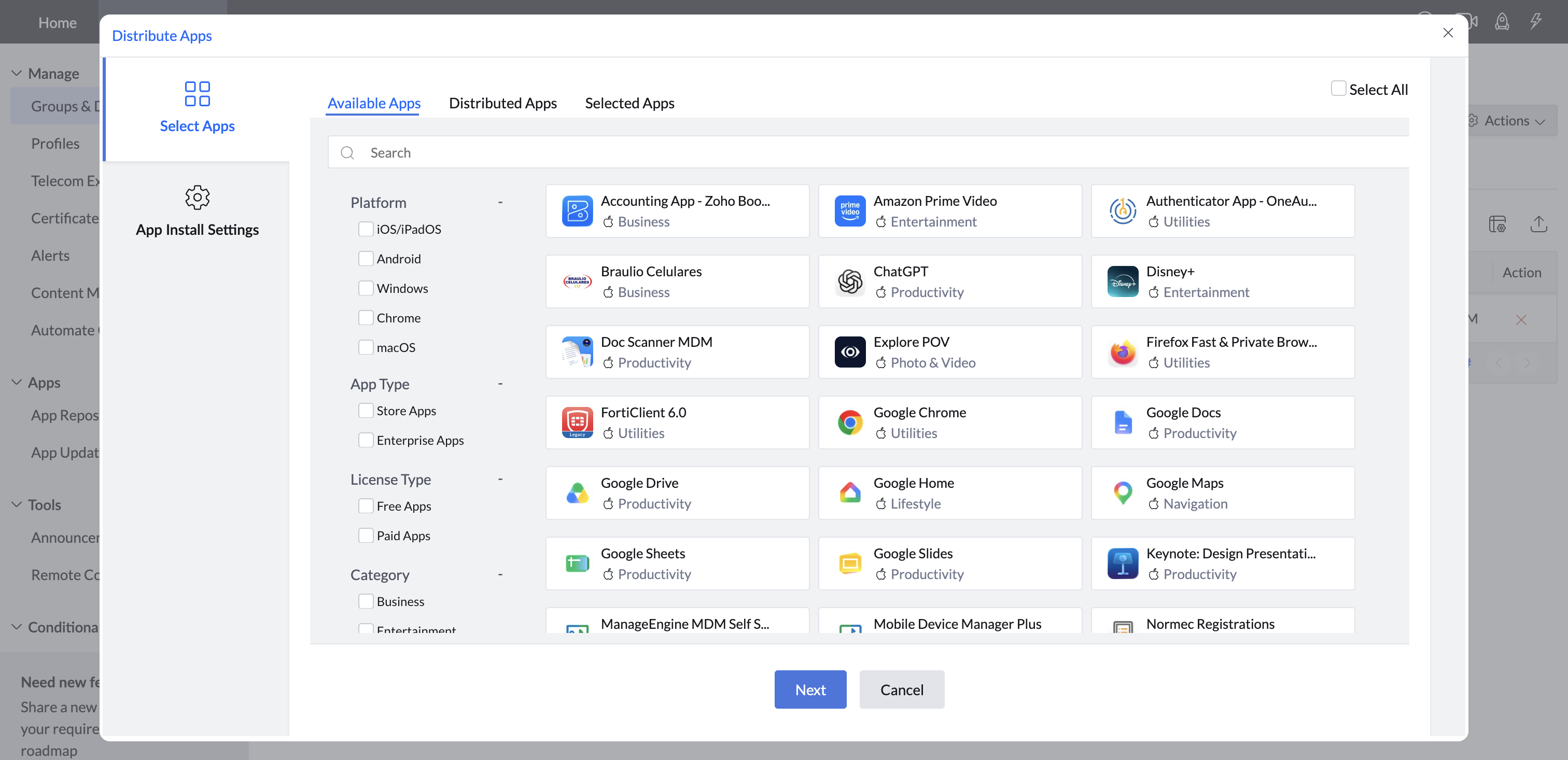
- Click on Distribute Apps from the Actions dropdown
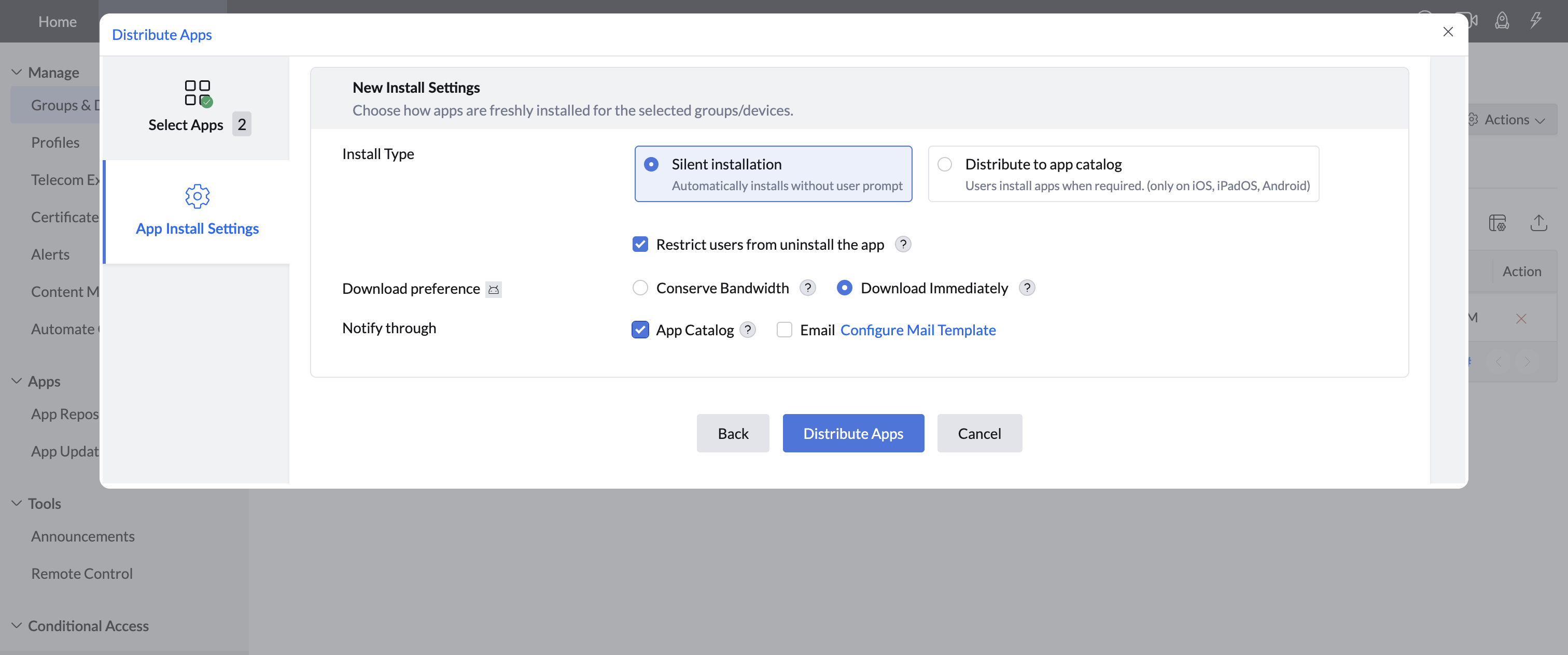
- Under Installation Settings, configure the following options:
- Distribution Type:
- Distribute to app catalog: Allows users to discover and install the app from the MDM App Catalog.
- Silent installation: Automatically installs the app on devices without user interaction. Ideal for mandatory apps or enforcing consistency.
- Restrict users from uninstalling the app:
- Enable this option to prevent users from uninstalling the app after installation. Recommended for critical apps or to maintain compliance.
- Download Preference(Android only):
- Conserve Bandwidth: Downloads the app only over Wi-Fi.
- Download Immediately: Downloads the app right away, regardless of the network.
- Notify Through:
- App Catalog: Sends notifications to the App Catalog within the ManageEngine MDM Self Service app (previously ManageEngine MDM app) on the device.
- Email: Sends notifications to the user's registered email address.
- Distribution Type:
- Click on Distribute App to proceed with app distribution
Note: The Restrict users from uninstalling the app option configured here takes precedence over the Allow Uninstalling Apps setting in the Restrictions profile. For example, if you allow uninstalling here, users can uninstall the app even if the Restrictions profile restricts it.
Note:
- In a scenario where a device belongs to multiple groups, and each group has different app deployment settings configured, the most recently applied settings will take precedence on the device.
- You have already distributed app deployment settings to a group or device, but now you want to change those settings. To do this, you need to reconfigure the settings and distribute them again to the required group or device.
- Uninstallation Restrictions Remain Intact: When you distribute app updates, the existing deployment settings, including the restriction on uninstallation, will not be overridden. The restriction will remain the same on the device.
- Apps have been successfully distributed to devices.
- App Catalog: Distributed apps appear in the device’s App Catalog for on-demand installation.
- Silent installation : The app installs automatically when the device is reachable by Mobile Device Manager Plus. Supported on:
- Supervised iOS devices
- Samsung devices provisioned as Fully Managed (COSU and COBO, or previously Device Owner)
- Non-Samsung Android devices provisioned as Fully Managed (COSU and COBO, or previously Device Owner)
- For devices provisioned as Personally-Owned Work Profile (BYOD, or previously Profile Owner), different versions of the same application cannot exist, both inside and outside the work profile / container.
- For enterprise apps, when an app is present in the personal space and a lower version of the same app is distributed to the work profile, the app installation fails. Similarly, when a higher version of the same app is distributed to the work profile, the app present in the personal space is updated to the version being distributed.
- For Play Store apps, the version of the app in the personal space is updated to the version being distributed to the work profile.
App Update Settings
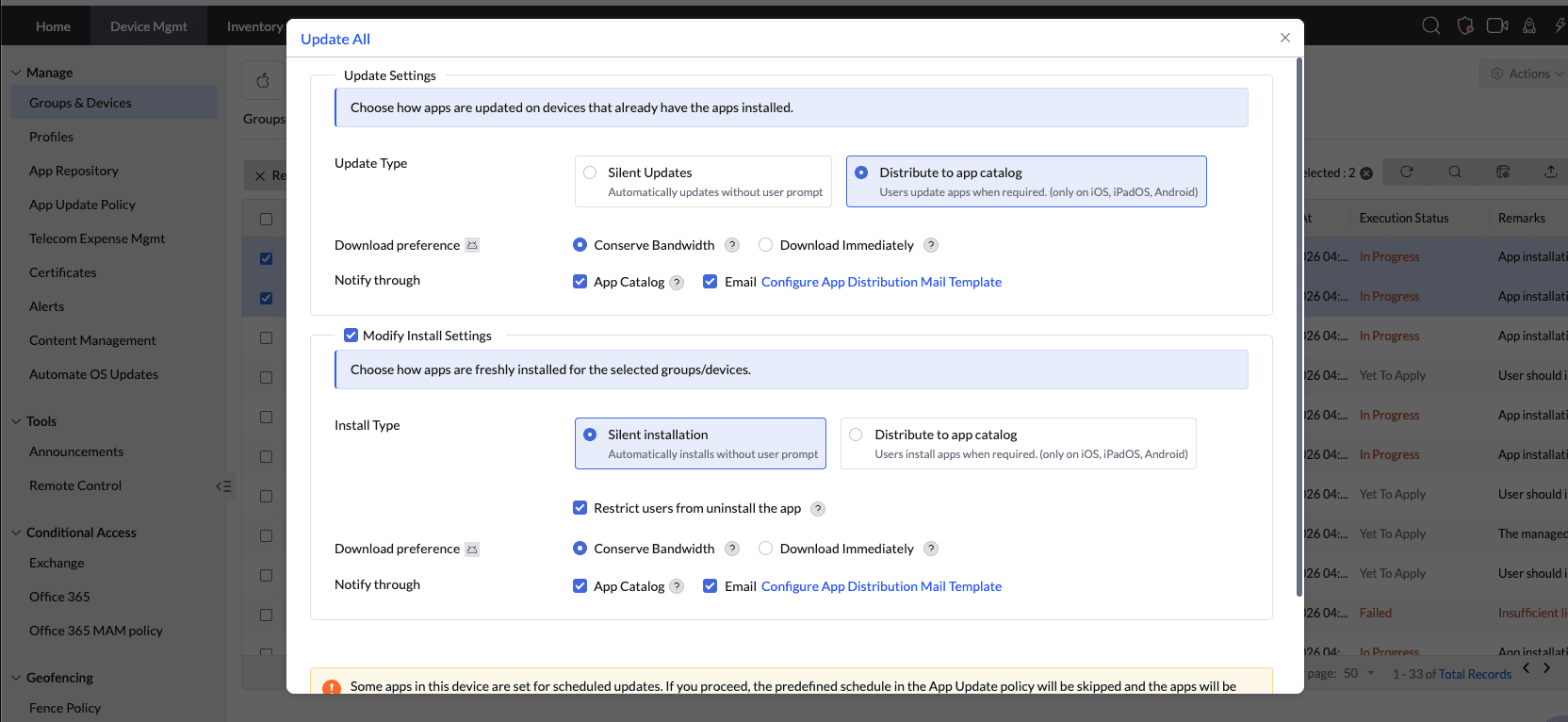
The App Update Settings determine how application updates are deployed to managed devices.
- If the application is already installed on a device, updates will be deployed according to the settings configured in the App Update Settings window.
- If the application is not yet installed on a device, you can configure the installation behavior directly within the App Update Settings window.
- Whenever the App Update/Install Settings are modified, the most recently configured settings will be applied to all applicable groups and devices.
Steps
1. Update type: Select whether you want to distribute app updates silently or make them available through the App Catalog.
2. Download Preference (Android only):
- Conserve Bandwidth: Downloads the app only over Wi-Fi.
- Download Immediately: Downloads the app right away, regardless of the network.
Note: The download preference setting is applicable only when the device is connected to an unmetered Wi-Fi network, is charging, and is in an idle state.
Notify Through:
- App Catalog: Sends notifications to the ME MDM App Catalog on the device.
- Email: Sends notifications to the user's registered email address.
Upgrade enterprise apps
Enterprise Apps which are distributed using Mobile Device Manager Plus can be upgraded to the latest version, by following the steps mentioned below:
- On the web console, navigate to Groups and Devices
- Click on Groups and select the list of Groups based on the platform as Apple /Android/Windows Groups.
- Under Actions click Upgrade icon against the App that needs to be upgraded.
The latest version of the App will be distributed to all the devices on which the App will installed. This does not require user intervention and is done automatically.
- Enterprise apps distributed via MDM can be installed on the device, even if Play Store is restricted. To install enterprise apps without user intervention, refer to this.
- In case you've added an unsigned enterprise app and have issues installing the same, it is recommended to have the app signed by the developer. To know more about app signing, click here. If you’re unable to install a signed enterprise app to the App Repository, you can file an appeal here.
Remove apps from devices
Apps which are distributed through Mobile Device Manager Plus can be removed. Apps which are not installed through Mobile Device Manager Plus cannot be removed using Mobile Device Manager Plus. To remove an App from the Device by following the steps mentioned below;
- On the web console, navigate to Groups and Devices
- Click on Groupsand select the list of Devices based on the platform as Apple /Android/Windows Groups.
- Click on Apps
- Select the App that needs to be removed
- Under Actions, click remove icon to remove the app.
You can see the status would be changed as marked for delete, and the app will be removed from the device.
Apps can be uninstalled silently only in Samsung devices. For silent uninstallation of apps in Non-Samsung devices, it must be configured as Fully Managed (COSU and COBO, or previously Device Owner) or the apps must be approved and installed as explained here
Frequently Asked Questions
What happens if a device belongs to multiple groups with different app deployment settings?
The most recently applied app deployment settings will take precedence on the device.
Can I change app deployment settings after distributing an app to a group?
Yes. Reconfigure the settings and distribute them again to the required group or device to apply the changes.
Does distributing an app update change the existing uninstall restriction on a device?
No. When you distribute app updates, the existing deployment settings, including the restriction on uninstallation, are not overridden and remain the same on the device.
Can I uninstall an app that was distributed through Mobile Device Manager Plus?
Yes, apps distributed through Mobile Device Manager Plus can be removed from the Apps tab under Groups/Devices. Apps that were not installed through Mobile Device Manager Plus cannot be removed using it.