Last updated: August 13, 2026
Integrate Okta with MDM
This page guides MDM administrators through integrating Okta, a cloud-based identity and access management solution, with the MDM server. The integration enables Single Sign-On (SSO) for the MDM console and AD-based authentication during device enrollment. The step-by-step procedure covers configuring OAuth app details in the Okta Admin portal, creating an OIDC app integration, generating Client ID and Client Secret credentials, enabling Federation Broker Mode to sync all Okta users, and granting the required API scopes.
Okta, is a cloud based identity and access management solution that provides directory services to make device enrollment and user management simpler. By integrating Okta with MDM, you can enable Single Sign On for users to login to the MDM console, AD based authentication etc.
Integration Procedure
You need to follow the steps below to integrate your Okta directory with MDM:
- On the MDM console, navigate to Enrollment > Directory Services.
- Click on Add Domain and select Okta.
- Sign in to your Okta organization as a user with administrator privileges.
- Provide Org URL from the top right corner of your dashboard (excluding "https://"). Your Org URL will look like this:
- example.oktapreview.com
- example.okta.com
- id.example.com, if you have configured a custom URL domain.
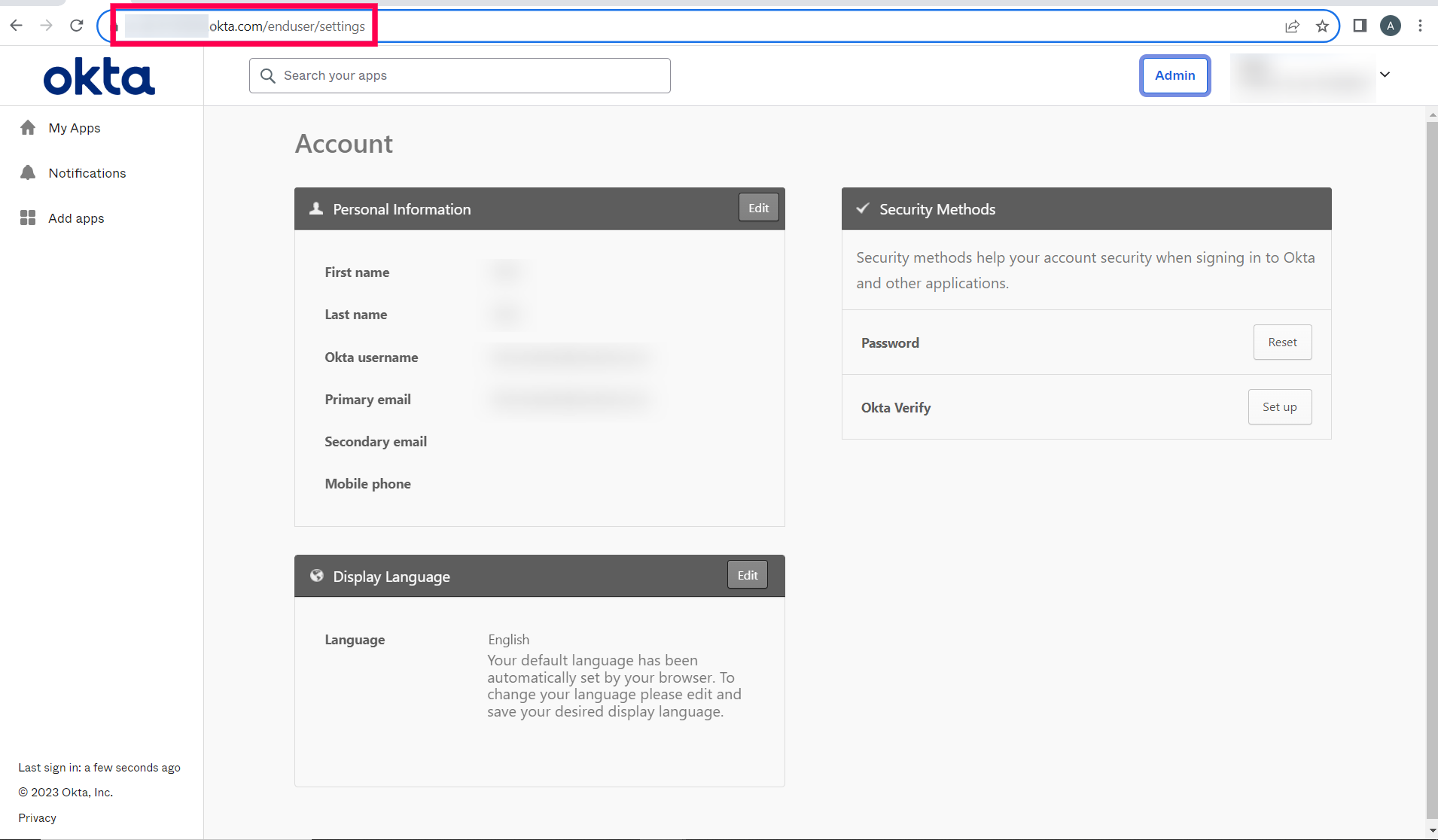
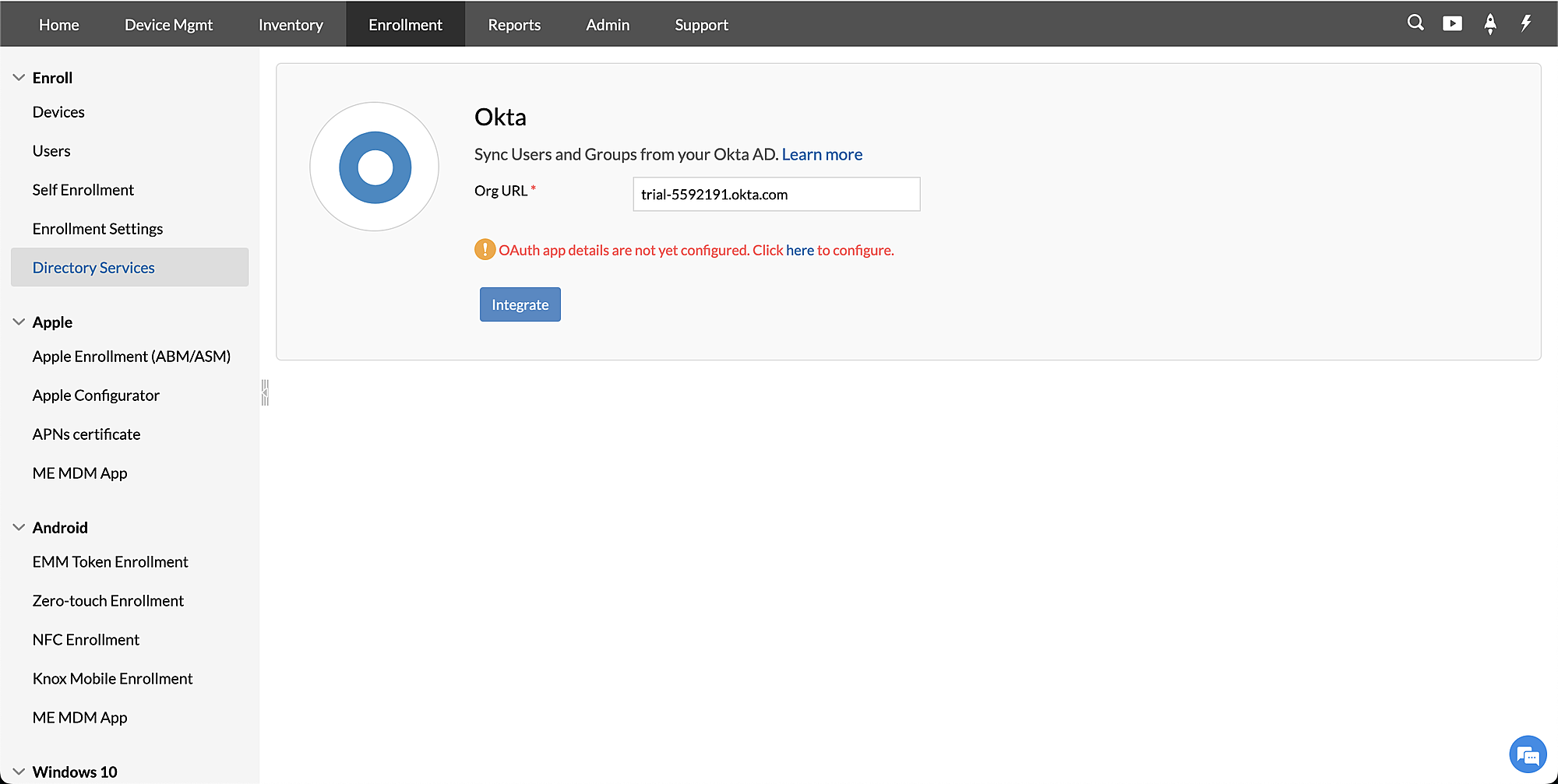
- If OAuth is not configured, you will get an error message saying "OAuth App details are not yet configured". Click on here to configure OAuth.
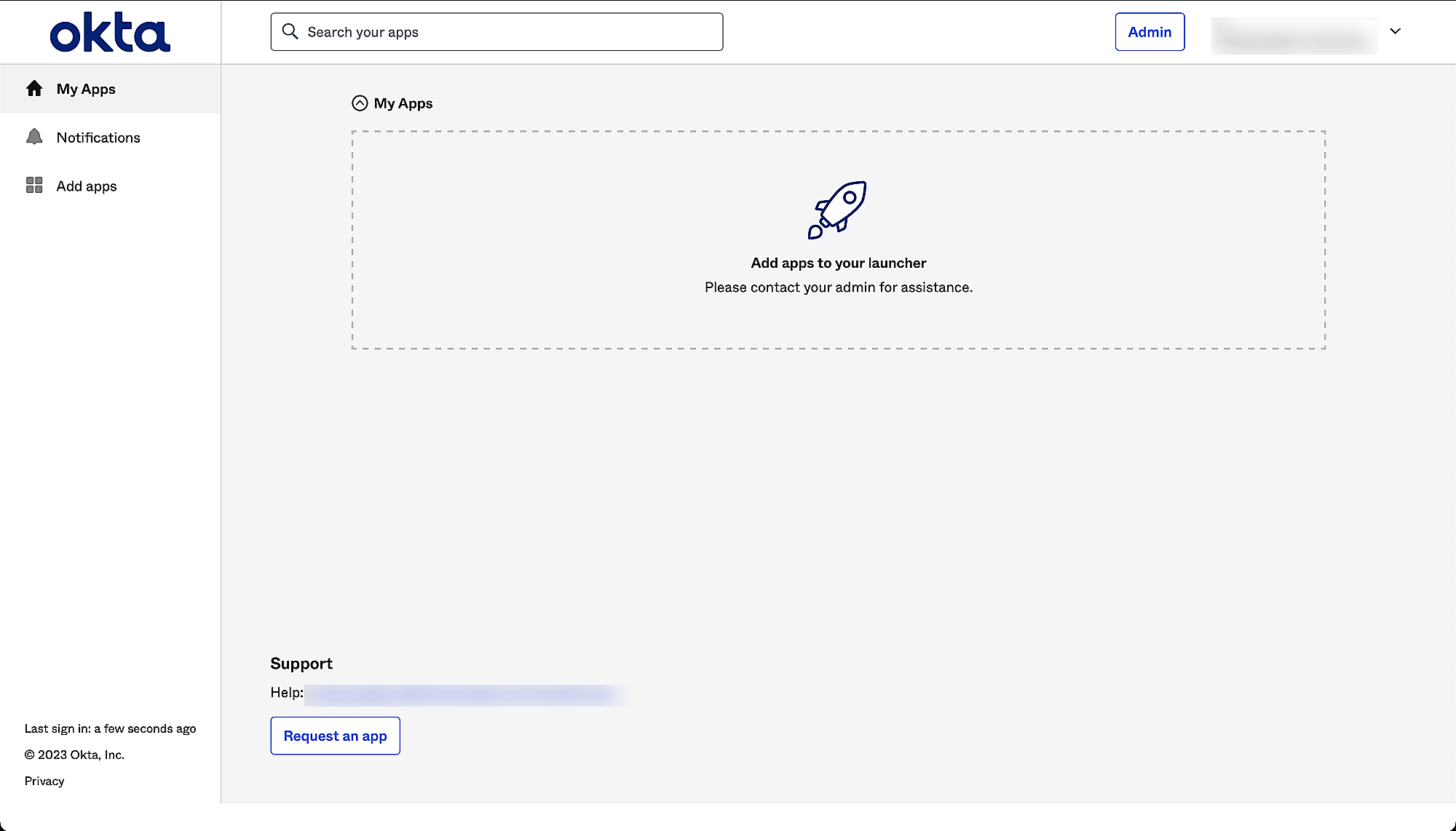
- Click on Admin to navigate to the Okta Admin portal.
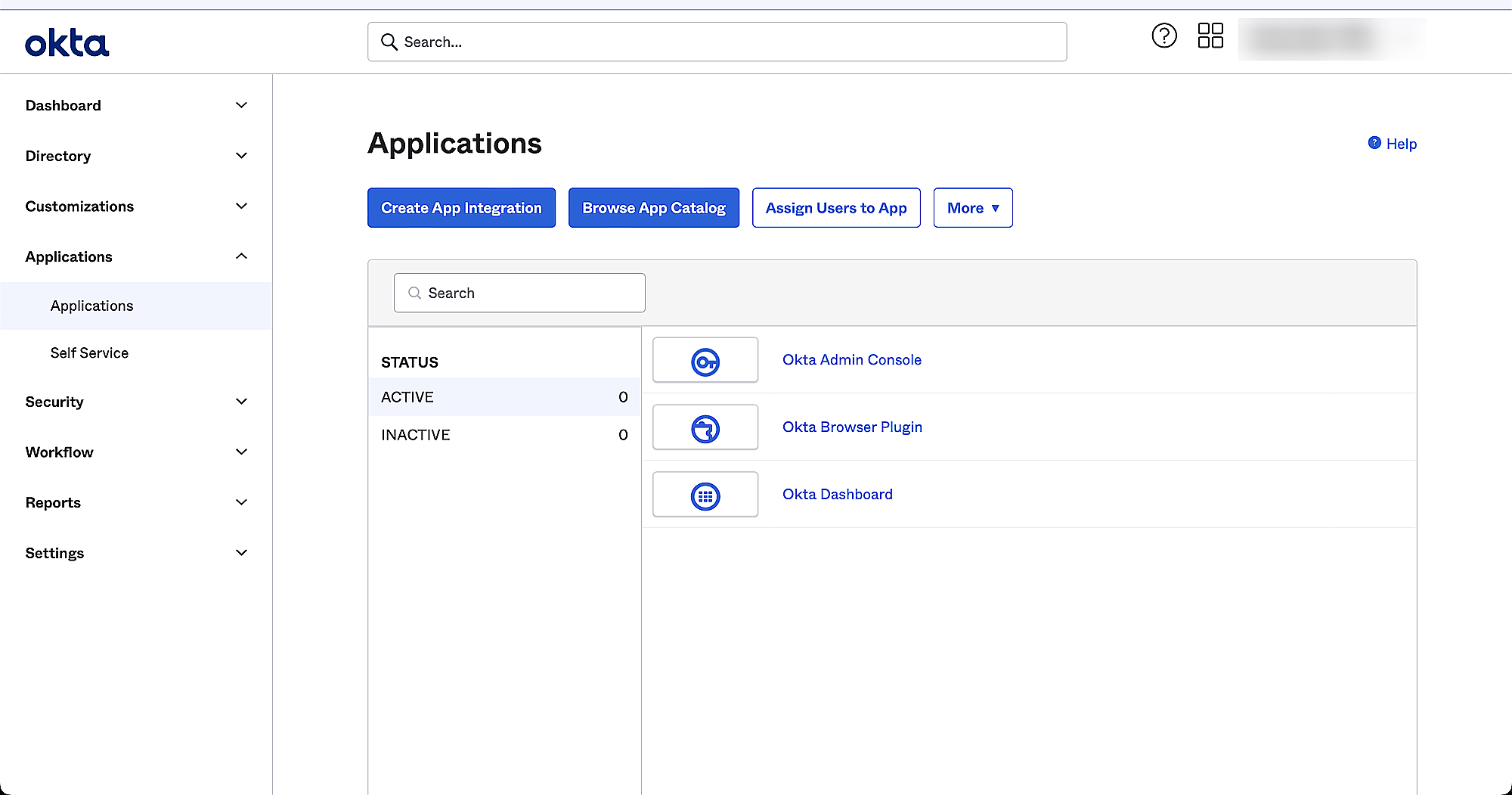
- Go to Applications and then click on Create App Integration.
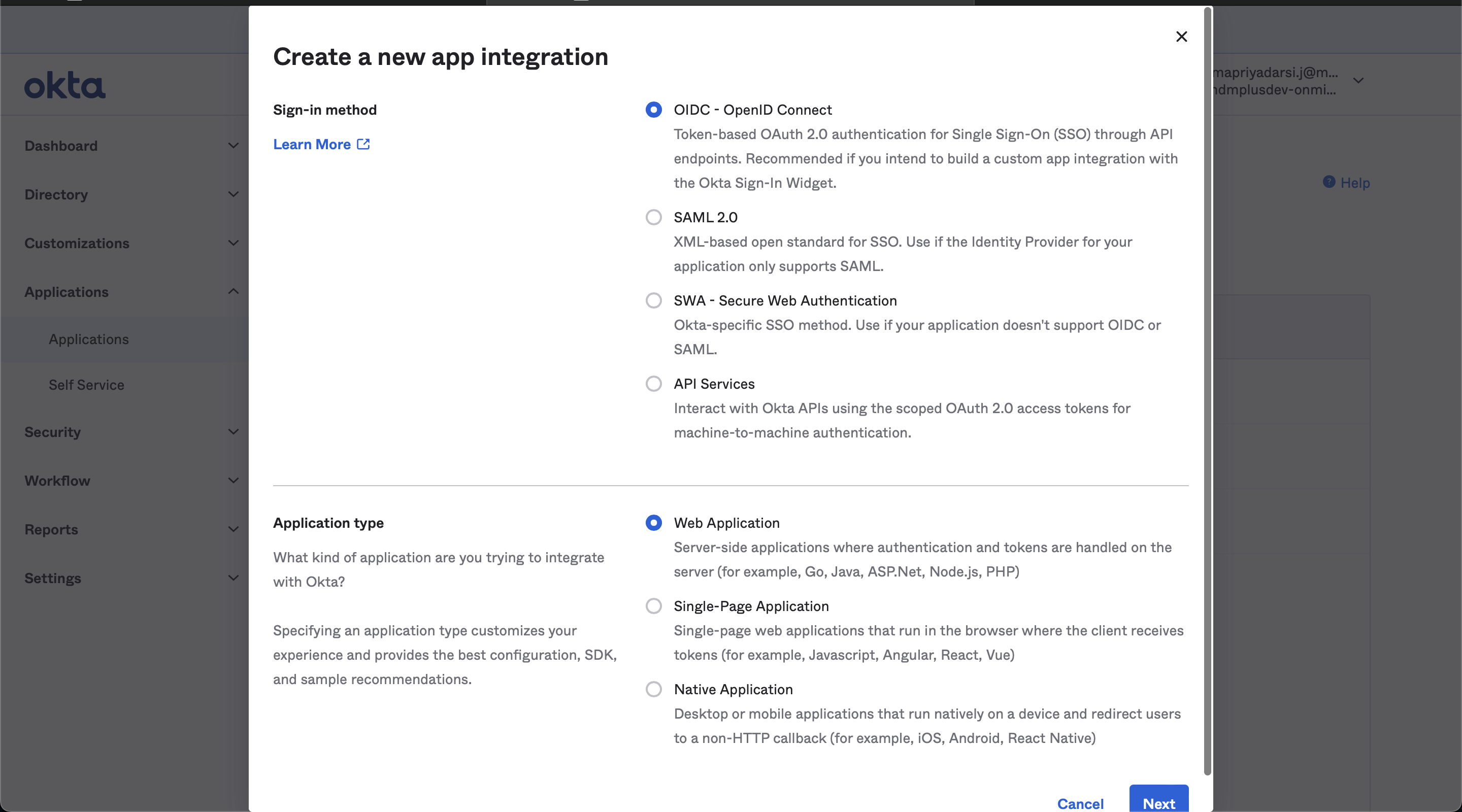
- Select OIDC - OpenID Connect as Sign-in method and Web Application as Application type.
- Click on Next.
- Enable Refresh Token option and enter the Redirect URI obtained from the MDM server.
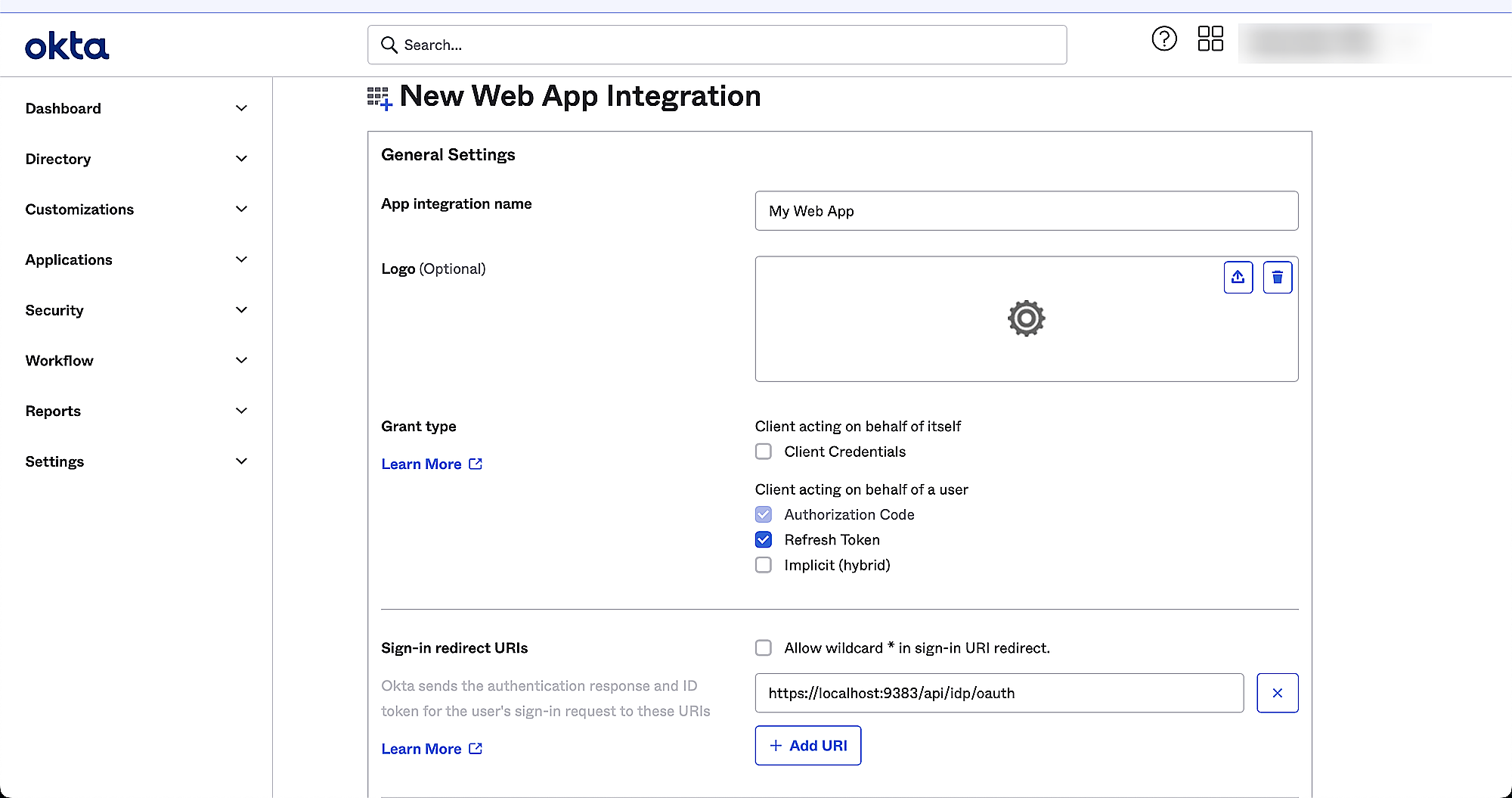
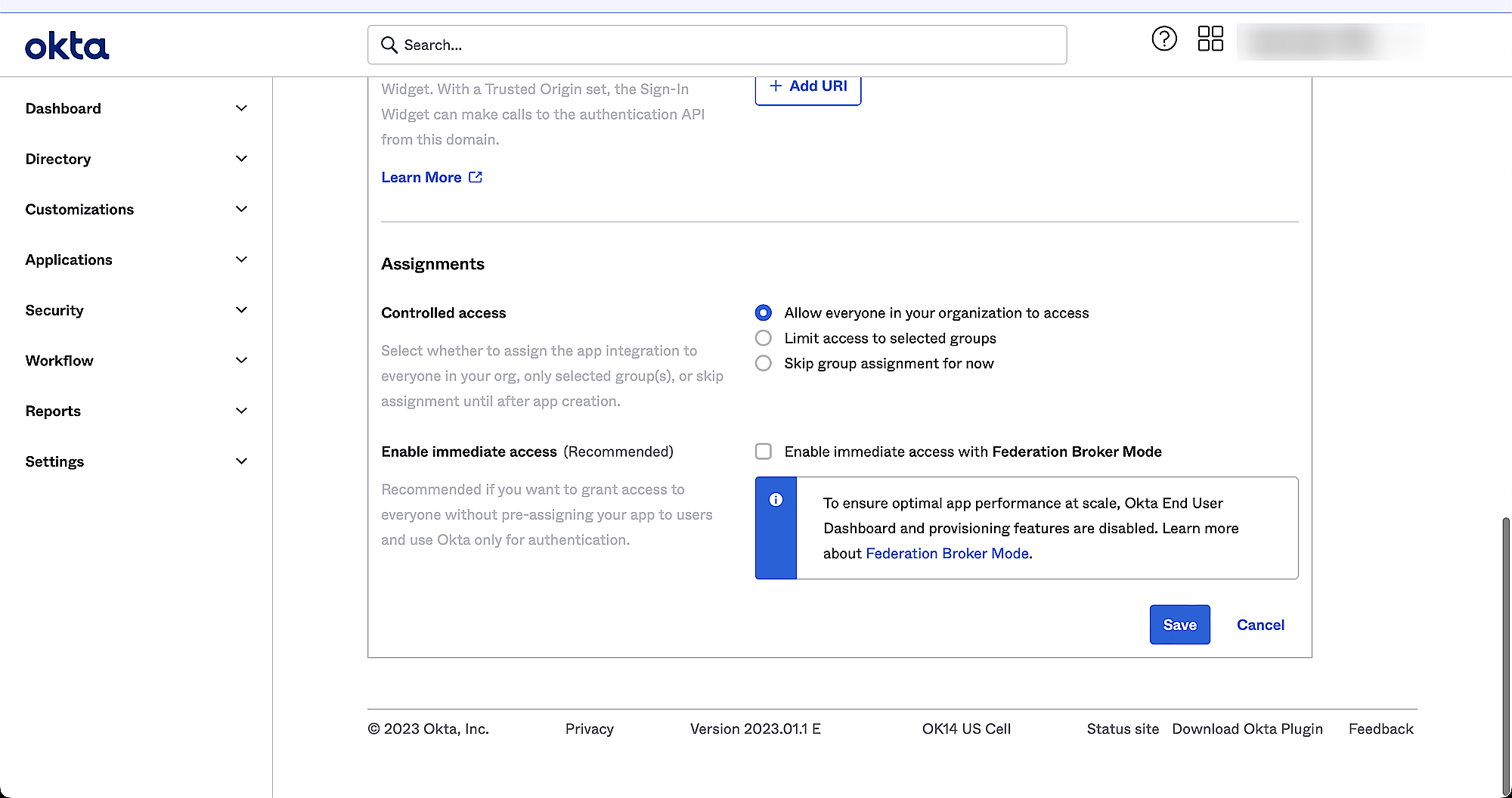
- Under Assignments choose the appropriate option as applicable.
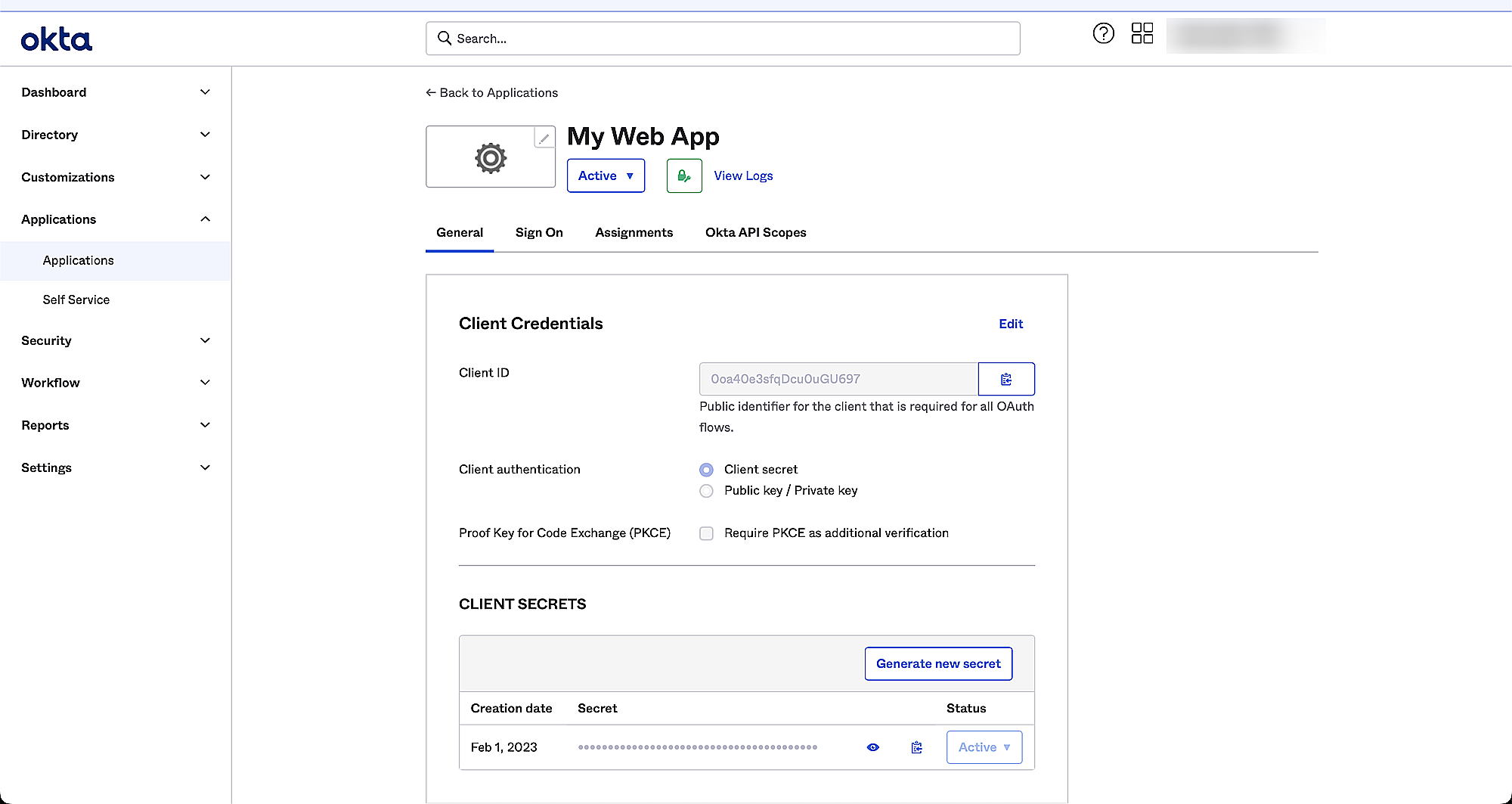
- Upon clicking Save, a new set of Client ID and Client Secret will be generated which is to be copied and pasted back on the MDM server.
- Federation Broker Mode must be enabled to sync all Okta users with the MDM server.

- Under Okta API scopes, grant the following oAuth scope permissions:
- okta.groups.read
- okta.users.read
- okta.users.read.self
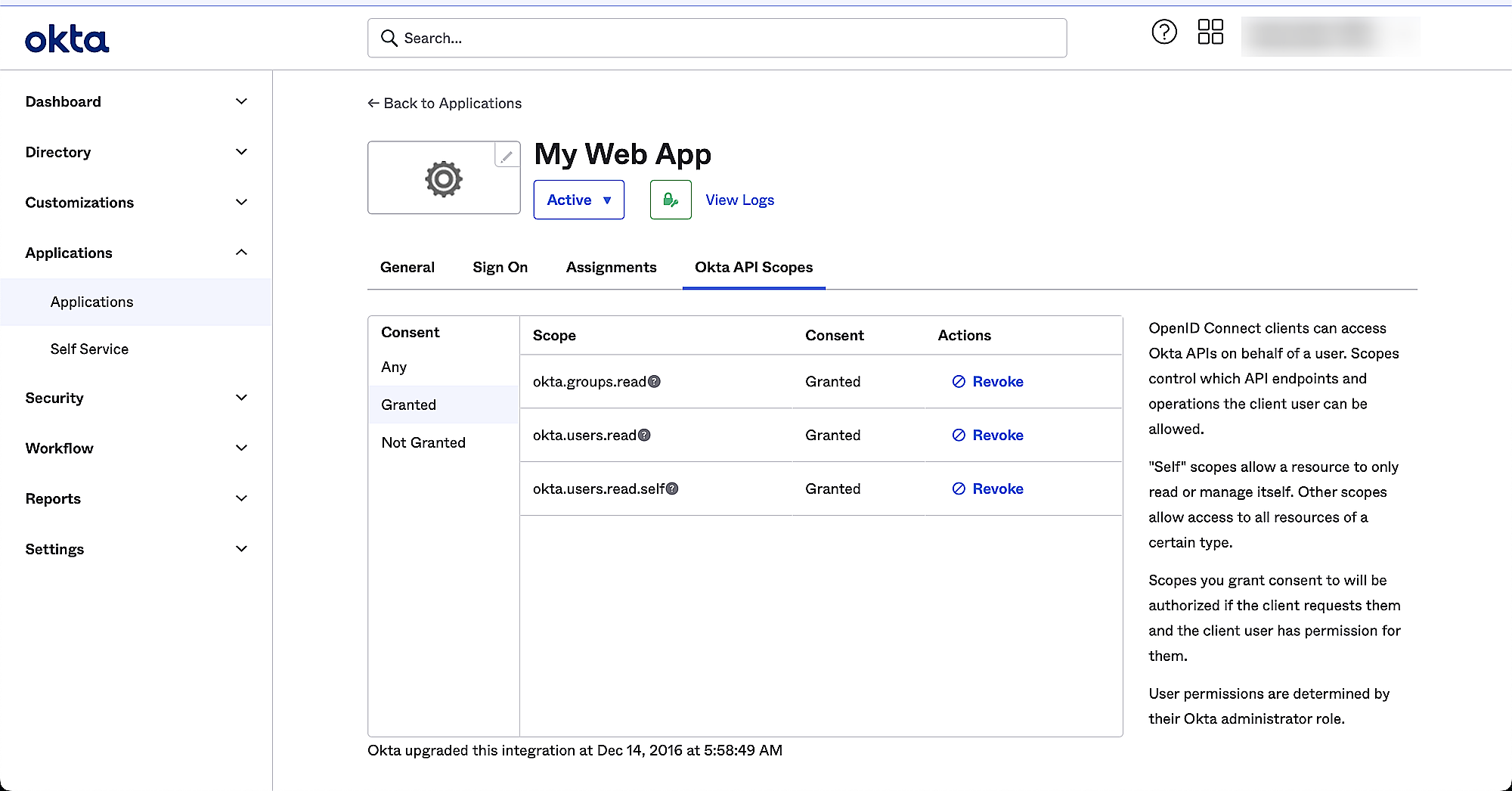
- Once you have entered the Client ID and Client Secret on the MDM server, click on Integrate.
Now the Okta will be successfully integrated with the MDM server. After this, you can make use of Okta credentials for authenticating users during enrollment and allowing users to login to the MDM console via Single Sign-On (SSO).
Frequently asked questions
What is my Okta Org URL?
Your Org URL appears in the top right corner of your Okta dashboard, and looks like example.oktapreview.com, example.okta.com, or a custom domain such as id.example.com.
What Okta API scopes are required for MDM integration?
You need to grant okta.groups.read, okta.users.read, and okta.users.read.self.
Why do I need to enable Federation Broker Mode?
Federation Broker Mode must be enabled to sync all Okta users with the MDM server.
What can I do after integrating Okta with MDM?
Once integrated, you can use Okta credentials to authenticate users during enrollment and allow users to log in to the MDM console via Single Sign-On (SSO).