Last updated: August 13, 2026
Device Privacy
This page explains how MDM Device Privacy settings allow administrators to control what device data is collected and which remote commands can be executed on managed Android and iOS devices. It details data MDM collects by default, data that is never collected, ManageEngine MDM Self Service app (previously ManageEngine MDM app) app permissions, and step-by-step configuration instructions. A comprehensive attribute table covers support across Android management modes and iOS enrollment types, helping administrators strike the right balance between employee privacy and organizational security policy compliance.
Device Privacy settings in MDM allow administrators to configure managed devices to ensure user privacy while securing corporate data. These settings help maintain the balance between user confidentiality and organizational security. MDM provides administrators the ability to establish device configurations that prioritize employee privacy, separate work and personal data, ensure secure remote access, and comply with organizational policies.
Data Collected by MDM
By default, MDM collects essential information such as the Serial Number and IMEI Number to identify the device. To collect Personally Identifiable Information (PII), admin need to configure device privacy settings for personal, corporate, or both types of devices.
What data is NEVER collected or managed?
- Pictures / videos from your gallery
- Browsing history
- Call logs and call recordings
- Text messages
- Saved passwords
- Data or documents maintained in personal apps
ManageEngine MDM Self Service app (previously ManageEngine MDM app) App Permissions
For a complete breakdown of permissions required by the ManageEngine MDM agent app on Android and iOS, including detailed explanations for each permission, refer to ManageEngine MDM Agent Permissions Guide.
Configuring Device Privacy Settings
Follow the steps below to configure the device privacy settings in MDM:
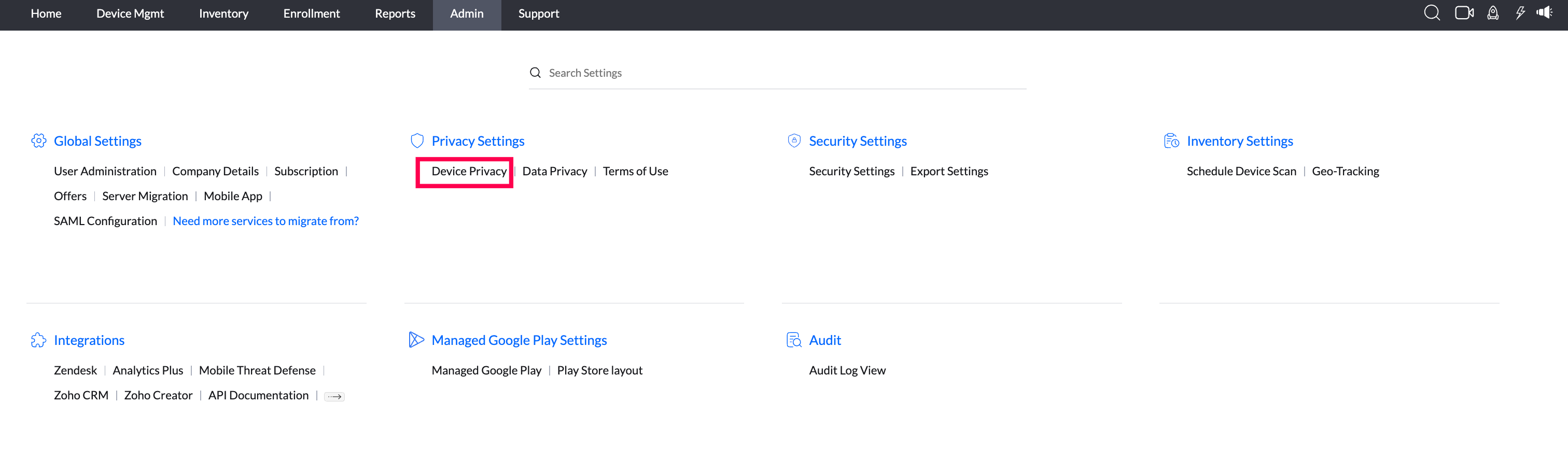
- Navigate to the Admin tab. Click on the Device Privacy under Privacy Settings.
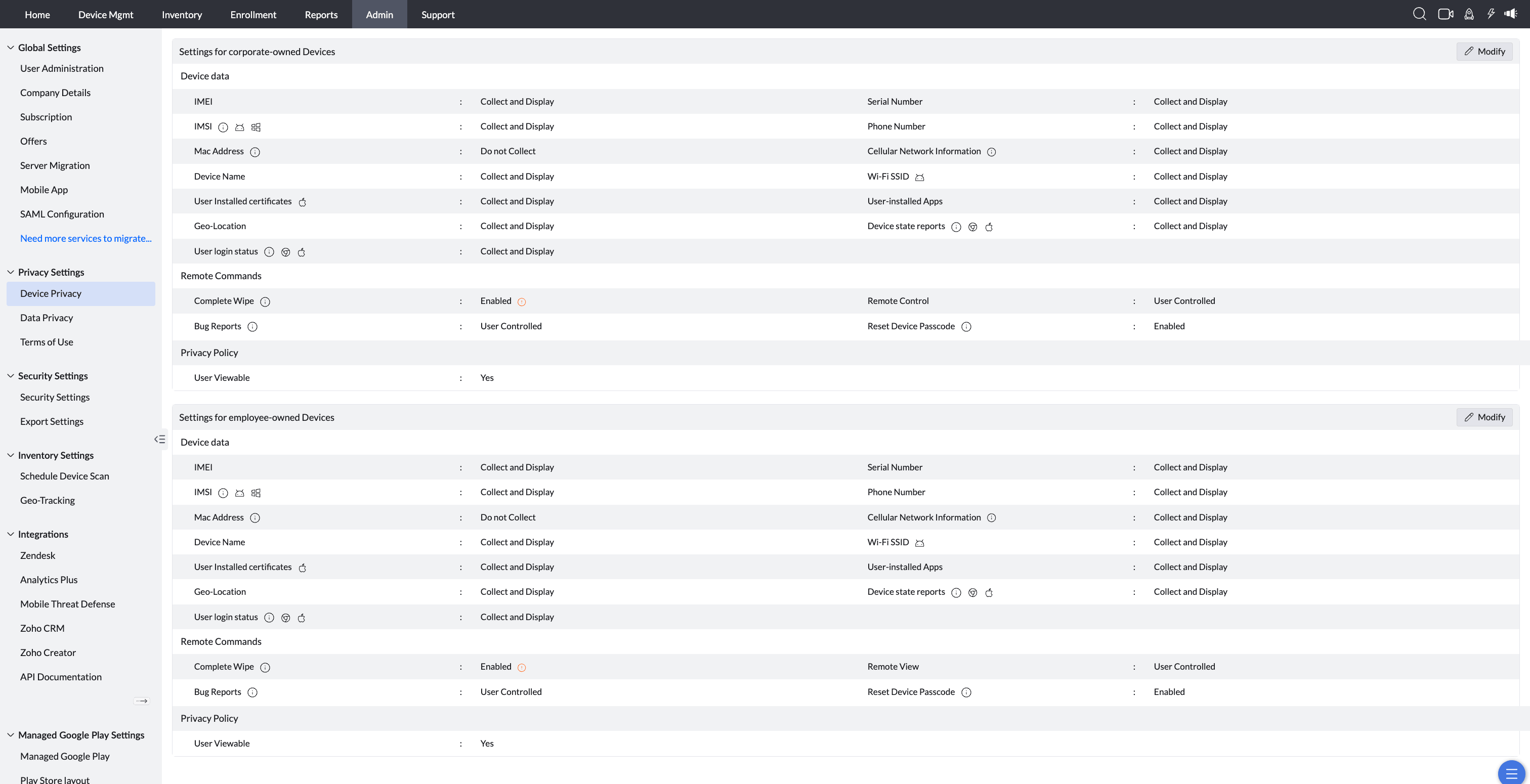
- Select the required ownership scope, such as corporate-owned or employee-owned devices, from the Device Privacy page header. Then configure the settings based on your requirements for Device Privacy, Remote Commands, Privacy Policy. Click Save to apply the settings.
Note: Turn on Do not Collect to stop MDM from collecting device data. Turn on Disable remote commands to prevent remote actions from being executed on devices. You can enable both options to disable both features.
Device Data Parameters
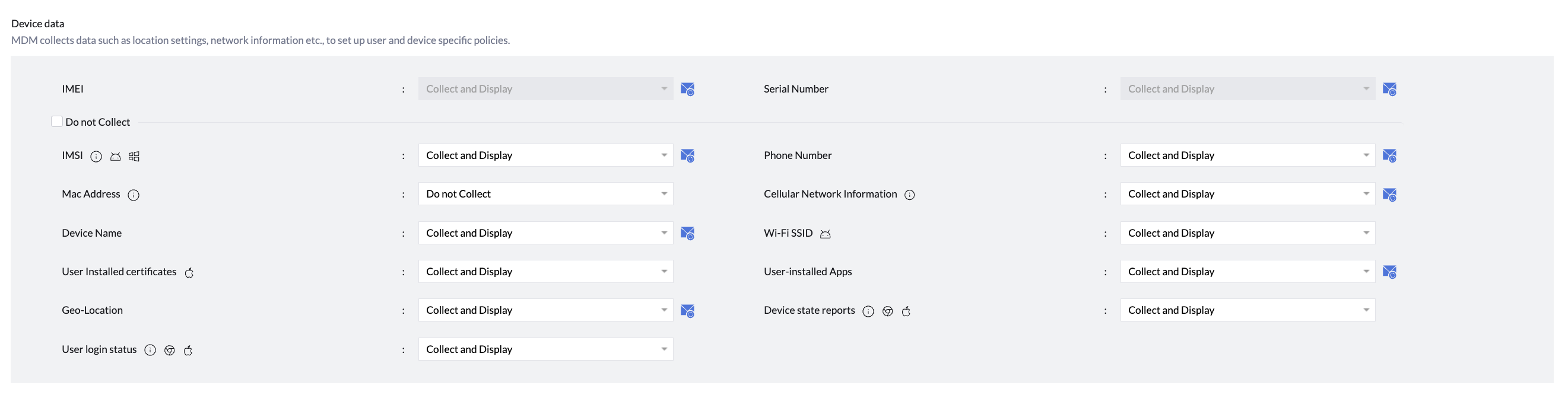
| PARAMETER | Android Management Mode | iOS Management Mode | |||
|---|---|---|---|---|---|
| Work Profile (Personally-Owned Work Profile (BYOD, or previously Profile Owner)) | Fully Managed (Fully Managed (COSU and COBO, or previously Device Owner)) | Fully Managed with a Work Profile | Supervised - Automated device enrolment | Unsupervised - User Enrolment | |
| Do not Collect |  This master option in the Device Data section stops collection for configurable device-data parameters in the selected ownership scope. | ||||
| Serial Number | | | | | |
| IMEI Number Note: For Android 12 Personally-Owned Work Profile (BYOD, or previously Profile Owner), MDM relies solely on the UDID to track device information. | | | |  | |
| IMSI | | | | | |
| Phone Number | | | | | |
| User-Installed Apps | | | | | |
| User Installed Certificates | | | | | |
| Device Name | | | | | |
| Geo-location | | | | | |
| MAC Address | | | | | |
| Wi-Fi SSID | | | | | |
Note: For Android, Location permission is needed to access the Wi-Fi SSID. | |||||
| Cellular Network Information | When the "Collect and Display" option is selected, the system gathers details about the cellular network, including the mobile carrier name, network type (such as 4G or 5G), ICCID (Integrated Circuit Card Identifier), carrier configurations, roaming status, MCC (Mobile Country Code) and MNC (Mobile Network Code), preferences for data and voice services, network labels, and specific cellular technology information. This data provides insights into the device's connectivity and network-related settings. | ||||
| Device State Reports | This applies only to Chrome and Shared iPad and Mac devices. It displays the device's state, indicating whether it is in contact with the MDM server, along with the time when the device was last active. | ||||
| User Login Status | This is applicable only for Chrome and Shared iPad and Mac devices. It collects and displays the details of the users who have logged into the device. | ||||
Remote Commands

| PARAMETER | Android Management Mode | iOS Management Mode | |||
|---|---|---|---|---|---|
| Work Profile (Personally-Owned Work Profile (BYOD, or previously Profile Owner)) | Fully Managed (Fully Managed (COSU and COBO, or previously Device Owner)) | Fully Managed with a Work Profile | Supervised - Automated device enrolment | Unsupervised - User Enrolment | |
| Disable remote commands | This master option in the Remote Commands section disables execution of the listed remote actions for devices in the selected ownership scope. | ||||
| Complete wipe Note for Apple devices: The Complete Wipe setting configured before enrollment is the setting that will apply after the device is enrolled. Changing this setting later will not affect already enrolled devices unless they are re-enrolled. | | | | | |
| Corporate wipe Removes only organizational data from BYOD devices while preserving personal data. | | | | | |
| Bug reports To learn more, visit the Android Bug Reports page. | | | | | |
| Remote view Available for iOS devices and Android BYOD devices. | | | | | |
| Remote control | | | | | |
| Reset device passcode Note:
| | | | | |
Policy Display
The current Device Privacy UI provides two options under Privacy Policy:
- Display to Users: Displays the organization's privacy policy and details about the data collected in the ManageEngine MDM Self Service app (previously ManageEngine MDM app) app on managed devices.
- Do not display to Users: Hides the privacy policy from end users on the device, while still enforcing the configured privacy settings.

It is recommended to include details regarding the data collected and its purpose in the Terms of Use distributed to users.
- Server Privacy Settings: It is recommended to configure Server Privacy Settings to protect data privacy on the server. Additionally, set up Security Settings to ensure the security of data stored on the server.
- Lost Mode: When a device is in Lost Mode, the device’s location is tracked, and security actions such as a data wipe are executed, regardless of the configured privacy settings. This is because the user explicitly grants consent to execute these commands in Lost Mode.
- Terms of Use Distribution: It is advisable to distribute an updated version of the Terms of Use policy whenever these settings are modified to ensure users are informed of changes.
Frequently Asked Questions
- What data does MDM never collect from managed devices?
MDM never collects pictures or videos from your gallery, browsing history, call logs and recordings, text messages, saved passwords, or data maintained in personal apps.
- Does MDM collect the IMEI number on all Android management modes?
No. IMEI is collected for Work Profile, Fully Managed, and Fully Managed with a Work Profile devices, but not for Supervised or Unsupervised iOS enrollment. For Android 12 Work Profile devices, MDM relies solely on the UDID to track device information.
- How do I configure device privacy settings?
Navigate to the Admin tab, click Device Privacy under Privacy Settings, configure the Device Privacy, Remote Commands, Privacy Policy, and Applicable Devices settings, then click Save.
- Can I choose whether a policy applies to corporate or personal devices?
Yes, the Applicable Devices setting lets you specify whether a device privacy policy should apply to corporate devices, personal devices, or both.