Last updated: August 14, 2026
iOS/iPadOS Self Enrollment
This page guides end users and administrators through the iOS, iPadOS, and macOS self enrollment process for MDM. It provides step-by-step instructions for enrolling devices by scanning a QR code or entering a self enrollment URL, authenticating, and downloading and installing the MDM profile. The page also covers troubleshooting common issues such as authentication failures and profile installation errors, along with FAQs addressing location tracking setup and Apple's Stolen Device Protection enrollment block.
Steps to enroll the iOS/iPadOS devices:
- Open the Safari browser on your iOS or iPadOS device. Scan the QR code using the built-in camera. Alternatively you can enter the Self Enrollment URL provided by your organization in the safari browser.
Note: If a security delay or review occurs during device enrollment for Stolen Device Protection, pause further enrollment steps until the review is complete. Allow the system to automatically resolve the review, which may take from a few minutes to several hours. Only proceed with enrollment once the security review has been successfully cleared to avoid additional delays or restrictions.

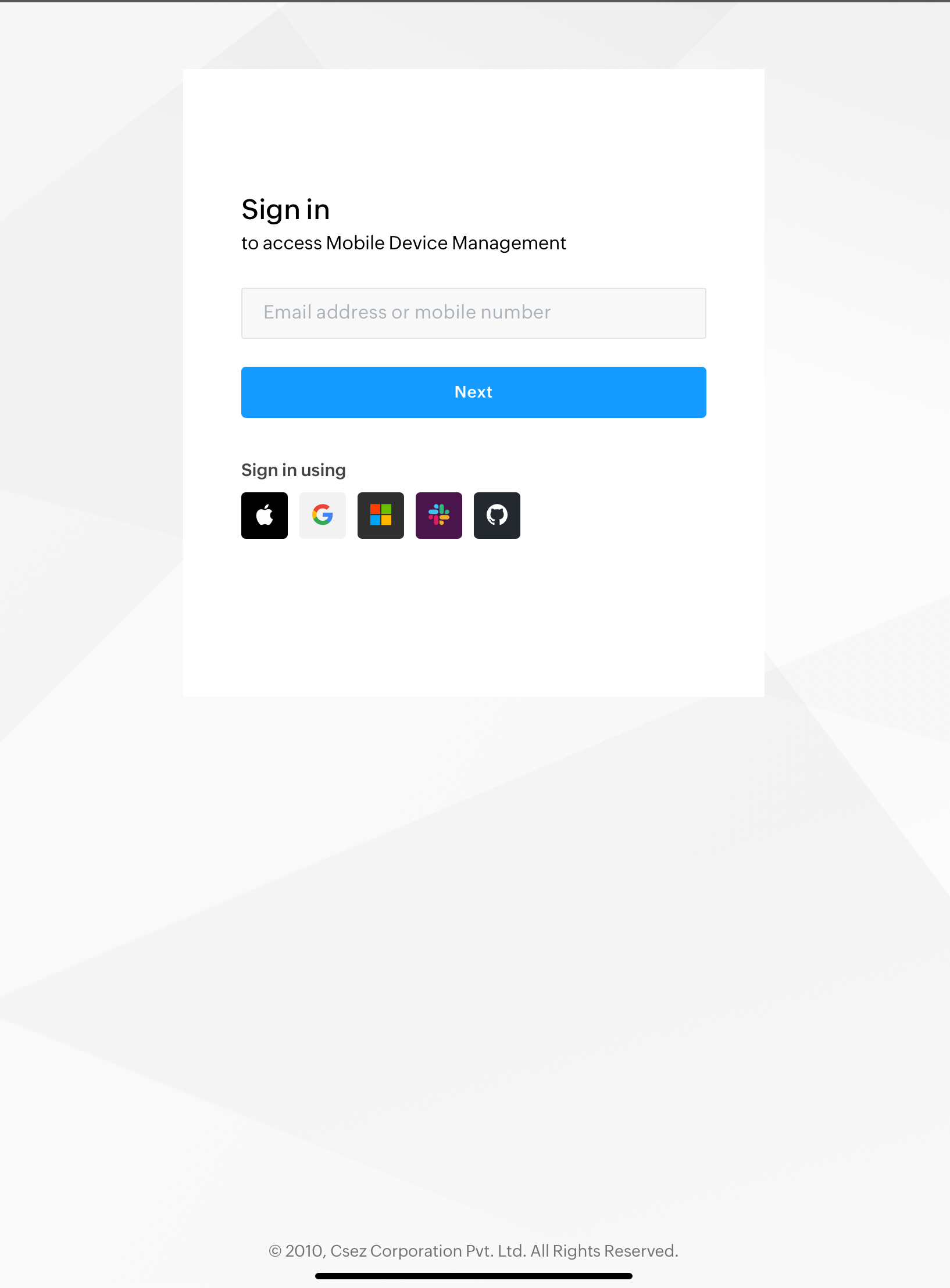


- Users will be prompted to authenticate. Enter the required credentials.
- Once authenticated, Accept the Terms and Conditions.
- Download the MDM enrollment profile. A pop-up will appear, asking for permission to download the profile; tap Allow to proceed.
- After the profile has been downloaded, navigate to Settings > General > Device Management to install the profile.
- Tap Install in the upper-right corner, and enter your device passcode if prompted to complete the installation process.
- Once the MDM profile is installed, the device is automatically enrolled in MDM.
- If the administrator have configured the ManageEngine MDM Self Service app and other work apps will be pushed to the device automatically. It may take a few minutes to complete.
- If the administrator configured any policies and configurations then after enrollment, MDM will apply all relevant policies and configurations to the device.
MacOS Self Enrollment
- To enroll a Mac device, first access the Self Enrollment URL. Open a web browser and enter the provided URL.
- Click the Continue with Microsoft Entra ID and Authenticate yourself by providing the required credentials.
Click the Download MDM Profile and allow to download the profile when prompted.
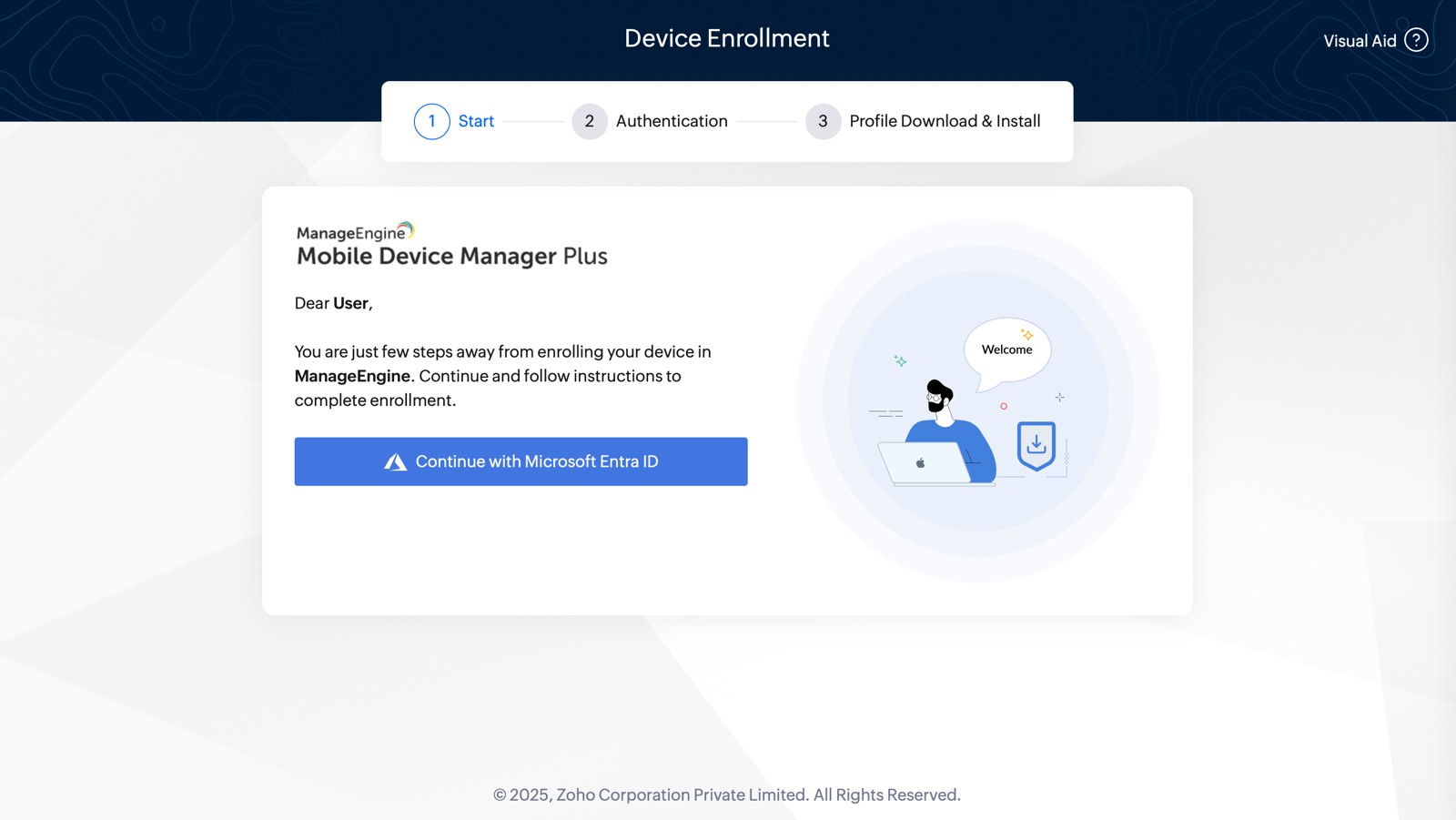
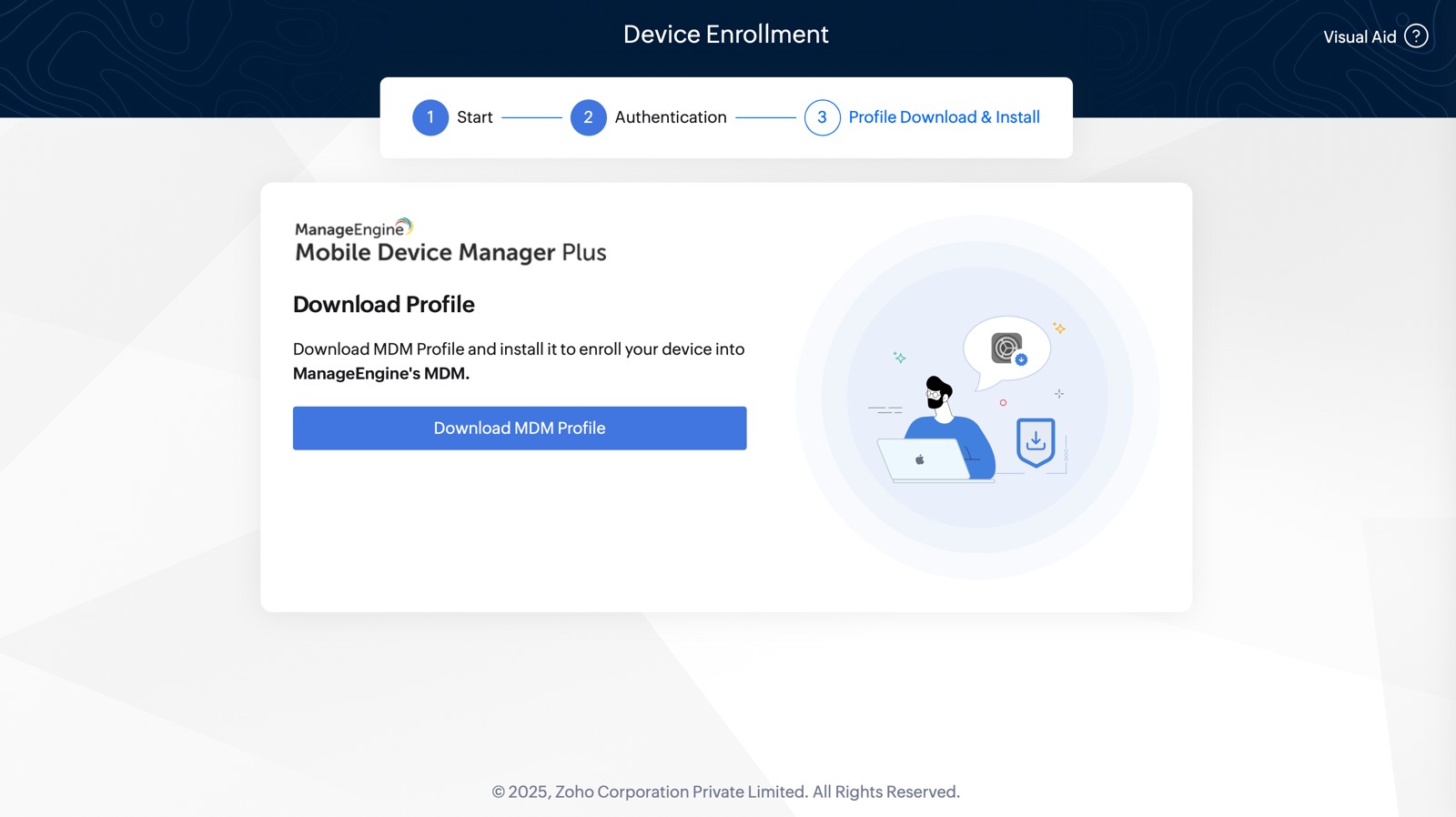
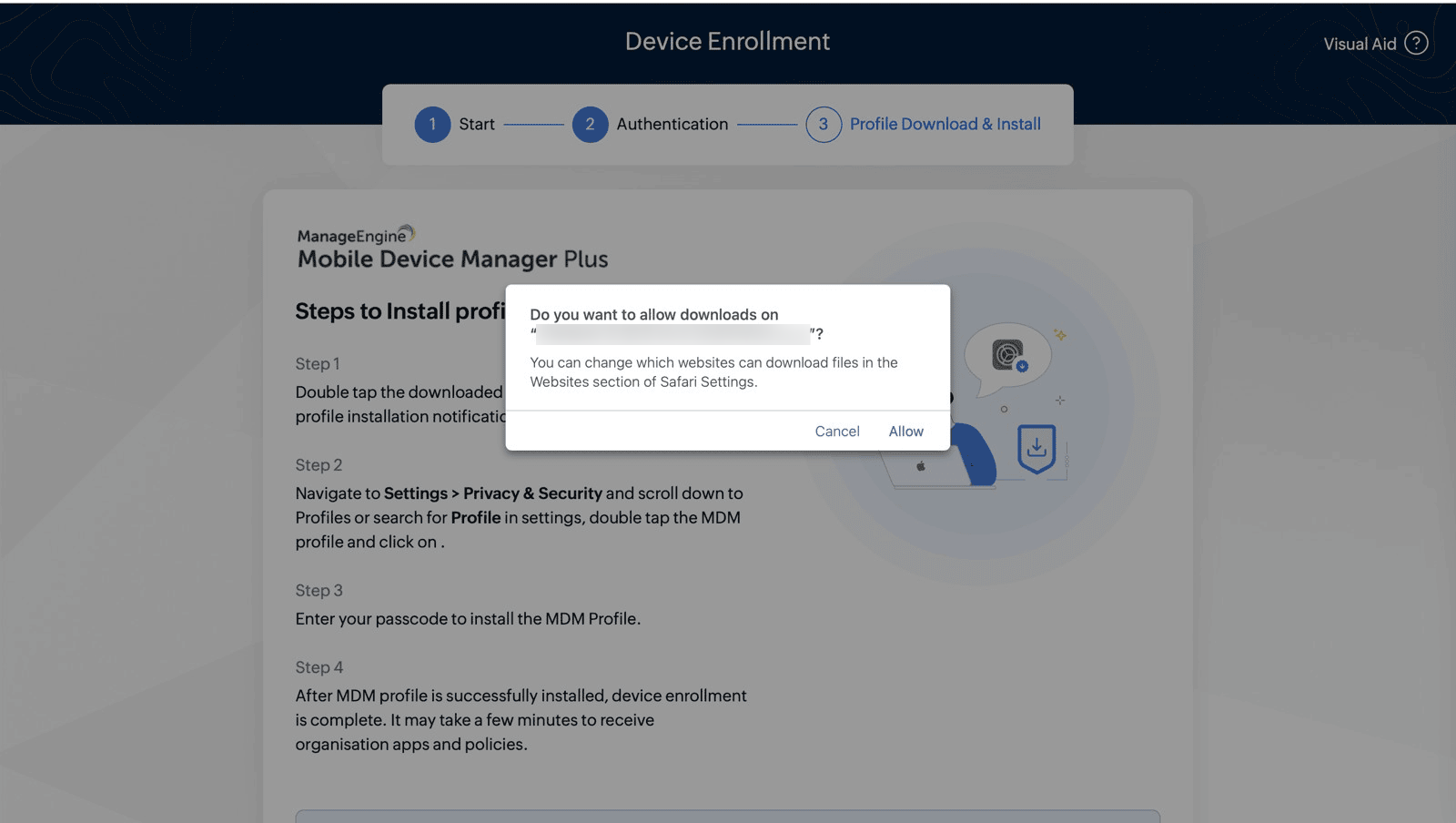
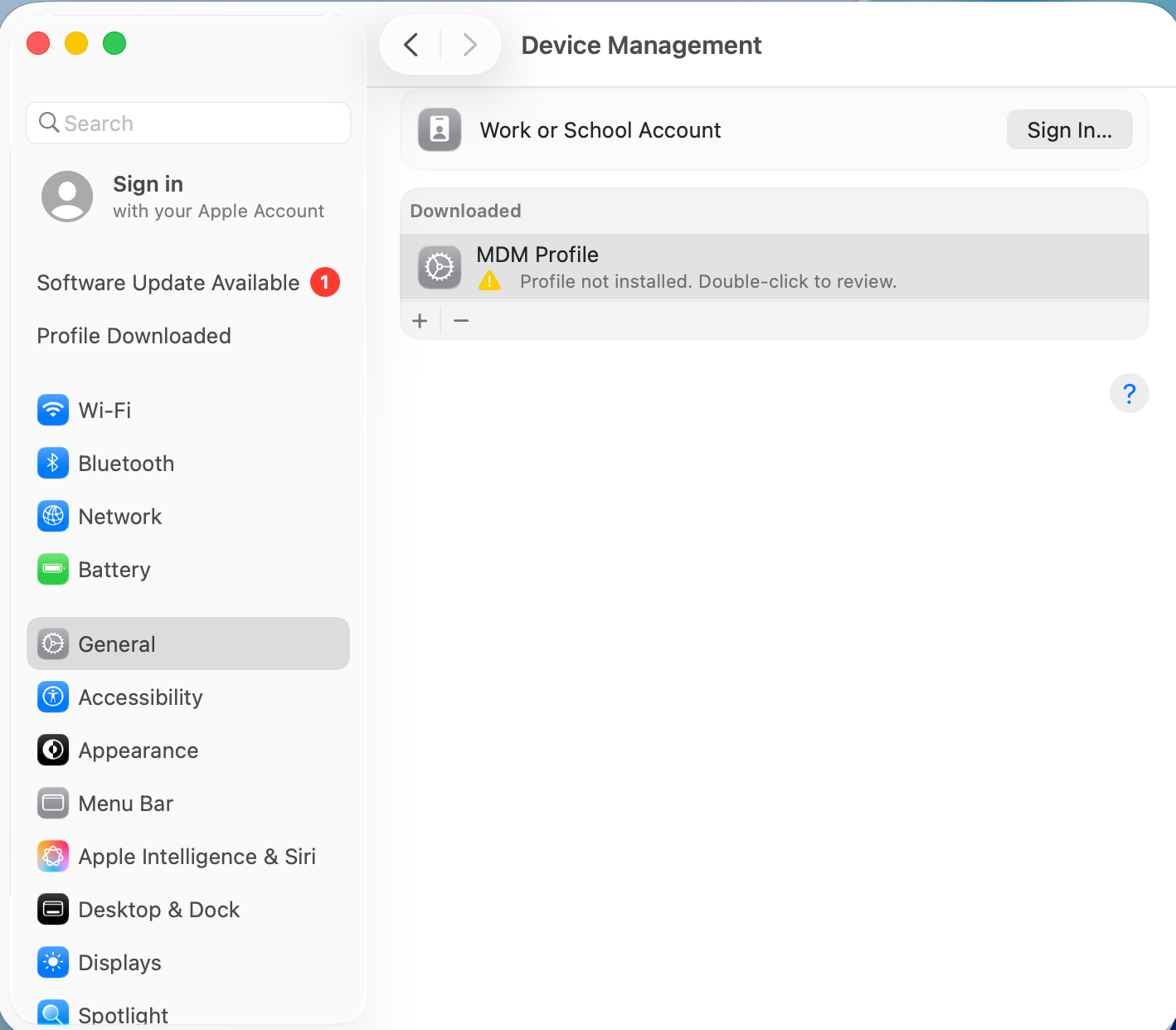
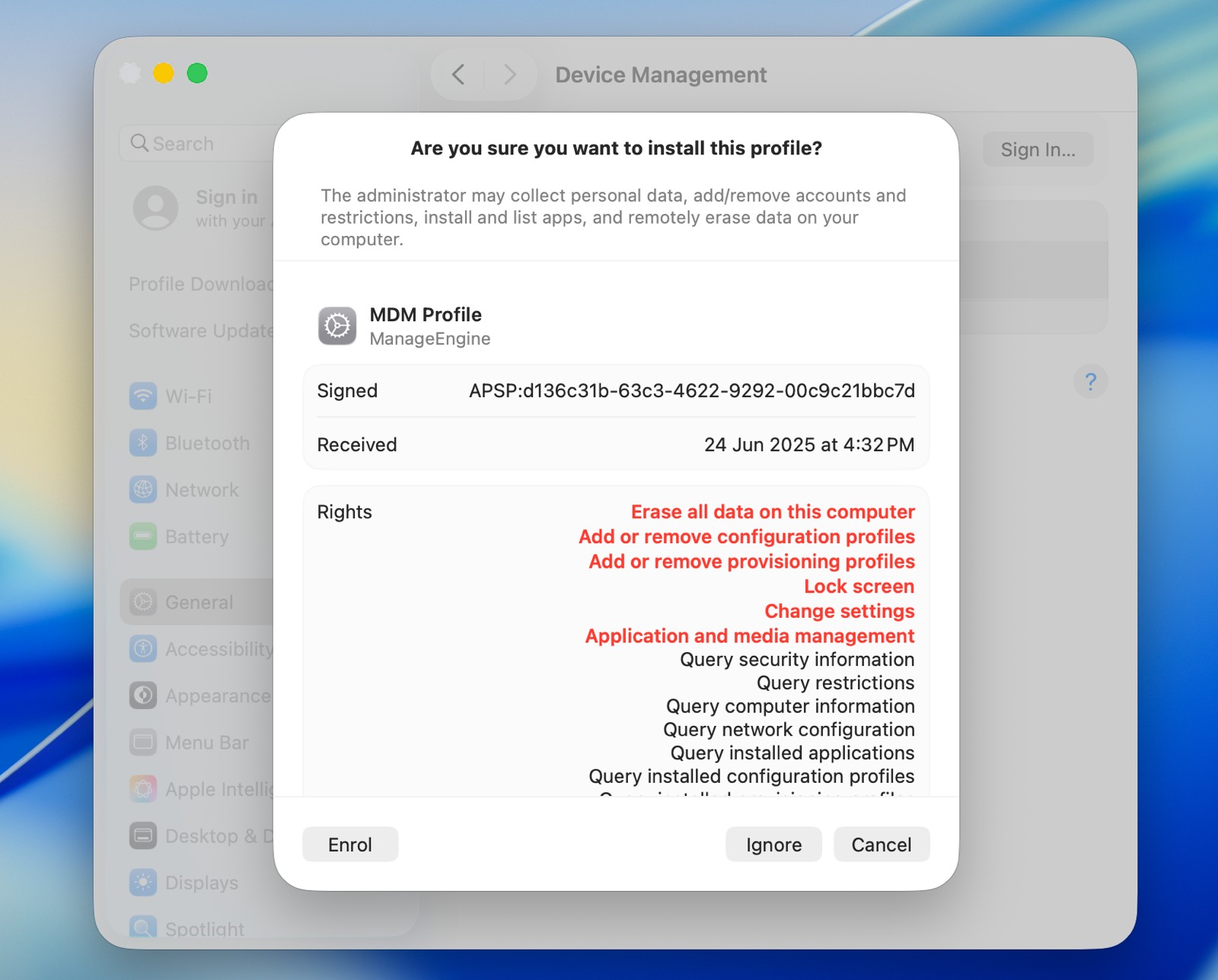
- After the profile has been downloaded, navigate to Settings->General->Device Management. Double Click the downloaded profile to install.
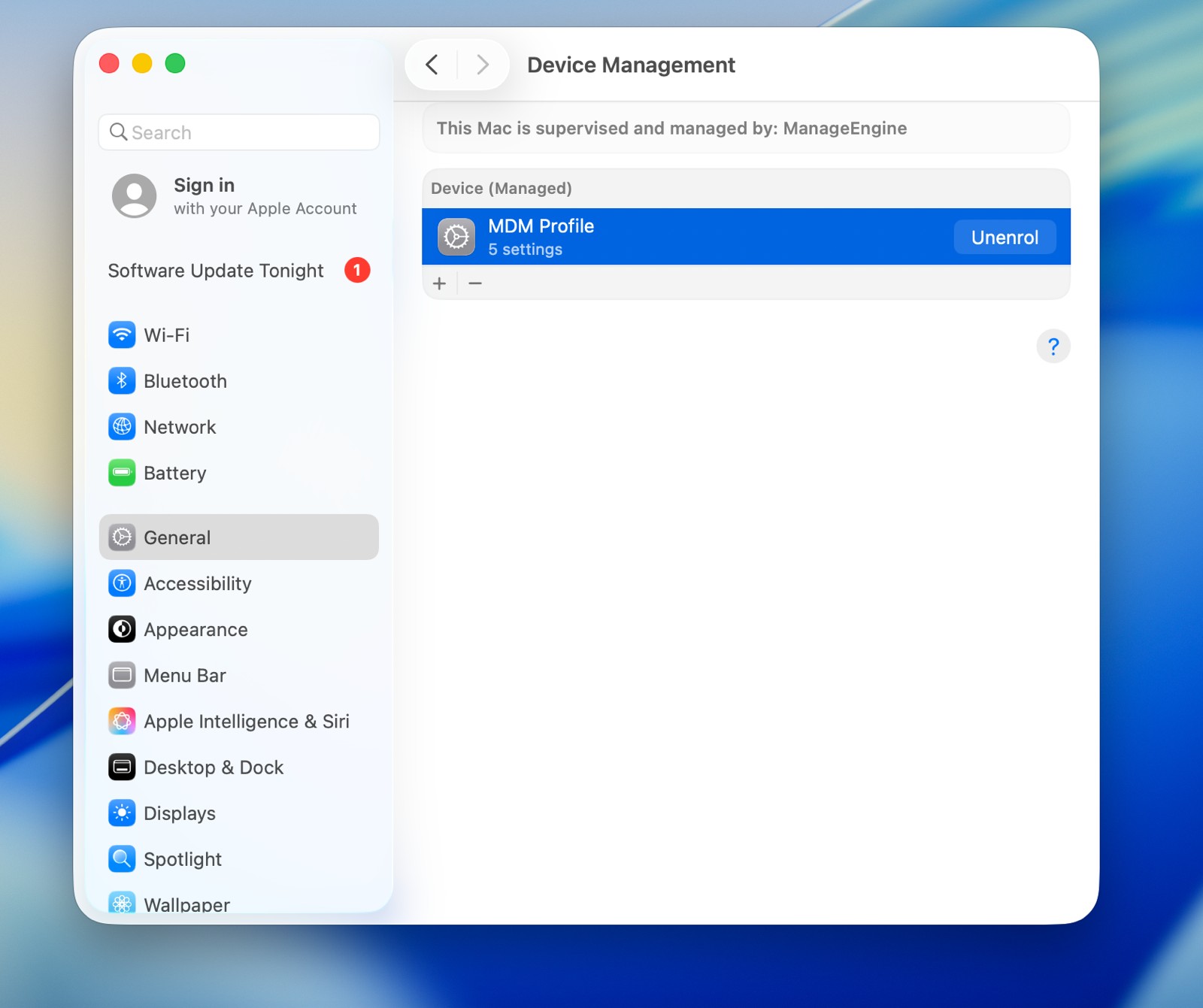
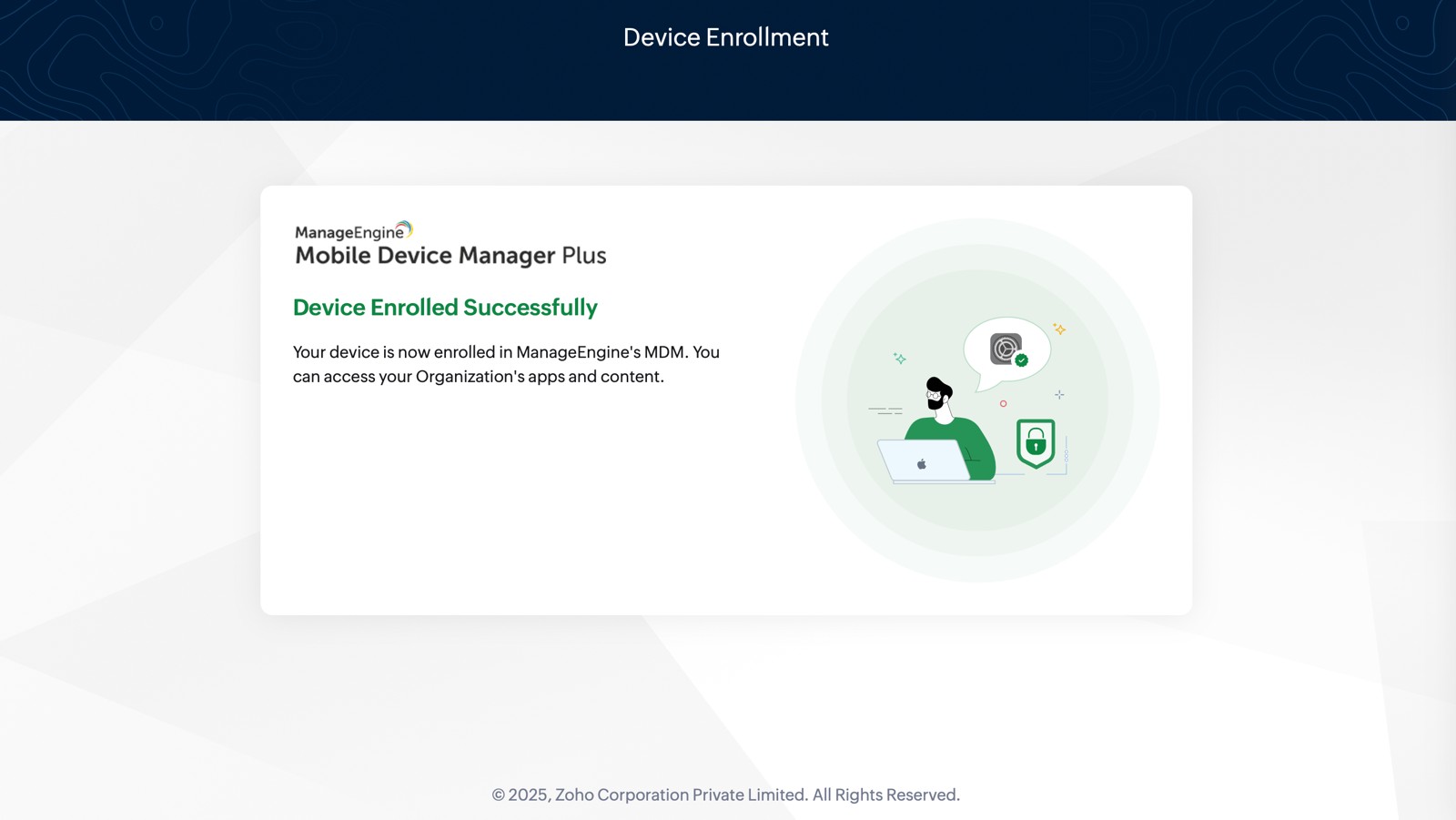
- ClickEnrol to enroll the device. Once the MDM profile is installed successfully, the device will automatically enrolled in MDM.
Troubleshooting Tips
If users experience issues during the Self Enrollment process, here are some troubleshooting steps:
iOS Device Self Enrollment
- Authentication Failure: Ensure that the correct username, password, or Managed Apple ID is entered during the enrollment process. It is essential to confirm that the user has the necessary permissions to enroll their iOS device through self-enrollment. This verification helps prevent enrollment issues and ensures a smooth onboarding experience, allowing users to successfully integrate their devices in MDM while adhering to organizational policies.
- Unable to Install the Profile: Check if the iOS device is running the latest version of iOS, as it should meet the organization's specified requirements for enrollment. Additionally, ensure that the device has a stable internet connection and sufficient storage space available for downloading the necessary MDM profile and applications. Verifying these prerequisites helps to facilitate a smooth enrollment process and ensures that the device can properly receive and apply the required configurations and policies.
What's Next?
Apple Enrollment
For step-by-step guidance on enrolling Apple devices—such as iOS, iPadOS, and macOS—refer to our Apple Enrollment Guide. It covers the enrollment processes, configuration settings, and best practices for efficiently managing Apple devices within your organization.
Configure Profiles and Policies
Once the MDM profile is installed, Admin can configure a variety of profiles and policies to enhance device security and functionality. For detailed instructions on these configurations, visit the Device Restrictions and Configurations section.
Distribute Work Applications
After enrollment, administrators can distribute work applications silently via the app repository. This includes apps from Apple Business/School Manager, custom apps, and enterprise applications. For more details, refer to our App Management section.
Frequently Asked Questions
1. How do I enable location tracking for a self-enrolled iOS device in MDM?
Location tracking for iOS devices is provided by the ManageEngine MDM Self Service app. This capability is available for devices enrolled via any method, including self-enrollment.
To ensure location tracking is working, verify the following prerequisites:
- Check that the ManageEngine MDM Self Service app is installed on the device. If it is not available, enable ManageEngine MDM Self Service app distribution from Enrollment > Apple > ManageEngine MDM Settings on the MDM console.
- Verify that location tracking is allowed for your organization from Admin > Device Privacy settings. This setting is typically configured by your administrator or security admin.
- Check the Location tracking settings from Inventory.
- Ensure the device is not showing any location tracking errors, such as ManageEngine MDM Self Service app permission requirements.
2. How can I reset the one-hour enrollment block timer for a failed iPhone BYOD Face ID attempt?
The one-hour enrollment block is caused by Apple’s Stolen Device Protection, which prevents changes to critical security settings (including MDM profile installation) for one hour from an unfamiliar location.
This timer cannot be reset manually. Either wait one hour (a notification appears when enrollment can continue), or disable Stolen Device Protection via Settings > Face ID & Passcode > Stolen Device Protection and turn it off.
Frequently Asked Questions
- How do I enable location tracking for a self-enrolled iOS device in MDM? Location tracking for iOS devices is provided by the ManageEngine MDM Self Service app. This capability is available for devices enrolled via any method, including self-enrollment.
- How can I reset the one-hour enrollment block timer for a failed iPhone BYOD Face ID attempt? The one-hour enrollment block is caused by Apple’s Stolen Device Protection, which prevents changes to critical security settings (including MDM profile installation) for one hour from an unfamiliar location.