Last updated: August 13, 2026
Apple User Enrollment
This page covers Apple User Enrollment (Account Driven User Enrollment) in MDM for managing BYOD personal devices. It explains how User Enrollment creates a separate corporate volume on employees' iPhones, iPads, and Mac machines, allowing admins to manage corporate data without compromising user privacy. The guide details prerequisites such as Apple Business Manager domain verification and Managed Apple ID setup, walks through enabling User Enrollment in the MDM console, describes the enrollment experience for end users, and provides troubleshooting steps for common authentication errors.
MDM extends Apple's User Enrollment (Account Driven User Enrollment) support for Personal Devices (BYOD). When a device is enrolled via User Enrollment, a separate volume is created on the device for the corporate space. With this capability, admins can manage the corporate data on the employee's personal device (BYOD) without invading their privacy. The users can enroll their iPhones, iPads, Mac machines using the Managed Apple ID provided by their organization. User Enrollment mainly focuses on enhancing user privacy while protecting the enterprise security.
Prerequisites
Ensure that you meet the following pre-requisites before enrolling the devices via User Enrollment:
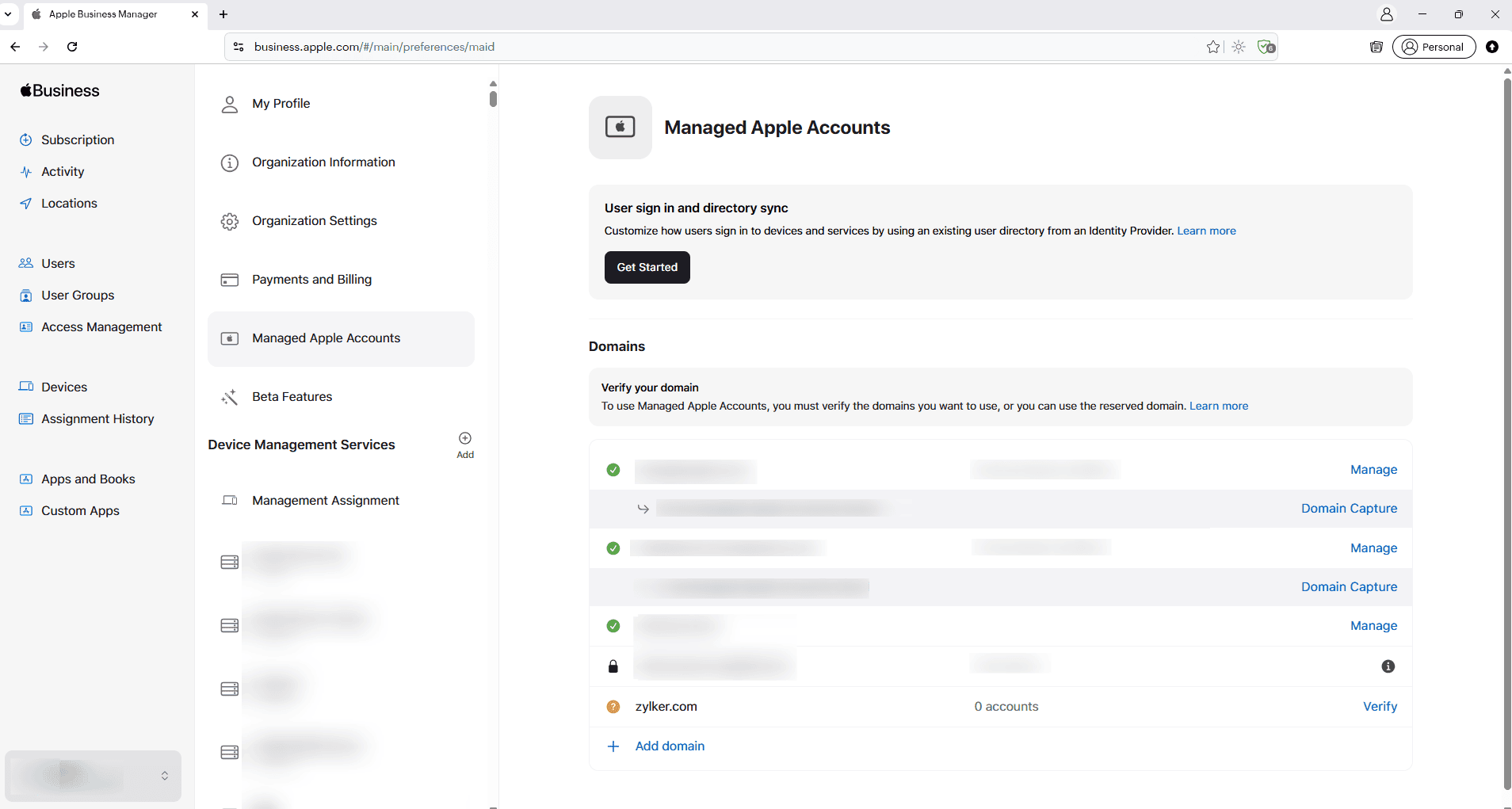
Add and verify your domain in Apple Business Manager.
- iPhones/iPads must be running iOS/iPadOS 18.2 and above.
- Mac devices must be running macOS 15.2 and above.
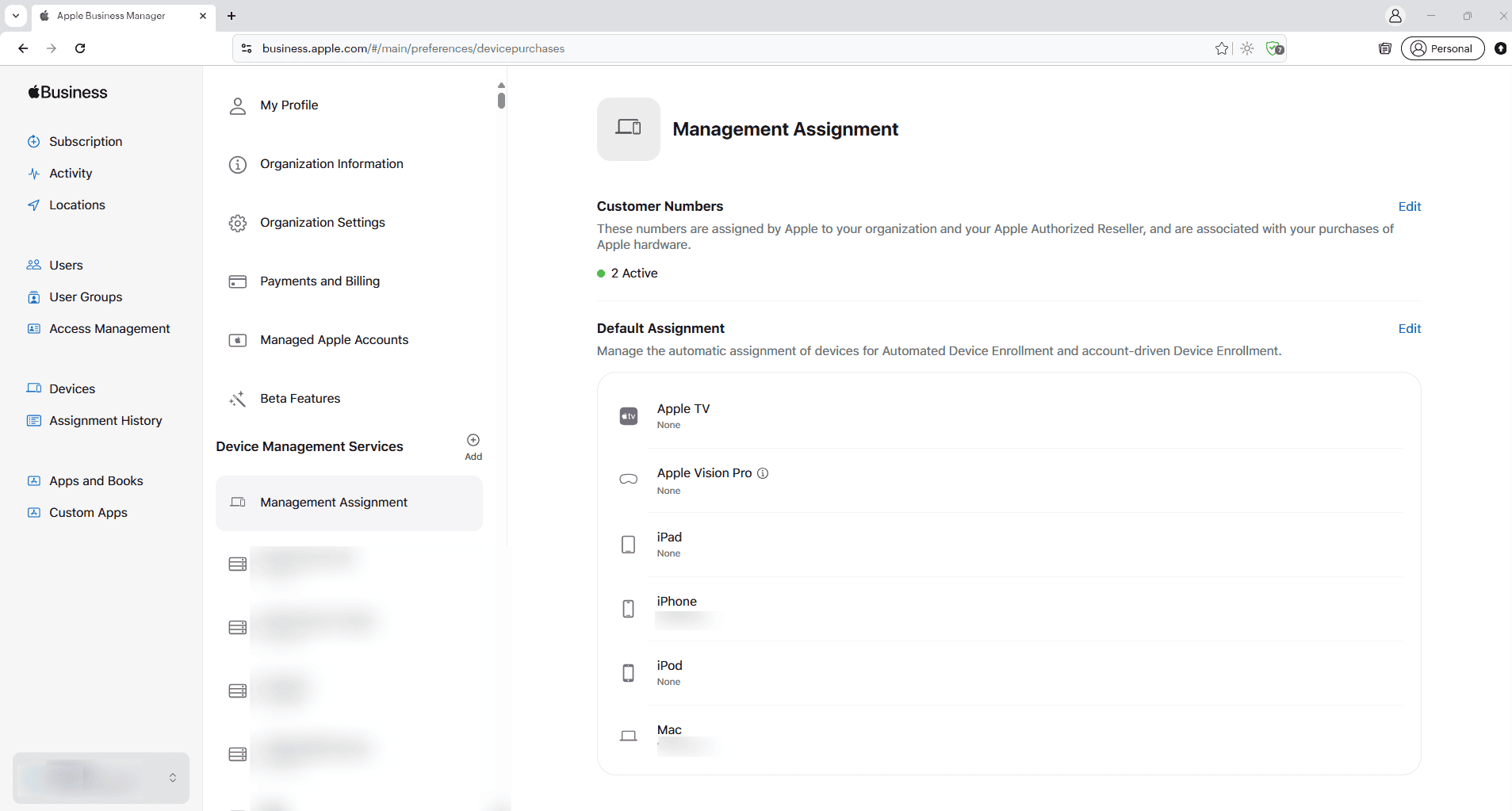
- Ensure the MDM is integrated with Automated Enrollment (ABM/ASM).
Ensure you have configured Automatic Device Assignment to Default Server in Apple Business/School Manager (ABM/ASM).
- Ensure you have created Managed Apple IDs for your employees using your organization's Apple Business Manager account:
- Log in to ABM/ASM as an administrator.
- Go to People → Click (+) to add a new user.
- Enter the required details (name, email, role).
- Choose the appropriate role for the employee (e.g., Manager, Staff, or a custom role defined by your organization).
- The user will receive an email to set up their Managed Apple ID.
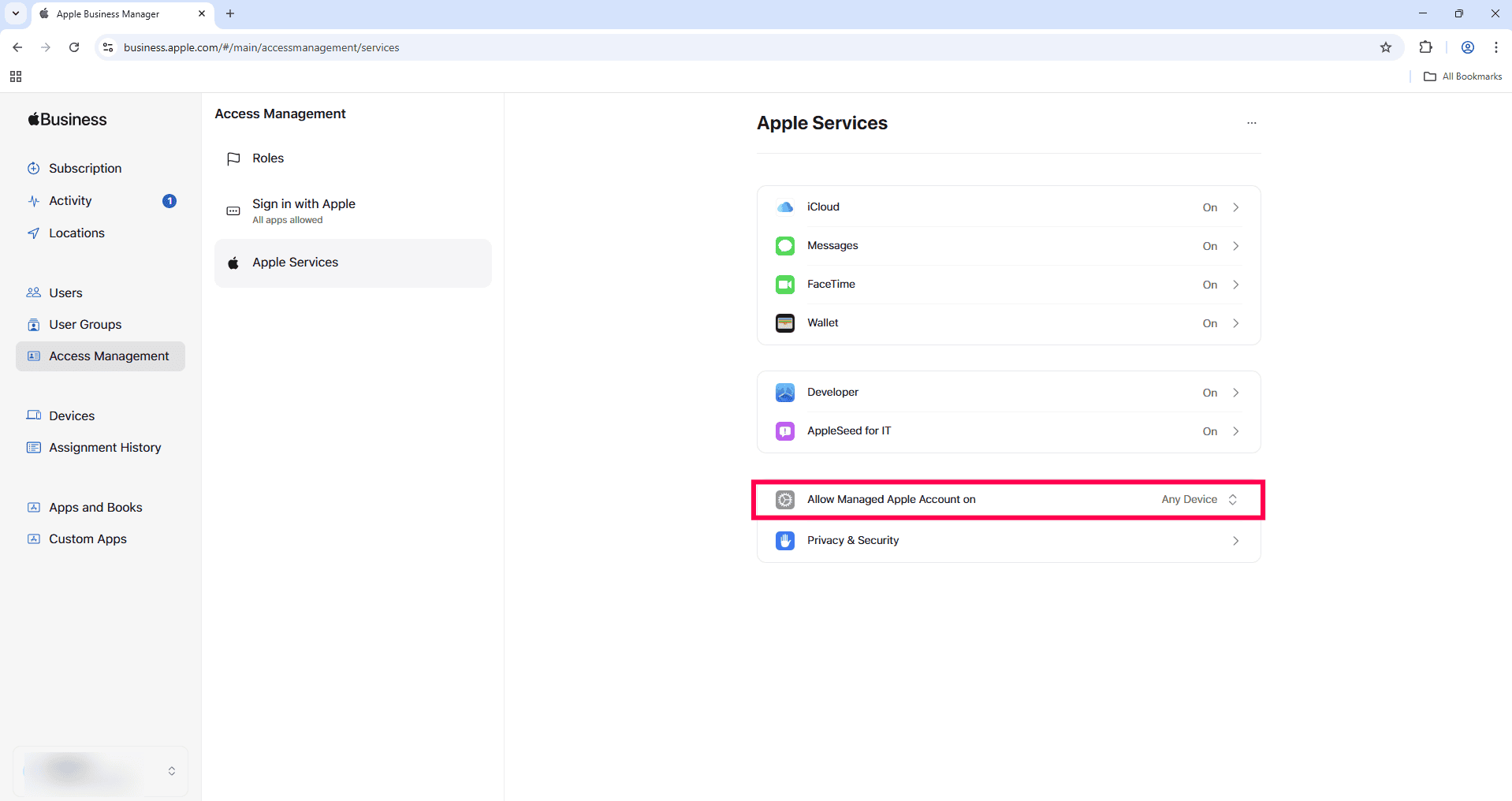
To ensure users can sign in with their Managed Apple IDs on any device, log in to ABM/ASM as an administrator, navigate to Organization name > Settings > Access management -> Apple services > Allow Managed Apple Account On setting. If it is currently set to "Managed Devices Only" or "Supervised Devices Only," change it to "Any Device" and save the update.
- Directory services should be configured for authenticating users during enrollment.
Enable Apple User Enrollment in MDM console
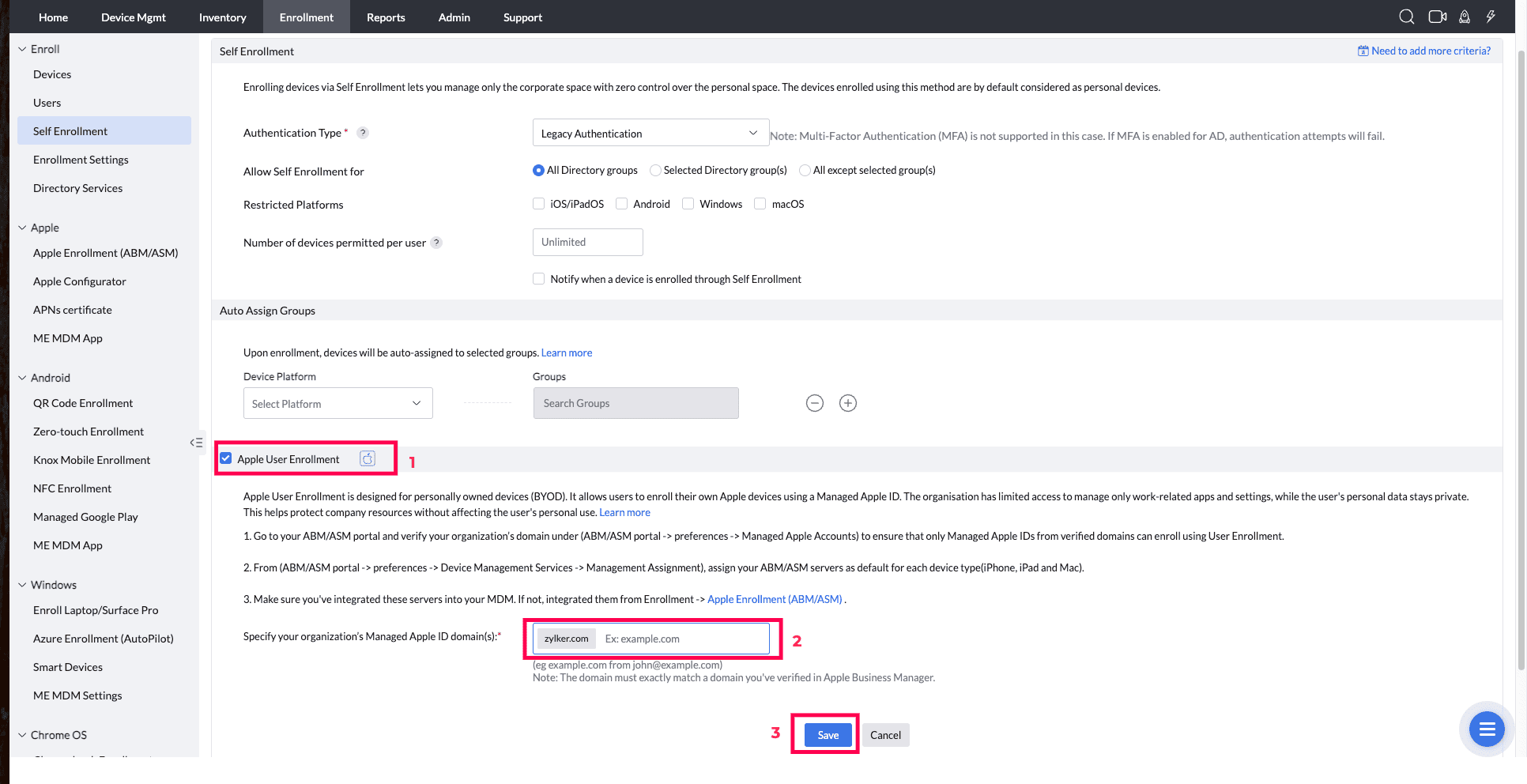
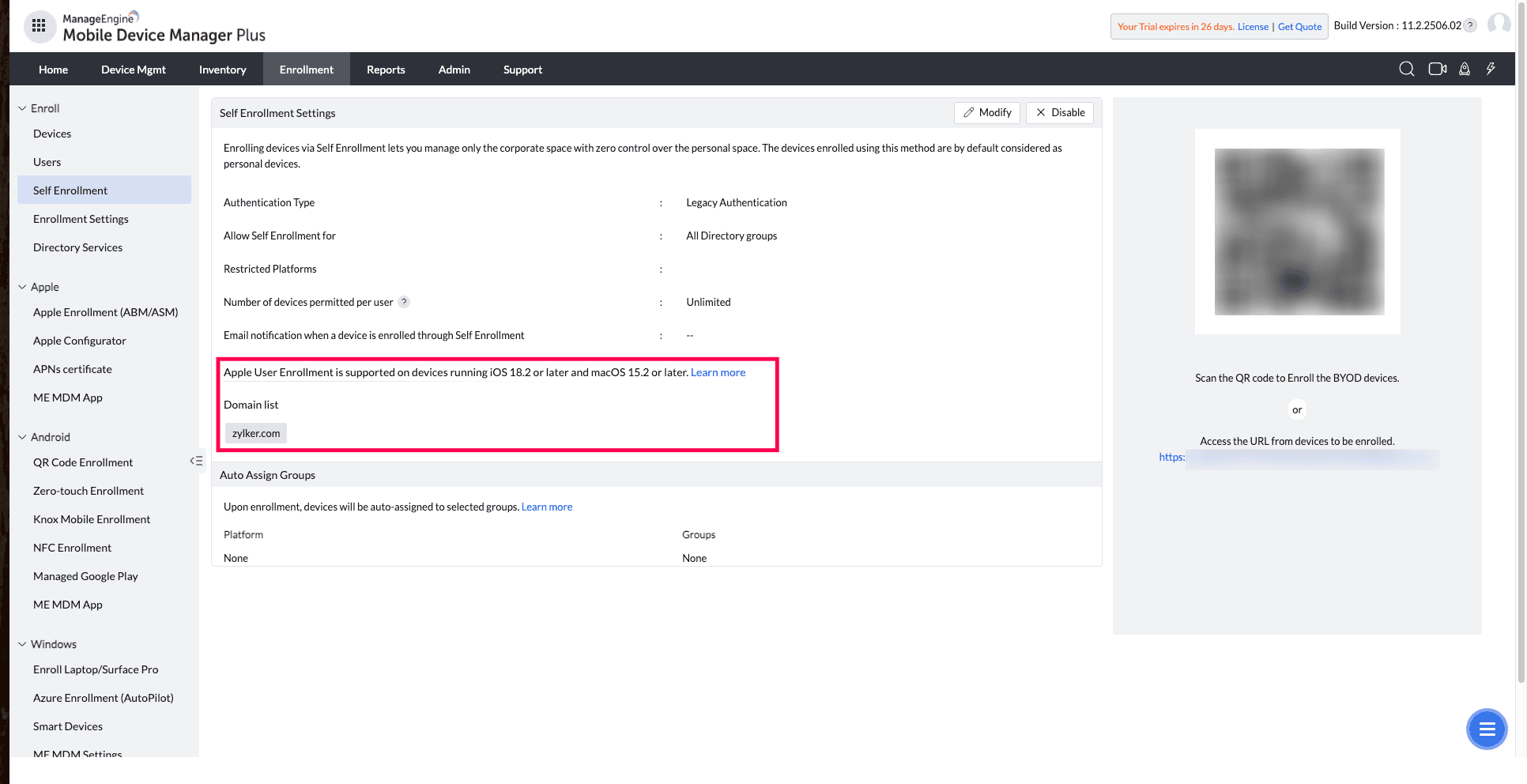
On MDM console navigate to Enrollment->Self Enrollment->Click Modify if the Self enrollment is configure else configure the Self Enrollment and follow the below steps.
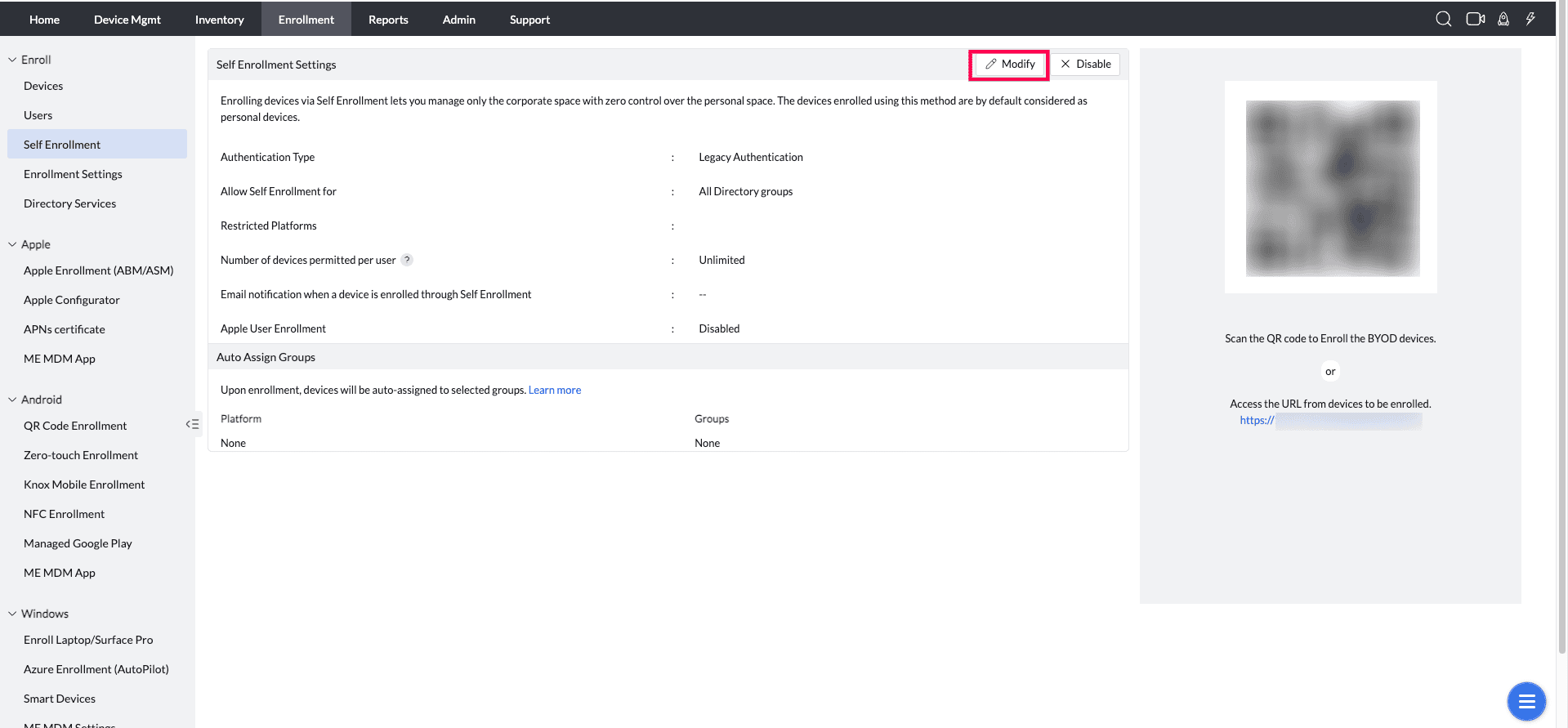
Check the "Apple User Enrollment" checkbox. Specify your organization’s Managed Apple ID domain(s). You can provide multiple domains per the organization's need. Click save.
Apple User Enrollment Experience
Follow the steps below to enroll the device:
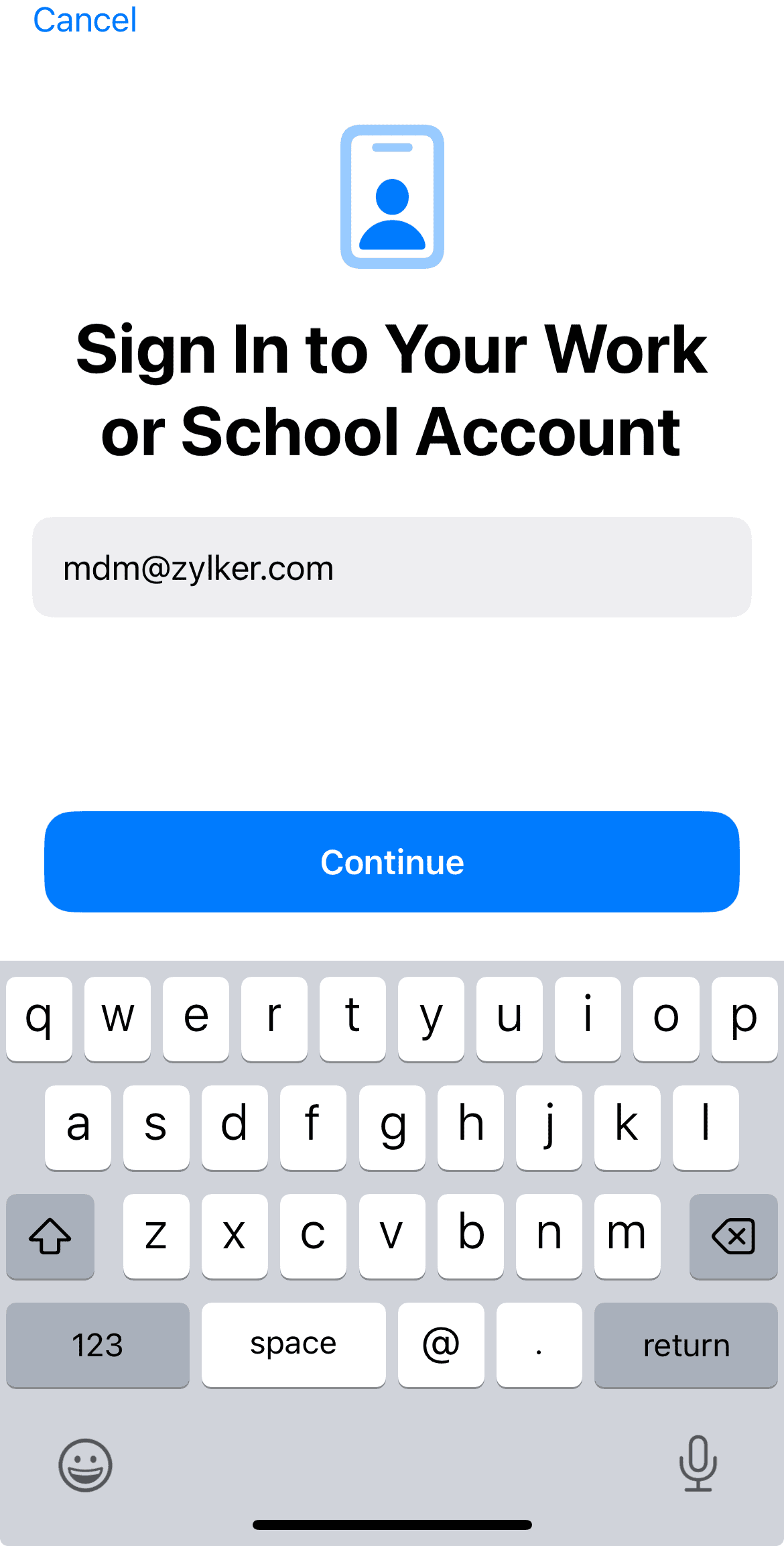
- Navigate to Settings → VPN & Device Management → Sign in with Work or School Account.
- Enter your Managed Apple ID and click Continue.
When the Apple user enrollment is enabled in the MDM Console by the IT administrator and the user login with the Managed Apple ID then the device will detect the MDM server and proceed with user authentication.
- Once authentication is successful, the MDM profile will be downloaded, and the device will display the MDM details. When the user proceeds, the MDM profile will be installed successfully on the device.
Troubleshooting tips
The following are possible errors that may occur during enrollment. To resolve these errors, refer to the the following steps.
- Error occurred while authenticating users
While authenticating, the users should enter the same Directory credentials associated with the Managed Apple ID provided by their organization.
- Internal server error occurred
Contact mdm-support@manageengine.com
If you are still unable to fix the errors even after following the solution we provided, you can contact support for additional help.
Frequently Asked Questions
1. What is Apple User Enrollment and how is it different from standard enrollment?
Apple User Enrollment is a BYOD-focused enrollment method that uses a Managed Apple ID to create a separation between personal and corporate data on the device. Unlike standard enrollment, the administrator has no access to personal apps, data, or device details such as serial number or personal Apple ID.
2. Is a Managed Apple ID required for Apple User Enrollment?
Yes. Apple User Enrollment requires users to sign in with a Managed Apple ID, which is typically provided by the organisation through Apple Business Manager or Apple School Manager. The Managed Apple ID is used to create an isolated managed partition on the device.
3. Can administrators remotely wipe a device enrolled via Apple User Enrollment?
Administrators can perform a selective wipe that removes only the managed corporate data and apps, but they cannot perform a full device wipe on a device enrolled through Apple User Enrollment, as personal data remains protected.