# Integrating Check Point Harmony Mobile Threat Defense (MTD) with MDM
MDM provides a unified console to oversee both device management and mobile threat defense across your mobile device fleet. Administrators can efficiently monitor device security, view threat alerts, and generate comprehensive reports on security incidents. MDM can be easily integrated with Check Point Harmony Mobile and deployed to a large device inventory. MDM and Check Point MTD work together to protect devices, detect threats, and enforce security policies, allowing users to seamlessly carry out their tasks without interruption.
This document describes how to integrate Check Point Harmony Mobile Threat Defense with MDM.
## Pre-requisites
Ensure that you meet the following pre-requisites before integrating Check Point Harmony Mobile with MDM:
1. Create an account with the Check Point Infinity portal, if you don't already have one for your organization.
2. Create a separate [group](https://www.manageengine.com/mobile-device-management/help/profile_management/mdm_creating_groups.html) in MDM for the devices that need to be synced and monitored using Check Point Harmony MTD.
3. If you wish to monitor threats on personal devices (BYOD), create a separate group for Android Work Profile devices so Check Point can identify personal devices.
4. Configure [Managed Google Play](https://www.manageengine.com/mobile-device-management/help/android_for_work/mdm_afw_prerequisites.html) and [Apple Business Manager](https://www.manageengine.com/mobile-device-management/help/app_management/ios_app_management.html) to silently distribute the Harmony Protect app to devices.
## Integrating Check Point Harmony Mobile with MDM
1. On the MDM Console, navigate to **Admin > Integrations > Mobile Threat Defense**.
2. Click **Start**. Then click **Generate Credentials** to generate a set of credentials to be used on the Check Point Harmony Mobile console.
**Note:** For security reasons, these credentials cannot be viewed again after closing the popup.
3. Log in to your Check Point Harmony Mobile console and navigate to **Settings > Integrations > Add > UEMs**.
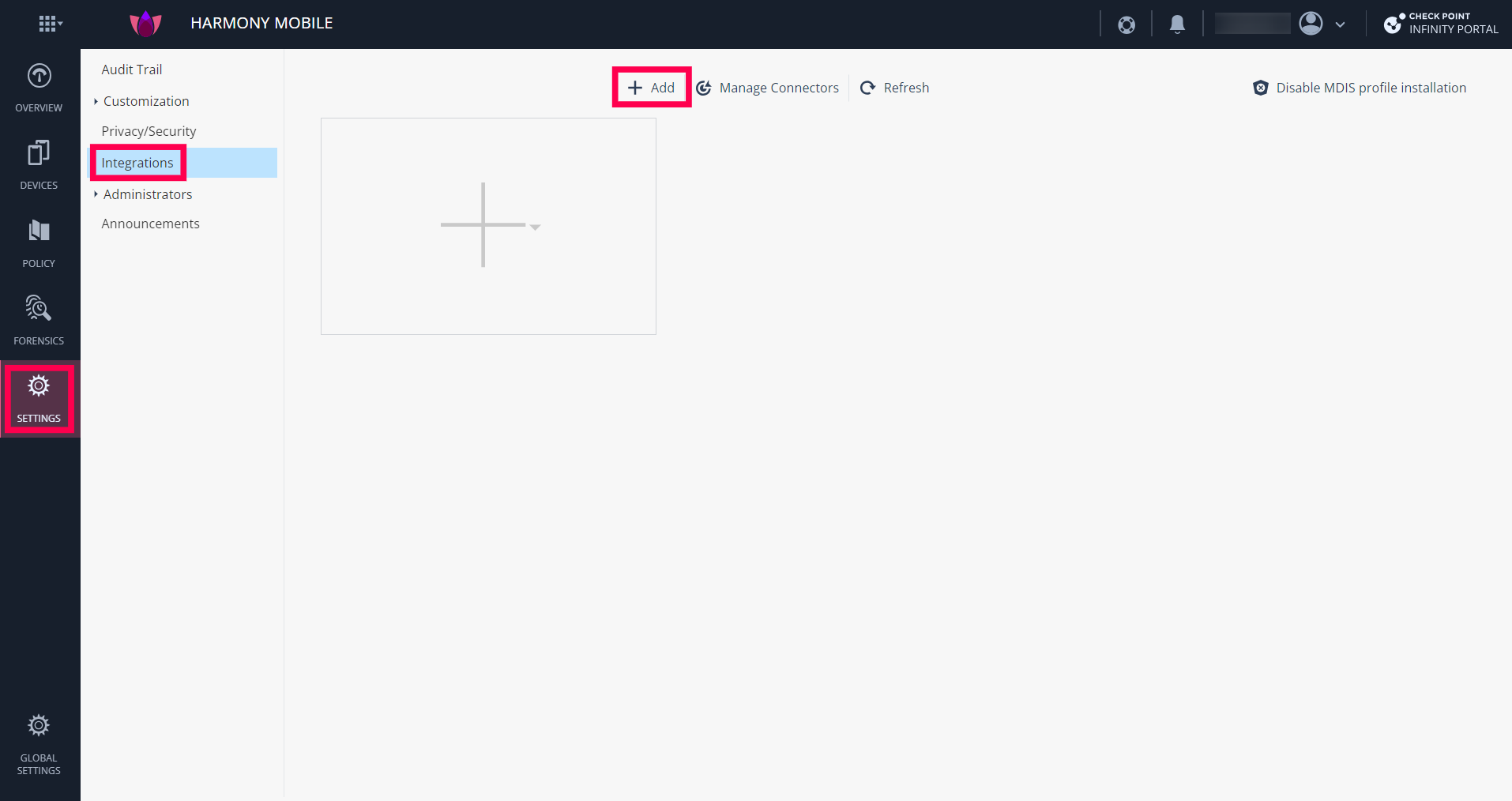
4. Select **ManageEngine** as the UEM provider and click **Next**.
5. **Server details:**
a. Provide the **Server address**, **Username**, and **Password** generated previously in MDM.
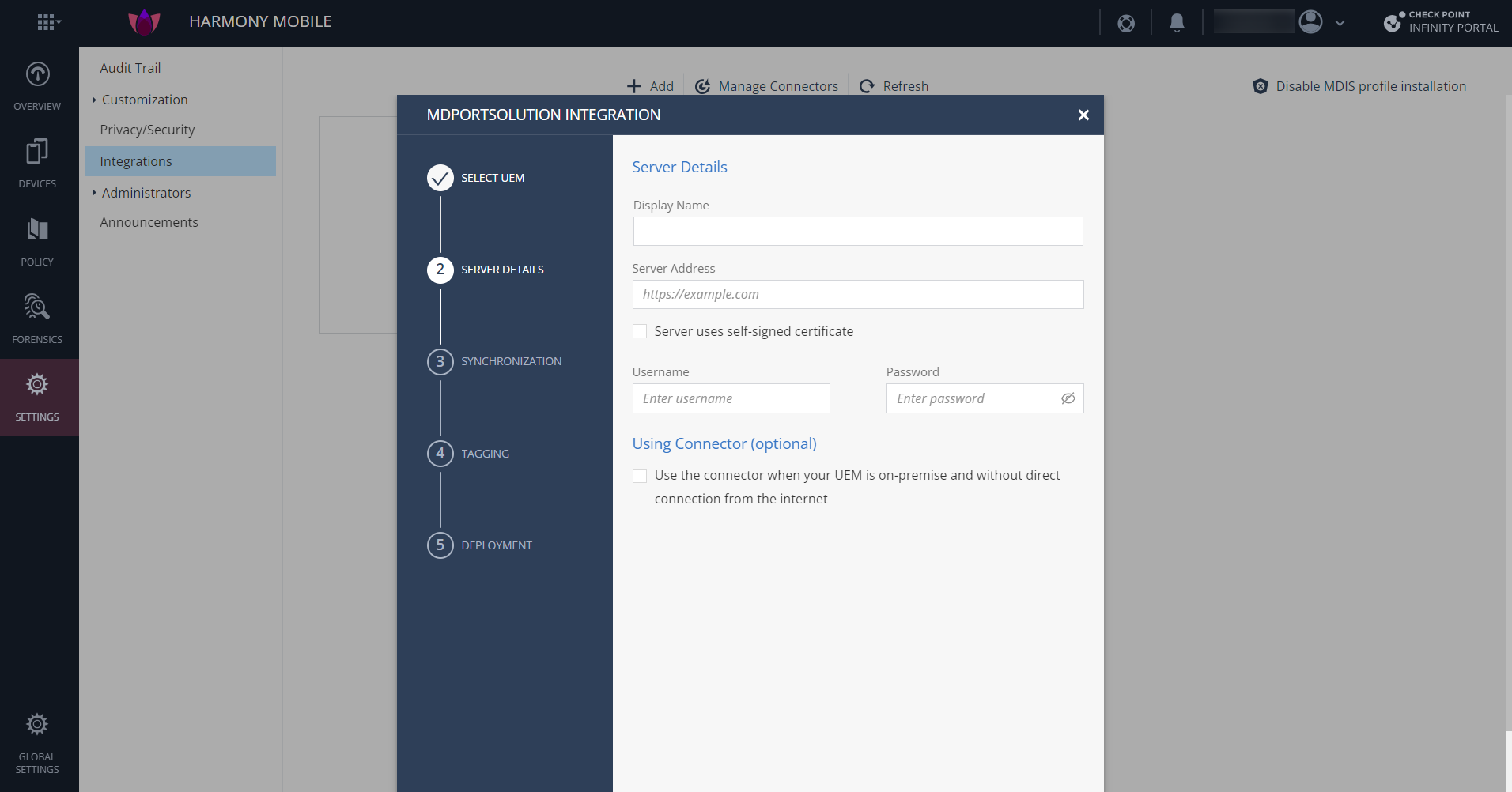
b. Click **Verify**, then **Next**.
6. **Synchronization:**
a. From the Groups dropdown, select the group(s) you want to sync from MDM.
b. Under Android Enterprise Groups, select the group containing Android Work Profile (BYOD) devices (optional).
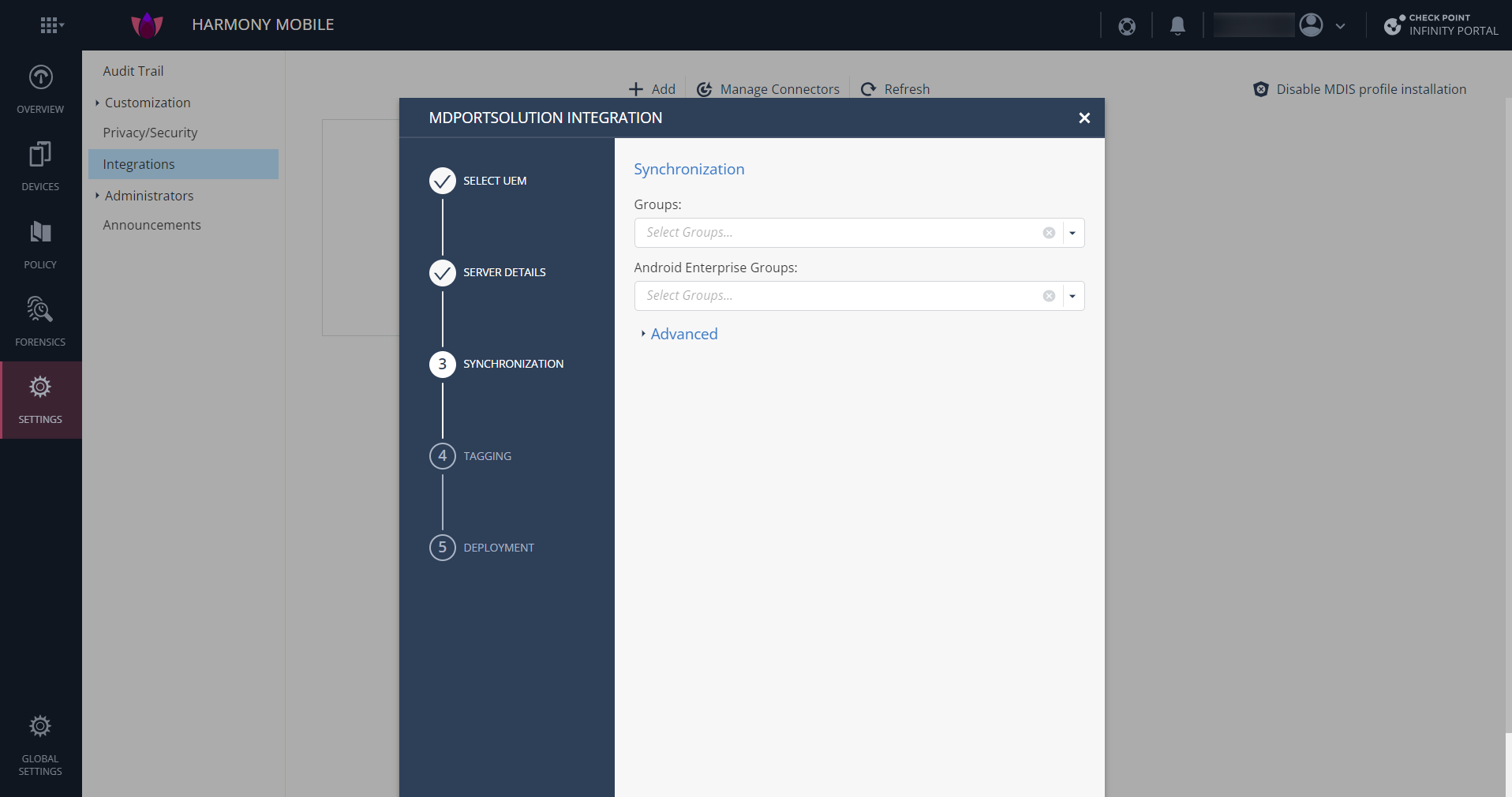
c. Click **Verify**, then **Next**.
7. **Tagging:**
a. Enable **Tag device status** and **Tag device risk** so MDM can communicate the deployment status of the Harmony Mobile Protect app and the device risk level.
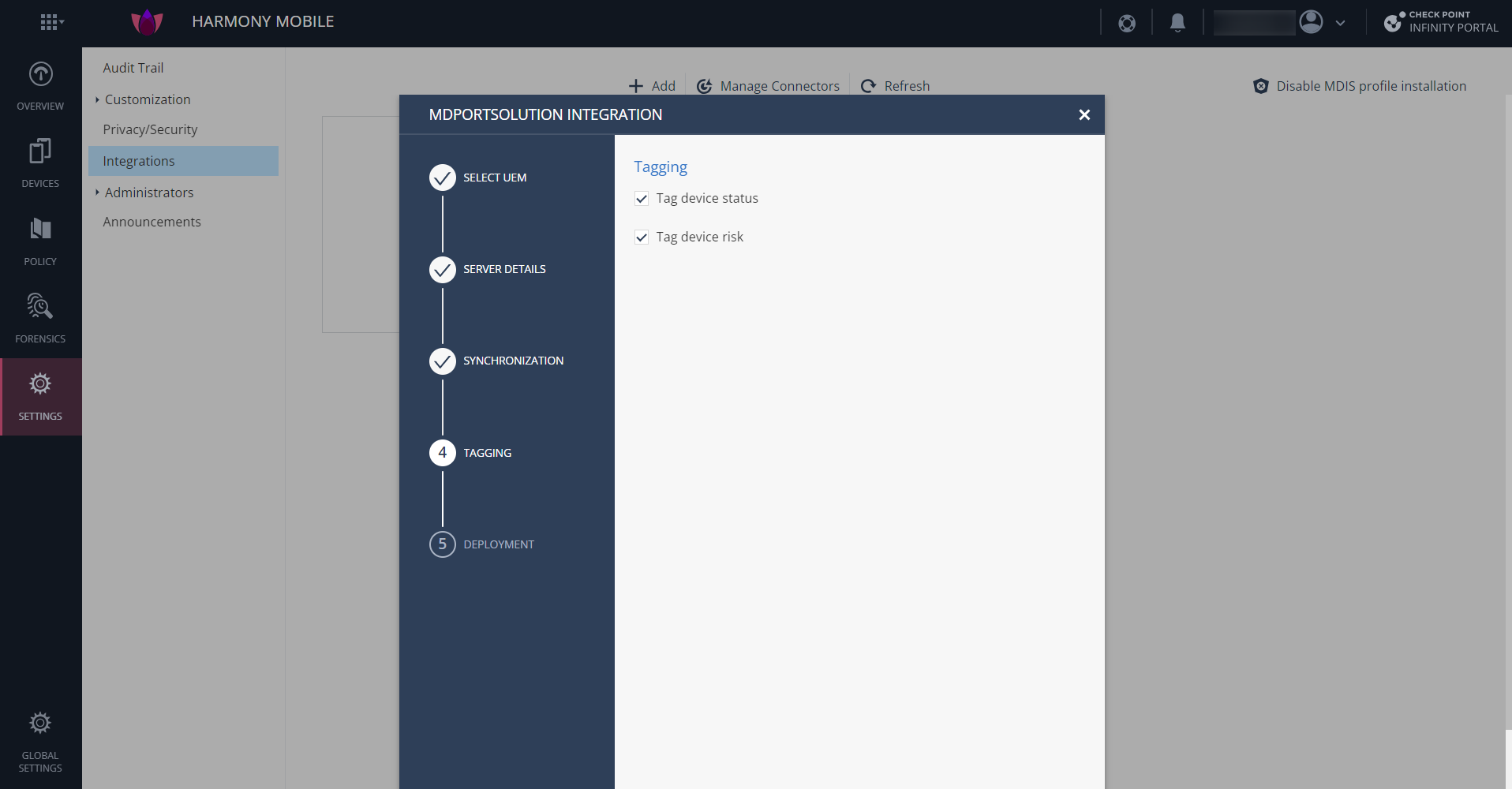
b. Click **Verify**, then **Next**.
8. **Deployment:**
a. Select **Allow auto device addition prior to device sync**. If not selected, devices cannot sync to the Harmony Mobile dashboard.
b. A unique token will be generated. This must be used in the MDM app configuration to specify the dashboard for device registration.
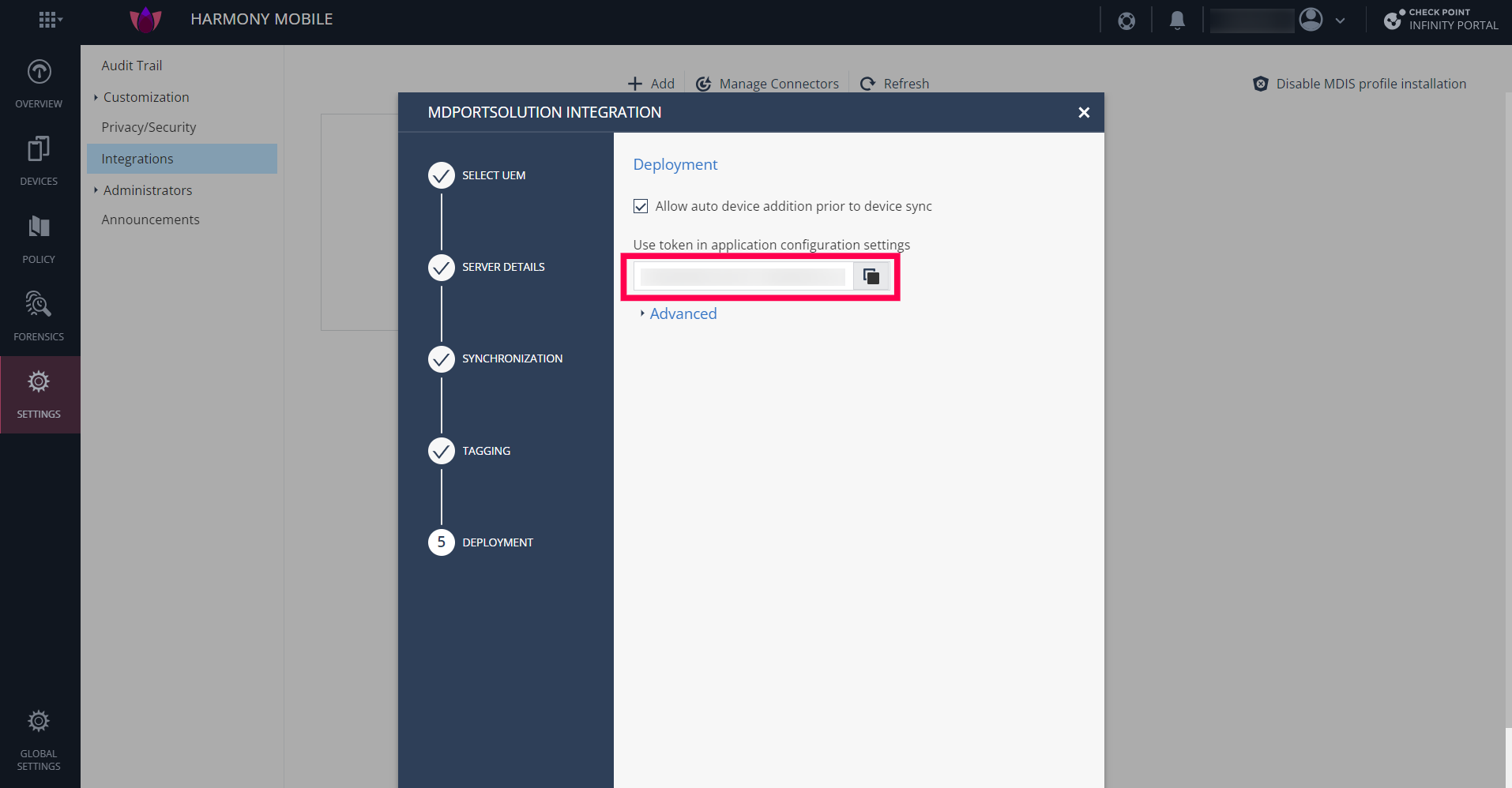
c. Click **Finish**.
Return to the MDM Console and click **Sync**.
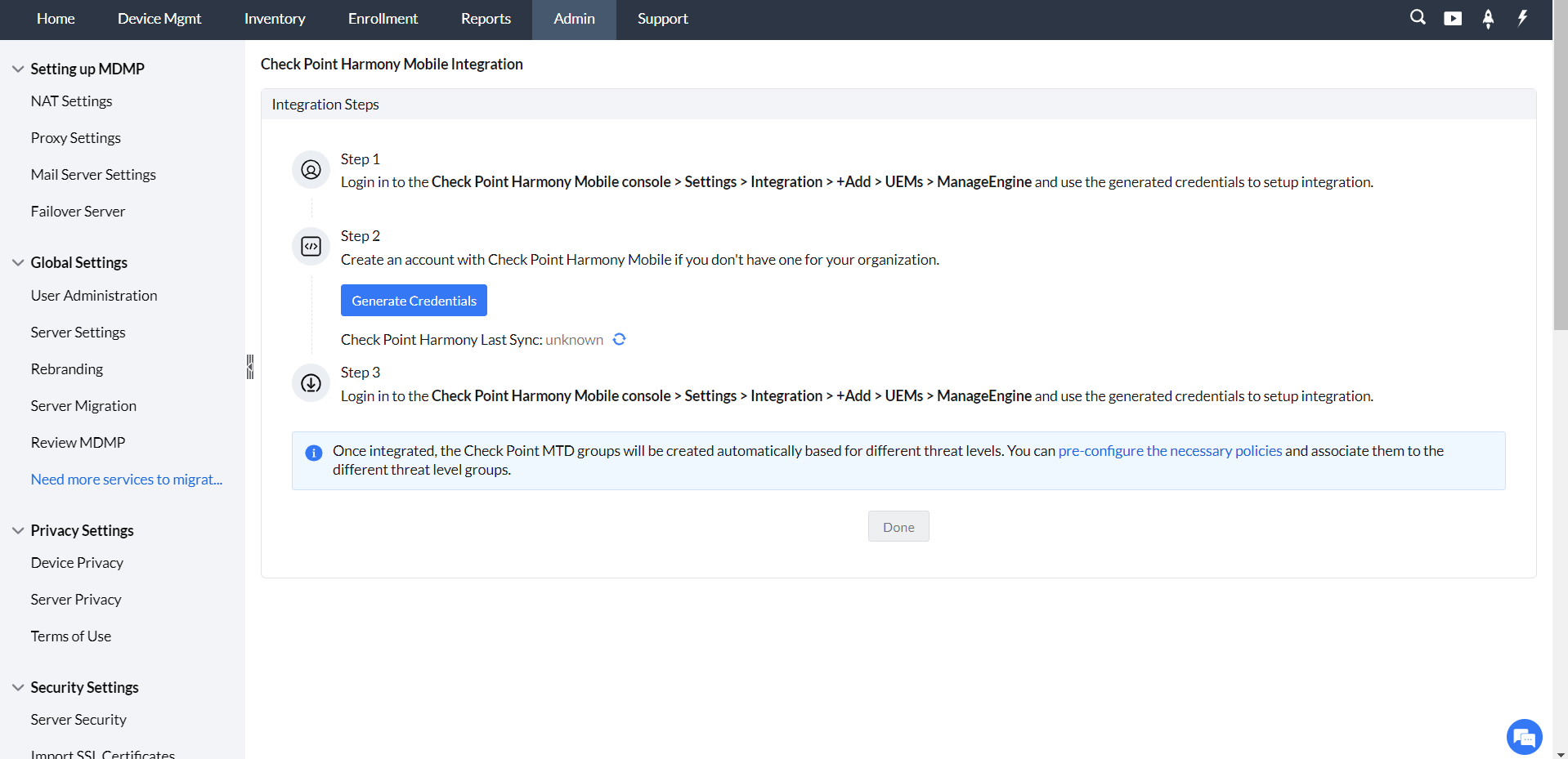
Check Point Harmony MTD is now successfully integrated with MDM.
### MTD Groups
After integration, Check Point MTD analyzes threats and categorizes devices into groups automatically created in MDM. Navigate to **MDM Console > Device Mgmt > Groups & Devices > Groups** to view them.
The following groups are created:
1. **CHKP_Status_Provisioned:** Devices provisioned and synced with the Harmony Mobile dashboard. The Harmony Mobile Protect app must be deployed to this group.
2. **CHKP_Status_Active:** Devices with the Harmony Mobile Protect app installed and registered.
3. **CHKP_Status_Inactive:** Devices that have not communicated with the Harmony Mobile dashboard.
4. **CHKP_Risk_High:** Devices with high risk level.
5. **CHKP_Risk_Medium:** Devices with medium risk level.
6. **CHKP_Risk_Low:** Devices with low risk level.
7. **CHKP_Risk_None:** Devices with no detected risks.
## Deploying Harmony Mobile Protect app
After integration, deploy the Harmony Mobile Protect app to monitor threats using Check Point MTD.
**1. Lacoon server address:**
US - gw.locsec.net
Ireland (EU Region) - eu-gw.locsec.net
Australia (Asia Region) - au-gw.locsec.net
Canada - ca-gw.locsec.net
UK - uk-gw.locsec.net
India - in-gw.locsec.net
**2. Token** – Obtain from Check Point Portal > Settings > Integrations > Edit > Deployment.
**3. Infinity Portal Account ID** – Obtain from Check Point Portal > Global Settings > Account Settings > Account ID.
### For iOS devices:
1. Add **Harmony Mobile Protect app** to the **App Repository**.
2. Go to App Configurations and configure the following XML file:
```xml
Lacoon Server Address
gw(enter lacoon server address)
Device Serial Number
%serialnumber%
token
(enter token)
```
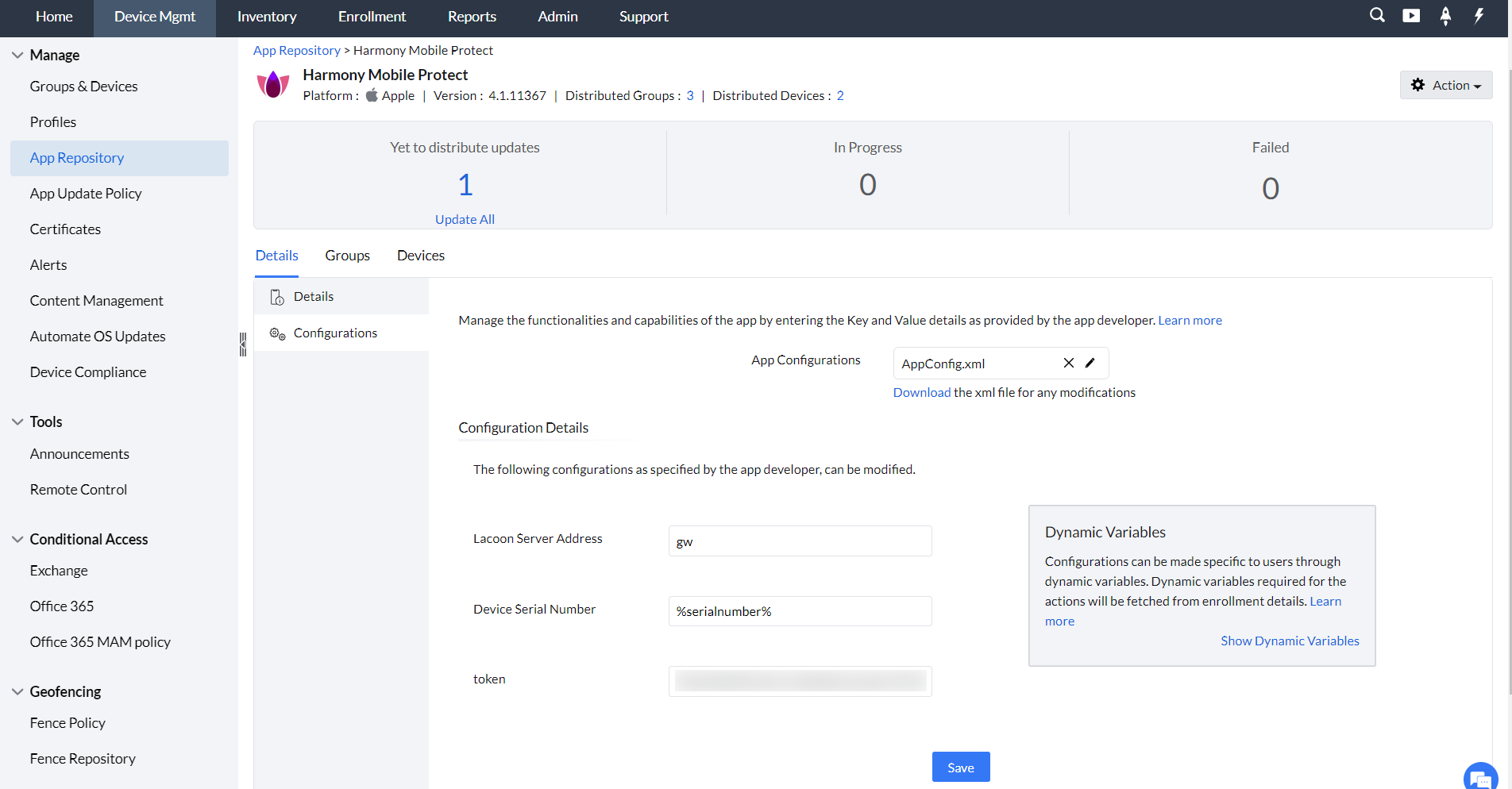
3. Click **Save**, then **Distribute**.
4. Select the groups synced with the Check Point Harmony dashboard.
5. Ensure **Silent Installation** is enabled.
6. The app will be silently installed on selected iOS devices.
### For Android devices:
1. Add **Harmony Mobile Protect app** to the **App Repository**.
2. Enable the following **App Permissions**:
a. Location
b. Camera
c. Phone
d. Storage
3. Go to **App Configurations** and configure:
- GW Address: Lacoon server address
- MDM UUID: %udid%
- IMEI: %imei%
- Token: Token from Check Point Portal > Settings > Integrations > Edit > Deployment
- MDM Name: ME MDM
- Infinity Portal Account ID: From Check Point Portal > Global Settings > Account Settings > Account ID
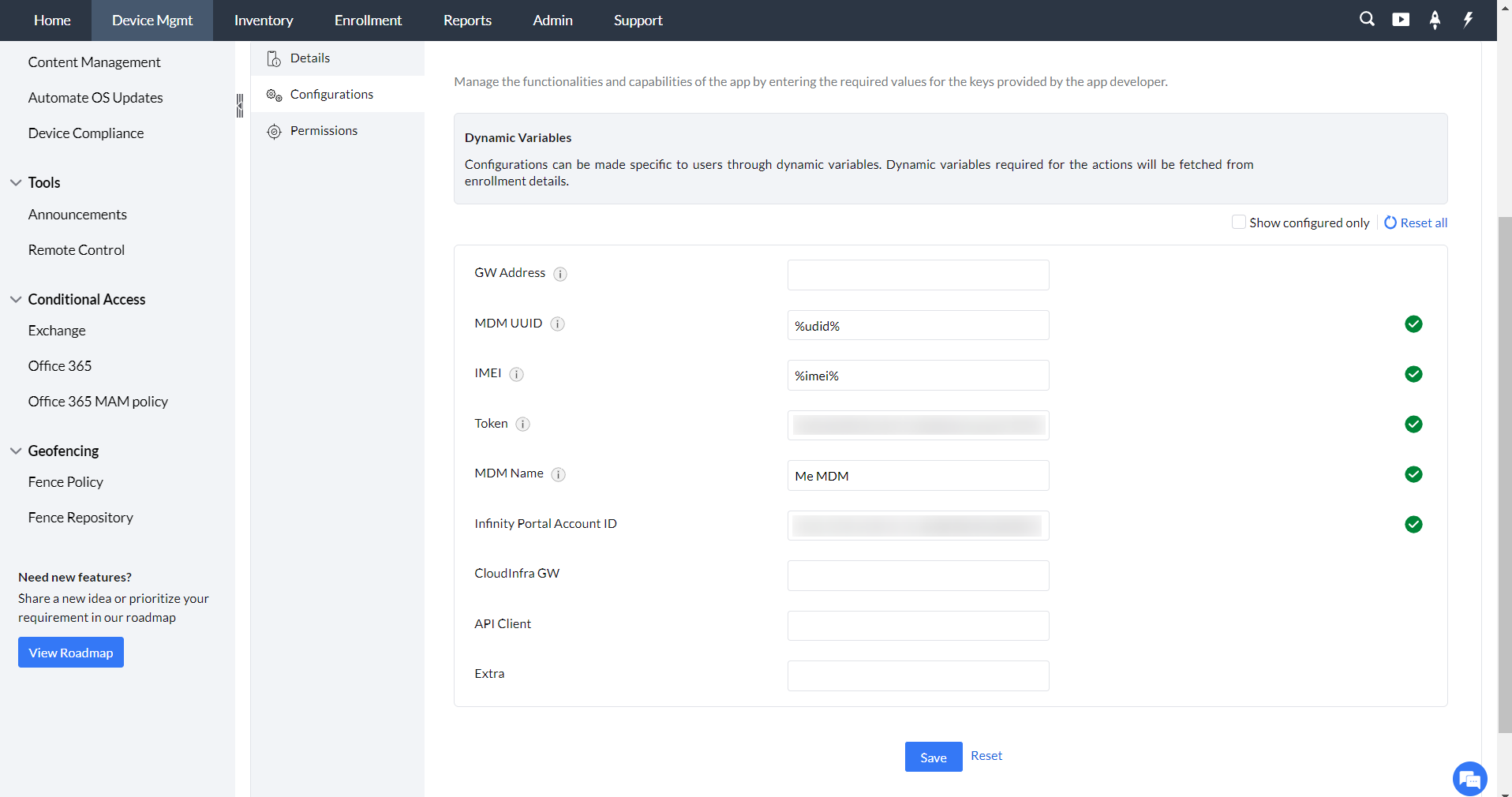
4. Click **Save**, then **Distribute**.
5. Select the groups or devices.
6. Enable **Silent Installation**.
After installation, users must manually launch the app to complete registration. To automate activation, follow the steps below.
## Automate App Deployment on devices (Zero Touch Activation)
### For Android devices:
MDM can automate activation using Custom Configuration. If the Harmony Mobile Protect app is added to the App Repository, **VPN Always ON** is automatically enabled. Once installed, MDM activates the app and registers the device with the Harmony dashboard.
### For iOS devices:
1. On the MDM console, navigate to **Device Mgmt > Profiles > iOS/iPadOS**.
2. Create a **Custom Configuration** profile.
3. Upload the following XML file:
```xml
PayloadContent
IPv4
OverridePrimary
0
PayloadDescription
Configures VPN settings
PayloadDisplayName
VPN
PayloadIdentifier
com.mdm.checkpoint
PayloadType
com.apple.vpn.managed
PayloadUUID
com.mdm.checkpoint
PayloadVersion
1
UserDefinedName
Check Point Local Tunnel
VPN
AuthName
%username%
AuthenticationMethod
Certificate
DisconnectOnIdle
0
IncludeAllNetworks
0
OnDemandEnabled
1
ProviderBundleIdentifier
com.checkpoint.capsuleprotect
RemoteAddress
www.checkpoint.com
OnDemandRules
Action
Connect
InterfaceTypeMatch
WiFi
Action
Connect
InterfaceTypeMatch
Cellular
VPNSubType
com.checkpoint.capsuleprotect
VPNType
VPN
VendorConfig
zero_touch
true
PayloadDisplayName
Checkpoint Local VPN
PayloadIdentifier
mdm.86265160-CCF7-446C-AF66-586F388DA8E4
PayloadRemovalDisallowed
PayloadType
Configuration
PayloadUUID
40FCC72A-0B56-4F8C-8074-11068CBFECF8
PayloadVersion
1
```
4. Save and publish the profile.
After distributing this profile, the Check Point Harmony app activates automatically without user intervention.
## SSL Trust Certificate for On Device Network Inspection
If using On-device Network Protection (ONP) with HTTPS inspection enabled, create an SSL certificate in the Harmony Mobile dashboard and push it to devices via MDM.
1. In the Harmony Mobile dashboard, go to **Policy > Network Protection**.
2. Under HTTPS Settings, select **HTTPS Inspection**.
3. Under **Inspection CA**, select **Central CA** for UEM Deployment.
4. Click **Generate CA Certificate** and download it.
5. In the MDM console, navigate to **Device Mgmt > Certificate > +Add Certificate**.
6. Upload the downloaded certificate.
7. Create a Certificate profile for iOS and Android and select the uploaded certificate.
8. Save, publish, and distribute the profile to devices.
## Monitoring threats and pre-configuring policies
Check Point MTD monitors threats such as malware, malicious apps, network attacks, and device vulnerabilities. Devices are categorized into High, Medium, and Low risk groups.
Using MDM, you can preconfigure [security policies and restrictions](https://www.manageengine.com/mobile-device-management/help/profile_management/mdm_profile_management.html) to safeguard devices and sensitive data. You can [block critical business apps](https://www.manageengine.com/mobile-device-management/help/app_management/mdm_app_blacklist.html) for high-risk groups or configure devices in [kiosk mode](https://www.manageengine.com/mobile-device-management/help/profile_management/ios/mdm_app_lock.html) based on threat levels.
Pre-configured policies help mitigate security risks and protect critical data.
## Testing a High Risk Activity Detection and Policy Enforcement
If a device is at risk due to harmful apps or activity, Harmony Mobile notifies the user and updates the risk level in Mobile Device Manager Plus. For example, if WhatsApp is blocked, the device is labeled High Risk and moved to the **CHKP_Risk_High** group.
**Blocking a Test App:**
1. Log in to the **Harmony Mobile dashboard**.
2. Go to **Forensics > Application** and select the app.
3. Click **Edit app exception** and select the policy.
4. The Application Exceptions section appears.
5. From the Action dropdown, select **Block**.
6. Click **Add**, then **Save**.
Devices with the blocked app move to the CHKP_Risk_High group, and preconfigured policies are enforced.
## Removing Check Point Harmony Mobile integration
To remove the integration:
1. On the MDM console, navigate to **Device Mgmt > Admin > Integrations > Mobile Threat Defense**.
2. Click **Remove integration**.
3. All groups created by Check Point will be removed from MDM.
**Note:**
For complete removal, delete the integration from **Check Point Harmony Mobile console > Settings > Integrations**.