Last updated: August 14, 2026
Restrictions
This page covers iOS Restrictions in MDM, explaining how administrators can configure and enforce device-level controls on managed Apple devices to meet organizational requirements. It details available restriction settings across categories including device functionality, security, application, iCloud, and privacy settings, with a comprehensive table indicating whether each restriction applies to supervised or unsupervised devices. IT admins can learn how to allow or block features like camera, Siri, AirDrop, iMessage, and data sharing between managed and unmanaged apps.
MDM lets you configure various restrictions on the managed Apple devices, as per the requirements of your organization. You can allow or restrict users to access various features of the devices, like profile settings, application settings, iCloud settings, security, and privacy settings.
Note:To view a detailed comparison of various policies supported with respect to specific OS version, click here.
The status of restrictions imposed using MDM for a particular device, is shown under Inventory->Restrictions. When no restrictions are imposed by MDM, by default the status is displayed as Allowed.
Profile Creation
To create a Restriction Profile follow the given steps:
- On the Mobile Device Manager Plus console, navigate to Device Management->Profiles->+create Profile->Choose iOS/iPadOS Profile.

- Provide the Profile Name and provide a description and continue.
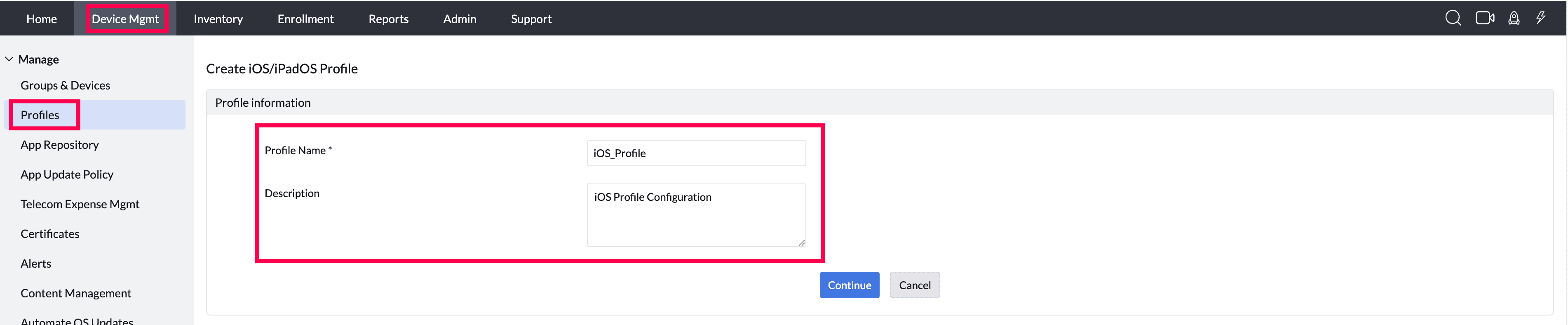
- Select the Restrictions Tab and configure the restrictions as required. Save and Publish the Restriction. Associate the restriction profile to the desired groups or devices.
Note: When a restriction is applied through MDM, the corresponding setting on the user's device is disabled (grayed out) and cannot be modified by the user until the restriction is removed.
Profile Description
Device Functionality
- Camera: Camera(s) can be completely disabled and the icons removed from the home screen. This ensures users cannot take photos or use FaceTime.
Supported Management Type: Supervised Devices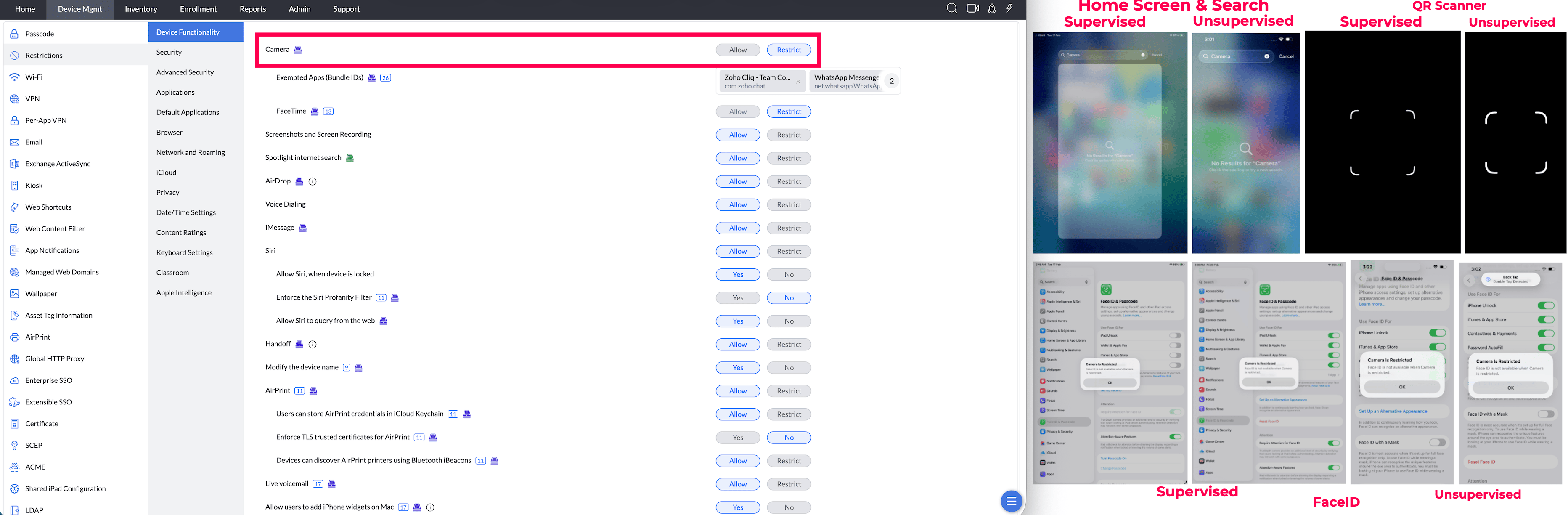
- Camera — Exempted Apps: Specify the Bundle IDs of apps that retain camera access even when the Camera is restricted. Applies only to supervised devices with iOS 26+.
Supported Management Type: Supervised Devices
- FaceTime: Allow/Restrict FaceTime video and audio calls. To allow FaceTime, Camera has to be allowed on the device.
Supported Management Type: Supervised Devices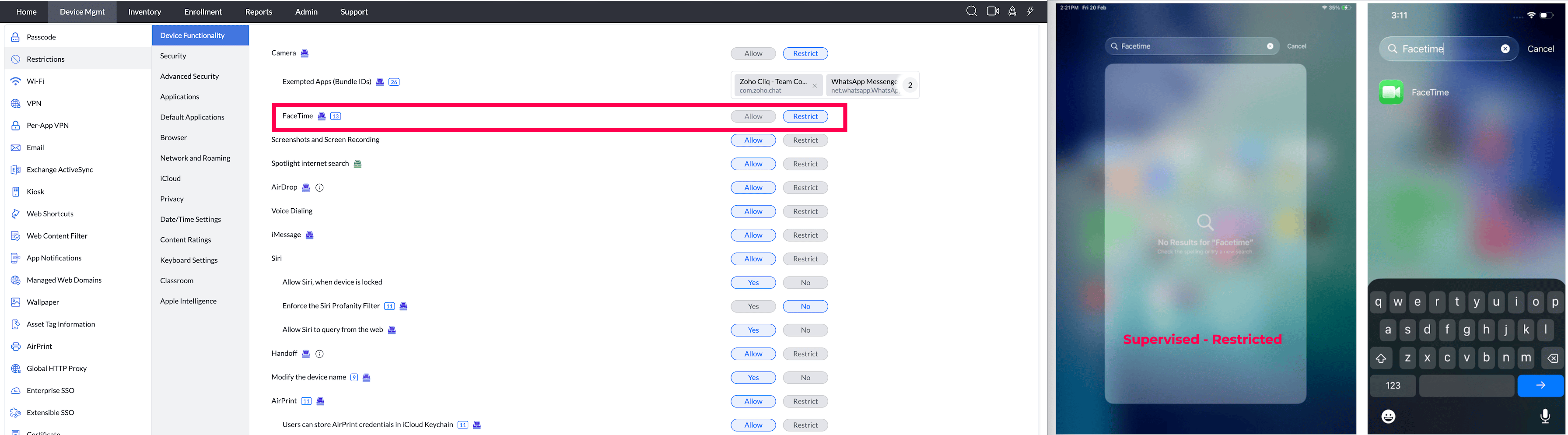
- Screenshot and Screen Recording : Allow/Restrict users from capturing screenshots and screen recording.
Supported Management Type: Supervised and Unsupervised Devices - Spotlight Internet Search(iOS 8 or later versions) : Allow/Restrict the usage of Spotlight Search to find content directly from the internet.
Supported Management Type: Supervised Devices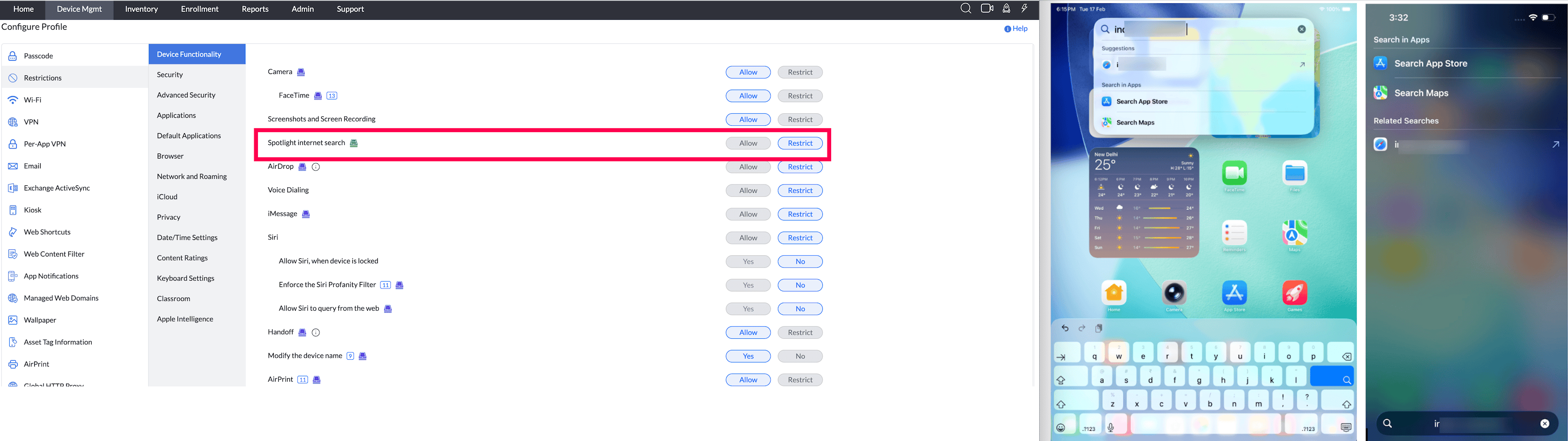
- AirDrop (iOS 7 or later versions) : Allow/Restrict sharing of documents, media etc., using AirDrop to other devices. If Bluetooth is disabled via restrictions, AirDrop gets automatically disabled as well.
Supported Management Type: Supervised Devices - iMessage (iOS 6 or later versions) : Allow/Restrict the usage of iMessage.
Supported Management Type: Supervised Devices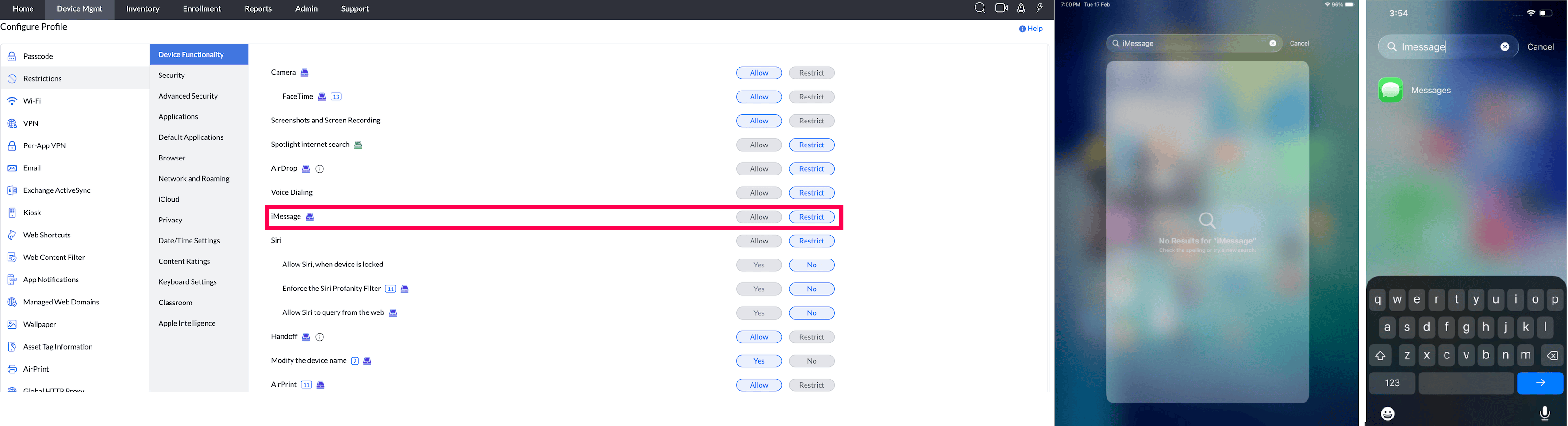
- Handoff (iOS 8 or later versions) : Enabling this option lets you resume an existing work or access content from any device which is logged in, using the same iCloud account.
Supported Management Type: Supervised Devices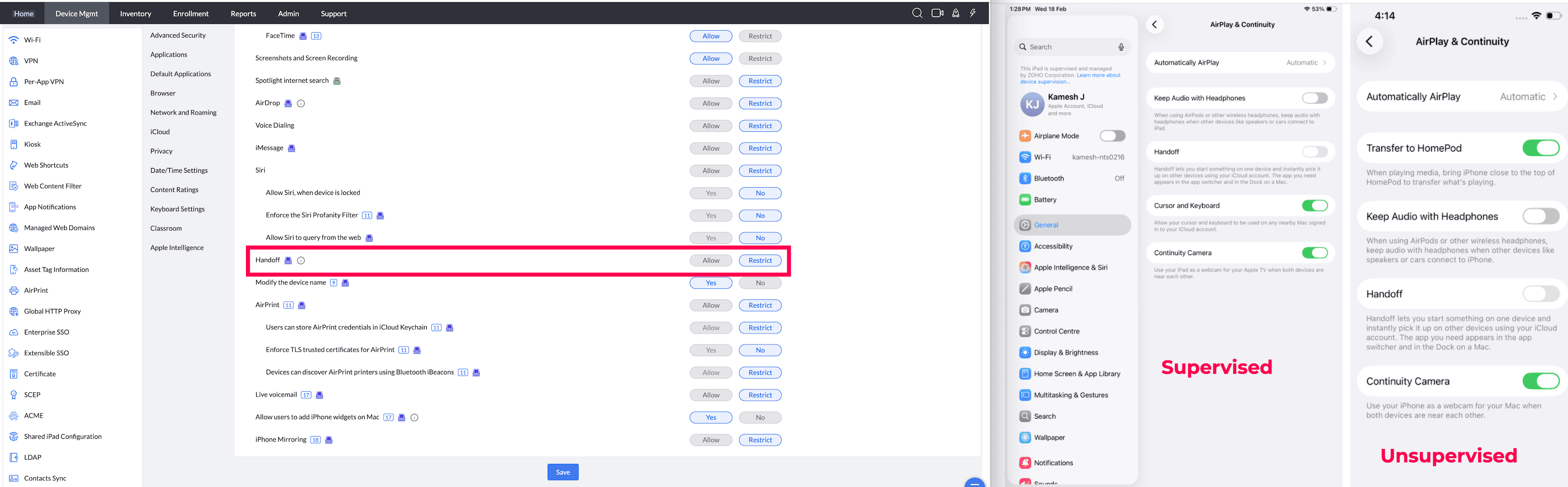
- Allow user to modify device name : Allow/Restrict the user from modifying the name of the device.
Supported Management Type: Supervised and Unsupervised Devices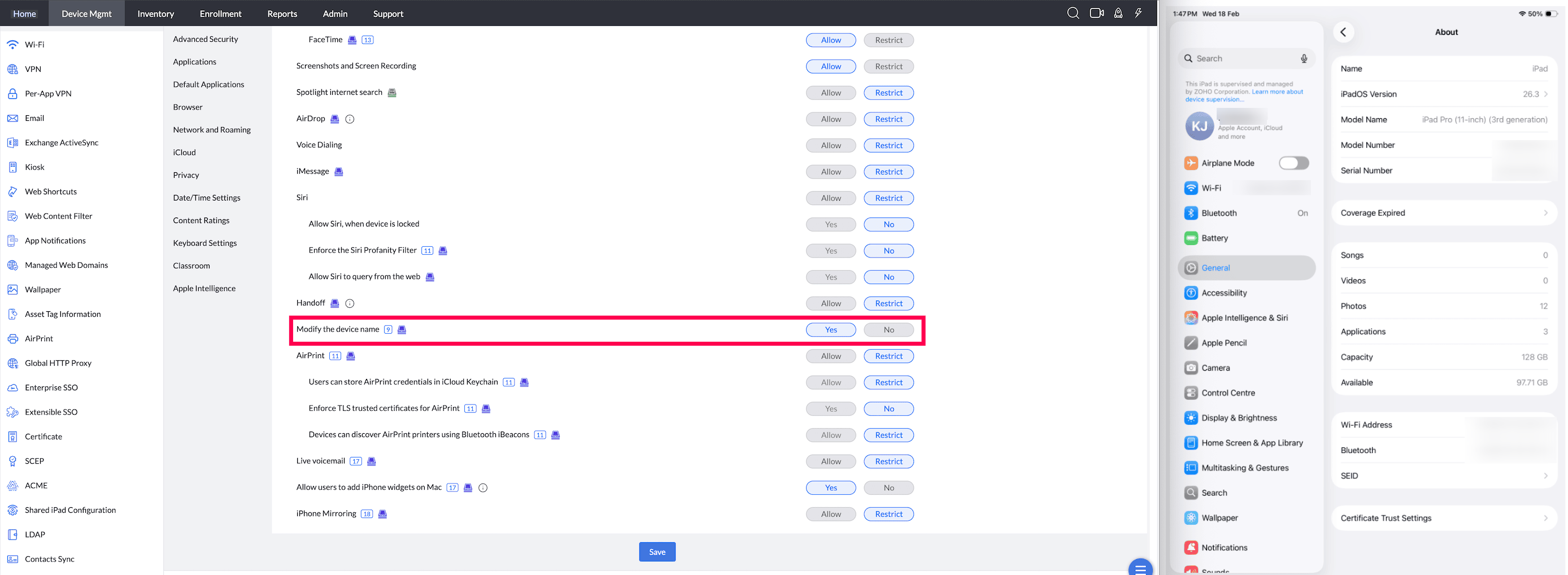
- Set device date and time : Date and time can be set automatically on the device, based on the current network and location or it can be left to the user to configure or the admin can select a specific timezone.
Note: If the Screen Time Passcode is enabled on the device, the user cannot manually set the date and time on the device and the admin too cannot set the date and time to a specific timezone.
Supported Management Type: Supervised and Unsupervised Devices - AirPrint (iOS 11 or later versions) : Allow/Restrict managed devices to pair with a printer via AirPrint.
Supported Management Type: Supervised Devices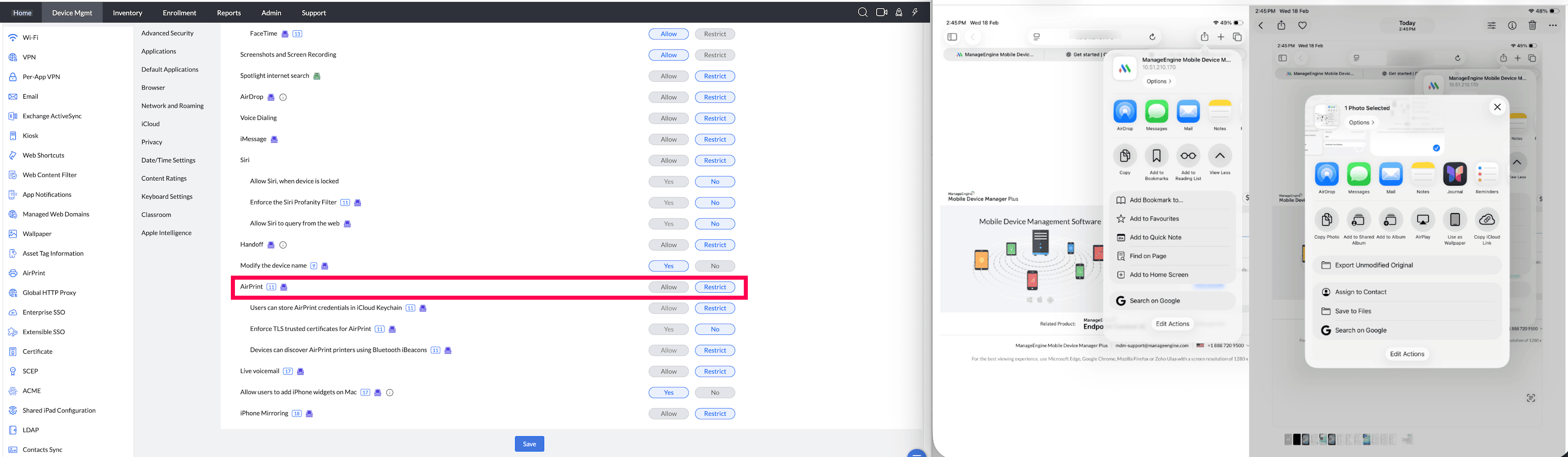
- Store AirPrint credentials on iCloud (iOS 11 or later versions) : Allow/Restrict saving of AirPrint credentials on iCloud. Supported Management Type: Supervised Devices
- Enforce TLS trusted certificates for AirPrint (iOS 11 or later versions) : Secure AirPrint communication by enforcing TLS certificates to be used on the AirPrint printers.
Supported Management Type: Supervised Devices - Discover AirPrint printers using iBeacons (iOS 11 or later versions): Enable/Disable using of Bluetooth service, iBeacons to discover AirPrint printers.
Supported Management Type: Supervised Devices - iPhone widgets on Mac : Allow/Restrict users to add iPhone widgets on Mac devices.
Supported Management Type: Supervised Devices - Live voice mail: Allow/Restrict users to add live voice mail.
Supported Management Type: Supervised Devices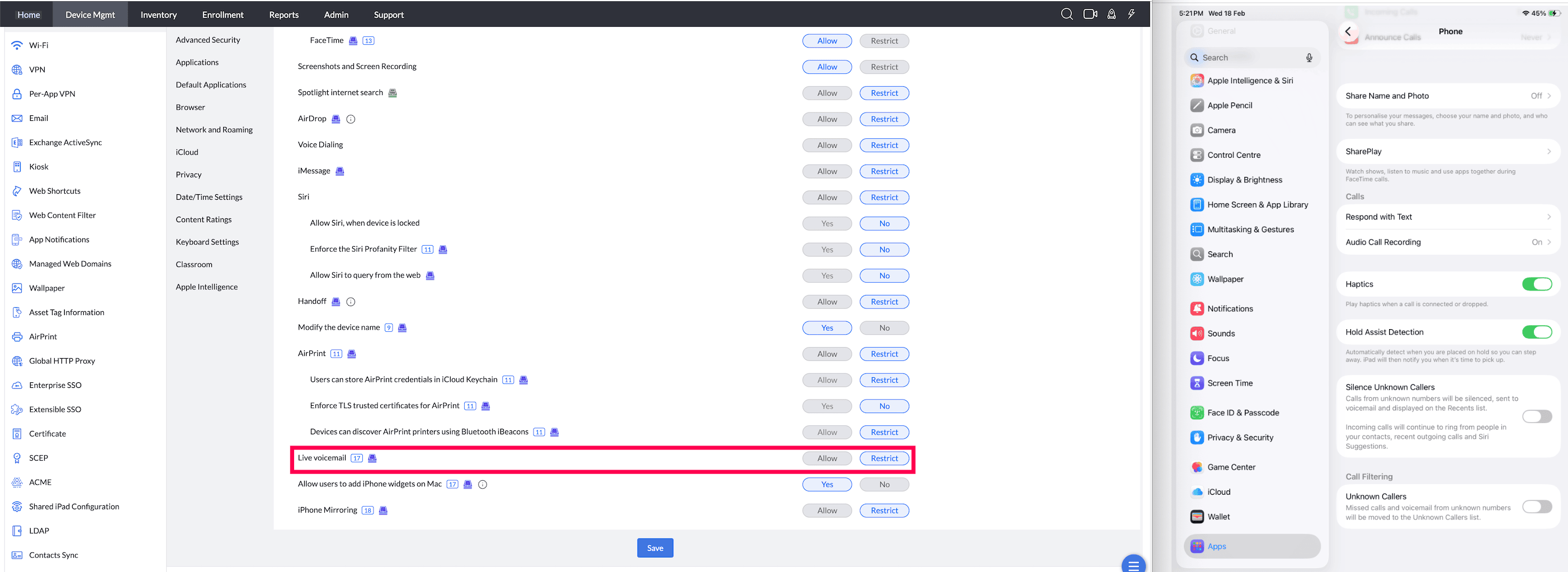
- iPhone Mirroring (iOS 18 or later versions): The iPhone won't show up in the "iPhone Mirroring" app on nearby Mac devices.
Supported Management Type: Supervised Devices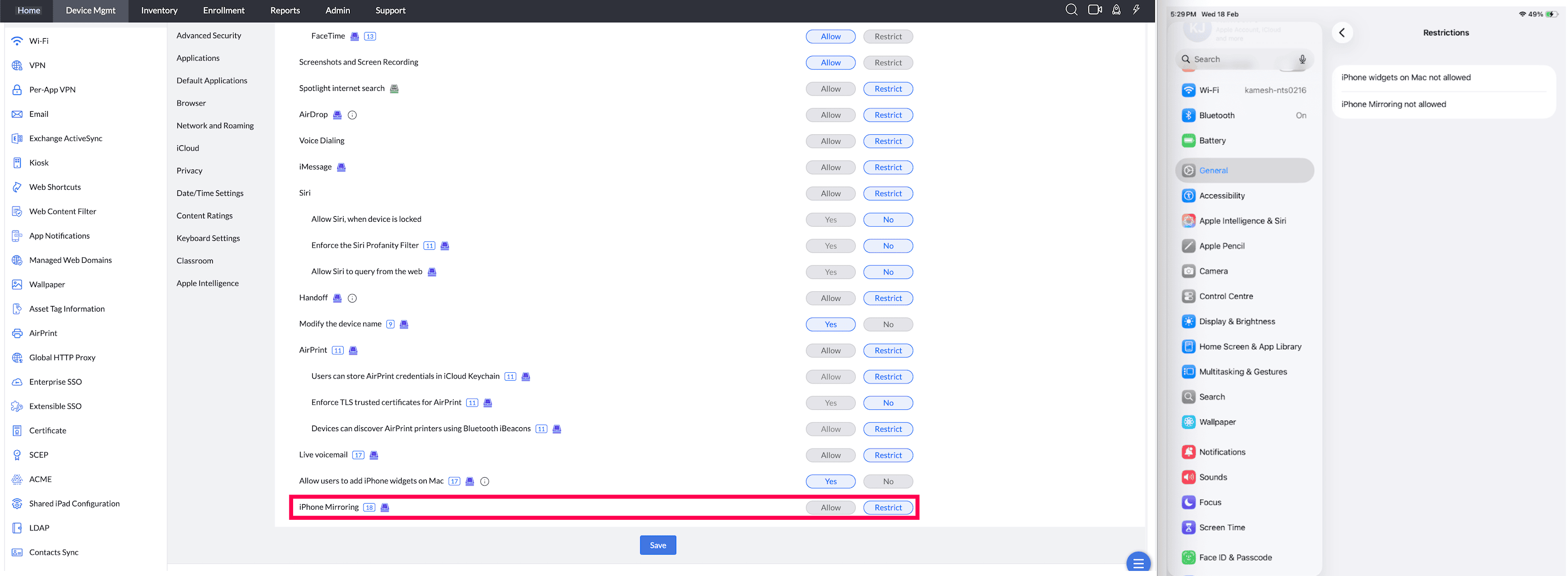
- Allow both ways : Allow sharing data between managed and unmanaged apps.
Supported Management Type: Supervised and Unsupervised Devices - Restrict from unmanaged to managed : Allow pasting of cut/copied unmanaged app data in managed apps (iOS 15 or later versions) Supported Management Type: Supervised and Unsupervised Devices
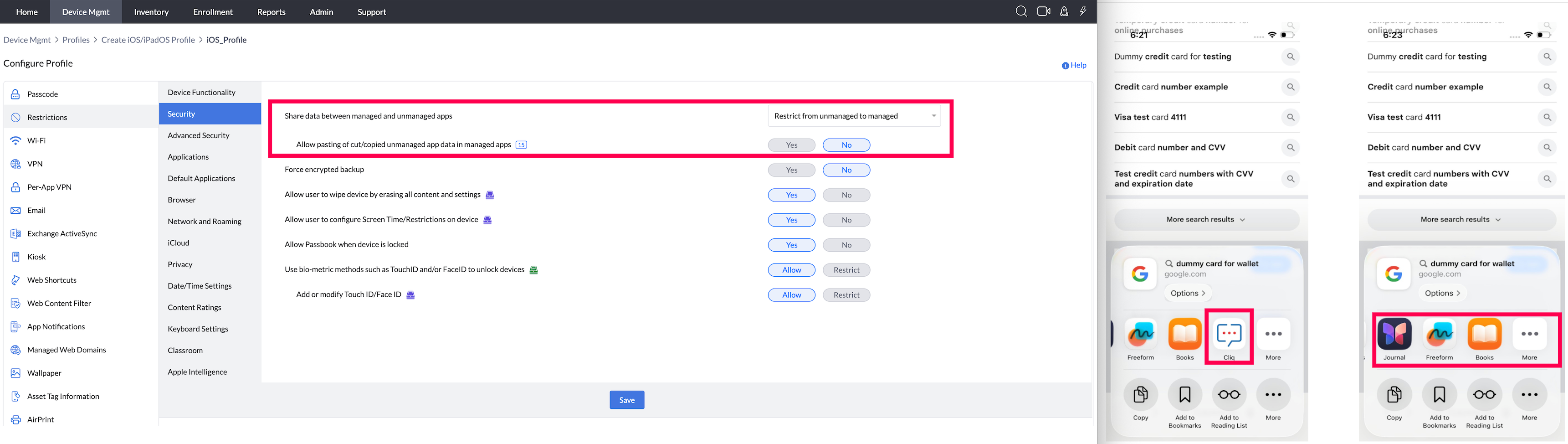
- Restrict from managed to unmanaged :
- Allow pasting of cut/copied managed app data in unmanaged apps (iOS 15 or later versions)
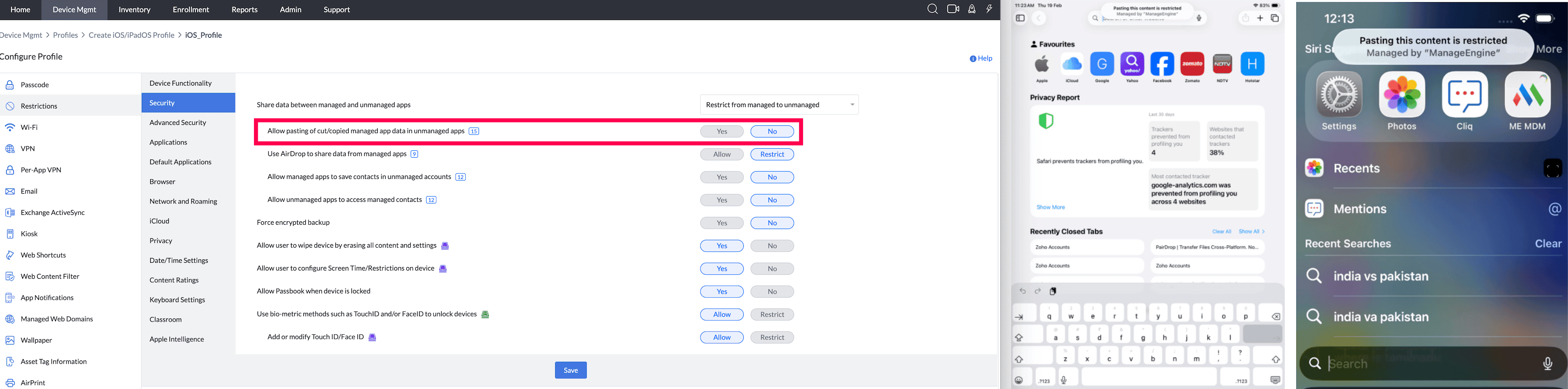
- Use AirDrop to share data from managed apps (iOS 9 or later versions)

- Allow managed apps to save contacts in unmanaged accounts (iOS 12 or later versions)
- Allow unmanaged apps to access managed contacts (iOS 12 or later versions)
- Allow pasting of cut/copied managed app data in unmanaged apps (iOS 15 or later versions)
- Restrict both ways :
- Allow cut/copy/paste between managed and unmanaged apps (iOS 15 or later versions)
- Use AirDrop to share data from managed apps (iOS 9 0r later versions)
- Allow managed apps to save contacts in unmanaged accounts (iOS 12 or later versions)
- Allow unmanaged apps to access managed contacts (iOS 12 or later versions)
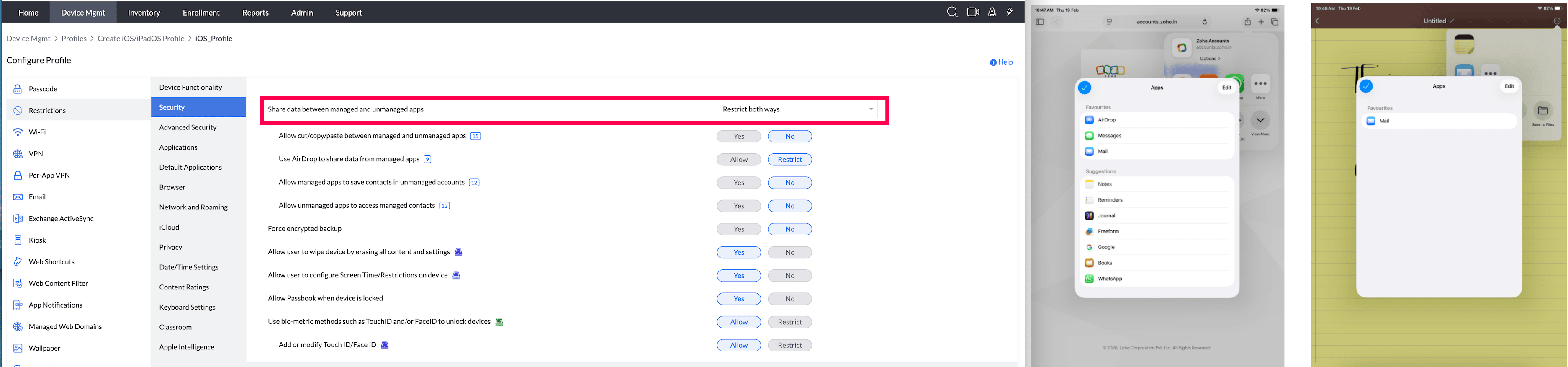
- Force Encrypted Backup : Enable/Disable forced encrypted backup of data.
Supported Management Type: Supervised and Unsupervised Devices
- Allow user to wipe device by erasing all content and settings (iOS 8 or later versions) : Enabling this, lets users erase all the content and settings on the device.
Note:By restricting this option Erase All Content and Settings option which is equivalent to factory reset in the devices will be disabled.
Supported Management Type: Supervised Devices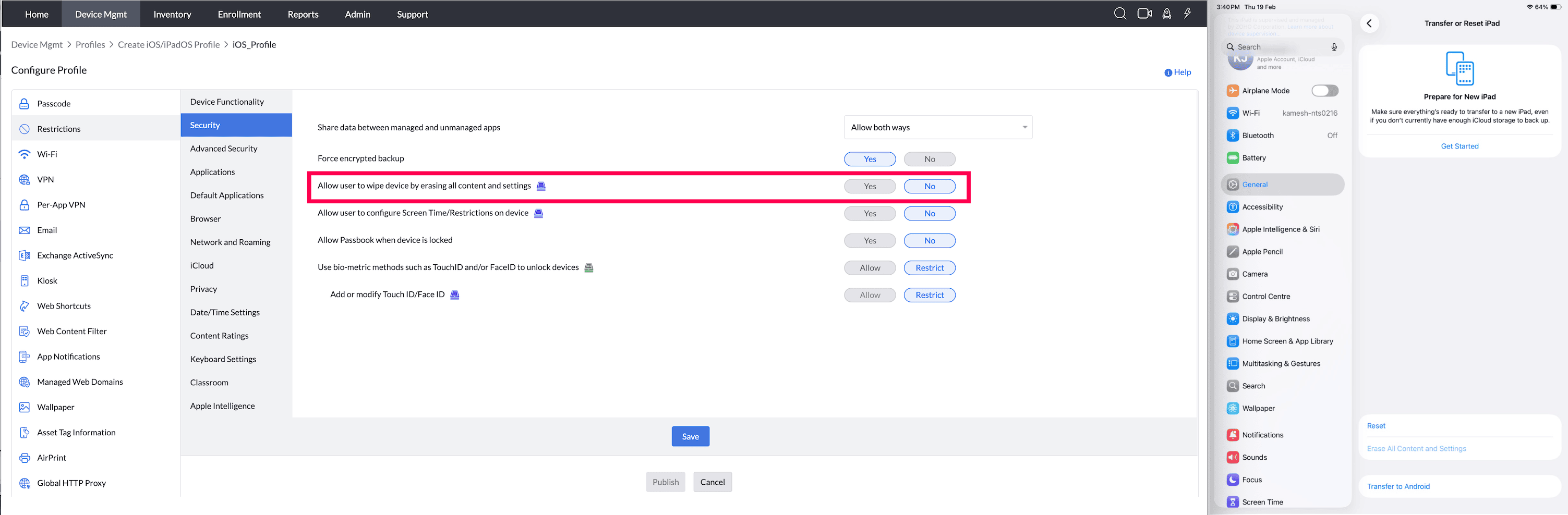
- Allow user to configure Screen Time/Restrictions on device (iOS 8 or later versions) : Enable/Disable users from configuring Screen time or device restrictions.
Note: From iOS 12, the Restrictions setting on the device, has been renamed as Screen Time. If Screen Time restriction is enabled, Location Permission will be set to Don't Change on the device.
Supported Management Type: Supervised Devices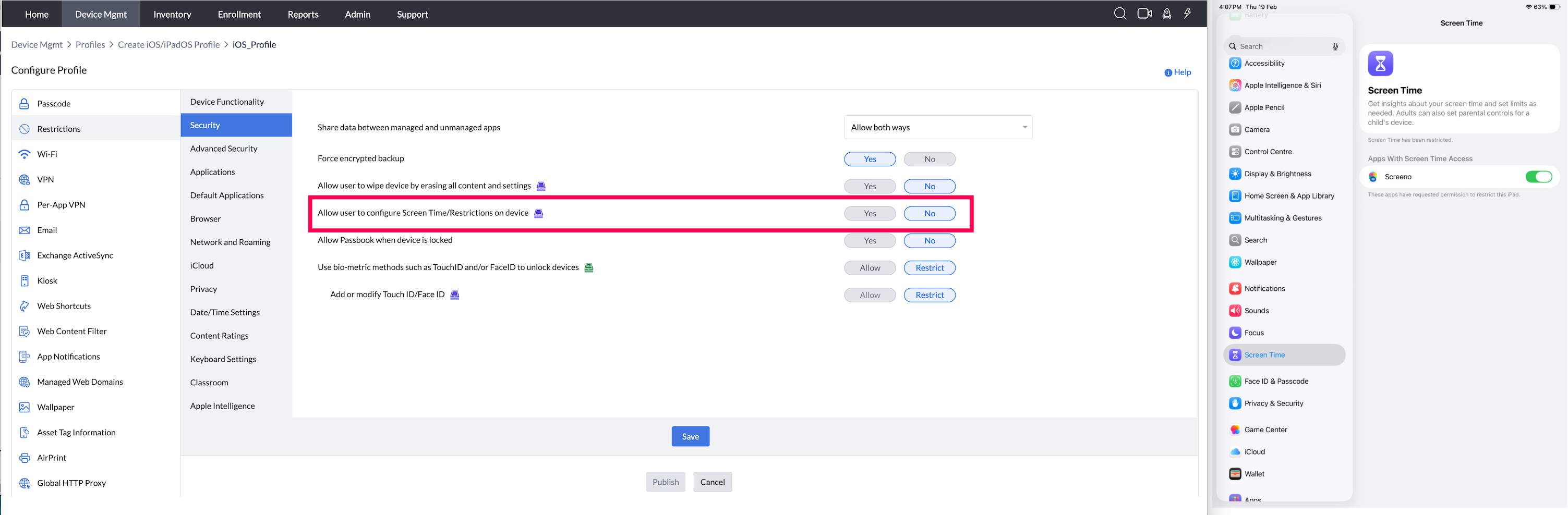
- Allow Passbook when device is locked (iOS 6 or later versions) : Enable/Disable the usage of Passbook while the device is locked.
Supported Management Type: Supervised and Unsupervised Devices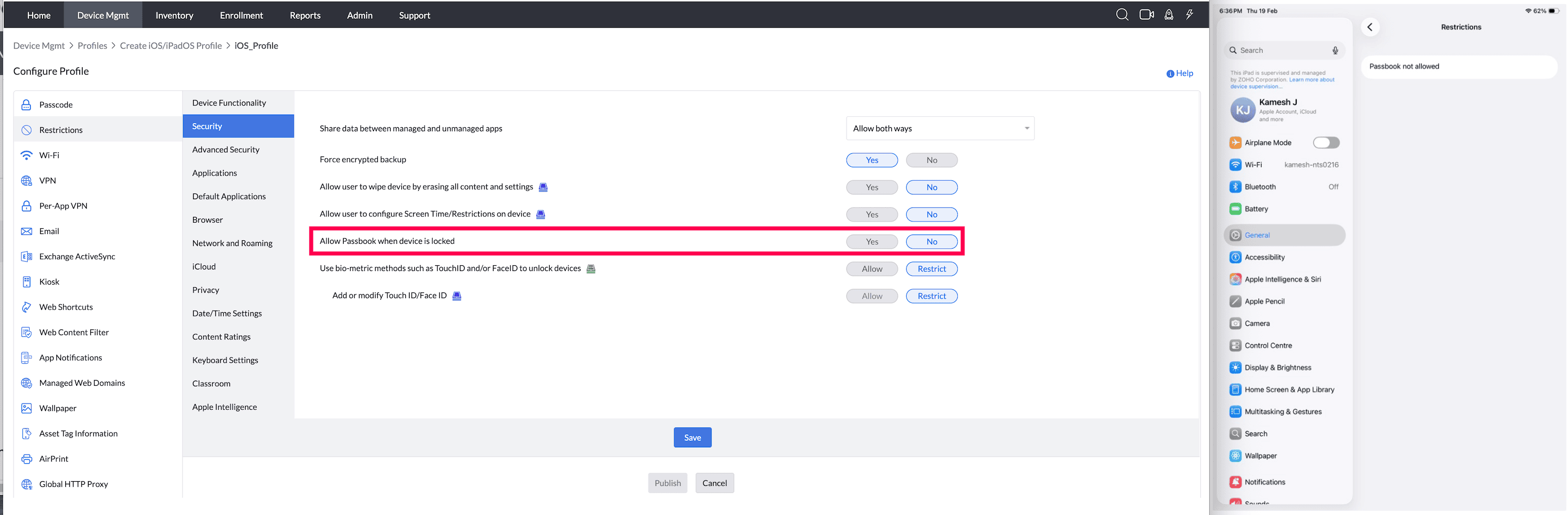
- Use biometric methods such as TouchID and/or FaceID to unlock devices (iOS 7 or later versions) : Enable/Disable the usage of fingerprints/facial recognition to unlock devices. Supported Management Type: Supervised and Unsupervised Devices
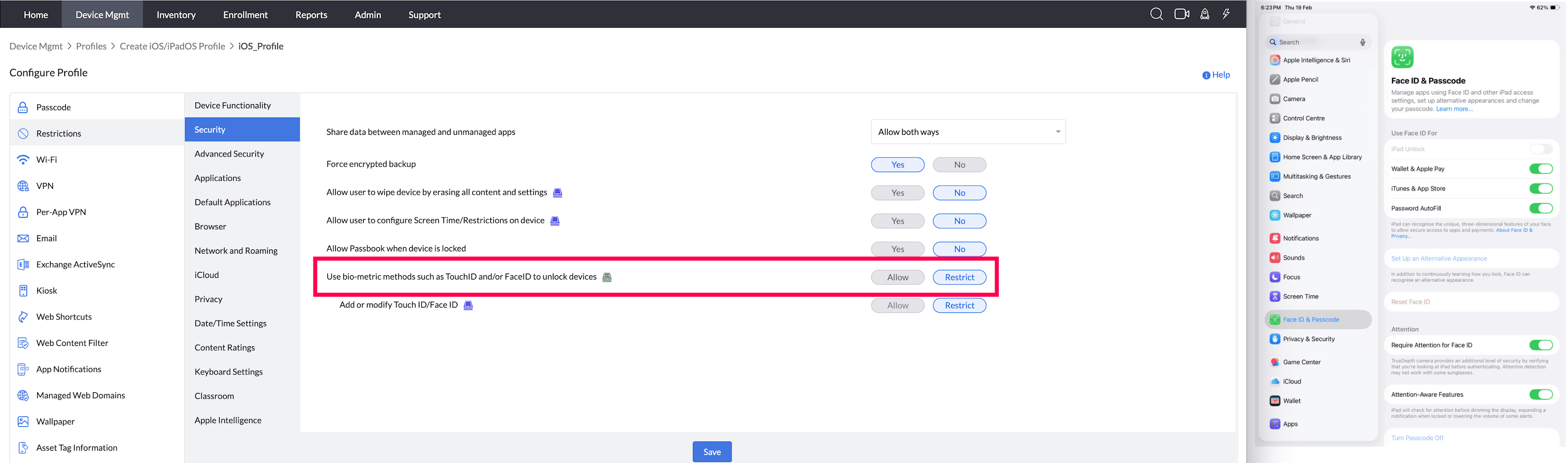
- Allow user to add or modify TouchID/FaceID (iOS 8.3 or later versions) : Enable users to add/modify the fingerprints/faces for facial recognition, on the device. If this has to be configured, Use biometric methods such as TouchID and/or FaceID to unlock devices has to be enabled.
Supported Management Type: Supervised Devices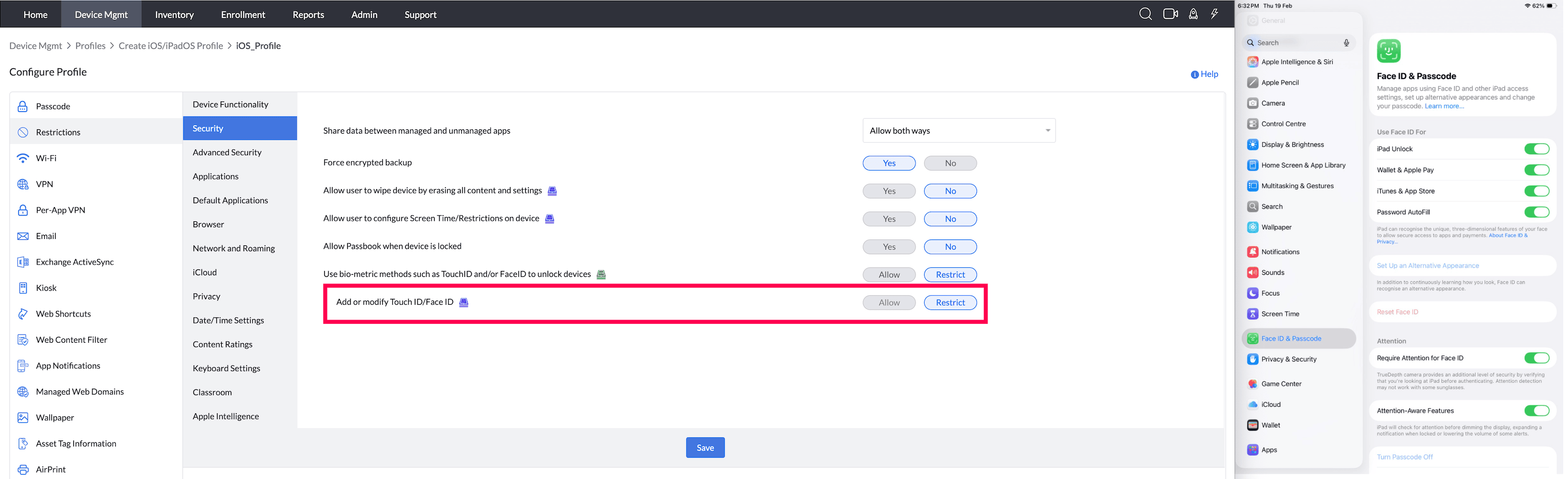
SECURITY : Share data between managed and unmanaged apps (iOS 7 or later versions)
ADVANCED SECURITY
- Install configuration profiles and certificates interactively(iOS 6 or later versions) : Allow/Restrict users from installing/modifying the configuration and certificates.
Supported Management Type: Supervised Devices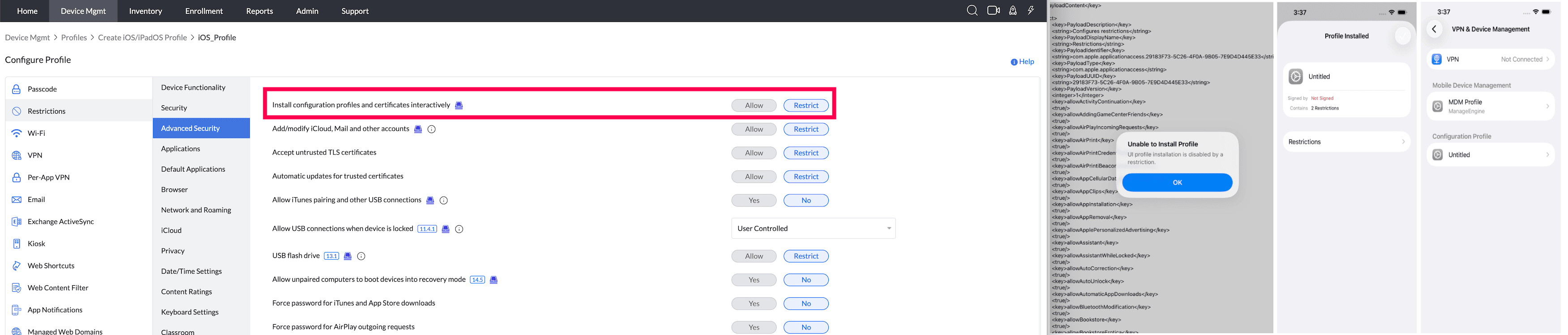
- Add/Modify iCloud, Mail and other accounts (iOS 7 or later versions) : Allow/Restrict users from adding/removing accounts such as Apple account, e-mail etc., Once restricted, apps requiring Apple ID cannot be installed, whether distributed by MDM or not. You can however install apps silently on iOS device without requiring Apple ID as explained here.
After enabling this restriction, accounts cannot be added or modified by the user but can be added or modified from the MDM console.If you restrict iCloud and iMessages, Facetime will also be restricted. These will be greyed out on the device.
Note: The iCloud sign out will be greyed out on the device if Screen Time is enabled. In that case, turn off the Screen Time from device settings to enable iCloud sign out.
Supported Management Type: Supervised Devices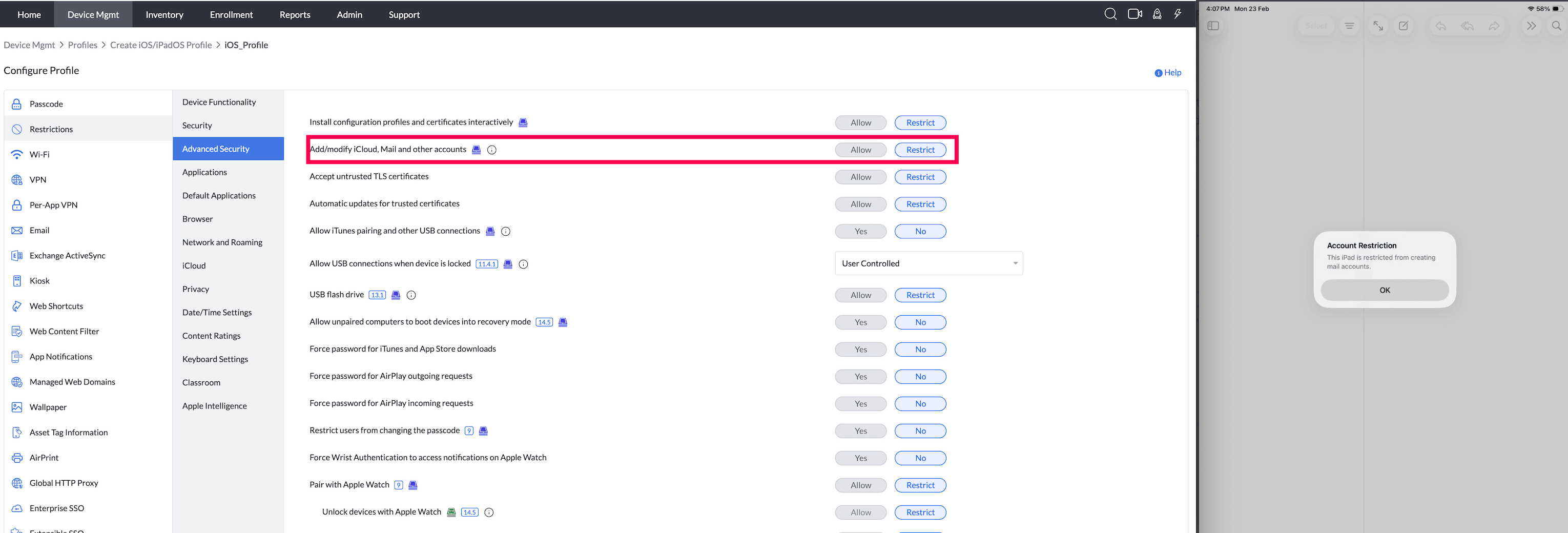
- Accept untrusted TLS certificates Allow/Restrict untrusted TLS (Transport Layer Security) certificates.
Supported Management Type: Supervised and Unsupervised Devices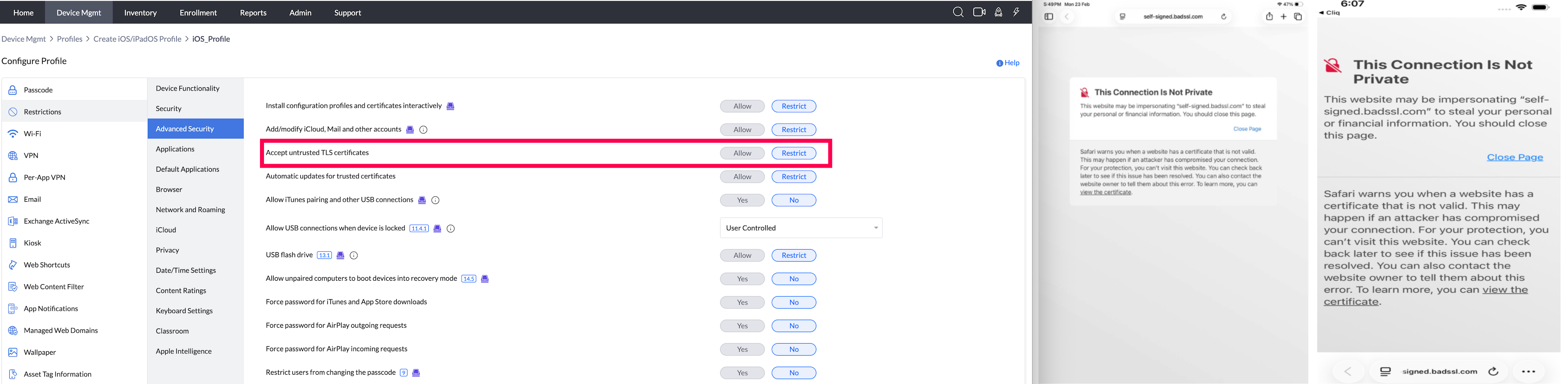
- Automatic updates for trusted certificates (iOS 7 or later versions) : Allow/Restrict trusted certificates from updating automatically.
Supported Management Type: Supervised and Unsupervised Devices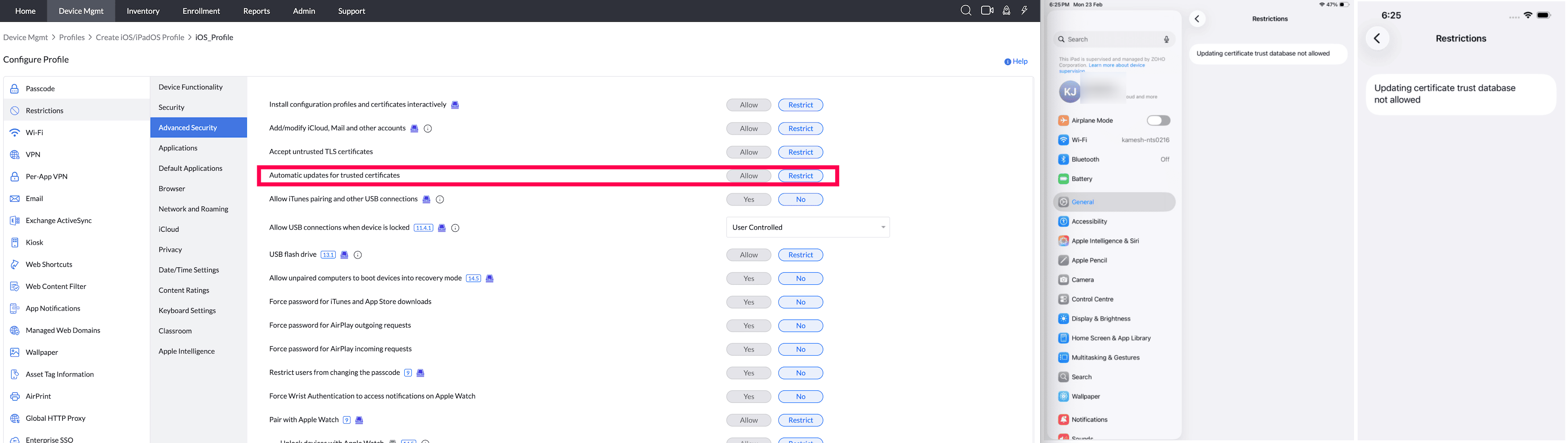
- Allow iTunes pairing and other USB connections (iOS 7 or later versions) : Enable/Disable devices from being paired with any Mac other than the one used for supervising the device through Apple Configurator. As USB pairing is restricted, pairing with iTunes also gets restricted.
Supported Management Type: Supervised Devices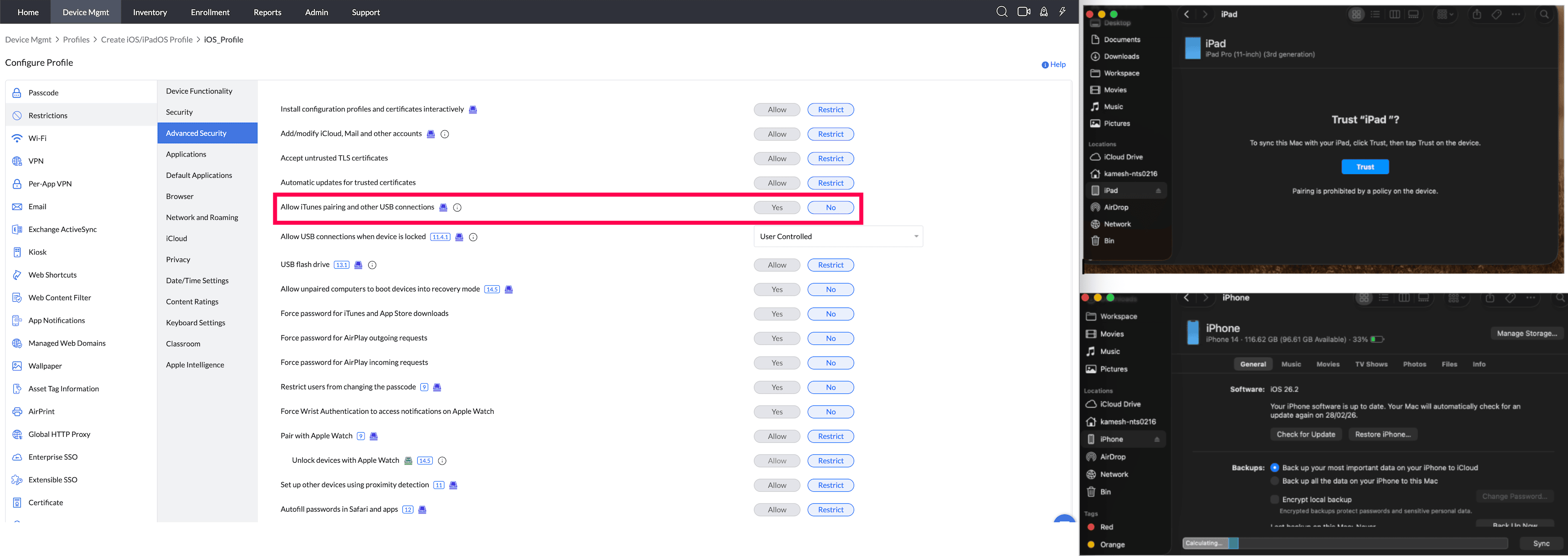
- Allow USB connections when device is locked (iOS 11.4.1 or later versions) : Enable/Disable data transfer between devices via USB pairing, when locked. This can be allowed or left to users to modify the settings from the device.
Supported Management Type: Supervised Devices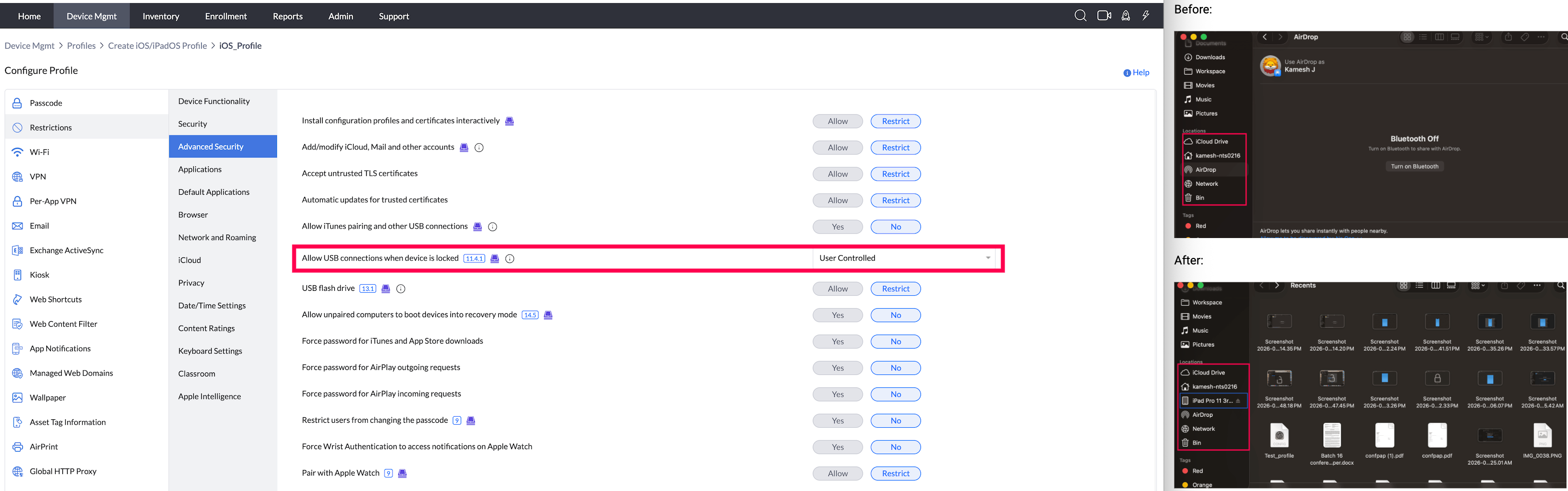
- USB flash drive(iOS 13 or later versions) : Allow/Restrict users from connecting any external storage drives to the device ensuring corporate data cannot be transferred from managed devices.
Supported Management Type: Supervised and Unsupervised Devices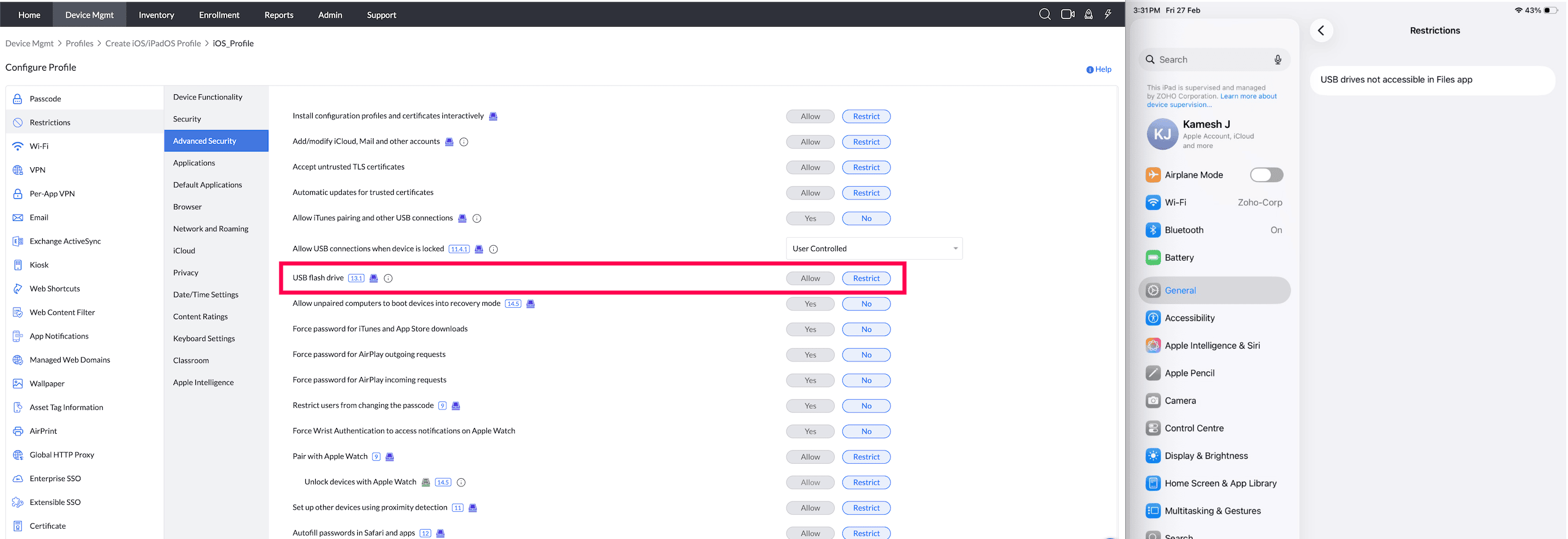
- Allow unpaired computers to boot devices into recovery mode (iOS 14.5 or later versions) : This setting controls whether an unpaired host computer can boot a connected iPhone or iPad into Recovery Mode. On iOS/iPadOS 14.5 or later, this behavior is disabled by default to prevent unauthorized erase or restore via USB. Enabling this setting allows unpaired hosts to place the device into Recovery Mode without any user interaction on the device.
Supported Management Type: Supervised Devices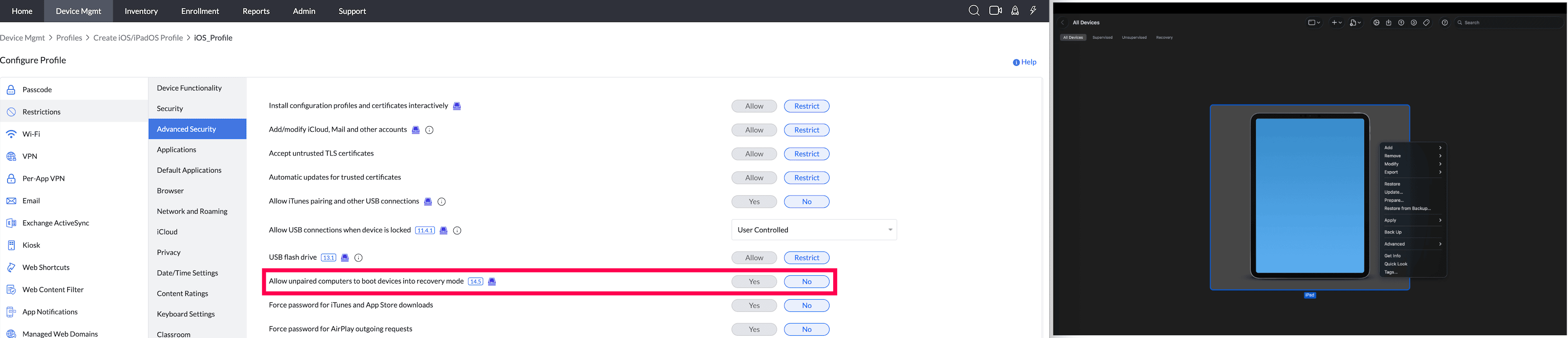
- Force password for iTunes and App Store downloads: Enable/Disable prompting iTunes and AppStore password for every download.
Supported Management Type: Supervised and Unsupervised Devices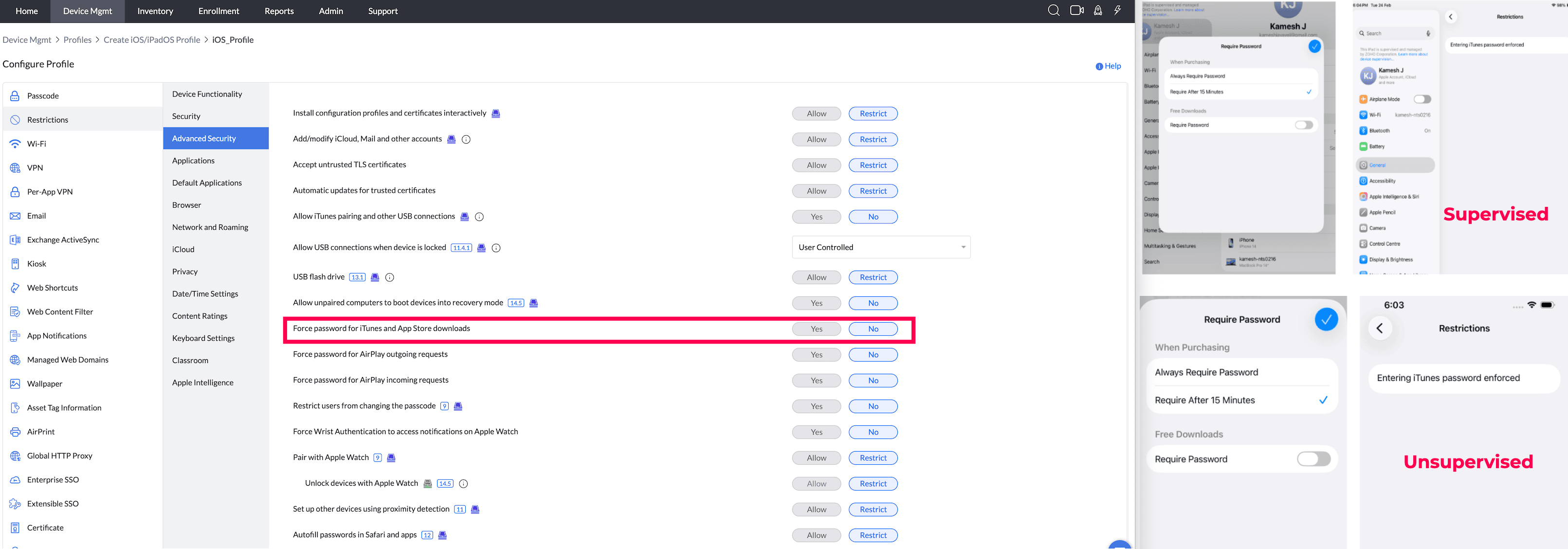
- Force password for AirPlay outgoing requests(iOS 7 or later) : Enable/Disable prompting of password for all AirPlay outgoing requests during device pairing.
Supported Management Type: Supervised Devices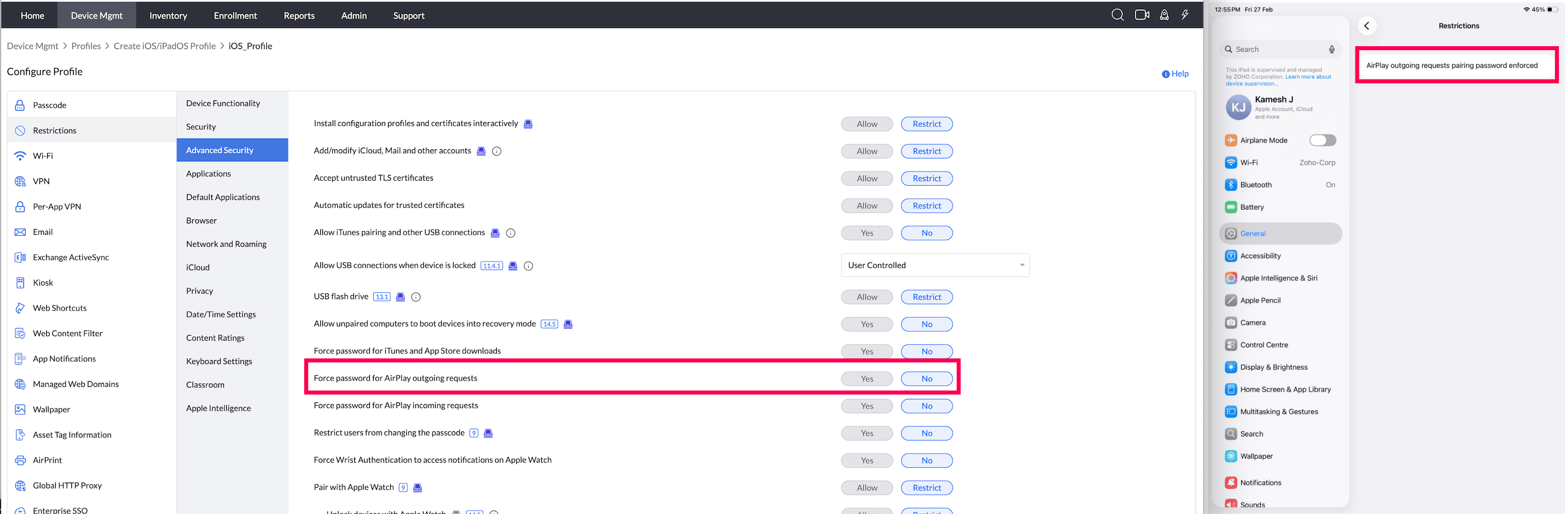
- Force password for AirPlay incoming requests(iOS 7 or later versions) : Enable/Disable prompting password for all AirPlay incoming requests during device pairing.
Supported Management Type: Supervised Devices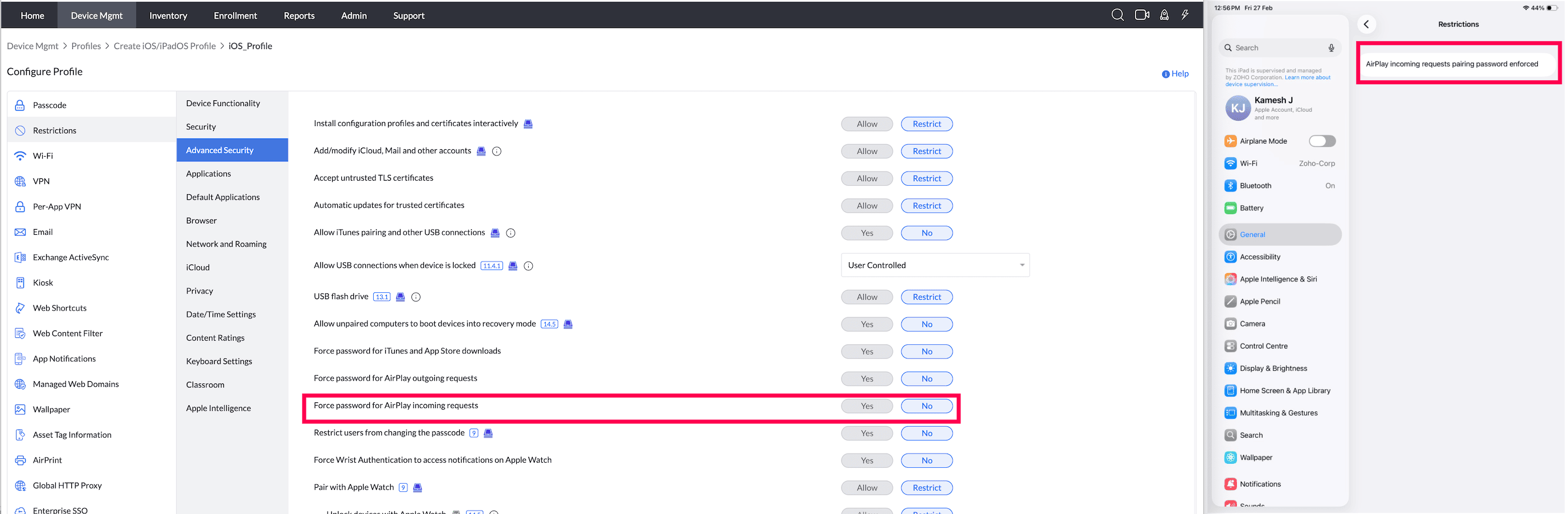
- Restrict users from changing the passcode : Enable/Disable this option to restrict the user from changing the passcode.
Supported Management Type: Supervised Devices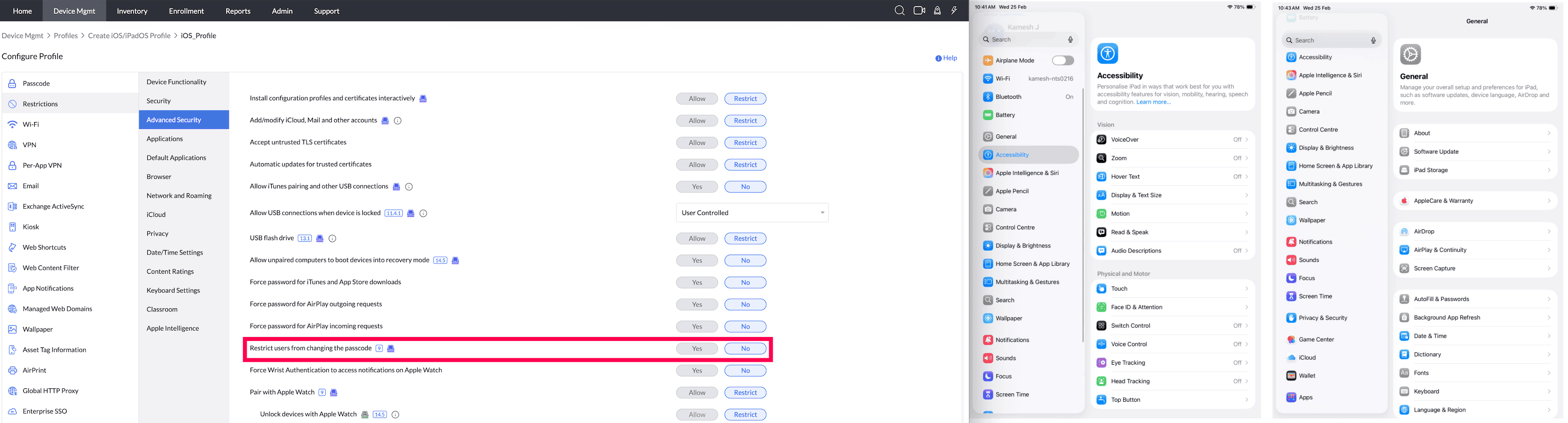
- Force Wrist Authentication to access notifications on Apple Watch (iOS 8.3 or later versions) : Enable/Disable Wrist authentication to access notifications on Apple Watch.
Supported Management Type: Supervised Devices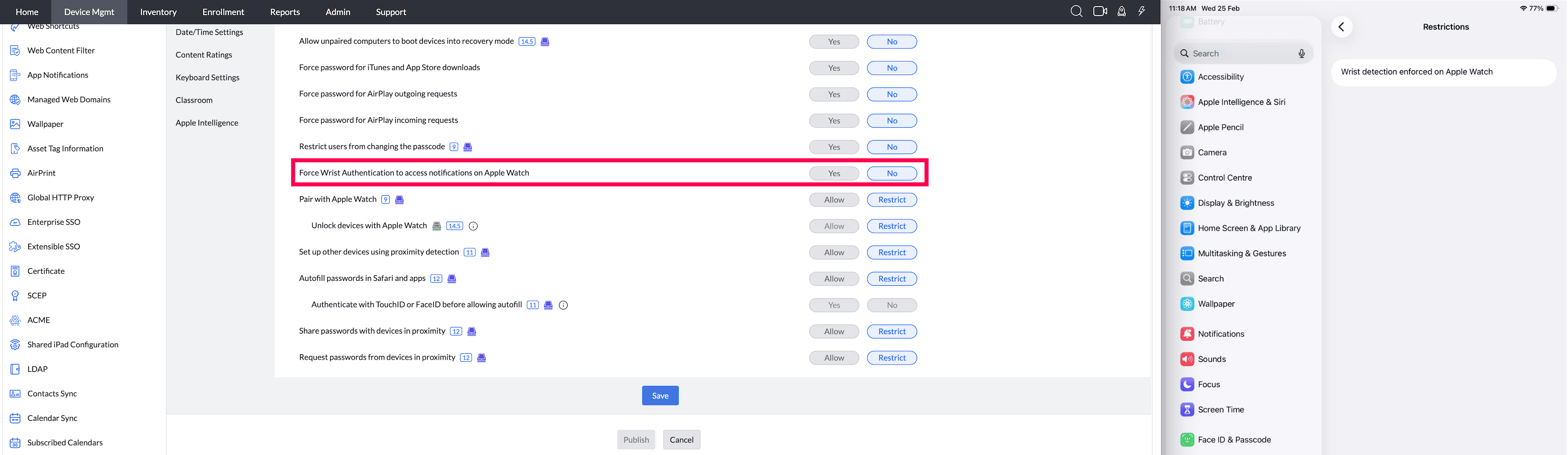
- Pair with Apple Watch(iOS 9 or later versions) : Allow/Restrict device pairing with Apple Watch.
Supported Management Type: Supervised and Unsupervised Devices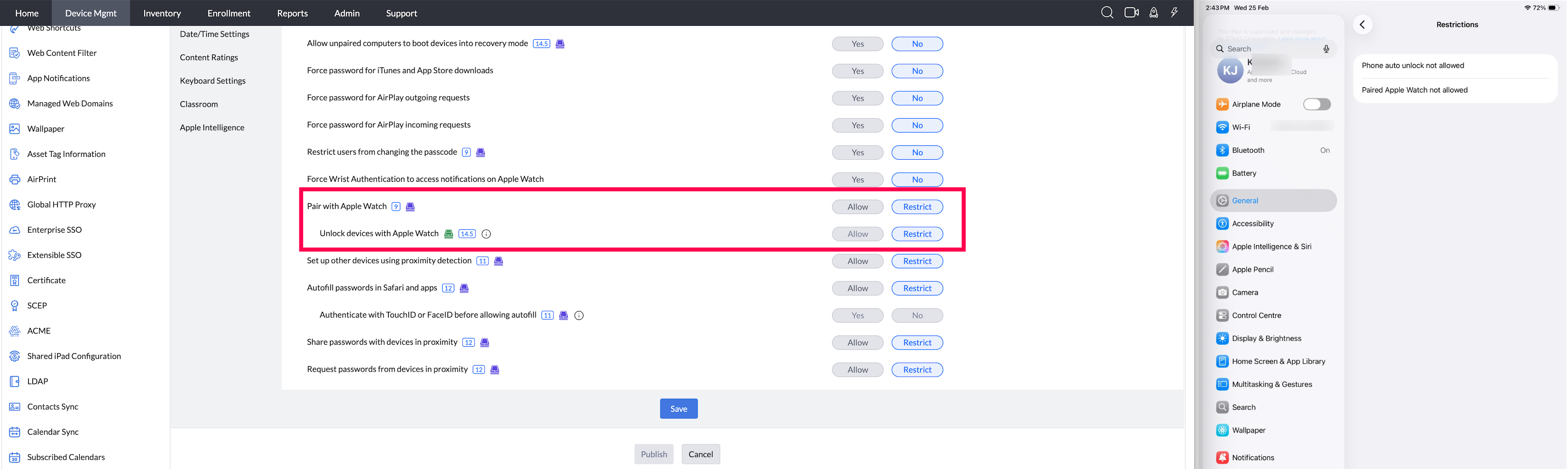
- Unlock with Apple Watch (iOS 14.5 or later, and watchOS 7.4 or later) : Allow/Restrict users from unlocking devices with Apple Watch.
Supported Management Type: Supervised and Unsupervised Devices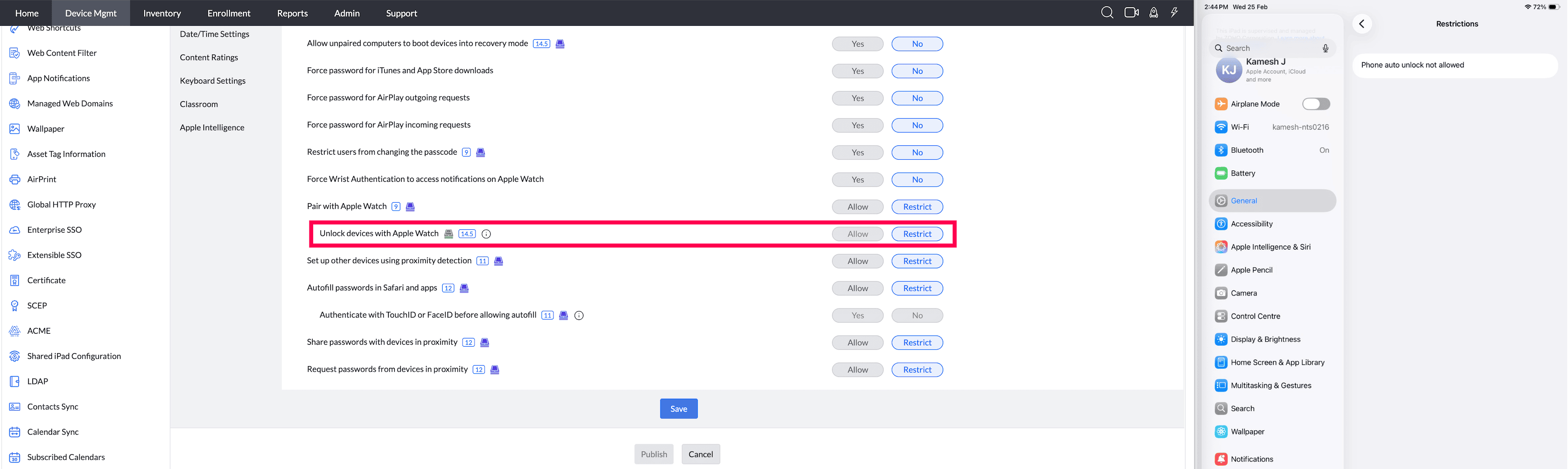
- Set up other devices using proximity detection(iOS 11 or later versions) : Allow/Restrict devices from detecting other devices in their proximity to share their settings, iCloud and Wi-Fi passwords.
Supported Management Type: Supervised and Unsupervised Devices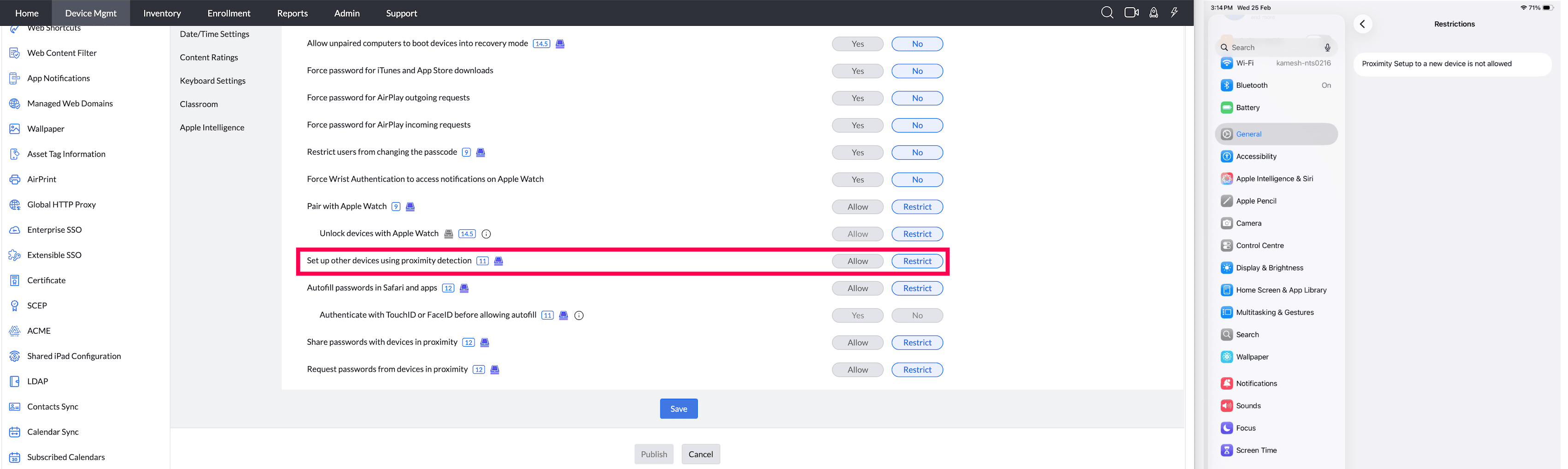
- Autofill passwords in Safari and apps(iOS 12 or later versions) : Allow/Restrict autofill in browsers and apps.
Supported Management Type: Supervised Devices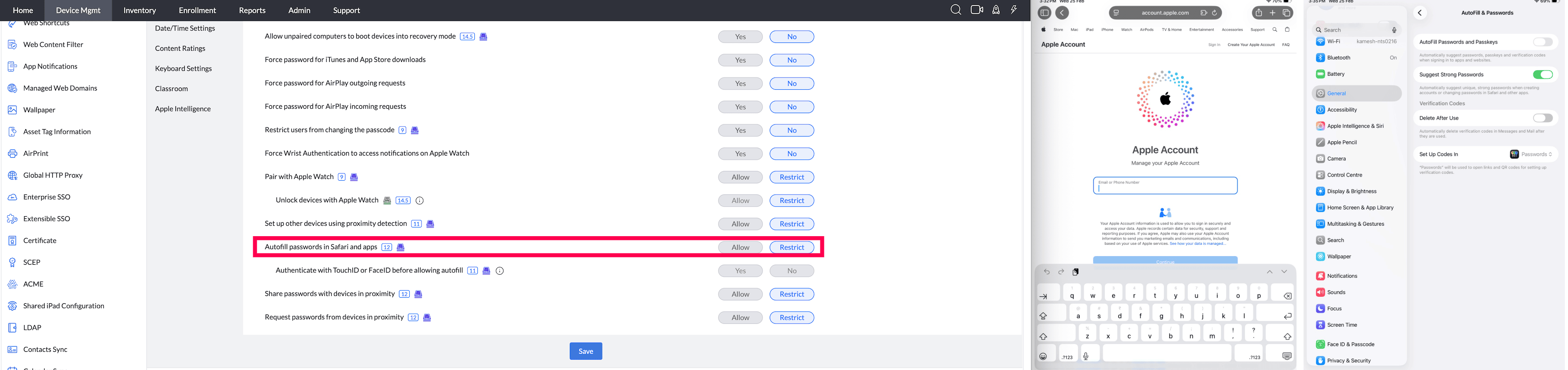
- Authenticate Face ID/Touch ID before allowing autofill(iOS 11 or later versions) : Allow/Restrict Face ID/Touch ID authentication before any password or credit card details are entered in browsers and apps. To configure this, Autofill passwords in Safari and apps should be enabled.
Supported Management Type: Supervised and Unsupervised Devices - Share passwords with devices in proximity (iOS 12 or later versions) : Allow/Restrict devices getting notified to share their passwords with other devices in proximity.
Supported Management Type: Supervised Devices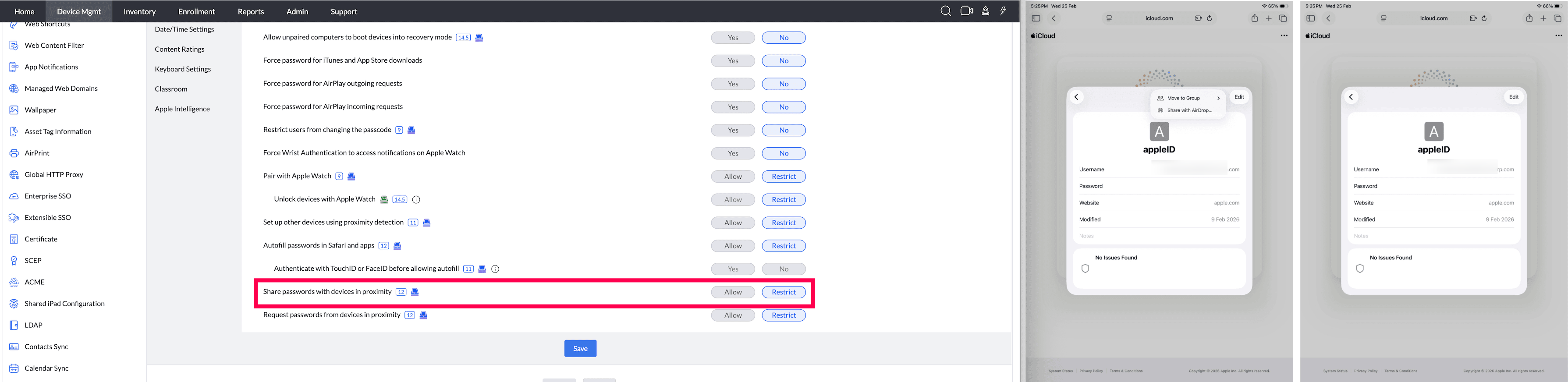
- Request passwords from devices in proximity (iOS 12 or later versions) : Allow/Restrict devices requesting other devices in proximity, to share their passwords.
Supported Management Type: Supervised Devices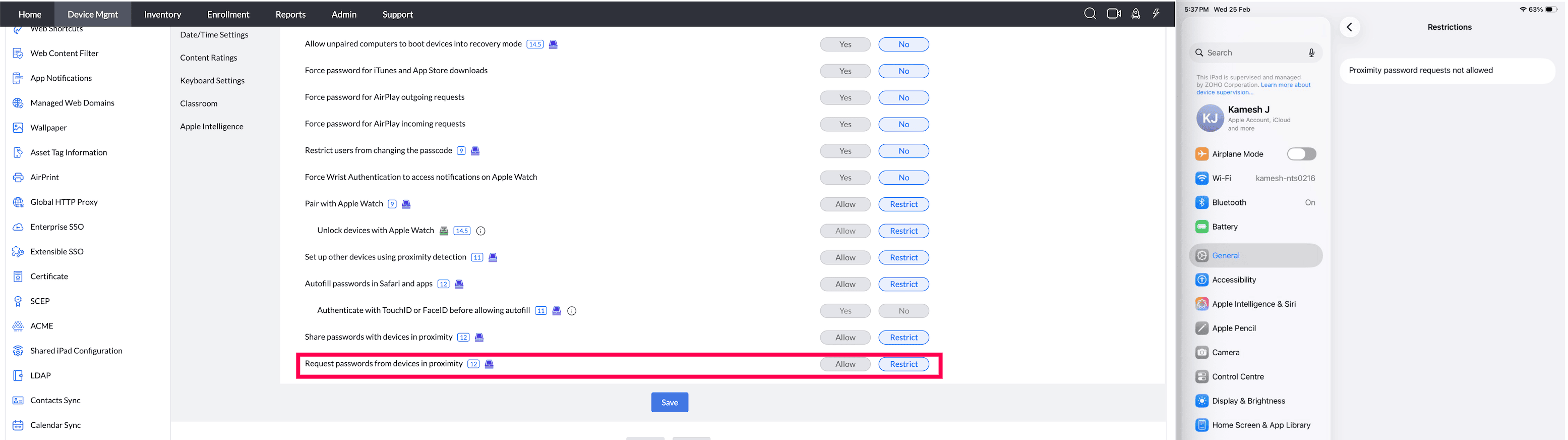
APPLICATIONS
- Users can install only approved apps (iOS 9 or later versions) : Allow/Restrict users from installing apps either through App Store or by connecting it to a Mac machine and using iTunes for app installation. If restricted, in devices running iOS versions below 9, even the apps distributed through MDM cannot be installed but for devices running iOS 9.0 or later, these apps can be installed. Even if this restriction is disabled, by default, when a Managed Apple ID is used, the 'GET' option is disabled on the App Store.
Supported Management Type: Supervised Devices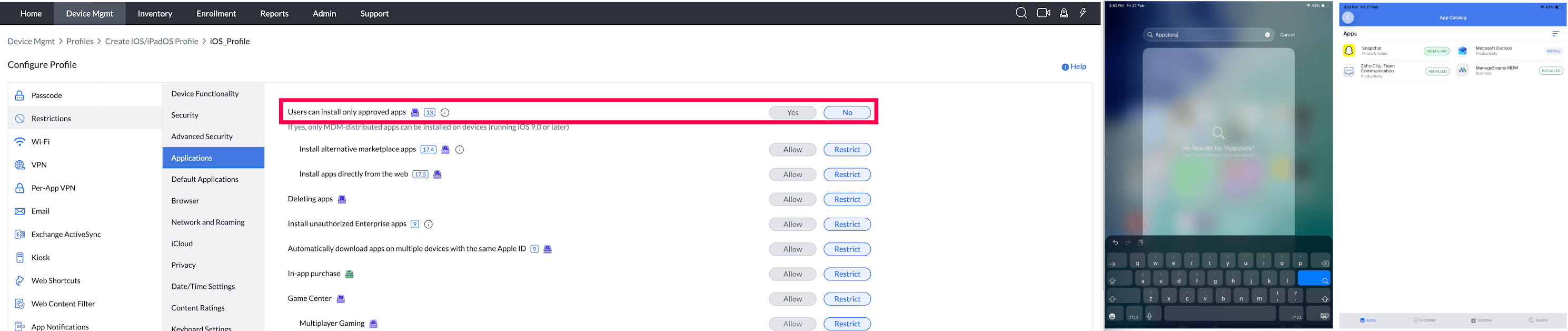
- Install alternative marketplace apps: Allow/Restrict users to install apps from alternative marketplaces other than App Store apps. If restricted, users cannot install even from Settings > Developer Menu. However this restriction does not impact app distribution through MDM. You can still distribute in-house or enterprise apps and custom B2B apps through MDM. Note This restriction is applicable only for EU regions.
Supported Management Type: Supervised Devices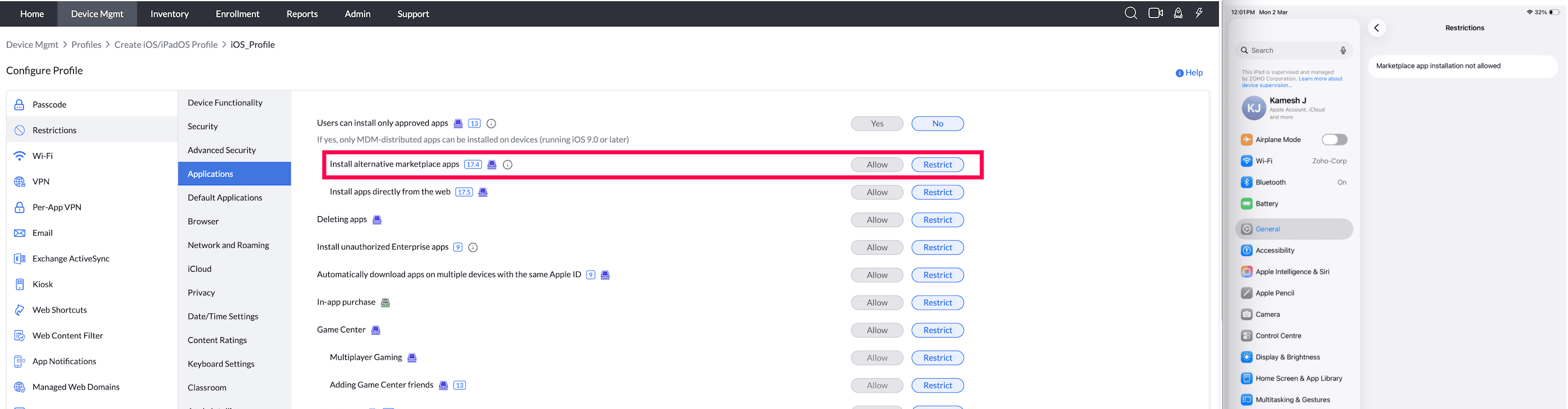
- Install Apps Directly from Web : Allow or Restrict the installation of applications directly from web sources. Available from iOS 17.5.
Supported Management Type: Supervised Devices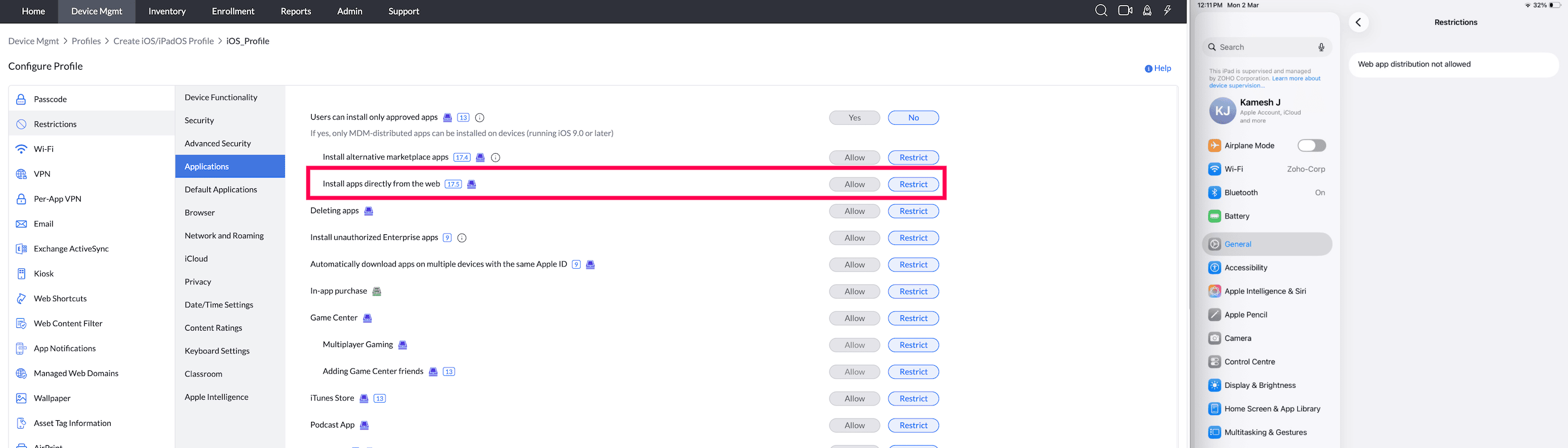
- Deleting apps: Allow/Restrict users from removing Apps.
Supported Management Type: Supervised Devices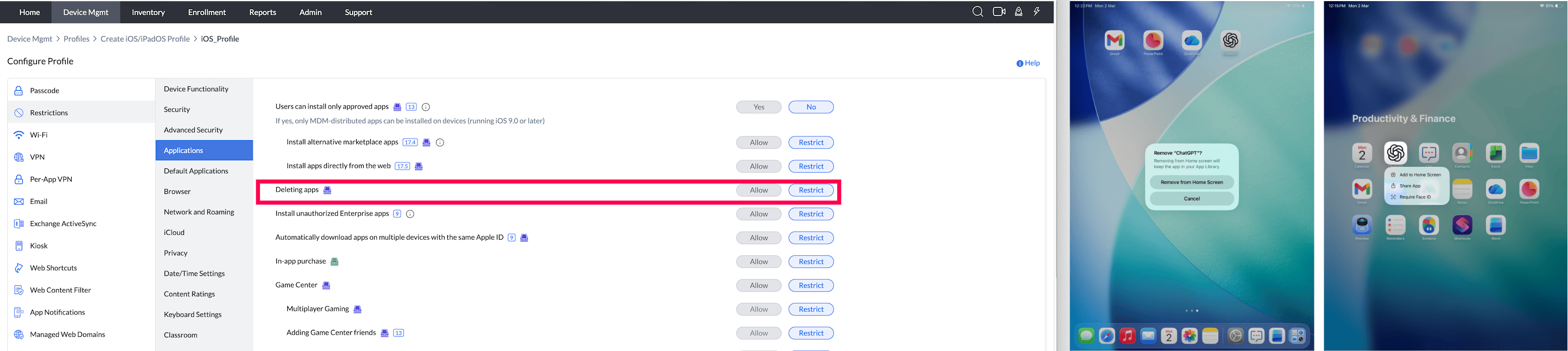
- Install unauthorized enterprise apps (iOS 9 or later versions): Allow/Restrict users from installing/using enterprise apps which are not distributed via MDM.
Supported Management Type: Supervised Devices and Unsupervised Devices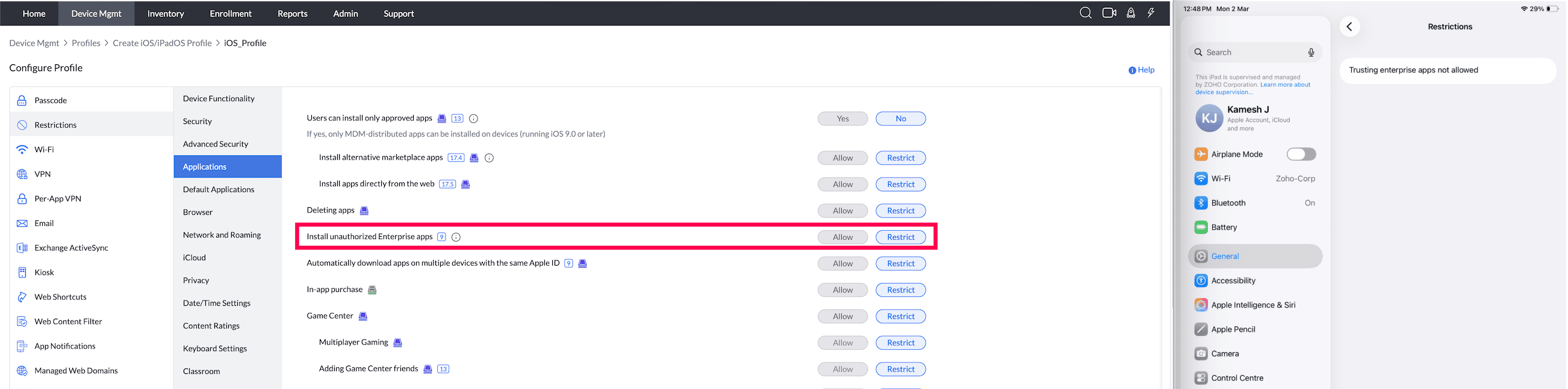
- Automatically download apps on multiple devices with same Apple ID (iOS 9 or later versions) : Allow/Restrict users from downloading apps on multiple devices with the same Apple ID.
Supported Management Type: Supervised Devices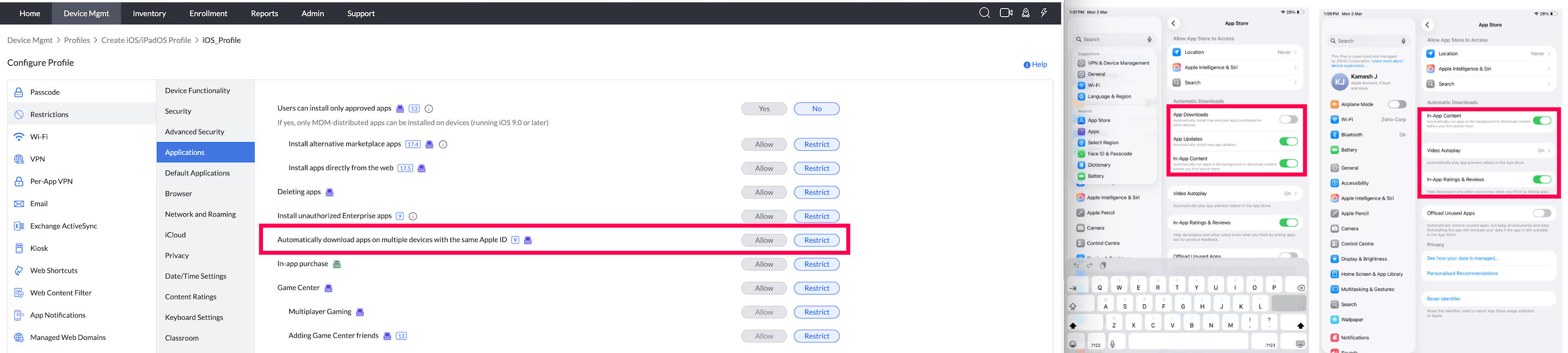
- In-app purchase : Allow/Restrict users from making in-app purchases.
Supported Management Type: Supervised and Unsupervised Devices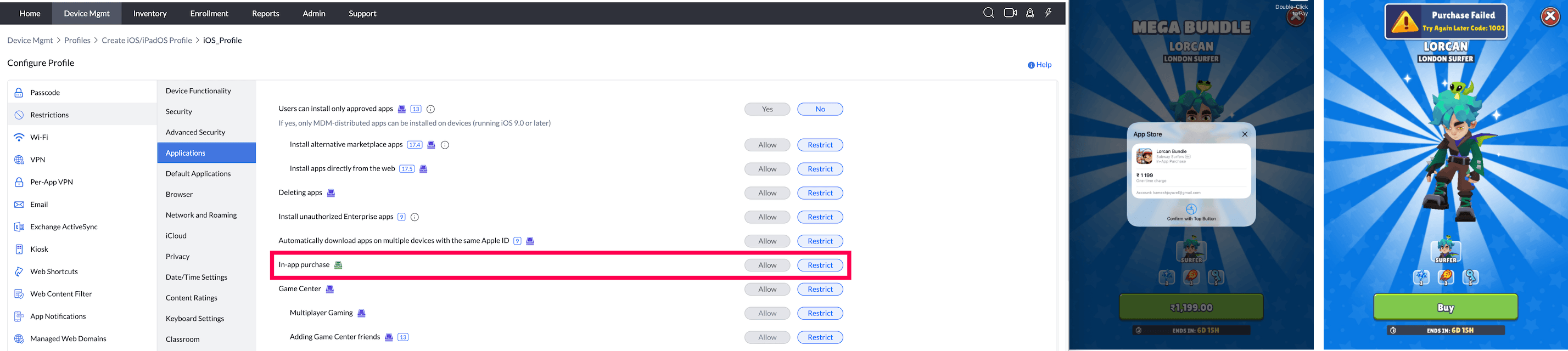
- Game Center(iOS 6 or later versions) : Allow/Restrict the usage of Game Center.
Supported Management Type: Supervised Devices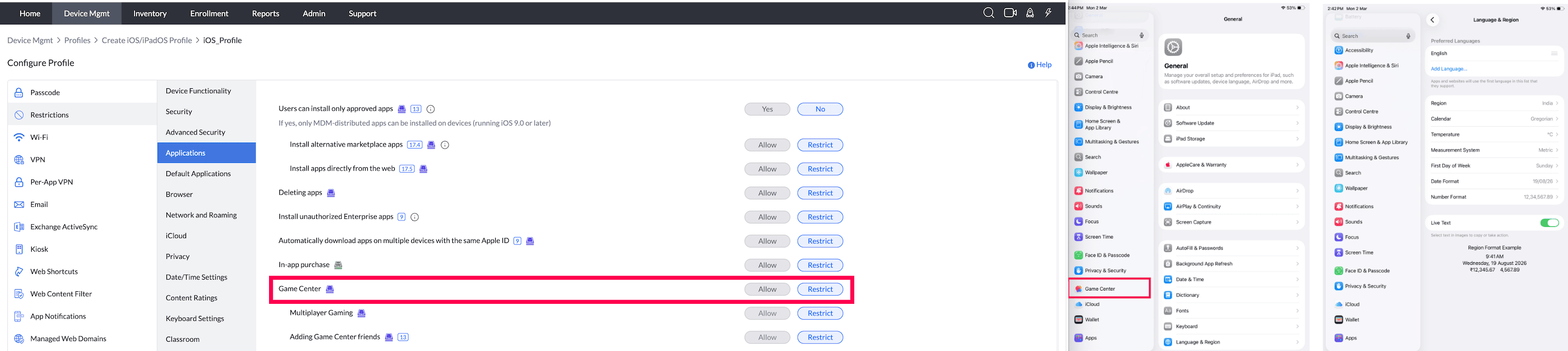
- Multiplayer Gaming: Allow/Restrict multiplayer gaming. To configure this, Game Centre should be allowed.
Supported Management Type: Supervised Devices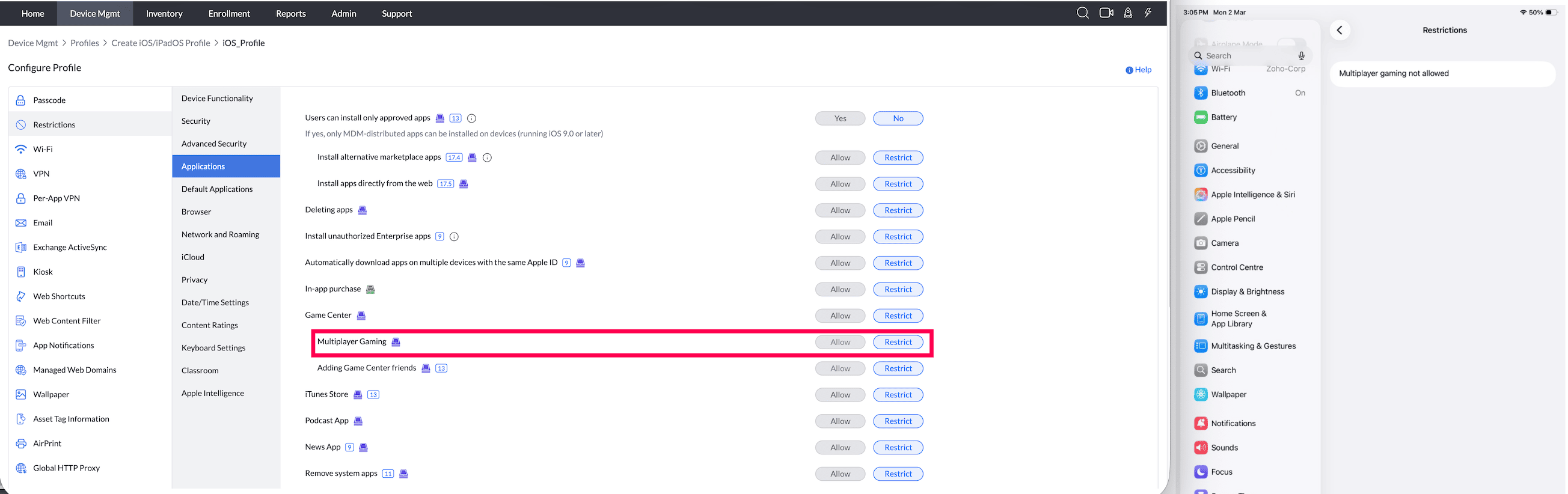
- Adding Game Center Friends: Allow/Restrict users from adding game center friends. To configure this, Game Centre should be allowed.
Supported Management Type: Supervised Devices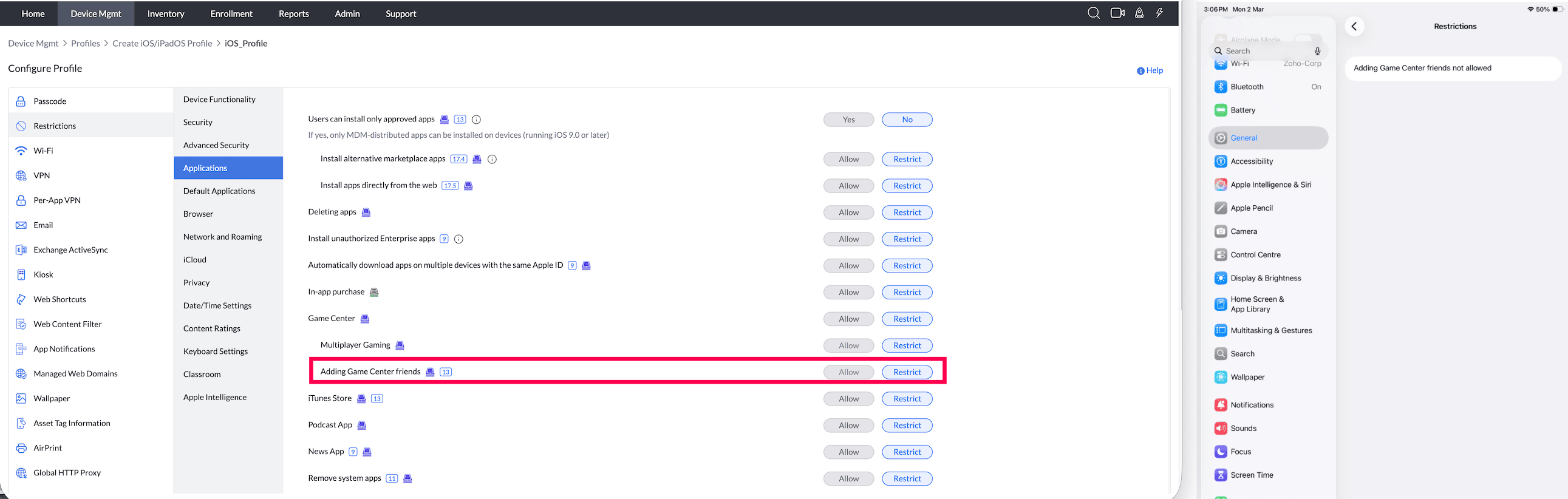
- iTunes Store: Allow/Restrict the usage of iTunes Store.
Supported Management Type: Supervised Devices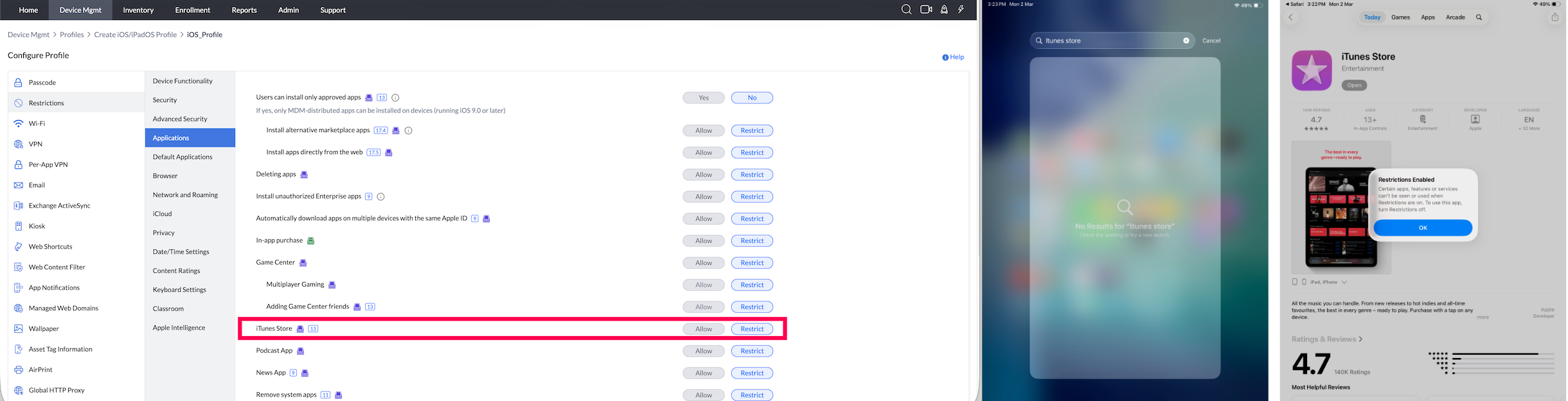
- Podcast app(iOS 8 or later versions) : Allow/Restrict users from accessing Podcasts.
Supported Management Type: Supervised Devices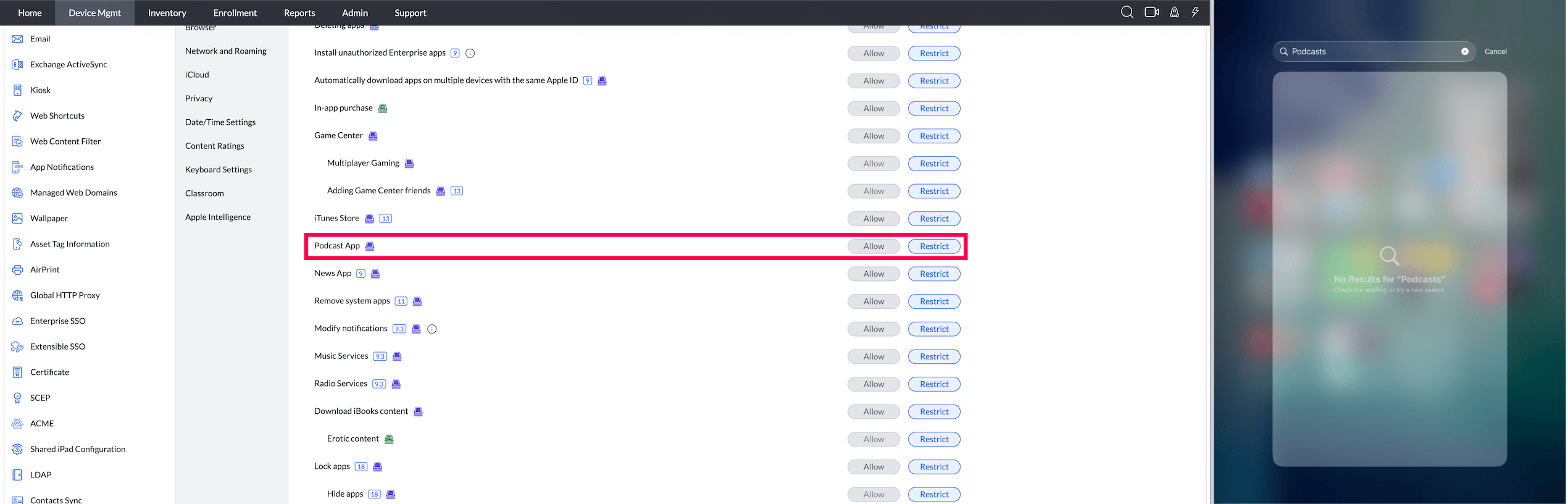
- News app (iOS 9 or later versions) : Allow/Restrict users from accessing News Apps.
Supported Management Type: Supervised Devices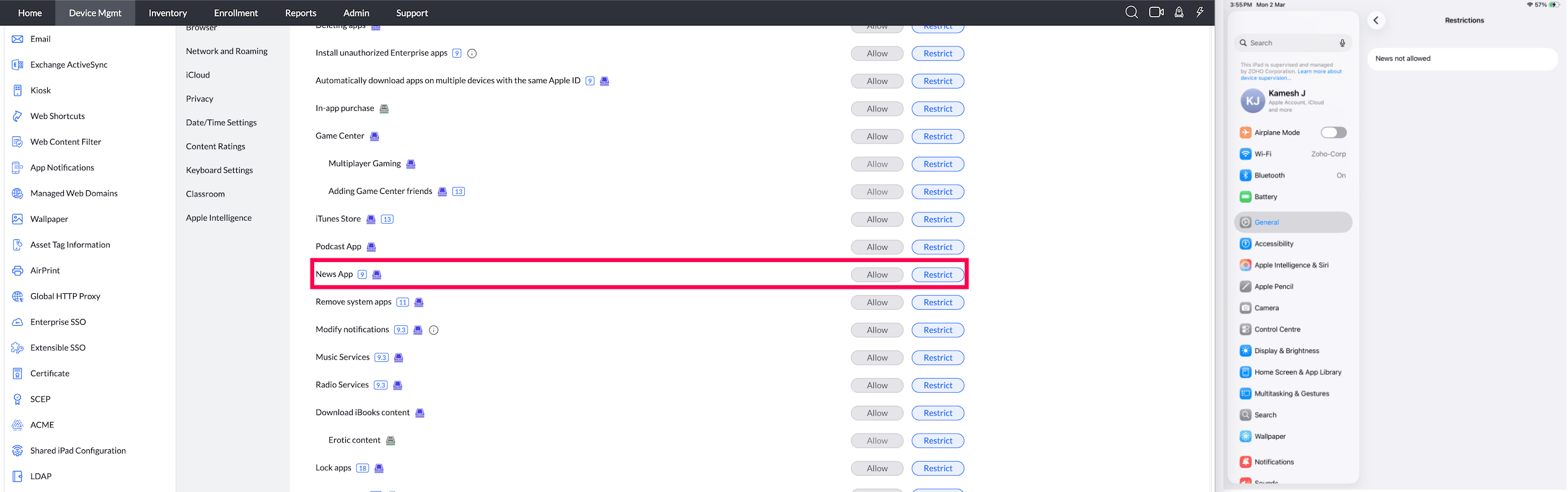
- Remove system apps : Allow/Restrict users from removing System Apps.
Supported Management Type: Supervised Devices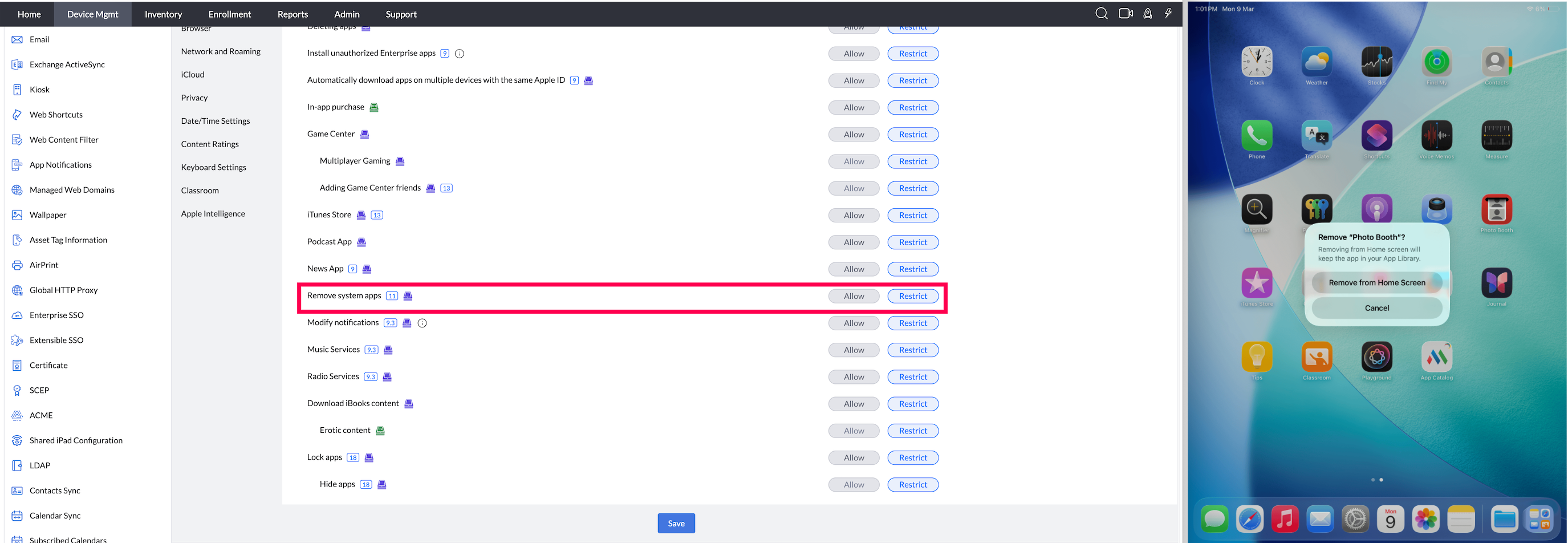
- Modify Notification: Allow/Restrict users from modifying the Apps specific notifications.
Supported Management Type: Supervised Devices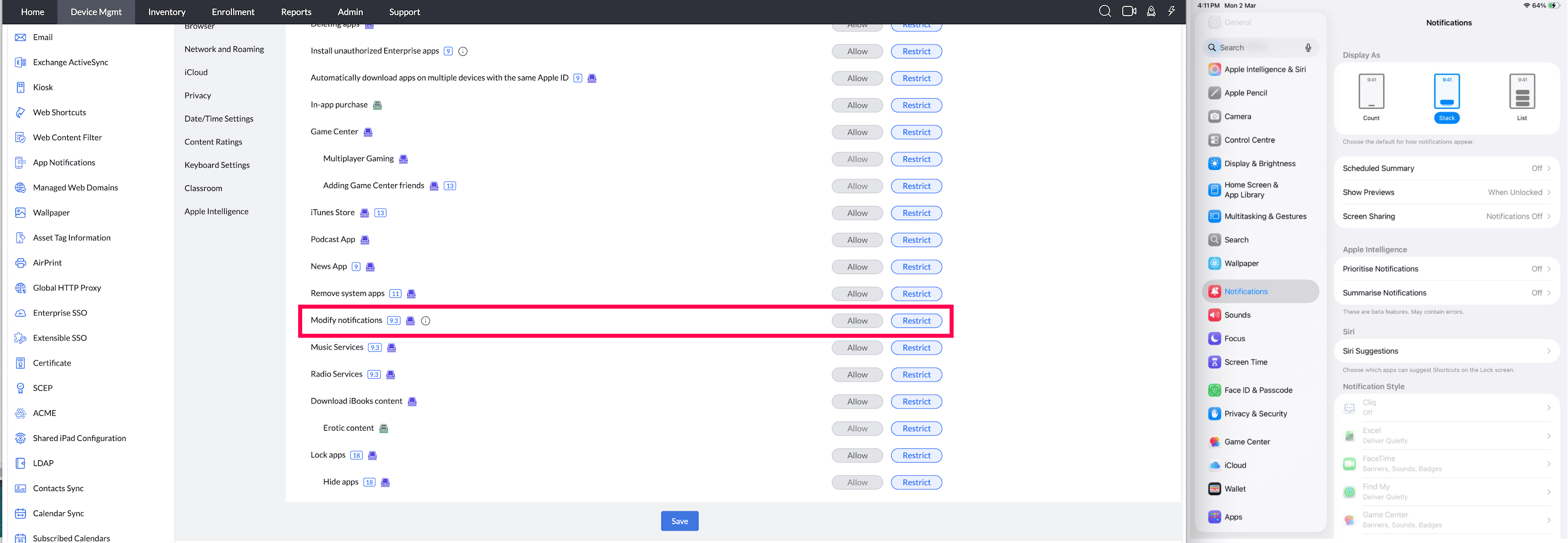
- Music Services(iOS 9.3 or later versions) : Restrict/Allow music services in the default iOS music app.
Supported Management Type: Supervised Devices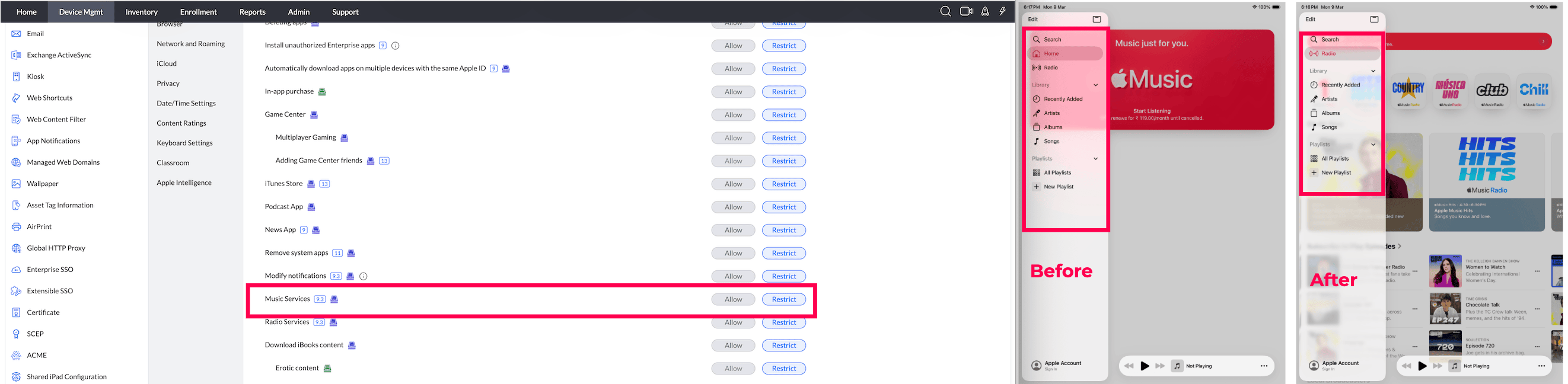
- Radio Services(iOS 9.3 or later versions) : Restrict/Allow radio services in managed iOS devices.
Supported Management Type: Supervised Devices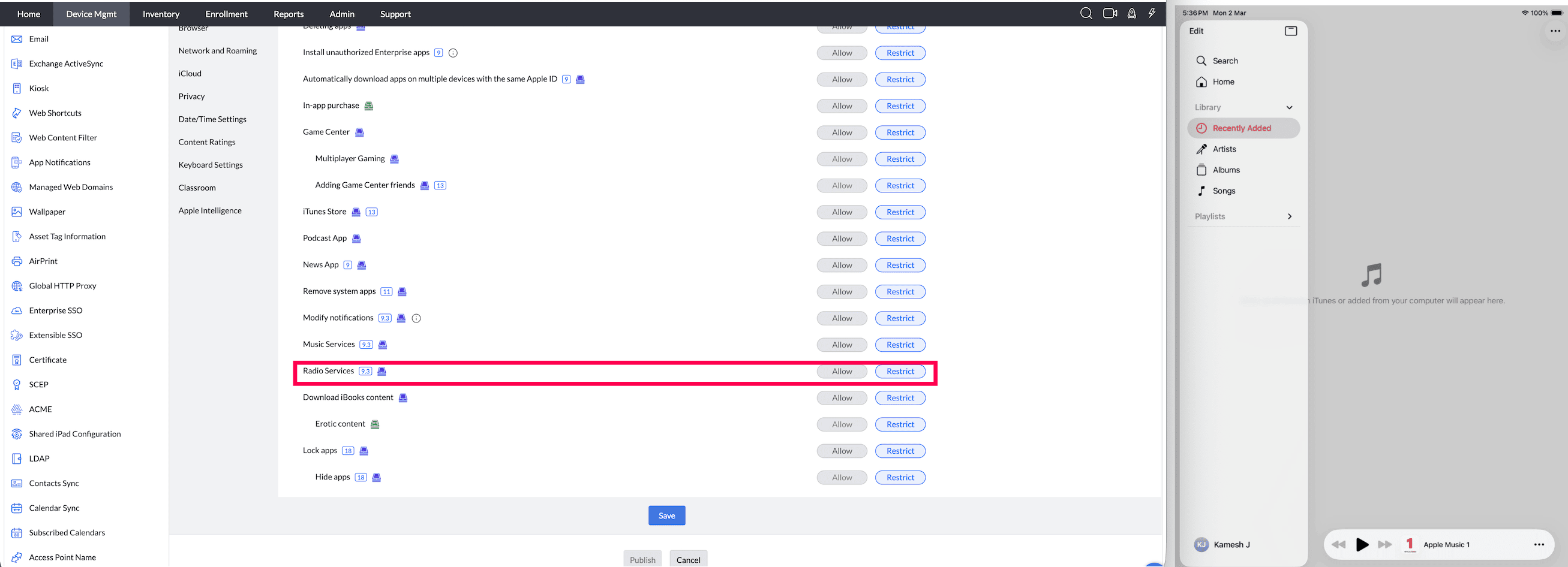
- Download iBooks content(iOS 6 or later versions) : Allow/Restrict users from downloading content from iBooks Store.
Supported Management Type: Supervised Devices
- Erotic content (iOS 6 or later versions): Allow/Restrict users from downloading media which is tagged as erotic from iBooks. To configure this, Download iBooks content should be enabled.
Supported Management Type: Supervised and Unsupervised Devices
- Lock Apps(iOS 18 or later) : This lets selected apps be locked using the App Lock feature.
Supported Management Type: Supervised Devices
- Hide Apps (iOS 18 or later) : This hides selected apps from the device’s user interface. Note: If “Lock Apps” is restricted, “Hide Apps” will also be restricted, as apps can only be hidden if they are allowed to be locked.
Supported Management Type: Supervised Devices
DEFAULT APPLICATIONS
- Default Browser Modification (iOS 18.2 or later) : This lets users change the default web browser on the device.
Supported Management Type: Supervised and Unsupervised Devices
- Default Browser Setting (iOS 18.2 or later) : This sets the specified app as the default browser. If allowed, the end user can change the default browser app from device settings.
Supported Management Type: Supervised Devices and Unsupervised Devices
- Default Calling App Modification(iOS 18.4 or later) : This lets users modify the default calling app.
Supported Management Type: Supervised Devices
- Default Calling App(iOS 26 or later) : Specify the app name or bundle identifier to set as the default calling app. Note: Removing the profile won’t switch calling back to the original default app.
Supported Management Type: Supervised and Unsupervised Devices
- Default Messaging App Modification(iOS 18.4 or later) : This lets users modify the default messaging app.
Supported Management Type: Supervised Devices
- Default Messaging App (iOS 26 or later) : Specify the app name or bundle identifier to set as the default messaging app. Note: Removing the profile won’t switch messaging back to the original default app.
Supported Management Type: Supervised and Unsupervised Devices
Browser
- Safari: Allow/Restrict the use of Safari.
Supported Management Type: Supervised Devices
- AutoFill: Allow/Restrict AutoFill in Safari; does not apply to third-party password managers or app AutoFill.
Supported Management Type: Supervised Devices
- Force fraudulent website warning : Enable/Disable forced fraudulent website warning.
Supported Management Type: Supervised Devices
- JavaScript : Allow/Restrict the use of JavaScript in Safari.
Supported Management Type: Supervised Devices
- Pop-ups : Allow/Restrict pop-ups in Safari.
Supported Management Type: Supervised and Unsupervised Devices
- Cookies : Allow/Restrict Cookies.
Supported Management Type: Supervised Devices
- Private Browsing: Allow/Restrict users from using private browsing in Safari.
Supported Management Type: Supervised Devices
- History Clearing: Allow/Restrict users from clearing browsing history in Safari.
Supported Management Type: Supervised Devices
Settings below can be configured only if Safari is allowed.
NETWORK AND ROAMING
- Automatic sync while roaming : Enabling this, permits apps to fetch background data, when the devices are in roaming. This happens when users access the apps. It helps in controlling the data roaming charges.
Supported Management Type: Supervised and Unsupervised Devices
- Allow users to modify cellular data usage for apps(iOS 7 or later versions) : Enabling this lets users restrict the usage of cellular data for specific apps.
Supported Management Type: Supervised Devices
- Modify Bluetooth(iOS 10.0 or later versions) : Allow/Restrict users from modifying Bluetooth. If Bluetooth is disabled via restrictions, AirDrop gets automatically disabled as well.
Supported Management Type: Supervised Devices
- Set Bluetooth on devices (iOS 11.3 or later versions) : Bluetooth can be restricted to always On/Off state. To configure this, Modify Bluetooth should be enabled.
Supported Management Type: Supervised Devices
- Connect to Wi-Fi, only if distributed via MDM (iOS 10.3 or later versions) : Enabling this ensures, devices connect to a Wi-Fi network only if a Wi-fi profile has been distributed via MDM. If no such profile has been distributed, the device cannot connect to another Wi-Fi network which implies that it cannot be managed by MDM. If the Wi-Fi SSID has been changed, then the profile must be modified to include the new SSID and re-distributed to the device, for continued management. Disabling this, allows the device to connect to any Wi-Fi network, including the one configured and distributed via MDM.
Supported Management Type: Supervised Devices
- Always on Wi-Fi(iOS 13 or later versions) : Wi-Fi can forcefully be enabled on your managed devices, ensuring users cannot turn it off. You can also allow users to enable or disable Wi-Fi by themselves.
Supported Management Type: Supervised and Unsupervised Devices
- Allow users to configure VPN (iOS 11 or later versions): Enabling this lets users configure VPN on managed iOS devices.
Supported Management Type: Supervised Devices
- Modify Personal Hotspot (iOS 12.2 or later versions) : Restrict/Allow the usage of Hotspot on the managed iOS devices.
Supported Management Type: Supervised Devices
- Modify eSIM Settings: Restricting this ensures, users cannot add a new eSIM or remove the existing one on supported devices.
Supported Management Type: Supervised Devices
- Near Field Communication (NFC)(iOS 14.2 or later versions): Enabling this feature restricts users from turning on Near Field Communication (NFC).
Supported Management Type: Supervised Devices
- RCS Messaging (iOS 18.1 or later) : Allows enabling/disabling of RCS messaging features.
Supported Management Type: Supervised Devices
- Call Recording (iOS 18.0 or later) : Allows/disallows recording of phone calls.
Supported Management Type: Supervised Devices
iCLOUD
- Device backup Allow/Restrict automatic backup of photos and documents, when devices are connected to Wi-Fi.
Supported Management Type: Supervised Devices
- Sync data & documents from managed apps (iOS 8 or later versions) : Allow/Restrict the syncing of data and documents from managed apps.
Supported Management Type: Supervised Devices
- Sync device data & documents : Allow/Restrict the syncing of data and documents from managed devices.
Supported Management Type: Supervised Devices
- Sync Photo Stream: Allow/Restrict automatic backup of photos on the devices, when connected to Wi-Fi.
Supported Management Type: Supervised and Unsupervised Devices
- Sync Shared Stream (iOS 6 or later versions): Allow/Restrict users from creating shared albums with photos/videos, using iCloud.
Supported Management Type: Supervised and Unsupervised Devices
- Sync Keychain (iOS 8 or later versions) : Allow/Restrict Keychain data such as account passwords, credit card information, security notes etc., on devices to be synced.
Supported Management Type: Supervised and Unsupervised Devices
- Sync iCloud Photo Library (iOS 9 or later versions only): Allow/Restrict syncing photos from the iCloud Library, for downloading onto the devices.
Supported Management Type: Supervised and Unsupervised Devices
- Enterprise books backup (iOS 8 or later versions only) : Allow/Restrict backing up of data from the books distributed by the organization.
Supported Management Type: Supervised and Unsupervised Devices
- Enterprise books metadata sync (iOS 8 or later versions only) : Allow/Restrict syncing metadata like notes and highlights from enterprise books. To configure this, Enterprise books backup has to be enabled.
Supported Management Type: Supervised and Unsupervised Devices
- Allow iCloud Private Relay : Allowing Private relay hides IP address and Safari browsing activity of users from websites, network providers and Apple.
Supported Management Type: Supervised and Unsupervised Devices
PRIVACY
- Find My Friends (iOS 13 or later versions) : Allow/Restrict users from configuring Find My Friends in the Find My app.
Supported Management Type: Supervised Devices
- Modify Find My Friends settings(iOS 7 or later versions) : Allow/Restrict users from modifying settings under Find My Friends. This can be configured only when Find My Friends is allowed.
Supported Management Type: Supervised Devices
- Find My Device(iOS 13 or later versions) : Allow/Restrict users from configuring Find My Device in the Find My app.
Supported Management Type: Supervised Devices
- Send diagnostics data to Apple (iOS 6 or later versions) : Enabling this, lets diagnostic data to be sent to Apple.
Supported Management Type: Supervised and Unsupervised Devices
- Modify Diagnostics & Usage pane settings (iOS 9.3. or later versions) : Allowing this, lets users enable/disable diagnostics and usage pane settings.
Supported Management Type: Supervised and Unsupervised Devices
- Force limited ad tracking (iOS 7 or later versions) : Allow/Restrict users from accessing Control Center, Notification Center and Today View settings when the device is locked.
Supported Management Type: Supervised and Unsupervised Devices
- Enable lock screen settings(iOS 7 or later versions) : Allow/Restrict users from accessing Control Center, Notification Center and Today View settings when the device is locked.
Supported Management Type: Supervised and Unsupervised Devices
- Control Center (iOS 7 or later versions) : Allow/Restrict users from accessing Control Center when the device is locked.
Supported Management Type: Supervised and Unsupervised Devices
- Notification Center (iOS 7 or later versions) : Allow/Restrict users from accessing Notification Center when the device is locked.
Supported Management Type: Supervised and Unsupervised Devices
- Today View (iOS 7 or later versions) : Allow/Restrict Today View which displays information like the day, date, weather, reminders, etc., on the screen when the device is locked.
Supported Management Type: Supervised and Unsupervised Devices
- Mail Privacy Protection (iOS 15.2 or later versions) : Mail Privacy Protection is a feature on iPhones which users can enable. When this setting is turned on, senders cannot determine whether the mails are opened or not. It ensures the privacy of users by hiding their email activities and IP addresses. With MDM, admins can prevent users from enabling Mail Privacy Protection on their device.
Supported Management Type: Supervised and Unsupervised Devices
- Personalized Advertisement : Allow or block the display of personalized advertisements based on user activity. Available from iOS 14.
Supported Management Type: Supervised and Unsupervised Devices
Settings below can be configured only if Enable lock screen settings is allowed.
Date/Time Settings
- Set date and time : The device's date and time can be configured automatically, manually, or controlled by the user. For automatic configuration, the location services on the device need to be enabled and the user cannot modify these settings. Select a timezone to manually configure date and time, which the user will be able to modify.
Supported Management Type: Supervised Devices
- Timezone : Select timezone manually , which user will not be able to modify.
Supported Management Type: Supervised Devices
CONTENT RATINGS
- Explicit Music & Podcasts : Allow/Restrict explicit music and podcasts.
Supported Management Type: Supervised Devices
- Enable ratings by region : Enable/Disable ratings by region.
Supported Management Type: Supervised and Unsupervised Devices
- Specify the Region : Choose the region, to specify the settings accordingly.Eg: Selecting United States applies MPAA ratings for movies, while selecting United Kingdom applies BBFC standards.
Supported Management Type: Supervised and Unsupervised Devices - Maximum Allowable Ratings for Movies : Set the maximum allowable ratings for movies. : Allow/Restrict to view movies based on the specified ratings. Eg: If the maximum rating is set to PG-13, movies rated R or above cannot be played.
Supported Management Type: Supervised and Unsupervised Devices
- Maximum Allowable Ratings for TV shows : Allow/Restrict to view TV shows based on the specified ratings.Eg: Example: If the maximum rating is set to TV-14, shows rated TV-MA will be blocked.
Supported Management Type: Supervised and Unsupervised Devices
- Maximum Allowable Ratings for Apps: Allow/Restrict use of apps based on the specified ratings. Eg: If the maximum rating is set to 9+, apps rated 12+ or higher on the App Store cannot be installed.
Before iOS 26: When this restriction is applied and an app does not meet the allowed rating, the app gets installed on the device but its icon is hidden from the Home Screen. Users will not be able to find or access the app.
From iOS 26 onwards: When this restriction is applied, the app gets installed and its icon remains visible on the Home Screen. However, the app will be in a disabled state — users can see the app icon but cannot open or launch it.
Supported Management Type: Supervised and Unsupervised Devices
Settings below can be configured only if Enable ratings by region is allowed.
KEYBOARD SETTINGS
- Dictionary word lookup(iOS 8.13 or later versions) : Allow/Restrict the built-in dictionary to retrieve words.
Supported Management Type: Supervised Devices
- Predictive keyboard (iOS 8.1.3 or later versions) : Allow/Restrict the usage of predictive keyboard on the device.
Supported Management Type: Supervised Devices
- Auto correction(iOS 8.1.3 or later versions) : Allow/Restrict use of auto correct on managed devices.
Supported Management Type: Supervised Devices
- Spellcheck(iOS 8.1.3 or later versions) : Allow/Restrict the use of Spellcheck on managed devices.
Supported Management Type: Supervised Devices
- Shortcuts on external keyboards (iOS 9 or later versions) : Allow/Restrict use of shortcuts from external keyboard(s).
Supported Management Type: Supervised Devices
- Dictation(iOS 10.3 or later versions) : Allow/Restrict use of Dictation from the keyboard(s).
Supported Management Type: Supervised Devices
- Process dictation on device: Allow/Restrict content from being sent to Apple servers for dictation.
Supported Management Type: Supervised and Unsupervised Devices
- Swipe keyboard (iOS 13 or later versions) : Allow/Restrict the usage of QuickPath keyboard which lets you swipe across letters instead of typing manually.
Supported Management Type: Supervised Devices
- Process translation on device:Allow/Restrict content from being sent to Apple servers for translation.
Supported Management Type: Supervised and Unsupervised Devices
CLASSROOM
Applicable if Classroom 2.0 app is installed on the Teacher devices and the Student devices are Supervised
- Automatically join classes without prompting (iOS 11 or later versions) : Enabling this ensures, the student devices mandatorily join the classes, without any notification/prompt on the device.
Supported Management Type: Supervised Devices
- Allow teacher's device to lock apps and devices without prompting (iOS 11 or later versions) : Enabling this ensures, the teacher can either fully lock the student device or lock specific apps on the device, without any notification/prompt on the device.
Supported Management Type: Supervised Devices
- Allow AirPlay and screen viewing by teacher's device : Enabling this allows the teacher to view the student device screen, after notifying/requesting permission(s) to do the same from the user.
Supported Management Type: Supervised Devices
- Allow teacher's device to AirPlay and view screen without prompting : Enabling this allows the teacher to view the student device screen, without any notification/prompt on the device. To configure this, Allow AirPlay and screen viewing by teacher's device should be enabled.
Supported Management Type: Supervised Devices
- Teacher's permission required before leaving a classroom (iOS 11.3 or later versions) : Enabling this ensures, students request permission from the teacher before leaving a classroom.
Supported Management Type: Supervised Devices
ARTIFICIAL INTELLIGENCE
- Image Playground: Allow or Restrict the usage of the Image Playground AI feature. Available from iOS 18.
Supported Management Type: Supervised Devices
- Writing Tools: Allow or Restrict the usage of AI-powered writing tools. Available from iOS 18.
Supported Management Type: Supervised Devices
- System-generated text in User's Handwriting: Allow or Restrict the AI feature that generates text in the user’s handwriting. Available from iOS 18.
Supported Management Type: Supervised Devices
- Image Wand : Allow or Restrict the AI-powered Image Wand functionality. Available from iOS 18.
Supported Management Type: Supervised Devices
- Genmoji Creation : Allow or Restrict the usage of Genmoji creation via AI. Available from iOS 18.
Supported Management Type: Supervised Devices
- Extends Apple Intelligence & Siri : Allow or Restrict extended AI integration with Siri and Apple Intelligence features. Available from iOS 18.2
Supported Management Type: Supervised and Unsupervised Devices
- Sign-in to extensions (iOS 18.2 or later) : This permits users to sign in to Apple Intelligence tools (such as ChatGPT) that require authentication.
Supported Management Type: Supervised Devices
- Allowed workspace ID (iOS 18.3 or later) : This enforces sign-in when accessing Apple Intelligence tools through an enterprise workspace.
Supported Management Type: Supervised Devices
- Mail summary(iOS 18.1 or later) : This provides AI-generated summaries for emails in the Mail app.
Supported Management Type: Supervised Devices
- Notes transcription summary(iOS 18.3 or later) : This allows transcription summaries to be created in the Notes app using Apple Intelligence.
Supported Management Type: Supervised Devices
- Visual Intelligence Summary (iOS 18.3 or later) : This allows Apple Intelligence to summarise visual content.
Supported Management Type: Supervised Devices
- Apple Intelligence Report (iOS 18.4 or later) : Generates a log showing how Apple Intelligence is used on the device, including requests sent to Private Cloud Compute.The report can be customized by time range, such as the last 15 minutes or 7 days.
Supported Management Type: Supervised Devices
- Mail Smart Reply (iOS 18.4 or later) : This allows the Mail app to suggest AI-powered replies.
Supported Management Type: Supervised Devices
- Safari Web Page Summary(iOS 18.4 or later) : This allows Safari to generate summaries of web content using Apple Intelligence.
Supported Management Type: Supervised Devices
Profile Description Table
| PROFILE SETTINGS | SUPERVISED | UNSUPERVISED | |
|---|---|---|---|
| DEVICE FUNCTIONALITY | |||
| Camera |  * * |  | |
| Camera — Exempted Apps | * | | |
| FaceTime | * | | |
| Screenshot and Screen Recording | | | |
| Spotlight Internet Search (iOS 8 or later versions) | | | |
| AirDrop (iOS 7 or later versions) | | | |
| Voice Dialing | | | |
| iMessage (iOS 6 or later versions) | | | |
| Siri | | | |
| Allow Siri when device is locked | | | |
| Force Siri Profanity Filter (iOS 6 or later versions) | | | |
| Allow Siri to query from the web (iOS 7 or later versions) | | | |
| Handoff (iOS 8 or later versions) | | | |
| Allow user to modify device name | | | |
| Set device date and time | | | |
| AirPrint (iOS 11 or later versions) | | | |
| Store AirPrint credentials on iCloud (iOS 11 or later versions) | | | |
| Enforce TLS trusted certificates for AirPrint (iOS 11 or later versions) | | | |
| Discover AirPrint printers using iBeacons (iOS 11 or later versions) | | | |
| iPhone widgets on Mac | | | |
| Live voice mail | | | |
| iPhone Mirroring (iOS 18 or later versions) | | | |
| SECURITY | |||
| Share data between managed and unmanaged apps (iOS 7 or later versions) | |||
| Allow both ways | | | |
| Restrict from unmanaged to managed | | | |
| Restrict from managed to unmanaged | | | |
| Restrict both ways | | | |
| Force Encrypted Backup | | | |
| Allow user to wipe device by erasing all content and settings (iOS 8 or later versions) | | | |
| Allow user to configure Screen Time/Restrictions on device (iOS 8 or later versions) | | | |
| Allow Passbook when device is locked (iOS 6 or later versions) | | | |
| Use biometric methods such as TouchID and/or FaceID to unlock devices (iOS 7 or later versions) | | | |
| Allow user to add or modify TouchID/FaceID (iOS 8.3 or later versions) | | | |
| ADVANCED SECURITY | |||
| Install configuration profiles and certificates interactively (iOS 6 or later versions) | | ||
| Add/Modify iCloud, Mail and other accounts (iOS 7 or later versions) | | | |
| Accept untrusted TLS certificates | | | |
| Automatic updates for trusted certificates (iOS 7 or later versions) | | | |
| Allow iTunes pairing and other USB connections (iOS 7 or later versions) | | | |
| Allow USB connections when device is locked (iOS 11.4.1 or later versions) | | | |
| USB flash drive (iOS 13 or later versions) | | | |
| Allow unpaired computers to boot devices into recovery mode (iOS 14.5 or later versions) | | | |
| Force password for iTunes and App Store downloads | | | |
| Force password for AirPlay outgoing requests (iOS 7 or later) | | | |
| Force password for AirPlay incoming requests (iOS 7 or later versions) | | | |
| Force Wrist Authentication to access notifications on Apple Watch (iOS 8.3 or later versions) | | | |
| Pair with Apple Watch (iOS 9 or later versions) | | | |
| Unlock with Apple Watch (iOS 14.5 or later, and watchOS 7.4 or later) | | | |
| Set up other devices using proximity detection (iOS 11 or later versions) | | | |
| Autofill passwords in Safari and apps (iOS 12 or later versions) | | | |
| Authenticate Face ID/Touch ID before allowing autofill (iOS 11 or later versions) | | | |
| Share passwords with devices in proximity (iOS 12 or later versions) | | | |
| Request passwords from devices in proximity (iOS 12 or later versions) | | | |
| APPLICATIONS | |||
| Users can install only approved apps (iOS 9 or later versions) | * | | |
| Install alternative marketplace apps | | | |
| Deleting apps | * | | |
| Unauthorized enterprise apps (iOS 9 or later versions) | | | |
| Automatically download apps on multiple devices with same Apple ID (iOS 9 or later versions) | | | |
| In-app purchase | | | |
| Game Center (iOS 6 or later versions) | | | |
| Multiplayer Gaming | * | | |
| Adding Game Center Friends | * | | |
| iTunes Store | * | | |
| Podcast app (iOS 8 or later versions) | | | |
| News app (iOS 9 or later versions) | | | |
| Remove system apps | | | |
| Music Services (iOS 9.3 or later versions) | | | |
| Radio Services (iOS 9.3 or later versions) | | | |
| Download iBooks content (iOS 6 or later versions) | | | |
| Erotic content (iOS 6 or later versions) | | | |
| Install Apps Directly from Web | | | |
| Lock Apps (iOS 18 or later) | | | |
| Hide Apps (iOS 18 or later) | | | |
| BROWSER | |||
| Safari | * | | |
| Settings below can be configured only if Safari is allowed. | |||
| History Clearing | | | |
| Private Browsing | | | |
| AutoFill | | | |
| Force fraudulent website warning | | | |
| JavaScript | | | |
| Pop-ups | | | |
| Cookies | | | |
| NETWORK AND ROAMING | |||
| Automatic sync while roaming | | | |
| Allow users to modify cellular data usage for apps (iOS 7 or later versions) | | | |
| Modify Bluetooth (iOS 10.0 or later versions) | | | |
| Set Bluetooth on devices (iOS 11.3 or later versions) | | | |
| Connect to Wi-Fi, only if distributed via MDM (iOS 10.3 or later versions) | | | |
| Always on Wi-Fi (iOS 13 or later versions) | | | |
| Allow users to configure VPN (iOS 11 or later versions) | | | |
| Modify Hotspot (iOS 12.2 or later versions) | | | |
| Restrict NFC (iOS 14.2 or later versions) | | | |
| RCS Messaging (iOS 18.1 or later) | | | |
| Call Recording (iOS 18.0 or later) | | | |
| iCLOUD | |||
| Device backup | * | | |
| Sync data & documents from managed apps (iOS 8 or later versions) | | | |
| Sync device data & documents | * | | |
| Sync Photo Stream | | | |
| Sync Shared Stream (iOS 6 or later versions) | | | |
| Sync Keychain (iOS 8 or later versions) | * | | |
| Sync iCloud Photo Library (iOS 9 or later versions only) | | | |
| Enterprise books backup (iOS 8 or later versions only) | | | |
| Enterprise books metadata sync (iOS 8 or later versions only) | | | |
| Allow iCloud Private Relay | | | |
| PRIVACY | |||
| Find My Friends (iOS 13 or later versions) | | | |
| Modify Find My Friends settings (iOS 7 or later versions) | | | |
| Find My Device (iOS 13 or later versions) | | | |
| Send diagnostics data to Apple (iOS 6 or later versions) | | | |
| Modify Diagnostics & Usage pane settings (iOS 9.3. or later versions) | | | |
| Force limited ad tracking (iOS 7 or later versions) | | | |
| Allow Mail Privacy (iOS 15.2 or later versions) | | | |
| Enable lock screen settings (iOS 7 or later versions) | | | |
| Personalized Advertisement | | | |
| Settings below can be configured only if Enable lock screen settings is allowed. | |||
| Control Center (iOS 7 or later versions) | | | |
| Notification Center (iOS 7 or later versions) | | | |
| Today View (iOS 7 or later versions) | | | |
| CONTENT RATINGS | |||
| Explicit Music & Podcasts | * | | |
| Enable ratings by region | | | |
| Settings below can be configured only if Enable ratings by region is allowed. | |||
| Specify the Region | | | |
| Maximum Allowable Ratings for Movies | | | |
| Maximum Allowable Ratings for TV shows | | | |
| Maximum Allowable Ratings for Apps | | | |
| KEYBOARD SETTINGS | |||
| Dictionary word lookup (iOS 8.13 or later versions) | | | |
| Predictive keyboard (iOS 8.1.3 or later versions) | | | |
| Auto correction (iOS 8.1.3 or later versions) | | | |
| Spellcheck (iOS 8.1.3 or later versions) | | | |
| Shortcuts on external keyboards (iOS 9 or later versions) | | | |
| Dictation (iOS 10.3 or later versions) | | | |
| Process dictation on device | | | |
| Swipe keyboard (iOS 13 or later versions) | | | |
| Process translation on device | | | |
| CLASSROOM (Applicable if Classroom 2.0 app is installed on the Teacher devices and the Student devices are Supervised) | |||
| Automatically join classes without prompting (iOS 11 or later versions) | | | |
| Allow teacher's device to lock apps and devices without prompting (iOS 11 or later versions) | | | |
| Allow AirPlay and screen viewing by teacher's device | | | |
| Allow teacher's device to AirPlay and view screen without prompting | | | |
| Teacher's permission required before leaving a classroom (iOS 11.3 or later versions) | | | |
| ARTIFICIAL INTELLIGENCE | |||
| Image Playground | | | |
| Writing Tools | | | |
| Generate Text in User's Handwriting | | | |
| Image Wand | | | |
| Genmoji Creation | | | |
| Extends Apple Intelligence & Siri | | | |
| Sign-in to extensions (iOS 18.2 or later) | | | |
| Allowed workspace ID (iOS 18.3 or later) | | | |
| Mail summary (iOS 18.1 or later) | | | |
| Notes transcription summary (iOS 18.3 or later) | | | |
| Visual Intelligence Summary (iOS 18.3 or later) | | | |
| Apple Intelligence Report (iOS 18.4 or later) | | | |
| Mail Smart Reply (iOS 18.4 or later) | | | |
| Safari Web Page Summary (iOS 18.4 or later) | | | |
| DEFAULT APPLICATIONS | |||
| Default Browser Modification (iOS 18.2 or later) | | | |
| Default Browser Setting (iOS 18.2 or later) | | | |
| Default Calling App (iOS 26 or later) | | | |
| Default Messaging App (iOS 26 or later) | | | |
| Default Calling App Modification (iOS 18.4 or later) | | | |
| Default Messaging App Modification (iOS 18.4 or later) | | | |
FAQ
How can users install App Store apps without admin approval?
Answer:
This can be enabled by configuring and associating an iOS/iPadOS restriction profile.
Steps:
- Create a restriction profile that allows Add/modify iCloud, Mail and other accounts.
- Also configure a restriction profile that allows users installing unapproved apps.
- Associate the profile with the required devices.
Once applied, users can sign in with their Apple ID and install apps directly from the App Store without admin approval.
Frequently Asked Questions
1. How can users install App Store apps without admin approval?
Answer:
This can be enabled by configuring and associating an iOS/iPadOS restriction profile.
Steps:
- Create a restriction profile that allows Add/modify iCloud, Mail and other accounts.
- Also configure a restriction profile that allows users installing unapproved apps.
- Associate the profile with the required devices.
Once applied, users can sign in with their Apple ID and install apps directly from the App Store without admin approval.
2. Why can't a device be turned back to Allowed status for the Camera restriction after updating to iOS 13?
For iOS 13 or later versions, the Camera restriction only applies to supervised devices. If a device was on an earlier iOS version when the restriction was configured, updating it to iOS 13 will have no effect until the profile is revoked and re-associated with the device.
3. Does restricting iCloud account changes also block iMessage and FaceTime?
Yes. Restricting the Add/Modify iCloud, Mail and other accounts setting also restricts iMessage and FaceTime, and both will appear greyed out on the device. Accounts can still be added or modified from the MDM console.
4. What changes when the Maximum Allowable Ratings for Apps restriction is applied on iOS 26 compared to earlier versions?
Before iOS 26, an app that doesn't meet the allowed rating still installs but its icon is hidden from the Home Screen. From iOS 26 onwards, the app installs and its icon remains visible, but the app is disabled so users can see it without being able to open or launch it.
5. Can end users change the default browser or messaging app on a managed device?
Only if the Default Browser Modification, Default Calling App Modification, or Default Messaging App Modification restrictions are allowed. When Default Browser Setting, Default Calling App, or Default Messaging App is configured instead, admins specify the app directly, and removing the profile won't switch the device back to its original default app.