Last updated: August 14, 2026
Exchange ActiveSync
This page explains how to configure a Knox Exchange ActiveSync profile to set up corporate email within Knox containers on managed devices. It details all available profile settings — including Exchange ActiveSync host, credentials, SSL and certificate options, and sync controls for calendar, contacts, notes, tasks, and mail — along with dynamic variables for automatic email and domain population. Troubleshooting guidance is also provided for resolving stale session tokens after password changes.
You can configure Exchange Active Sync for Knox containers.
| PROFILE SETTINGS | DESCRIPTION |
|---|---|
| Exchange Active Sync | |
| Account Name | Exchange ActiveSync will be pre filled, this name is not mandatory and used for reference |
| User Name | This user name is not mandatory, can specify the name used in the User's mail account |
| Domain | Address of the account (%email%) Email address will be filled automatically to the appropriate user to whom the profile is associated. |
| Exchange ActiveSync Host | Specify the server address of the ActiveSync |
| Email Address | Address of the account (%email%) Email address will be filled automatically to the appropriate user to whom the profile is associated. |
| Password | Specify the password for the mail account |
| Accept All Certificates | Enabling this will allow usage of all the certificates |
| Use SSL | Enabling this will allow usage of all SSL |
| Sync Calendar | Enabling this will allow Syncing of Calendar |
| Sync Contacts | Enabling this will allow Syncing of Contacts |
| Sync Notes | Enabling this will allow Syncing of Notes |
| Sync Tasks | Enabling this will allow Syncing of Tasks |
| Sync Mails | Specifies the time window used for syncing email items to the phone |
| Identity Certificate | Allows adding certificates. |
Dynamic Variables :
The below mentioned dynamic variables are retrieved from the data that has been provided while enrolling the device.
- %email% - Email address will be filled in automatically to the appropriate user to whom the profile is associated.
- %domainname% - Domain name will be filled in automatically to the appropriate user to whom the profile is associated.
Troubleshooting tips
I've changed passcode for the Exchange accounts of all users. But they're still able to access it as they've logged in previously. How do I ensure the user logs in with the new passcode?
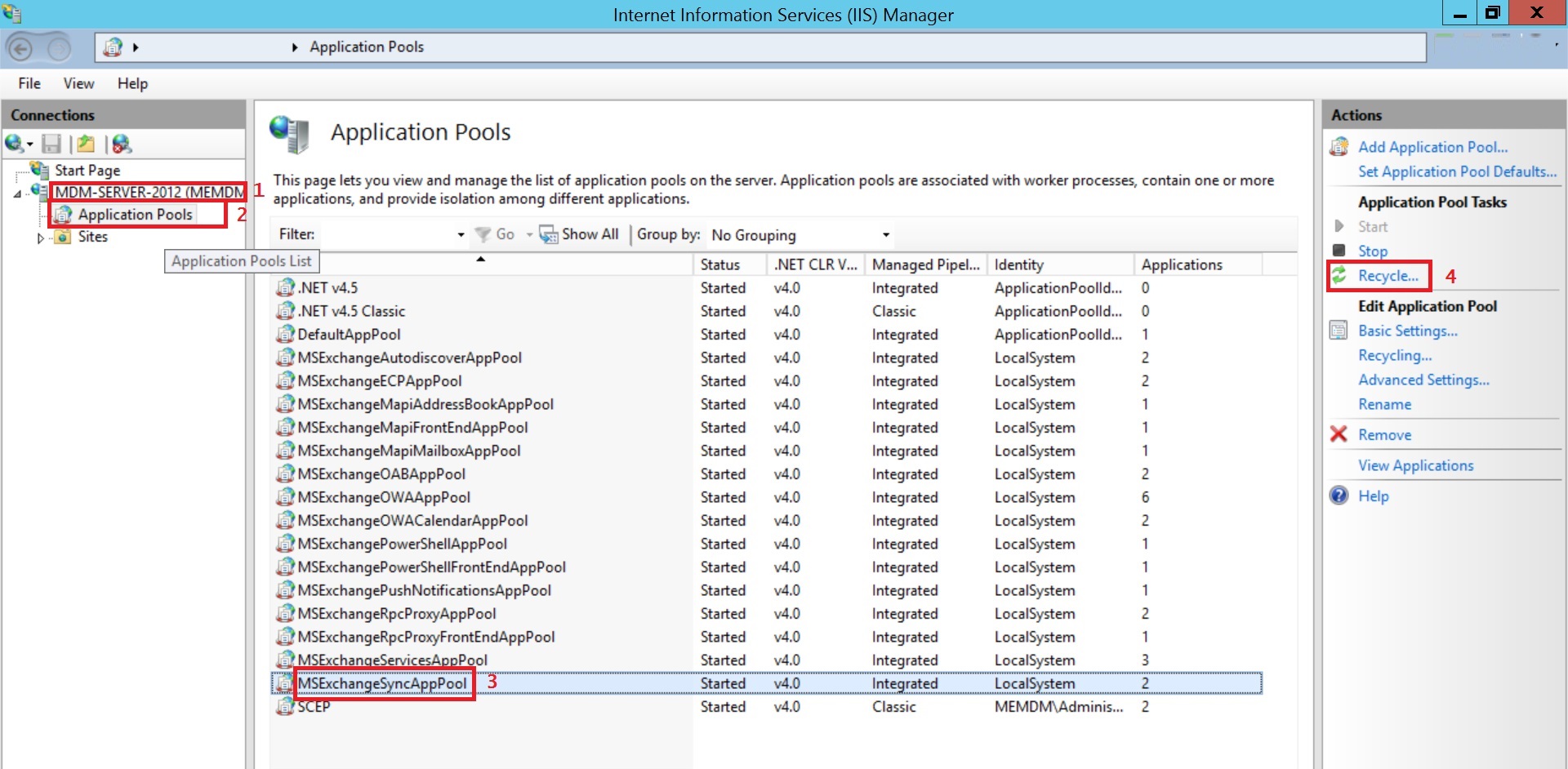
- Open IIS on the server machine, where your Exchange Server is running.
- In the Connections pane, expand the Server node and click Application Pools.
- In the Application Pools page, select MSExchangeSyncAppPool and click on Recycle and follow the on-screen instructions to refresh the session tokens on the devices. Users whose password has been changed will be prompted for the new password, as the old password cannot renew the session.
Frequently Asked Questions
What can be synced using the Knox Exchange ActiveSync profile?
The profile lets you sync Calendar, Contacts, Notes, Tasks, and Mail between the Exchange server and the client apps inside the Knox container.
Why can users still access their Exchange account after I change their passcode?
Devices that logged in previously retain a valid session token. Recycle the MSExchangeSyncAppPool application pool in IIS on the Exchange server to refresh session tokens and force users to log in with the new passcode.
What is the Identity Certificate setting used for?
It lets you add a certificate for certificate-based authentication to the Exchange ActiveSync server, in addition to or instead of a username and password.
Do I need to enable SSL for Exchange ActiveSync?
You can enable Use SSL to secure the connection, and Accept All Certificates to allow the container to accept the ActiveSync server's certificates.