Last updated: July 24, 2026
Custom ROM Enrollment Using Self Service app (previously ME MDM app)
This guide explains how to enroll devices running OEM configuration software (custom ROMs) into ManageEngine MDM using a custom Self Service app. Admins contact MDM Support with the Knox JSON, OEM name, device model, and Android version to receive a tailored app, which the OEM then preloads or side-loads onto the device software. After a device reset and software update, the app should launch automatically, enrolling the device, and enrollment status can be confirmed on the MDM dashboard.
Custom ROM enrollment allows organizations to enroll devices running on the OEM config software into ManageEngine MDM. This document outlines the steps for admins to enable Custom ROM Enrollment using a custom Self Service app (previously ME MDM app).
Steps to Perform Custom OEM Enrollment
- The admin must contact the MDM Support Team with Knox JSON, OEM name, Device model, Android version, Any specific requirements from the OEM details to receive a custom Self Service app (previously ME MDM app) tailor for the specific OEM device.
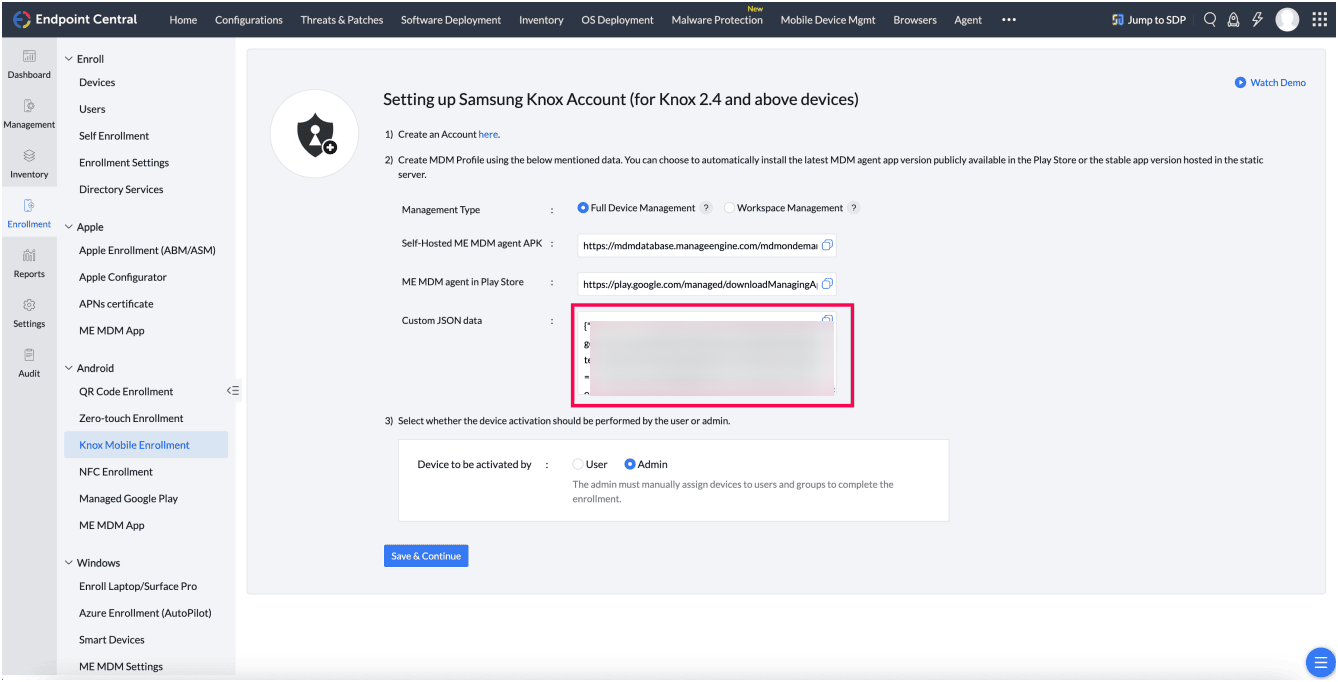
- Once the custom Self Service app (previously ME MDM app) is received, the Admin need to Contact the OEM the device manufacturer.
- Provide them the custom Self Service app (previously ME MDM app) and request the OEM to preload or side-load the Self Service app (previously ME MDM app) on the software.
- Reset the device and update the software. The device should be enrolled and the Self Service app (previously ME MDM app) should appear automatically.
- After ROM enrollment, the admin should check on the MDM dashboard to confirm device enrollment.
Frequently asked questions
What information do I need to provide to get a custom Self Service app for custom ROM enrollment?
Contact the MDM Support Team with the Knox JSON, OEM name, device model, Android version, and any OEM-specific requirements to receive a Self Service app tailored to that device.
Who installs the custom Self Service app on the device software?
The OEM (device manufacturer) preloads or side-loads the custom Self Service app onto the device software after you provide it to them.
Is custom ROM enrollment specific to Android devices?
Yes, this enrollment method is documented for Android devices running OEM configuration software (custom ROMs) managed through Mobile Device Manager Plus.
How do I confirm a device enrolled successfully after a custom ROM update?
After resetting the device and updating its software, the Self Service app should launch automatically and enroll the device; check the MDM dashboard afterward to confirm the device shows as enrolled.