Last updated: July 24, 2026
How to Enroll Android Devices Without Camera?
Enroll Android devices without cameras into Mobile Device Manager Plus using the Device Owner provisioning tool via ADB with USB or Wireless Debugging; requires a Windows/macOS computer, USB cable, no Google account logged in, and a custom ManageEngine MDM Self Service app obtained from Support with Knox JSON configuration.
In certain high-security environments, such as defence organizations and restricted zones, camera-equipped devices are often banned due to security concerns. This document provides step-by-step instructions for administrators to enroll Android devices that do not have a camera.
Pre-requisites
- A Windows/macOS computer.
- USB cable to connect the device to the computer or laptop.
- Ensure that no Google account is logged in or syncing data on the device.
Steps to enroll Android devices without camera
- On the Laptop or computer, download the Device Owner provisioning tool from the following link for Windows or Mac.
- After downloading, extract all the files in the zip file to a location on your machine.
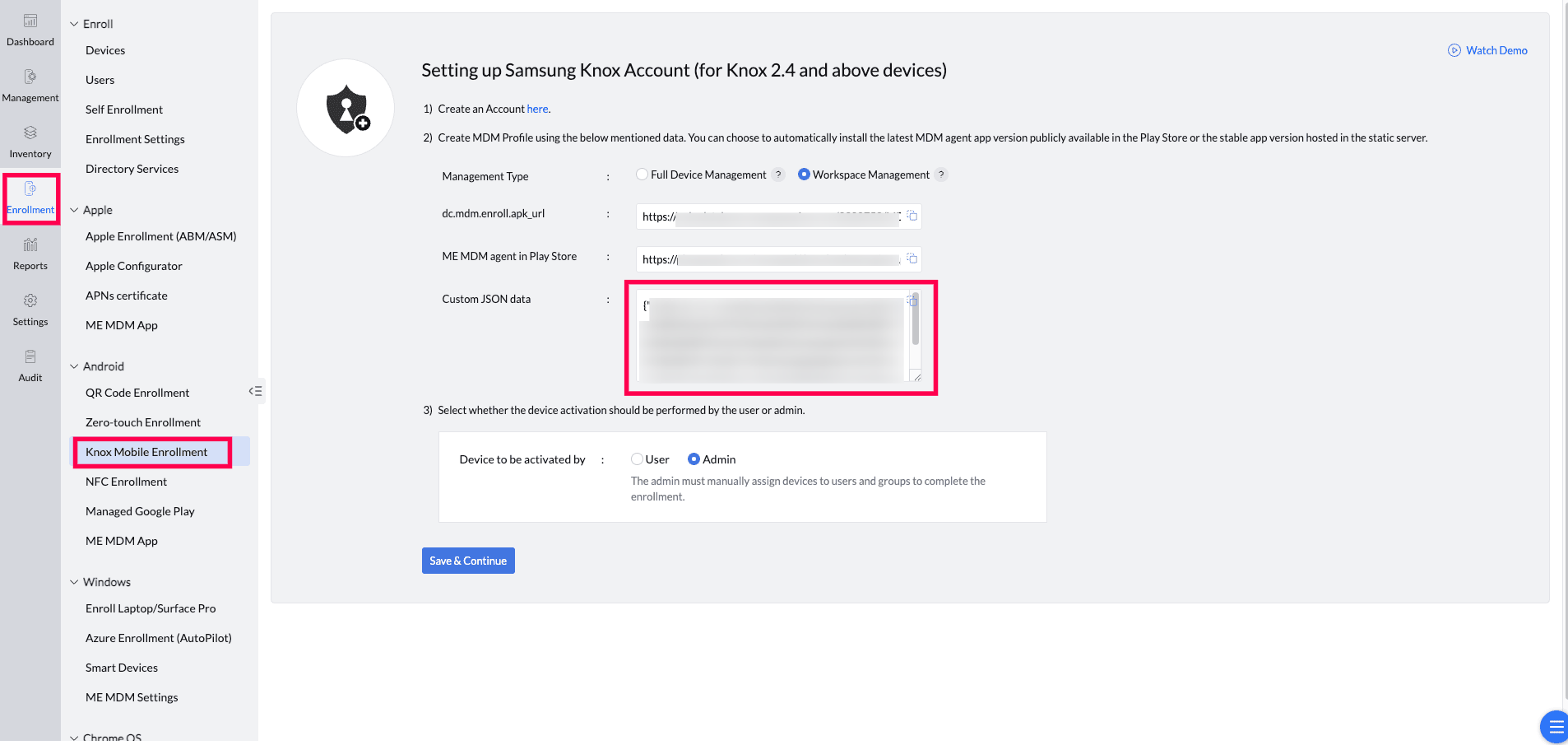
- To proceed with the enrollment you need the Custom ManageEngine MDM Self Service app (previously ManageEngine MDM app). Reach out to MDM support with JSON details which are present on the MDM Console->Enrollment->Knox Device Enrollment for getting the Custom Manageengine MDM apk file for the enrollment.
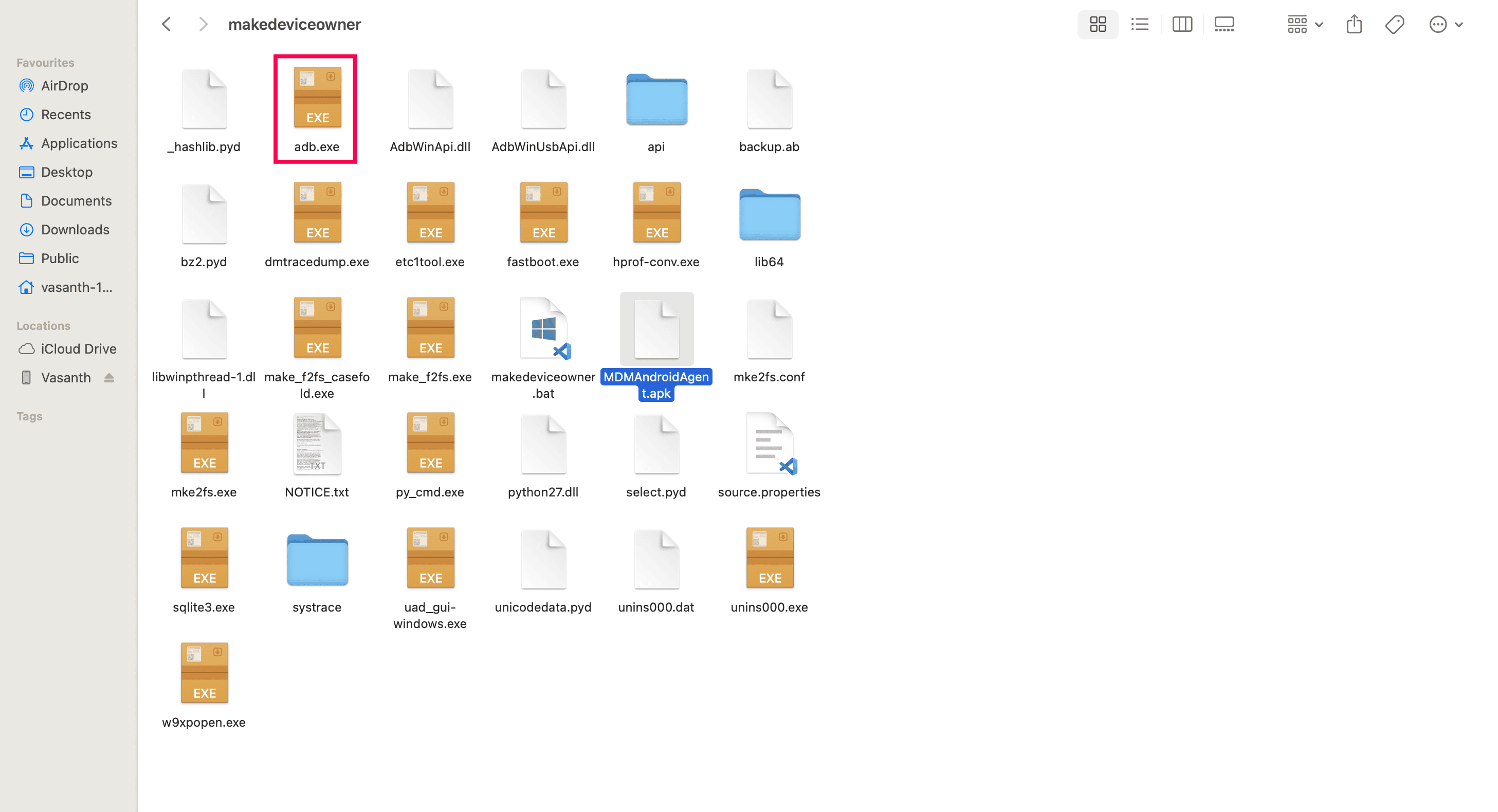
- Place the custom APK (MDMAndroidAgent.apk) file provided by MDM support where the adb.exe file is present (C:\Users\YourUsername\Downloads\makedeviceowner\makedeviceowner\).
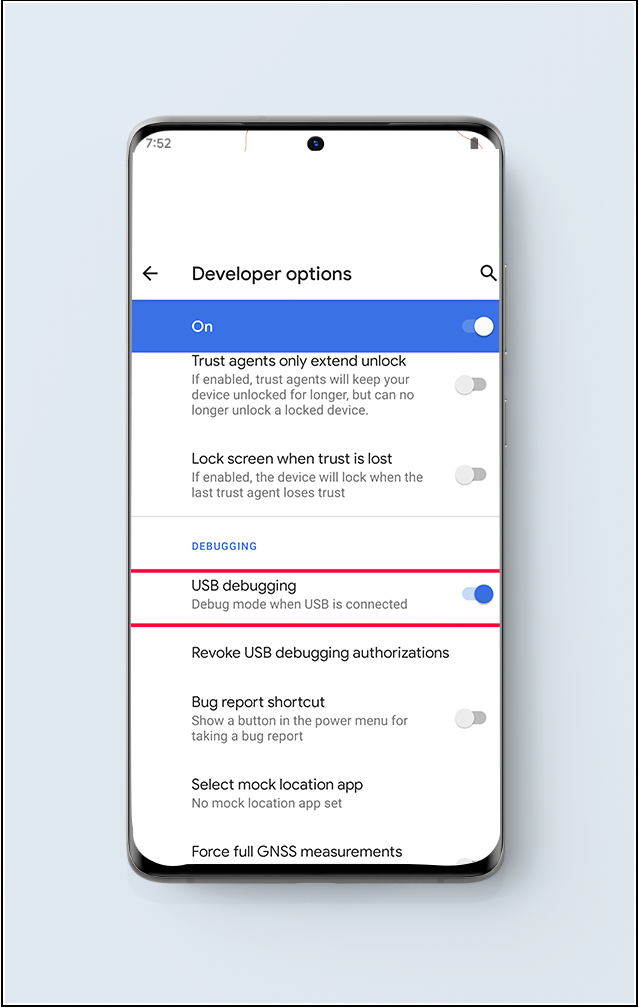
- Enable Developer Options
- USB Debugging:
- On the Android device, go to Settings > About Phone.
- Tap Build Number 7 times to enable Developer Options.
- Go back to Settings > System > Developer Options.
- Enable USB Debugging.
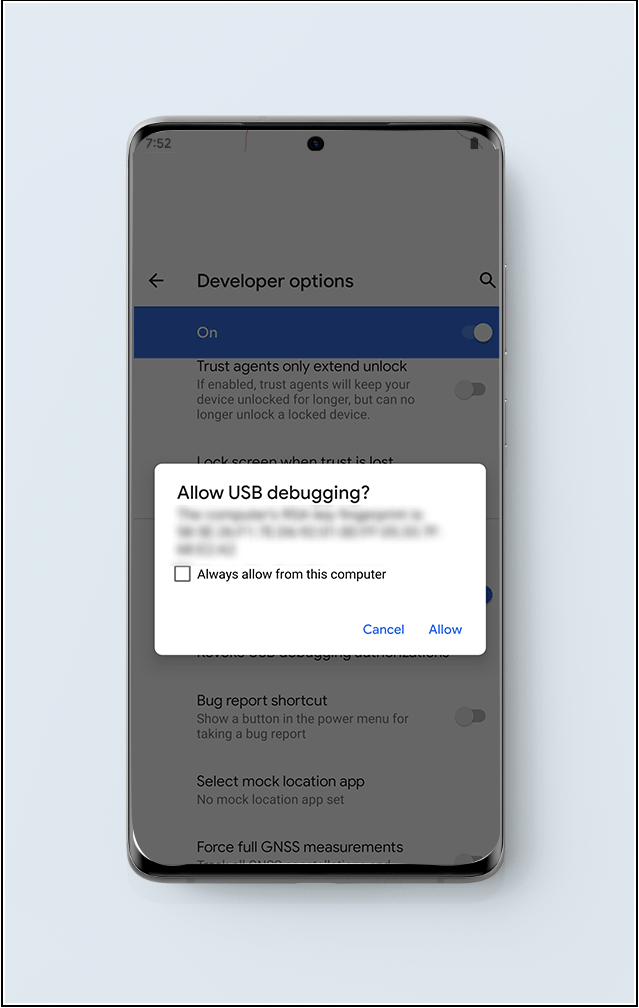
- Connect the Android device to the computer via USB.
- On the device, if prompted, allow USB Debugging by selecting Allow on the pop-up.
- Wireless Debugging:If USB debugging is not an option, follow these steps to enable debugging via the Wireless Debugging method:
- Reset the device and ensure that both the device and PC are connected to the same Wi-Fi network.
- Navigate to Settings → Developer Options → Enable Wireless Debugging. When prompted with "Allow wireless debugging on this network?", select Allow.
- In Command Prompt, enter the following command to connect ADB via the device’s IP address:
adb connect <ip_address>:<port>
- On the android device, go to Pair Device with Pairing Code under the Wireless Debugging option. In Command Prompt, enter the pairing command:
adb pair <ip_address>:<port>
- Enter the pairing code displayed on the device when prompted.
- USB Debugging:
- Now open the Command prompt (for a windows device) or terminal (for a Mac device).
- Open the zip file folder where adb.exe is present in the command prompt/terminal. Execute the below commands:
Command Prompt: adb devices
Terminal: ./adb devices
Ex: cd C:\Users\YourUsername\Downloads\makedeviceowner\makedeviceowner> adb devices
If the device is listed, proceed. If not, recheck USB debugging and drivers.Command Prompt: makedeviceowner.bat
If the execution is successful, you can see a success message in the command prompt.
Terminal: makedeviceowner.shFor Windows:

For Mac:

- Open the installed ManageEngine MDM app on the device.
- The app will automatically attempt enrollment.
- Follow the additional on-screen instructions if required.
- After succesful enrollment, ensure to Disable Developer options (USB/Wireless Debugging).
Frequently asked questions
Why would I need to enroll an Android device that has no camera?
In high-security environments such as defence organizations and restricted zones, camera-equipped devices are often banned due to security concerns, so administrators need a way to enroll these camera-less devices into MDM.
What do I need before enrolling a device without a camera?
You need a Windows or macOS computer, a USB cable to connect the device, and you must ensure no Google account is logged in or syncing data on the device.
Why do I need a custom APK from MDM support for this enrollment?
The enrollment uses the Device Owner provisioning tool with a Custom ManageEngine MDM Self Service app (previously ManageEngine MDM app) APK that MDM support generates using the Knox JSON details from the MDM Console's Enrollment > Knox Device Enrollment page.
What should I do after the device is successfully enrolled?
Once the Self Service app (previously ME MDM app) finishes enrolling the device automatically, disable Developer Options (USB/Wireless Debugging) on the device.