Last updated: July 24, 2026
How to remotely configure CrowdStrike Falcon VPN using MDM?
This guide explains how to remotely configure CrowdStrike Falcon VPN through MDM to enforce secure, policy-driven access on managed devices. For Apple devices, admins add the CrowdStrike Falcon app and create an iOS/iPadOS profile using Per-App VPN or, for supervised devices only, a Web Content Filter—these cannot be enabled together. For Android devices, admins add the app from the Play Store, configure its VPN settings, and distribute it to targeted devices or groups.
Description
CrowdStrike Falcon VPN provides secure, policy-driven access to corporate resources, ensuring that only trusted and compliant devices connect to organizational networks. By integrating CrowdStrike Falcon VPN with MDM, IT admins can centrally configure, distribute, and enforce VPN settings across managed devices. This integration helps maintain enterprise security standards by:
- Enforcing Zero Trust access to company applications and data.
- Protecting remote and hybrid workforce with encrypted traffic.
- Ensuring only compliant, managed devices connect to corporate resources.
- Reducing manual configuration by automating VPN deployment through MDM.
Steps to configure CrowdStrike Falcon VPN for Apple Devices
CrowdStrike Falcon VPN for Apple Devices can be configured using the given methods:
Per-App VPN
Per-App VPN can be used for both supervised and unsupervised iOS devices. Follow the below steps to create a Per-App VPN:
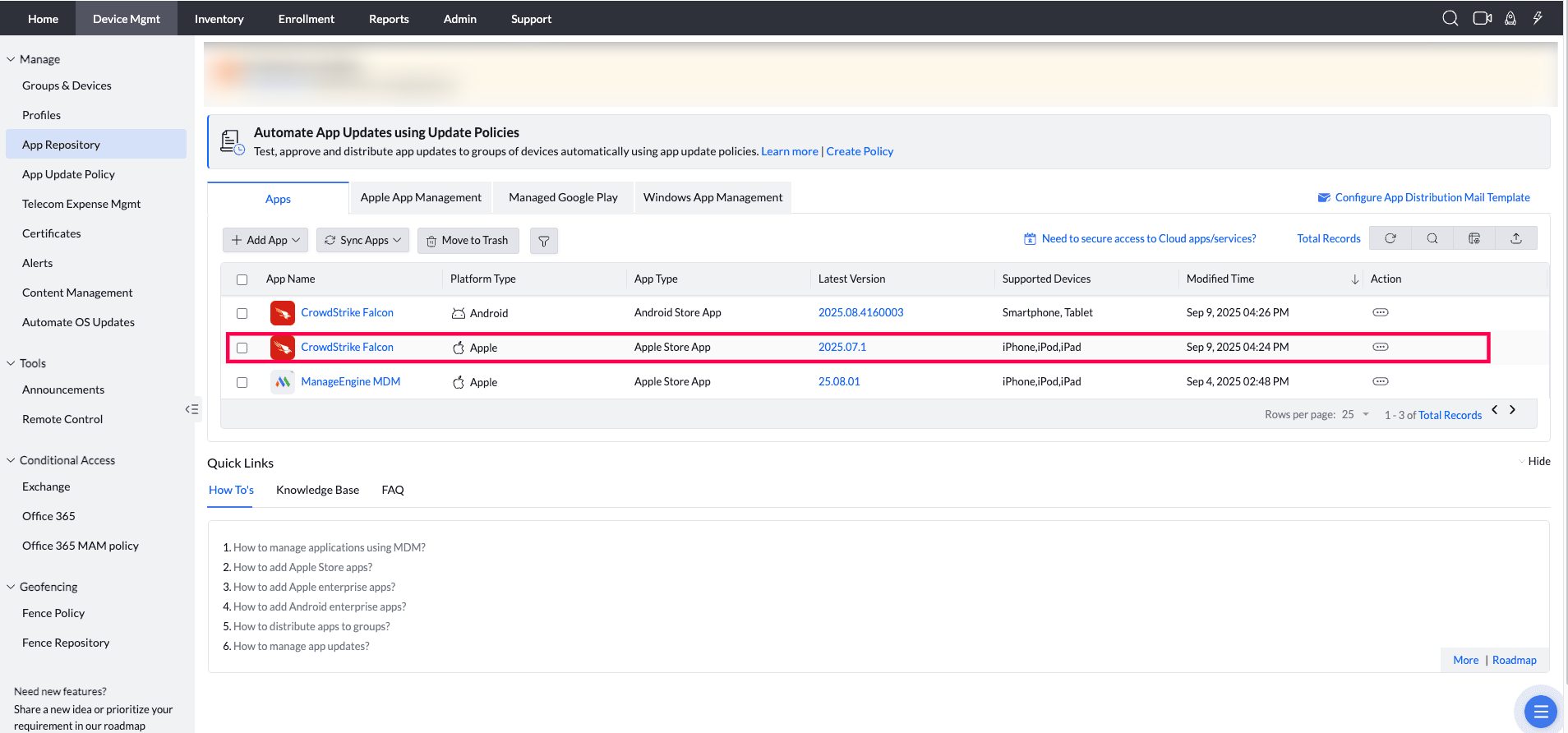
- On the MDM console, click on Device Mgmt->App Repository->+Add App->Apple Store App. Search for "CrowdStrike Falcon" app and add the app to the App Repository. For detailed information on Managing Apple Apps on MDM visit our Apple App Management guide.
- On the MDM Console, navigate to Device Mgmt->Profiles->+Create Profile->iOS/iPadOS profile. Provide a Profile name and description and click Continue.
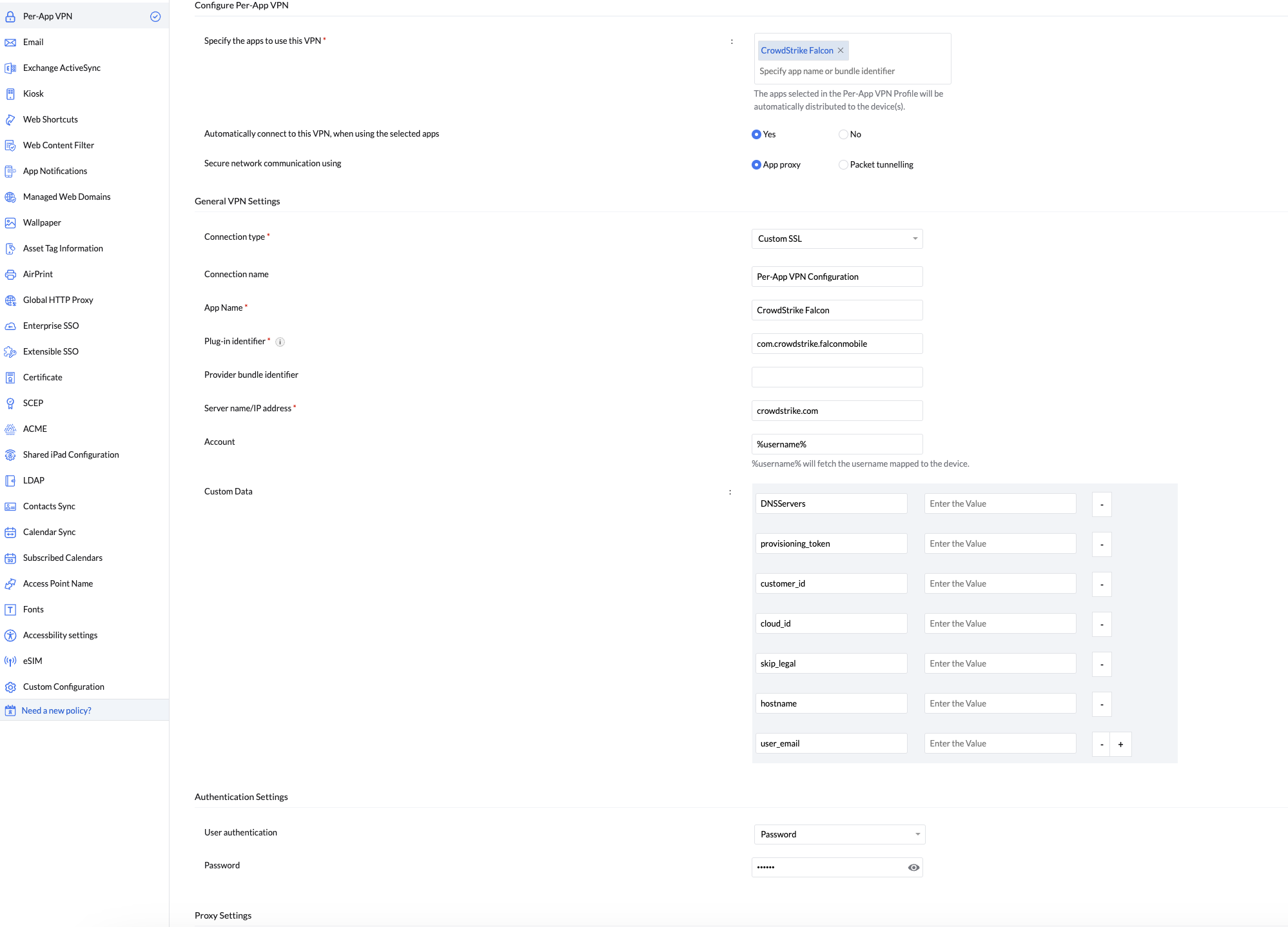
- Navigate to the Per-App VPN tab and provide the given details:
- Specify the Apps to use this VPN : CrowdStrike Falcon
- Automatically connect to this VPN, when using the selected app : Yes
- Secure network communication using : App Proxy
- Connection type : Custom SSL
- Connection name : Per-App VPN Configuration
- App Name : CrowdStrike Falcon
- Plugin Identifier : "com.crowdstrike.falconmobile"
- Server name/IP address : crowdstrike.com
- Account : %username%
- Provide the required custom data
- Choose the User Authentication type as "Password".
- Click on Save and Publish the Profile. Distribute this Profile to the targeted devices or the groups.
Web Content Filter
Web Content Filter is only for supervised iOS devices. Follow the below steps to create a Content Filter:
- On the MDM console, click on Device Mgmt->App Repository->+Add App->Apple Store App. Search for "CrowdStrike Falcon" app and add the app to the App Repository. For detailed information on Managing Apple Apps on MDM visit our Apple App Management guide.
- On the MDM Console, navigate to Device Mgmt->Profiles->+Create Profile->iOS/iPadOS profile. Provide a Profile name and description and click Continue.
- Navigate to the Web Content Filter tab and provide the given details:
- Filter Type: "Plug-in"
- Filter Name: CrowdStrike Falcon
- Plugin bundle id: "com.crowdstrike.falconmobile"
- Filter Socket" "Yes"
- Webkit: "NO
- Provide the Vendor Configuration Details such as Cloud_id, Customer_id, hostname, provisioning_token, skip_legal, user_email.
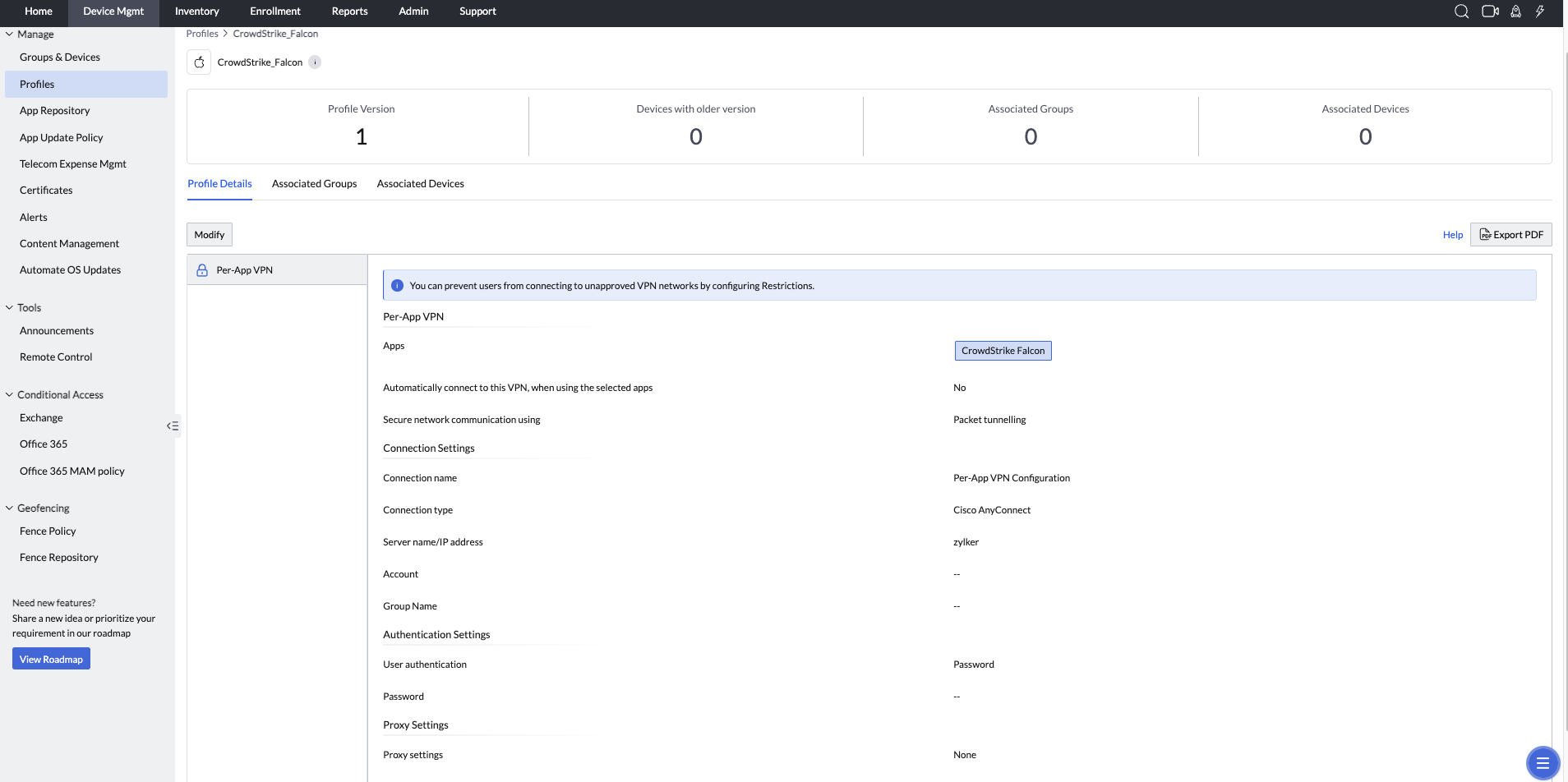
- Click on Save and Publish the Profile. Distribute this Profile to the targeted devices or the groups.
Notes: Falcon for Mobile does not support configuring both a Content Filter and a Per-App VPN on the same device. Enabling both simultaneously may lead to unexpected or undesirable behaviour.
Steps to configure CrowdStrike Falcon VPN for Android Devices
- On the MDM console, click on Device Mgmt->App Repository->+Add App->Android->PlayStore App.
- Search for "CrowdStrike Falcon" app and select the App. Click on Save and Sync.
- The App will be added to MDM App repository. Open the App and navigate to "Configurations" tab and provide the below shown details. Click on Save.
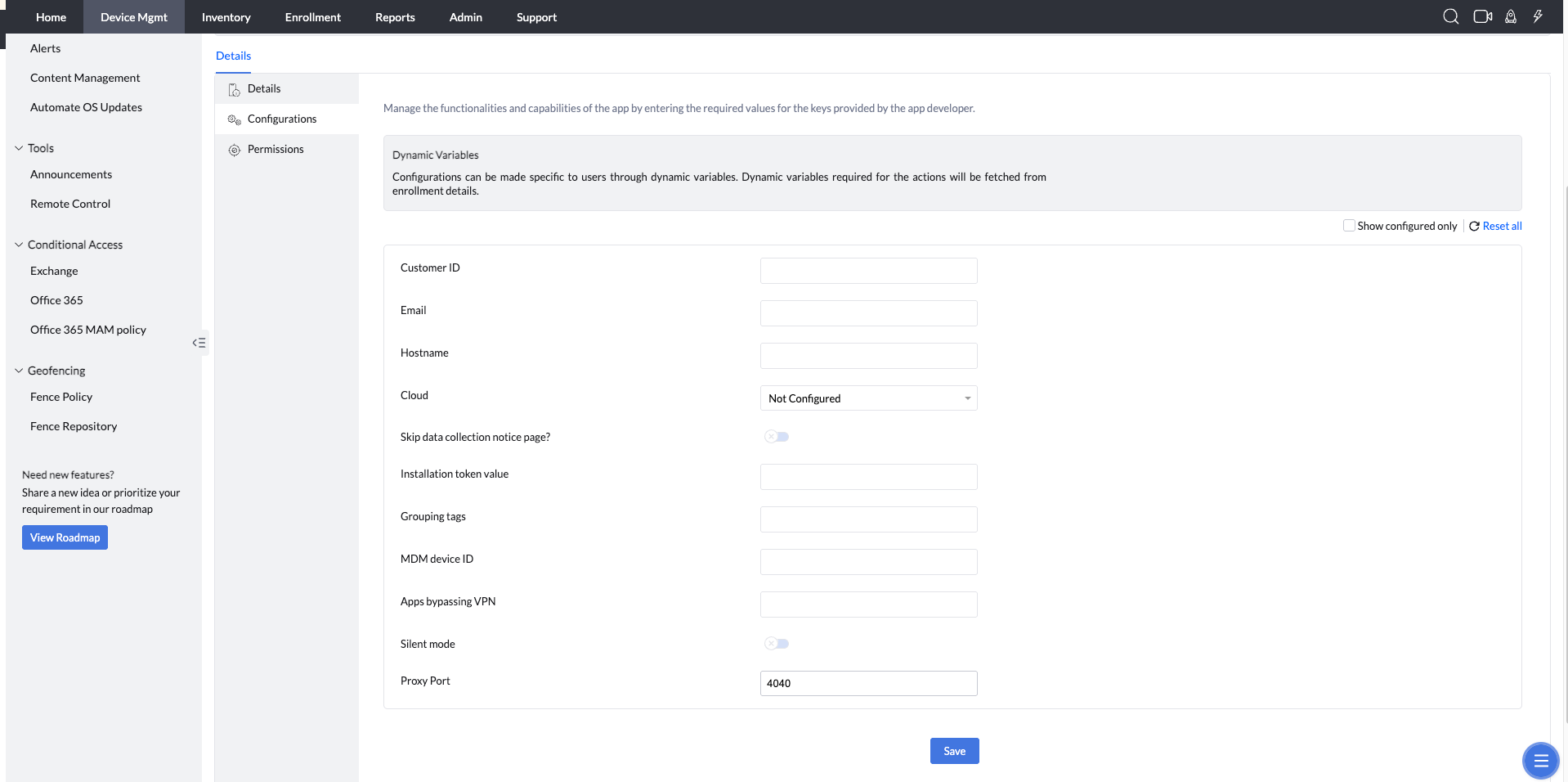
- Distribute the CrowdStrike Falcon apps to the targeted devices or groups. For detailed information on Managing Android Apps on MDM visit our Android App Management guide.
Frequently asked questions
Can I use both Per-App VPN and Web Content Filter for CrowdStrike Falcon at the same time?
No — Falcon for Mobile does not support configuring both a Content Filter and a Per-App VPN on the same device; enabling both simultaneously may cause unexpected or undesirable behavior.
Do my iOS devices need to be supervised to use CrowdStrike Falcon VPN?
Per-App VPN works on both supervised and unsupervised iOS devices, but Web Content Filter is only available for supervised iOS devices.
How do I configure CrowdStrike Falcon VPN on Android devices?
Add the CrowdStrike Falcon app from the Play Store to the App Repository, open its Configurations tab to set the VPN details, then distribute the app to the targeted devices or groups.
What security benefit does integrating CrowdStrike Falcon VPN with MDM provide?
It enforces Zero Trust access to company applications and data, protects remote and hybrid workforce traffic through encryption, and ensures only compliant, managed devices can connect to corporate resources.