Last updated: July 24, 2026
How to configure FortiClient VPN Setup for iOS/iPadOS through MDM
This guide explains how to configure FortiClient VPN on iOS/iPadOS devices through MDM, covering both app distribution and VPN profile setup for secure connectivity. After adding the FortiClient VPN app to the App Repository and distributing it to devices, admins create a Custom SSL VPN profile with the server address, plug-in identifier, and authentication details, then publish it to target devices. On the device, users select the pushed configuration in the FortiClient app and, if two-factor authentication is enabled, enter an OTP to connect.
Description
This guide provides step-by-step instructions to configure FortiClient VPN on iOS/iPadOS devices using Mobile Device Manager Plus (MDM). It covers both the app distribution process and the VPN profile setup, ensuring secure and seamless VPN connectivity for managed devices.
Requirements
- FortiClient VPN app available in the App Repository of MDM.
- iOS/iPadOS devices enrolled and managed through MDM.
- Proper VPN configuration details (Server name/IP, username, password, and port).
Steps to Configure FortiClient VPN in MDM Console:
Add FortiClient VPN App to MDM
- Navigate to MDM Admin Console > Device Management > Manage > App Repository.
- Search for 'FortiClient VPN'. Select the app and click Save.
App Details: Bundle Identifier: com.fortinet.forticlient.vpn
Distribute FortiClient VPN App to Devices
- Navigate to MDM Admin console> Device Management > Groups & Devices > Devices.
- Select the target device. Click on Action > Distribute Apps.
- Choose the FortiClient VPN app. Click Distribute to deploy the app to the selected device.
Create and Configure VPN Profile
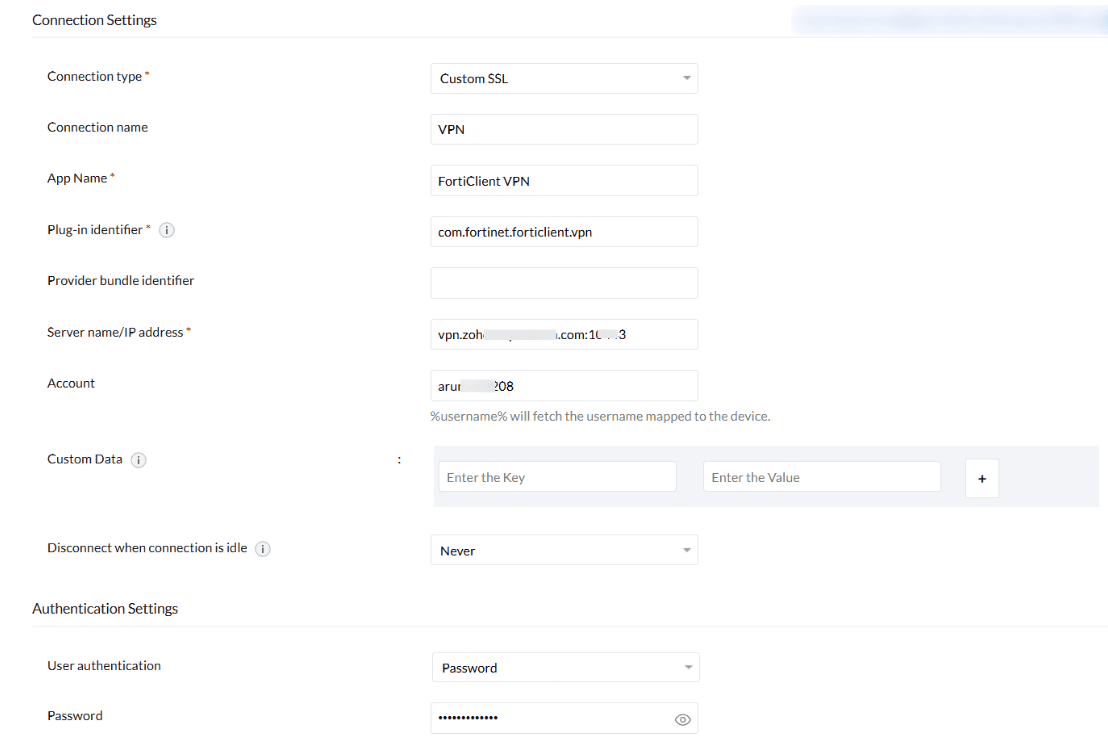
- Navigate to MDM > Device Management > Profiles > Create Profile > iOS/iPadOS Profiles > VPN.
- Configure the VPN settings as follows:
Connection Settings:- Connection Type: Custom SSL
- Connection Name: VPN
- App Name: FortiClient VPN
- Plug-in Identifier: com.fortinet.forticlient.vpn
- Server Name/IP Address: Enter the host name or IP address of the VPN server along with the port number.
- Account: Use the correct VPN configuration username. Use %username% to automatically map the user name to the device.
- User Authentication: Password
- Password: Enter the correct password for user authentication.
- Save, Publish, and Associate the profile with the target devices.
Configure the VPN on the iOS Device
After pushing the VPN profile, follow these steps on the device:
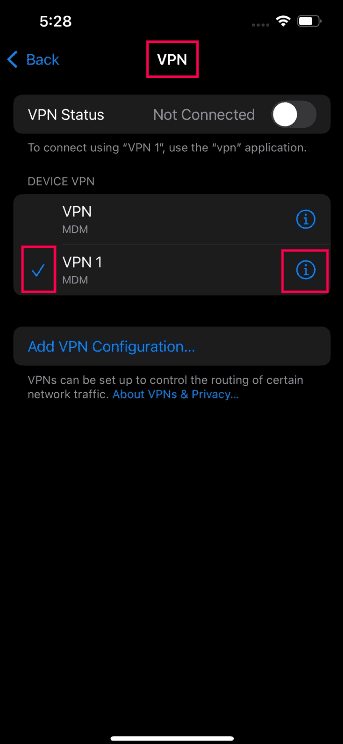
- On the iOS device, open the Settings app.
- Go to General > VPN & Device Management. Select VPN > Device VPN.
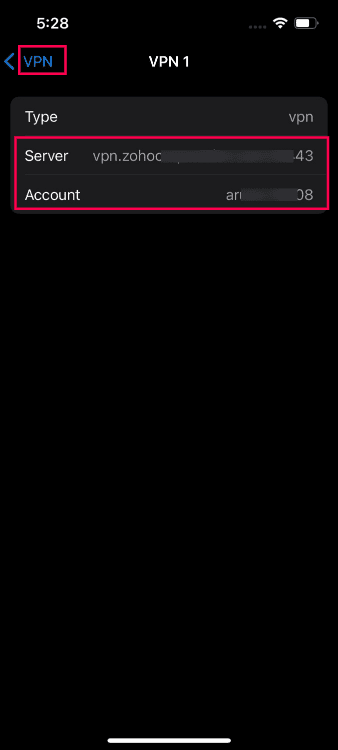
- Choose the VPN configuration that was pushed via MDM.
- Tap the 'i' button next to the VPN name to view the configuration.
Configure FortiClient VPN App on the Device
- Open the FortiClient VPN app on the iOS device.
- Select the connection and choose MDM VPN Gateway.
- Choose the configured connection from the Settings app.
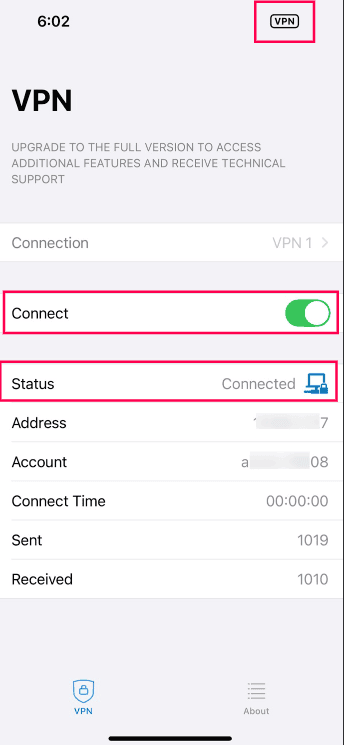
- Go back and toggle the connection to ON.
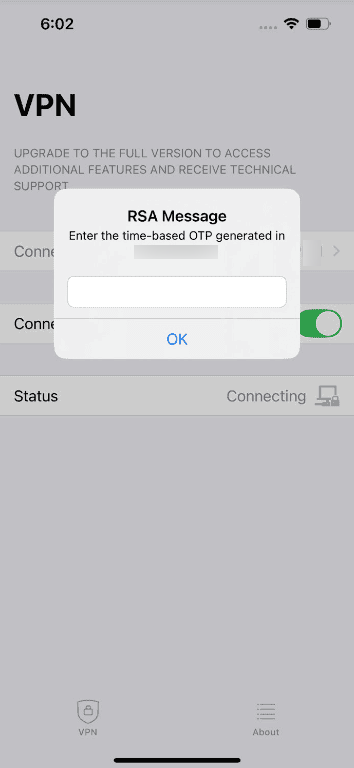
- If two-factor authentication (2FA) is enabled, you will be prompted for an OTP.
- Enter the OTP and click OK to establish the VPN connection.
Notes:
- Ensure the FortiClient VPN app is updated and working correctly on the device.
- If using two-factor authentication, verify the OTP is correctly entered during the connection process.
- Ensure the VPN profile on MDM is correctly associated with the target devices to avoid configuration errors.
Frequently asked questions
What do I need before setting up FortiClient VPN through MDM?
You need the FortiClient VPN app added to the MDM App Repository, iOS/iPadOS devices already enrolled and managed through MDM, and your VPN configuration details (server name/IP, username, password, and port).
How do I push the FortiClient VPN app and its configuration to devices?
Add and distribute the FortiClient VPN app from Device Management > App Repository, then create a Custom SSL VPN profile under Device Management > Profiles > iOS/iPadOS Profiles > VPN with the server address, plug-in identifier (com.fortinet.forticlient.vpn), and authentication details, and publish it to the target devices.
What does the user need to do on the device after the profile is pushed?
In the FortiClient VPN app, select the pushed VPN configuration, toggle the connection on, and if two-factor authentication is enabled, enter the OTP when prompted to connect.
Does this setup support both iOS and iPadOS?
Yes, this configuration is documented for both iOS and iPadOS devices managed through Mobile Device Manager Plus.