Last updated: July 24, 2026
How to attain Okta Device Attestation for iOS devices?
This guide explains how to enable Okta Device Attestation for iOS devices managed through Mobile Device Manager Plus, needed for Okta SSO extension provisioning and Okta Device Trust. Administrators add an iOS device platform in Okta to obtain a secret hint and org URL, insert these values into a provided XML configuration template, then upload that XML as a Managed App Configuration for the Okta Verify app in App Repository before distributing it to devices. Users complete attestation by adding their account to Okta Verify and signing in with their organization credentials.
Managed devices should be attested by Okta for provisioning SSO extension with Okta and Okta Device Trust. Attestation can be achieved for iOS devices by configuring a managed app with a management hint (shared secret) that is sent to the device through Mobile Device Manager Plus .
Overview
To ensure an iOS device is managed, Okta checks if it has a secret hint. To obtain the secret hint, the administrator or technician must first add Mobile Device Manager Plus to Okta and get the secret hint. Then this secret hint should be added to the MDM App configuration, and the app should be distributed to the managed device(s). Learn more about secret hint by visiting Okta's documentation on Managed app configurations for iOS devices.
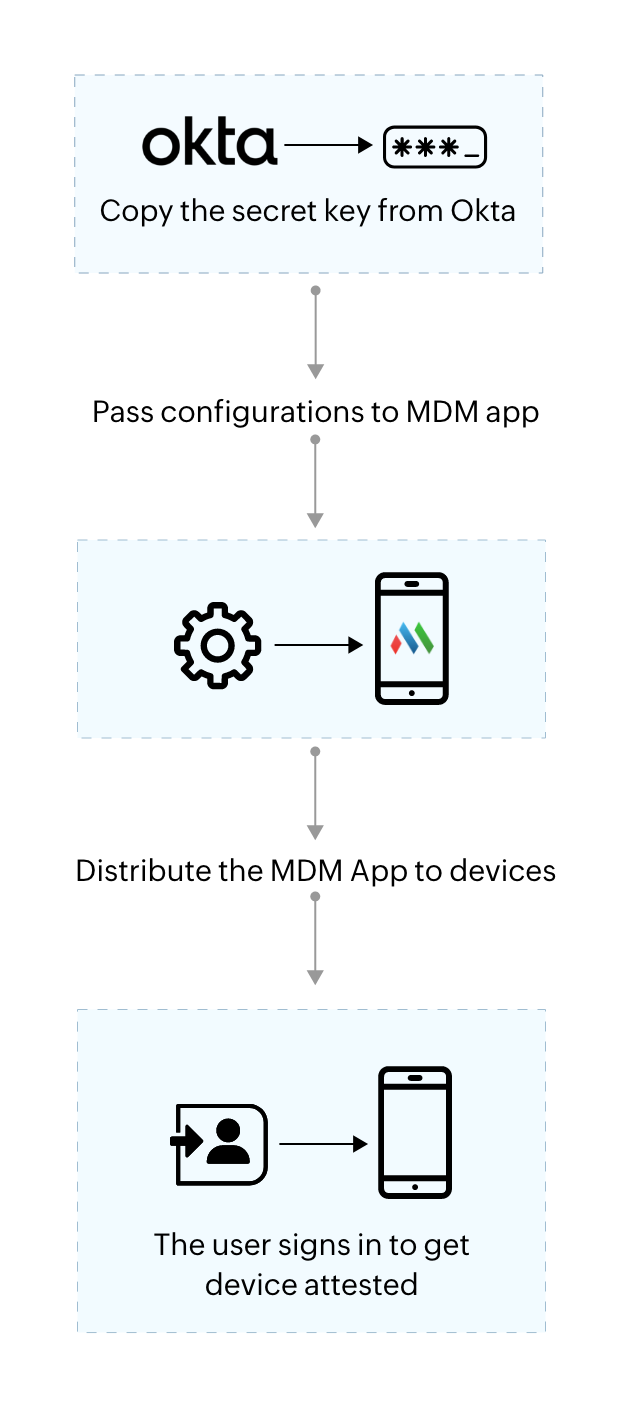
Follow the detailed steps specified below to configure Okta Device Trust for iOS devices
Step 1: Add Device Management Platform in Okta :
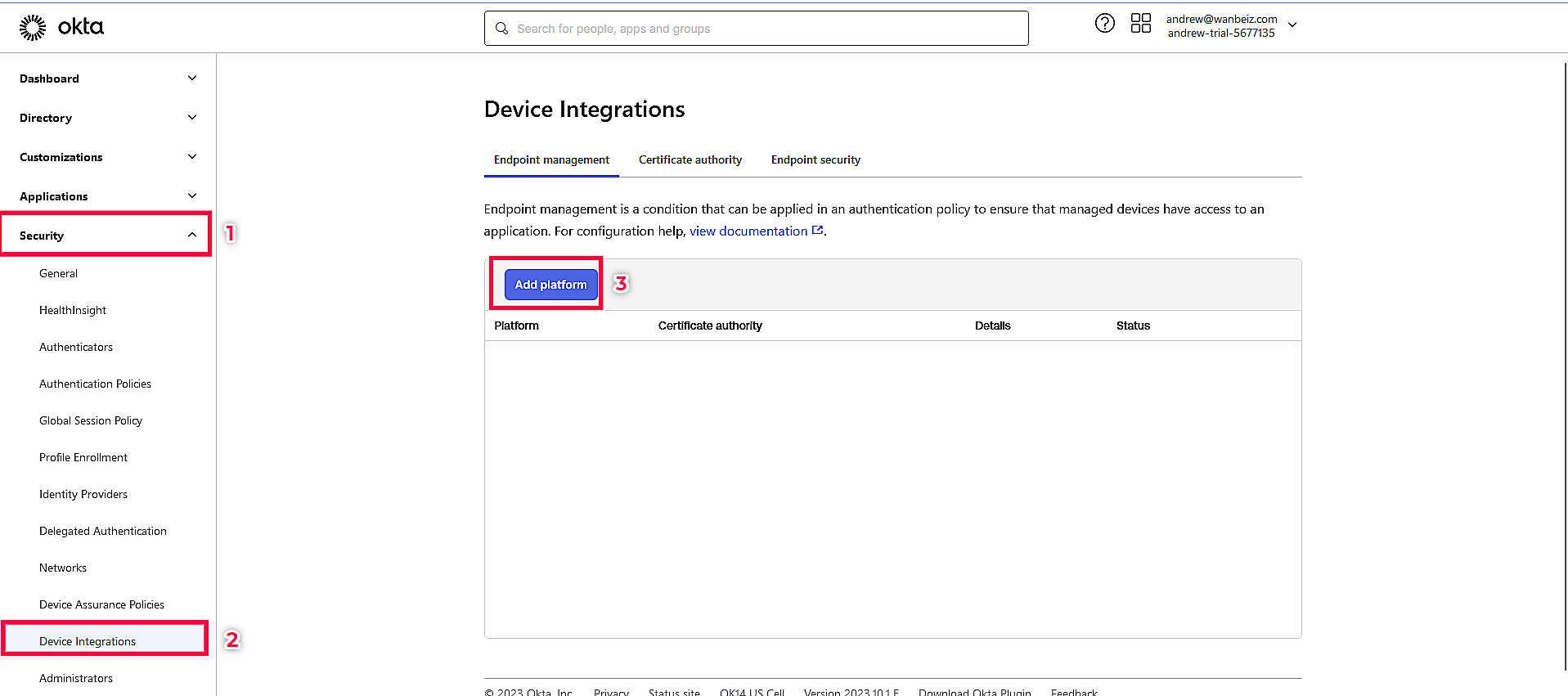
- Login to Okta portal, and under Security, go to Device Integrations and click on Add Platform.
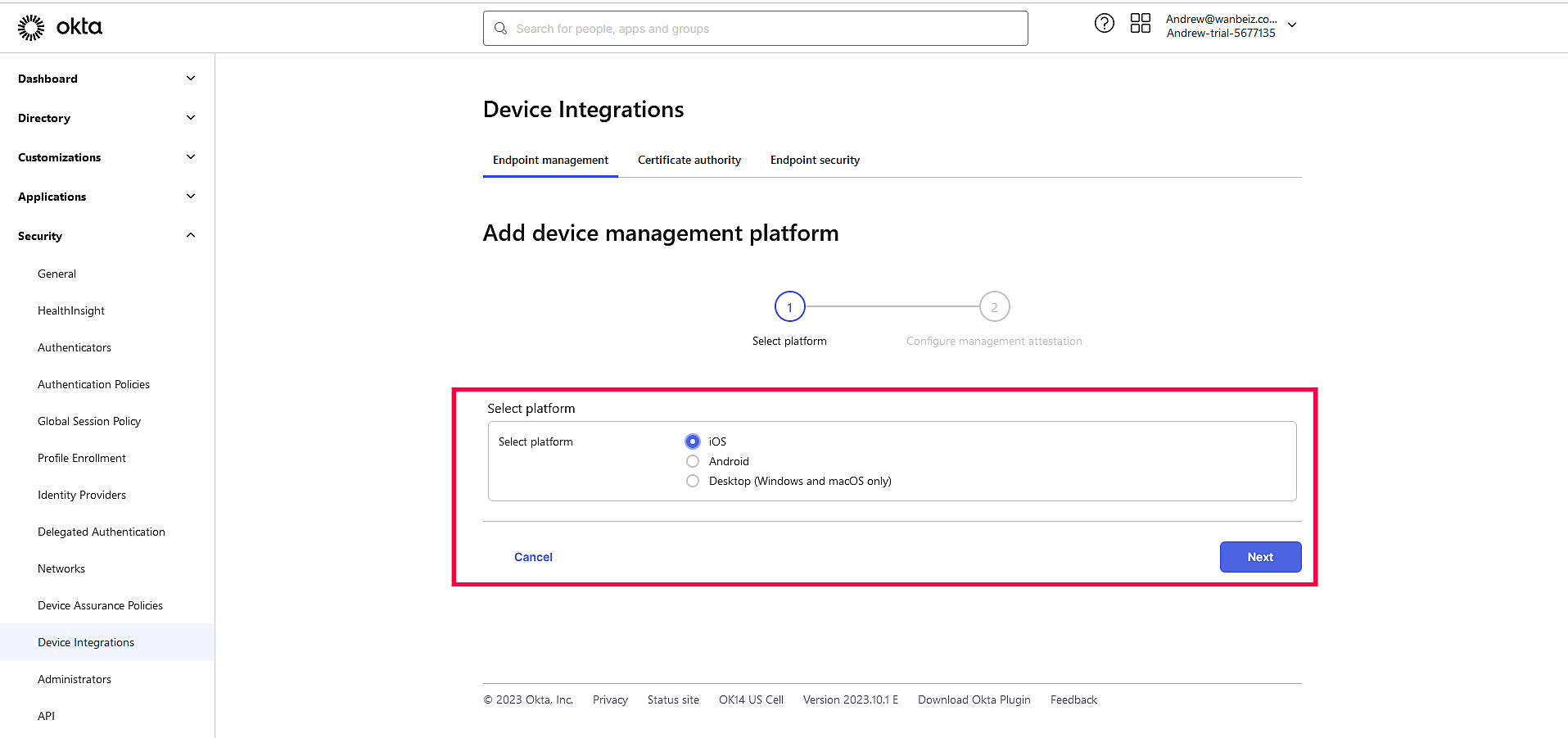
Okta > Security > Integrations > Add Platform - Then in the Device integrations choose the platform as iOS. After that click Next to proceed.
Step 2: Getting Secret Hint from Okta :
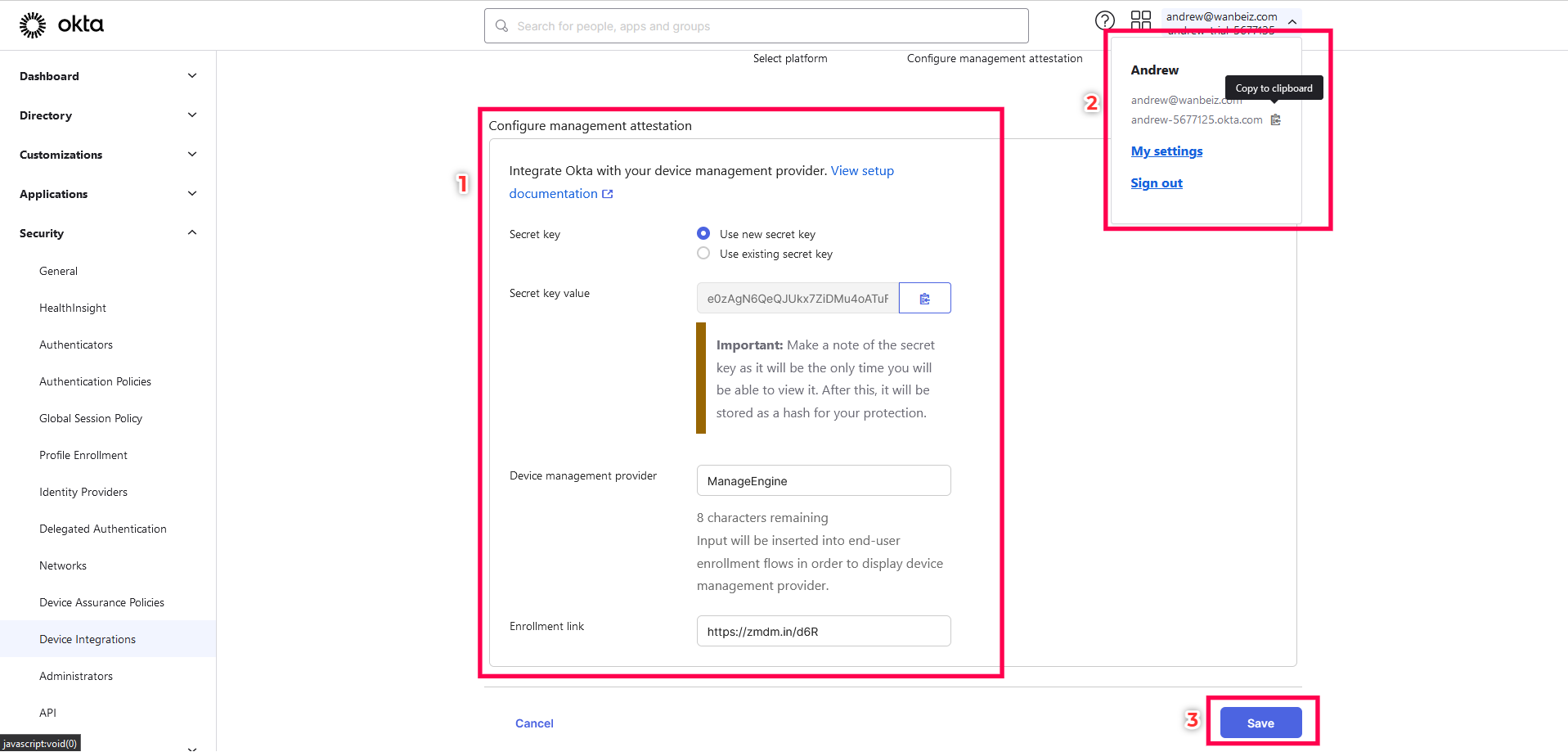
- Copy the Secret key and the organisation URL (from the top right corner of the Okta dashboard). Then specify ManageEngine as the name of your device management provider.
- For the enrollment link, add the self enrollment link from the MDM console and click Save. You can access the self enrollment link by navigating to the Enrollment tab under Enrollment > Self Enrollment .
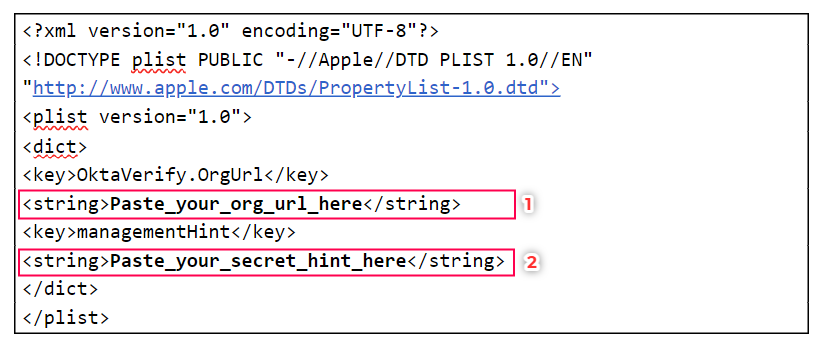
- Next an XML file should be configured to upload as app configurations.
- In the XML codes shown above, replace the Paste_your_org_url_here string with the Org URL copied from Okta , and replace the Paste_your_secret_hint_here string with the secret hint copied from Okta.
- Once the organisation URL and secret hint are pasted in the codes, save this configuration as an XML file.
Step 3:Distribute Okta Verify app to the devices :
The next step is to distribute the Okta Verify app to the devices. For iOS, the app can be added using ABM server tokens or using the App Store in the MDM App repository. For adding configuration to the app follow the steps below:
- In the MDM console,go to the App Repository by navigating to Device Mgmt > App Repository.
- Select and choose the Okta Verify App.
- Then choose Configurations and upload the XML file.
- Click Save and then distribute the app to all the devices you want to bring under management.
- For successful device attestation, the user should add their account to Okta Verify and then sign up at least once with their organisation credentials.

Frequently asked questions
Why is Okta Device Attestation required for iOS devices?
It's needed for provisioning the SSO extension with Okta and for Okta Device Trust — Okta checks that a managed app on the device carries a management hint (shared secret) sent through Mobile Device Manager Plus.
How do I generate the secret hint for iOS attestation?
In Okta, go to Security > Device Integrations > Add Platform and choose iOS, then copy the Secret key and organization URL from the Okta dashboard.
What do I do with the secret hint and org URL once I have them?
Paste them into the provided XML configuration template in place of the Paste_your_org_url_here and Paste_your_secret_hint_here placeholders, save the file, then upload it as the Managed App Configuration for the Okta Verify app in App Repository.
How does a user complete attestation on their iOS device?
They add their account to Okta Verify and sign in at least once with their organization credentials after the app and its configuration are distributed.