Last updated: July 24, 2026
How to reset MDM server (On-Premises) password?
If MDM uses Active Directory authentication, resetting the AD credentials resets the console password too. For local authentication, an admin can trigger a password reset email (valid 24 hours) from Global Settings, a logged-in user can reset via Personalize, and a locked-out user can use Forget Password. If the console itself is inaccessible, stopping the server and running resetPassword.bat (or Executequery.bat resetPWD.xml on older builds) resets or displays a new password from the command line.
Description
This document explains the steps to reset the MDM login console's password, incase of forgotten password, periodic password reset etc.
Steps
If authentication type is Active Directory
In such cases, you can reset the credentials associated with the particular user on your Active Directory, which implicitly resets the credentials for the MDM server.
If authentication type is Local authentication
Reset passcode for technician, using Admin credentials (can access MDM server)
- Login to MDM server, using your admin credentials.
- Click on Admin tab from the top menu and select Global Settings, present under User Administration.
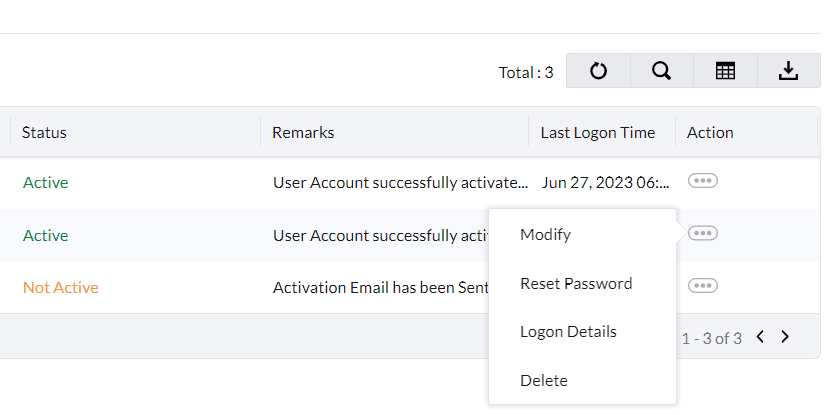
- Click on the ellipsis icon under Actions, present against the user, whose password is to be reset and select Reset Password, from the dropdown.
- A mail with password reset link will be sent to user's specified mail address. This reset link expires in 24 hours.
Reset passcode(If the user is logged in)
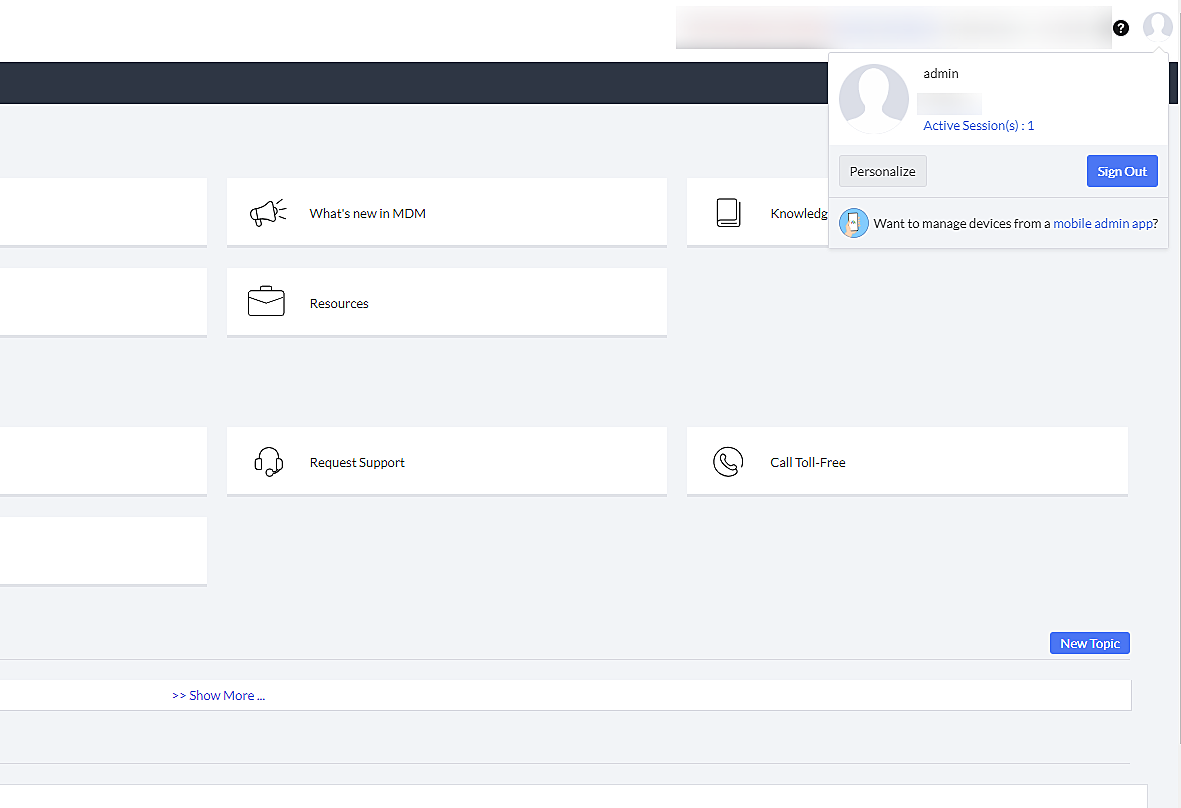
- Click on the account icon in the top right corner and select the Personalize option.
- You can reset the password on the following page.
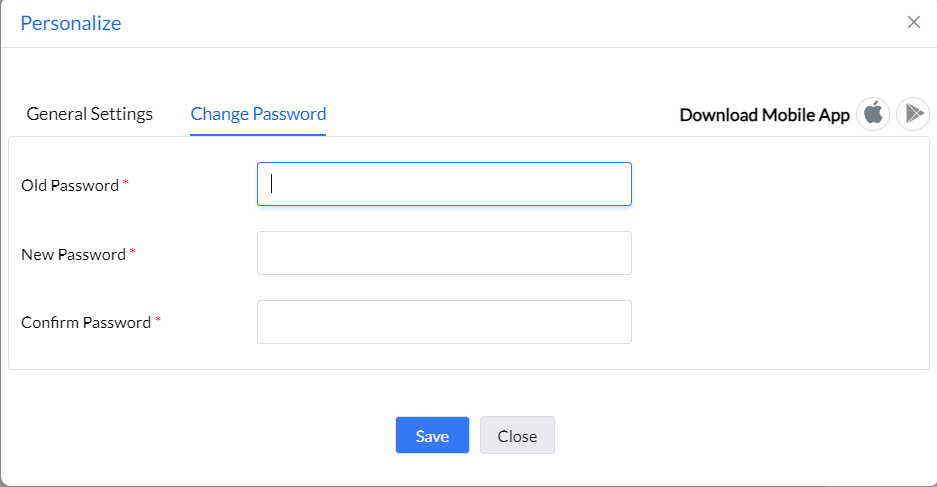
After setting the password, user can login to the console with the new password.
Reset passcode(Incase of forget password)
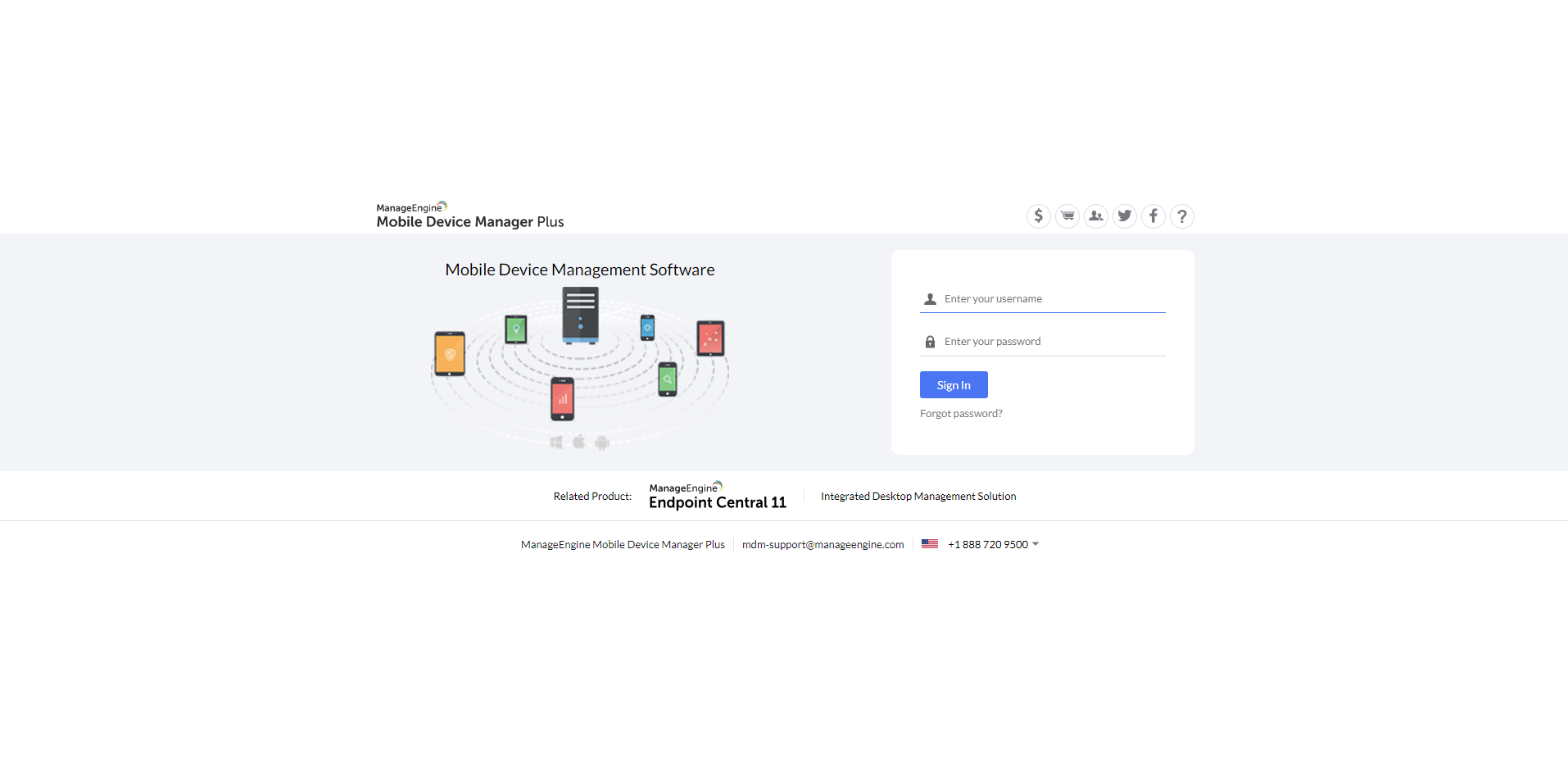
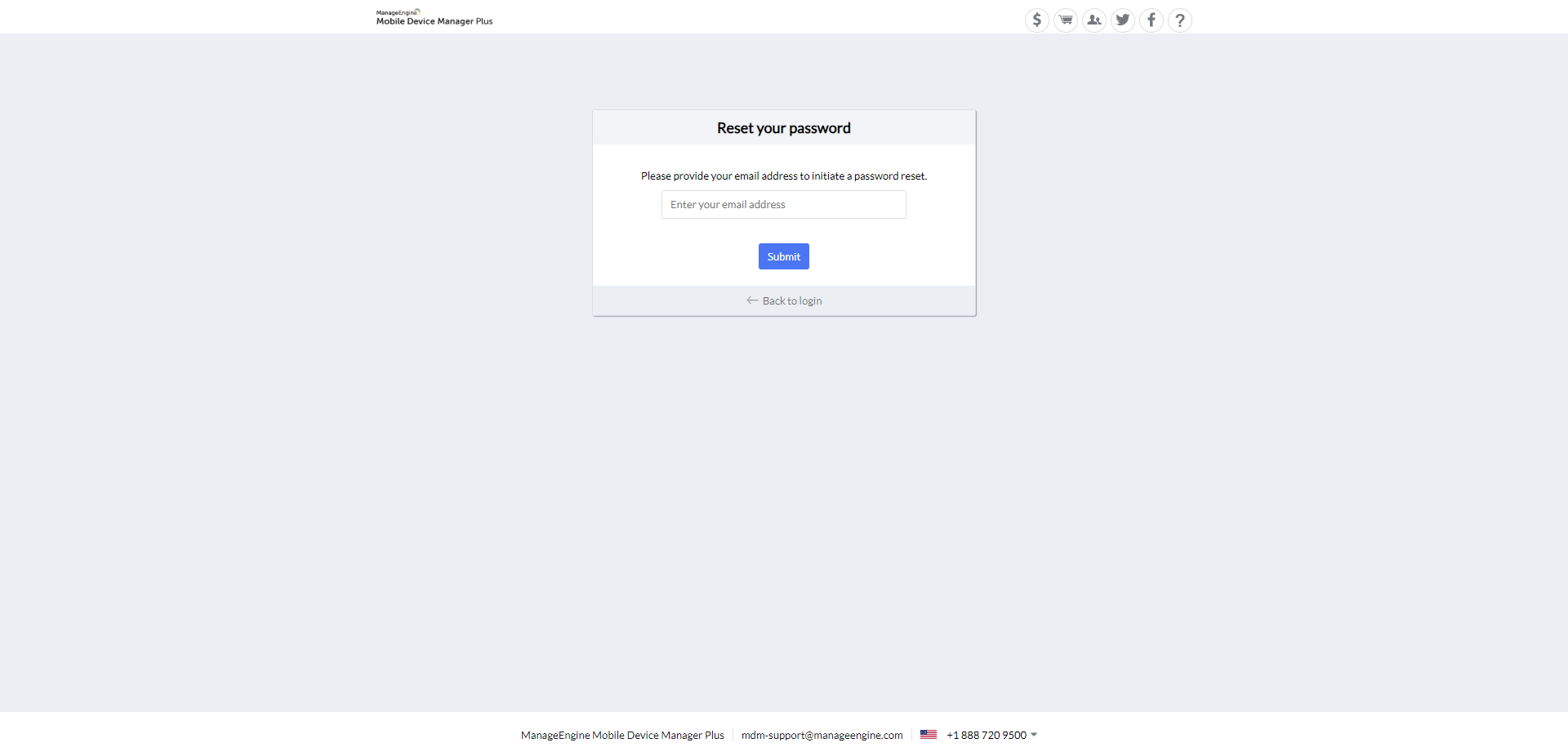
- Users who have forgotten the password while logging to the console, they can use the Forget password option.
- On clicking Forget Password, the below page appears. Enter your email address and a password activation link will be sent to that email address. The password activation link expires in 24 hours.
Reset passcode using commands (cannot access MDM server)
- On the machine where your MDM server is installed/running, open Services.msc, select ManageEngine Mobile Device Manager Plus and stop the service.
- Once stopped, navigate to <Install_Dir>\MDMServer\bin and open command prompt.
- If your MDM server build number is less than 92234,
- Execute the command Executequery.bat resetPWD.xml to reset the password to default credentials(admin/admin).
- You can also update to the latest build here.
- If your MDM server build number is 92234 or higher,
- Execute the command resetPassword.bat.
- This command will display the following options.
- Show all users: list all users.
- Change password: allows you to change the password for desired user.
- Exit: exits the command.
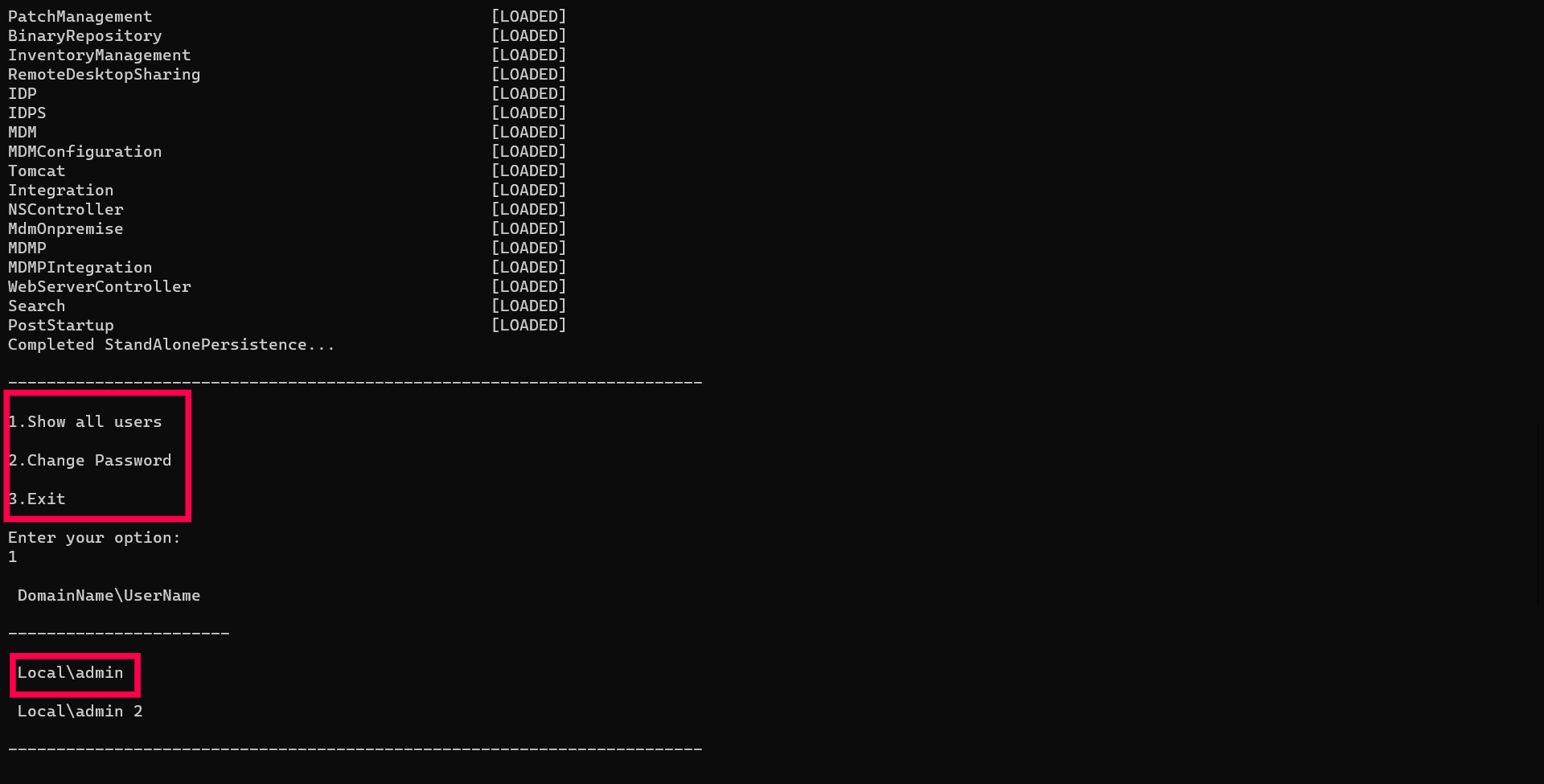
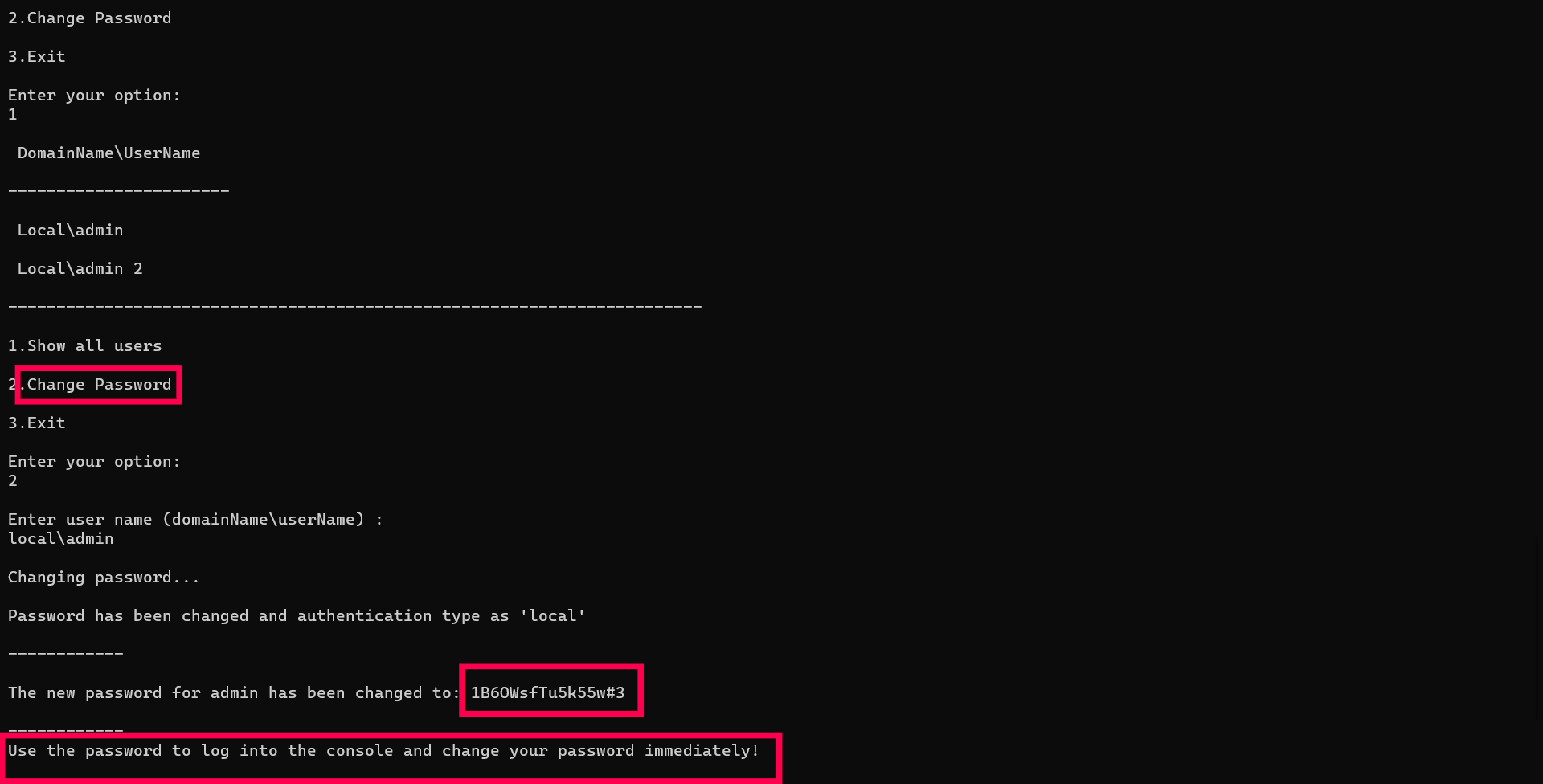
- Choose option 2 to reset password. Specify the username of the user whose password has to be reset.
- A randomly generated password will be displayed. Copy the password and login in the MDM console with the password.
- Start Mobile Device Manager Plus service from Services.msc.
- On the MDM console, click on Admin -> User administration.
- Select the user and click on Actions -> Change Password
- Set the New Password and click on Change.
Thus you have reset your MDM console login password successfully.
Frequently asked questions
How do I reset the MDM console password if I use Active Directory authentication?
Reset the user's credentials directly in Active Directory - this implicitly resets the credentials used to log in to the MDM server.
What if I can't log in to the MDM console at all to reset the password?
Stop the ManageEngine Mobile Device Manager Plus service from Services.msc, open a command prompt in <Install_Dir>\MDMServer\bin, and run resetPassword.bat (build 92234 or higher) or Executequery.bat resetPWD.xml (builds below 92234, which resets the password to the default admin/admin credentials).