Last updated: July 24, 2026
Updating Firmware on Zebra Devices Using MDM
This guide explains how to update firmware on Zebra Android devices using MDM. The firmware file must be downloaded and verified, devices connected to the network with the Self Service app deployed, and OS 10 devices also need the Zebra OEM App available. Administrators create a Custom Firmware policy under Device Management > Automate OS Updates, upload the firmware file, and apply it to target devices, which download, transfer, and install it, rebooting automatically to complete the update.
This guide provides step-by-step instructions for updating firmware on Zebra devices using MDM. The process varies based on the device’s OS version (10 and below vs. 11 and above). Firmware updates ensure security patches, bug fixes, and feature enhancements while maintaining device compliance.
Prerequisites
- Firmware file is downloaded and verified.
- Zebra devices are connected to the network.
- ManageEngine MDM Self Service app (previously ManageEngine MDM app) is deployed on target devices.
- For OS 10 and below, the Zebra OEM App should be available on the MDM console->App repository.
Steps to follow on MDM Console:
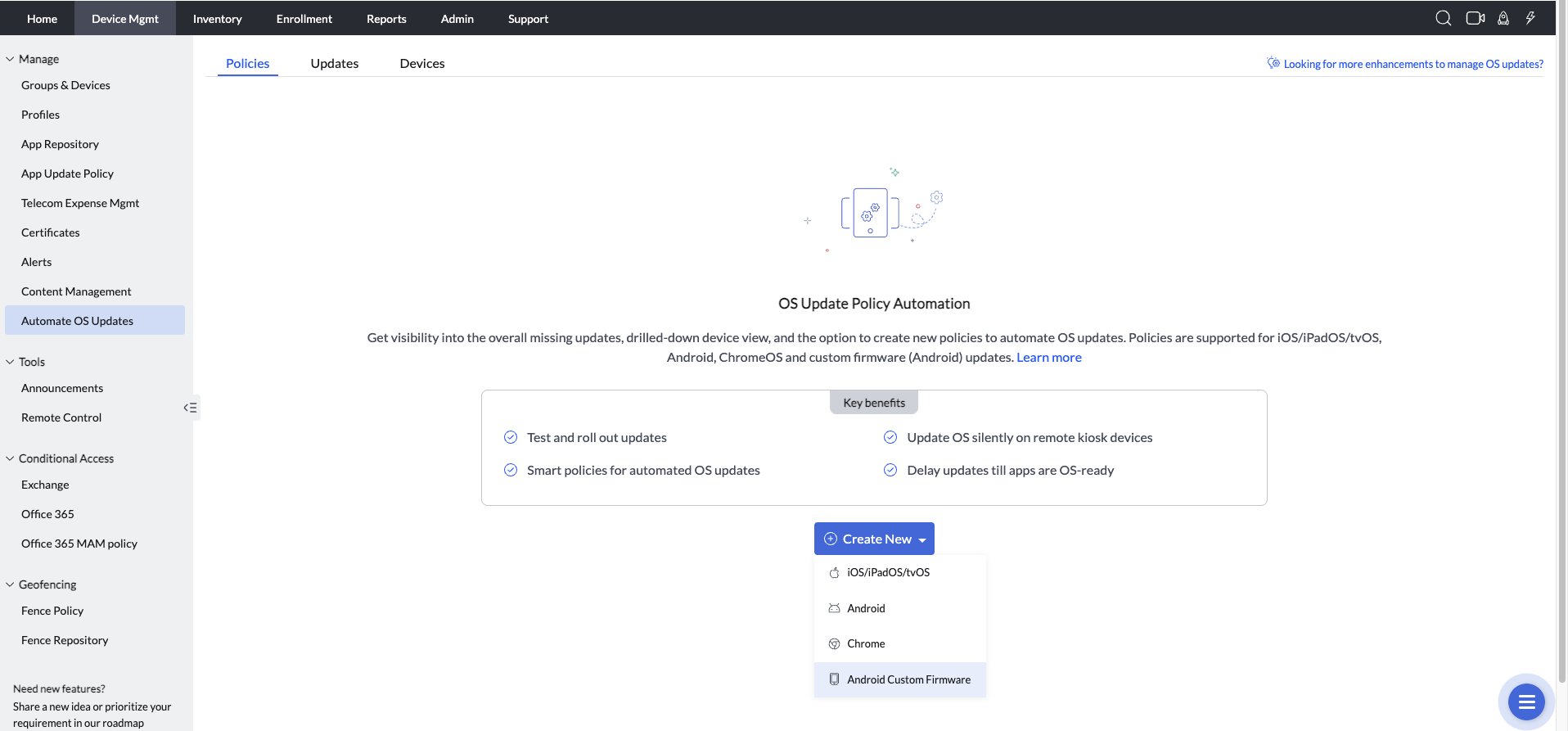
- To create and apply a firmware policy, on the MDM console navigate to Device Management > Automate OS Updates->select Create Policy->Android Custom Firmware.
Note: For OS 10 & Below Devices: Distribute the Zebra OEM App, if it is not present.
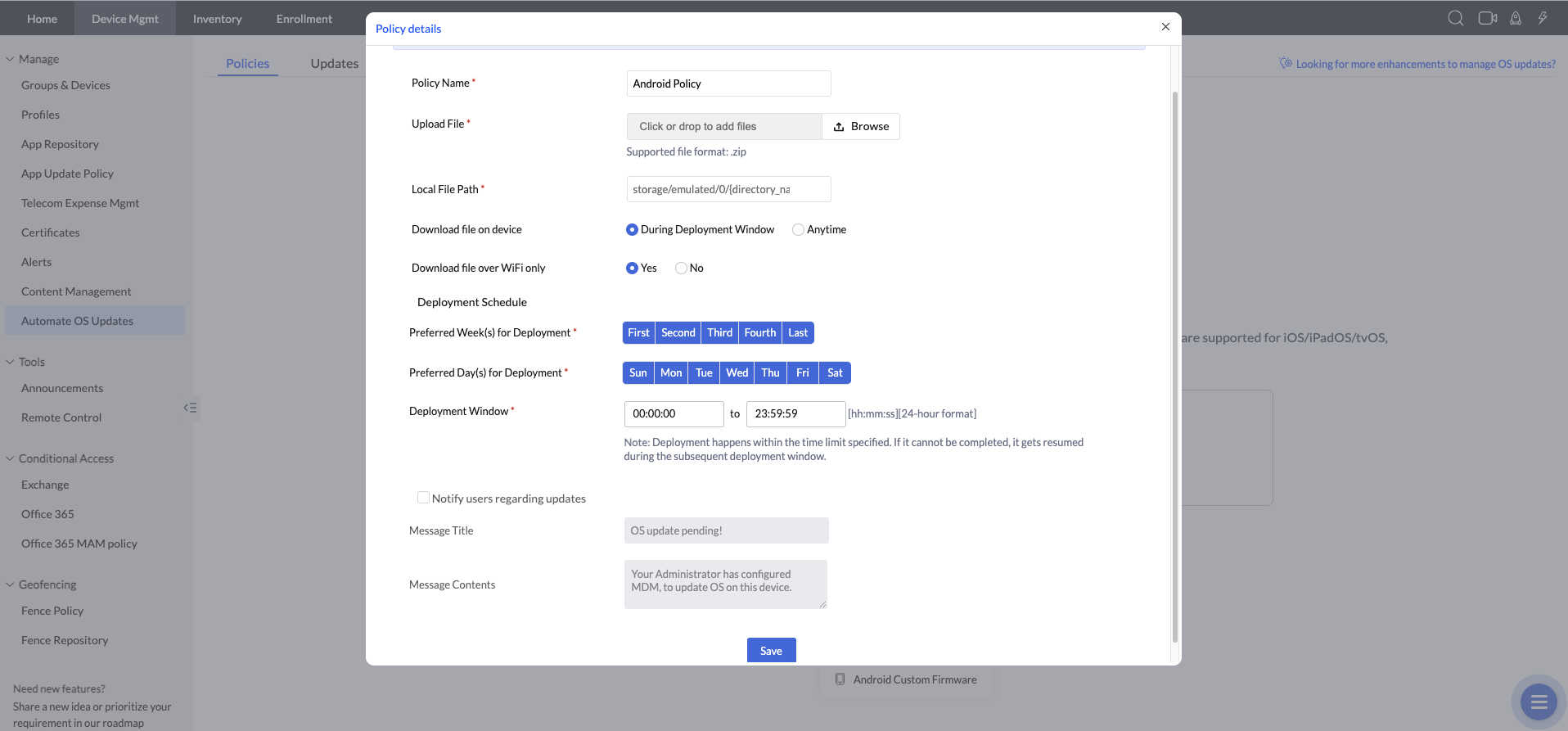
- Upload the firmware file. Provide the local path as *storage/emulated/0/Download*.
Note: For OS 11 and above the local file path will be ignored and the file is stored in the Self Service app (previously ME MDM app)’s internal storage instead.
- After saving the policy, associate it with the desired device or group to deploy the update.
Steps to follow on the Device:
- The Self Service app (previously ME MDM app) downloads the firmware file to the device. You can monitor the download progress via device notifications.
- For devices running OS 11 and above, the firmware saves to the Self Service app (previously ME MDM app)’s internal storage.
- For OS 10 and below, it saves to the server-specified location.
- Then, the device transfers the firmware file from the Self Service app (previously ME MDM app)’s storage (or downloaded location) to the Android OS update partition. This may take longer for large files.
- Once the transfer completes, the device reboots automatically to finalise the update.
Frequently asked questions
What do I need before updating firmware on Zebra devices through MDM?
You need the firmware file downloaded and verified, the Zebra devices connected to the network with the Self Service app deployed on them, and, for devices running OS 10 and below, the Zebra OEM App available in the MDM console's App repository.
How do I push a firmware update to Zebra devices?
On the MDM console, go to Device Management > Automate OS Updates > Create Policy > Android Custom Firmware, upload the firmware file, then associate the saved policy with the target device or group.
Where is the firmware file stored on the device during the update, and does that differ by OS version?
Yes. On devices running OS 11 and above, the local file path is ignored and the firmware is stored in the Self Service app (previously ME MDM app)'s internal storage instead; on OS 10 and below, it's saved to the server-specified location you provided when uploading the file.
Does the device restart automatically after the firmware update?
Yes. After the Self Service app transfers the firmware file to the Android OS update partition, the device reboots automatically to complete the update, which may take longer for larger firmware files.