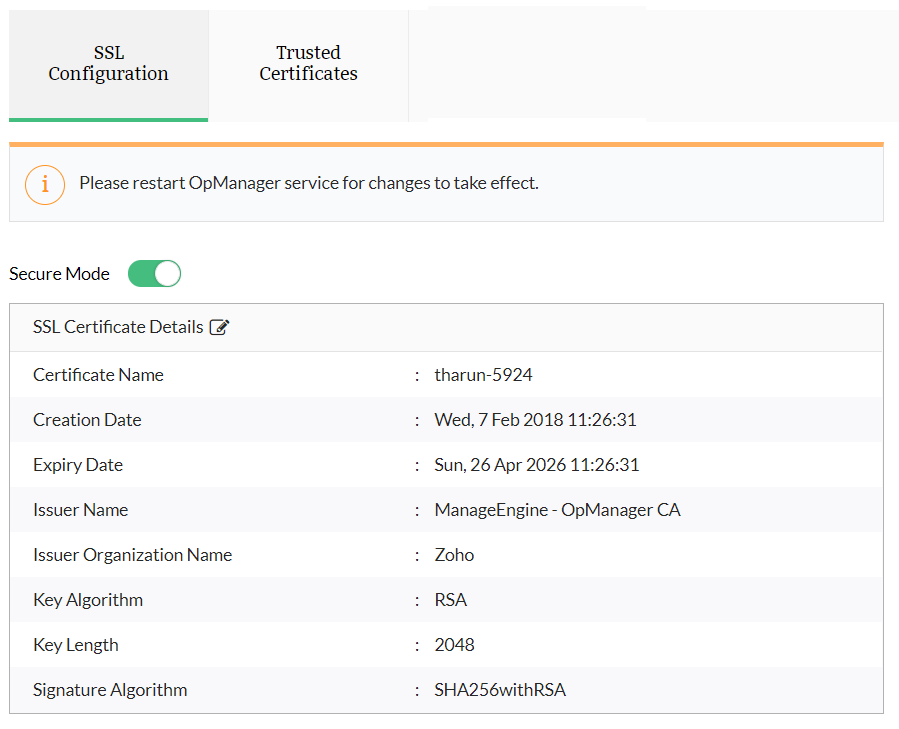
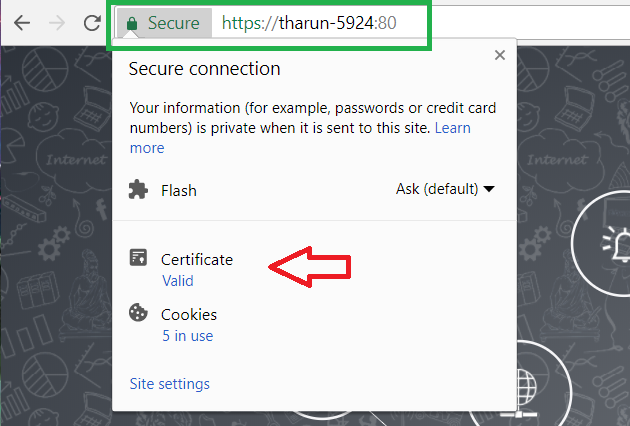
Enabling HTTPS Configuration
Steps to enable HTTPS in NCM: (for version 123181 and above)
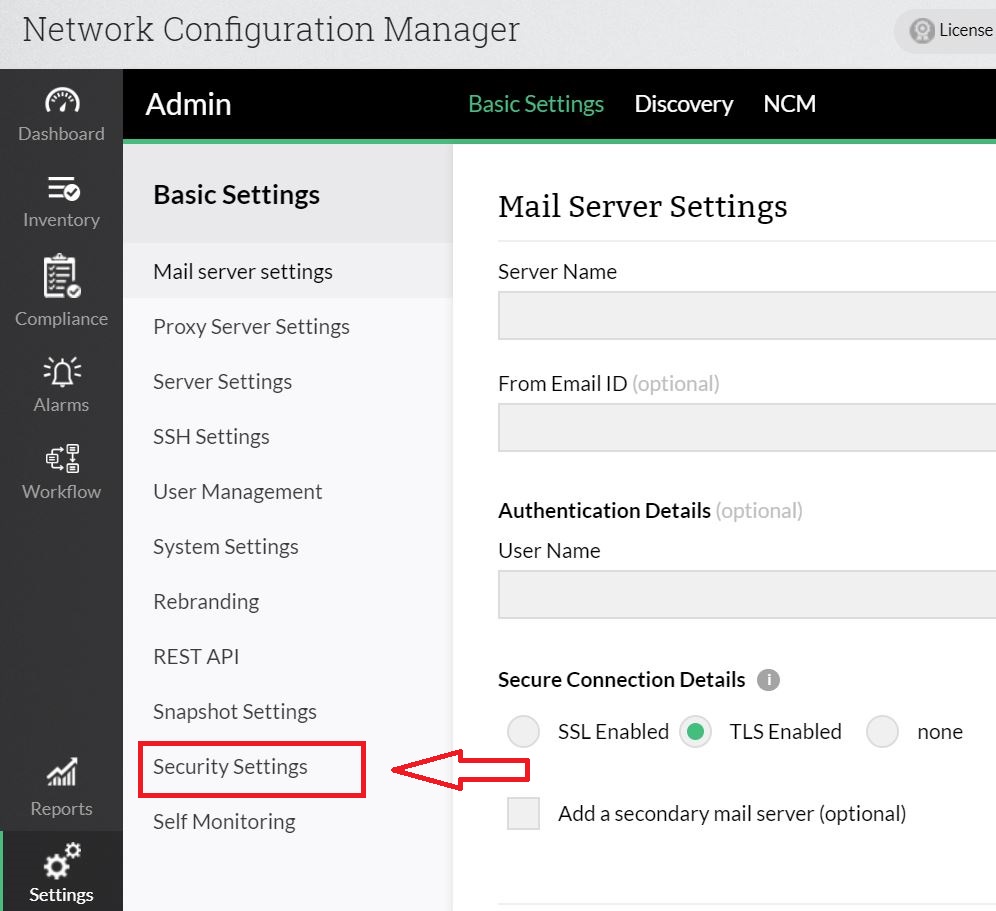
1) Go to Settings -> General Settings -> Security Settings
2) Enable the "Secure Mode" button.
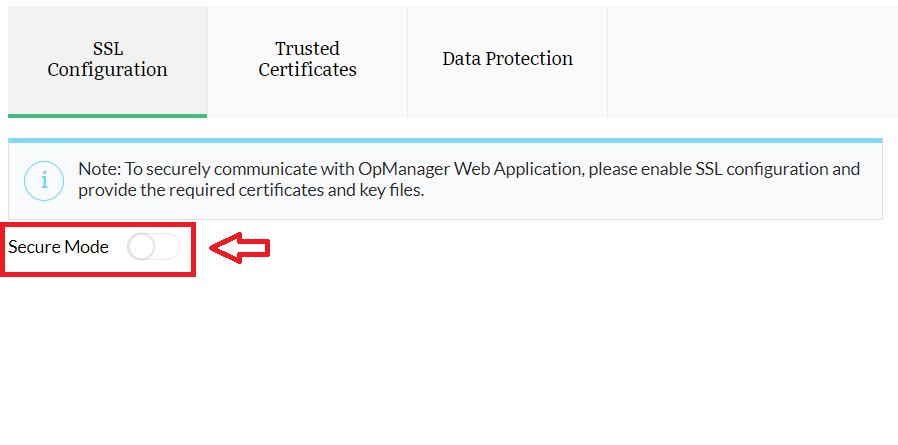
3) Once the button is enabled, you will be prompted to choose from three options, namely:
- Generate a CSR
- Self-signed Certificate
- Import Certificate
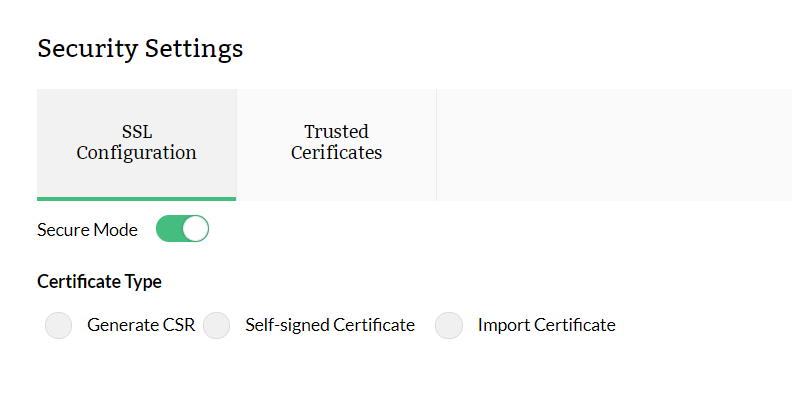
4) Generate CSR
This option helps you generate a Certificate Signing Request (CSR). A CSR or Certificate Signing request is a block of encoded text that is given to a Certificate Authority when applying for an SSL Certificate. It is usually generated on the server where the certificate will be installed and contains information that will be included in the certificate such as the organization name, common name (domain name), locality, and country. It also contains the public key that will be included in the certificate. A private key is usually created at the same time that you create the CSR, making a key pair. A CSR is generally encoded using ASN.1 according to the PKCS #10 specification.
A certificate authority will use a CSR to create your SSL certificate, but it does not need your private key. You need to keep your private key secret. The certificate created with a particular CSR will only work with the private key that was generated by it. So if you lose the private key, the certificate will no longer work.
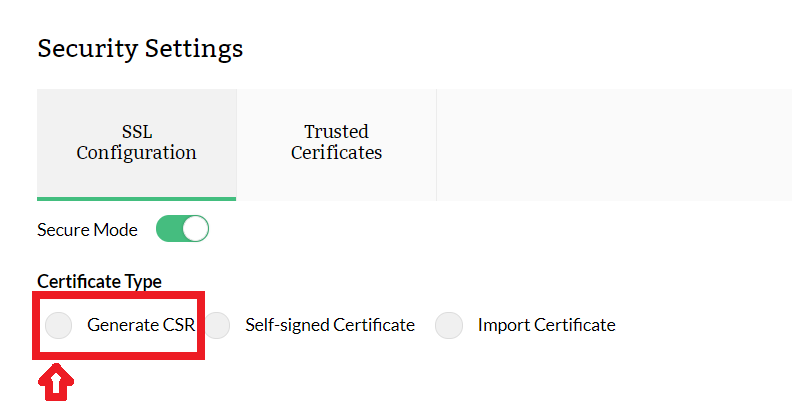
5) Once you click on the Generate CSR, you will have to fill out a few information for the certificate you want to create for use in NCM Server.
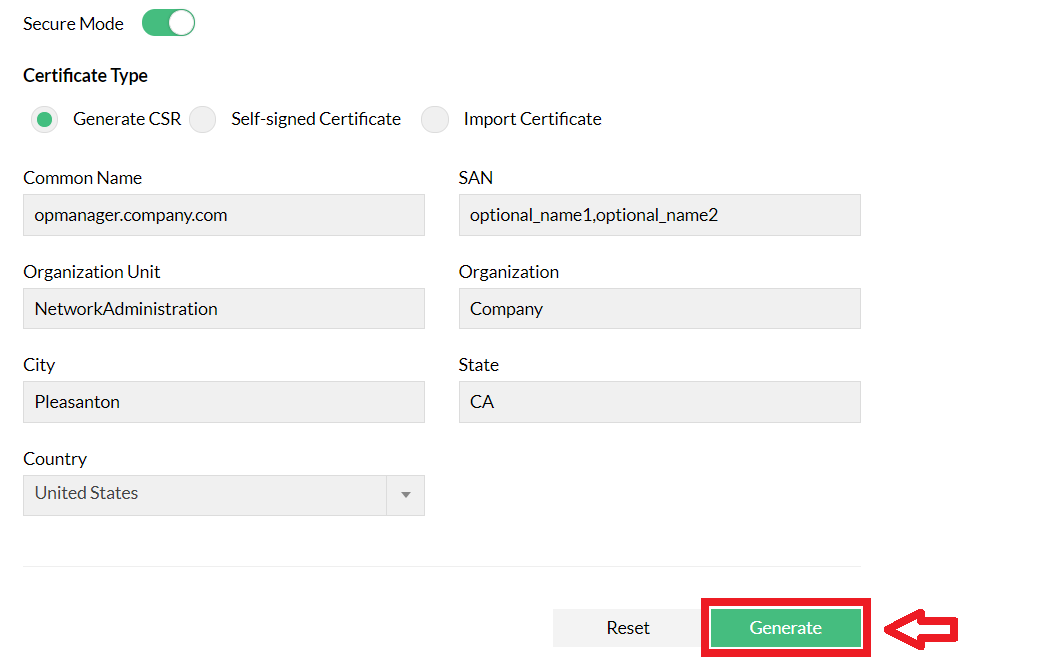
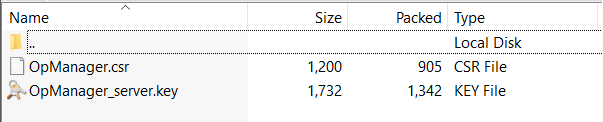
After getting signed by the CA, you will get a certificate file which you can import into NCM using the Import Certificate option discussed below.
Self-Signed Certificate:
This option lets you enable SSL in NCM with a self-generated and self-signed certificate. This certificate is safe to use and is equally secure. But browsers may display them as untrusted since it is not signed by a Valid CA (Certificate Authority).
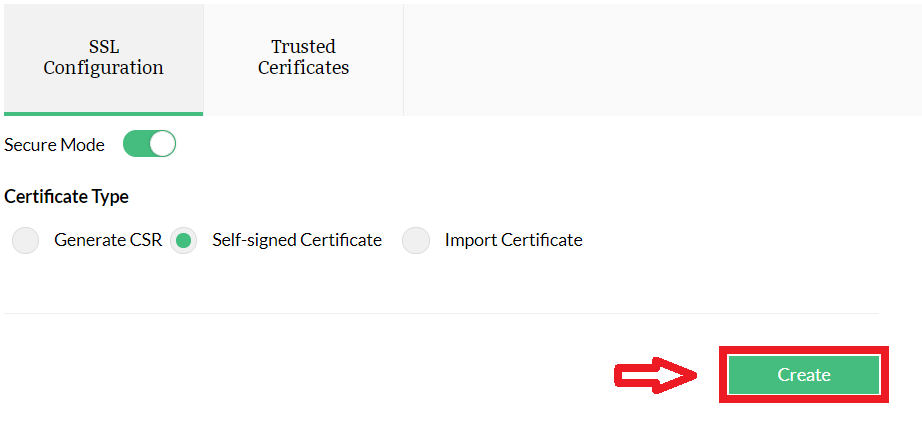
You will be prompted to restart NCM server for the changes to take effect.
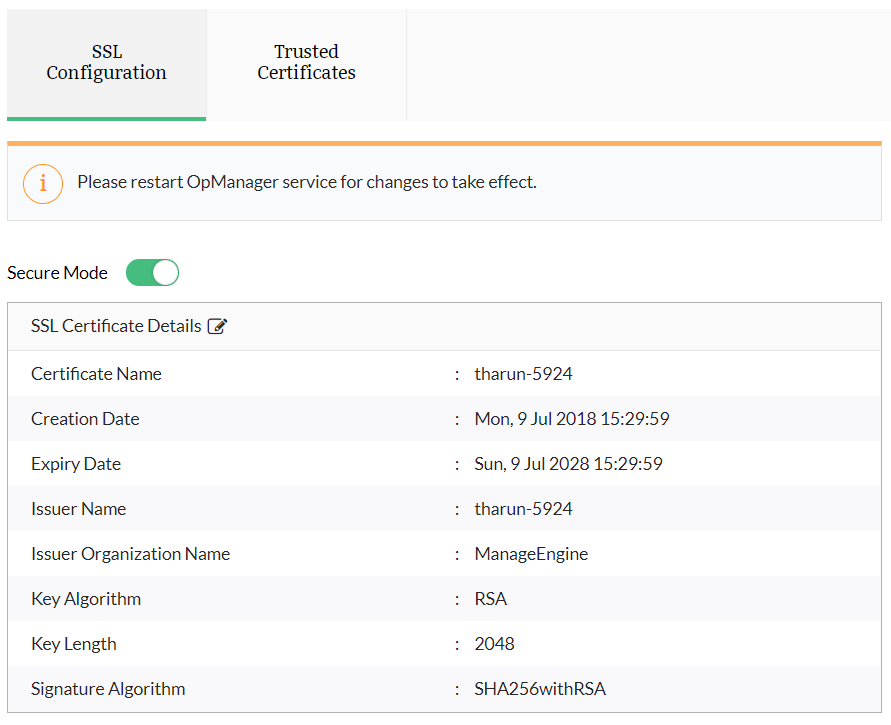
Import Certificate:
Use this option if you already have a valid certificate and key files (or) a keystore or a PFX file with the certificate.
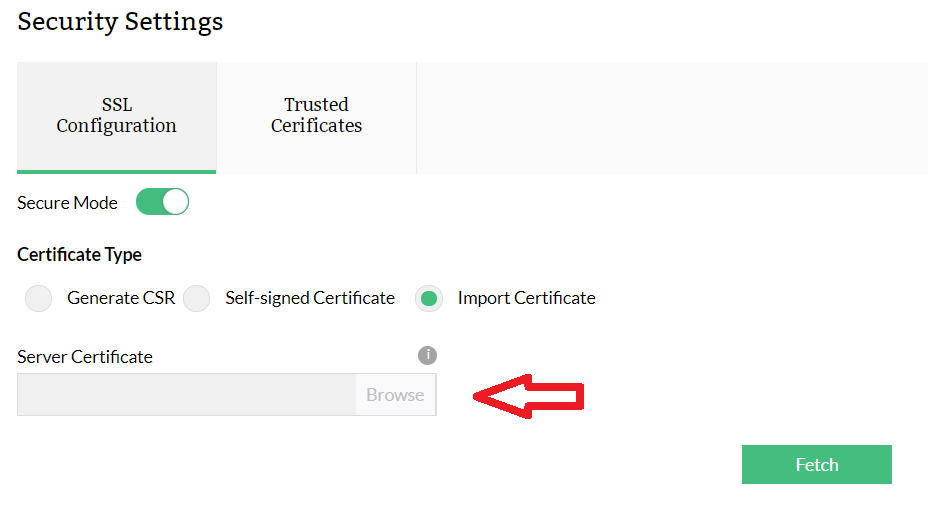
Select a certificate file.
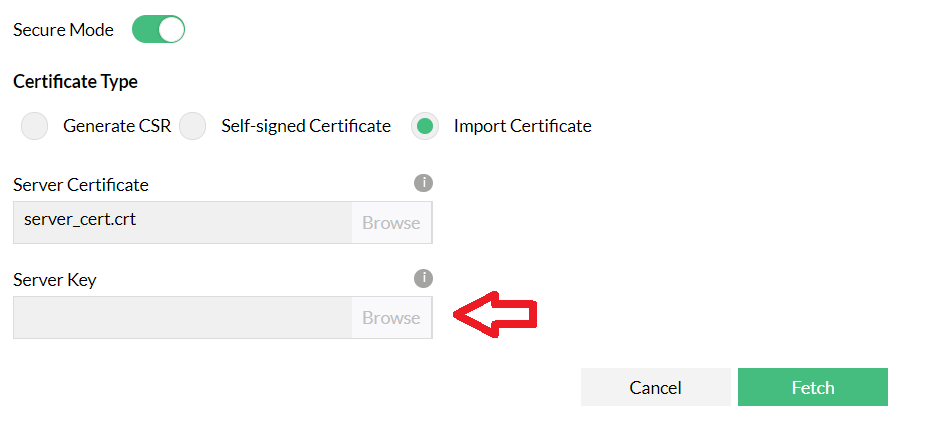
Select the appropriate "key" file.
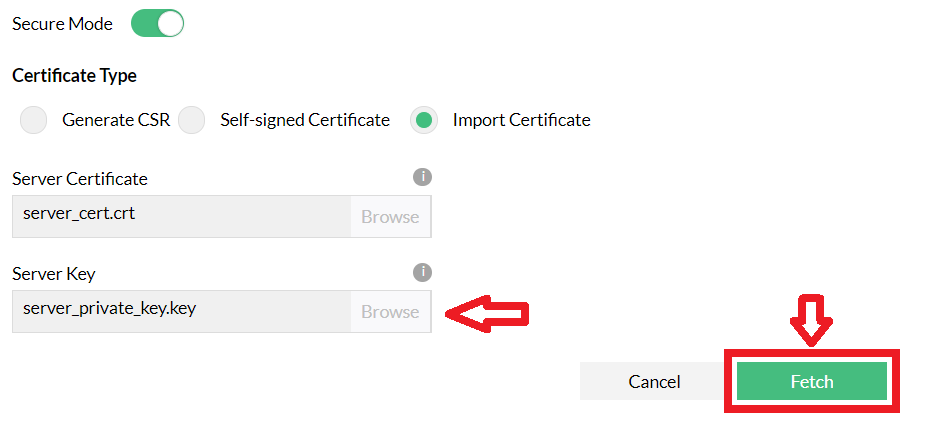
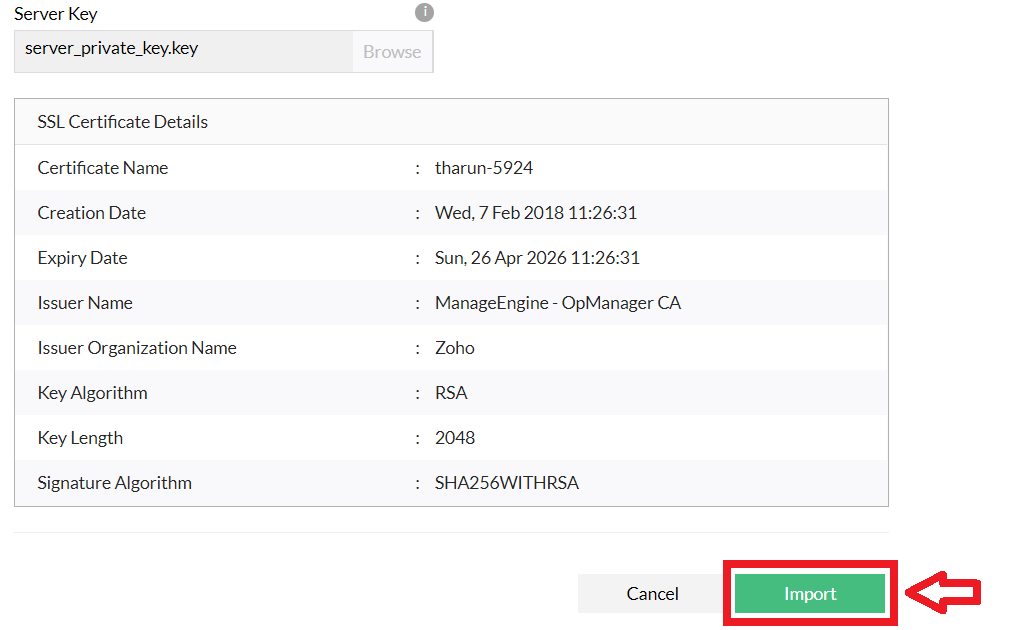
Verify and choose Import.
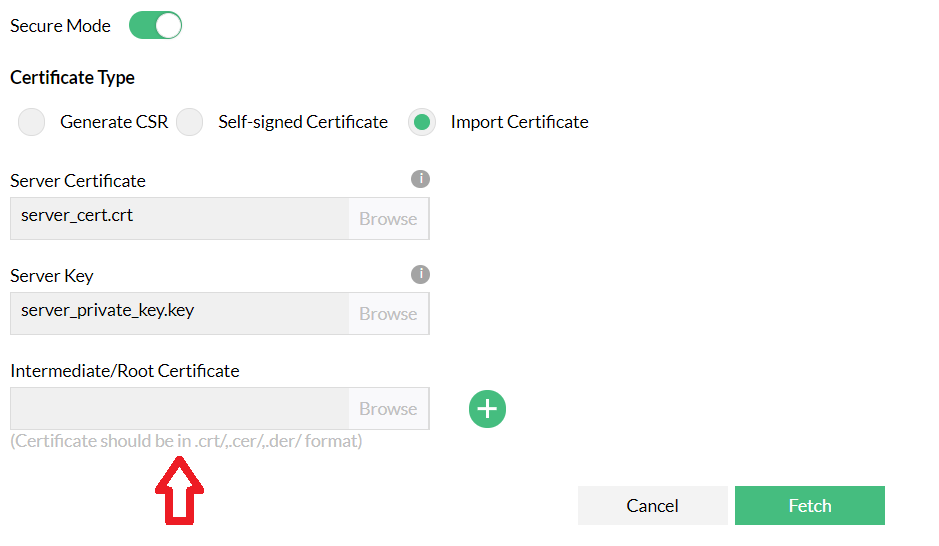
If the certificate cannot be validated with trusted sources, you will be asked to provide the intermediate certificates and root certificate files.
Once uploaded, verify the certificate and click Import.
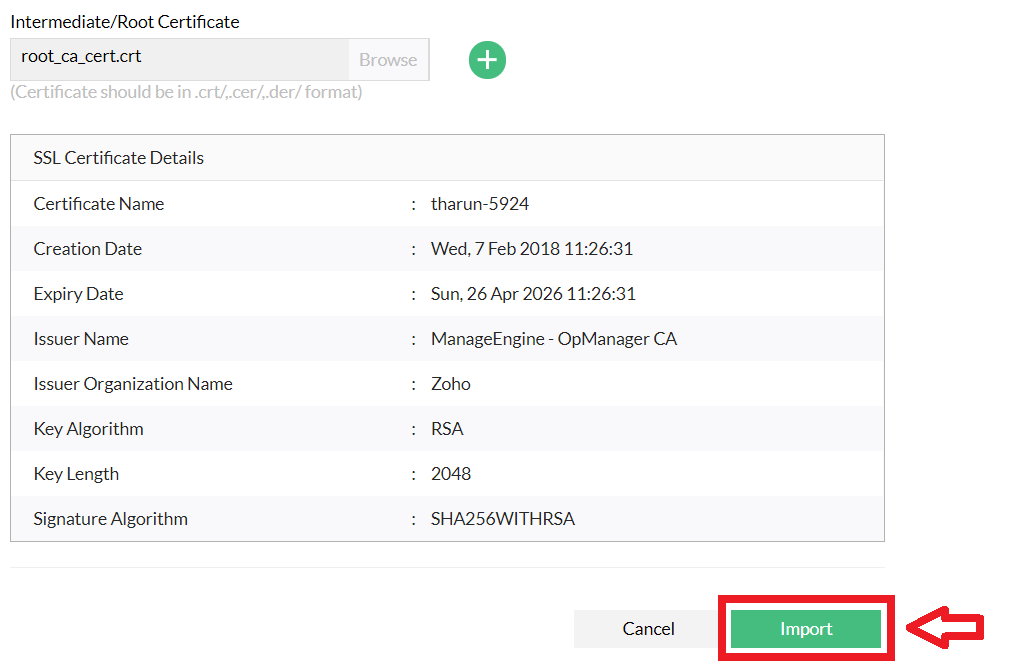
On successful import, you will be prompted to restart NCM server
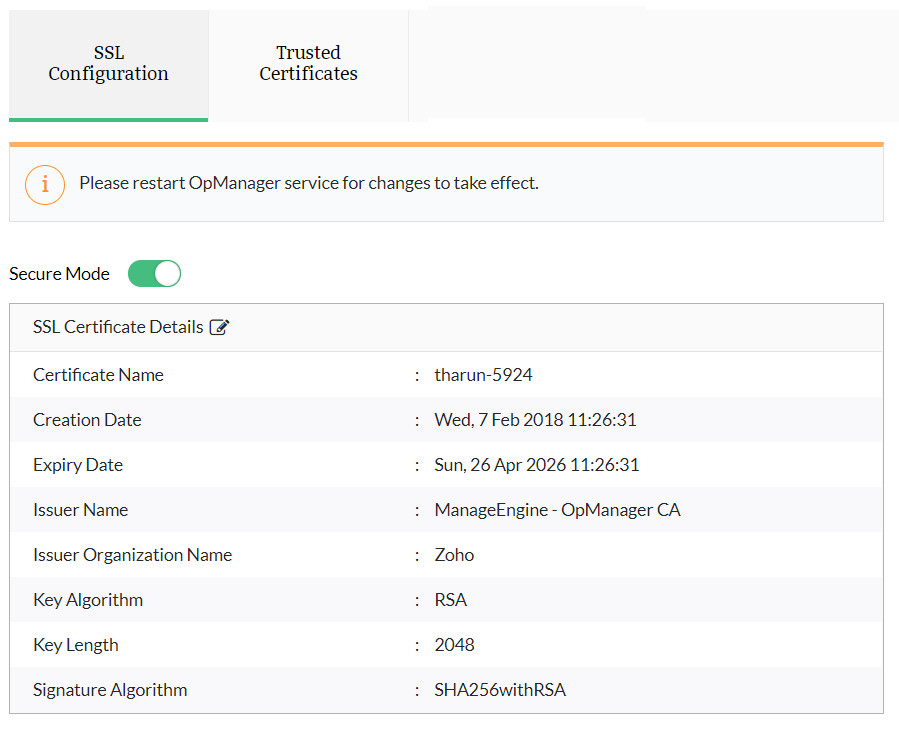
Importing from PFX or Keystore:
If you are using a Keystore or a PFX file, you will be prompted to input the password for opening the file.
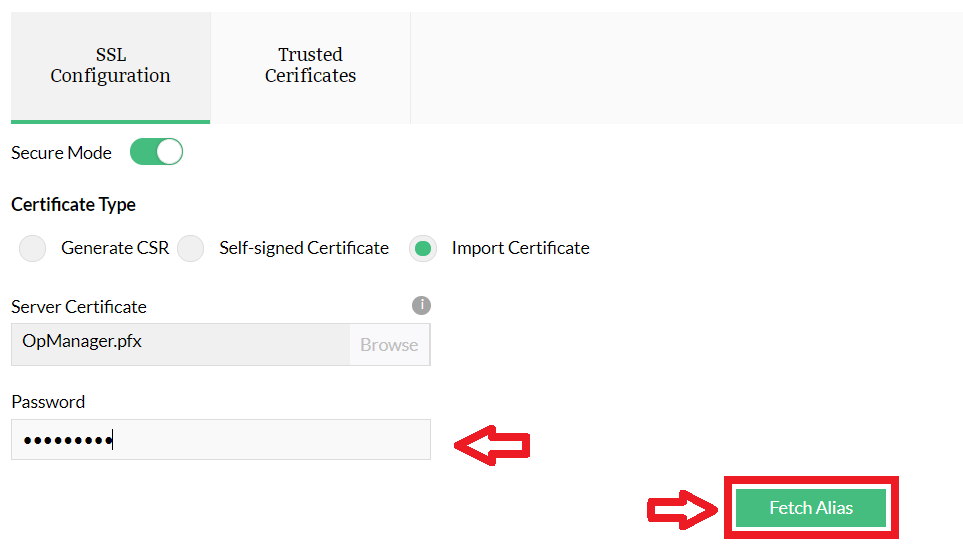
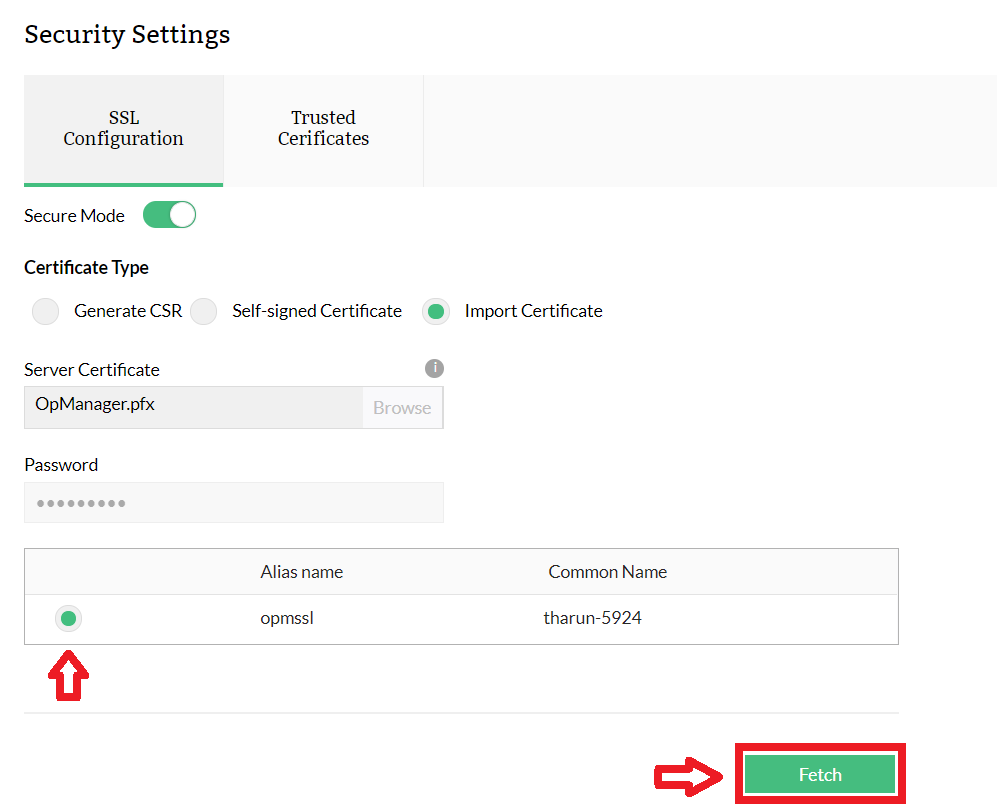
On clicking Fetch, you will be provided with a list of Key-entries present in the keystore. Choose a specific alias which is to be used to enable SSL in NCM.
You will be shown a preview of the certificate information, verify and click on Import for using the certificate.
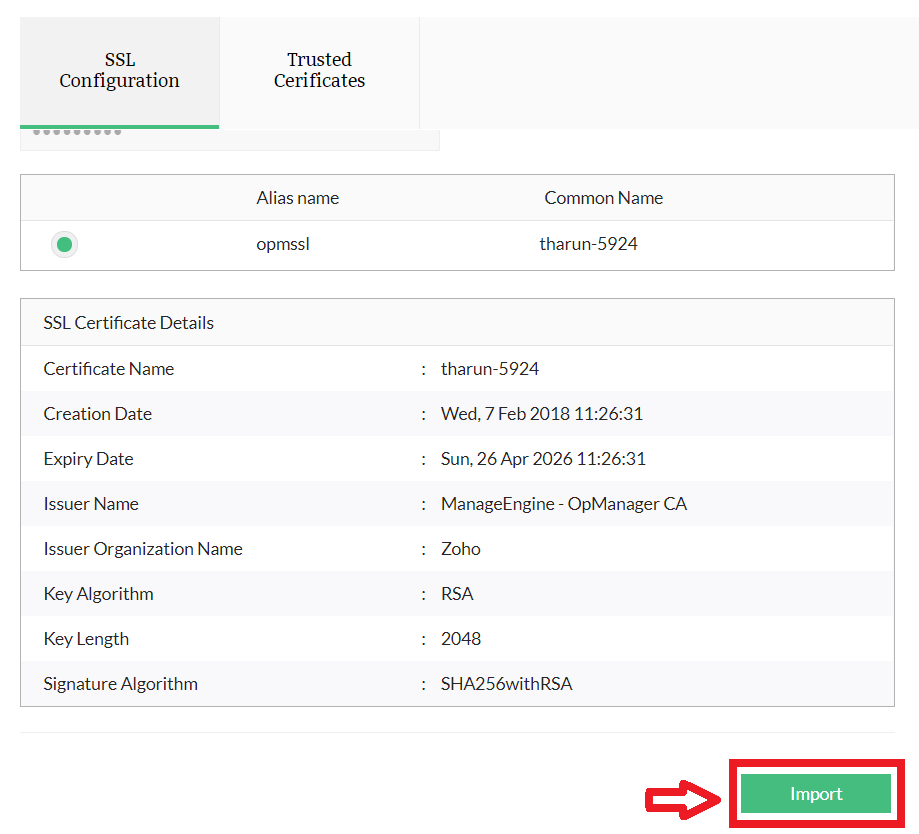
Finally you will be prompted to restart NCM server for the changes to take effect.