Installing OpManager agent on devices using Windows SCCM
Microsoft System Center Configuration Manager (SCCM) is an endpoint management and security solution that helps network admins manage devices and applications. Along with centralized infrastructure management, it also helps users apply security updates and patches easily across their entire network. To install OpManager Agent using SCCM, kindly proceed with the following steps:
NOTE: It is recommended to download a fresh copy of the OpManagerAgent.zip file and use the files within it for the installation process.
- Navigate to Settings -> Discovery -> Deploy Agent and then click on Download Agent.
- Open the downloaded zip folder and copy the files OpManagerAgent.msi and OPMAgentServerInfo.json.
- Create a shared folder by the name OPMAgent.
- Place the .msi and .json files from Step II into this folder.
- Download the script from this page and save it as InstallOPMAgent.vbs under the same shared folder.
- Open the System Center Configuration Manager(SCCM), and modify the below configurations.
- Click on the Content tab under the Installbehaviour section and enable the Persist content in the client cache option.
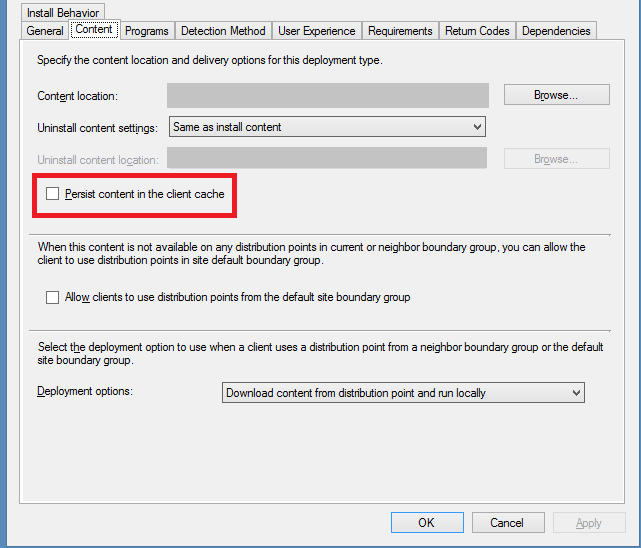
- Click on Ok.
- Navigate to Software Library -> Overview -> Application Management -> Packages
- Right click on Packages and select Create Packages.
- In the Create package and program wizard dialogue box that opens, fill in the respective information.
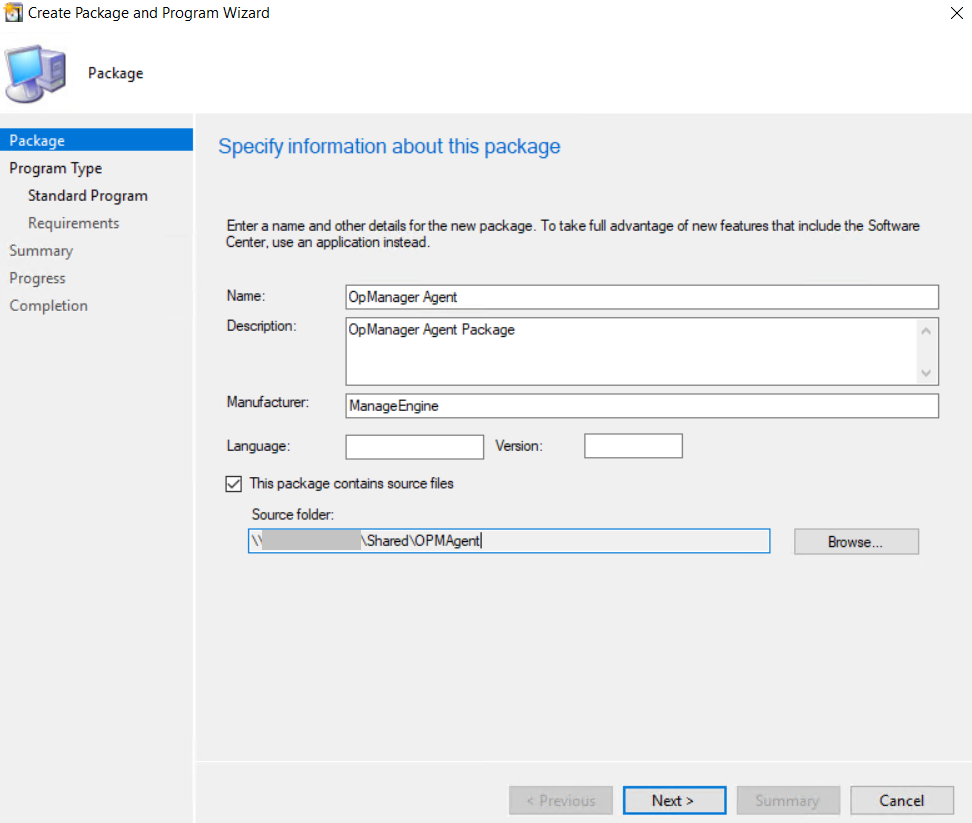
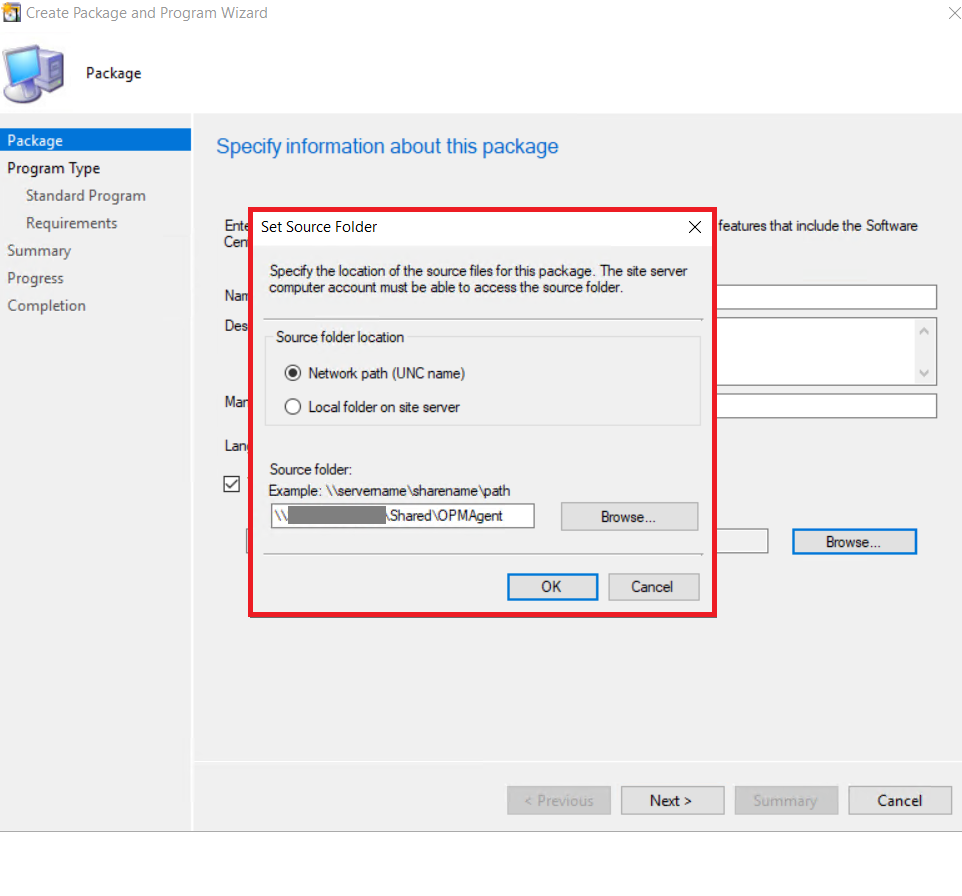
- Select the checkbox This package contains source files and click on Browse.
- Select network path and enter the path of the shared folder (OPMAgent).
- Select the architecture as x86 and then click Next.
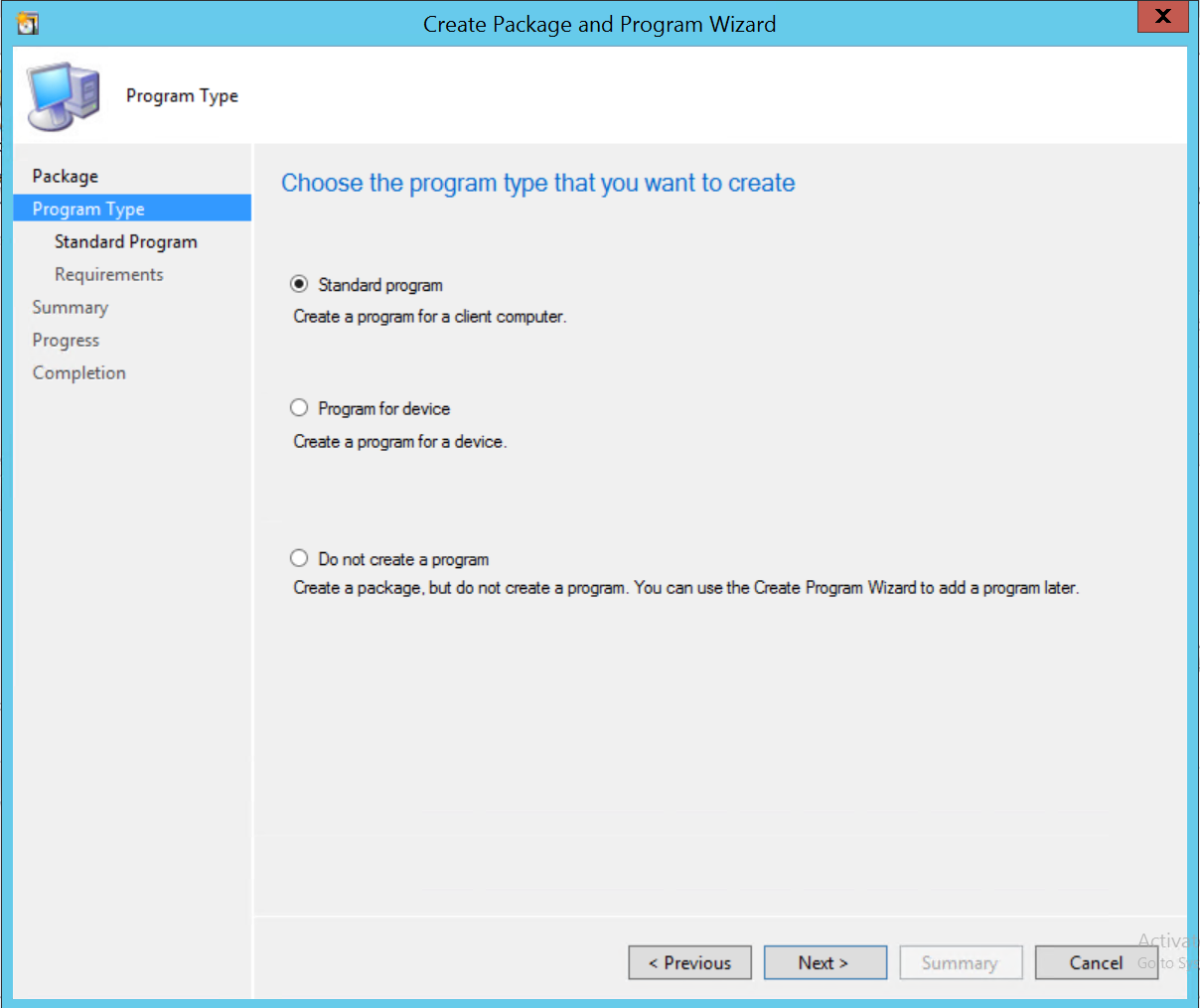
- Select the program type as Standard program and then click on next.
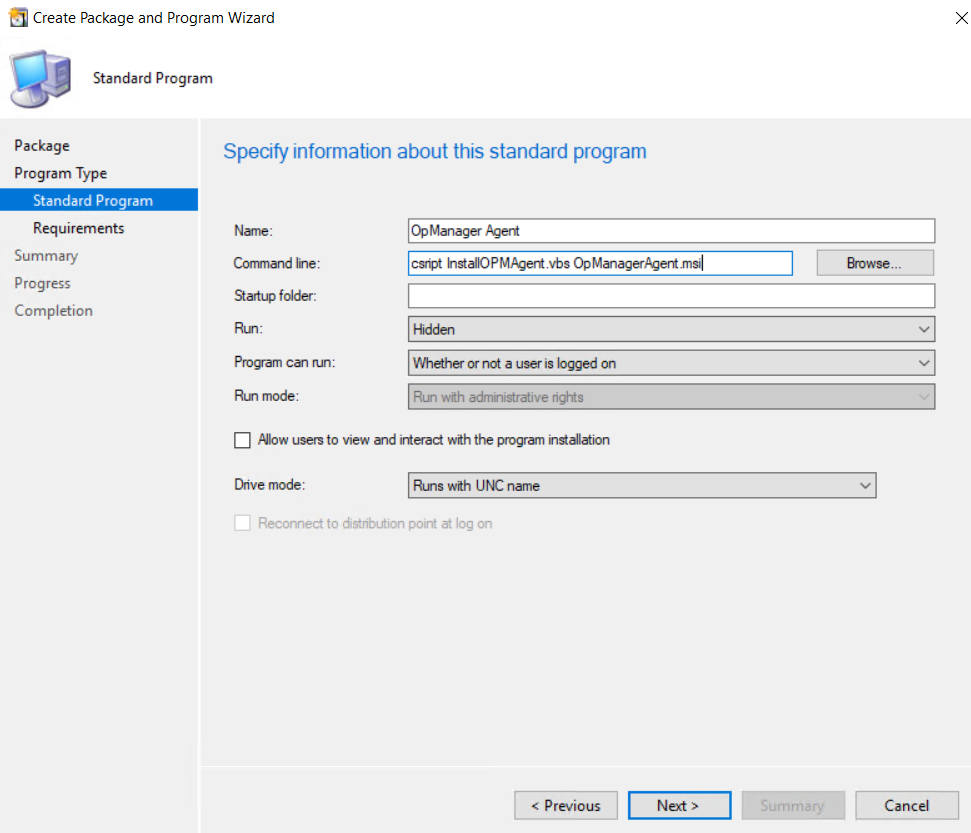
- Under the Specify information about this standard program dialogue box, fill in the following information and then click on next.
- Name: OpManager Agent
- Command Line: cscript InstallOPMAgent.vbs OpManagerAgent.msi
- Run: Hidden
- Program can run: If a user is logged on or not.
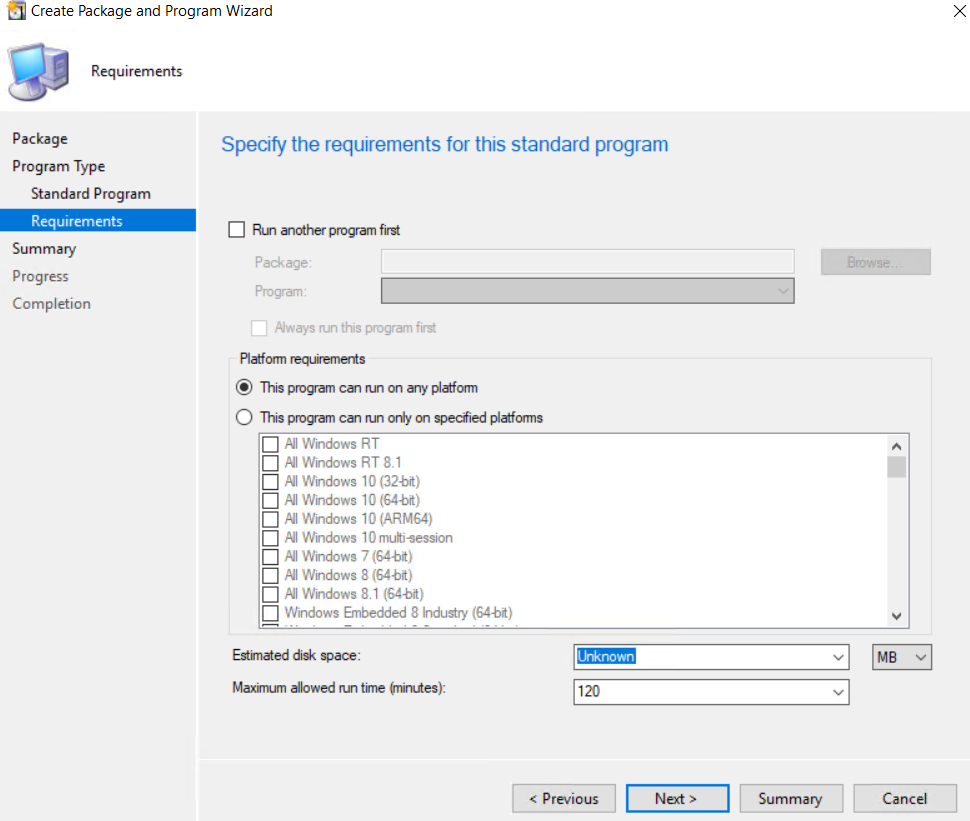
- No changes are required in the Specify the requirements for this standard program page. Click Next.
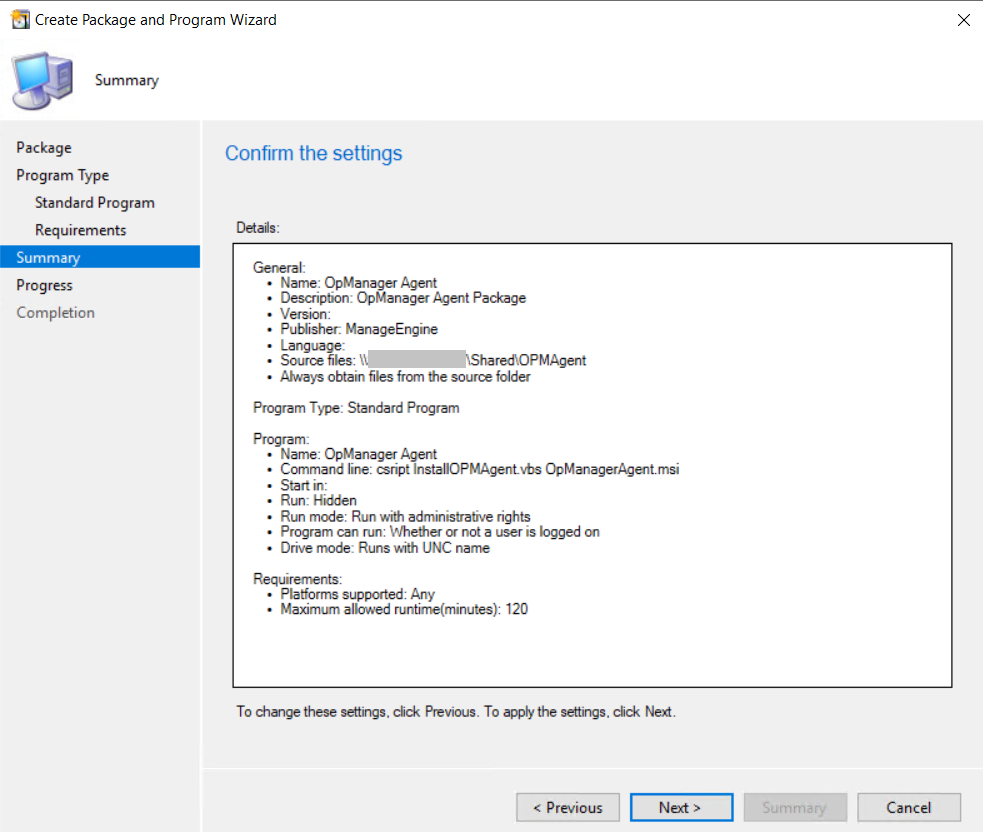
- Confirm the settings once and then click on Next.
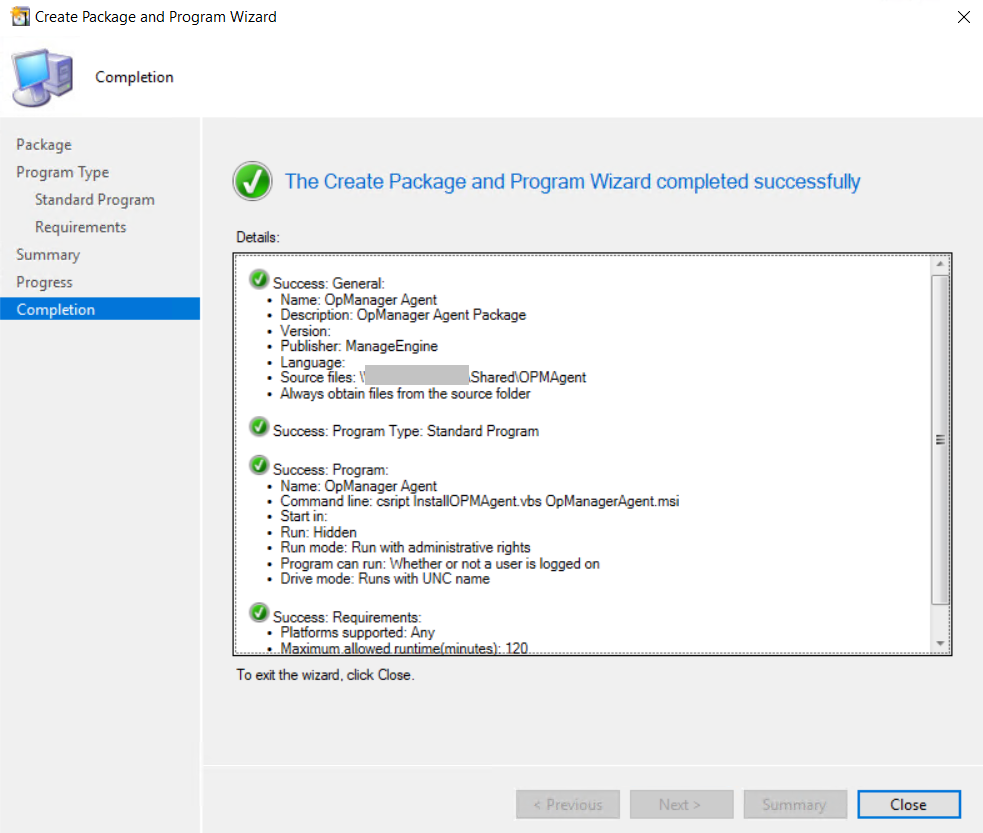
- The package is now successfully created.
- Deploy the package to the computers.
- On deploying the agents to the computers, OpManager will automatically start monitoring your computer using agents.
For any queries related to the installation process, kindly get in touch with our support team.