Configuring SAML authentication settings in OpManager for JumpCloud
Listed below are the steps to configure SAML authentication in OpManager (SP) for JumpCloud (IdP) with Single Sign-On.
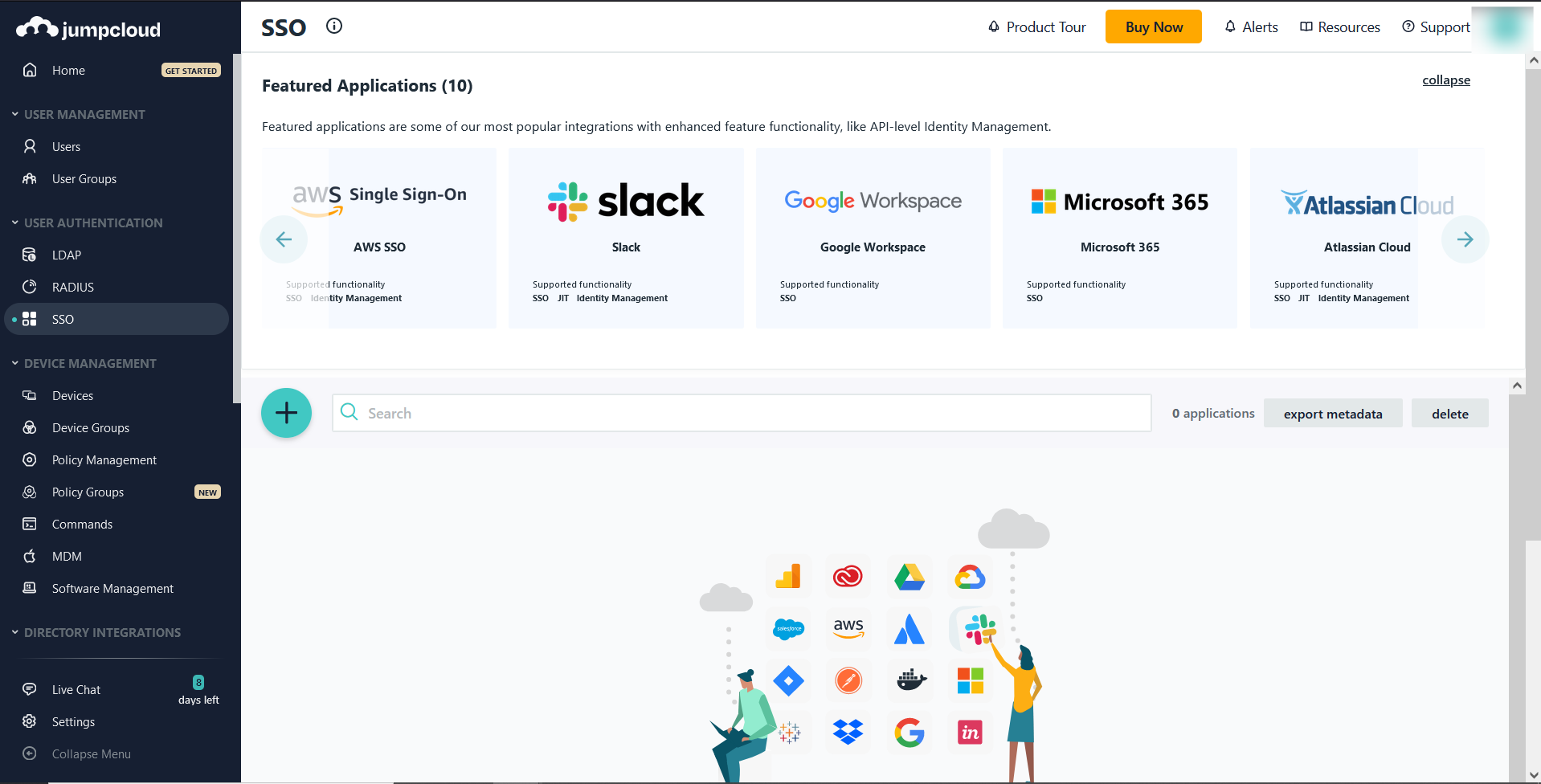
- Login to JumpCloud and click on SSO (under User Management) in the left side menu. Click on the 'Add' symbol, adjacent to the left tree.
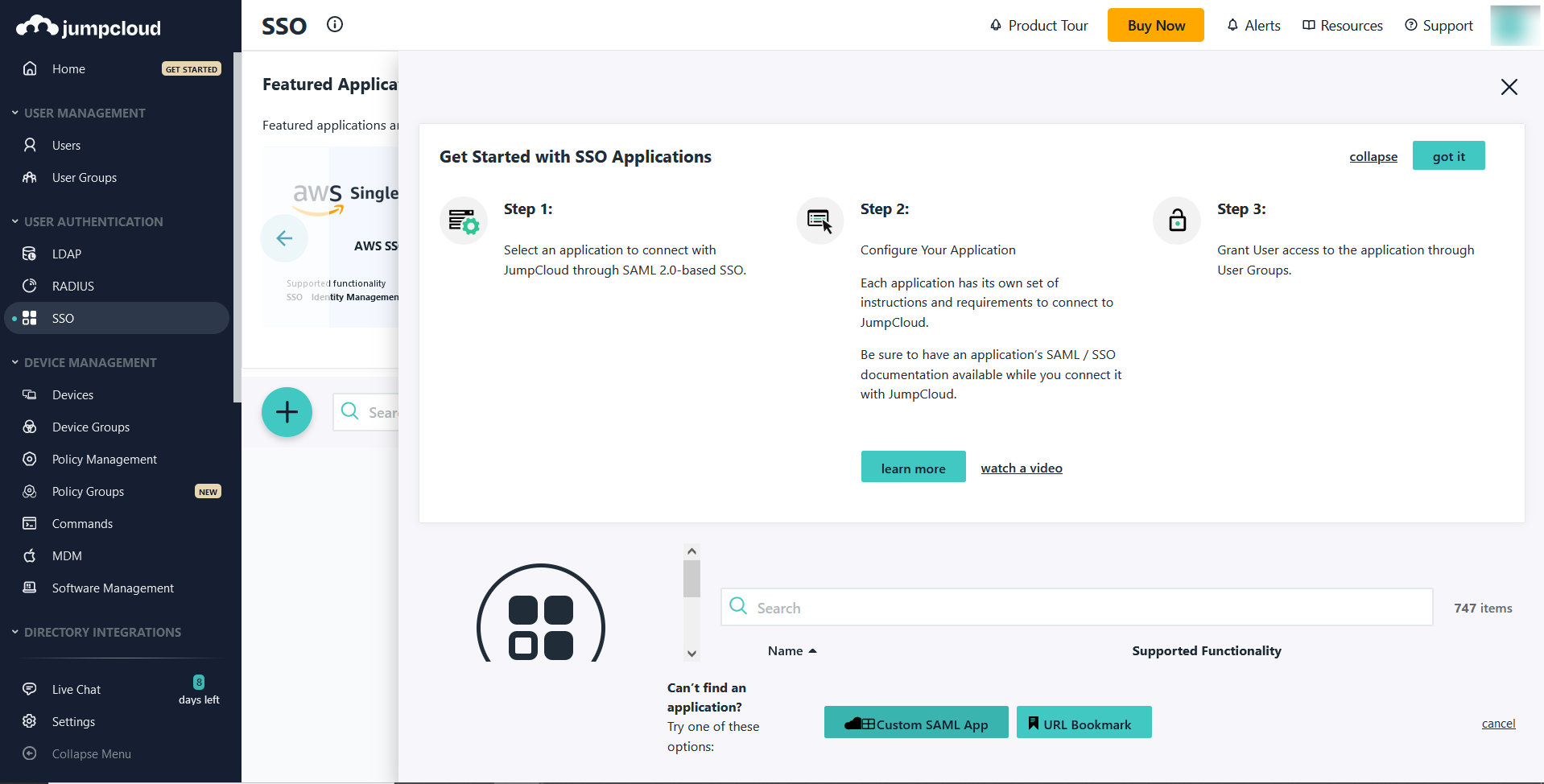
- In the
Get Started with SSO Applications page, click on the Custom SAML App option in the bottom. This will open theNew Application
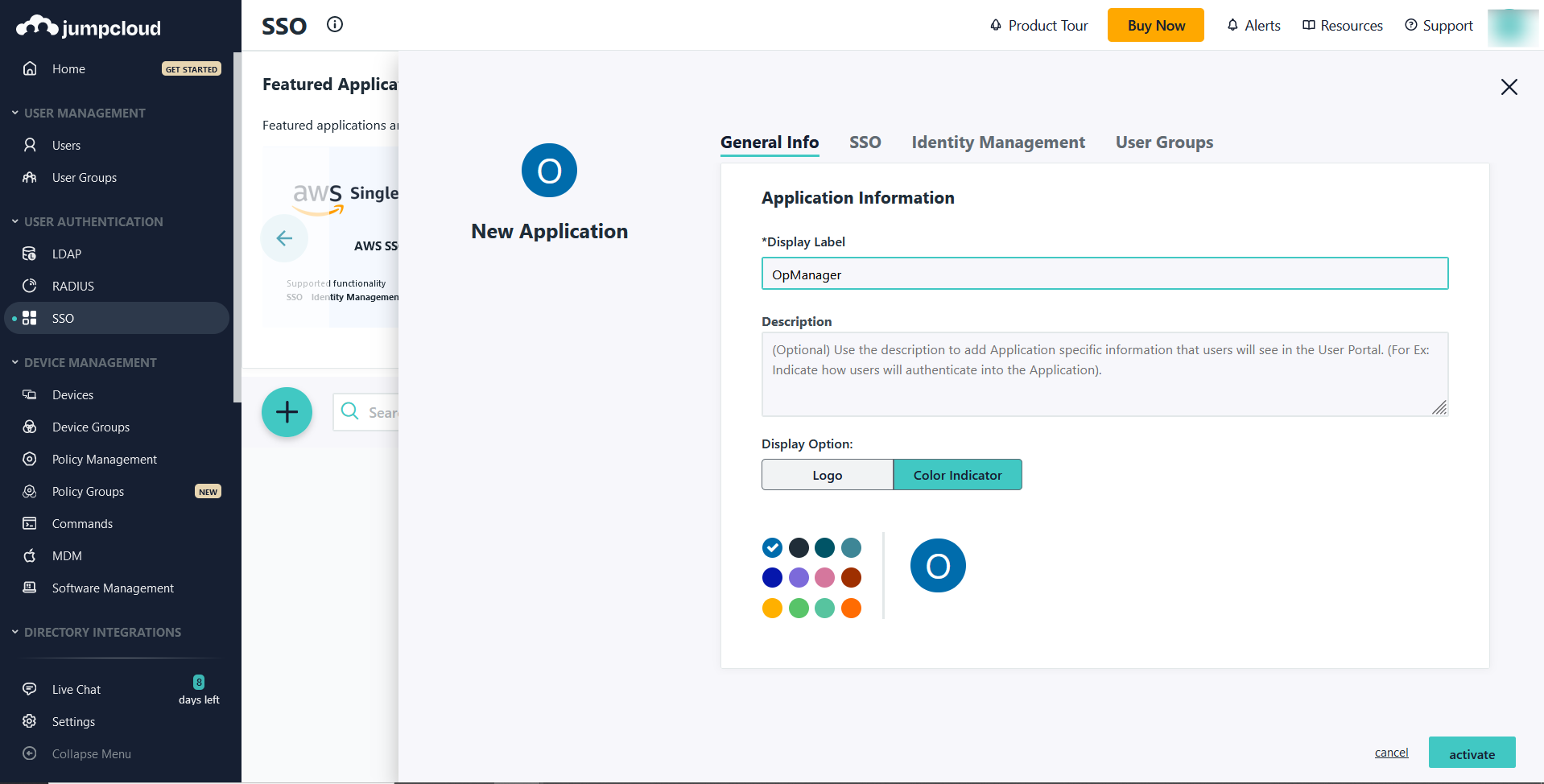
- Under
General Info enter the Display Label as OpManager and click on Activate.
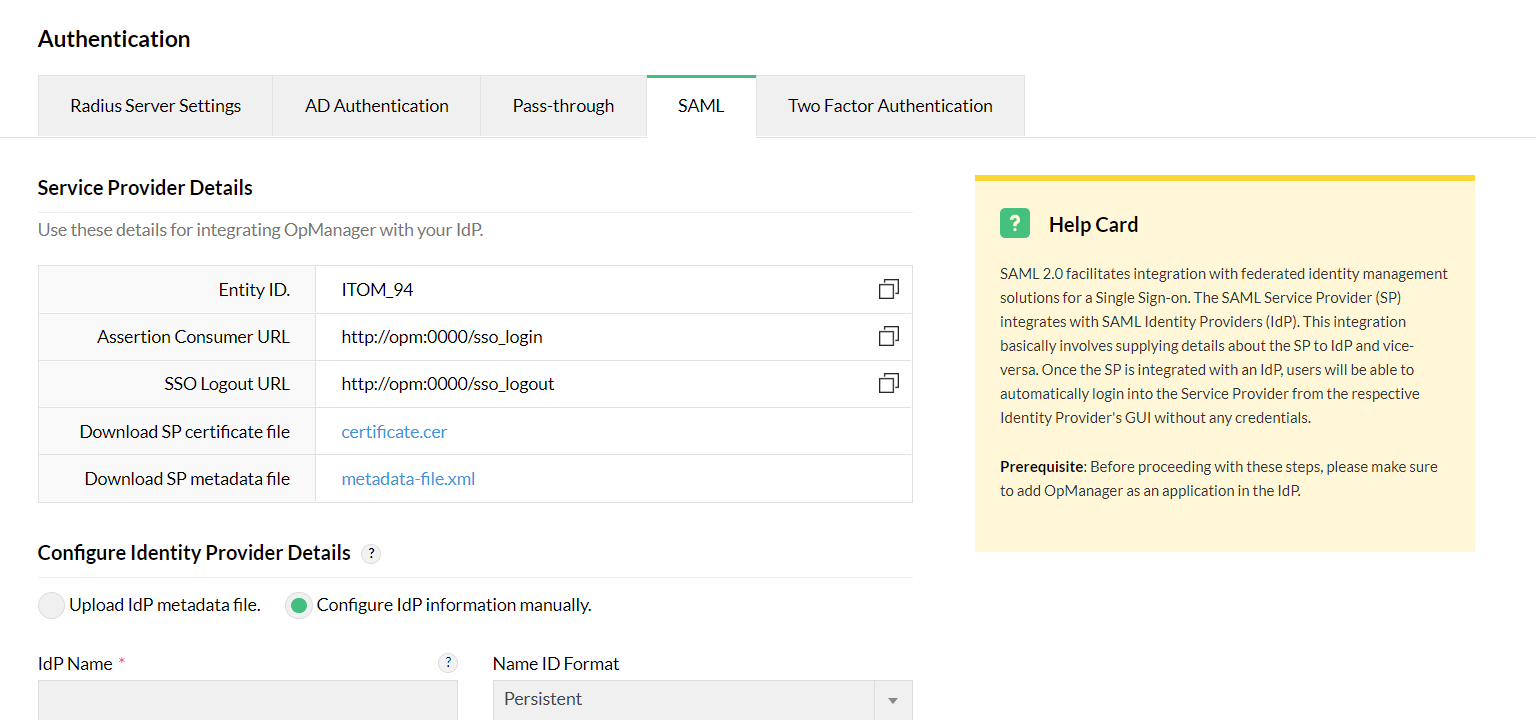
- Now, go to OpManager and navigate to Settings -> General Settings -> Authentication -> SAML. Download the Service Provider metadata and SP Certificate files. Also, copy the SP Entity Id and ACS URL.
- In Jumpcloud, click on the
SSO tab and upload the Service Provider Metadata file (downloaded previously from OpManager) by selecting the Upload Metadata option.
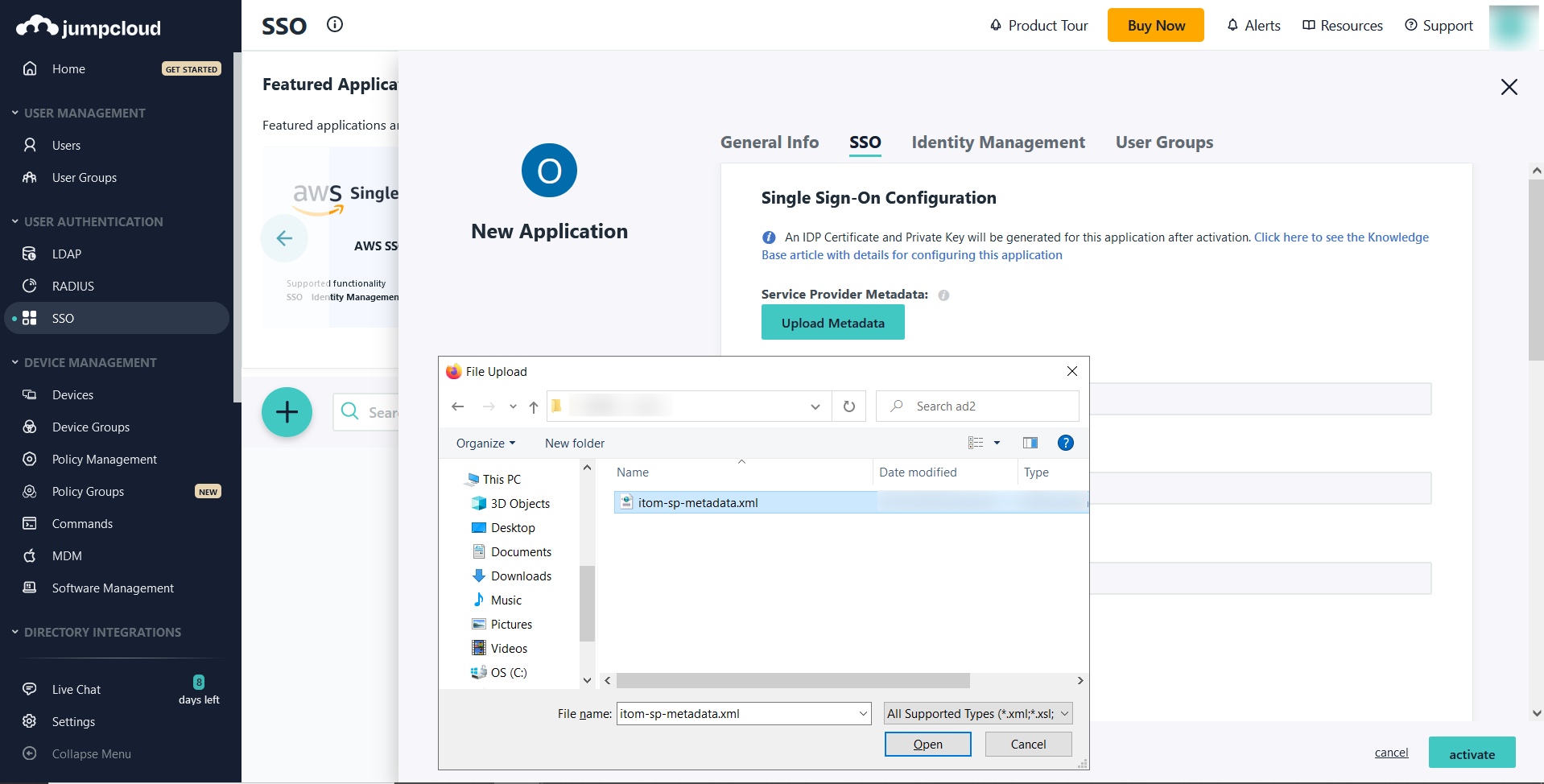
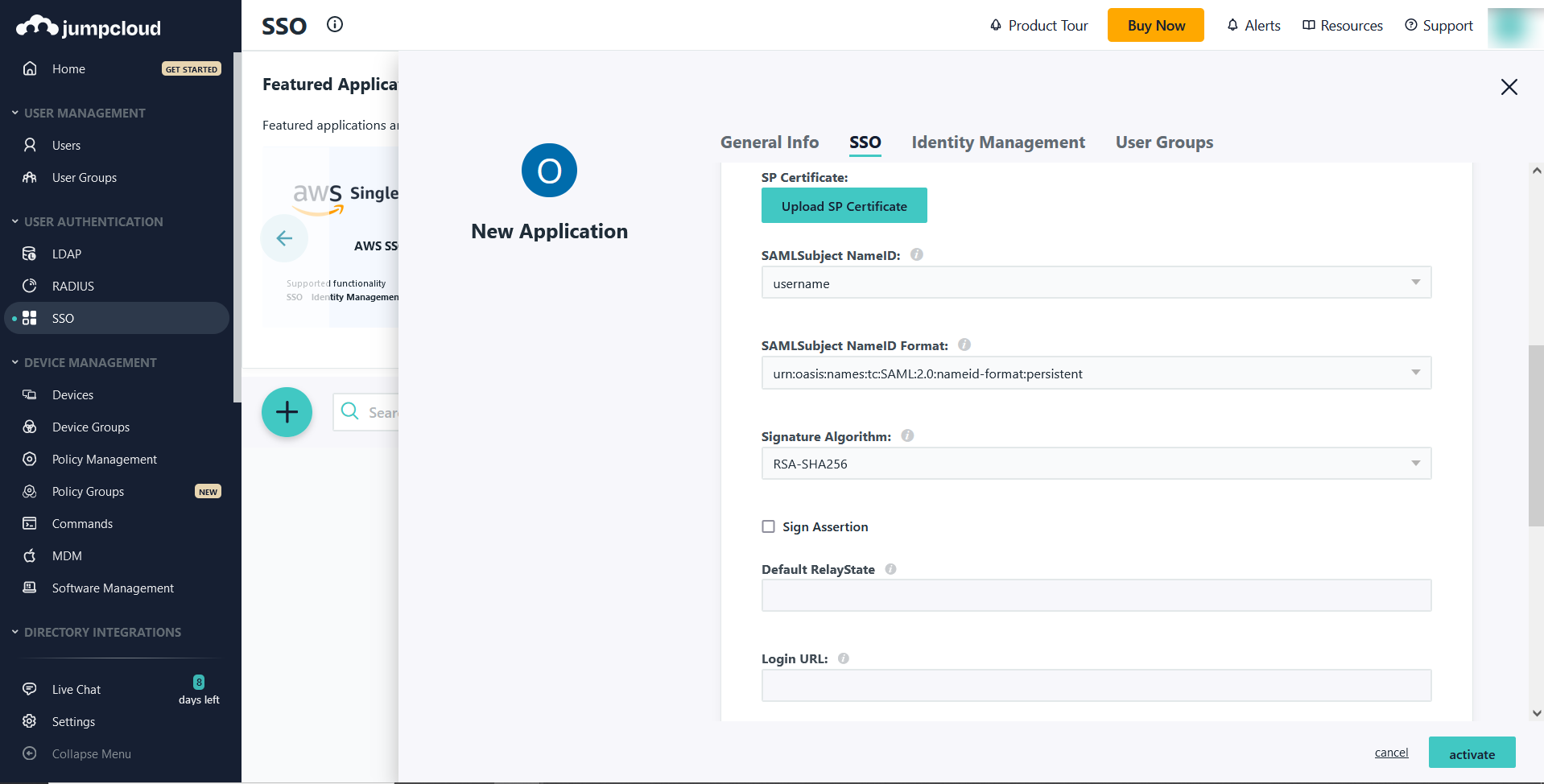
- Select username as the SAML Subject NameID, and Persistent as the SAML Subject NameID Format. Select the required Signature Algorithm and click on Activate.
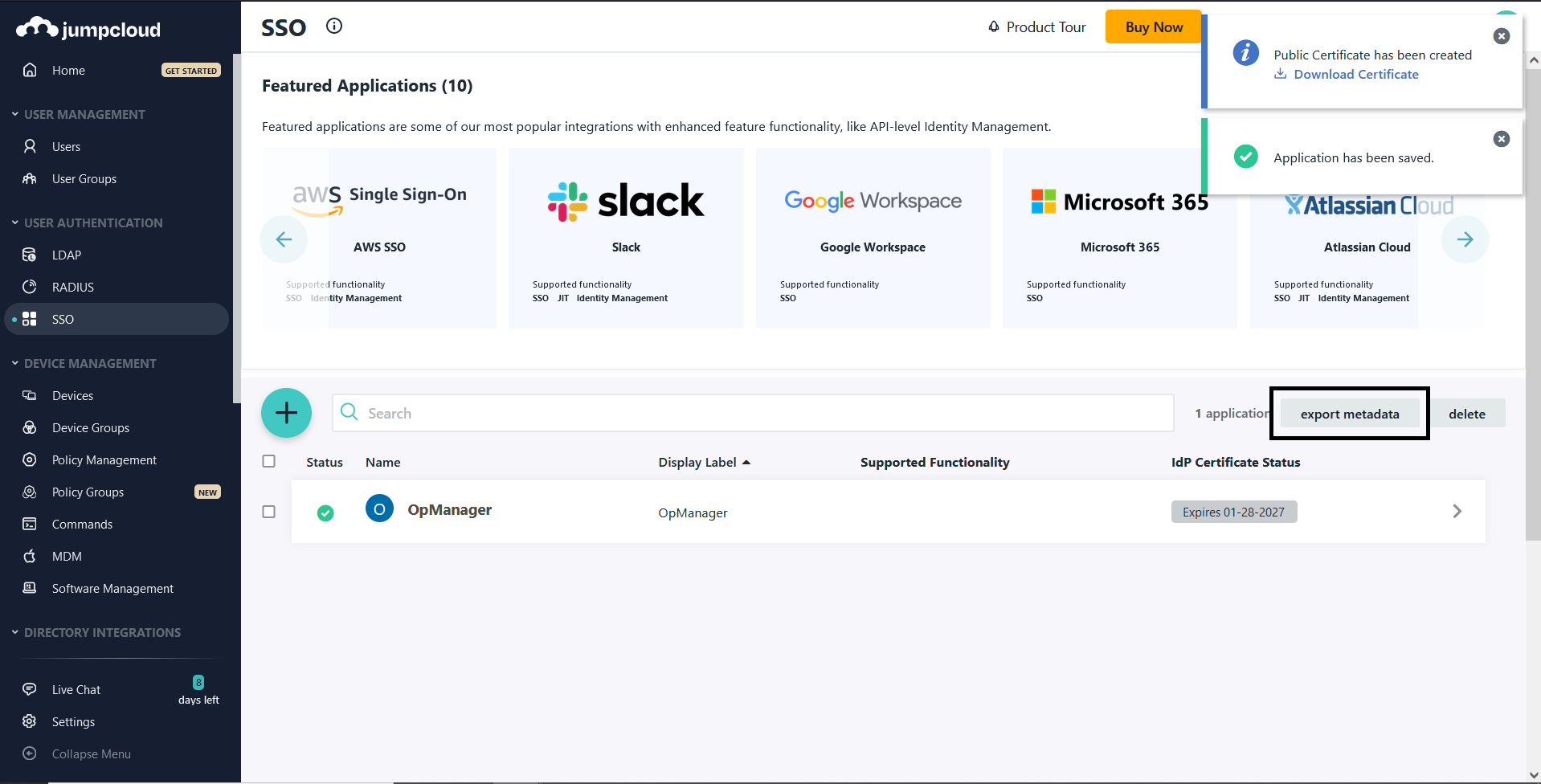
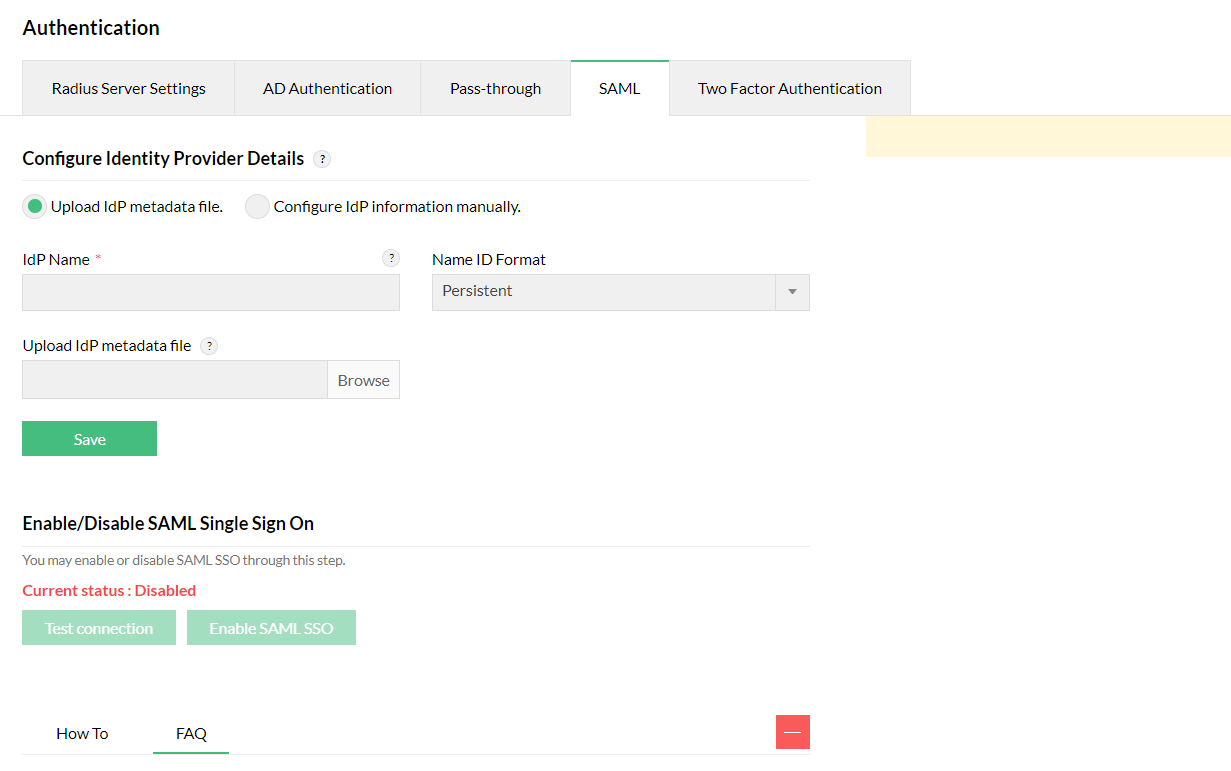
- Download the metadata file by clicking on the export metadata option. Now, go to OpManager and navigate to the SAML page (Settings -> General Settings -> Authentication -> SAML) and upload the metadata file under Configure Identity Provider Details section.
OpManager is now added as an application in JumpCloud. Now, go back to JumpCloud and click on OpManager from the list of applications added to assign Users.
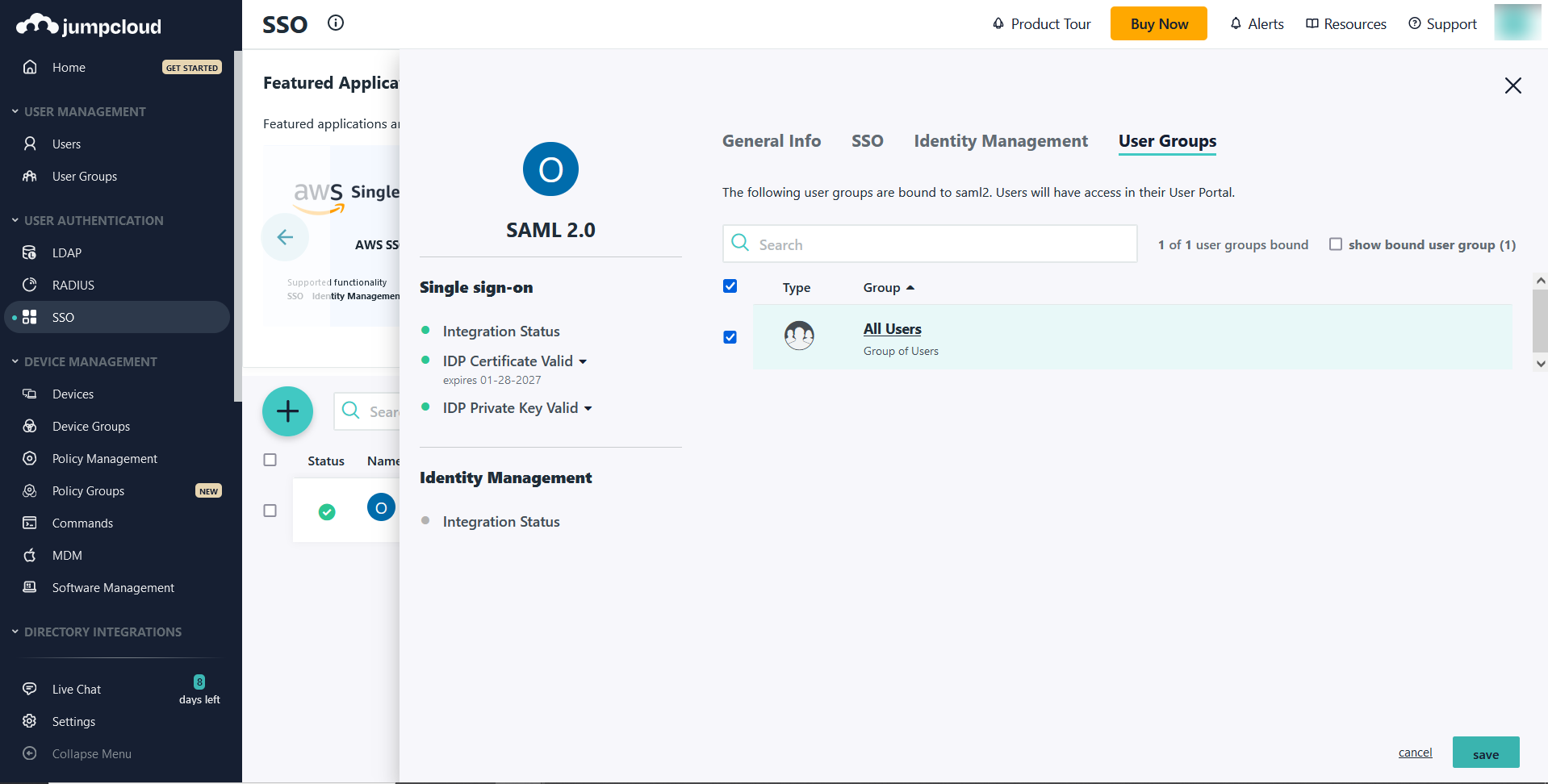
- Under the
User Groups tab, click on All Users and select Save.
Once the above said configuration is done on the IdP side, the required IdP details needs to be configured in OpManager. Click here for steps to configure IdP details in OpManager.
Once the configurations are done on both sides, SAML authentication via JumpCloud will be enabled in OpManager. In OpManager's login portal, choose to Login with JumpCloud and enter the necessary credentials to login.