Hyper-V is Microsoft's native virtualization platform. It allows multiple virtual machines (VMs) to run on a single physical server, with each VM operating as an independent computer with its own operating system, applications, and resources.
Instead of dedicating one physical server to each workload, organizations can consolidate many workloads onto fewer servers. This improves hardware utilization, reduces infrastructure costs, and makes IT environments easier to scale and manage.
Hyper-V is built into Windows Server and is also available on Windows Pro, Enterprise, and Education editions for development and testing.
How does Hyper-V work?
Hyper-V uses a layered architecture to separate virtual machines from the physical hardware.
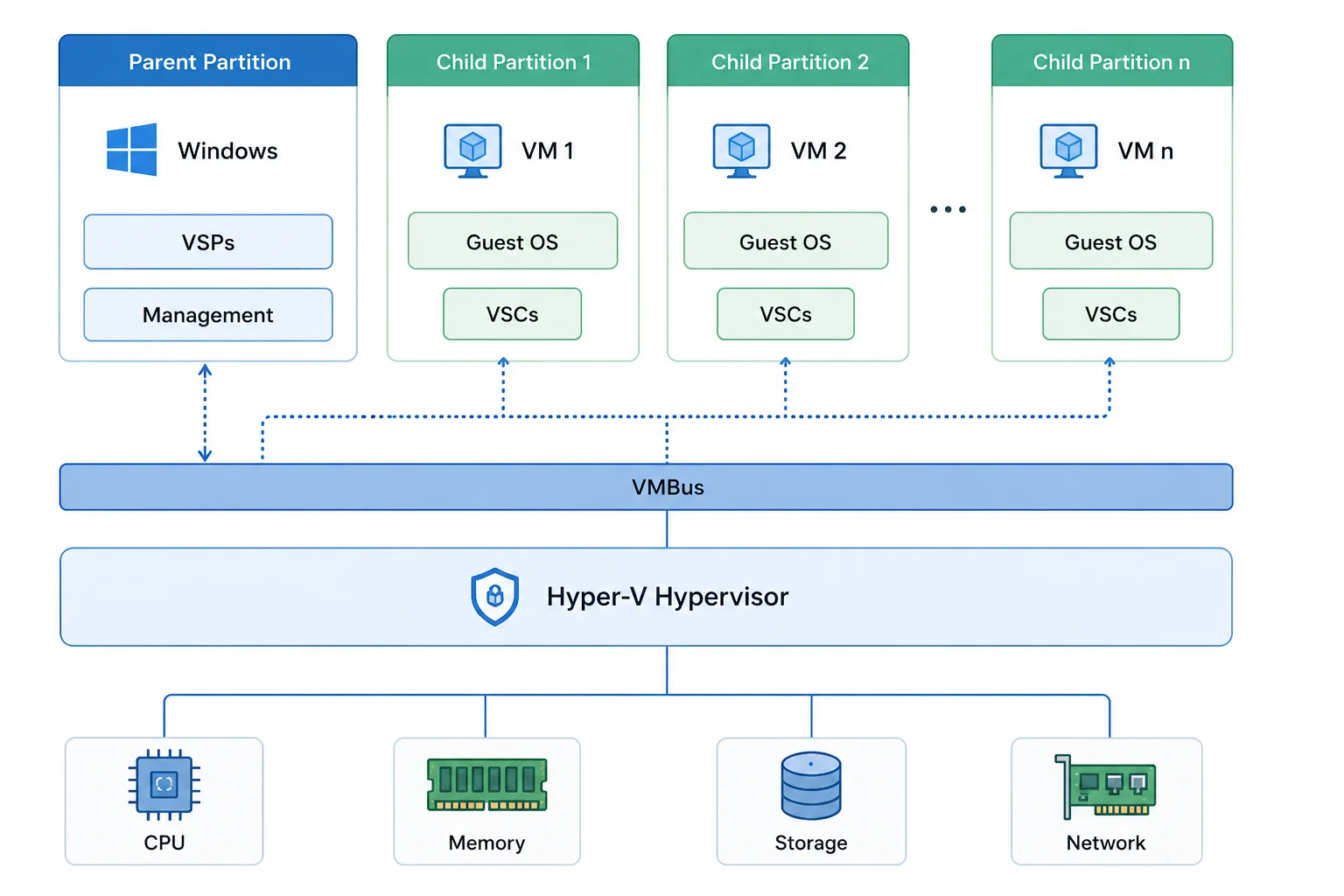
Hypervisor layer
The Hyper-V hypervisor sits directly above the physical hardware. It controls access to CPU, memory, and other system resources.
The hypervisor creates isolated environments called partitions for the host and its virtual machines.
Parent partition
The parent partition, also called the root partition, runs Windows and has direct access to physical hardware.
It hosts key Hyper-V components, including Virtualization Service Providers (VSPs), which handle requests from virtual machines.
Child partitions
Each virtual machine runs in a separate child partition. The guest OS sees virtual CPU, memory, storage, and network devices rather than the physical hardware itself.
This separation helps keep VMs isolated from one another.
Virtualization Service Clients
Virtualization Service Clients (VSCs) run inside guest VMs. They send requests for hardware resources to the corresponding VSP in the parent partition.
VMBus
VMBus is a high-speed communication channel between the parent and child partitions. It lets virtual machines communicate with the host's virtualization services with low overhead.
This architecture allows Hyper-V to share physical resources while keeping workloads isolated.
Key Hyper-V features
Hyper-V includes several features that improve availability, performance, and resource utilization.
Live Migration
Live Migration moves a running virtual machine from one Hyper-V host to another with little or no downtime. This allows administrators to perform maintenance without interrupting business applications.
Dynamic Memory
Dynamic Memory automatically adjusts the amount of RAM assigned to each virtual machine based on its workload. This helps improve memory utilization and allows more VMs to run on the same host.
Hyper-V Replica
Hyper-V Replica asynchronously copies virtual machines to another Hyper-V host or site. If the primary host becomes unavailable, administrators can recover workloads from the replica.
Failover Clustering
Failover Clustering provides high availability by allowing workloads to move automatically to another host if a server fails.
Checkpoints
Checkpoints capture the state of a virtual machine at a specific point in time. They allow administrators to roll back changes during testing, upgrades, or maintenance.
Virtual networking
Hyper-V virtual switches provide network connectivity between virtual machines, physical networks, and external devices. They also support advanced networking features such as VLANs and network isolation.
Benefits of Hyper-V
Organizations use Hyper-V to improve efficiency, simplify infrastructure management, and increase application availability.
- Better hardware utilization: Multiple workloads share the same physical server, reducing the number of servers required in the data center.
- Lower infrastructure costs: Consolidating workloads reduces hardware, power, cooling, and rack space requirements.
- Faster provisioning: New virtual machines can be deployed in minutes instead of waiting for new physical hardware.
- High availability: Features such as Failover Clustering and Live Migration help keep applications running during maintenance or hardware failures.
- Easier disaster recovery: Hyper-V Replica simplifies workload replication between sites and improves business continuity.
- Flexible testing and development: Developers can quickly create, clone, and remove virtual machines without affecting production systems.
Common Hyper-V use cases
Hyper-V is used across organizations of all sizes.
Common deployments include:
- Server consolidation.
- Private cloud infrastructure.
- Development and testing environments.
- Disaster recovery.
- Branch office virtualization.
- Virtual desktop infrastructure (VDI).
For example, a business may host Active Directory, SQL Server, file services, and web applications as separate virtual machines on the same Hyper-V cluster.
Hyper-V vs. other virtualization platforms
Hyper-V is one of several virtualization platforms used in enterprise environments. The right choice depends on the existing IT stack, workload requirements, management model, and licensing needs.
| Platform | Type | Host OS required | Key strengths | Key considerations |
|---|---|---|---|---|
| Microsoft Hyper-V | Type 1 | No | Windows integration, Azure ecosystem, built into Windows Server | Best fit for Microsoft-centric environments |
| VMware ESXi | Type 1 | No | Mature enterprise virtualization and broad ecosystem | Licensing and platform changes can affect TCO |
| VirtualBox | Type 2 | Yes | Easy to deploy and cross-platform | Better suited to desktop, lab, and development use |
| KVM | Type 1 | Linux host | Open source, strong Linux integration | Requires Linux-based management and administration skills |
Hyper-V and VMware are the most directly comparable options for many enterprise data centers. Their architecture, management APIs, clustering models, and monitoring approaches differ.
How is Hyper-V managed?
Microsoft provides several tools for managing Hyper-V. The right tool depends on the size and complexity of the environment.
Hyper-V Manager
Hyper-V Manager is a graphical tool for managing individual Hyper-V hosts and their VMs.
It can be used to:
- Create and configure VMs.
- Manage virtual switches.
- Configure virtual storage.
- Start, stop, and move VMs.
- Create checkpoints.
It is well suited to small environments and basic host administration.
PowerShell
PowerShell provides command-line control over Hyper-V.
Administrators can use it to automate tasks such as VM creation, configuration, migration, and resource management.
This makes it useful when managing many VMs or repeatable workflows.
Windows Admin Center
Windows Admin Center provides a browser-based interface for managing Windows Server infrastructure, including Hyper-V.
It provides a more centralized experience than managing each host separately.
System Center Virtual Machine Manager
System Center Virtual Machine Manager (SCVMM) is designed for larger virtualization environments.
SCVMM can centrally manage:
- Multiple Hyper-V hosts
- Hyper-V clusters
- Virtual machines
- Storage
- Virtual networks
- VM templates
It can also help with VM placement and resource management across larger environments.
SCVMM is therefore more suited to enterprise environments than Hyper-V Manager alone.
Hyper-V deployment models
Hyper-V can be used in several ways depending on the organization's needs.
Standalone Hyper-V host
A single physical server runs multiple VMs.
This model is simple and works well for smaller environments, branch offices, and test labs.
Hyper-V cluster
Multiple hosts work together through Windows Server Failover Clustering.
VMs can move between hosts and recover from host failures.
Hyper-V with Storage Spaces Direct
Compute and storage can be combined across a group of servers to create a hyper-converged infrastructure (HCI) platform.
Hybrid environment
Organizations can also run Hyper-V alongside VMware, physical infrastructure, and public cloud workloads.
This is common when organizations are migrating workloads over time rather than changing their entire infrastructure at once.
Hyper-V system requirements
Requirements vary by Windows version and workload, but a Hyper-V host generally needs:
- A 64-bit processor.
- Hardware-assisted virtualization such as Intel VT-x or AMD-V.
- Second Level Address Translation (SLAT) for supported client and server configurations.
- Hardware-enabled Data Execution Prevention.
- Enough CPU, memory, storage, and network capacity for the planned VMs.
The host should have significantly more resources than the minimum required to install Hyper-V. VM density and workload type should guide the final hardware design.
Why Hyper-V still needs monitoring
Hyper-V simplifies virtualization, but it does not eliminate infrastructure problems.
CPU contention, memory shortages, storage bottlenecks, network congestion, and cluster failures can still affect virtual machine performance and availability. As environments grow, it also becomes more difficult to identify issues across multiple hosts and clusters using native tools alone.
Monitoring helps administrators maintain performance, troubleshoot issues faster, and plan future capacity.
Learn more in our guide on What is Hyper-V monitoring?
Monitor Hyper-V with ManageEngine OpManager
ManageEngine OpManager provides agentless Hyper-V monitoring through Windows Management Instrumentation (WMI), giving administrators visibility into hosts, virtual machines, and failover clusters from a single console.
Key capabilities include:
- Monitor Hyper-V hosts, virtual machines, and clusters.
- Collect CPU, memory, storage, network, and virtualization metrics.
- Track Live Migration, Cluster Shared Volume (CSV), and Dynamic Memory health.
- Configure proactive alerts for performance and availability issues.
- Monitor Hyper-V alongside Windows, Linux, VMware, network devices, storage, and applications.
By combining infrastructure monitoring with Hyper-V visibility, OpManager helps administrators detect issues early and maintain healthy virtual environments.
FAQs
What is Hyper-V?
Hyper-V is Microsoft's virtualization platform that allows multiple virtual machines to run on a single physical server.
Is Hyper-V a Type 1 hypervisor?
What is the difference between Hyper-V and a virtual machine?
Can Hyper-V run Linux?
Is Hyper-V free?

By Ajay Sharma S
Solutions Marketer, ManageEngine